How to Add an Instagram Feed to WordPress Quickly and Effectively
Dec 02, 2025
/
Noviantika G.
/
6 min Read
Instagram is a popular social media platform for sharing photos and videos with other users worldwide. Learning how to add an Instagram feed to WordPress helps build brand recognition, reach bigger audiences, and increase conversions.
This article will show you how to connect your Instagram account to WordPress. On top of that, we’ll explain how to customize the Instagram feed and integrate it into your site.
How to Embed an Instagram Feed to WordPress
Follow this step-by-step tutorial to embed Instagram posts on your WordPress website:
1. Create an Instagram Account
You can create a personal or business Instagram profile via the official website, mobile app, or Facebook.
Follow these steps to sign up through the official Instagram website:
- Go to Instagram’s official website and click Sign up.
- Enter your personal details, including your mobile phone number or email address, full name, username, and password. Once done, select Sign up.
- Add your birthday information by clicking the down arrow and choosing the month, date, and year. Select Next to proceed.
You must provide your correct birthday information, even for a business Instagram account. Instagram aims to give an age-appropriate experience to each user.
- Instagram will send you a confirmation code via email or phone. Copy and paste the information code in the field and click Next until you successfully create an Instagram account.
The Instagram app is available on the App Store for iOS devices and Google Play Store for Android phones. Here’s how to create a business or personal Instagram profile on an iPhone:
- After downloading the app, tap the Instagram icon to open it.
- Select Create New Account and enter your phone number or email address. Once done, tap Next.
- Enter the confirmation code sent to your contact, the new password, your birthday information, and your name and username. Tap Next.
- Review Instagram’s terms and data policy. Select I agree to declare your compliance with its rules.
- Upload a profile picture and tap Next. If you want to add it later, select Skip.
- To make your profile picture your first post, toggle the switch and choose Done.
Alternatively, use an existing Facebook account to create an Instagram profile. Here’s how to sync your Facebook profile to Instagram:
- Open the Instagram application and select Sign Up.
- If you are logged in to your Facebook account on your phone, your profile will appear. Choose Continue as [Your Name].
- The app will prompt you to log in to your Facebook account. Tap Log in.
- Read Instagram’s terms and privacy policy and select I agree.
2. Choose an Instagram Feed Plugin for WordPress
You need to install a WordPress plugin to embed an Instagram feed on your website. Here are two of our recommendations:

Smash Balloon is one of the best WordPress Instagram plugins. It lets you display posts from multiple Instagram accounts on one or separate feeds.
Customizing an Instagram feed on WordPress with Smash Balloon is easy. You can modify the width, height, background color, picture size, and columns.
On top of that, this WordPress plugin offers:
- Thumbnails in any size to highlight your Instagram posts.
- The Load More button to show other Instagram photos from your account.
- The Follow on Instagram option lets visitors easily follow your account without manually searching for it on the mobile application.
- The custom JavaScript and CSS feature allows web developers to modify the Instagram feed’s appearance and style.
- The option to arrange your Instagram images in chronological or random order.
Aside from the free version, Smash Balloon offers the Instagram Feed Pro plugin. It starts at $49/year and includes advanced capabilities, such as displaying tagged and hashtag feeds.
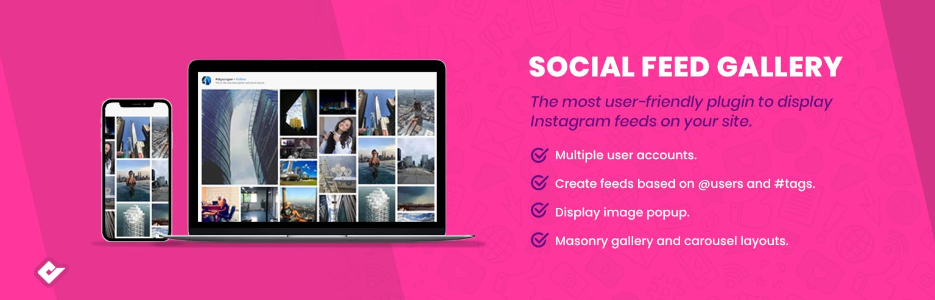
Social Feed Gallery is a user-friendly Instagram feed WordPress plugin that offers a one-click setup to simplify the integration process. It also lets you arrange Instagram feeds according to the username and hashtag.
Here are other features this plugin offers:
- Display Instagram feeds on your WordPress site using two layout options – gallery or carousel.
- A backup caching mechanism to ensure your feeds are available even when Instagram’s API encounters issues.
- Use a pop-up gallery to display Instagram videos and images from your feed to improve its appearance.
- Automatically cache Instagram content to optimize server performance and speed up page loading times.
The free edition has the necessary features to embed Instagram feeds on your WordPress website. To enjoy more capabilities like lifetime updates and 6-month support, purchase the premium plan starting at $49/license.
3. Connect the Instagram Account to WordPress
Once you’ve chosen and activated the plugin, here’s how to connect your Instagram account to WordPress. In this example, we’re using the free version of the Smash Balloon plugin:
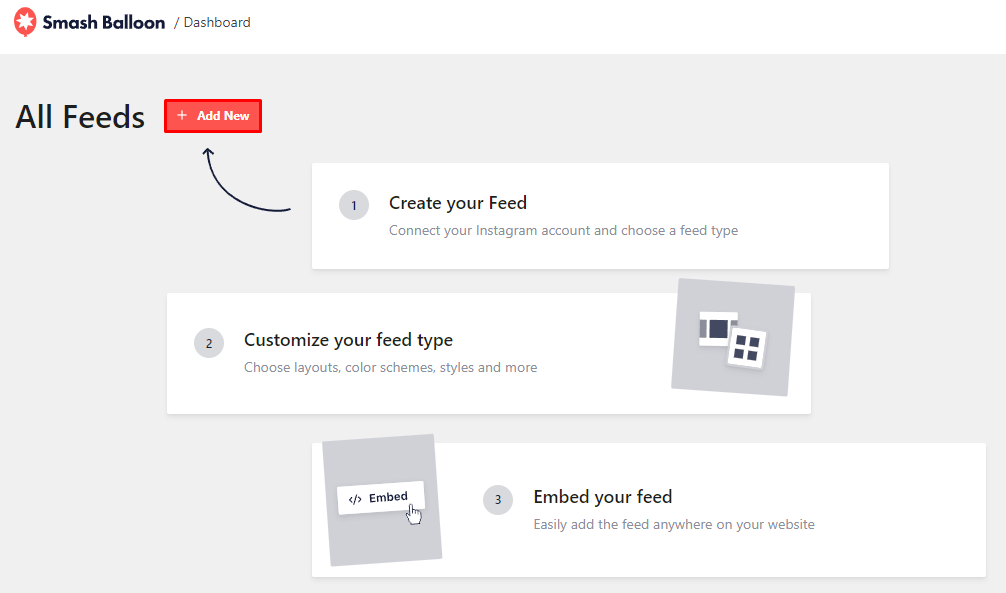
- Open the Instagram Feed option on your WordPress dashboard and click Add New.
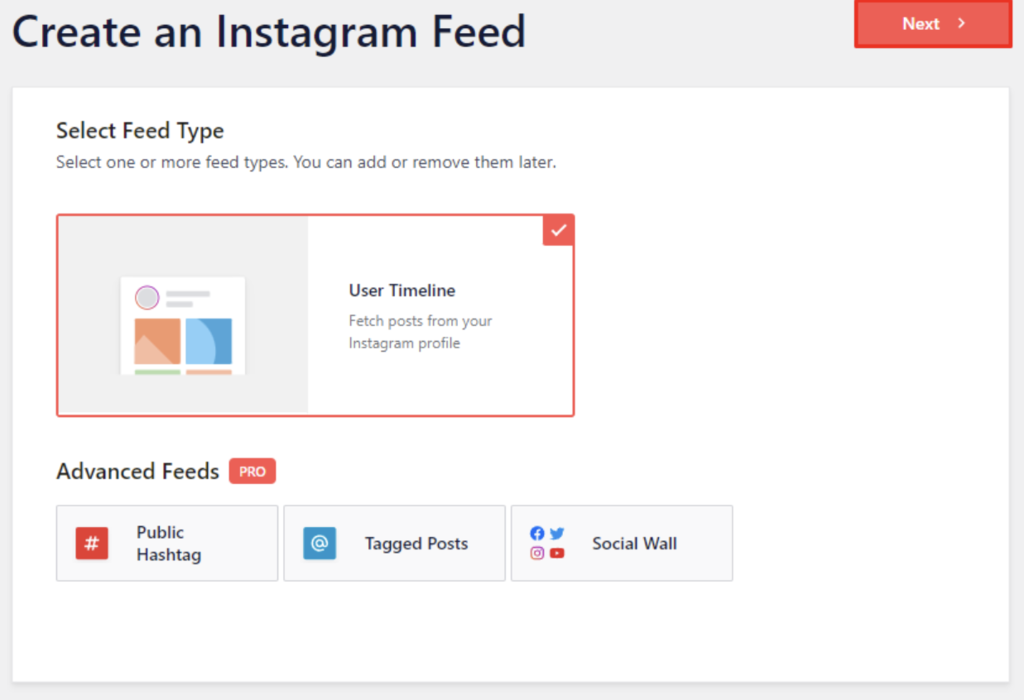
- Choose the Instagram feed type. The free version only provides User Timeline, while the Pro offers three advanced options – Public Hashtag, Tagged Posts, and Social Wall. Select Next to proceed.
- Click Add Source to connect Instagram to your website. There, you’ll get redirected to Smash Balloon’s website.

- Choose the account type – Personal, Business, or I’m not sure. For this example, we’re connecting a personal Instagram account.
- Select the Login with Instagram button. With the Premium version, you can add the account manually since you’ll have an Instagram API access token.

- Enter your Instagram credentials and click Log in.
- Review the access requests and click Allow.
- Lastly, confirm your domain by clicking Yes, it is my domain.
With the Instagram Feed Pro plugin, you can add multiple Instagram feeds to your WordPress site. Follow these steps to do it:
- Go to the Smash Balloon dashboard and choose the profile and feed design.
- Select Embed and copy the shortcode.
- Paste the embed code to Instagram Feed on the WordPress editor.
4. Configure the Instagram Feed
After connecting your Instagram profile to WordPress, it’s time to create your Instagram feed layout:
- Select your Instagram handle on Smash Balloon’s dashboard and choose Next.
- Click the Yes, let’s do it button to create a custom profile picture or bio.
- Upload a profile picture, insert your bio, and choose Add.
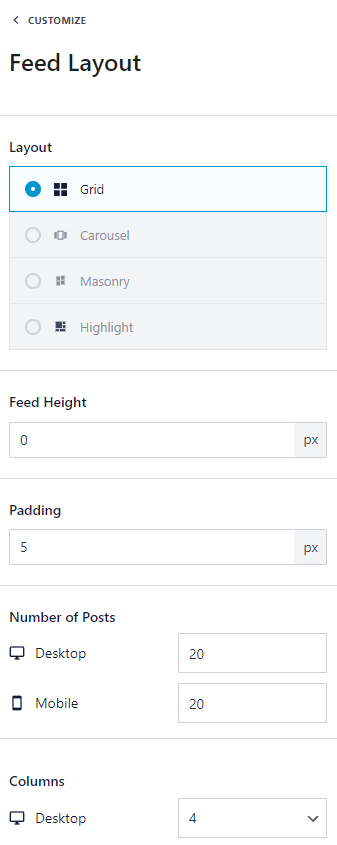
- Once you’re redirected to the builder, you can adjust the feed’s appearance. Select Feed Layout to change the design, height, and padding. You can also set the number of Instagram posts and columns.
- Choose Color Scheme to modify the background shade.

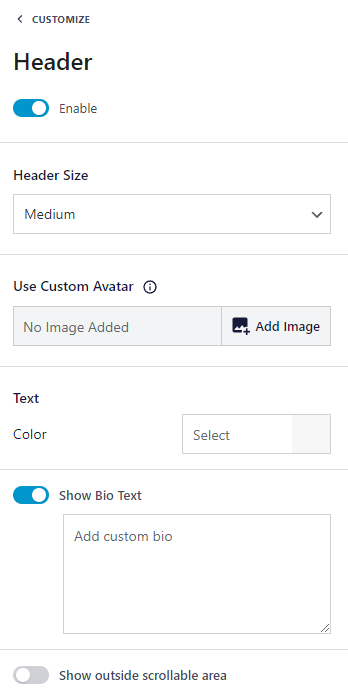
- Click Header to adjust the header’s style.
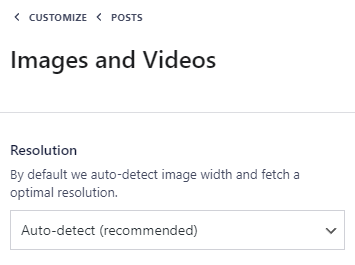
- Select Posts → Images and Videos to set the optimal resolution for your Instagram content.
- Click Load More Button to adjust the load more option.

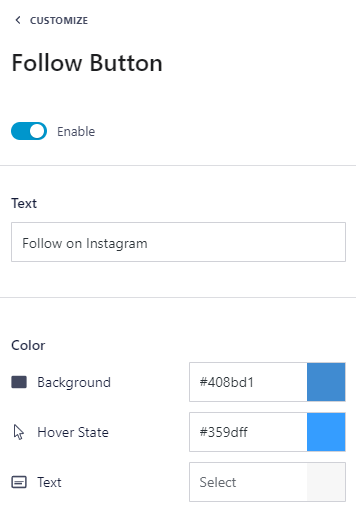
- Select Follow Button to modify the following option.
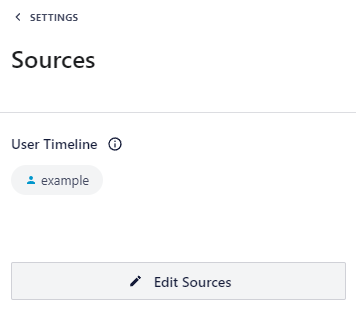
- Open Settings → Sources to switch between different Instagram users.
- Go to Settings → Filters and Moderation to apply particular configurations to specific Instagram content.

- Click Settings → Sort to arrange your feed. For example, display the latest Instagram posts first by choosing Newest.

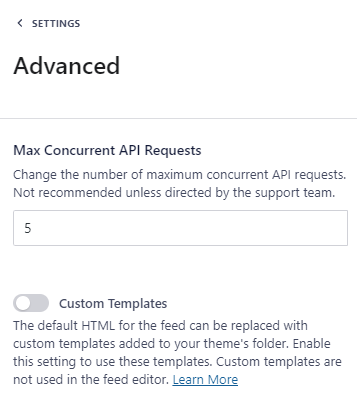
- Choose Advanced to edit the maximum concurrent API requests and enable custom templates.
- Once you’re finished editing your Instagram feed, click Save.
5. Integrate the Instagram Feed into WordPress
Now that you’ve designed the appearance, it’s time to embed Instagram feeds on your website. To do it, open a WordPress post → Block Inserter + icon → Instagram Feed.
Alternatively, go to Smash Balloon’s feed builder → Embed → Add to a page to embed your Instagram feed to a WordPress page,
However, the above steps only work if you only have one design. If you have multiple templates, here’s how to add a specific Instagram feed on your WordPress site:
- Open Smash Balloon’s feed builder and click Embed.
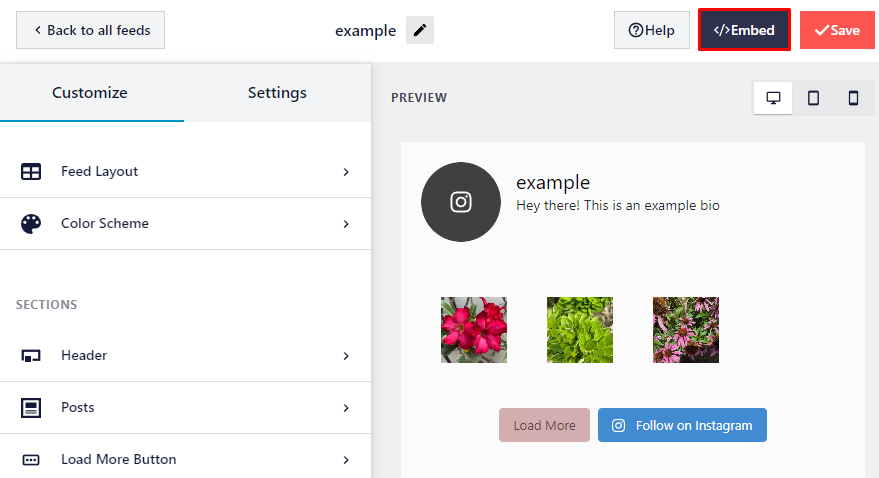
- Duplicate the shortcode on the pop-up window by selecting the Copy button.
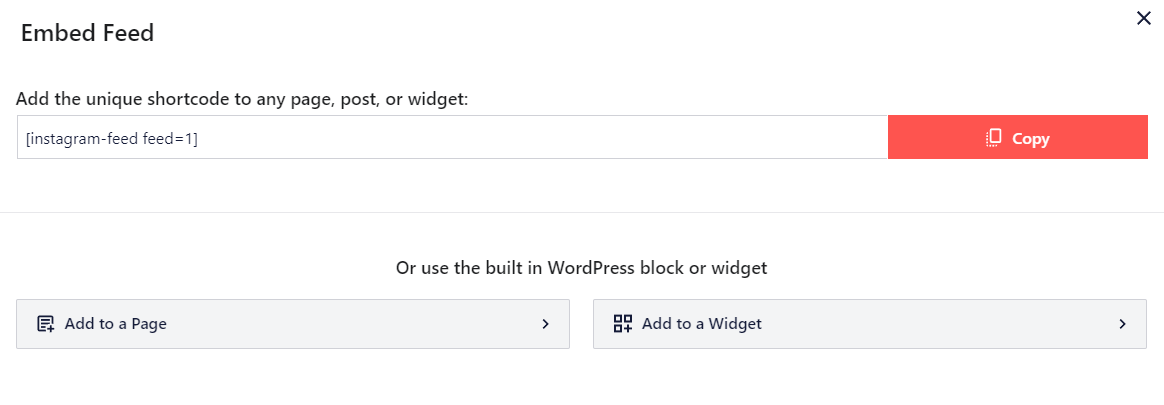
- Go to your WordPress dashboard → open Posts or Pages → choose the Instagram Feed block → Block → paste the code.

Alternatively, modify the shortcode by adding the design number on the Shortcode Settings field and clicking Apply Changes. This will automatically embed the chosen template. For example, we’re going to use feed=”2″.
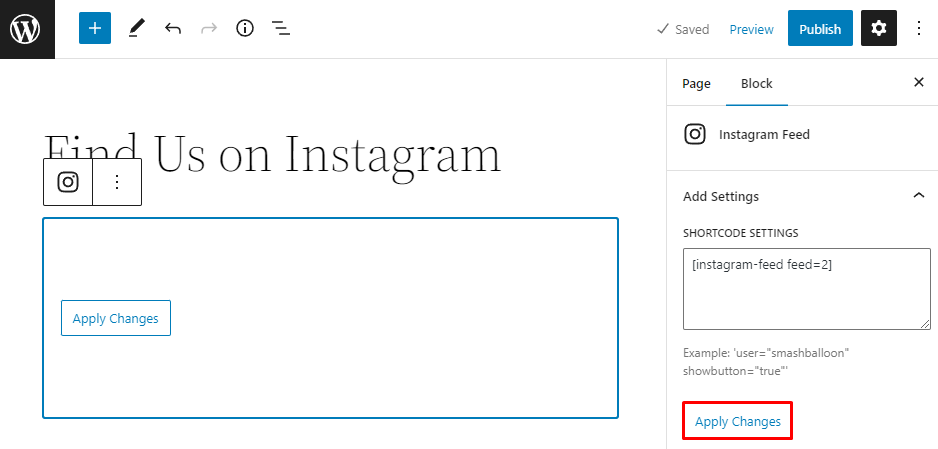
- The block will now display the embedded Instagram post. Click Publish to apply it on your website.
If your theme doesn’t support full-site editing, embed an Instagram feed on your WordPress website using widgets. Open Smash Balloon’s feed builder → Embed → Add to a Widget.
Alternatively, add the Instagram Feed widget by going to the WordPress dashboard → Appearance → Widgets → Widgets Inserter + icon → Instagram Feed. Drag the widget to any area on your WordPress website, like the Main Sidebar or Header.
To display a different Instagram feed, enter the template’s shortcode via Shortcode Settings → Apply Changes → Update.

Conclusion
Embedding your Instagram feed on your WordPress website can attract customers, boost conversions, build brand awareness, and grow Instagram followers.
To integrate the social media feed into your site, you must make an Instagram account, pick an Instagram feed WordPress plugin, connect your Instagram, design the feed’s appearance, and embed your Instagram feed into WordPress.
We hope this article has helped you embed an Instagram feed on your WordPress website. If you have any questions or suggestions, please leave them in the comments section below.
Suggested Reading
Best WordPress Social Media Plugins
How to Add Social Media Icons in WordPress
Adding Post to a Specific Page in WordPress
Instagram Feed in WordPress FAQ
In this section, we will answer some common questions about embedding an Instagram feed on WordPress.
Why Should I Add an Instagram Feed on WordPress?
Embedding Instagram feeds on your WordPress site helps boost visitor engagement, create long-lasting customer relationships, and grow conversions. It can also build brand awareness and increase followers as clients can see you on multiple social media channels.
Can You Integrate an Instagram Feed to WordPress Without a Plugin?
Aside from using plugins, you can embed your Instagram feed using WordPress widgets or social media aggregator tools, such as Taggbox Widget. The latter offers advanced features, such as content moderation and user behavior analytics.
Can You Embed Instagram Reels in WordPress?
Yes. Using Smash Balloon Pro, connect your Instagram account and go to the live feed editor → Settings → Filters and Moderation. Under Show specific types of posts, uncheck Photos and select Feed Videos and IGTV Videos. Then, embed the Instagram posts using the Embed button or copy the shortcode and paste it into the Instagram Feed block.

Noviantika is a web development enthusiast with customer obsession at heart. Linux commands and web hosting are like music to her ears. When she's not writing, Noviantika likes to snuggle with her cats and brew some coffee.



Comments
October 04 2024
Hi there I have read that from Dec 4 to be able to have an instagram feed on your site it needs to be a PROFESSIONAL instagram account and not a PERSONAL instagram account. Is this true and if so what would be the impact on your feed plugin? Thanks so much Lorna
October 11 2024
Hello Lorna! You’re absolutely correct. Starting December 4, Instagram will require a Professional account (Business or Creator) to embed an Instagram feed on a website. If you’re currently using a personal account, you’ll need to switch to a Professional one to keep your feed plugin working smoothly. This change allows continued access to Instagram’s API for displaying your feed without interruption ;)