WordPress translation plugins: best 10 options for multilingual sites
Dec 02, 2025
/
Andzelika D.
/
10 min Read
WordPress translation plugins help you create multilingual versions of your website, making your content accessible to customers in different locations.
But how do you choose the best option?
To save you hours of research, we’ve compiled a list of the best 10 WordPress translation plugins for 2025.
We’ve carefully assessed each plugin, considering factors such as translation accuracy, ease of use, impact on site performance, pricing, and additional features.
How to choose the right translation plugin
Selecting the best translation plugin is key to engaging your site visitors with their preferred languages.
We selected the tools on this list based on several factors: use cases, user ratings, number of downloads, quality of support, plugin updates, and pricing options.
We also examined translation accuracy, ease of use, impact on site performance, and other key features.
Here’s what to look at when making a decision:
- Translation method: Decide if you need automatic machine translation, manual translation, or both.
- Ease of use: Look for plugins that integrate well with WordPress and offer user-friendly interfaces.
- Performance impact: Choose plugins that won’t slow down your website.
- SEO optimization: Opt for plugins that offer SEO-friendly features for multilingual content.
- Customization options: Consider plugins that let you customize the language switcher and other elements.
- Additional features: Depending on your needs, look for useful extras like translation memory, visual editors, or collaboration tools.
- Pricing: Select a plugin that fits your budget while offering the features you need.

Top 10 translation plugins you should try
Let’s look at our detailed review of the best WordPress translation plugins for your site.
1. Polylang

- Downloads: 700,000+
- Rating: 4.7/5
- Price: Freemium. Paid plans start at €99/year.
Polylang is a popular WordPress translation plugin with over 700,000 active installations.
It helps you create and manage multilingual websites while maintaining great site performance and user experience.
Polylang easiy integrates with WordPress core features, letting users manage multiple languages within a single installation. This approach simplifies content management and helps you maintain a clean site structure.
The plugin’s interface blends with the WordPress admin panel, making it easy to use even for beginners.
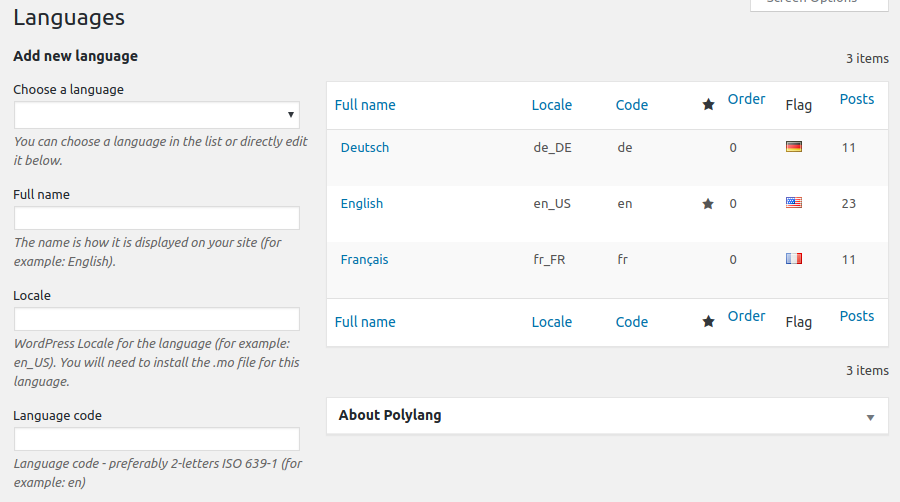
It leverages WordPress’ built-in taxonomies and avoids using shortcodes or additional database tables. This lets Polylang maintain optimal site performance – a critical factor for user engagement and SEO.
To get started with Polylang, install the plugin, add your desired languages, and begin translating your content. The plugin’s language switcher can be integrated as a widget or menu item.

Key features:
- Comprehensive content translation: Translates posts, pages, categories, tags, and custom post types, all within the WordPress interface.
- Flexible language detection: Lets you set languages by content, URL code, subdomain, or even use different domains for each language.
- Customizable language switcher: You can easily implement and tailor the language switcher as a widget or menu item to suit your site’s design.
- SEO optimization: Allows you to maintain separate URLs for each language version, enhancing search engine visibility across different markets
- High performance: Ensures fast loading times and compatibility with cache plugins.
2. Loco Translate

- Downloads: 1+ Million
- Rating: 4.8/5
- Price: Freemium. Paid plans start at €6.95/month.
Loco Translate bridges the gap between developers and non-technical users. It comes with a user-friendly platform for translating theme and plugin files directly within the WordPress dashboard.
For developers, Loco Translate provides additional features like in-context editing, translation templates, and integration with version control systems (e.g., Git).
Meanwhile, non-developers will appreciate the visual translation editor, which allows you to preview your translations and ensure accuracy and consistency.
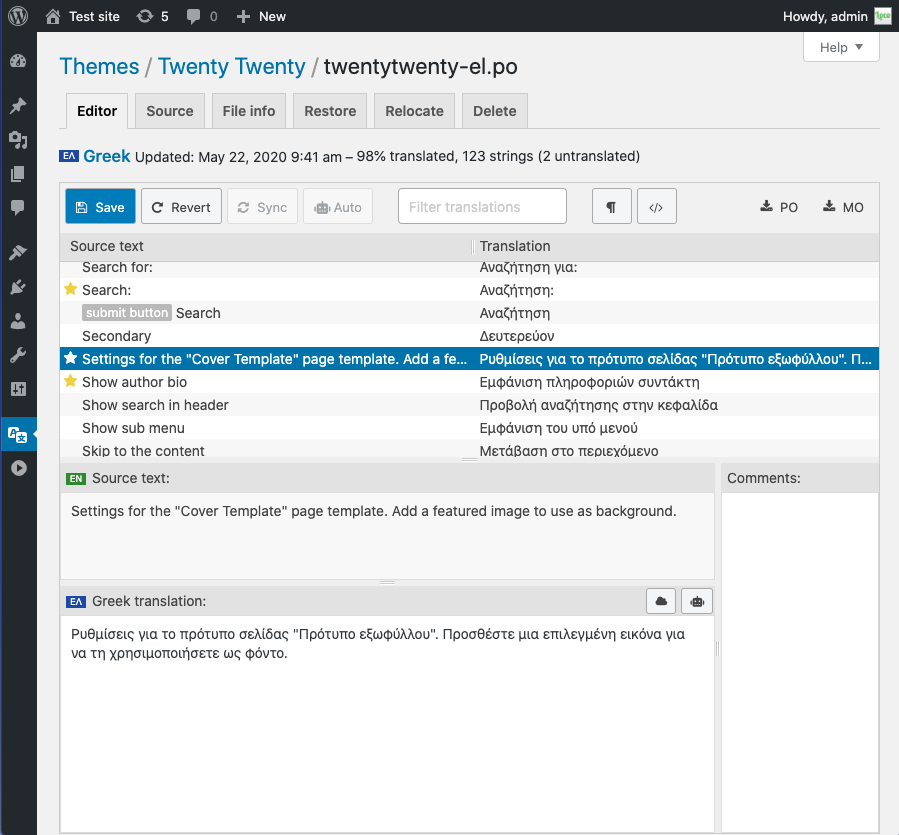
Begin by installing and activating the plugin from the WordPress plugin repository (or downloading it from the developer’s website).
After activation, navigate to the Loco Translate menu in your dashboard. Here, select the theme or plugin you want to translate.
The plugin provides a list of translatable strings, and you can enter your translations directly in the provided fields.
Key features
- In-place translation: This feature allows you to translate content directly within the WordPress editor, meaning you won’t need to switch between different screens.
- Real-time updates: Changes made to translations are reflected immediately on the front end, providing instant feedback.
- Translation management: The plugin offers tools for managing translation teams, assigning specific language tasks, and tracking progress.
- POT file export: Loco Translate lets developers create language files for external translation services and import them back into the plugin.
- Performance optimization: The plugin minimizes performance impact and ensures a smooth user experience.
3. WPML

- Downloads: 1+ Million
- Rating: 4.1/5
- Price: The Multilingual CMS plan costs €99/year. You can also access the WooCommerce plugin with WPML for free.
WPML is a WordPress translation plugin that creates a fully localized site experience for your users. It translates URL structures, admin interfaces, and even email communications.
Many other solutions focus solely on front end translation. WPML also lets you translate WordPress admin screens, helping your team members work in their preferred language when managing the site.
To use WPML, install and activate the plugin from the website. Once activated, follow the setup wizard to configure your languages and translation settings.
You can translate content directly within the post or page editor or use WPML’s Translation Management system to assign translations to different users.

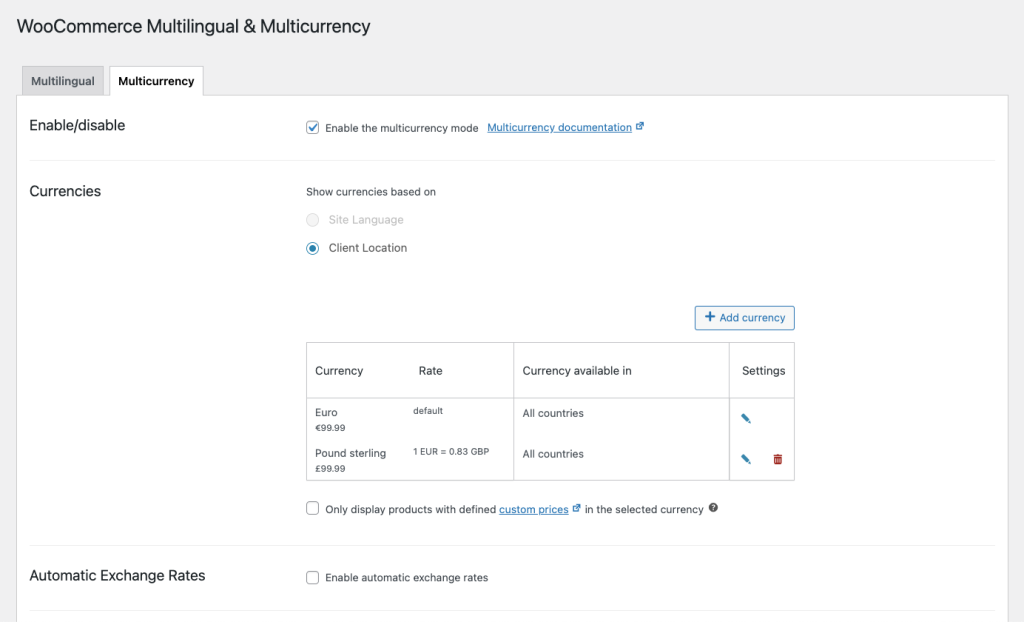
There’s also a free WooCommerce Multilingual & Multicurrency with WPML plugin for users managing eCommerce sites.
It translates product descriptions and localizes the entire purchasing process, including checkout fields, confirmation emails, and even multicurrency support.
Key features
- Single WordPress installation for multiple languages: WPML allows you to run a multilingual website using just one WordPress installation.
- Comprehensive translation coverage: Lets you translate posts, pages, custom post types, custom fields, menus, images, taxonomy, media, and even admin texts.
- Flexible translation methods: WPML offers various translation workflows, including automatic translation powered by Google, DeepL, and Microsoft, as well as options for professional human translation.
- Multilingual & multicurrency eCommerce translation: WPML helps you build multilingual and multicurrency eCommerce sites with its free WooCommerce plugin.
- Multilingual SEO: WPML helps optimize sites for searches in different languages. It lets you arrange languages in various ways (e.g., subdomains, and folders) and translate page slugs, SEO meta, and titles.
4. GTranslate

- Downloads: 600,000+
- Rating: 4.9/5
- Price: Freemium. Paid plans start at $9.99/month.
GTranslate is a translation plugin that seamlessly integrates with your WordPress site, letting you quickly translate website content, pages, and even widgets.
GTranslate works well for various users, from bloggers looking to translate their sites to businesses expanding to new regions.
The plugin stands out with its cloud-based approach, which doesn’t slow down your website – an important advantage over many other translation plugins.
It also uses Google Translate’s automatic translation capabilities, which makes it more flexible and adaptable.
Finally, GTranslate’s dashboard is functional and easy to use, even for beginner users.
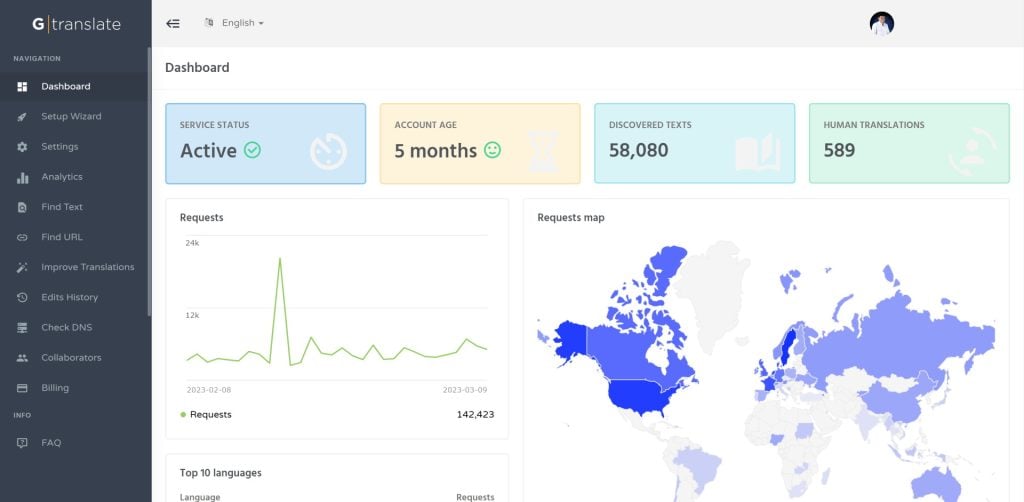
The free version provides automatic translations, while the premium plans come with additional features such as SEO support, language hosting, and translation editing by human specialists.
To get started with GTranslate, install and activate the plugin from the WordPress plugin repository.
Once activated, go to the GTranslate settings page in your dashboard. You can configure the plugin to display a language switcher on your site, allowing visitors to select their preferred language.
Key features:
- Neural machine translation (NMT): GTranslate employs Google’s NMT technology to deliver more accurate and natural-sounding translations compared to older machine translation methods.
- URL translation: The plugin lets you translate website URLs, making it easier for users to navigate your site in their preferred language.
- SEO-friendly: Translated pages are automatically optimized for search engines, improving your website’s chances of ranking higher in multilingual searches.
- Multiple display options: The language switcher can be designed using various styles, including flags, dropdowns, and floating selectors.
- Browser language detection: The plugin auto-switches language based on the user’s browser settings.
5. Weglot

- Downloads: 70,000+
- Rating: 4.8/5
- Price: Freemium. Paid plans start at $15/month.
Weglot allows users to translate their entire website in minutes without any technical skills using a modern, user-friendly interface.
It supports over 100 languages and provides a visual editor that makes it easy to review and refine translations directly on the website.
This WordPress translation plugin goes beyond simple machine translation. It also lets you invite human translators to review and refine machine-translated content to ensure accuracy and cultural relevance.
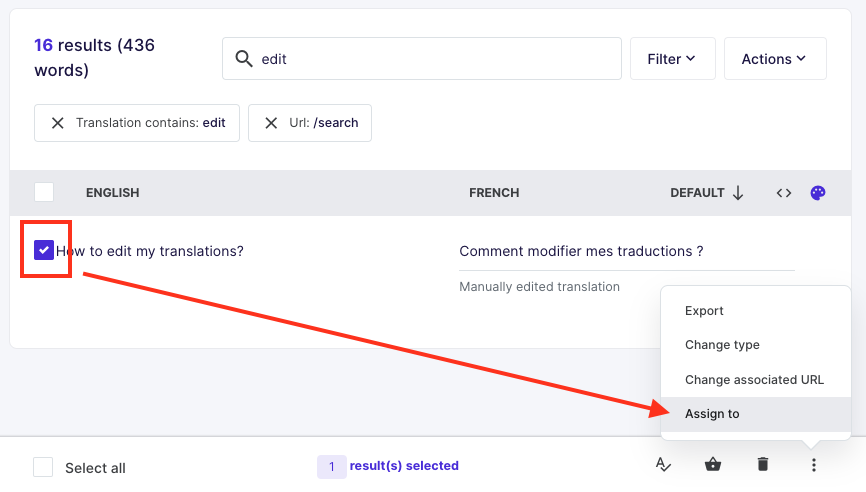
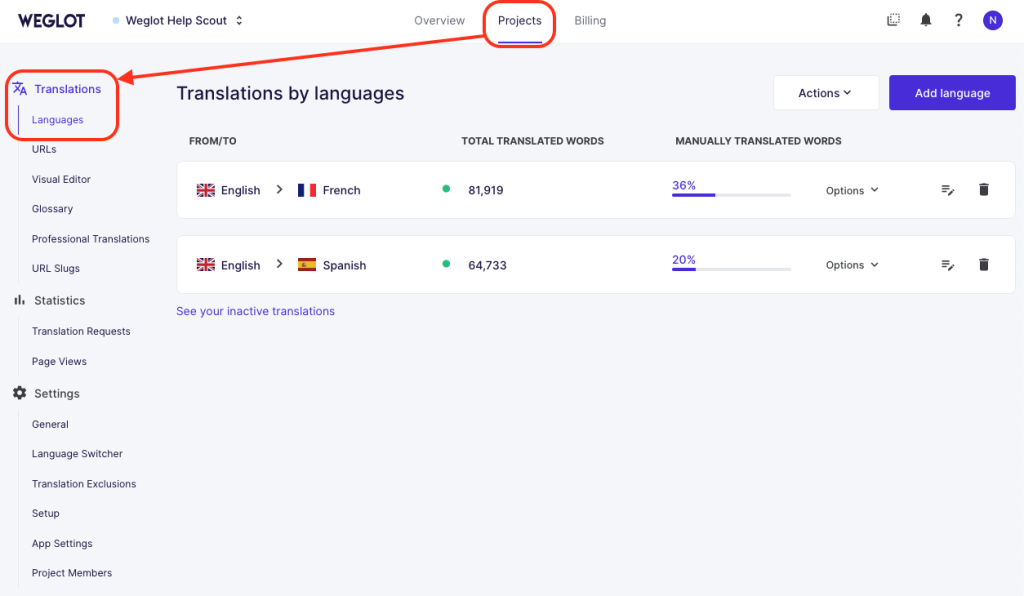
After installation, you need to simply select your target languages through the WordPress admin panel, and a language switcher is automatically added to the website.
Weglot will automatically translate your content. You can manage and edit translations through the Weglot dashboard.
Key features:
- Automatic content detection: Weglot identifies all the translatable content on your WordPress site, so you don’t have to select any elements manually.
- Visual editor: Weglot’s visual editor allows you to make direct edits to translations on your live website, providing a real-time preview of the changes.
- Fast setup: The plugin integrates seamlessly with WordPress, helping you create a multilingual website in minutes without any coding required.
- Media translation: The plugin can translate text within images, making it a valuable tool for visually rich websites.
- AI-powered refinement: The plugin provides AI-generated translation suggestions to improve messaging.
6. Falang multilanguage

- Downloads: 1,000+
- Rating: 5/5
- Price: Free
Falang is a free, beginner-friendly WordPress translation plugin. It’s easy to use and offers a straightforward setup.
Falang is particularly useful for e-commerce businesses thanks to its native support for WooCommerce, which enables the translation of products, variations, categories, tags, and attributes.
When you add a new language, Falang automatically handles language package downloads and updates. Using this plugin, you can translate posts, pages, custom post types, menus, URL slugs, and more.

The plugin uses a lightweight approach, creating no extra database tables and ensuring good website performance.
To use Falang, install and activate the plugin from the WordPress plugin repository. After activation, navigate to the Falang settings page in your dashboard. You can add the languages you want to support and configure the language switcher.
Key features:
- Comprehensive translation: Falang translates posts, pages, menus, categories, taxonomies, custom fields, and widgets.
- Plugin compatibility: Supports translation for additional plugins like WooCommerce and Yoast SEO.
- Customizable language switcher: The language selector can be added to menus, headers, footers, or sidebars, and it can display flags and/or language names.
- Media translation: Allows translation of image captions, alt text, and other media text without duplicating files.
- SEO-friendly URLs: Incorporates language codes directly in the URL.
7. Prisna GWT
- Downloads: 10,000+
- Rating: 4.5/5
- Price: free
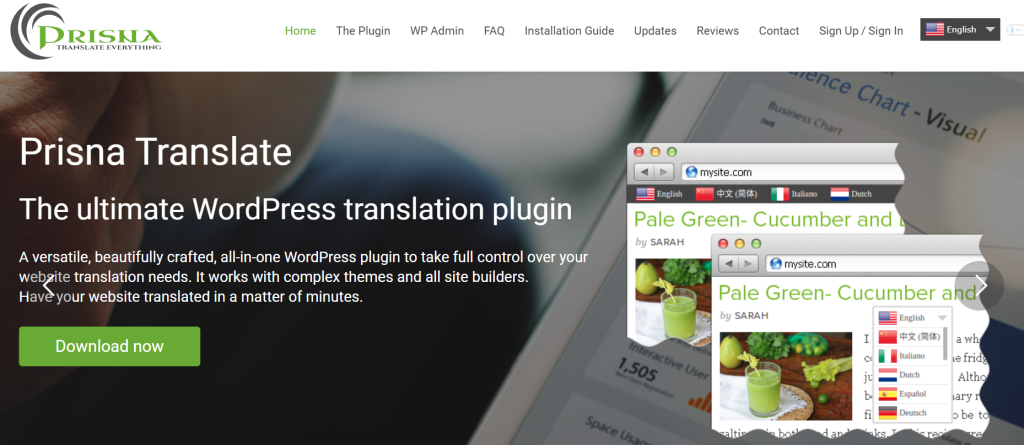
Prisna GWT is another WordPress transnational plugin that uses Google Translate to offer multilingual support for your WordPress site.
While it doesn’t have as many features as some other tools, it’s easy to use and integrate into your website, and it’s free.
Prisna offers a dashboard where you can configure the plugin and include a language switcher on your site. It allows visitors to choose their preferred language, and the plugin will automatically translate the content using Google Translate.
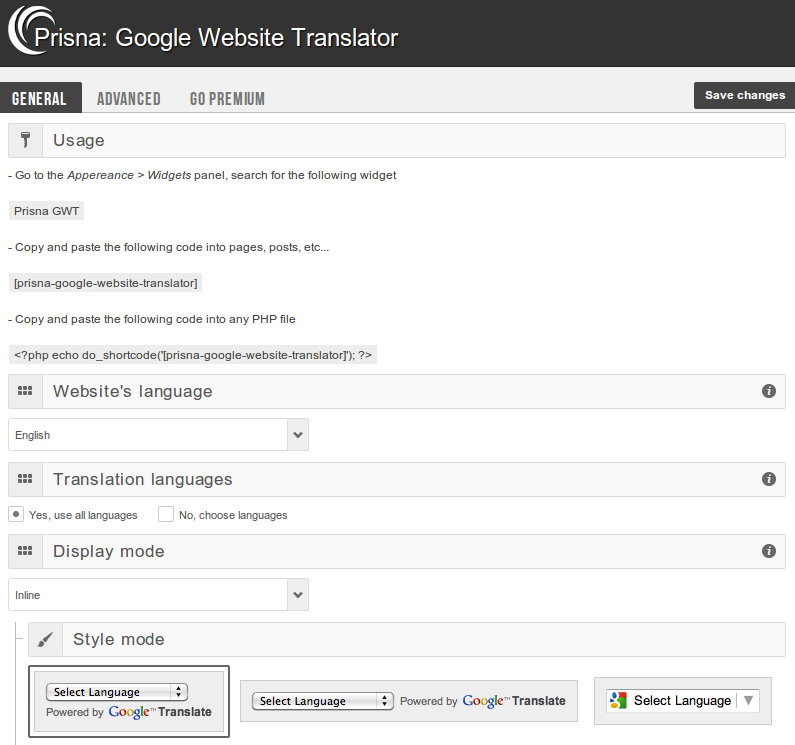
Begin by installing and activating the plugin from the WordPress plugin repository. Once activated, navigate to the Prisna GWT settings page in your dashboard.
Here, you can configure the plugin to include a language switcher on your site. Customize its appearance and position to match your site’s design.
Key features:
- Customization options: The plugin offers various settings to customize the appearance and behavior of the language switcher.
- Floating language selector: You can display a floating language selector that remains visible as users scroll through your website.
- Shortcode support: Prisna GWT supports shortcodes, allowing you to embed translations within specific areas of your content.
- Widget integration: You can easily add a language switcher widget to your website’s sidebar or footer.
- SEO-friendly: Translated pages are indexed by search engines, helping you generate organic traffic from multilingual searches.
8. TranslatePress
- Downloads: 300,000+
- Rating: 4.7/5
- Price: Freemium. The paid package starts at €8.25/month.
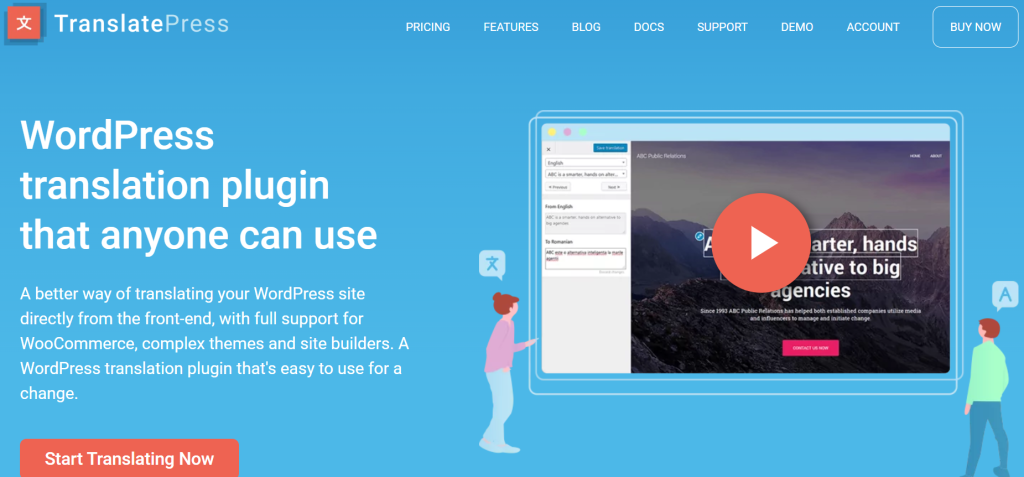
TranslatePress is a WordPress translation plugin that lets you translate your entire site directly from the front end using a visual translation interface. It’s perfect for users without any technical background.
TranslatePress can translate entire pages at once, including content from shortcodes, forms, and page builders. This way, you won’t need to worry about bits of text left without translation.
It’s also fully compatible with WooCommerce, making it an excellent choice for multilingual eCommerce sites.
The plugin’s interface is intuitive, letting you see translations in real-time. The live preview feature is also helpful for maintaining accuracy and context in translations.
TranslatePress supports both automatic and manual translations, giving you the flexibility to choose the best method for your needs.
To get started with this plugin, install and activate it from the WordPress plugin repository. After activation, go to the TranslatePress settings page in your dashboard to configure your languages.
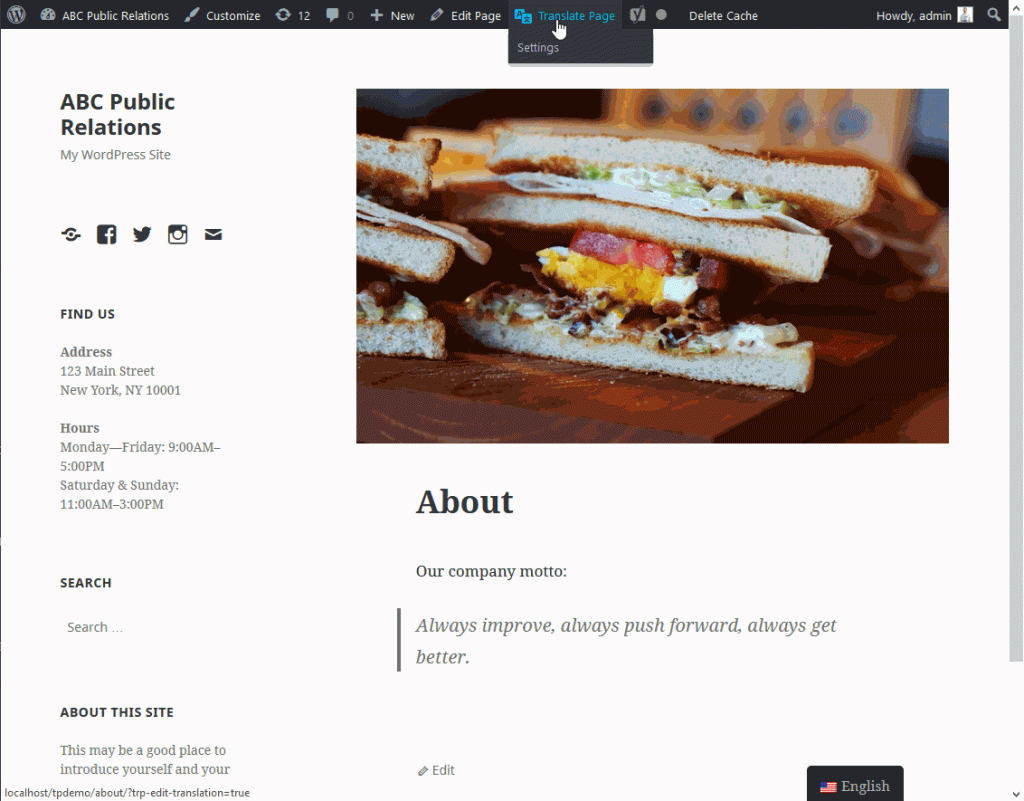
Once set up, you can begin translating your site by navigating to the front end and clicking the Translate Page button in the admin bar. This opens a visual editor where you can click on any text and provide translations.
Key features
- Automatic and manual translation: The plugin supports both machine translation and manual editing, offering flexibility and control over the translation process.
- SEO: TranslatePress ensures translated content is optimized for search engines, including support for SEO plugins and proper hreflang tags.
- User roles and permissions: You have control over who can translate the site, with specific roles and permissions for translators.
- Integrations: TranslatePress works seamlessly with popular WordPress plugins, ensuring compatibility and ease of use.
- Selective translation: There’s an option to translate only certain paths and exclude specific content from translation.
9. Google Language Translator

- Downloads: 100,000+
- Rating: 4.7/5
- Price: Freemium. Premium plans start at $9.99/month.
Google Language Translator uses Google’s translation engine to provide multilingual support for your WordPress site. This translation plugin is easy to set up and use, making it a good choice for beginners or users who want a hassle-free solution.
Google Language Translator is now part of the GTranslate family. This association likely contributes to its reliability and ongoing development.
This plugin integrates with WordPress, allowing for quick and efficient translation of all website elements. It also integrates with Google Analytics, which lets you track language preferences and translation usage.

To use Google Language Translator, install and activate the plugin from the WordPress plugin repository. After activation, navigate to the plugin settings page in your dashboard to get started.
The plugin provides a customizable language switcher that lets your website visitors select their preferred language.
Key features
- Automatic translation: The plugin allows you to automatically translate website content, ensuring all pages are accessible in multiple languages.
- SEO-friendly: Google Language Translator ensures translated content is optimized for search engines.
- Responsive design: The plugin is fully compatible with mobile devices, allowing you to provide a consistent user experience across all platforms.
- Google Analytics integration: Allows tracking of language preferences and translation usage.
- Customizable language selector: Offers floating language selectors and language bars with flags in menus.
10. Linguise

- Downloads: 1,000+
- Rating: 5/5.
- Price: New users get a 30-day free trial. The paid plan starts at $15/month.
Linguise is one of the best WordPress translation plugins. It combines automatic translations with manual editing. It translates content using AI-powered technology and lets you refine it further through a user-friendly interface.
Linguine can quickly generate high-quality translations in over 80 languages. This helps you increase international website traffic and improve SEO performance across multiple search engines, including Google, Baidu, and Yandex.
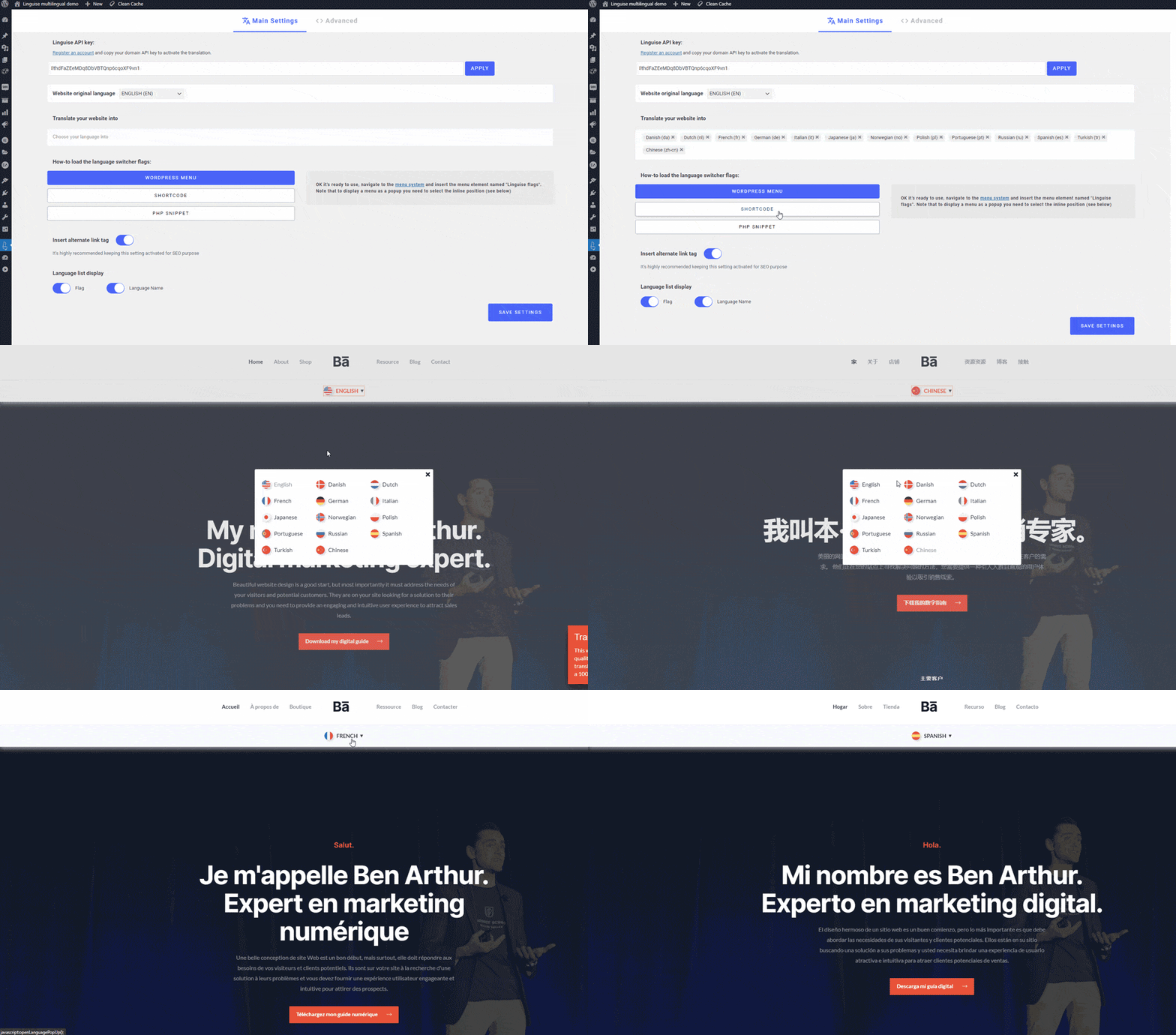
After installing and activating Linguise from the WordPress plugin repository, create an account on the Linguise website and obtain an API key. Enter this key in the Linguise settings page in your WordPress dashboard to connect your site.
The plugin will automatically translate your content into the selected languages. You can manage and edit these translations through the Linguise dashboard.
Key features
- AI-powered translation: The plugin uses advanced AI technology to provide fast and contextually accurate translations.
- Translation memory: Linguise remembers previous translations to ensure consistency across the website.
- Glossary management: It allows you to create and manage glossaries of terms, ensuring that specific terminology is translated correctly.
- SEO: Linguise ensures translated content is optimized for search engines, including proper hreflang tags and translated URLs.
- User-friendly interface: The plugin’s intuitive interface makes it easy to manage translations and monitor their performance.
Conclusion
Picking the right WordPress translation plugin helps you create a smooth experience for users in different locations while attracting relevant organic traffic.
Here’s a quick recap of our top picks:
- WPML: Best for big sites needing full translation control and multicurrency management.
- Polylang: Great for easy WordPress integration.
- Weglot: Perfect for quick setup and users without any technical background.
- GTranslate: Solid choice for automatic Google translations.
- TranslatePress: Ideal for visual, front-end translating.
Consider your budget and the features you want to prioritize and choose what fits your needs best.
WordPress translation plugins FAQ
Can I translate my entire WordPress website with a plugin?
Yes, you can translate your entire WordPress website using a dedicated plugin. Many free and paid WordPress translation plugins let you translate content, menus, widgets, URLs, and even theme elements.
Make sure to check each plugin’s features to choose the best option. Think about how many languages you need, how much customization you want, and the plugin’s SEO features.
Can I manually edit translations with these plugins?
Yes, most WordPress translation plugins offer manual translation capabilities. This feature helps you maintain brand consistency, accuracy, and cultural nuances. Users can typically edit translations directly within the plugin’s interface or through a dedicated translation management system.
To achieve the desired level of quality, it’s best to combine automated translations with manual refinement.
What are some alternative solutions to WordPress translation plugins?
While WordPress translation plugins offer convenience, there are some alternative methods:
– Manual translation: Direct translation and implementation of content by website owners or translators. This approach offers granular control but is time-consuming and resource-intensive.
– Professional translation services: Outsourcing translations to language experts ensures accuracy and cultural appropriateness. However, it can be costly.
– Content management systems (CMS): Some CMS platforms (e.g., Drupal) inherently support multilingual content, potentially eliminating the need for plugins.
– Static site generators (SSGs): These platforms allow for the creation of multilingual websites but require technical proficiency.
Evaluate your project requirements, budget, and available resources when choosing the best approach.

Andzelika is a Content Writer and Editor with over 5 years of experience in the digital marketing industry. With passion for technology and the art of the written word, she loves to combine the two worlds and produce actionable content.


