Most used Git commands from basic to advanced
Sep 15, 2026
/
By Ariffud M. & Aris S.
/
5 min Read
Git commands let you interact with the version control system to manage repositories and track changes. You can use them to create, modify, and sync repositories between your local development environment and remote codebases, streamlining your workflow.
The most basic Git commands let you initialize a new repository, stage changes for commits, and check the status of modifications. Additional commands help you manage branches, merge code, and tag specific versions for easy identification.
Git also provides commands for interacting with remote repositories, allowing you to clone codebases or connect to platforms like GitHub. Advanced commands, such as blame and bisect, help with specific tasks like debugging and tracking down issues in your code history.
Start by exploring the basic Git commands for essential tasks, then move on to commands for managing branches, remote repositories, and advanced features.
Basic Git commands
Basic Git commands are used to create, manage, and track changes within a repository. These commands form the foundation of version control, helping you record your project’s history and making them essential when learning about Git. They include:
- git init command
Initializes a new Git repository within a directory. Using it without a [name] will initialize a repo using the current directory’s name:
git init [name]
- git add command
Stages file changes, preparing them for the next commit:
git add <filename>
- git commit
Saves staged changes to the local repository (a process called a commit) and can include a descriptive message about the modifications:
git commit -m "your commit message"
- git status
Shows the current state of your working directory and staging area, including which files have been modified, staged, or are untracked:
git status
- git log
Displays a chronological list of commits in the current repository, showing details such as commit messages, authors, and timestamps:
git log
- git diff
Shows the differences between items in various states of a repository, such as your current working directory and the most recent commit:
git diff [file-branch-directory-or-commit] [file-branch-directory-or-commit]
- git rm
Removes files from your working directory and stages the removal for the next commit:
git rm <filename>
- git mv
Renames or moves files within your working directory. It behaves similarly to Linux’s mv command and has a similar syntax:
git mv <filename> <filename-or-directory>
- git config
Changes the settings of various aspects of your Git installation, including user information and preferences. For example, use this to set your email address for commits:
git config --global user.email "your.email@example.com"
💡Prefer using a graphical interface?
While commands offer flexibility and efficiency, some users prefer using a graphical user interface (GUI) to visualize how version control works. In this case, consider using one of the best Git GUI clients.
Git branching and merging commands
“Branching and merging commands let you work on different features or fixes simultaneously. They make it easy to integrate changes and maintain a clean, organized project history.
- git branch
Manages branches in your Git repository. For example, you can list, create, or rename a branch. Run this command as-is to list all branches:
git branch [--options] [branch-name]
- git checkout
Switches between branches and restores files from different commits. Here’s an example to switch to an existing branch:
git checkout branch_name
- git merge
Combines a feature or topic branch into the main branch. Below is an example of basic git merge usage:
git merge branch_name
- git cherry-pick
Applies specific commits from one branch to another without merging an entire branch. It selects a specific commit using its hash:
git cherry-pick commit_hash
- git rebase
Applies changes from one branch to another by moving or combining commits, helping maintain a cleaner commit history. For example, this will apply commits from your current branch to the main branch:
git rebase main
- git tag
Marks specific points in your Git history, such as version releases like v1.0 or v2.0. An example command looks like this:
git tag v1.0
Git remote repository commands
Remote commands connect your local repository to external ones like GitHub or GitLab. They allow you to share your work, collaborate with others, and synchronize changes between environments.
- git clone
Creates a copy of a remote repository on your local machine. For example, the most common git clone usage is to download a repository from GitHub:
git clone https://github.com/username/my-project.git
- git push
Sends your local branch commits to a remote repository, updating it with your latest changes. For example, to push changes from the local “main” branch to the remote repository named “origin”:
git push origin main
- git pull
Fetches and integrates changes from a remote repository into your current local branch. Here’s an example to pull changes from the master branch:
git pull origin master
- git fetch
Retrieves new commits from a remote repository without automatically merging them into your current branch. Here’s an example:
git fetch origin
- git remote
Manages remote repositories associated with your local repository. Running the basic syntax will list remote repositories, but you can add options and subcommands to complete other tasks:
git remote [options] [subcommand] [args]
- git submodule
Manages separate repositories embedded within a Git repository. For example, use this to add a submodule to your main repository:
git submodule add https://github.com/username/submodule-repo.git submodule/path/on/main-repo
Advanced Git commands
Advanced commands offer greater control over your repository’s history and workflow. They’re used for tasks like rewriting commits, troubleshooting issues, and optimizing project structure.
- git reset
Undoes changes and manipulates the commit history, useful when recent modifications contain an error. Here’s a basic example to unstage changes made to a file:
git reset <filename>
- git stash
Temporarily saves changes that aren’t yet ready to be committed. You can add subcommands likelistto view stored changes andpopto reapply them to your working directory:
git stash [subcommand]
- git bisect
Identifies bugs or issues in your project’s history through a binary search process. Use this to start the bisecting process:
git bisect start
- git blame
Identifies the most recent change to each line of a file and the associated author. This is helpful for tracking down when and by whom specific changes were made:
git blame file1.txt
- git reflog
Shows a log of reference updates in your repository, allowing you to track your repository’s history, even when commits appear to be deleted or lost:
git reflog
- git clean
Removes untracked files or directories from your working directory, helpful for organizing your repository. For safety, use the-noption first to preview what will be deleted, then confirm with the-foption:
git clean [options]
Git commands cheat sheet
If you’re just starting out, remembering Git commands can be challenging. To help you master this tool, we’ve created a Git cheat sheet you can download or print out. Keep it handy whenever you need a quick reference for Git commands.
What is the easiest way to install Git on Ubuntu?
The simplest way to install Git on Ubuntu is using the apt package manager. This works for any Ubuntu version and automatically installs a stable version of Git.
If you need a specific version of Git, you can build it from source by downloading the installation package from its GitHub repository. However, this method is more complicated.
Regardless of the installation method, you’ll need to configure Git with your user information and connect to your remote repository account, such as GitHub or GitLab.
Both methods work on all Ubuntu systems, whether desktop or server versions. If you’re using a hosting provider, they may offer one-click installation or other tools that simplify the process.
How can Hostinger simplify Git installation?
If you use the Hostinger VPS solution, you can ask our AI-powered assistant, Hostinger Agent, to provide the Git installation commands. Simply click the Ask AI button anywhere in Hostinger dashboard and type something like, “Give me the commands for installing Git and connecting my GitHub account.”
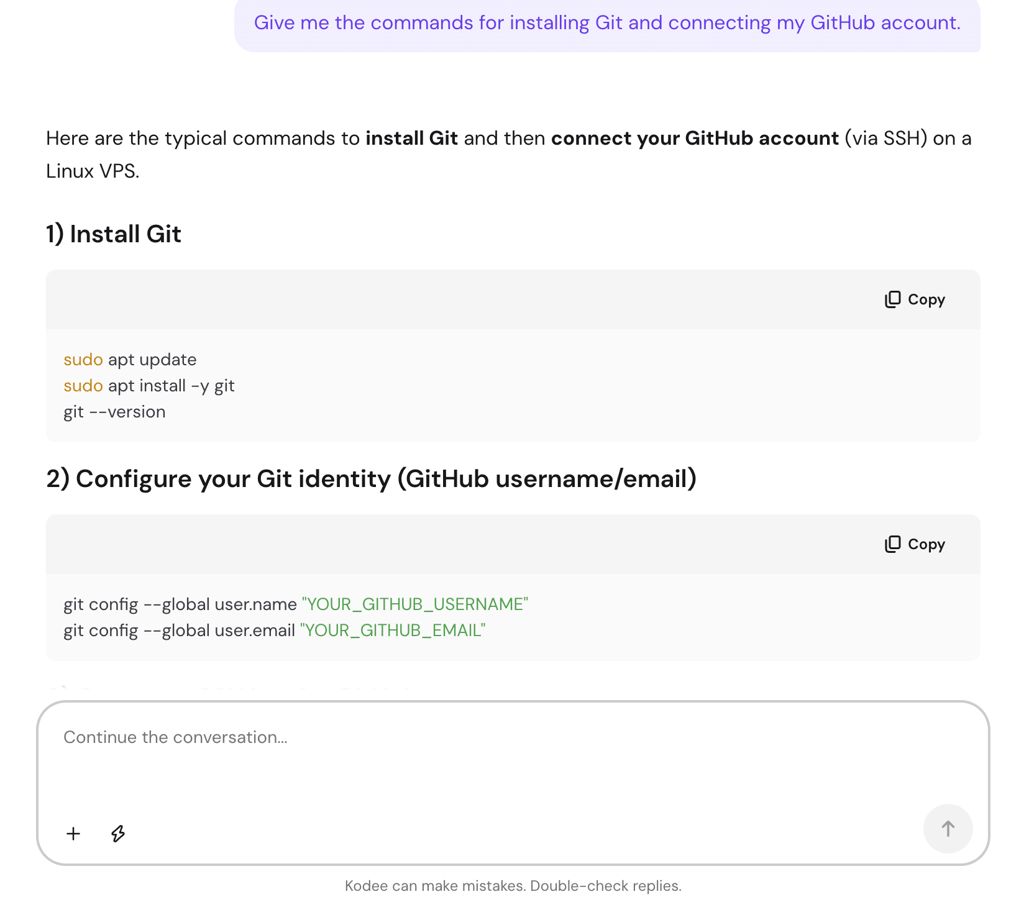
Then, connect to your Hostinger server using PuTTY or our Browser terminal and run the provided commands. If you use other Hostinger web hosting plans, you can also connect your repository to your website via Hostinger dashboard for easy deployment.

From commands to contributions: How popular repositories use Git at scale
After understanding the essential Git commands, the next step is to practice by managing personal projects. This is the best way to get comfortable with these tools before working on real-world repositories at scale.
Mastering Git commands becomes crucial when managing large-scale projects with many contributors. Versioning commits, branches, and repositories lets you track changes effectively, identify issues quickly, and revert problematic changes as needed. The result is a more streamlined development process.
For example, some of the most popular and best GitHub repositories have thousands of contributors pushing changes daily. Check them out to see how large-scale projects use Git commands effectively in practice.
This article is a localized version of Most used Git commands from basic to advanced, originally published in English.

Ariffud is a Technical Content Writer with an educational background in Informatics. He has extensive expertise in Linux and VPS, authoring over 200 articles on server management and web development. Follow him on LinkedIn.

Aris is a Content Writer specializing in Linux and WordPress development. He has a passion for networking, front-end web development, and server administration. By combining his IT and writing experience, Aris creates content that helps people easily understand complex technical topics to start their online journey. Follow him on LinkedIn.


