How to add a favicon to your website
Oct 14, 2026
/
By Aris S.
/
5 min Read
A favicon is a small icon that serves as your website’s visual identity in browser tabs, bookmarks, and history logs. It helps users recognize your site among other pages and enhances your branding. You can add it to your website using these methods:
- Writing HTML code. This method involves manually uploading your image file to your host server and adding a specific code snippet to the header of your website.
- Utilizing WordPress features. You can upload your icon directly through the WordPress Gutenberg editor, Customizer, or a plugin without needing to edit any code.
- Using Hostinger AI Builder. This platform provides a built-in interface in the general settings to upload and update your favicon.
Favicons in browser tabs are 16×16 px, while those in taskbar shortcuts are 32×32 px. They are commonly in .ico format, but you can also use .svg files for better scalability. Regardless, it’s best to keep favicons simple and maintain visibility by using mid-tone colors or borders.
How to add your website’s favicon using HTML
To add a favicon using HTML, you need to add a custom tag to your site’s index.html or header file. This manual method is best if you custom-code and design your website from scratch.
Before proceeding, ensure you have access to your website’s root folder and can edit the necessary files. Also, prepare a 64×64 px image called favicon.ico, favicon.svg, or favicon.png, depending on your preferred format. Then, follow these steps:
- Open your site’s project directory using an FTP client like FileZilla or your hosting provider’s file manager.
- Go to the root directory, which is typically /public_html or /var/www.
- Upload the favicon image file to the root folder of your website, in the same directory as your HTML file.
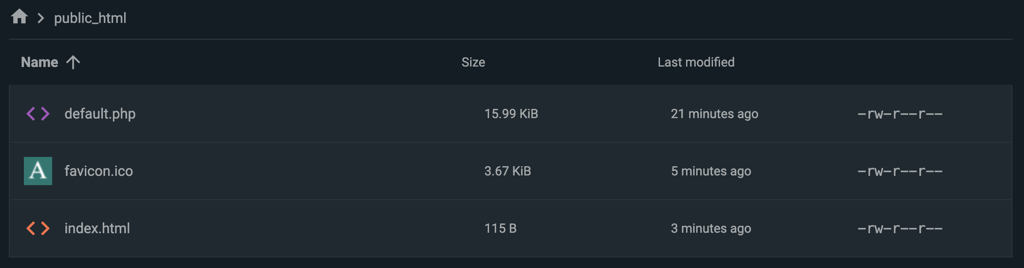
- Open your index.html file and paste the following code snippet inside the <head> </head> tags. Add one of these code snippets based on your image format:
<!-- For an ICO image -->

<link rel="icon" type="image/x-icon" href="favicon.ico">
<!-- For an SVG image -->

<link rel="icon" type="image/svg+xml" href="favicon.svg">
<!-- For a PNG image -->

<link rel="icon" type="image/png" href="favicon.png">
- Save the file and reload your website.
The favicon should appear in the browser tab. If not, check your code and try accessing the website in incognito mode to bypass the cache.
How to add a favicon to a WordPress website
There are different ways to add a favicon to a WordPress website. For example, you can do this with the Gutenberg editor by adding the image using the Site Logo block and enabling the Use as site icon option.
You can also add a favicon by going to your admin dashboard’s sidebar → Appearance → Customize → Site Identity and uploading your image. If you want more customization and insertion options, you can also install a plugin like RealFaviconGenerator.
For more details about all the methods, check out our guide on adding a favicon in WordPress.
How to add a favicon in Hostinger AI Builder
In Hostinger AI Builder, adding a favicon is a streamlined process because we offer a feature built into the tool. All you need to do is upload the file, and the builder handles the technical implementation for you.
Here’s how to add a favicon in Hostinger AI Builder:
- Log in to Hostinger dashboard and go to the sidebar → Websites → Websites list.
- Click Edit website on the website where you want to add a favicon.
- Navigate to the sidebar and click the three-dot icon → General settings.
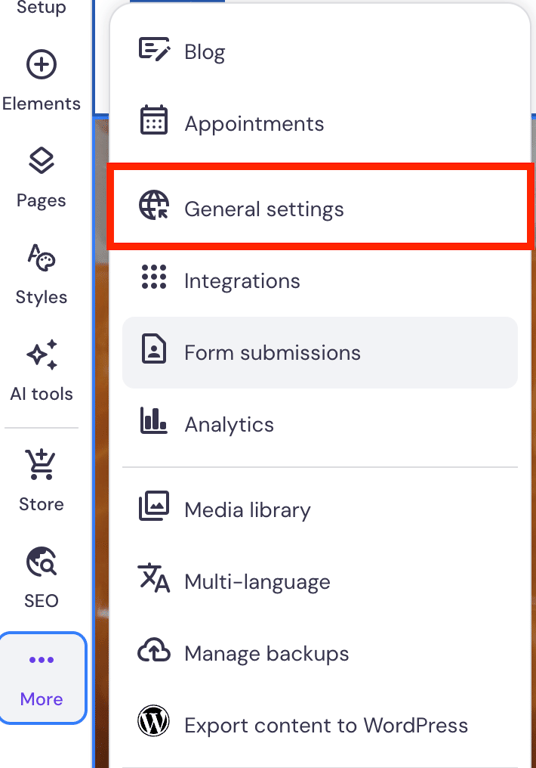
- Expand the Favicon menu and click Add image.
- In the media library, select the image you want to use as a favicon or upload one.
- Hit Save changes.
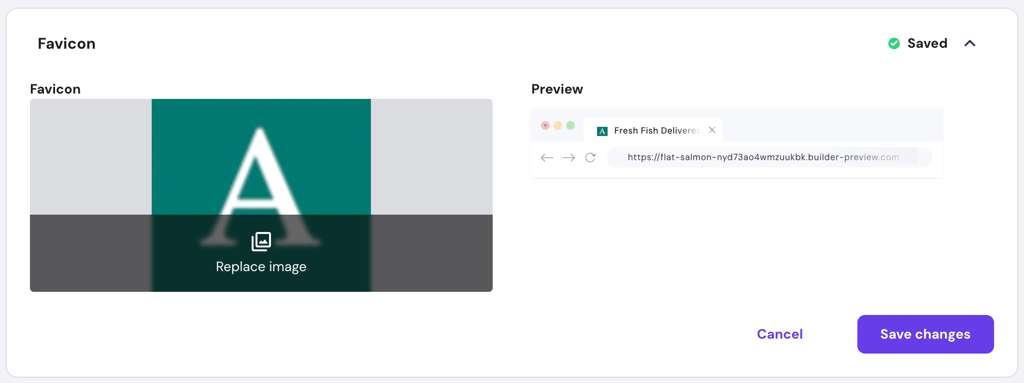
- Click Update website on the top right to push the changes live.
Your website’s favicon should now be updated.

Best practices for adding a website favicon
Following best practices when adding a website favicon ensures your icon is easily identifiable and serves as an effective branding tool. Here are several aspects to consider when adding a favicon:
- Use the correct image format. While .ico offers the best compatibility, other image formats might work better. For example, .svg is superior for modern browsers because it scales indefinitely without losing quality, while .png is a safe middle ground that balances visual clarity and compatibility.
- Create multiple sizes. If you aren’t using SVG or ICO, prepare favicons in 16×16 px, 32×32 px, and 192×192 px to cover tabs, taskbars, and mobile shortcuts. While your browser can adjust the size automatically, having different dimensions will result in a sharper image.
- Keep it simple. Since favicons are tiny, avoid complex text or detailed illustrations because they won’t be visible. Instead, use a simplified version of your logo or a single initial.
- Check contrast. Ensure your icon is visible on both light and dark browser modes. Use a transparent background with colors that contrast both themes, such as medium-toned blues, greens, or reds, or add a border for visibility
- Optimize file size. Keep the file size small, ideally less than 100 KB, to minimize its impact on your page load time. Check our guide to learn more about optimizing images for your website.
Troubleshooting common favicon issues
When adding a favicon to your website, several issues may arise that prevent the icon from showing or appearing correctly. Here are some of the most common technical issues, their causes, and solutions.
Browser caching
Web browsers temporarily store data about your website as cache to save bandwidth and speed up load time. If your favicon is not showing, it’s likely that your browser is still using the old version of your site.
This issue is on the user end, meaning there’s nothing wrong with your favicon or your website. To verify if the error is cache-related, access your website in incognito mode or hard reload the page by pressing Ctrl + Shift + R or Cmd + Shift + R on your browser.
Typically, browser caching problems will resolve automatically. If this issue persists after a few hours, consider flushing your website cache to force browsers to fetch the updated information.
Incorrect file path
If you set an incorrect file path inside your custom HTML code, web browsers won’t be able to find your image. Consider this snippet:
<link rel="icon" type="image/x-icon" href="favicon.ico">
The example above tells your web browser to look for an image called favicon.ico in the current folder. For example, if you add the code in index.html, the favicon should be located in the same directory as the HTML file.
To resolve this, simply specify the correct path to the file. For instance, if your index.html is located in /var/www/index.html and your favicon is inside /var/www/images/favicon.ico, the correct code would be:
<link rel="icon" type="image/x-icon" href="images/favicon.ico">
Also, the path and file name are case-sensitive. This means Favicon.ico is different from favicon.ico.
Syntax errors in HTML
A syntax error, like a missing quote or incorrect attribute in your link tag, can prevent your favicon from displaying correctly. Additionally, error messages may occasionally appear due to this issue.
Here are several issues that can cause syntax errors:
- Missing closing tags. Syntax errors commonly happen because your code is not enclosed properly. For example, rel=”icon causes an issue because of the missing quotation mark at the end.
- Invalid rel values. The rel attribute determines the relationship between the current HTML document and a linked resource. Since the values for the rel attribute are pre-determined, a typo like rel=”icons” can render your code invalid.
- Wrong code placement. Your favicon code must be placed inside the <head> </head> tags of your HTML code. Putting it inside other parts of your website, such as <body> </body>, will cause an error.
You can check for syntax errors manually or use an online validation tool. After identifying the problem, simply update your code and save your HTML file.
Important! Syntax errors rarely occur if you set up a favicon using the built-in feature of WordPress, a plugin, or a website builder because the process is automated and validated. If it happens, ask the developer for assistance since you can’t revise the code manually.
Next steps: Make your website discoverable
A favicon serves as the visual identifier of your website in search results, establishing branding and helping it stand out from other sites. With that in mind, the next step after finalizing the design of your site is to submit it to search engines.
Submitting your website to search engines allows platforms like Google to crawl your site’s content, including its new favicon, and display it on the search results page.
Although this procedure is automatic, manual submission may be necessary to speed up the process and help search engines index your web pages more accurately.
The steps for submitting your website vary depending on the search engine. Generally, you need to generate a sitemap and upload it to a search engine indexing platform, such as Google Search Console or Bing Webmaster Tools.
This article is a localized version of How to add a favicon to your website, originally published in English.

Aris is a Content Writer specializing in Linux and WordPress development. He has a passion for networking, front-end web development, and server administration. By combining his IT and writing experience, Aris creates content that helps people easily understand complex technical topics to start their online journey. Follow him on LinkedIn.