How to fix the “is its parent directory writable by the server?” Error in WordPress
Mar 10, 2026
/
By Domantas G.
/
3 min Read

This article will teach you how to resolve the “Is its parent directory writable by the server?” error. It’s a common WordPress problem that prevents you from uploading files to your website.
Download all-in-one WordPress cheat sheet
How to Fix “Is its parent directory writable by the server?” Error on Web Hosting

The error can happen due to incorrect permissions, ownerships, or the location of the uploads folder. Regardless of the cause, we’re here to show you how to fix this error quickly.
There are two methods of resolving the issue on web hosting — by changing the directory path and permissions of the uploads folder.
1. Changing the Uploads Folder Directory
Sometimes, the “Is its parent directory writable by the server?” issue occurs because WordPress can’t recognize the location of the uploads folder.
You might face the problem after you have just moved your site to another hosting provider. To fix it, you need to modify your WordPress config file:
- Access your hosting file manager or FTP, and search for the wp-config.php file. It is commonly located in the root folder of your website (/public_html).
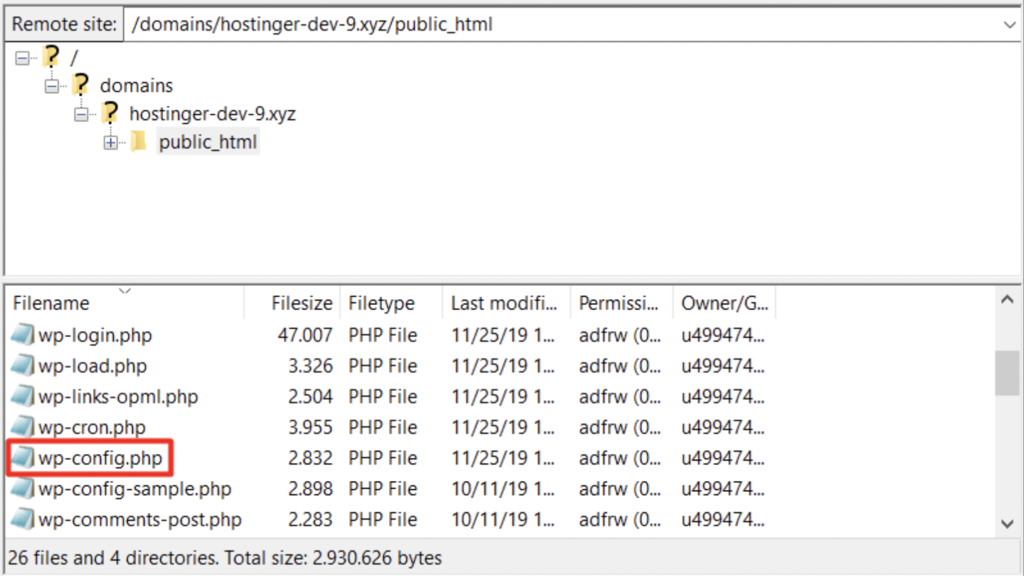
- Open the file and add the following code:
define( 'UPLOADS', 'wp-content/uploads' );
before this line:
require_once(ABSPATH . 'wp-settings.php');
- Save the file. Now, try to upload your media files again.
2. Changing Folder Permissions
If you still get the “Is its parent directory writable by the server?” error after following Method 1, you might want to try resetting the permissions of your uploads folder.
Simply follow the instructions below:
- Connect to your account via an FTP client or file manager. Go to the WordPress installation directory — commonly in /public_html.
- Open the wp-content folder and right-click on the uploads folder.
- Click on File Permissions. A new dialogue box will pop up. Look for the Numeric Value field and enter 755.
- Scroll down and make sure the Recurse into subdirectories box is checked.
- Select Apply to directories only and click OK.
By performing this method, you will reset the permissions of the uploads folder and its subfolders to 755.
The number means the owner of the file can read, write, and execute the file. This is important to allow the directory to be writable. Hence, fixing the “Is its parent directory writable by the server?” error.

How to Fix “Is its parent directory writable by the server?” Error on VPS
If your WordPress site is hosted on VPS, you can try the following solution to fix “Is its parent directory writable by the server?” error. However, note that this method only works for Linux running on Apache webserver.
Before we begin, let’s understand some basics. By default, your Apache web server uses the www-data user and www-data group to access files and folders.
However, there is a possibility that the uploads folder is not owned by www-data. This situation leads to the “Is its parent directory writable by the server?” issue.
What you need to do is change the owner of the uploads directory to www-data:
- Connect to your VPS via SSH. You can learn how to do so in our SSH tutorial.
- Navigate to the wp-content folder inside your WordPress installation directory.
cd public_html/wp-content
- Change the owner and group of the uploads folder to www-data by running the chown command:
chown -R www-data:www-data uploads
- Just like on web hosting, the default permissions for the uploads folder might be incorrect. Therefore, while you are inside the wp-content folder, you may run the following command:
chmod 755 -R uploads
It will set permissions for plugins and all subdirectories inside it to 755.
Note that you can change Linux folder ownerships and permissions via the command line even further.
The solution above might not work if you switched over to a new hosting provider, as configurations between hosting services may vary.
Conclusion
The “Is its parent directory writable by the server?” issue can be frustrating because it won’t allow you to upload files to your WordPress site. Thankfully, in this article, you have learned the various solutions to this error on web hosting and VPS.
The most common method is to change the owners and permissions of the uploads folder. If this option doesn’t work, you may want to modify the uploads directory or the wp-config.php file.
Hopefully, by following this guide, you can quickly fix the issue. Good luck!
Suggested Reading
Check out the following tutorials to learn how to solve more WordPress errors.
How to Debug WordPress
How to Fix 500 Internal Server Error
How to Fix HTTP Error When Uploading Images to WordPress
How to Fix WordPress Not Sending Emails
How to Fix a Critical Error
How to Fix Broken Permalinks in WordPress
This article is a localized version of How to fix the “is its parent directory writable by the server?” Error in WordPress, originally published in English.

Domantas leads the content and SEO teams forward with fresh ideas and out of the box approaches. Armed with extensive SEO and marketing knowledge, he aims to spread the word of Hostinger to every corner of the world. During his free time, Domantas likes to hone his web development skills and travel to exotic places.



Comments
56 responsesJuly 25 2018
Thank you so very much! Option 1 worked perfectly for me and was very easy the way you explained it. You rock!
August 03 2018
That's awesome, Steven! I'm happy to hear you were able to fix your website ;)
September 17 2018
Thank you so very much. This guide is a life saver!
November 29 2018
Thanks for sharing! Option 1 worked for me ;)
December 21 2018
Thanks for this. I recently migrated my website and got the error. Option 1 - adding the line of code to the wp-config.php file worked for me.
January 03 2019
I have solved my problem using option 1. Thanks a lot!
March 25 2019
Thank you so much. Option 1 – adding the line of code to the wp-config.php file worked for me.
May 25 2019
Awesome. Thank you. The first option did the trick for me after tying folder permissions.
September 25 2019
Fantastic article! It's 10pm and this was the last issue to deal with on launch day!! :-( :-) Thanks so much
October 24 2019
Hey Domantas, I was about to pull my hair trying to figure out where I did wrong with permissions and your option 1 came to the rescue. Thanks a lot!
November 05 2019
Option 1 worked after weeks of following complicated advice from other sites and failing each time. Wow. Thanks a bunch!
November 22 2019
Thank you so very much! Option 1 worked perfectly for me as well. Great work.
January 28 2020
Thanx a lot. I have fix it with in a minute.Please create a youtube channel so everyone can easily fix their error.
January 31 2020
Thank you, after moving 26 sites onto a new server, this was the last issue I just could not find an answer to - Option one worked for me... Many thanks
February 03 2020
Hey Mark, Glad to hear that this worked for you :)
February 01 2020
this article is very helpful for me Thank You!
February 03 2020
Hey Haris, Happy to hear it was helpful.
February 06 2020
Thank you for the clear directions! Option 1 worked great!
February 22 2020
Repair Error 403
March 12 2020
Hi Jerry, Check on this tutorial on fixing 403 errors!
April 04 2020
Thank you so much for this.
April 19 2020
Option 1 is my savior. Thank you so much.
April 19 2020
It worked on my case perfectly. Thank you so much.
May 07 2020
Fantastic work worked a treat!!!!!
June 11 2020
thanks, adding define( 'UPLOADS', 'wp-content/uploads' ); fixed it for me
June 30 2020
wow!!! great... I love you advice
July 01 2020
Changing the owner worked for me. Im working on a VPS server and all content was root owner so i changed it and it works now. thanks chown -R youruser_to_be_owner:youruser_to_be_owner name-of-folder Example: user@server:/var/www/my-website.com/ sudo chown -R new_owner:new_owner public
July 05 2020
Very helpful indeed. I have no clue about php, ftp,... and just followed your instruction - and it worked immediately! Thanks a lot for sharing these resources for free!!! Cheers Bernd
July 20 2020
This was extremely helpful. I was able to fix it within 5 min with this info. Thank you so much!
July 22 2020
You are very welcome, Brian!
September 08 2020
Thank you! After several dead ends to resolve this issue, you nailed with option one. Your explanation was easy to follow and it worked! Little things matter, and you made a difference in my day. Keep up the great work!
November 11 2020
Thank you for the kind words, Jason.
September 09 2020
thanks a lot the first one worked well :)
October 02 2020
Thank you for the tip, solved the problem straight away.
October 15 2020
Option 1 works thank you for your help!!
February 02 2021
Happy it helped, Josh ;)
November 29 2020
thank you so much
December 16 2020
If the option 1 did not work, try chown -R www-data wp-content/uploads
February 24 2021
Option one worked instantly! Thank you!
May 06 2021
Hey Vince! Great to hear that it worked :)
April 30 2021
Thank you so much for writing this! You've saved me hours of frustration!
June 09 2021
Dear Domantas, I can not thank you enough for this article. I tried everything; I spoke with GoDaddy several times, I updated everything to 755, and still nothing worked. Then I entered the code exactly where you said to and....it worked!!! Thank you!!!! I will be looking for more of your information to solve a couple other problems on my site.
June 29 2021
Thanks for writing this helpful article! I fixed my problem with uploads so quickly :)
July 17 2021
Dear Domantas G.--YOU ARE A ROCK STAR! Helping others is a very admirable thing--you have helped me today immensely and I send you my best wishes: May you be healthy; May you be happy; may you know love; may you know peace! I'm so glad to have avoided another 2 hours on the phone with GoDaddy! I just migrated a website to a new host platform, encountered this problem, and your solution worked so perfectly! Thanks and THREE CHEERS FOR DOMANTAS G. AND ALL THOSE WHO HELP OTHERS!!!
January 12 2022
Than you very much. Op 1 worked just fine! Than you for taking the time to share.
January 18 2022
Happy to hear!
January 15 2022
Option 1 did the magic.
February 11 2022
Very helpful. Thanks..
April 19 2022
Thanks ! You are my solution!!
April 26 2022
Was totally not taking this post seriously. Tried option#1 and worked like a charm. Thanks man!
May 04 2022
Happy to hear it worked out for you!
April 26 2022
Thanks. Method 1 worked for me.
February 05 2024
THANK YOU! OMG I spent an hour on the phone with my unhelpful webhost support and they were like, this is unusual. We don't know how to help you. Lol. I googled the error and got this tutorial and I fixed it myself and it WORKED. My wordpress database was recently migrated, which is why I had the error.
February 07 2024
You're welcome! We're glad you were able to resolve the issue and get your WordPress database working again. Don't hesitate to reach out if you need further assistance in the future ?
March 29 2024
Thank You but it`s does not working for me. =( My last line block is: /** Sets up WordPress vars and included files. */ define('UPLOADS', 'wp-content/uploads'); require_once ABSPATH . 'wp-settings.php'; ¿What I'm doing bad? Thanks.
April 25 2024
Hello! It appears that your last line might be missing the parentheses "(...)" as you correctly pointed out. It should be: require_once(ABSPATH . 'wp-settings.php'); ?