How to install datapacks in Minecraft
Mar 10, 2026
/
By Viktoras D.
/
6 min Read
Datapacks (or data packs) are a powerful way to customize Minecraft without mods. They expand gameplay in vanilla Minecraft, multiplayer, and existing singleplayer worlds. You can change game mechanics, add new features, or create unique gameplay without leaving vanilla compatibility behind.
For server owners, datapacks are a flexible tool for server customization. You can tailor the experience to your community without asking players to install mods. For players, it means fresh content and new challenges, all within the base game.
In this guide, you’ll learn how to install datapacks on a Minecraft server. If you run a server, datapacks make it easy to enhance the actual gameplay with custom recipes, new structures, or fun mechanics that keep your players engaged in your existing world.
Prerequisites
Before you install datapacks on a Minecraft server, make sure you have the following in place:
- A dedicated Minecraft server: Ensure Minecraft Java Edition is properly installed and running on your dedicated gaming server. Hostinger offers Minecraft hosting starting at CA$ 9.09/month.
- Minecraft Java Edition: Datapacks are designed for the Java version. Bedrock Edition does not support them.
- A compatible Minecraft version: This ensures Minecraft datapack compatibility and helps avoid common datapack installation errors.
- Access to your server files: You’ll be managing both your Minecraft server folder and the Minecraft world datapacks folder, so full access is essential.
- Basic understanding of server commands and configuration: You should be comfortable running Minecraft server commands and adjusting basic server settings.
Once you have these ready, you can move on to downloading and uploading datapacks to your server.

How to install datapacks on a dedicated Minecraft server
1. Download a datapack
The first step is to download a Minecraft datapack zip file you want to use on your game server. Datapacks can do a lot, from changing game rules to adding new world generation or custom advancements. Before you install datapacks, make sure to download a compatible zip file in the correct format for your game version.
You can find and download reliable datapacks for Minecraft on these trusted sources:
- Minecraft Wiki: For official info and links to well-known packs.
- Minecraft Fandom: Community-run with tutorials and recommendations.
- Planet Minecraft: A popular site for community-created datapacks.
- Vanilla Tweaks: Customizable packs focused on quality-of-life improvements.
Common datapack features include:
- Adjusting game rules. For example, one player sleep.
- Adding new crafting recipes or loot tables.
- Introducing custom mobs or structures.
- Creating custom advancements or objectives.
- Modifying world generation and biomes.
Once you’ve picked a datapack, be sure the zip file is in the correct format and version to avoid datapack installation errors in Minecraft.
2. Access your Minecraft server files
To upload a Minecraft datapack to your server, open the Minecraft folder named server. There are two common ways to do this:
- Via File Transfer Protocol (FTP) using a tool like FileZilla.
- Through Hostinger’s dashboard.
Using FileZilla (FTP):
- Launch your FTP client (such as FileZilla) and connect to your Minecraft server folder using the FTP credentials provided by Hostinger:
- Host: Your server’s IP address
- Username: Your FTP username
- Password: Your FTP password
- Port: 22 (default FTP port)

Using Hostinger’s Game Panel:
- Log in to your Hostinger Game Panel.
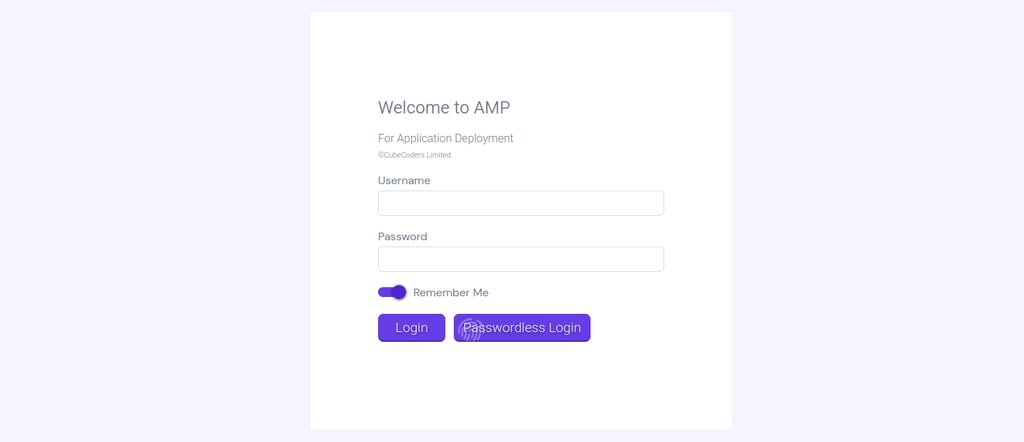
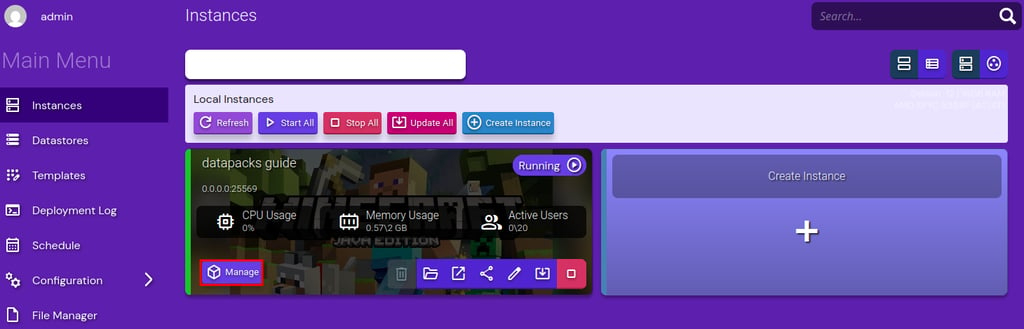
- Select your Minecraft server.
- Go to File Manager for your Minecraft server.
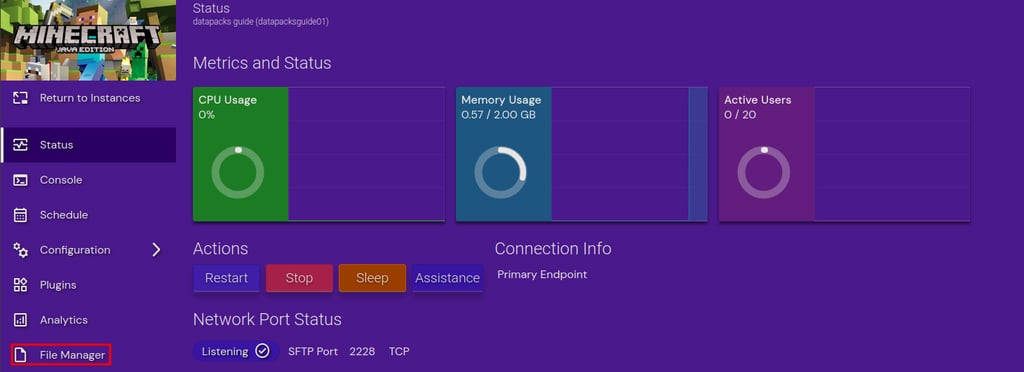
Once inside your server folder, locate the world folder. This is typically named world, and it’s where the datapacks folder lives. Depending on how you’re accessing the server folder, the default location is usually:
- Minecraft/world when using the Game Panel
- /home/amp/.ampdata/instances/<your_instance_name>/Minecraft/world when connecting via FTP
3. Find or create the “datapacks” folder
The datapacks subdirectory inside the Minecraft world folder is where the server looks for new datapacks during startup or reload. Therefore, once you’ve accessed your server folder and located the world folder, the next step is to find the folder named datapacks. Here’s how:
- Open the world folder.
- Look for a subfolder called datapacks.
If the datapacks folder already exists, you’re good to go. This is where you’ll upload the datapack zip file in the next step. However, if the datapacks folder doesn’t exist:
- Create a new folder inside the world folder.
- Name it datapacks. The name must be all lowercase, no spaces or extra characters.
This folder is essential because Minecraft looks here when the world loads to check for active datapacks. If the folder is missing or named incorrectly, the game won’t detect your datapack.
4. Upload the datapack to the server
Locate the zip file for the datapack on your computer and upload it directly into the datapacks folder inside your server’s world directory. Make sure to upload the zip file directly. Do not extract it, as Minecraft will handle that automatically. Uploading the file in the correct format ensures your Minecraft datapacks will install correctly and load without issues on your dedicated server.
You can do this using any of the access methods mentioned earlier. Both support drag-and-drop for easy uploading:
- Hostinger Game Panel file manager: Open the folder named datapacks and drag the datapack zip file into it, or use the upload button.
- FileZilla (FTP): Navigate to the datapacks folder on the server and drag the zip file from your local machine into the folder.
Important! Do not extract the data pack zip file. It’s already in the correct format. Minecraft automatically processes the file structure when the Minecraft world loads. Uploading the zip file as-is ensures everything is structured correctly and can be recognized by the game.
Once the upload is complete, your datapack is now ready to activate.
5. Load the datapack on the server
After uploading, you must load the datapack into your Minecraft server configuration so the game can detect and apply it.
You have two options:
- Restart the server: This automatically loads any new datapacks.
- Reload Minecraft server: This applies changes without a full restart.
To reload the Minecraft server without restarting:
- Open Minecraft
- Log in to the server as an operator (OP).
- Run the command:
/reload
This reloads the Minecraft server datapack configuration, completing the datapack installation on your Minecraft server and enabling any new features.
To confirm that the datapack loaded correctly, use:
/datapack list
This command will return a list of all active and available datapacks. If your new datapack appears under [enabled], it’s working properly.
If you don’t see the datapack listed, double-check the following:
- The file is still in zip format.
- It’s placed directly inside the folder named datapacks and not nested inside another folder.
- The internal structure of the zip includes a pack.mcmeta file at the top level.
6. Activate the datapack
In most cases, uploading the datapack and running /reload is enough to activate it automatically. However, if it doesn’t show as enabled, you can manually activate it using server commands.
To enable a specific datapack, use this command to activate and test it on your server:
/datapack enable "<name>"
Replace <name> with the exact name of the datapack as shown in the /datapack list output.
After enabling it, reload Minecraft server by running:
/reload
This reloads the datapack and applies any changes immediately.
How to test if the datapack is active in-game:
- Check for new features: Some datapacks add recipes, structures, or game mechanics. Try crafting a new item or exploring the world.
- Run custom commands: Many datapacks include functions you can trigger with /function commands. Use /function followed by a tab to see available options.
- Use /datapack list: This will show you if the datapack is currently marked as [enabled].
Conclusion
Installing datapacks on a dedicated Minecraft gaming server is an easy way to enhance your existing world, customize gameplay, add new mechanics, and keep the server experience fresh and engaging. Whether you’re introducing quality-of-life tweaks or entirely new game features. Thanks to server customization with datapacks, you can tailor the gameplay, introduce unique mechanics, and keep your players engaged.
To recap: make sure you’re using Minecraft Java Edition, upload the datapack zip file directly into the correct world/datapacks folder, and use commands like /reload and /datapack list to load and verify it. If needed, activate it manually with /datapack enable.
If you’re using Hostinger’s Minecraft server hosting, you’re already set up with the tools to manage and customize your server files. Use the Game Panel or FTP access to try out new datapacks and level up your Minecraft world.
Ready to start customizing? Upload your first datapack and bring new experiences to your players.
How to install datapacks in Minecraft FAQ
What are datapacks in Minecraft?
Datapacks (or data packs) are files that modify Minecraft’s gameplay without the need to install mods. Datapacks can alter game rules, add custom recipes, generate new structures, or introduce unique mechanics. Designed for Java Edition, datapacks are installed directly into a world folder, making them easy to manage, and they are fully compatible with vanilla multiplayer servers.
How do I download a datapack?
You can download datapacks from trusted sources like the Minecraft Wiki, Planet Minecraft, or Vanilla Tweaks. Choose one that matches your Minecraft version and download the zip file. There’s no need to extract it – just upload it directly to your server’s datapacks folder in the world directory.
Can I use multiple datapacks at once?
Yes, you can use multiple datapacks in the same world. Minecraft loads them in order and combines their features as long as they don’t conflict. Simply upload each zip file into the datapacks folder. Use /datapack list to view them and /datapack enable to control which ones are active.
This article is a localized version of How to install datapacks in Minecraft, originally published in English.

Viktoras is a Content Writer with a background in DevOps, cloud infrastructure, and automation. With experience in infrastructure management, CI/CD, and API integrations, he focuses on optimizing developer productivity and system reliability. Find him on LinkedIn.



Comments
0 responses