How to log in to WordPress using the login URL, hPanel, and password reset page
Mar 10, 2026
/
Ariffud M.
/
5 min Read
Knowing different ways to log in to your WordPress website is essential. If the usual way fails, you can still gain access to your website using an alternative method.
This article demonstrates how to log in to WordPress with three methods: via the login URL, hPanel, and password recovery.
How to log in to WordPress admin dashboard
In this section, we’ll explore three login methods for WordPress. If you’re a Hostinger user, you can easily access WordPress via the hosting control panel hPanel and bypass entering login credentials.
Let’s begin with the most common way to log in to WordPress – via the login URL.
Suggested Reading
To learn more about WordPress, we recommend reading our WordPress tutorial. It covers essential topics such as how to install WordPress, how to create posts, and how to enhance your site’s security and performance.
How to log in to WordPress using the login URL
By default, you can access the WordPress login URL by adding /wp-admin to your site URL. For example, for the website URL www.example.com, enter www.example.com/wp-admin in the browser’s address bar to access the login page.
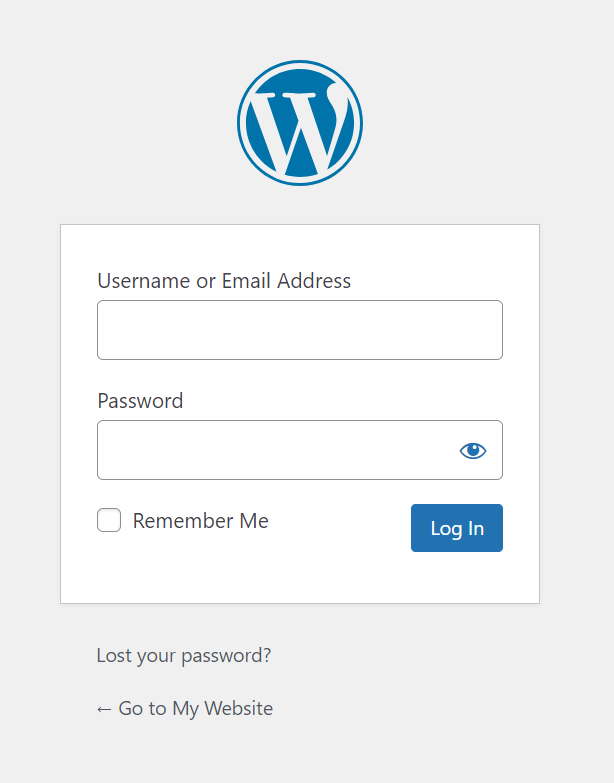
The correct login page will show you the WordPress login form, where you can enter your credentials – Username or Email Address and Password. Then, click Log In to access your WordPress admin dashboard.
You may also encounter other variations of the WordPress login page URL, such as:
- www.example.com/login
- www.example.com/wp-login.php
- www.example.com/admin
If WordPress is installed on a subdomain or subdirectory, the login URL is slightly different. For blog.example.com, for instance, the URL would be blog.example.com/wp-admin.
For WordPress installations in a subdirectory, such as www.example.com/blog, the login URL would be www.example.com/blog/wp-admin.
Remember – understanding the wp-admin folder structure is crucial for finding the link to your WordPress admin area, regardless of your site’s configuration.
How to log in to WordPress from hPanel
For Hostinger’s managed WordPress hosting users, hPanel provides a way to make the WordPress login process more convenient.
This method is quicker because it eliminates the need to enter login details on the wp-admin page. If you’re having trouble with the wp-admin login URL, this is also an effective way to gain access to your WordPress admin area. Follow these steps:
- Log in with your Hostinger account to access hPanel.
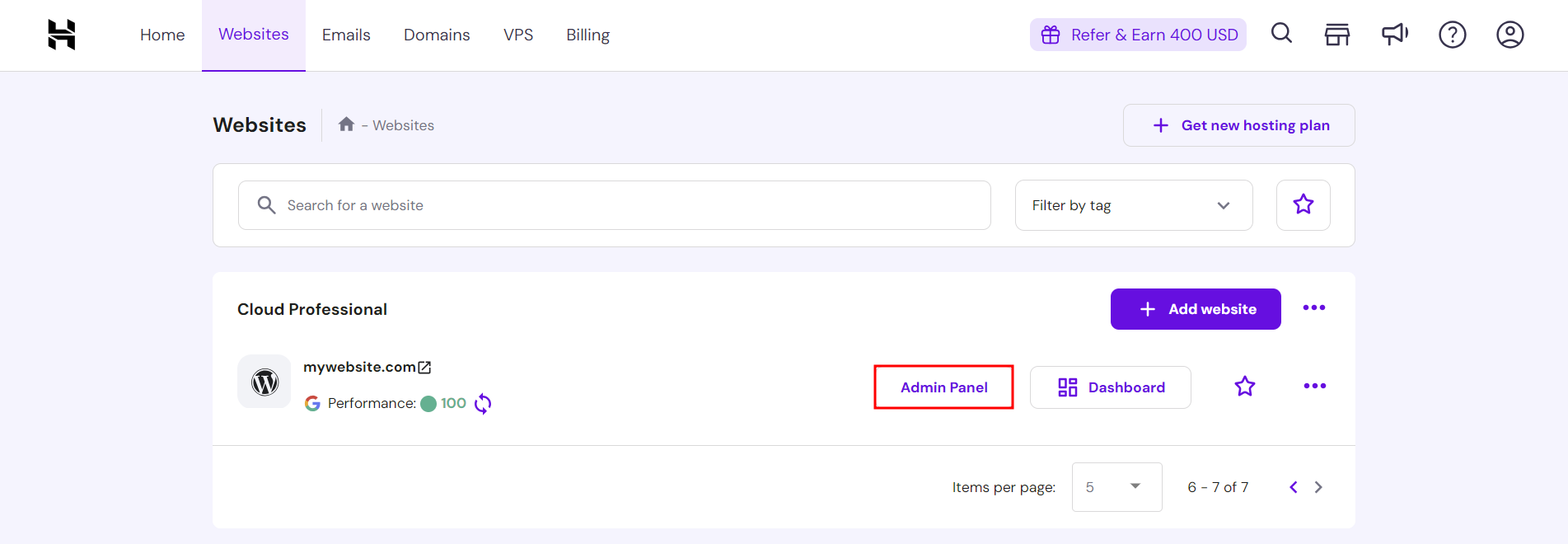
- Navigate to the Websites section on the navigation bar.
- Click Admin Panel next to the WordPress website you wish to manage.
Furthermore, this approach allows you to view multiple WordPress installations from a single hosting account. It is a significant time-saver for those managing several sites, enabling quick and simultaneous access to each website’s admin dashboard.

How to log in to WordPress after losing your password
Losing your WordPress password shouldn’t mean losing access to your site. The WordPress login screen offers a helpful feature for such situations. Here’s how to reset your password:
- Go to your WordPress login URL, such as www.example.com/wp-admin.
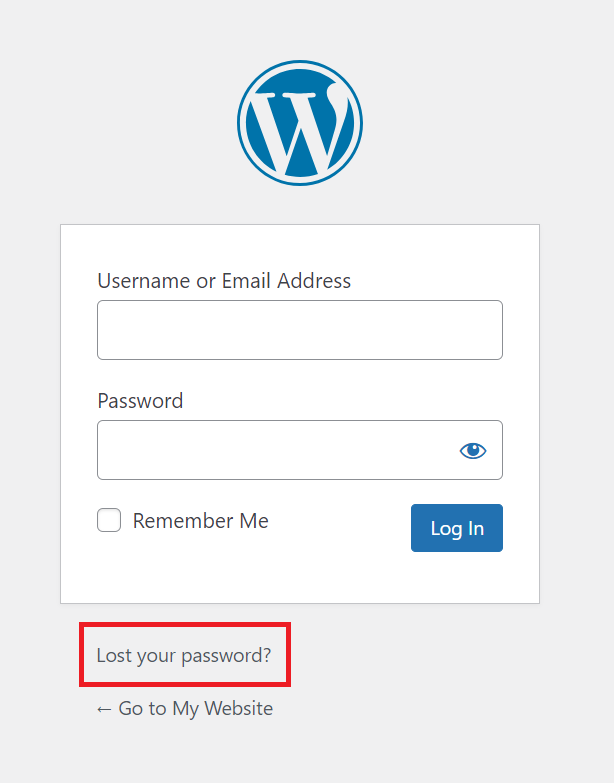
- Below the login fields, you will find a link labeled Lost your password? – click this link.
- Enter the username or email associated with your WordPress account and click Get New Password.
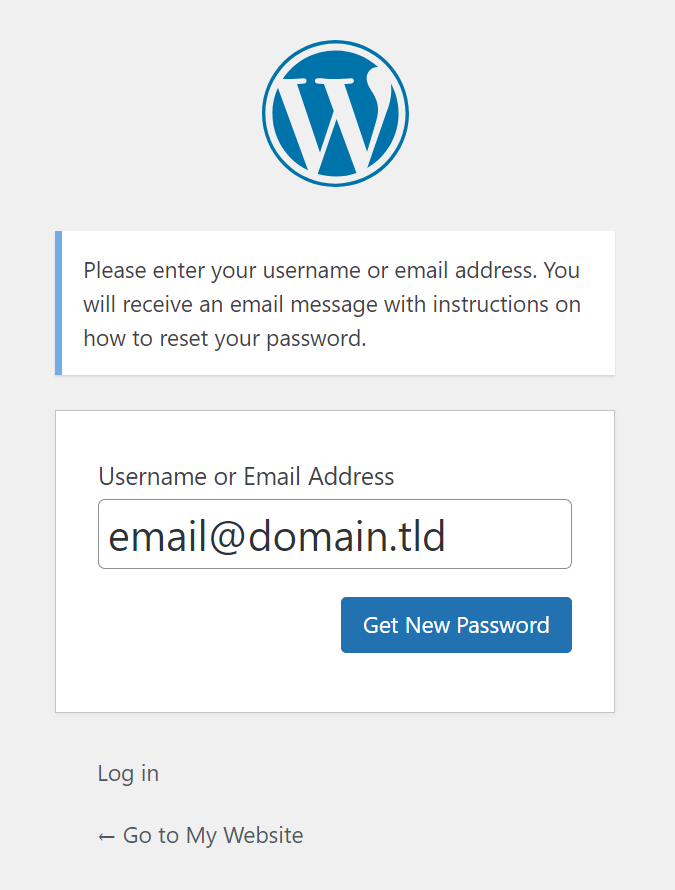
- After submitting your details, WordPress will send a password reset link to your email.
- Click on the link in your email. This will direct you to a page where you can set a new WordPress password and regain access to your website’s back end.
Remember to choose a strong password to avoid future login issues. Consider storing your new password in a secure place, like a password manager like Bitwarden, to prevent forgetting it later on.
Common WordPress login issues
Beginner and experienced users alike may encounter WordPress login errors. Let’s explore some common problems with WordPress login and their solutions.
Locked out of WordPress
Being locked out of WordPress can happen for several reasons, such as conflicts with a WordPress security plugin or issues with the .htaccess file. Here’s how to address these problems:
- Security plugin restrictions – security plugins might lock you out of your own site after detecting unusual activity, for example, a problematic plugin. To solve this, temporarily disable suspected plugins via the File Manager or an FTP client like FileZilla by renaming their folders in wp-content/plugins.
- Error messages or blank pages – if you’re met with an error message or a blank page instead of the login screen, it could be a WordPress plugin or theme issue. Try deactivating all plugins and switching to a default theme via File Manager to identify the problem.
- Corrupted .htaccess file – an error in the .htaccess file can also cause login problems. Via File Manager, rename this file to gain access, then generate a new .htaccess from the WordPress admin page.
WordPress login disabled
Encountering a disabled WordPress login form can be due to protective measures or configuration issues. If you’re experiencing trouble logging in, here are some solutions:
- Brute force attack security – WordPress security configurations may disable the login form after the wrong password is entered multiple times as protection against brute force attacks. If this is the case, check your associated email for reactivation instructions.
- Hosting provider restrictions – your login form might be disabled because your hosting provider detected suspicious activity or site maintenance. Contact your hosting provider’s customer support to access your site immediately.
- User account issues – login problems can arise from errors or corrupted data in your WordPress database and files. Investigate by accessing your site’s database via phpMyAdmin and reviewing the wp_users and wp_usermeta tables to identify the problem and fix it.
WordPress login redirect loop
A login redirect loop, where you’re continuously sent back to the login page, is a frustrating error that can block access to your WordPress account. Here’s how to address this issue:
- Clear browser cookies and cache – browser issues often cause redirects. Clearing cookies and cache removes outdated data, potentially fixing the problem.
- Plugin redirects – incorrect redirects from recently added or updated plugins can cause issues. Check your plugins’ settings in the WordPress admin panel to prevent redirect loops.
- URL mismatches – a discrepancy between WordPress site URLs in your database can cause redirects. Verify the siteurl and home values in the wp_options table via phpMyAdmin to ensure they match.
WordPress login tips
A secure WordPress login page can help prevent potential attacks against your site. Here are essential tips to improve your WordPress login security and convenience:
- Change the login URL – enhance security by changing the default WordPress login URL using a plugin like WPS Hide Login. This makes it more challenging for unauthorized WordPress users to find the login page.
- Implement two-factor authentication (2FA) – add an extra security layer to WordPress with 2FA. Enable this feature using security plugins like Wordfence.
- Enable the Remember Me Option – enable longer sessions and reduce the need for frequent logins by using the Remember Me option on the login page. However, make sure that other users can’t access the device you’re using.
- Restrict login attempts – security plugins can block access to your WordPress site after multiple failed attempts. This is an essential protection against brute-force attacks.
- Regularly update passwords – use a strong password and frequently update it. This is especially important for WordPress sites with multiple users.
How to log in to WordPress and use the dashboard – video tutorial
Discover the next steps after logging into WordPress with our video tutorial. We will guide you through the WordPress dashboard and its various menus.


Conclusion
In this tutorial, we have explained three methods to log in to your WordPress website. From using the login page URL to using hPanel and resetting the password, you’ll be able to maintain access to your WordPress site without fuss.
Mastering these login techniques streamlines your workflow, enhances website security, and prevents common issues like being locked out of your WordPress site and login redirect loops.
How to log in to WordPress dashboard FAQ
Why can’t I access my WordPress login page?
Usually, users can’t access the WordPress login page due to an incorrect admin URL or a server-related issue. Make sure you’re accessing the correct WordPress login link, and check your site’s server status for any errors.
What are the default username and password for WordPress?
The WordPress login information is determined during the installation process. While there’s no default name, admin is frequently chosen as the WordPress username. For security reasons, be sure to set up a unique and strong username and password.
What is the WordPress admin login URL?
For most WordPress installations, the default WordPress login link is the website address followed by /wp-admin. For example, for www.example.com, the login URL would be www.example.com/wp-admin.
All of the tutorial content on this website is subject to Hostinger's rigorous editorial standards and values.

Ariffud is a Technical Content Writer with an educational background in Informatics. He has extensive expertise in Linux and VPS, authoring over 200 articles on server management and web development. Follow him on LinkedIn.
Comments
February 03 2018
Thank you!
February 15 2018
You're welcome, Guarav!
February 20 2018
This system seem unnecessarily complicated. How do I get to dashboard? The above is no help. How do I get a hit counter established for my blog? It should be much more user friendly. P.S, I'm 88 years old. Have mercy!
February 27 2018
Hey Gene, Just add /wp-admin to your domain name. For example: genenewmanImagineThat.com/wp-admin
June 21 2019
Thank you. Was stuck a little while ago but this article helped.
August 05 2020
gave my site to a developer... and since my site has been put under construction cant seem to access my word press page i need help
November 06 2020
Hey John. Hope you are having a lovely day! :) There is not much I Can do via the comment section here, but if you can message our support team, provided that your website is hosted here in Hostinger, I am sure we can help you out. Drop us a note! :)
March 01 2023
How to change my domain name
March 03 2023
Hello! I would suggest checking this video if you want to change the domain of your WordPress website.
April 19 2023
My Network Solutions webpage has been suspended due to hacking activity. I have paid SiteLock to clean it up but they say I need to update my WordPress to 6.2. I have read your tutorials but I cannot get into my WP admin page because it also is deactivated for some reason. How can I update asap? NetSol designed my site but says they cannot help at all. They gave me a URL to update pages via WP but I can't get in now. I just talked with a rep from NS and she said they can't help. Would it be easier to have WP host my account? Why do I not have a WP account if I've been updating my pages with it for the past 5 years. PLEASE HELP! I am losing money by the day with no website active.
April 21 2023
Hello there. I'm sorry to hear that your website is not working properly. It's possible to update WordPress manually. For that, you will need FTP or SSH access. Make sure to back up your site and proceed with this tutorial. Other thing you could do is disable plugins one by one, as that could be what's causing the WP-Admin page to not work. To achieve this, refer to this tutorial (the File Manager part). As for not having WP account, it only comes with WordPress.com which is very different from WordPress.org, check the differences in this article.
January 19 2024
Hi, I want to subscribe for this website to obtain most recent updates, therefore where can i do it please help out.
January 30 2024
Hey there! You can find the subscribe box on the Hostinger Tutorials homepage by scrolling down ?