How to install Docker on Debian 12: repository setup and verification
Mar 10, 2026
/
Ariffud M.
/
5 min Read
As a containerized platform, Docker lets you develop and run apps in isolated environments without modifying your system. Developers and sysadmins also use it to test experimental code. If something breaks during testing, it won’t affect the rest of your setup.
Meanwhile, Debian is a Linux distribution known for its rock-solid stability, making it a popular choice for running Docker in production or long-term environments. It receives fewer updates than rolling-release distros like Arch Linux, but each is thoroughly tested for reliability.
Docker officially supports Debian, so you’ll get regular updates from Docker’s repository, compatibility with essential tools like Docker Engine, Compose, CLI, and Containerd, and reliable community support.
In this article, you’ll learn how to install Docker on Debian 12 – from setting up the required dependencies to verifying that Docker runs correctly on your system.
Prerequisites for installing Docker on Debian
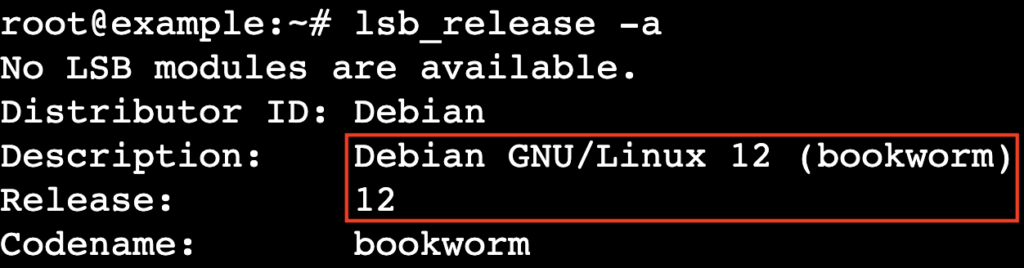
Before starting the Docker installation process, make sure your system runs either Debian 11 (Bullseye) or 12 (Bookworm). If you’re unsure which Debian version you have, open your terminal and run:
lsb_release -a
Here’s the expected output:
Next, confirm that you use a root user account or have sudo privileges. On personal computers, you typically have the necessary permissions by default.
If you own a virtual private server (VPS), verify your access level with your provider. On Hostinger’s Docker VPS plans, you get full root privileges to proceed without restrictions.
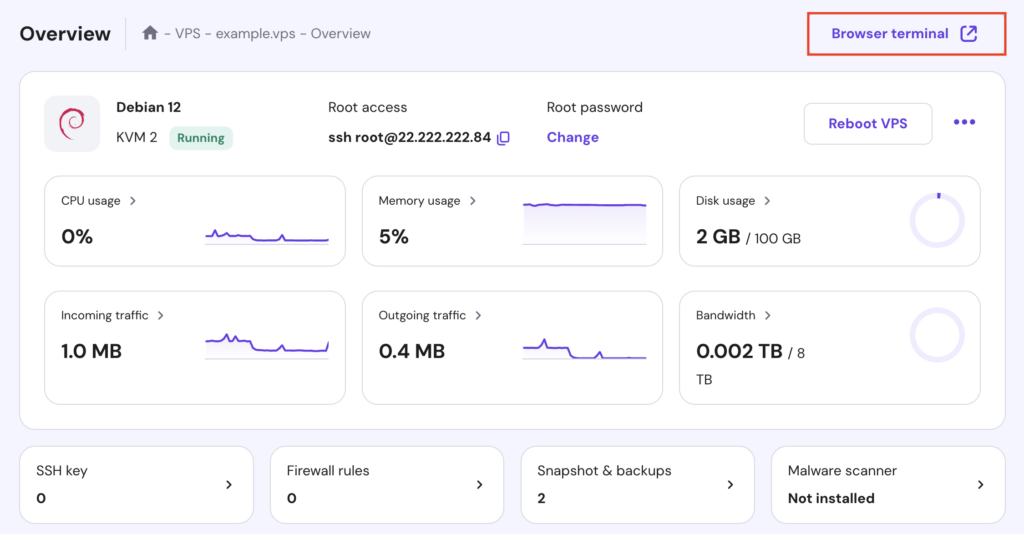
VPS users will also need SSH access to connect to their server remotely. Hostinger customers can find their SSH credentials in hPanel → VPS → Manage → Overview → VPS details.

Hostinger also offers a Browser terminal feature, so you can run Linux commands directly from your browser. This is handy if you don’t have a terminal app installed on your device. Just hit the designated button in the top right corner of your VPS Overview page to get started.

Installing Docker on Debian
After preparing the prerequisites, it’s time to set up Docker on Debian 12 – the same steps apply to Debian 11. The entire process should take less than five minutes.
1. Update your system
As with installing other software, update your Debian system first to use the latest package lists and security patches. This helps prevent compatibility issues and ensures Docker installs smoothly.
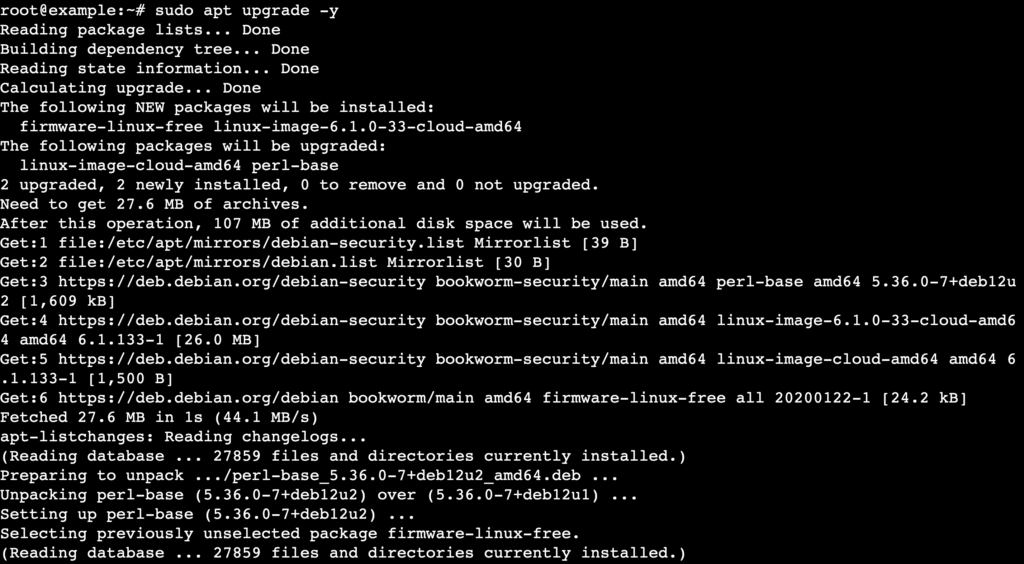
Execute the following commands:
sudo apt update
sudo apt upgrade -y
The first command updates your package index with the latest versions available in your repositories. The second one upgrades any outdated packages already installed on your system.
Pro tip
Besides running the update commands one by one, you can execute them in one go by adding && between them like this:
sudo apt update && sudo apt upgrade -y
This method saves time and makes the update process more efficient.
2. Install required dependencies
Next, install a few prerequisite packages to let your Debian system access external resources securely. These packages include:
- ca-certificates – helps your system verify SSL certificates and connect to secure servers.
- curl – a tool for downloading files from the internet via the command line.
Install them with this command:
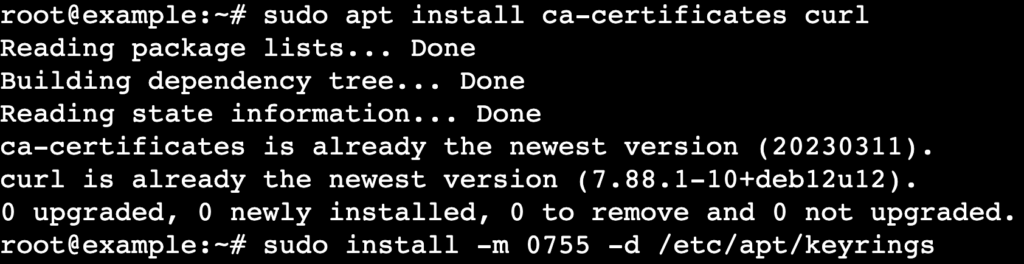
sudo apt install ca-certificates curl
After that, create a keyring directory to store Docker’s GPG key. This ensures a secure and organized package signing process:
sudo install -m 0755 -d /etc/apt/keyrings
3. Add Docker’s official GPG key
Docker signs its packages with a GPG key to ensure their authenticity and integrity. Adding the official GPG key lets your system verify that the packages come directly from Docker and haven’t been tampered with.
Since you’ve already installed curl and created a directory for storing GPG keys, continue by running the following:
sudo curl -fsSL https://download.docker.com/linux/debian/gpg -o /etc/apt/keyrings/docker.asc
Next, update the file permissions so the system can access the key:
sudo chmod a+r /etc/apt/keyrings/docker.asc

4. Set up the Docker repository
By default, Debian’s package repositories may include older versions of Docker. Use the official Docker repository instead to get the latest stable releases and security patches for all components.
Using the signed GPG key you added earlier, run the command below to add Docker’s repository and configure your system to accept only trusted packages:
echo
"deb [arch=$(dpkg --print-architecture) signed-by=/etc/apt/keyrings/docker.asc] https://download.docker.com/linux/debian
$(. /etc/os-release && echo "$VERSION_CODENAME") stable" |
sudo tee /etc/apt/sources.list.d/docker.list > /dev/null
It creates a secure entry inside /etc/apt/sources.list.d/docker.list using the tee command.

5. Install Docker and its components
Now that the repository is set up, update your package index and install Docker with its core components, such as:
- Docker Engine – the core service that runs containers.
- Docker CLI – the command-line interface for interacting with Docker.
- Containerd – a container runtime that manages the container lifecycle.
- Docker Buildx plugin – an extended tool for building Docker images.
- Docker Compose plugin – a tool for running multi-container apps.
Update your package list with the following command:
sudo apt update
Then, install Docker and its components:
sudo apt install docker-ce docker-ce-cli containerd.io docker-buildx-plugin docker-compose-plugin
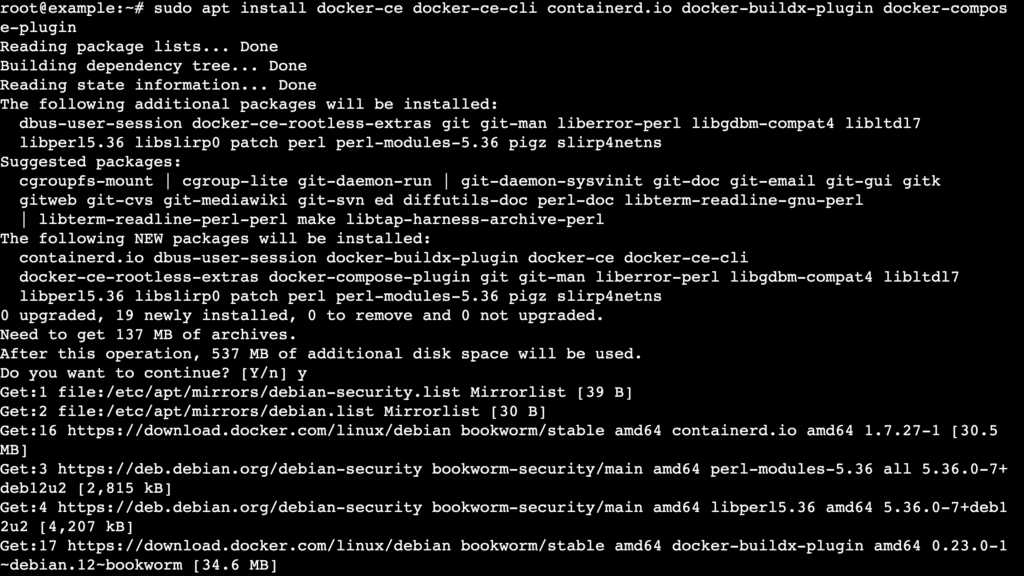
If you prefer to install a specific Docker version instead of the latest one, first list the available versions:
apt-cache madison docker-ce | awk '{ print $3 }' You should see an output showing the available version strings:
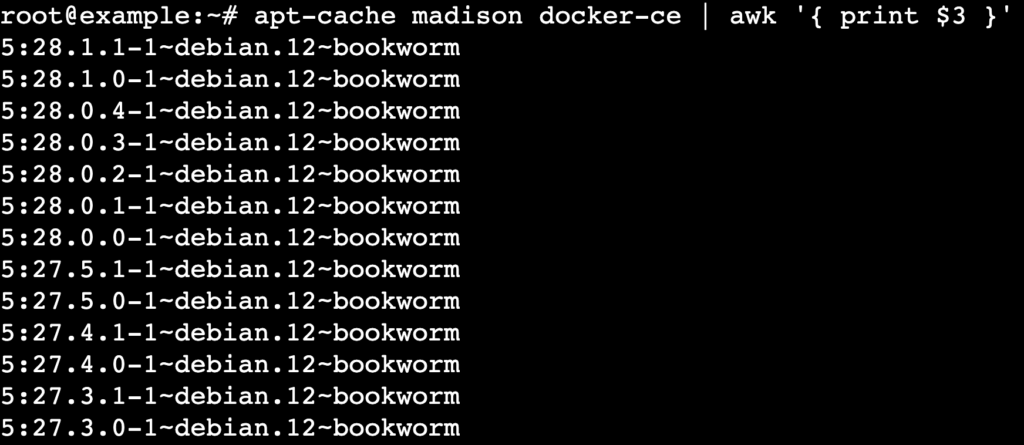
Set the version you want to install. For example:
VERSION_STRING=5:28.1.0-1~debian.12~bookworm
Then run:
sudo apt install docker-ce=$VERSION_STRING docker-ce-cli=$VERSION_STRING containerd.io docker-buildx-plugin docker-compose-plugin
6. Start Docker and enable on boot
After installing Docker, start its service. This step is important, especially for server environments, where you want Docker to be ready as soon as the system boots.
Start the Docker service by executing:
sudo systemctl start docker
Enable it to launch automatically at boot:
sudo systemctl enable docker
To confirm that Docker is running correctly, check its status:
sudo systemctl status docker
If Docker is running correctly, you should see an active (running) status for the service:
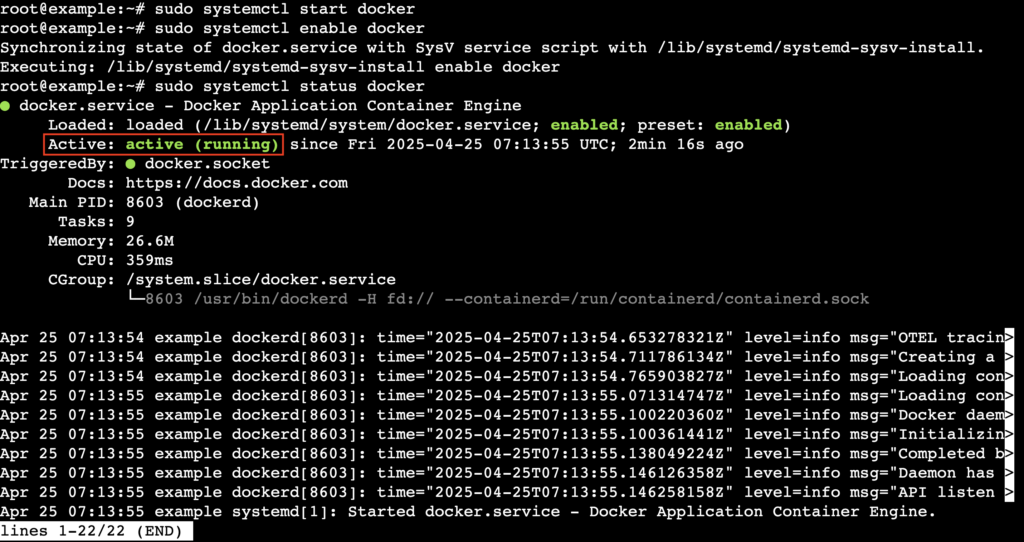
Hit Q to return to the command prompt.
7. Verify the installation
Lastly, confirm that Docker and Docker Compose are installed correctly by running these commands:
docker --version

docker compose version
You should see the installed version numbers for both Docker Engine and Docker Compose:
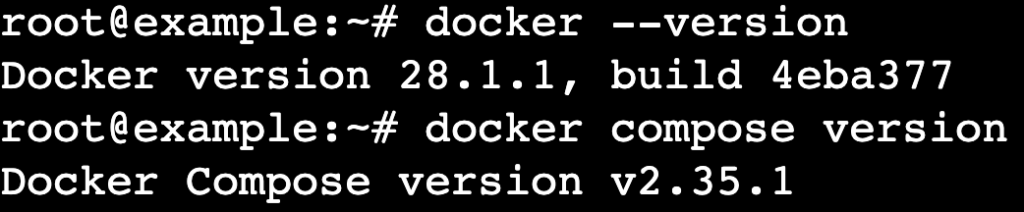
Optionally, execute the hello-world image to verify that Docker is up and running:
sudo docker run hello-world
This command will download and run a test container that prints a success message, confirming that Docker is working correctly:
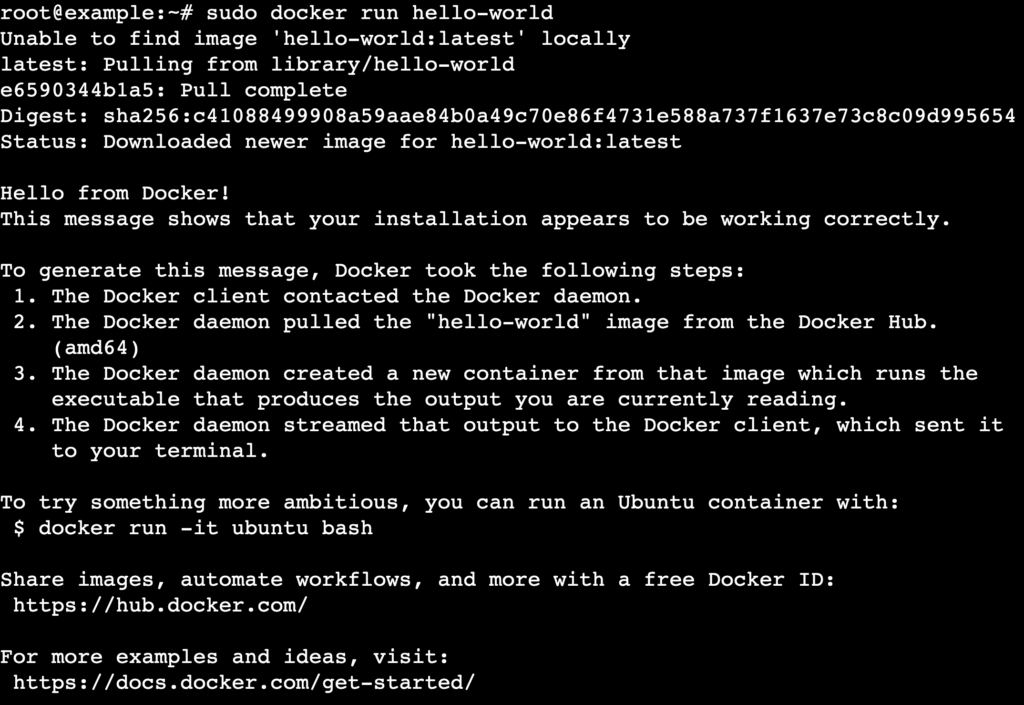
That’s it! You’ve successfully installed Docker on Debian 12. To familiarize yourself further with the platform, explore our Docker cheat sheet, which features the most essential commands for various tasks.
Conclusion
In this tutorial, we’ve covered the steps of installing Docker on the Debian operating system. To recap, here’s what you need to do:
- Update your system packages.
- Install prerequisite tools.
- Add Docker’s official GPG key.
- Set up the secure Docker repository.
- Install Docker Engine, CLI, containerd, and the Compose plugin.
- Start the Docker service and enable it on boot.
- Verify the installation with version checks and a test container.
With Docker ready on your system, you can start creating containers, running Docker commands to manage them, and exploring Docker Compose to build multi-container apps.
As you become more familiar with this containerized platform, you’ll be able to deploy applications and unlock the full potential of container-based development.
Install Docker on Debian FAQ
Which Debian releases can run Docker Engine?
According to Docker’s official documentation, you can install Docker Engine on Debian 11 and 12. Installing Docker on older releases like Debian 10 may still work, but we don’t recommend it for production due to potential compatibility issues with some components.
How do I install Docker on Debian in one command?
You can install Docker on Debian in one command using the convenience script:curl -fsSL https://get.docker.com -o get-docker.shBut this script isn’t recommended for production environments, as it automatically detects your distribution and configures your package without the control provided by manual installation.
How do I upgrade Docker to a newer version later?
Once the Docker repository is set up, check for updates by using:apt list --upgradable
If a newer version of Docker appears on the list, upgrade it with:sudo apt update && sudo apt upgrade -y
How do I uninstall Docker on Debian?
To uninstall Docker, first remove the Docker packages:sudo apt purge docker-ce docker-ce-cli containerd.io docker-buildx-plugin docker-compose-plugin docker-ce-rootless-extrasThen ,delete all Docker images, containers, and volumes:sudo rm -rf /var/lib/dockerFinally, remove the source list and keyrings:
sudo rm -rf /var/lib/containerdsudo rm /etc/apt/sources.list.d/docker.list
sudo rm /etc/apt/keyrings/docker.asc
All of the tutorial content on this website is subject to Hostinger's rigorous editorial standards and values.

Ariffud is a Technical Content Writer with an educational background in Informatics. He has extensive expertise in Linux and VPS, authoring over 200 articles on server management and web development. Follow him on LinkedIn.