How to use docker exec command in containers
Nov 28, 2025
/
Dominykas J. & Ariffud M.
/
7 min Read

The docker exec command lets you run new commands inside a Docker container that is already running.
Here’s what you can do with the docker exec command:
- Access an interactive shell. Gain direct, terminal-like access to a container’s environment for real-time debugging.
- Execute single commands. Quickly run one-off commands, like listing files or checking a process, without starting a full shell session.
- Start background processes. Use the detach flag to kick off long-running scripts or tasks inside the container.
- Set temporary environment variables. Pass new environment variables to a specific command for testing or temporary overrides.
- Access logs. Read log files, like access.log or error.log, directly from within the container.
- Manage internal services. Interact with services running inside the container, such as checking the status of a web server or restarting a process.
- Gain administrative access. Run commands as the root user to perform tasks that require elevated privileges, like installing packages.
What is the docker exec command?
The docker exec command is a core part of the Docker command-line interface (CLI) that provides a way to execute processes in a running container.
Unlike commands that create or manage containers themselves, docker exec operates exclusively on containers that are already active, giving you direct access to their internal environment.
This command is essential for container management because it lets you debug a running application, perform administrative tasks, or inspect its environment without stopping and restarting the container.
In production environments, it’s your primary tool for live diagnostics and on-the-fly adjustments.
When you run docker exec, Docker uses Linux namespaces and cgroups to execute your command within the container’s context. This means it sees the container’s filesystem, network, and process space, not the host’s.
This isolation ensures that your actions stay contained within that specific container without affecting others or the host system.
You can use docker exec to open an interactive shell (bash or sh) to look at files, check configurations, or install new packages for testing.
Beyond shells, it also handles one-off administrative commands like checking disk usage, modifying configuration files, or verifying that a service is responding correctly.
How the docker exec command works
The docker exec command works by targeting a running container and executing a specified command within its namespace. The basic syntax of docker exec is:
docker exec [OPTIONS] CONTAINER_NAME_OR_ID COMMAND [ARG...]
- [OPTIONS]. Flags that modify how the command behaves, like running in interactive mode.
- CONTAINER_NAME_OR_ID. The specific container you want to run the command in. You can get this by running docker ps.
- COMMAND [ARG…]. The command you want to run inside the container, along with any arguments it needs.
Here are the most common flags you’ll use:
- -i (interactive). Keeps the standard input (STDIN) open, so you can provide input to the command. This is essential for interactive sessions.
- -t (tty). Allocates a pseudo-TTY (terminal). This makes the terminal session inside the container behave like a real terminal and is almost always used with -i (as -it) for a stable, usable shell.
- -d (detach). Runs the command in the background (detached mode). The command starts, and your terminal is immediately freed up, rather than waiting for the command to finish.
- -e, –env (environment variables). Sets one or more environment variables just for this command. You can use this flag multiple times (for instance, –env VAR1=value1 –env VAR2=value2). -e is the shorthand for –env.
- –privileged. Grants extended privileges to the executed command. This gives the command full access to the host’s resources, similar to running as root on the host. Use this with extreme caution as it can compromise container isolation.
- -u, –user. Runs the command as a specific user (by name or UID). This is useful for testing permissions or running commands as a non-root user for security.
- -w, –workdir. Sets the working directory inside the container for the command, overriding the container’s default.
Prerequisites before using the docker exec command
Before you can use docker exec, you need a few things in place:
- Docker installed and configured. The Docker Engine (version 1.3 or later) must be installed on your system, and the Docker daemon must be running.
- A running Docker container. The command only works on containers that are currently running. You can’t use docker exec on a stopped or paused container.
- Container ID or name. You must know the ID or name of the container you want to target. You can find this by running the docker ps command.
- A valid command. The command you want to run (like ls, bash, or apt) must exist within the container’s environment.
Practical examples of the docker exec command
Practical examples of the docker exec command include running a shell in a container, setting environment variables, and executing commands with root privileges. The following sections cover these common tasks.
Important! Docker commands often require sudo privileges by default. To simplify this, you can add your user to the docker group to run commands without sudo. This guide omits sudo for clarity, but remember to add it to your commands if you haven’t configured the docker group.
Running a shell in a container
One of the most common uses of docker exec is to access a running container’s shell. This lets you interact with the container’s filesystem, execute commands directly, and perform troubleshooting.
To start an interactive shell inside a container, use the -it flags:
docker exec -it container_name_or_id /bin/bash
Here’s a breakdown:
- -it. Combines the -i (interactive) and -t (tty) flags to give you a fully interactive terminal session.
- /bin/bash. The command you’re running, which in this case is the Bash shell.
If the container doesn’t have Bash installed (common in minimal images like Alpine), you can use sh instead:
docker exec -it container_name_or_id /bin/sh

This method is essential for debugging and exploring the internals of a container without stopping it.
Running a single command inside a container
You can use docker exec to run a single command inside a running container without opening a full shell session.
For example, to list the files in a container’s root filesystem, you can use:
docker exec container_name_or_id ls /
This command executes ls / inside the specified container, listing the files and directories in the root directory.

If you want to view files in a specific directory, just include the path:
docker exec container_name_or_id ls /app
This is a quick and efficient way to check file contents or configurations without starting an interactive session.
Running background tasks
The docker exec command can run tasks in the background using the -d (detach) flag. This runs the command and immediately returns control of your terminal.
For example, to run a maintenance script in the background:
docker exec -d container_name_or_id /usr/local/bin/maintenance-script.sh
The -d flag runs the command in the background, so you can continue using your terminal. This approach is useful for starting long-running processes or non-interactive tasks inside a container.
Passing environment variables
You can use the –env (or -e shorthand) flag to pass environment variables to a command. This is useful when a command needs specific configuration values.
docker exec --env GREETING="Hello, World!" container_name_or_id sh -c 'echo $GREETING'
In this case:
- –env GREETING=”Hello, World!”. Defines the environment variable GREETING.
- sh -c ‘echo $GREETING’. Starts a shell to execute the echo command, which then accesses the variable.
When executed, the output will display “Hello, World!”.

You can pass multiple environment variables by repeating the –env flag:
docker exec -e VAR1=value1 -e VAR2=value2 container_name_or_id command
Warning! Be cautious when passing sensitive data with environment variables, as they may be visible to other users on the system through process lists.
Accessing a specific container’s logs
You can use docker exec to access logs stored within a container by reading the log files directly. This is different from the docker logs command, which reads the container’s standard output (STDOUT) and error (STDERR) streams.
🤔 When to use this method
Only use docker exec to read log files when applications write to specific files (for example, /var/log/app.log) instead of sending them to STDOUT. For standard container logging, always use the docker logs command instead, as it's more efficient and designed for this purpose.
For instance, if a web server container stores logs at /var/log/nginx/access.log, you can access them with:
docker exec container_name_or_id cat /var/log/nginx/access.log

If the log file is large, you can use other tools like tail to view only the most recent entries:
docker exec container_name_or_id tail -n 50 /var/log/nginx/access.log
Interacting with services inside containers
docker exec lets you interact with services running inside a container, such as restarting a service or checking its status.
Important! Most Docker containers run a single process and lack init systems, so commands like service or systemctl are often unavailable (especially in minimal or Alpine images). The examples below only work in full OS images (like Ubuntu or CentOS) that include these service management tools.
Checking a service’s status
To check the status of a service (in containers that support it), you can use its service management command:
docker exec container_name_or_id service nginx status
This command displays whether the nginx service is active, running, or stopped.

Restarting a service
To restart a service inside a container (for example, after changing a config file):
docker exec container_name_or_id service nginx restart

On containers based on modern Linux distributions with systemd, you might need to use systemctl instead:
docker exec container_name_or_id systemctl restart service_name
🔄 Production best practice
Treat containers as immutable units. When you need to restart a service or change configurations, reboot the entire container with docker restart or, better yet, update your container image and redeploy. This approach maintains consistency, reproducibility, and aligns with modern containerization principles.
Running commands with root privileges
By default, docker exec runs commands as the same user the container was started with.
If your container was built with a non-root USER instruction in the Dockerfile, commands will run as that user and may not have the permissions you need for administrative tasks.
To run commands with root (administrative) privileges when needed, use the -u root flag. For example, to update package list:
docker exec -u root container_name_or_id apt update
Or to change file ownership:
docker exec -u root container_name_or_id chown user:user /path/to/file
You can also run commands as any specific user by specifying their username or UID:
docker exec -u www-data container_name_or_id /bin/bash
Always exercise caution when running commands as root, as improper changes can break your container.
Troubleshooting common issues with the docker exec command
Troubleshooting common issues with the docker exec command usually involves checking the container’s status or resolving permission errors.
Container not running
If you receive an error like “Error response from daemon: Container…is not running”, it means the container is stopped. docker exec only works on running containers.
First, use the docker ps command to list all active containers. If your container isn’t listed, it’s not running.

You can start it using docker start:
docker start container_name_or_id
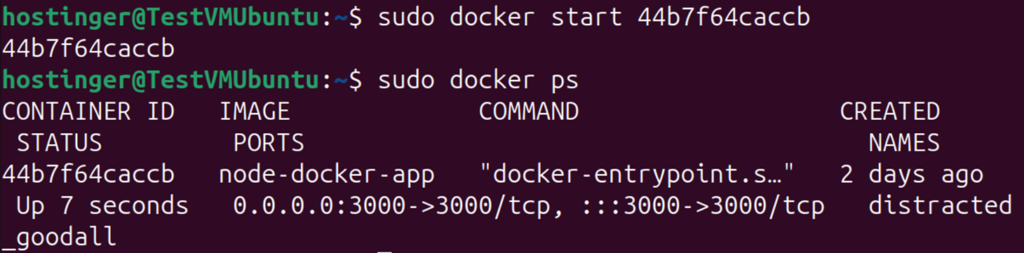
If the container is paused, you’ll need to unpause it first with docker unpause container_name_or_id.
Permission issues
You might encounter permission errors, especially if the container was started with a non-root user. If you try to run a command that requires administrative privileges, it will fail.
Try running the command with root privileges using the -u root flag:
docker exec -u root container_name_or_id command
Alternatively, you can run the command as a different specific user if you know one with the right access:
docker exec -u username container_name_or_id command
If you still encounter permission issues, our guide on resolving Docker permission denied errors can help.
Incorrect container ID or name
Make sure you’re using the correct container ID or name in your command. It’s easy to make a typo or reference a container that has been removed.
Use docker ps to get a fresh list of running containers and their names/IDs.
Command not found errors
If the command itself fails (for instance, “executable file not found” or “OCI runtime exec failed”), it means the command (like nano or vim) isn’t installed inside the container.
This is particularly common with minimal images. You’ll need to either:
- Install it using docker exec -u root container_name apt install package-name.
- Use an alternative command that is available, like vi instead of nano.
- Consider using docker debug for access to additional debugging tools.
Next step: Deepen your Docker knowledge
Mastering the docker exec command is a key step in managing containerized applications effectively. It’s your primary tool for real-time debugging and administration within running containers.
But it’s just one part of the wider Docker ecosystem. To build on what you’ve learned and understand how this command fits into the complete container lifecycle – from building images to managing data and orchestration – check out our Docker tutorial.
All of the tutorial content on this website is subject to Hostinger's rigorous editorial standards and values.

Dominykas is a Technical Content Writer with a background in cloud engineering and technical support. He’s operated in fields like fintech and point-of-sale and is passionate about software development, DevOps, and AI. Find him on LinkedIn.

Ariffud is a Technical Content Writer with an educational background in Informatics. He has extensive expertise in Linux and VPS, authoring over 200 articles on server management and web development. Follow him on LinkedIn.