DNS for email: What it is and how it works
Apr 23, 2026
/
Bruno S.
/
9 min Read

DNS for email is the system that routes, authenticates, and secures email messages using a set of DNS records tied to your domain.
When someone sends an email to example@domain.tld, the sending mail server queries DNS to find where that message should go and whether the sender is authorized. That lookup chain is what makes delivery possible. It also keeps spam out and your domain reputation intact.
Six DNS record types make up the email infrastructure, each with a distinct role:
- MX – routes incoming email to the correct mail server
- SPF – defines which servers are authorized to send email for your domain
- DKIM – attaches a cryptographic signature to outgoing messages to verify content integrity
- DMARC – sets the policy for what happens when SPF or DKIM checks fail
- A record – resolves your mail server hostname to its IP address
- TXT record – stores SPF, DKIM, and DMARC data in plain text format
Each record plays a distinct role: MX handles routing, SPF and DKIM handle authentication, DMARC governs enforcement, and A records support name resolution. A gap in any one of them affects a different part of the delivery process.
Configuration varies by use case: custom domain email, transactional sending, and bulk campaigns each have different authentication requirements.
Common issues like duplicate SPF entries, stale MX records, and missing DMARC policies are easy to fix once you know what to look for.
Key DNS records for email
DNS records are individual configuration entries stored in your domain’s zone file. Each record has a specific type, a value, and a purpose. Email requires multiple record types because routing, sender authorization, message signing, and policy enforcement are separate concerns.
No single record handles all of them, and each missing record creates a gap in a different part of the delivery chain.
Understanding what DNS is and how it resolves names to addresses is the foundation for understanding why each of these records exists and what breaks without it.
MX record for email routing
An MX (Mail Exchanger) record tells sending mail servers where to deliver incoming email for your domain. It points to a hostname, such as mail.domain.tld, rather than an IP address directly.
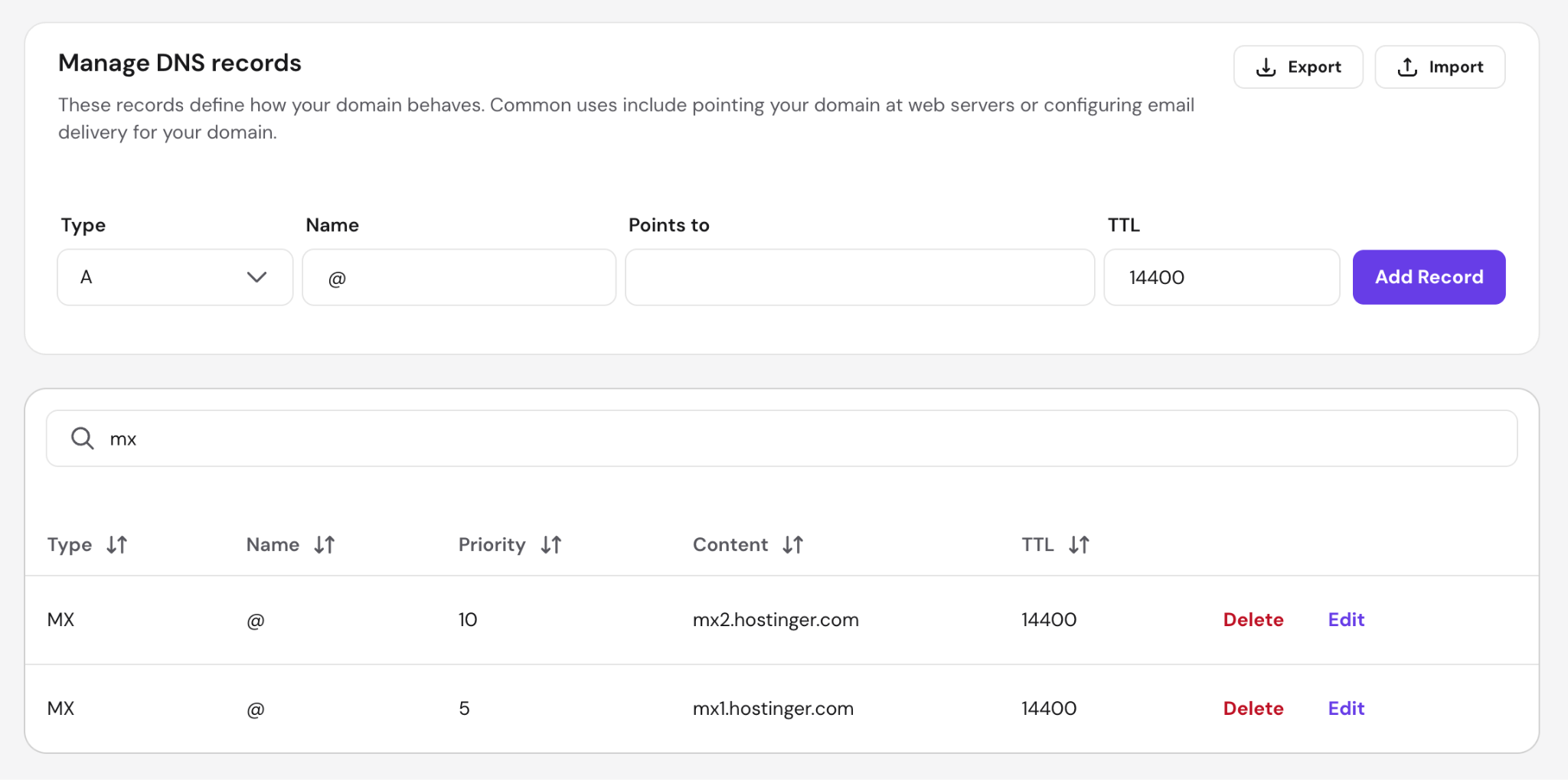
MX records include a priority value, such as 10 or 20. When multiple MX records exist, servers attempt delivery to the lowest-priority one first and fall back to higher-priority records if the primary server is unavailable. A domain with two MX records, priority 5 and priority 10, uses the second as a backup.
Three common MX record misconfigurations and their impact:
- Pointing directly to an IP address – MX records must point to a hostname, not an IP. Mail servers reject IP-only MX values outright.
- Missing MX record entirely – receiving servers may attempt delivery to the domain’s A record as a fallback, which often fails silently or bounces.
- Outdated records after switching providers – stale MX records from a previous email host cause email to route to the wrong server, resulting in delivery failures.
SPF record for sender authorization
A Sender Policy Framework (SPF) record is a TXT record that lists every IP address and server hostname authorized to send email on behalf of your domain. When a receiving mail server gets a message from your domain, it checks the SPF record against the sending server’s IP.
A basic SPF record looks like this: v=spf1 include:_spf.google.com ~all
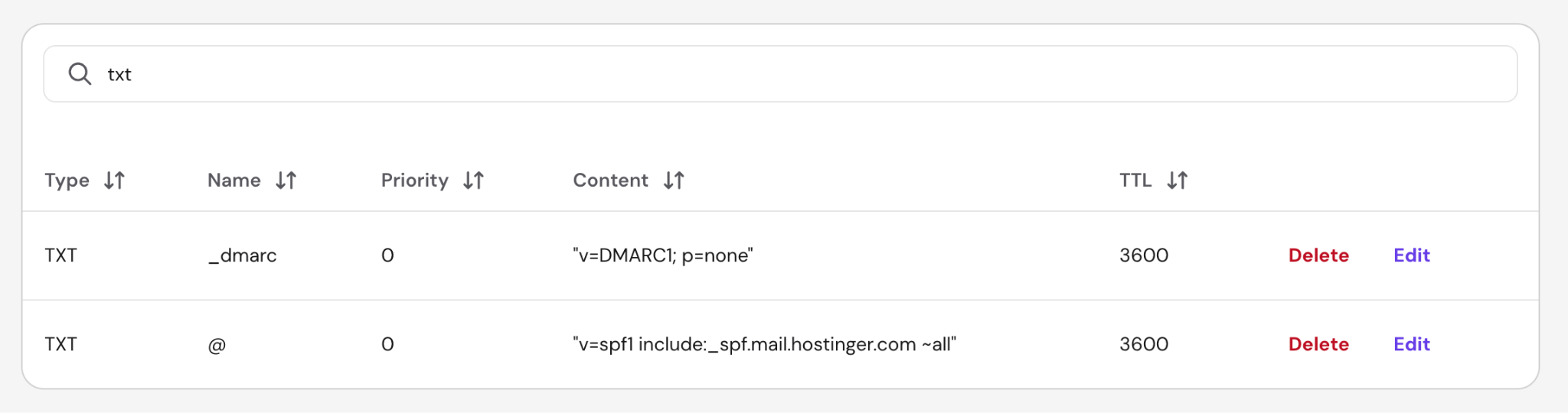
The include: mechanism adds the authorized IPs of a third-party provider. Each include: directive consumes one DNS lookup, and SPF has a hard limit of 10 – exceeding it causes a permerror and SPF fails entirely. The all qualifier at the end determines what happens to mail that doesn’t match:
- ~all (soft fail) – unmatched mail is accepted but marked as suspicious. Most providers treat this as a warning rather than a rejection.
- -all (hard fail) – unmatched mail is rejected outright. This is the stricter setting and the recommended choice for domains with a stable, known set of sending servers.
SPF alone does not protect the visible “From” address in email clients: it only checks the envelope sender used during the SMTP handshake. This is why SPF works alongside DKIM and DMARC.
DKIM record for message authentication
A DKIM (DomainKeys Identified Mail) record enables cryptographic verification of your outgoing email. The email provider signs each outgoing message with a private key held on the mail server. The corresponding public key is published as a TXT record in your DNS under a selector subdomain, such as selector1._domainkey.domain.tld.
Important! Some providers publish this as a TXT record directly, while others – including Hostinger – use CNAME records that point to provider-managed keys instead. Both approaches work the same way: the receiving server follows the DNS record to retrieve the public key.
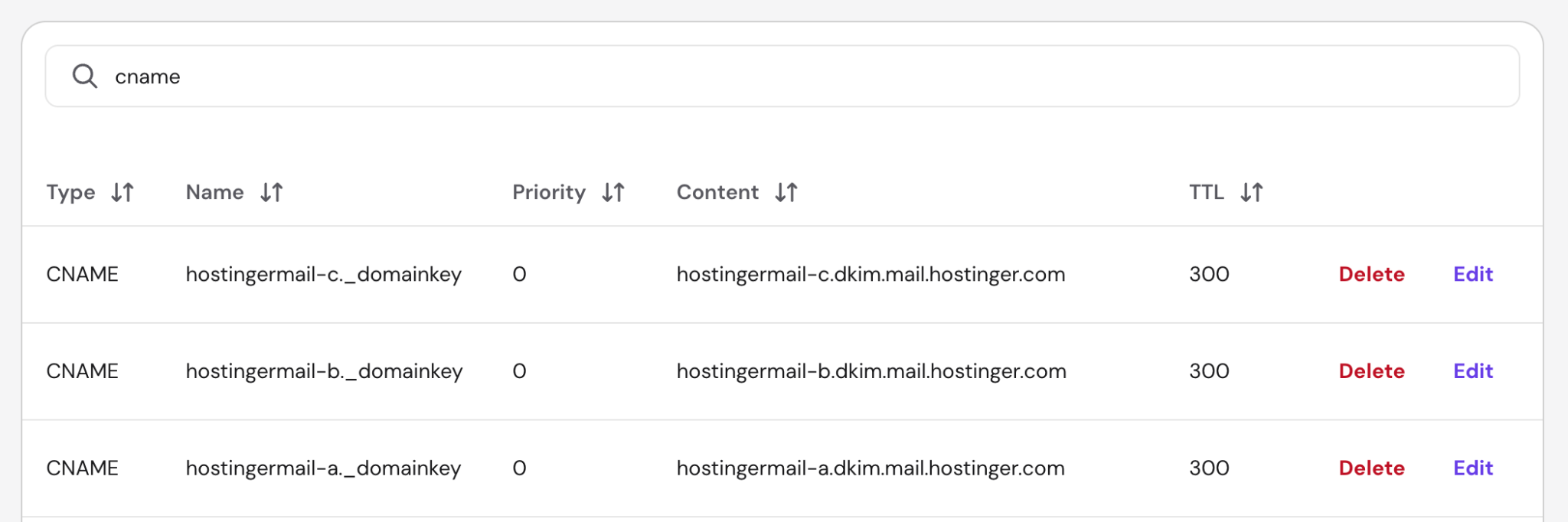
When a receiving server gets the message, it fetches your public key from DNS and uses it to verify the signature. A valid signature confirms two things:
- The message was sent by a server with access to your private key.
- The message content was not altered in transit.
If the DKIM record is missing or the signature is invalid, receiving servers treat the message as potentially tampered with or spoofed.
DMARC record for policy and reporting
A DMARC (Domain-based Message Authentication, Reporting and Conformance) record builds on SPF and DKIM by adding a policy layer. It tells receiving servers what to do when a message fails SPF or DKIM alignment checks and sends you reports when failures happen.
DMARC also requires alignment: the authenticated domain must match the domain in the visible From header. Without alignment, spoofed messages can pass SPF or DKIM while still failing DMARC.
A DMARC record is published as a TXT record at _dmarc.domain.tld. There are three DMARC policy values:
- p=none – take no action on failing messages; only collect reports. The recommended starting point when deploying DMARC for the first time.
- p=quarantine – send failing messages to the spam/junk folder.
- p=reject – block failing messages entirely at the server level. This is the strongest protection against domain spoofing.
DMARC reports arrive as XML files sent to an email address you specify in the record using the rua= tag. These reports show which servers are sending email on your behalf, how many messages pass or fail SPF/DKIM checks, and whether unauthorized senders are attempting to use your domain.
A and TXT records in email infrastructure
An A record maps your mail server’s hostname to its IP address. For example, if your MX record points to mail.domain.tld, an A record must exist for mail.domain.tld with the correct IPv4 address (or an AAAA record for IPv6). Without it, receiving servers cannot complete the DNS resolution chain, and delivery fails.
TXT records are the storage format for SPF, DKIM, and DMARC data. All three authentication standards publish their values as plain-text DNS entries. A common point of confusion: SPF, DKIM, and DMARC are protocols and standards – TXT records are just the container DNS uses to hold their configuration strings.
One domain can have multiple TXT records. SPF, DKIM selectors, and DMARC each live at different hostnames, so they do not conflict with each other.
How DNS for email works
The email delivery process involves a sequence of DNS lookups and authentication checks that happen in milliseconds. There are five main stages:
- MX record lookup – the sender’s mail server queries DNS for the recipient domain’s MX record. The response returns the target mail server hostname and priority values.
- SPF check – the recipient’s server checks the sender’s SPF record to confirm that the sending IP is authorized to send email for that domain.
- DKIM signature verification – the recipient’s server fetches the sender’s public DKIM key from DNS using the selector referenced in the message header and verifies the cryptographic signature.
- DMARC policy evaluation – the recipient’s server checks the sender domain’s DMARC record and applies the configured policy (none, quarantine, or reject) based on the SPF and DKIM results.
- Delivery decision – the message is accepted, flagged as spam, quarantined, or rejected depending on the combined outcome of all checks above.
A message passes DMARC only when at least one of SPF or DKIM passes and the authenticated domain aligns with the domain in the visible “From” header. Alignment is what closes the gap between envelope-level authentication and what the recipient actually sees in their email client.
Standard DNS for email configurations and use cases
Email DNS setup differs by provider and sending type. Business email, transactional email, and marketing email each have different record requirements, authentication thresholds, and deliverability considerations. Mixing them under a single domain without proper configuration is a common source of reputation issues.
DNS for custom domain email
A custom domain email – such as example@domain.tld instead of example@gmail.com – requires DNS records that point to your email hosting provider’s servers. The workflow is consistent across providers: add MX records that route inbound mail to the provider’s servers, then add SPF and DKIM records to authorize outbound sending.
Managed email services like Google Workspace, Microsoft 365, and Hostinger Business Email hosting provide the exact DNS values in their setup documentation. These values differ per provider, so copying them directly from the provider’s dashboard is the safest approach. The process of creating a custom domain email account follows the same DNS steps regardless of which provider you use.

DNS for transactional and bulk email
Transactional email authentication and bulk email DNS require stricter configuration than standard business email. Transactional messages – password resets, order confirmations, account alerts – and bulk marketing campaigns both depend on strong authentication to reach the inbox. Two reasons this matters:
- Volume – sending thousands of messages per day gives inbox providers more data points to evaluate your domain reputation. A single SPF misconfiguration at scale could mean thousands of bounces.
- Reputation – bulk senders are held to inbox provider sender guidelines. Google requires DMARC for senders exceeding 5,000 messages per day to Gmail addresses. Yahoo applies similar requirements but does not publish a fixed volume threshold. Missing either threshold could mean messages get rejected or filtered before reaching the inbox.
Dedicated sending domains (separate from your main business domain) are a common practice for transactional and bulk email. This isolates sending reputation: a deliverability issue with marketing campaigns does not affect transactional mail that customers depend on.
Common DNS for email mistakes and risks
Email DNS issues are among the most common causes of delivery failures, spam classification, and domain spoofing. They are also hard to spot: an email may appear to send successfully while landing in junk folders or getting rejected at the recipient’s server.
Missing or incorrect authentication records
The three most consequential missing records are SPF, DKIM, and DMARC:
- No SPF record – receiving servers have no way to verify that your domain authorized the sending server. Many providers reject or mark messages from domains with no SPF.
- No DKIM record – messages arrive unsigned. Receiving servers cannot confirm content integrity, which lowers trust scores and increases the likelihood of spam classification.
- Missing DMARC – without a policy, anyone can spoof your domain’s From address and pass basic checks. You also receive no visibility into authentication failures or unauthorized senders.
SPF misconfiguration is the most common error: SPF records with too many DNS lookups fail silently, as the limit is 10, and exceeding it causes a permerror.
Other errors include DKIM selectors that don’t match what the mail server is signing with, and DMARC records pointing to a rua= address on a different domain without proper delegation.
Conflicting or duplicate DNS records
A domain can only have one SPF record. Publishing two SPF TXT records at the same hostname causes a permerror – that is, receiving servers don’t know which one to evaluate, and SPF fails entirely. This is one of the most common mistakes when adding a new email provider to a domain that already has SPF configured.
Here are two good practices for keeping records clean:
- Before adding any new SPF, DKIM, or MX record, audit your existing DNS entries. Most domain registrar panels display all records in the zone file.
- When switching email providers, remove old MX and authentication records before adding new ones. Running old and new records simultaneously causes routing conflicts and authentication failures.
Duplicate DKIM selector records are less common but possible when the same selector name is reused across providers. Use unique selectors per provider (e.g., google._domainkey vs hostinger._domainkey) to avoid overlap.
How to configure DNS for email
DNS configuration is where authentication standards become working email infrastructure. The exact record values depend on your email provider, but the workflow is consistent across setups. Completing all four steps below is necessary – skipping authentication records leaves delivery gaps even when MX routing works correctly.
- Access your domain’s DNS management console. Log in to hPanel and navigate to Domains → DNS / Nameservers to open the DNS zone editor. If you are setting up a business email account with a different provider than your domain registrar, log in to whichever panel controls your DNS zone.
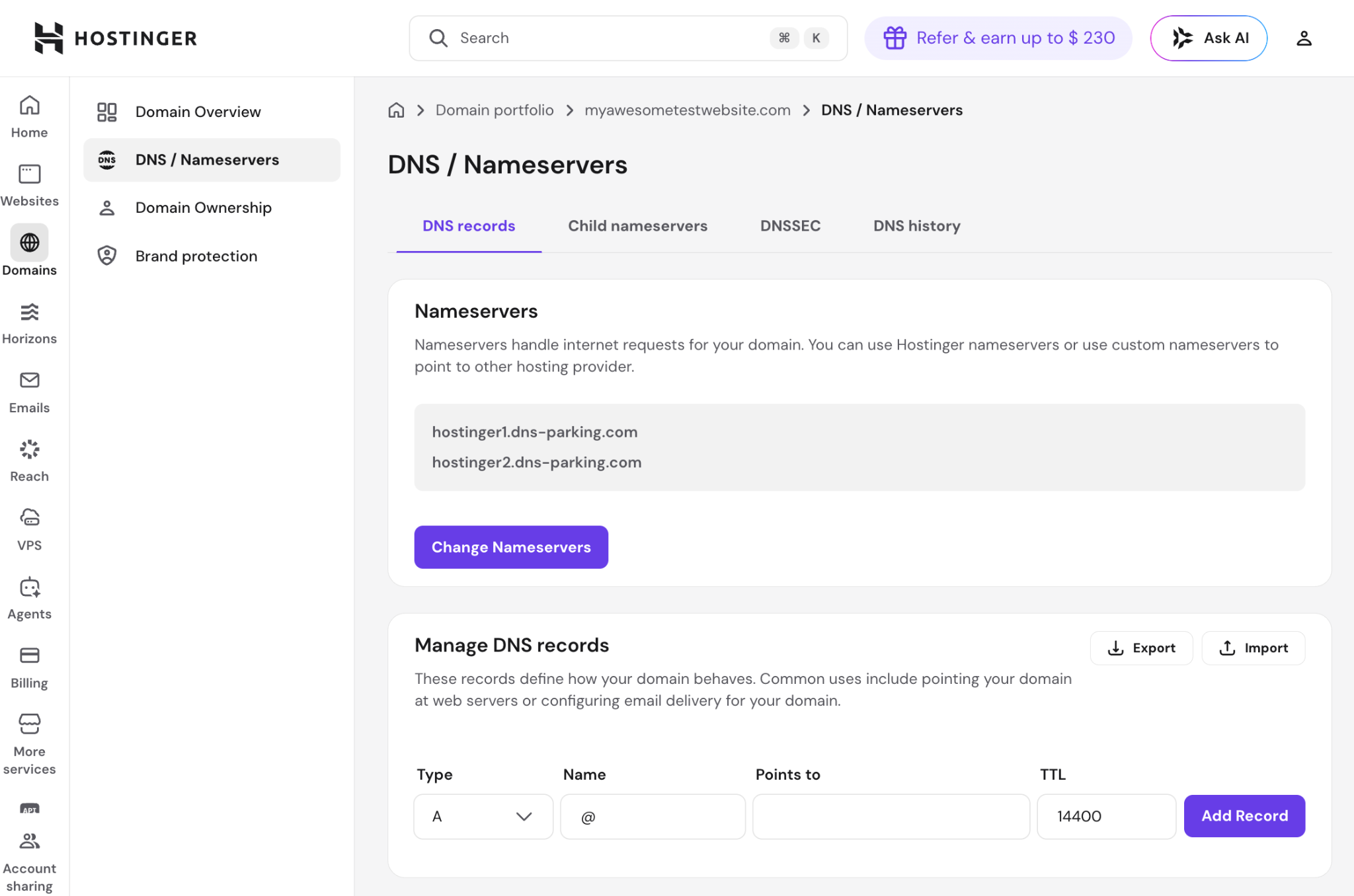
- Add or update MX records. Delete any existing MX records from a previous provider. Add the new MX records provided by your email host, entering the hostname, priority value, and TTL for each. Most providers require two MX records: a primary and a backup.
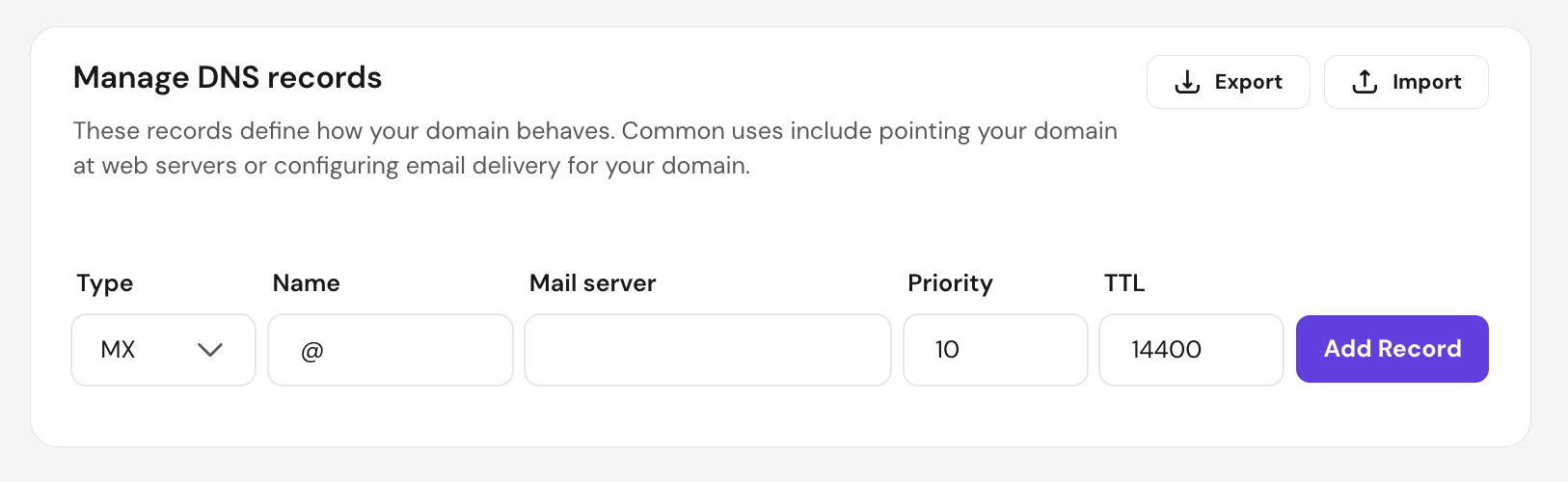
- Configure SPF, DKIM, and DMARC records. Add each as a TXT record:
- SPF – create a TXT record at your root domain (domain.tld) with the value your provider supplies (e.g., v=spf1 include:provider-domain.com -all). Use -all (hard fail) unless you’re still auditing your sending servers, in which case start with ~all (soft fail) and tighten it once everything is confirmed.
- DKIM – create a TXT record at the selector subdomain your provider specifies (e.g., selector._domainkey.domain.tld) with the public key value.
- DMARC – create a TXT record at _dmarc.domain.tld. Start with v=DMARC1; p=none; rua=mailto:alex@domain.tld to collect reports before enforcing a stricter policy.
- Verify DNS records and test email delivery. DNS changes propagate within minutes on most providers but can take up to 48 hours globally. Use a tool like MXToolbox or Google Admin Toolbox to confirm each record resolves correctly. Send test messages from your configured address to a Gmail and an Outlook account to verify delivery and check that messages don’t land in spam.
Once all four records are in place and verified, monitor your DMARC reports for the first few weeks. Starting at p=none gives you a full picture of every source sending email from your domain before you enforce a stricter policy. Move to p=quarantine or p=reject only after confirming that all legitimate senders are authorized in your SPF record and signing with DKIM.
All of the tutorial content on this website is subject to Hostinger's rigorous editorial standards and values.

Bruno is a Content Writer at Hostinger, focused on creating and optimizing helpful, engaging articles about web development and marketing. With a background in journalism, he combines storytelling with practical insights to make complex topics easier to understand. He has also contributed to publications like MacMagazine and Jornal A Tarde. Outside of work, Bruno enjoys exploring art, cooking, and technology.