How to set up OpenClaw for WordPress
Sep 29, 2026
/
By Larassatti D. & Simon L.
/
6 min Read
Setting up OpenClaw for WordPress involves three main stages: deploying OpenClaw on a server, installing the WordPress skill, and authenticating it with your site. Once connected, OpenClaw can execute WordPress tasks autonomously through natural language.
OpenClaw can run locally on your own machine or on a private server. This guide focuses on a server-based setup using a virtual private server (VPS), which is the more practical option for most users.
Running OpenClaw on a VPS means it stays online around the clock, so it can execute scheduled tasks, respond to prompts, and complete background jobs even when your computer is off.
Here’s how to set up OpenClaw for WordPress:
- Set up an OpenClaw instance on a VPS. Get the server running and connect it to an AI model.
- Install WordPress AI agent skills. Give your OpenClaw agent the knowledge it needs to interact with WordPress.
- Connect your WordPress site. Link your site to OpenClaw using authentication credentials.
- Start giving commands. Publish posts, manage content, and automate tasks right from the OpenClaw chat interface.
The video below demonstrates OpenClaw’s 5 WordPress marketing automation use cases – content creation, SEO optimization, content distribution, comment moderation, and site maintenance – and walks through the full VPS setup, AI model connection, WordPress agent skill installation from GitHub, and site authentication via application password.


1. Set up OpenClaw on VPS
Before anything else, you’ll need a running OpenClaw instance that will connect to your site through the WordPress REST API. If you already have an active one running, you can jump right to the second step.
We’re using Hostinger’s OpenClaw hosting to take advantage of its one-click installation template.
With this plan, you’ll only need to choose any VPS plan you like, fill in your account details, complete the payment, and follow the onboarding steps until you see the OpenClaw configuration page.
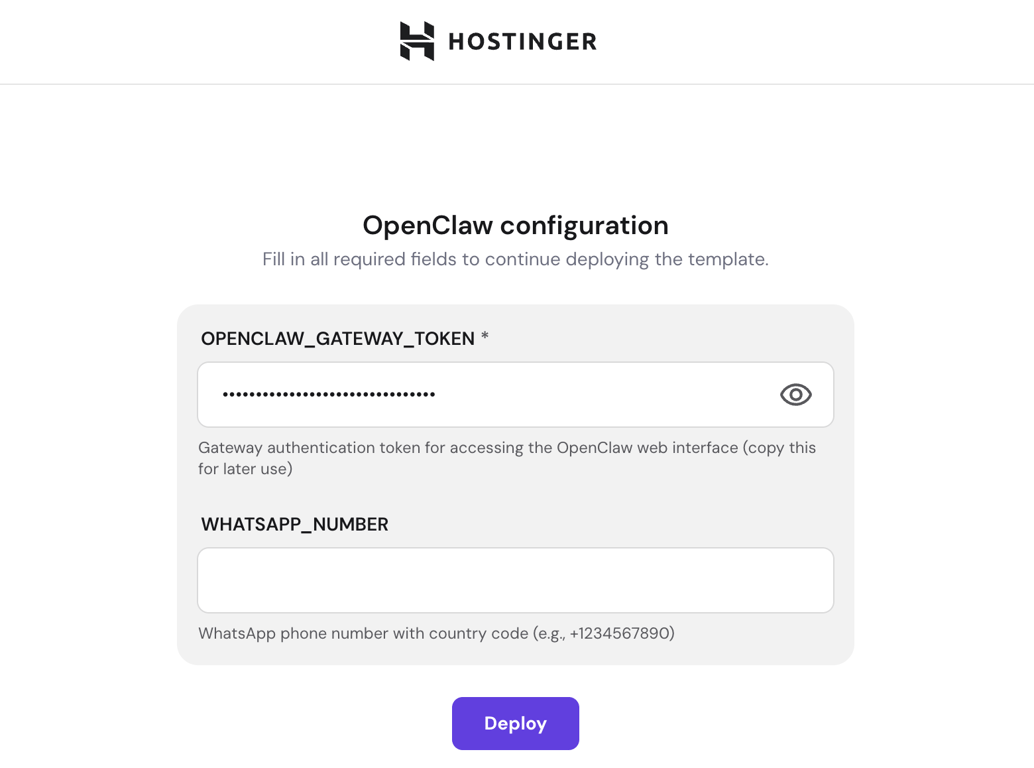
Add your WhatsApp number into the field, and keep the Gateway token somewhere safe. You’ll need it to log in to your OpenClaw dashboard.
Once that’s done, click Deploy and wait until the installation is complete. The installation may take a few minutes; you’ll then be redirected to Hostinger dashboard’s VPS dashboard.
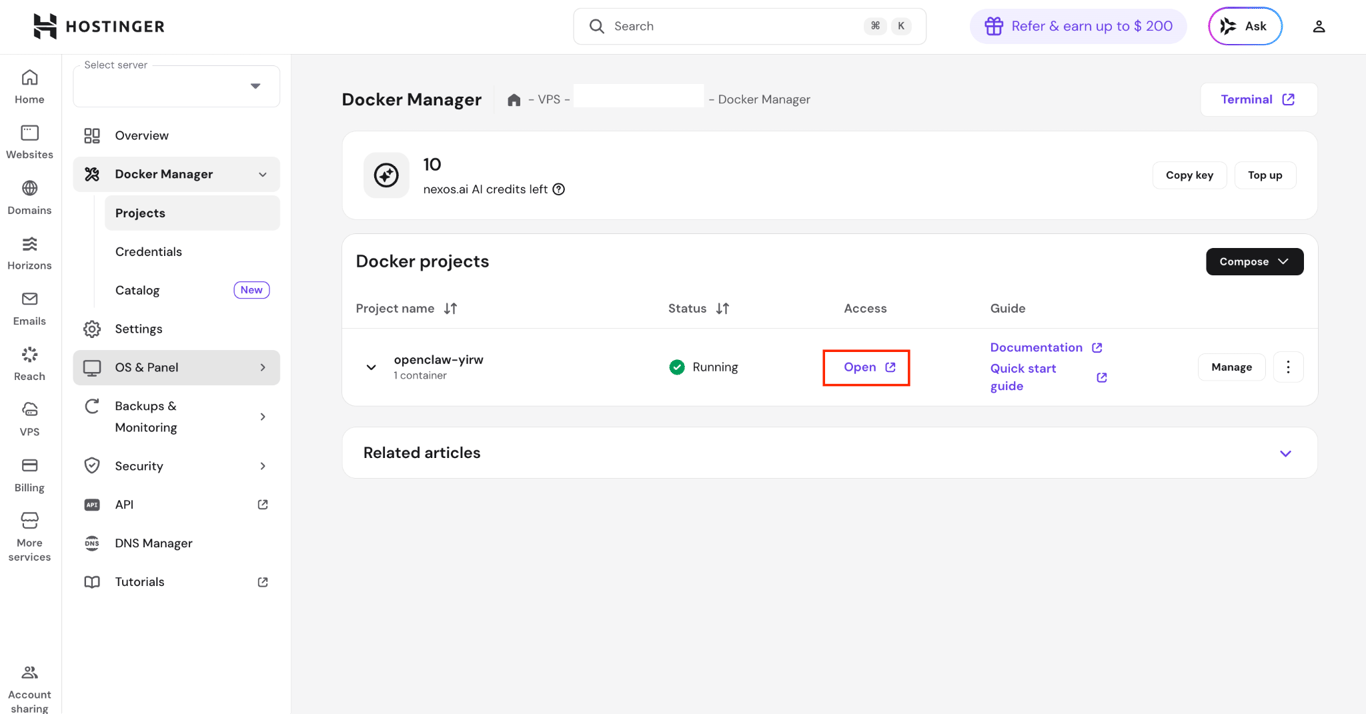
Access the OpenClaw Gateway dashboard by clicking the Open button. Then, enter the gateway token you got earlier to log in.
If you want a more detailed walkthrough, follow our complete guide on how to set up OpenClaw, which covers manual Docker installation and configuration on any VPS provider.

2. Install WordPress AI agent skills to OpenClaw
Next, you need to give OpenClaw the knowledge to work with WordPress. You can do this by installing agent skills, which are instruction sets that tell the AI how to perform specific tasks.
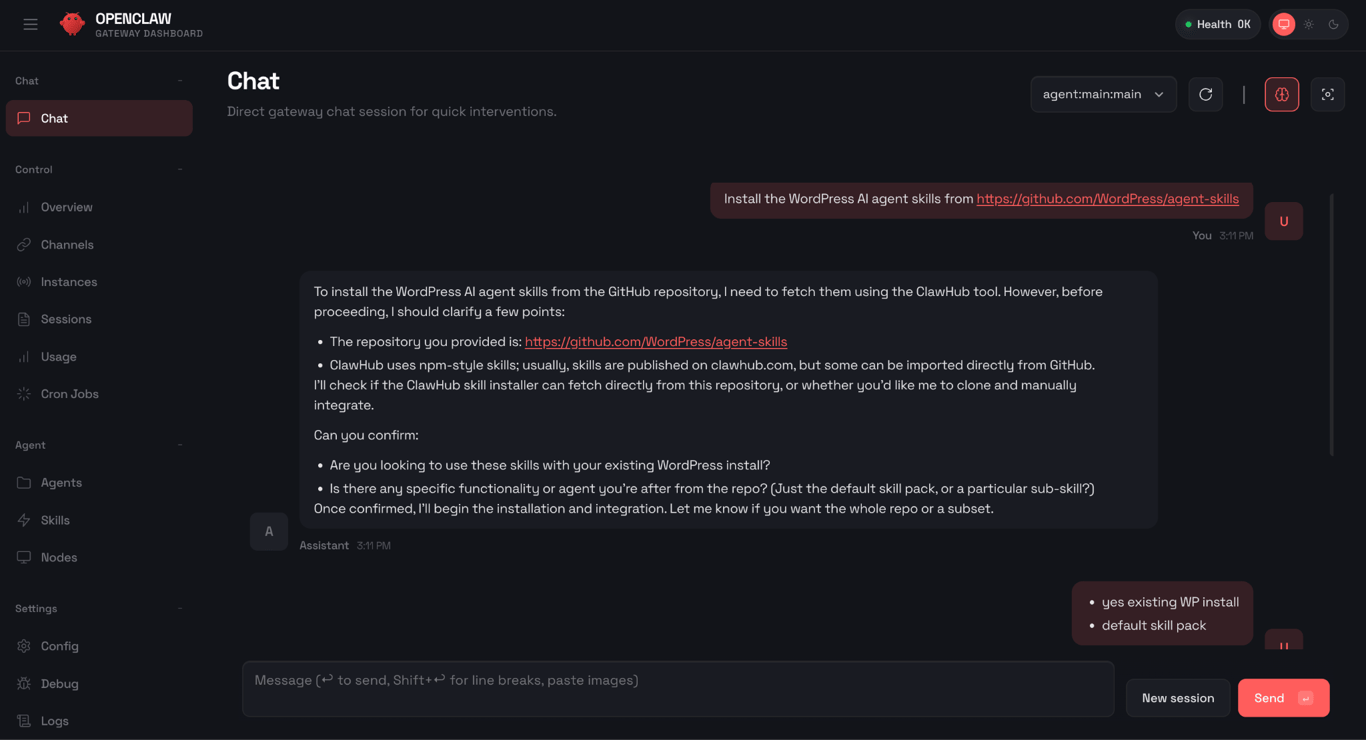
Within the OpenClaw dashboard, find the Chat window and type the following prompt:
Install the WordPress AI agent skills from https://github.com/WordPress/agent-skills
OpenClaw will handle the rest – cloning the repository, reading the skill files, and making them available for use.
3. Connect your WordPress site to OpenClaw
Now it’s time to connect your WordPress site to OpenClaw. It will ask for your username and password. But you can instruct OpenClaw to connect with the WordPress Application Password, so you don’t have to disclose your WordPress admin password.
Generate your WordPress Application Password by following these steps:
- Log in to your WordPress admin dashboard.
- If you have the Hostinger Tools plugin installed, go to Hostinger → Tools. Enable the application passwords toggle. Otherwise, application passwords are typically enabled by default in WordPress 5.6+.
- Navigate to Users → Profile. Find the Username field and copy your username somewhere.
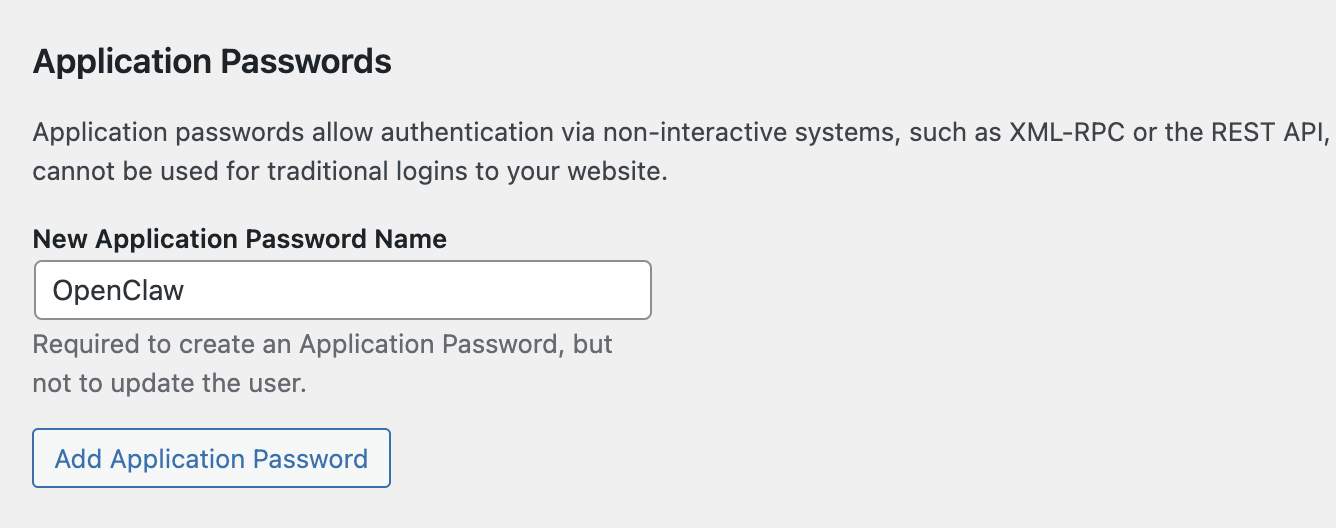
- Scroll down to the Application Passwords section.
- Enter a name for the application. Something like “OpenClaw” works great, and click Add Application Password.
- WordPress will generate an application password. Copy it and store it somewhere safe since you won’t be able to see it again.
Now, go back to your OpenClaw dashboard. Enter this prompt in the chat interface:
Connect to my WordPress site [enter your website URL]
After it gets back to you, confirm how you prefer the authentication process with this prompt:
Let's authenticate via REST API and application passwords
OpenClaw will guide you through the configuration process, and it’ll ask you to provide your WordPress username and Application Password. Simply enter them in the chat, and OpenClaw will establish the connection.
Set up a WordPress website with Hostinger
If you don't have a WordPress site yet, you can get started quickly using Hostinger's managed hosting for WordPress. It comes with WordPress pre-installed, automatic updates, and a user-friendly dashboard that makes it easy to manage your site alongside your OpenClaw setup.
4. Execute commands for WordPress tasks from the OpenClaw interface
Once the configuration is successful, try instructing OpenClaw to act on your WordPress site. For instance, you can ask it to create posts, update pages, manage media, and more.
You simply need to write prompts like you’re telling a personal assistant to do something, like:
Write a post for my WordPress site about the history of WordPress
OpenClaw will process your request, draft the post content, and publish it directly to your WordPress site through the REST API. You’ll see the agent working through the steps in the chat, generating the content, formatting it, and pushing it live.
Once the command finishes executing, head over to your website’s front end and check the published post. You should see it live, formatted, and ready for your visitors to read.
This is just one example. You can experiment with more complex commands, such as updating existing posts, managing categories and tags, creating pages, optimizing content for SEO, or even scheduling posts for future publishing.
The more you interact with your OpenClaw agent, the more you’ll discover what it can handle for you.
What WordPress tasks can I automate with OpenClaw?
OpenClaw can execute virtually any WordPress task that’s available through the REST API, which covers the majority of the core admin operations. That includes managing posts, pages, comments, users, media, categories, tags, plugins, and themes remotely, without opening the WordPress dashboard.
With the WordPress skill installed, you can prompt OpenClaw in natural language through your preferred messaging channel. If you’ve connected a messaging app like WhatsApp or Telegram, you can even send instructions directly from those chat windows – no need to open the OpenClaw dashboard.
Just type what you need as if you’re messaging a friend, and OpenClaw will translate your request into the corresponding API calls.
Update and optimize existing content
OpenClaw can retrieve, analyze, and update your existing WordPress posts through the REST API’s posts endpoint. This is useful when you want to refresh outdated content, improve readability, or update information across multiple articles.
To update a specific post, give OpenClaw clear instructions about what to change and how. Here’s an example prompt for refreshing an article:
Retrieve the post titled "Best Budget Laptops for 2025" from my WordPress site. Update the title year to 2026. In the body, replace any discontinued laptop models with their current successors. Keep the same structure and tone. Show me the changes before publishing.
OpenClaw fetches post content via a GET request to /wp-json/wp/v2/posts, processes the updates using its language model, and displays a before/after comparison. Once you approve, it sends a PUT request to save the changes.
By requesting a preview before publishing, you maintain editorial control while saving time on manual work such as locating, editing, and republishing content.
Moderate comments
The WordPress REST API provides full access to comment management through the /wp-json/wp/v2/comments endpoint. This means OpenClaw can list, approve, reject, mark as spam, and delete WordPress comments on your behalf.
Specifically, you can ask OpenClaw to:
- List pending comments. Retrieve all comments awaiting moderation, along with the post they belong to.
- Approve or reject comments. Update a comment’s status to approved or trash based on your criteria.
- Flag spam. Change a comment’s status to spam, removing it from public view.
- Delete comments. Permanently remove individual comments or clear them in bulk.
To moderate comments through OpenClaw, describe the action and any filtering criteria in your prompt:
Check my WordPress site for any pending comments. Show me a summary of each one, including the commenter's name, the post title, and a preview of the comment text. Approve comments that look legitimate, and mark any that contain links to external sites or promotional language as spam.
OpenClaw reviews each pending comment, evaluates it against your criteria, and applies the appropriate status changes via the REST API.
You can also handle routine cleanup. For example, ask OpenClaw to delete all spam comments older than 30 days or remove all unapproved comments from a specific post.
Create and manage users
The WordPress REST API’s /wp-json/wp/v2/users endpoint supports creating, updating, listing, and deleting user accounts. OpenClaw can handle all of these operations from a single conversation.
Through the API, you can ask OpenClaw to:
- Create new users with a specific role, such as Editor, Author, or Subscriber.
- Update existing user details like display names, email addresses, or WordPress usernames.
- Change user roles, such as promoting a Contributor to an Author.
- List all users filtered by role, which is handy for auditing who has access to your site.
- Delete user accounts and reassign their content to another user.
Here’s a prompt example to create a new user through OpenClaw:
Create a new user on my WordPress site with the following details:

- Username: jdoe

- Email: jdoe@example.com

- Role: Editor

- Display name: Jane Doe

Send me a confirmation once it's done.
OpenClaw sends a POST request to the user’s endpoint with the provided details and returns a confirmation with the new user’s ID.
For sites with multiple contributors, understanding WordPress user roles will help you assign the right level of access. And if you ever need to migrate or back up your user list, you can also ask OpenClaw to retrieve all users and format the data as a CSV, or check out our guide on how to export WordPress users.
What else can I do with OpenClaw?
The WordPress automation examples above only scratch the surface. OpenClaw has a much wider range of potential uses, extending well beyond your WordPress site.
For example, you can set it up to send a two-minute morning briefing each day that includes the weather forecast, your calendar events, and top news headlines, delivered directly to your phone via WhatsApp or Telegram.
It’s also a capable tool for content workflows: you can prompt OpenClaw to brainstorm content ideas based on your niche, generate a first draft from an outline, or repurpose a blog post into social media copy for multiple platforms.
On the DevOps side, OpenClaw can monitor your server health in the background and send you alerts when issues arise, such as high CPU usage or a failed deployment.
These are just a few examples. Explore more ways to automate tasks using OpenClaw to find workflows that fit your setup.
This article is a localized version of How to set up OpenClaw for WordPress, originally published in English.
All of the tutorial content on this website is subject to Hostinger's rigorous editorial standards and values.

Larassatti Dharma is a content writer with 5+ years of experience in the web hosting industry. She has populated the internet with over 100 YouTube scripts and articles around web hosting, digital marketing, and email marketing. When she's not writing, Laras enjoys solo traveling around the globe or trying new recipes in her kitchen. Follow her on LinkedIn

Simon is a dynamic Content Writer who loves helping people transform their creative ideas into thriving businesses. With extensive marketing experience, he constantly strives to connect the right message with the right audience. In his spare time, Simon enjoys long runs, nurturing his chilli plants, and hiking through forests. Follow him on LinkedIn.