WordPress Date Format: How to Change Date and Time in WordPress
Mar 26, 2024
/
Mulan G.
/
3 min Read

Your WordPress posts automatically display your website date and time. However, as the WordPress site owner, you may want to change or customize the date and time format to your preferences.
Fortunately, WordPress has a function that lets you freely configure your site’s date and time format, including the one on your homepage and each post. Keep reading this article to learn how to change or customize your WordPress time and date format easily.
Download all in one WordPress cheat sheet
How to Change the Date and Time Format in WordPress
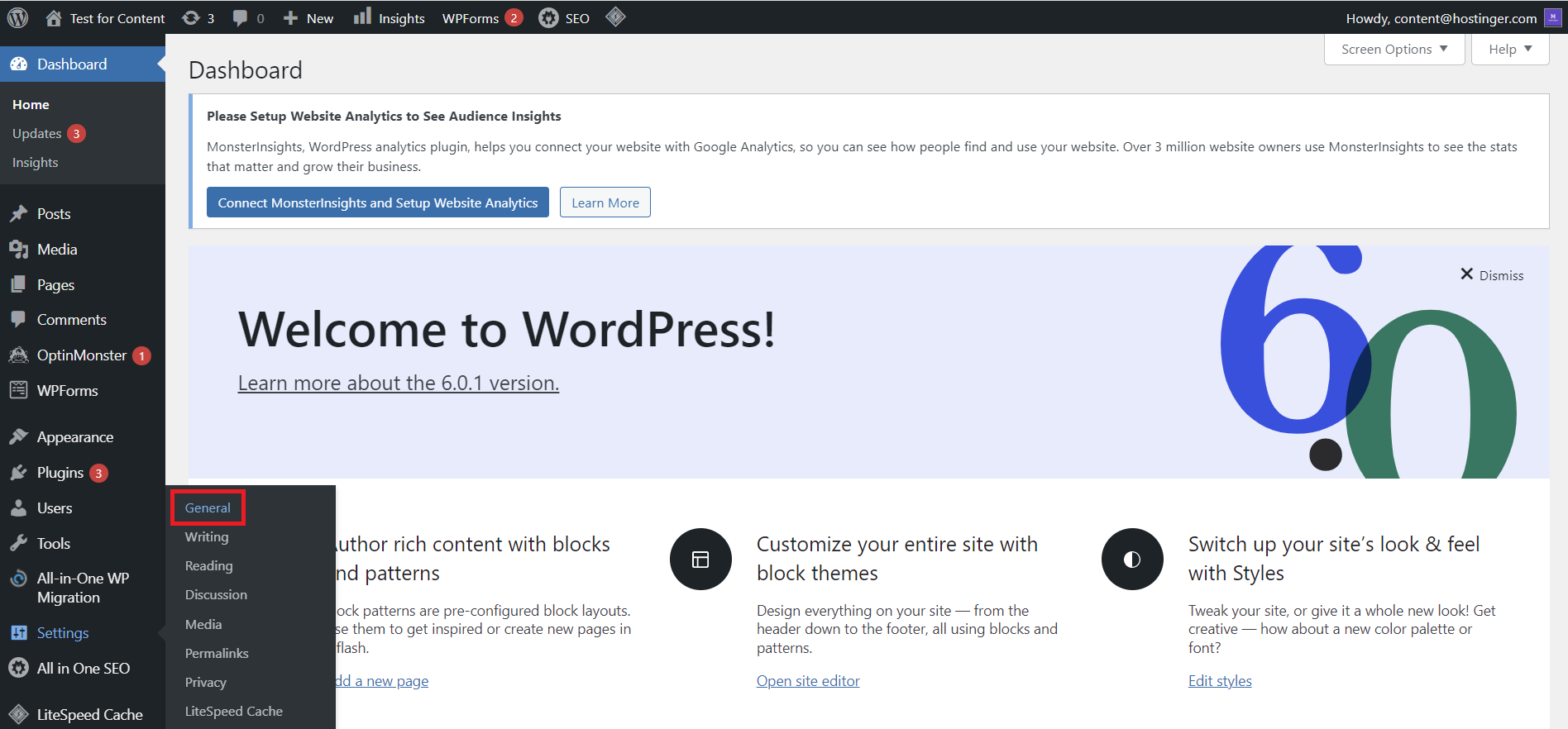
- In the WordPress dashboard, go to Settings -> General.
- In the General settings page, scroll down until you find the Date Format and Time Format menu.
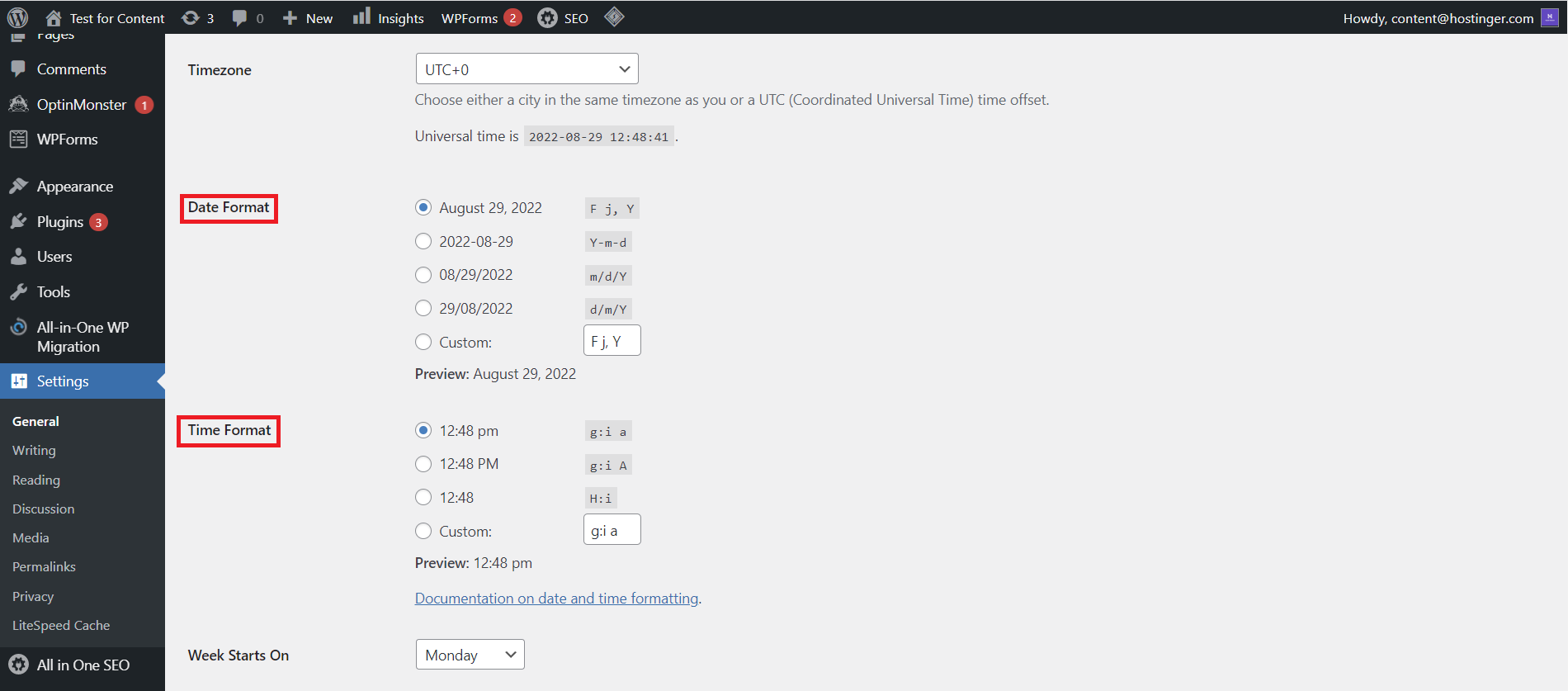
- Feel free to choose the date and time format that suits your WordPress site the most. You can also input an alternate format in the Custom box. In the next section, we will explain format strings that can help you create your ideal custom format.
- Check the preview to make sure you chose the correct format. If you use punctuation marks like commas or dashes, keep note that they will be used literally.
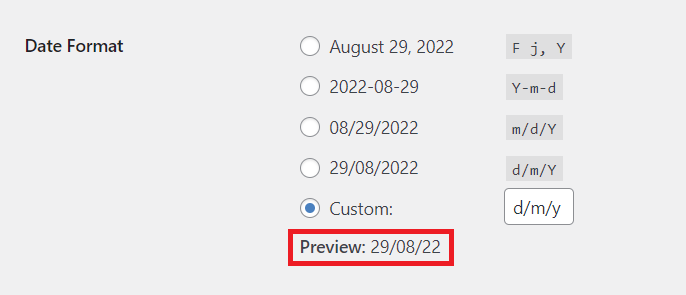
- Click Save Changes to apply the new date and time formatting.
Alternatively, you can change your website date and time format using the WordPress template file. This option is especially useful when your theme or plugin files have their own default date and time format.
In the template file, find the WordPress tag functions the_date() and the_time(). These functions display the date and time format set in your WordPress dashboard.
WordPress Time and Date Formats
In this section, you will learn more about the WordPress time and date format strings and characters.
On the Settings’ General page, next to each option in Date Format and Time Format, there is a series of characters called the format string.
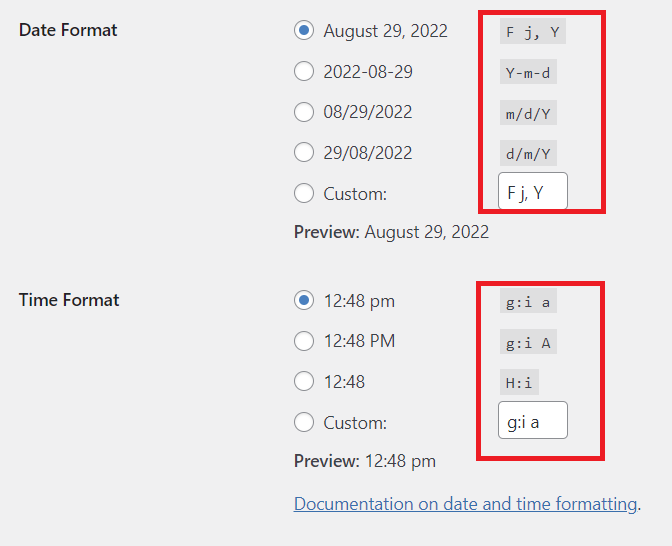
These format characters represent different elements of date and time structure. For example, here’s what each character in the m/d/Y format string represents:
- m – the numeric month with a leading zero.
- d – the numeric day of the month with a leading zero.
- Y – the four-digit year.
Therefore, this string will output:
08/29/2022
Since WordPress is written in the PHP programming language, you can create your own custom structure string using the following date and time format characters:
| Parameter | Display | Example |
| Month | ||
| F | The month’s full name | January – December |
| M | The month’s three-letter abbreviation | Jan – Dec |
| m | The numeric month with leading zeros | 01 – 12 |
| n | The numeric month without leading zeros | 1 – 12 |
| Day of the month | ||
| n | The numeric day of the month with leading zeros | 1 – 12 |
| d | The numeric day of the month with leading zeros | 01 – 31 |
| j | The numeric day of the month without leading zeros | 1 – 31 |
| S | The English suffix for the numeric day of the month | st (in 1st), nd (in 2nd) |
| Day of the week | ||
| I | The day of the week’s full name | Monday – Sunday |
| D | The day of the week’s three-letter abbreviation | Mon – Sun |
| Year | ||
| Y | The four-digit year | 2022 |
| y | The two-digit year | 22 |
| Time | ||
| a | Lower case am or pm | am, pm |
| A | Uppercase AM or PM | AM, PM |
| g | The hour in 12-hour format without leading zeros | 1 – 12 |
| h | The hour in 12-hour format with leading zeros | 01 – 12 |
| G | The hour in 24-hour format without leading zeros | 0 – 23 |
| H | The hour in 24-hour format with leading zeros | 0 – 23 |
| i | Minutes with leading zeros | 00 – 59 |
| s | Seconds with leading zeros | 00 – 59 |
| T | The timezone abbreviation | PST, EDT |
| Full date and time | ||
| c | ISO 8601 format | 2022-08-29T18:56:24+00:00 |
| r | RFC 2822 format | Mon, 29 August 2022 18:56:24+0200 |
| U | Unix Timestamp (seconds since the Unix epoch, January 1, 1970 00:00:00 GMT) | 1661842310 |
There are additional customization options you can set from WordPress dashboard’s Settings page or in the template file code, such as:
- Escaping – to use a literal alphabet without it being translated to a format character, use the backlash. For example, if you want to display the word at, enter \a\t.
- Localizing – to change the month and day names into your website’s current locale, replace date() with wp_date(). For example, instead of date( ‘F jS, Y’ ), it should be wp_date( ‘F jS, Y’ ).
Suggested Reading
Learn about setting PHP timezone for an easier website management.
Examples of Time and Date Format Strings
You can incorporate various characters into your string and create different date and time format options. Here are some format string examples and their outputs.
| Format String | Output |
| F j, Y g: i a | August 29, 2022 10:45 am |
| F, Y | August, 2022 |
| l, F jS, Y | Monday, August 29th, 2022 |
| Y/n/d | 2022/8/29 |
| Y/m/d \a\t g:i A | 2022/08/29 at 10:45 AM |
| \t\i\m\e\: G:i | time: 23:45 |
| F j, Y | August 29, 2022 |
| M j, Y @ H:i | Aug 29, 2022 @ 09:30 |

Conclusion
In this article, you have learned to customize your WordPress site’s date and time format using the built-in function on the dashboard. Aside from the default date and time formats, you can customize your date or time format using strings.We hope this article has helped you learn about formatting the date and time in WordPress. To learn more about WordPress, check out our WordPress tutorial.
Other WordPress Must-Knows
How to Backup a WordPress Website
WordPress Malware Removal Guide
How to Undo Changes in WordPress
How to Clear Cache in WordPress
How to Optimize Images in WordPress
Guide to WordPress Security
How to Speed Up WordPress
All of the tutorial content on this website is subject to Hostinger's rigorous editorial standards and values.

Mulan is a Digital Marketing enthusiast experienced in creating social media content. She is eager to help people learn in the simplest way possible. During her free time, Mulan likes to cook and watch sci-fi or documentaries.