How to Install Git on Ubuntu Using APT and GitHub
Feb 04, 2025
/
By Elvinas S.
/
3 min Read
Modern software development requires a lot of work to be successful. One of the most important steps is choosing a distributed version control system.
Such systems help you keep track of every code change and revert previous stages if needed. One of the most popular version control systems is Git.
In this tutorial, we’ll show two simple ways how to install Git on Ubuntu and how to configure it.
Download complete GIT cheat sheet
How to Install Git on Ubuntu
Git installation on an Ubuntu system requires three essential objects:
- Ubuntu version – this tutorial covers Ubuntu 22.04. Ensure that the latest version is running on your computer or a hosted virtual server (VPS).
- Sudo privileges – an account with sudo privileges is required to install Git. It can be a root account or a separate user account with administrator privileges.
- Access to the terminal – Git installation will include commands that must be entered into the terminal window.
Step 1 – Install Git on Ubuntu
There are two ways to install Git on Ubuntu. We’ll break them down one by one, but you can choose which one works best for you. It’s worth noting that both require access to the terminal.
Installing Git With APT
Ubuntu already has Git in the default repository. It can be easily installed with the help of the APT package management tool:
- Update the repository by running the following command:
sudo apt-get update
- Install Git with this command:
sudo apt install git
- When asked for permission to install Git, type Y, and press Enter.
Keep in mind that the Git version in the APT package manager might differ from the recent version found on the GitHub source website. You can check the available versions using this command:
apt-cache policy git
Here’s an example of what the output would look like:
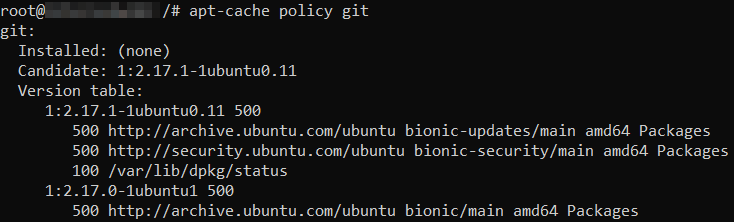
There are two available versions – 2.17.1 and 2.17.0. The candidate version shows which version will be installed.
Alternatively, use this command after installing Git to check the version:
git --version

Installing Git from GitHub
We recommend proceeding with the GitHub installation method if you want to install a different version of Git:
- Update the repository by running the following command:
sudo apt-get update
- Install all the necessary GitHub packages using this command. Once the confirmation message appears, choose Y.
sudo apt-get install libcurl4-gnutls-dev libexpat1-dev gettext libz-dev libssl-dev build-essential
- Visit the Git for Linux download page, right-click on the latest stable version, and copy the link. In our case, it’s the 2.36.1 version.

- Go back to the terminal and use the following command with the copied link:
wget https://www.kernel.org/pub/software/scm/git/git-2.36.1.tar.gz
- To extract the file, run the tar command:
tar -zxf git-2.36.1.tar.gz
- Once the process is finished, head to the extracted directory:
cd git-2.36.1
- Install Git globally by running this command:
make prefix=/usr install install-doc install-html install-info
- To verify the installation, use the following command prompt:
git –-version
If a Git version number appears, that means the installation was successful.

Pro Tip
The previous method will install Git globally. If a local installation is needed, refer to the INSTALL file located in the archive for instructions.
Step 2 – Configure the Git Account
Once Git is installed, you will need to configure it with the Git config command.
- Specify your GitHub username on the terminal:
git config --global user.name "user_name"
Replace the “user_name” argument with an actual username, quotation marks included.
- Specify the email address:
git config --global user.email "email@myawesomedomain.tld"
Make sure to replace “email@myawesomedomain.tld” with an actual email address, quotation marks included.
- Verify the changes:
git config --list

Conclusion
Git is one of the world’s most popular distributed version control systems. This free tool offers many valuable features and allows developers to perform any code changes with the ability to revert the changes if needed.
This tutorial covered how to install Git on Ubuntu via APT or GitHub. You also learned how to configure Git using your username and email address.
If you have any further insights or questions, leave them in the comments section below.

How To Install Git on Ubuntu FAQ
How to Check if Git Is Already Installed?
The easiest way to check if Git is installed is to run the git –version command, which will display the current version of Git.
Another option is to run Git commands like git build. If an error message such as “git: command not found” appears, it means that Git is not installed on the system.
What Is the Default Git Install Location on Ubuntu?
Users can install Git either globally or locally. Git will be installed under the /usr/bin/git directory if you’re going with the global method. This can always be double-checked using the whereis git command, showing the exact Git installation directory.
However, if users use the local installation method, Git will only work on that particular directory. For example, if a user installs Git on the /home/username directory, they will need to navigate to this directory to use Git.
All of the tutorial content on this website is subject to Hostinger's rigorous editorial standards and values.

Elvinas is a senior server administrator at Hostinger. He monitors the infrastructure’s well-being and keeps the uptime at a maximum. Besides server management, web development has always been one of his biggest passions.



Comments
0 responses