How to set up email on Android: A step-by-step guide
Mar 09, 2026
/
Ariffud M. & Elvinas S.
/
4 min Read
Setting up email accounts on Android devices is essential for staying connected and managing your messages on the go. In this tutorial, you’ll learn how to set up email on Android.
Whether for a personal or business email, our instructions will help you configure your account in no time. By the end of this guide, you’ll be able to send and receive emails on your Android phone or tablet, just like on web or desktop applications.
How to Set Up Email on Android
This tutorial will guide you through setting up a Hostinger email account using the Gmail app on Android. It lets you create a custom email address, such as yourname@yourdomain.tld.
Hostinger’s email hosting service offers up to 50 GB of storage, enhanced antivirus and anti-spam features, and cloud-based infrastructure. Check out our complete guide if you’re interested in creating custom email addresses with Hostinger.

1. Open the Gmail App
Gmail offers a user-friendly interface and efficient syncing with Google services, making it ideal for managing your email accounts. This email app also allows you to set up emails from other providers, including Hostinger.
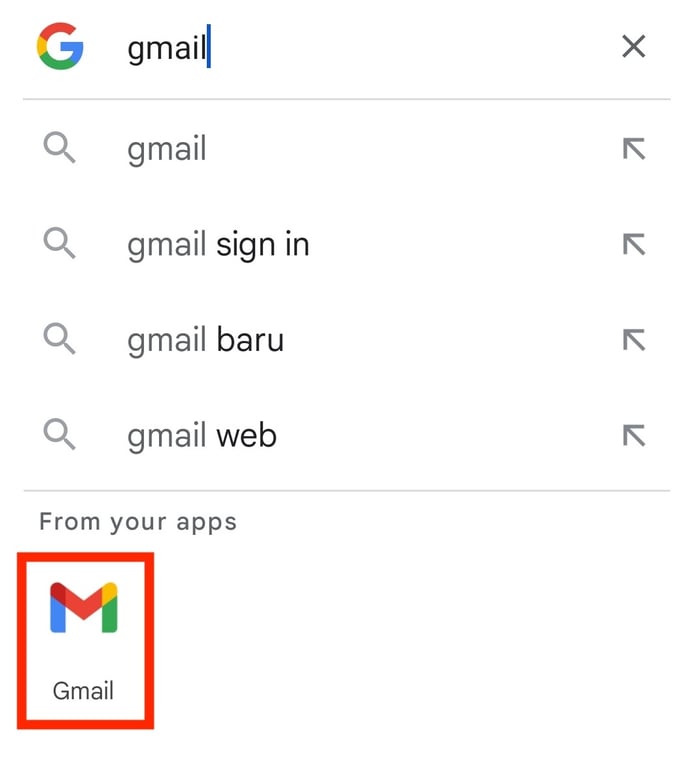
First, locate Gmail on your Android device. Find and tap the Gmail app icon on your home screen or in the app drawer. Alternatively, open the Google Search widget on your phone’s home screen, type Gmail, and tap the Gmail app icon from the search results.
If you can’t find Gmail using the above methods, it means that the Gmail app is not pre-installed. Follow these steps to install Gmail on your phone:
- Open the Google Play Store app.
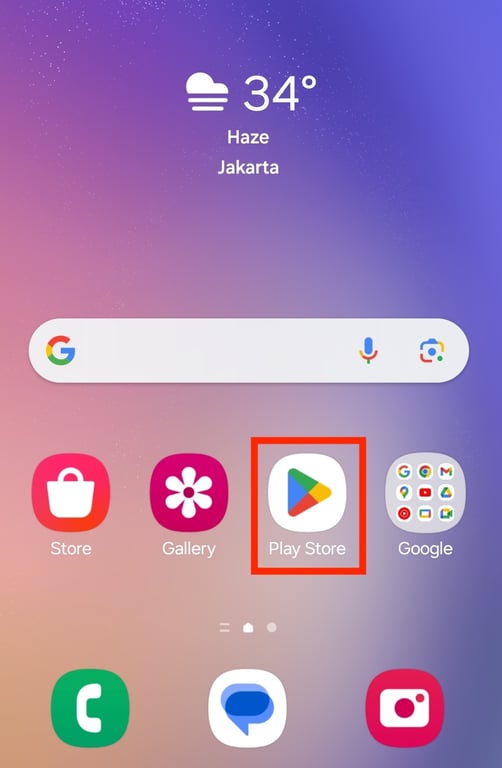
- Enter Gmail in the search bar.
- Tap Install to download its latest version.
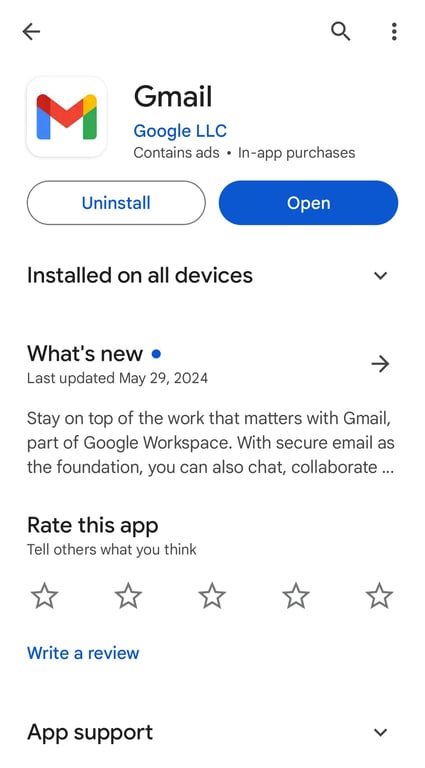
Warning! Always use Google Play Store to install Gmail. Downloading Android apps from untrusted sources may compromise your device's security.
2. Add a New Email Account
Once you have the Gmail app open, it’s time to set up your email account:
- Tap the menu icon in the top-left corner of the screen.
- Go to Settings → Add account.
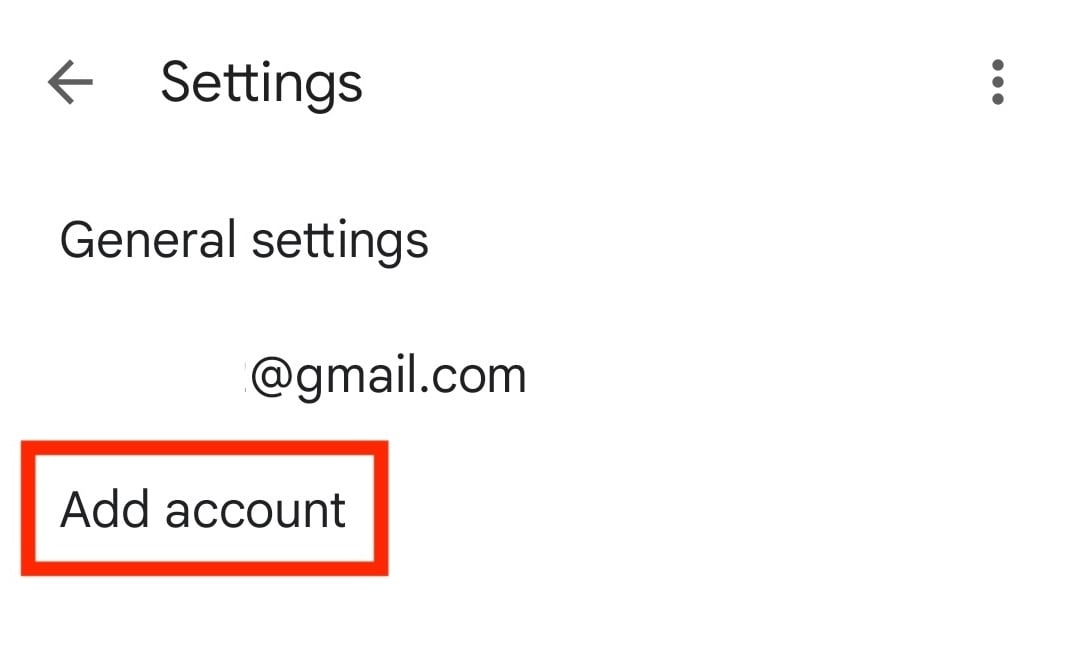
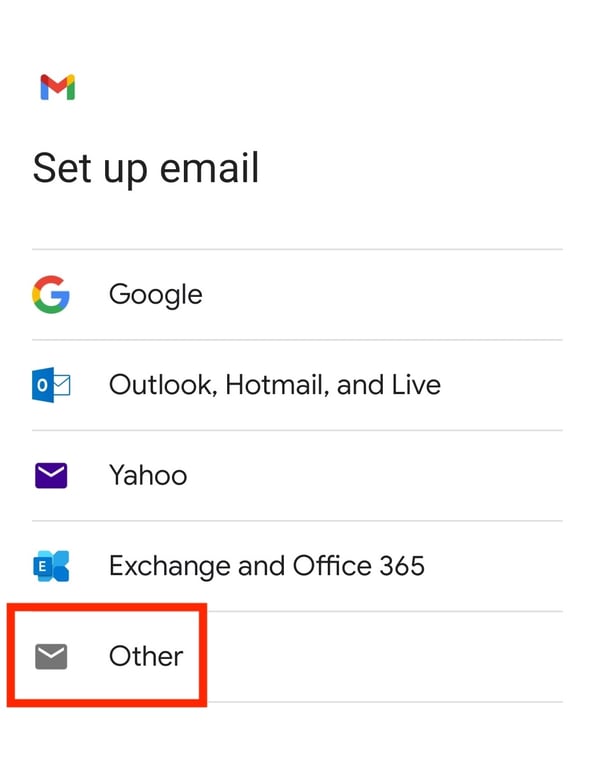
- Choose the email provider you want to add. Since we’ll configure a Hostinger email address, select Other.
3. Enter Your Email Details
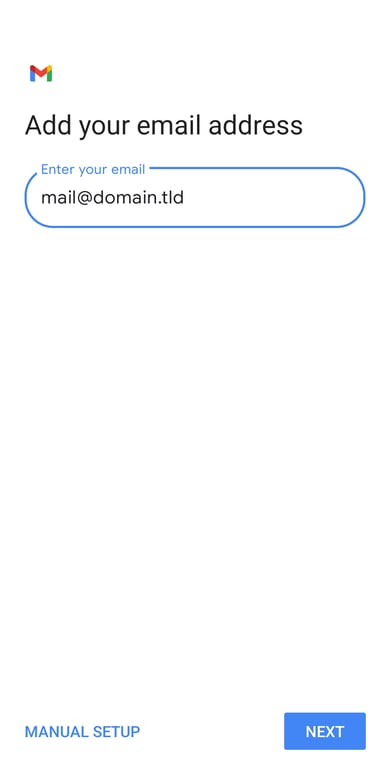
After selecting the provider, enter your email details and select the account type:
- Enter your full email address and tap NEXT.
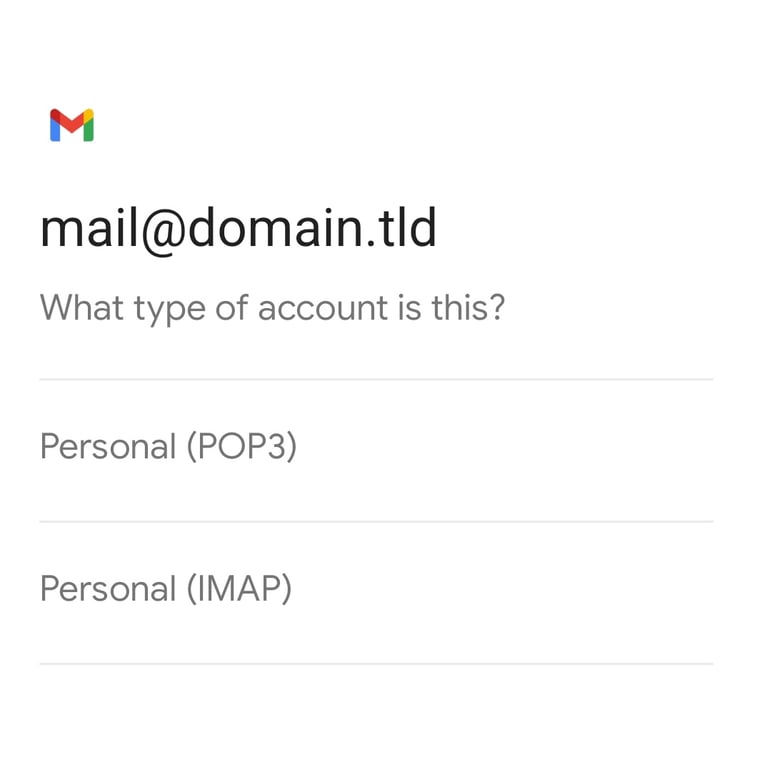
- Choose between POP3 and IMAP as your account type. We recommend IMAP because it syncs your email across multiple devices, so any changes you make will be reflected everywhere.
- Enter the password associated with your email account.
Suggested Reading
Check out our article to learn more about the differences between POP3 and IMAP.
4. Configure Server Settings
Configuring your server settings will ensure your email account works properly on your Android device. Here’s how to configure Hostinger email’s settings on Gmail:
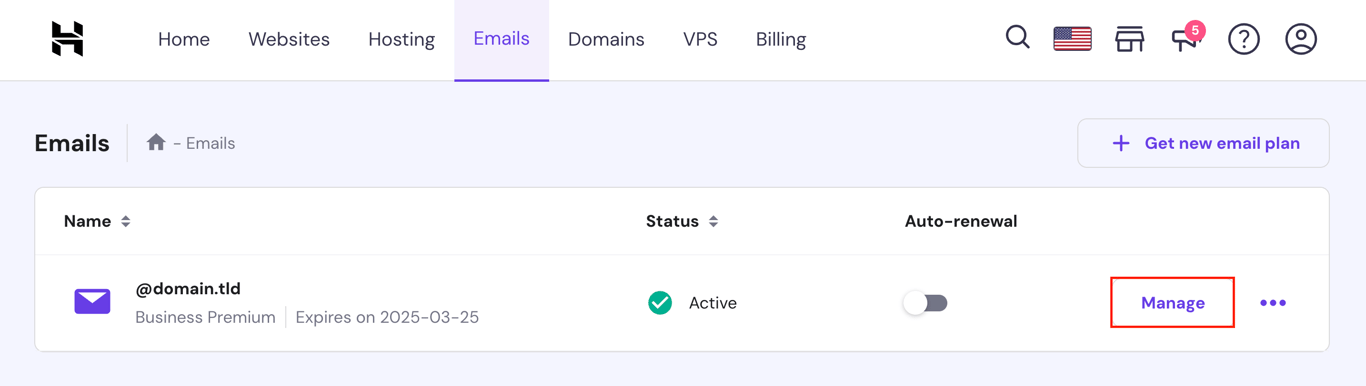
- Log in to hPanel and go to Emails → Manage next to your email account.
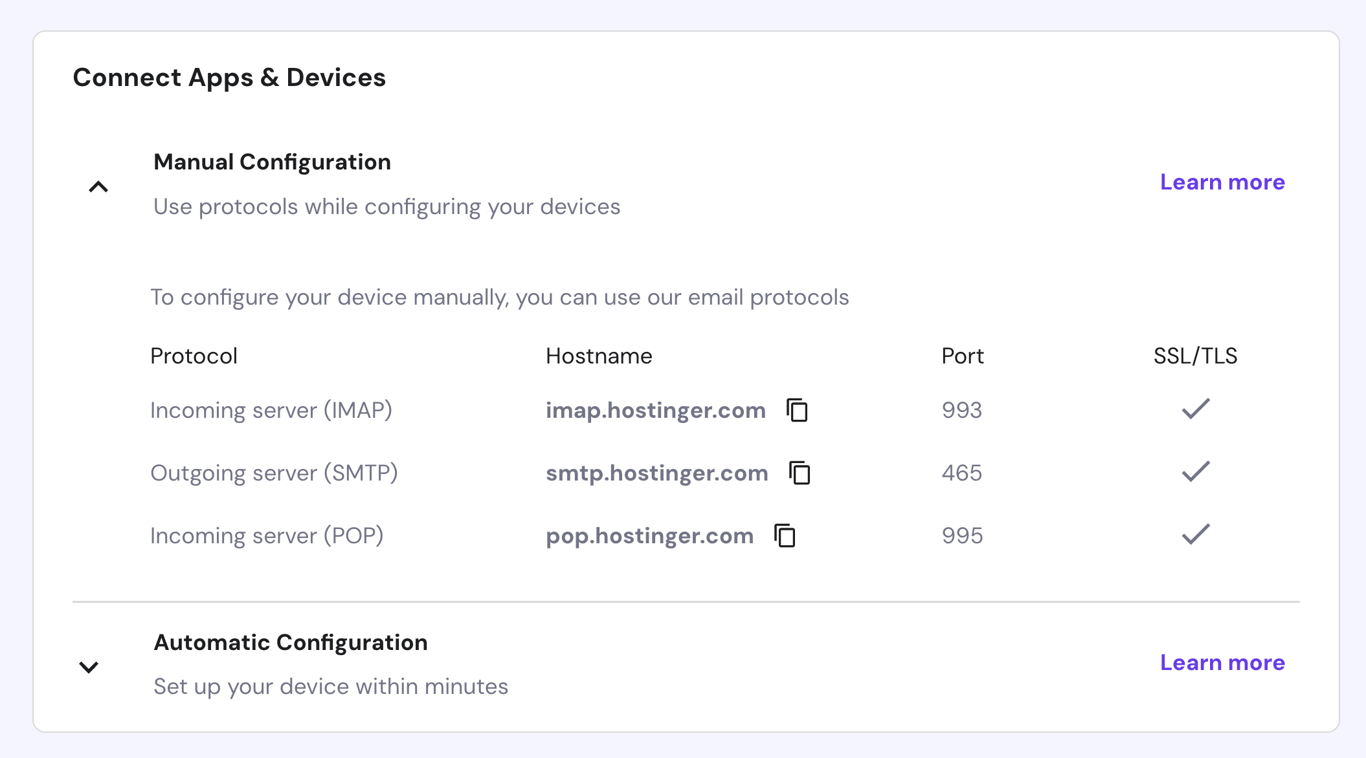
- Select Connect Apps & Devices from the email dashboard’s left sidebar.
- Look for the Manual Configuration section to find the incoming and outgoing server details.
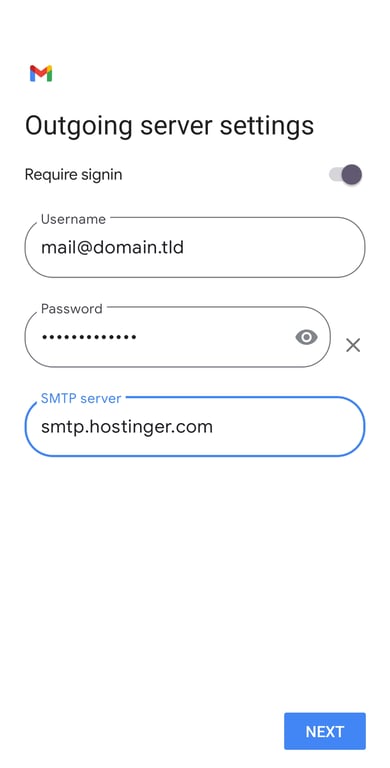
- On Gmail’s Incoming server settings screen, enter the incoming server’s hostname in the appropriate field.
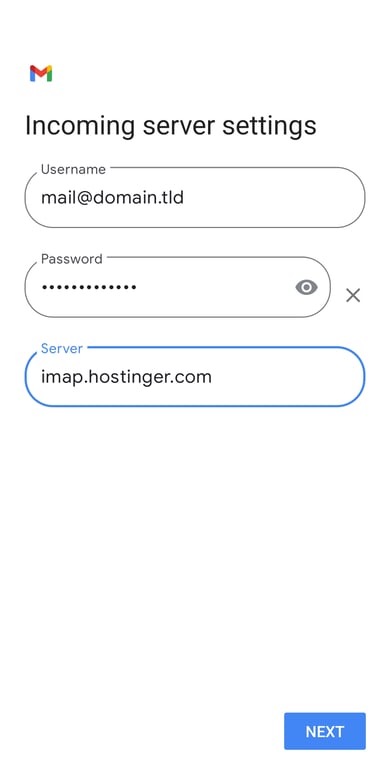
- Enter the outgoing server’s hostname in the SMTP server field and tap NEXT.
For other popular email providers, refer to these server configuration tables:
IMAP settings:
| Provider | Incoming server | Port | Security type | Outgoing server | Port | Security type |
| Gmail | imap.gmail.com | 993 | SSL | smtp.gmail.com | 587 | TLS |
| Yahoo | imap.mail.yahoo.com | 993 | SSL | smtp.mail.yahoo.com | 465 or 587 | SSL |
| Outlook | imap-mail.outlook.com | 993 | SSL/TLS | smtp-mail.outlook.com | 587 | TLS |
| Microsoft 365 | outlook.office365.com | 993 | SSL/TLS | smtp.office365.com | 587 | TLS |
POP settings:
| Provider | Incoming server | Port | Security type | Outgoing server | Port | Security type |
| Gmail | pop.gmail.com | 995 | TLS | smtp.gmail.com | 587 | TLS |
| Yahoo | pop.mail.yahoo.com | 995 | SSL | smtp.mail.yahoo.com | 465 or 587 | SSL/TLS |
| Outlook | pop-mail.outlook.com | 995 | SSL/TLS | smtp-mail.outlook.com | 587 | TLS |
| Microsoft 365 | outlook.office365.com | 995 | SSL/TLS | smtp.office365.com | 587 | TLS |
5. Customize Account Options
Customizing your account options helps your emails stay organized and responsive. Here are the key settings to configure:
- Email checking frequency. Choose how often your device checks for new emails. This can range from manual refresh to every 1 hour.
- Notifications. Enable notifications for new emails to stay informed.
- Sync email. Ensure your emails, folders, and read/unread status are updated across all devices.
- Attachment settings. Choose whether attachments are automatically downloaded when your device is connected to Wi-Fi.
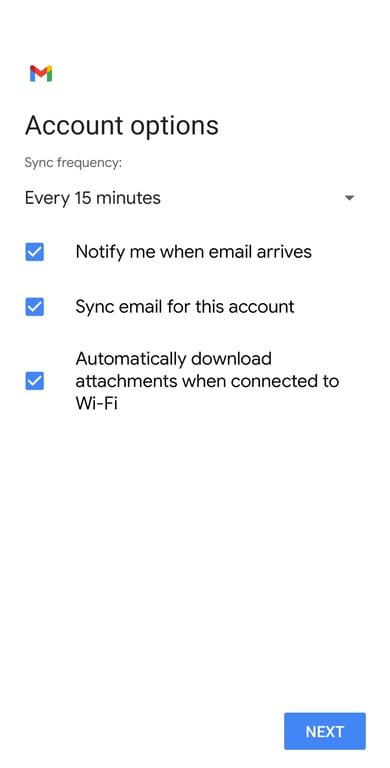
After setting up these options, tap NEXT.
6. Complete the Setup
Once you’ve customized your account options, follow these final steps to complete the setup:
- Enter your account and display name. Then, tap NEXT.
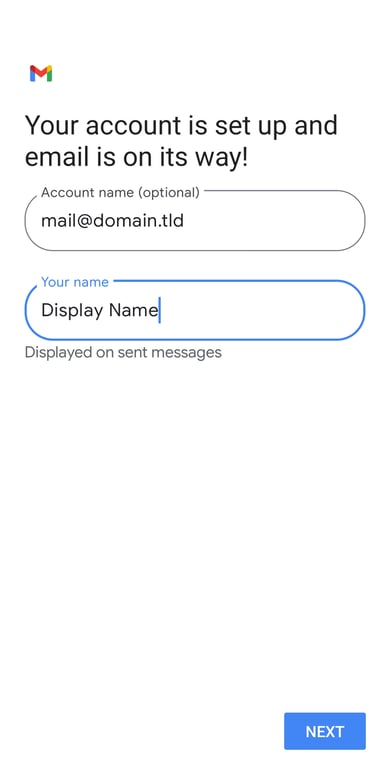
- Your email account setup is now complete, and you’ll be redirected to the Inbox screen.
- If you’ve previously configured another account, tap your profile icon in the top right corner and select the newly added email address to switch between accounts.
If you encounter any issues during setup, follow these troubleshooting tips:
- Recheck the email address and password. Ensure that you have entered the correct email address and password.
- Adjust server settings. Double-check that your incoming and outgoing server settings are correct.
- Update the Gmail app. Make sure you have the latest version of the Gmail app installed.
- Security permissions. Verify that the necessary security permissions are granted for the Gmail app.
Suggested Reading
After setting up your email, we advise you to learn how to back up emails with our guide.
Conclusion
In this guide, you’ve learned how to set up email accounts on Android devices using Gmail. From opening the app to configuring server settings and customizing options, these steps ensure your emails stay organized across different devices.
We hope you found this article helpful. If you have any questions or need further assistance, feel free to leave us a comment below.
How to Set Up Email on Android FAQ
This section answers the most common questions about setting up emails on Android phones and tablets.
Can I Set up Multiple Email Accounts on My Android Device?
Yes, you can set up multiple email accounts on your Android device. Simply tap Add account in the Gmail app, follow the same setup steps for each email, and switch between them using the profile icon.
Are There Any Specific Port Numbers or Security Protocols for Email Setup on Android?
Yes, for example, Hostinger Mail uses port 993 (IMAP), 995 (POP), and 465 (SMTP), all with SSL/TLS protocols. Meanwhile, Gmail, Outlook, and Microsoft 365 use port 993 (IMAP) with SSL/TLS, 995 (POP) with SSL/TLS, and 587 (SMTP) with TLS.
Is It Possible to Set up a Custom Signature for Outgoing Emails on Android?
Yes, you can set up a custom signature for outgoing emails on Android. Open Gmail → Settings, select your email account and tap Mobile signature. Create your desired signature, and it will be added to all emails you send.

Ariffud is a Technical Content Writer with an educational background in Informatics. He has extensive expertise in Linux and VPS, authoring over 200 articles on server management and web development. Follow him on LinkedIn.

Elvinas is a senior server administrator at Hostinger. He monitors the infrastructure’s well-being and keeps the uptime at a maximum. Besides server management, web development has always been one of his biggest passions.