How to hide page title in WordPress -manually and using a plugin
Mar 09, 2026
/
Ratna
/
8 min Read

As a WordPress website owner, you might have experienced the following situation – you’re ready to publish a page or post but its title doesn’t quite fit in with your WordPress theme or design.
You may be ready to remove the title completely, but that may negatively impact your WordPress website SEO and performance. Don’t worry, however – there’s a solution to this problem. You can hide the page or post title instead of deleting it.
This guide will show you a few ways of doing that in WordPress. They include manually adding code to your theme’s stylesheet, using the Gutenberg editor, and installing a third-party tool.
We’ll also go over the reasons why you may want to hide titles in the first place.
How to Hide Post or Page Titles Manually in the Theme Customizer
Before we proceed with the tutorial, go ahead and make a backup of your WordPress site. As some of the methods involve editing theme files, the backup will protect you against the loss of data if an error occurs during the process.
Do not be alarmed, however – the guide is beginner-friendly and straightforward to follow.
Hide All Page Titles
If you want to hide all titles of every page of your WordPress website, proceed with the tutorial below:
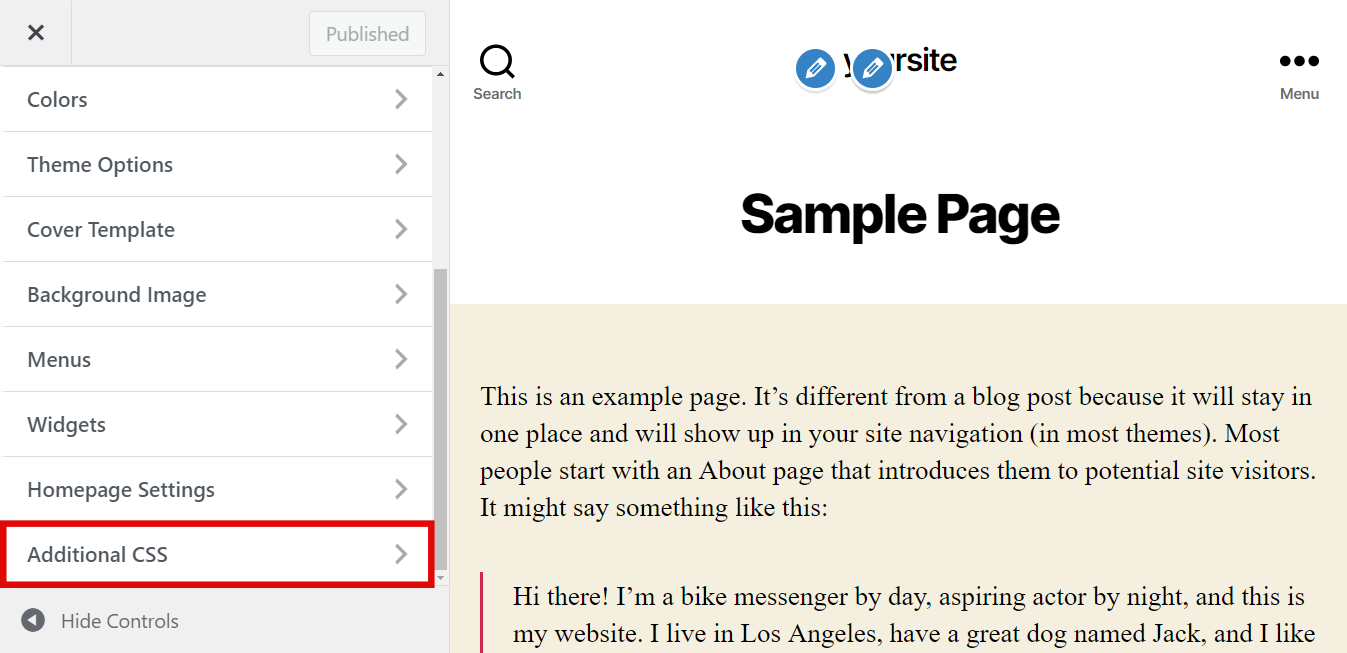
- On the WordPress dashboard, hover over Appearance and select Customize.
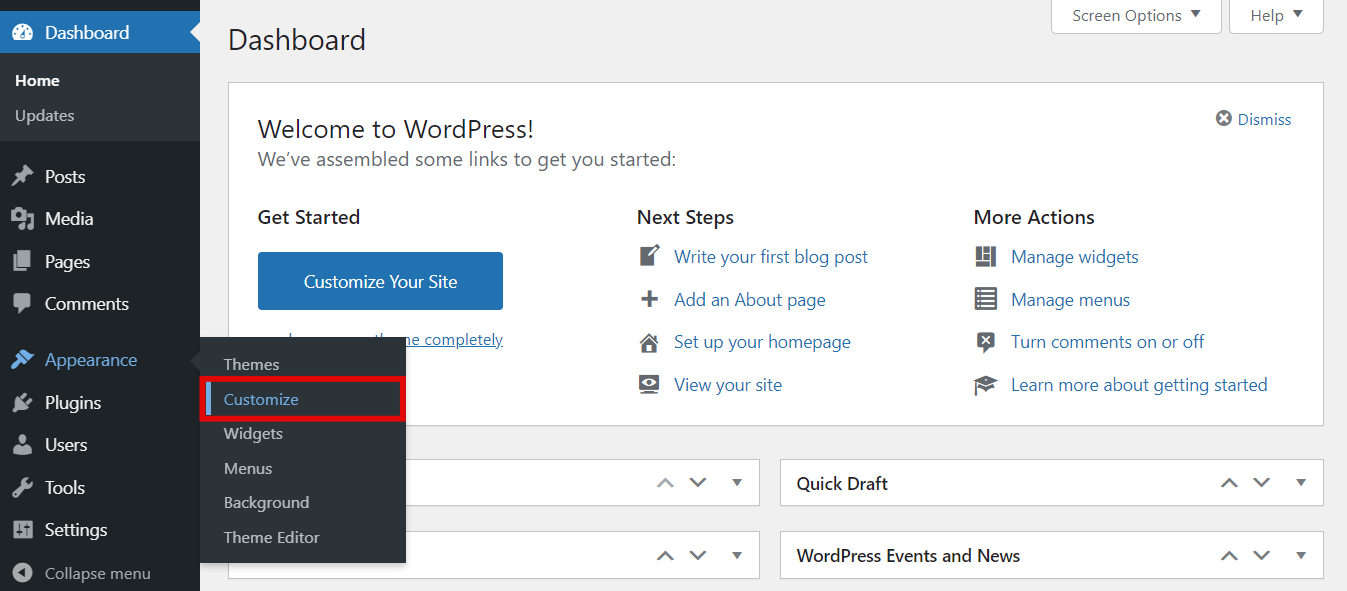
- Locate and click on Additional CSS.
- Copy and paste the following code:
.page .entry-title {display: none;}
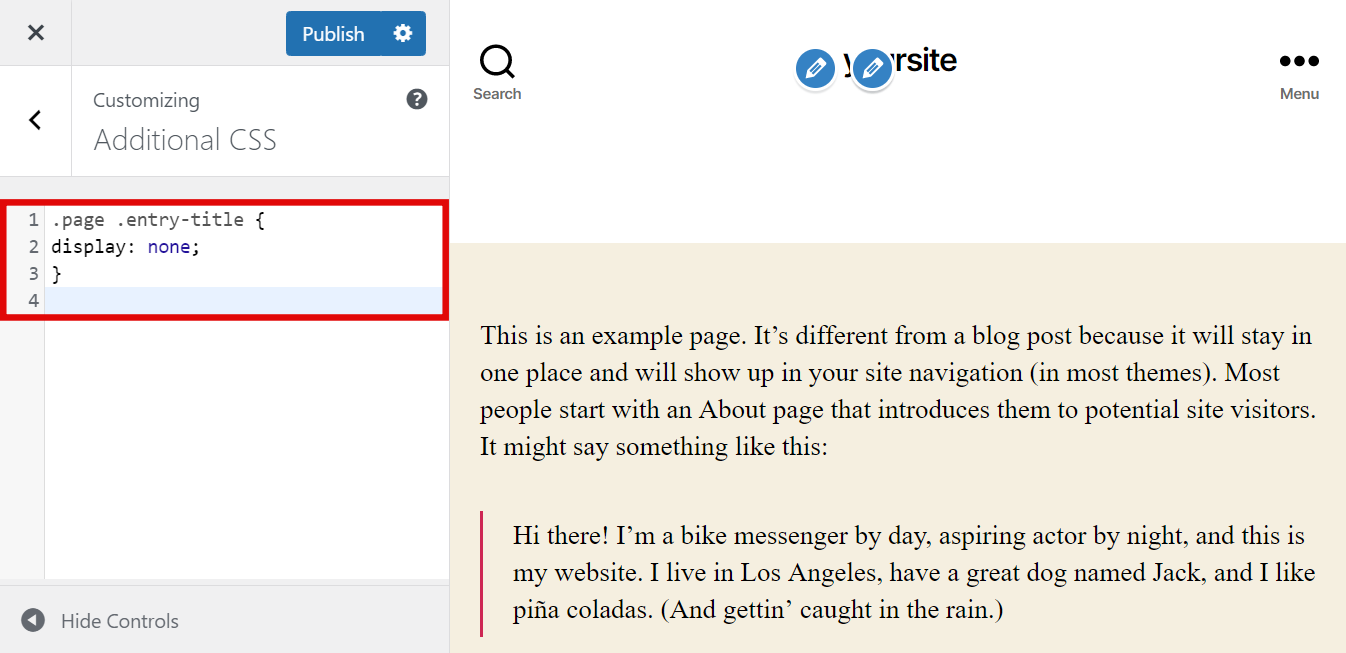
- Press Publish.
If the above code doesn’t work, your theme might be using a different CSS class for titles. If this is the case, you’ll have to tweak the code a little.
Follow these steps to find your theme’s page and post title class:
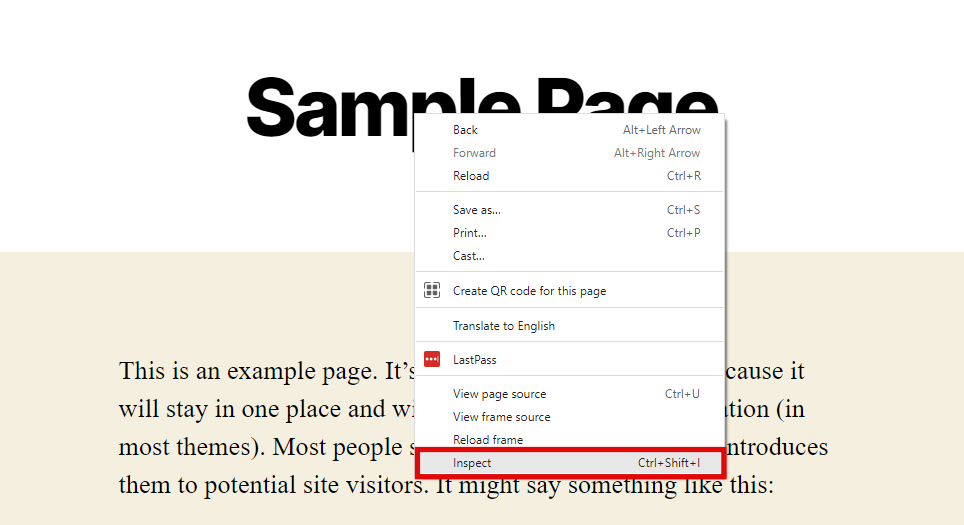
- In the website preview panel of the theme customizer, right-click on the page title and select the Inspect element.
- A new panel will open with the title or H1 CSS class name highlighted in the page source code. For example:
<h1 class="entry-title">Sample Page</h1>
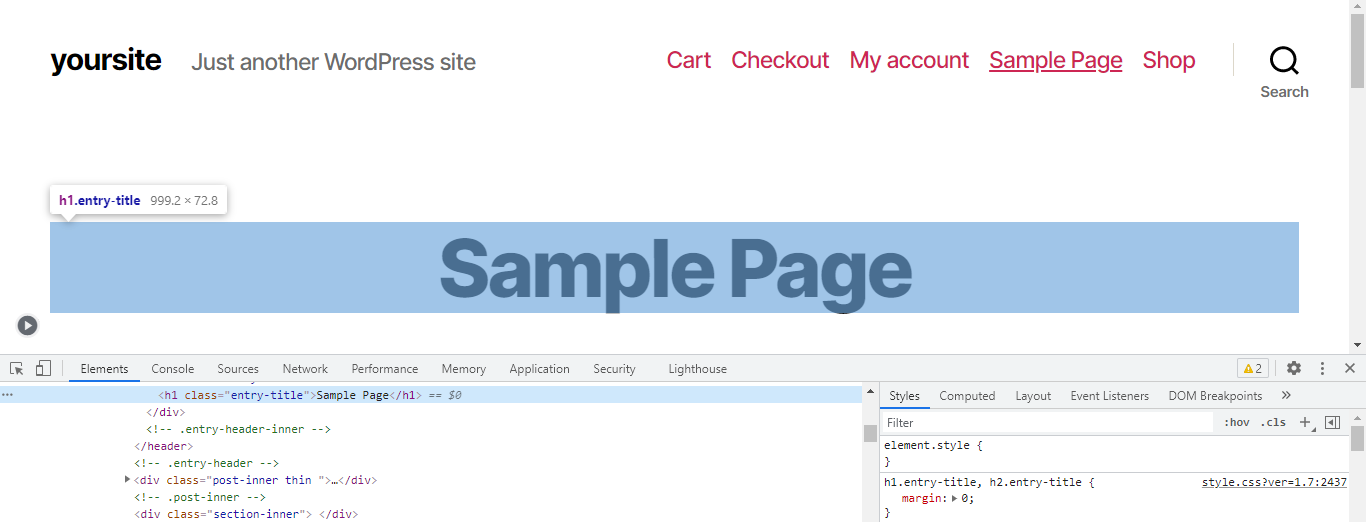
Instead of entry-title, you might see the CSS class name post-title, page-title, or something completely different.
In the code snippet we used earlier, swap the .entry-title element with the CSS class assigned by your theme.
The new code will look something like this:
.page .page-title {
display: none;
}
Enter it into the Additional CSS field and click Publish. The page titles will now be hidden.
Hide a Specific Page Title
The following section will teach you how to hide a specific page’s title. To do that, you will first have to find the page’s ID. Here’s how to do it:
- Access the dashboard and go to Pages -> All Pages.
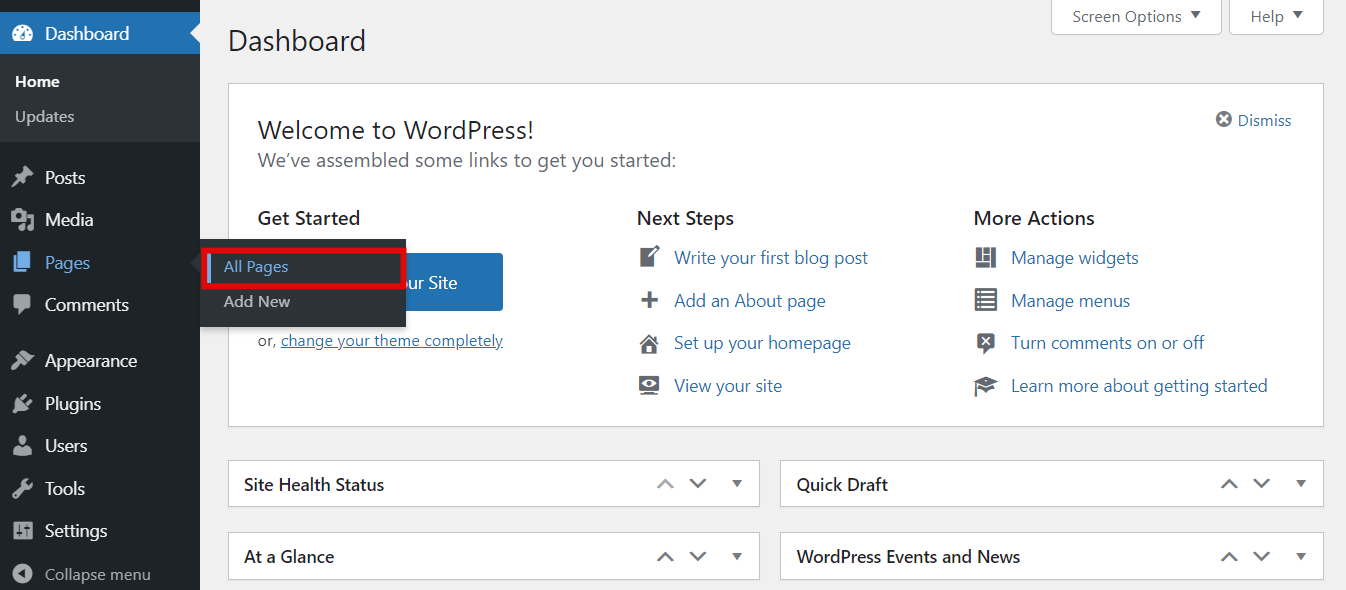
- Hover over the page of your choice, then over Edit. Don’t click it.
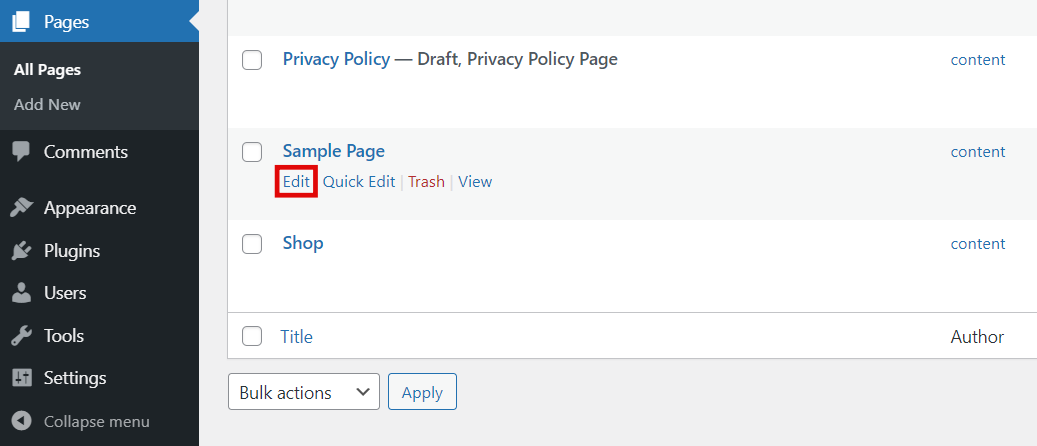
- You’ll see the page ID in the URL at the bottom of your browser. In the example below, the page ID is 2.
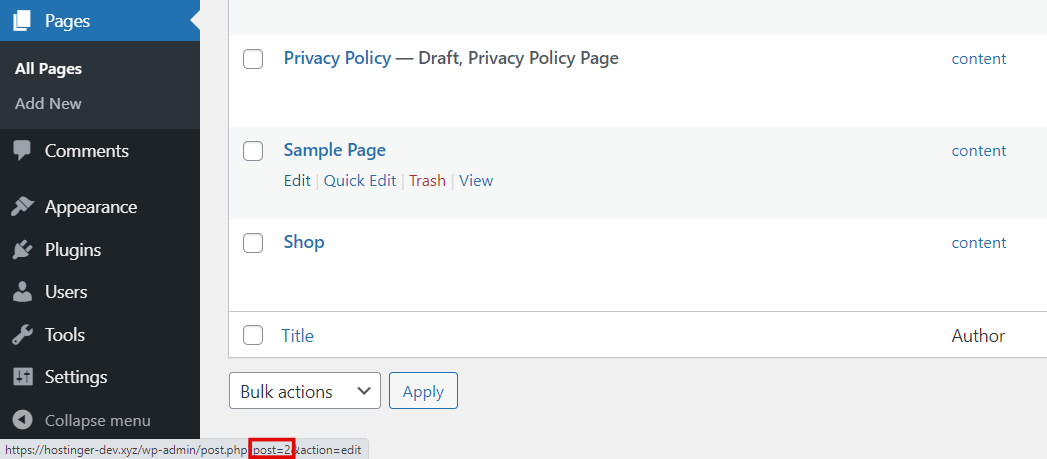
Once you have the page ID, add the CSS code.
- Navigate to Appearance -> Customize, then click on Additional CSS.
- Add the following code:
.page-id-2 .entry-title{display:none;}
Remember to replace.page-id-2with the ID of the page you’re trying to hide the title of.
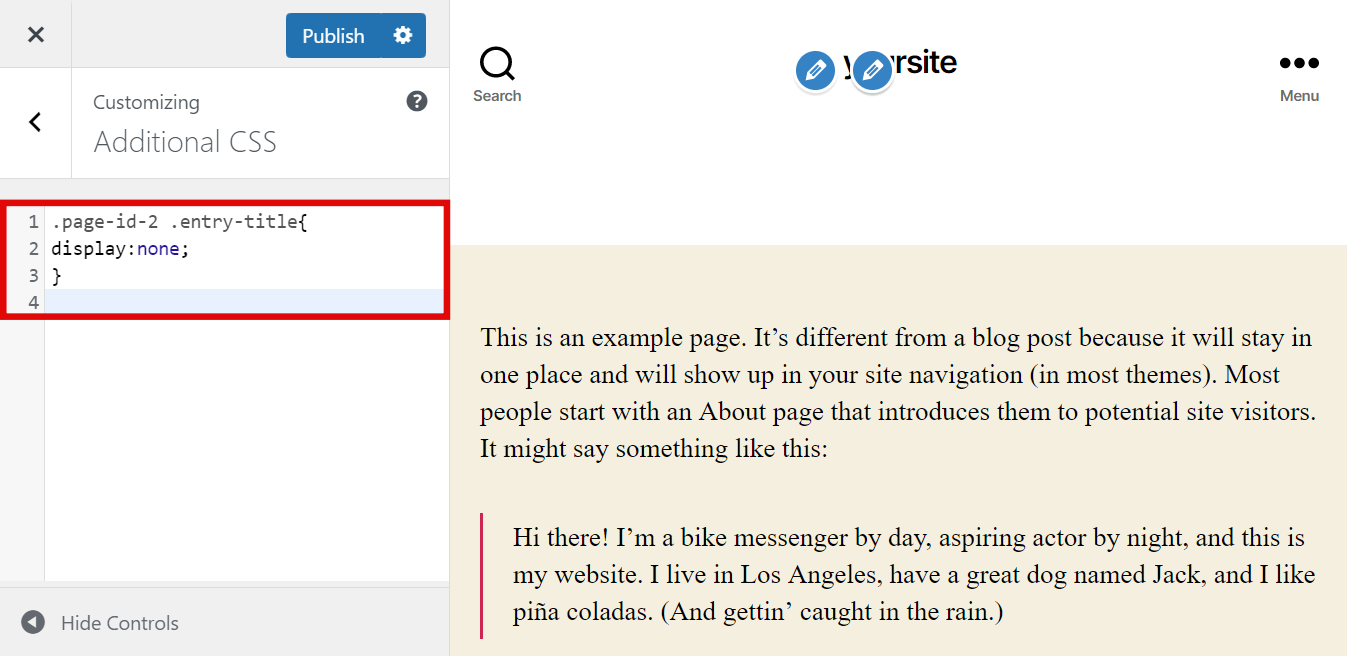
- Publish the page.
The page title should now be invisible to visitors.
If this had no effect, you might need to change the title’s CSS class, as it may differ depending on the theme you use. To do that, follow the instructions in the previous section.
If there still are no changes, add !important to the code, like so:
.page-id-2 .entry-title{
display:none !important;
}
Hide Blog Post Titles
In addition to hiding individual or all WordPress page titles, it’s also possible to hide the titles of blog posts only. The process is similar, but you’ll have to use a different code snippet.
To hide every blog post title on your website, follow these steps:
- From the dashboard, go to Appearance -> Customize.
- Press on Additional CSS, then copy and paste the CSS code below:
.post .entry-title {display: none;}
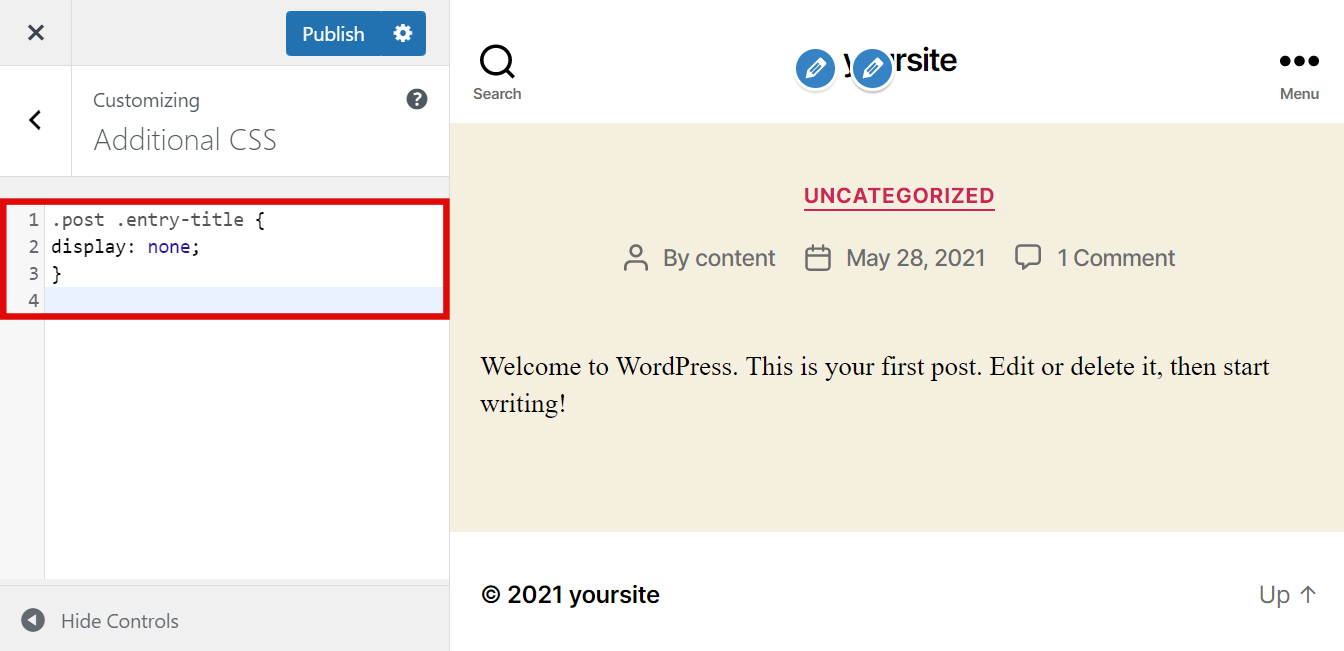
- Publish the post.
In some cases, you might want to hide the title of an individual WordPress post instead of all of them. For example, you may wish to include a featured image in a specific article – you’d then want to hide the title of that entry only.
The process to do so is similar to hiding the title of a single page, which we discussed earlier. To accomplish this, follow these steps:
- Open the dashboard and navigate to Posts -> All Posts.
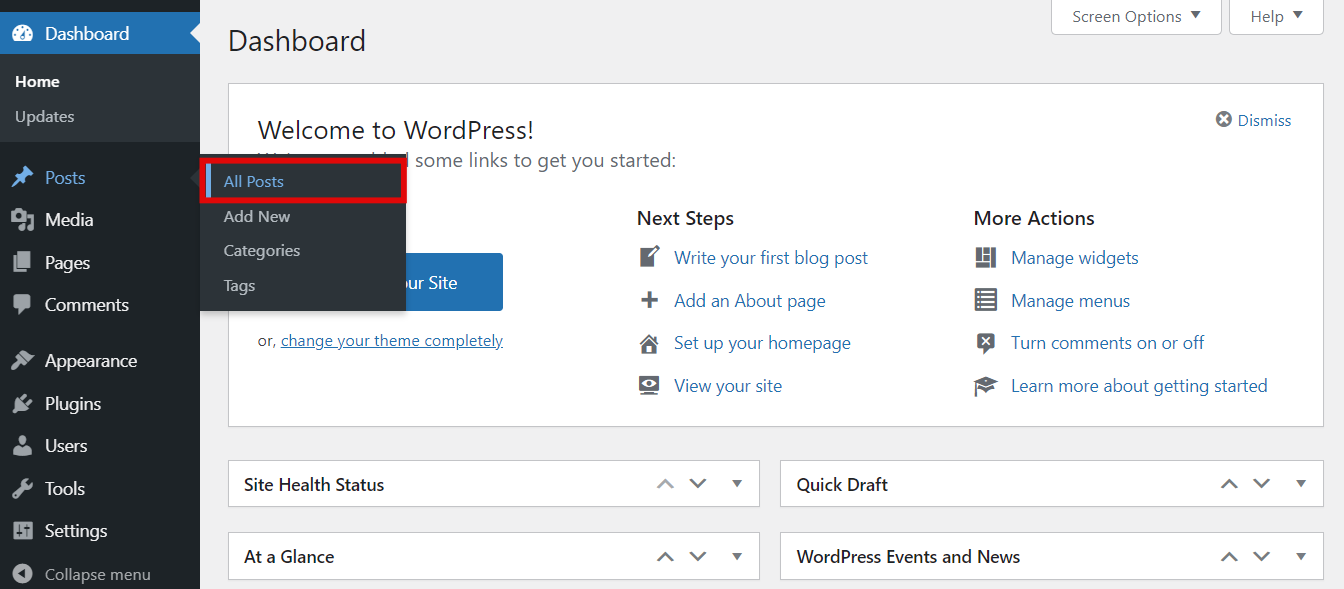
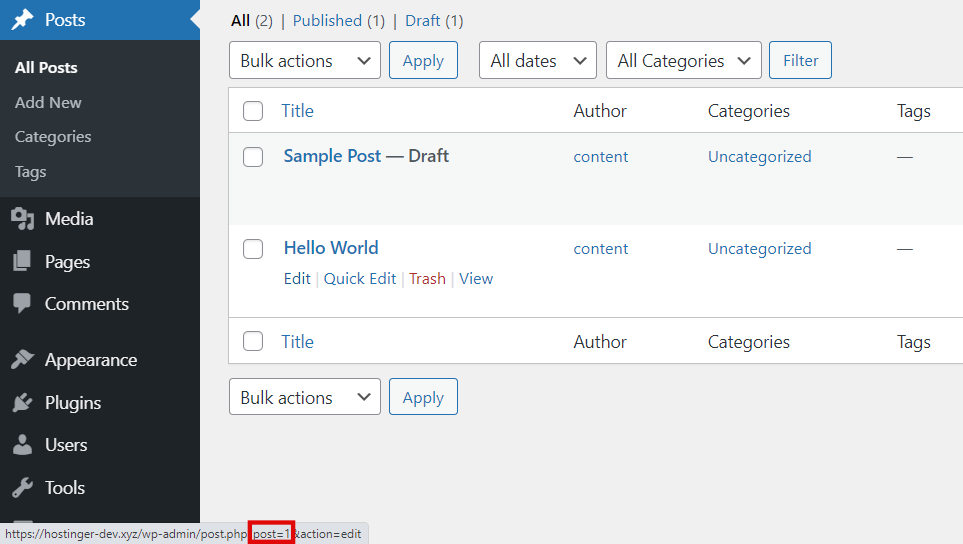
- Locate the post whose title you want to hide, and hover over the Edit button. You will see the post ID at the bottom of your browser. In our example, the post ID is 1.
- Go to Appearance -> Customize, and click on Additional CSS.
- Add the code:
.postid-1 .entry-title {display: none;{
Don’t forget to change.postid-1
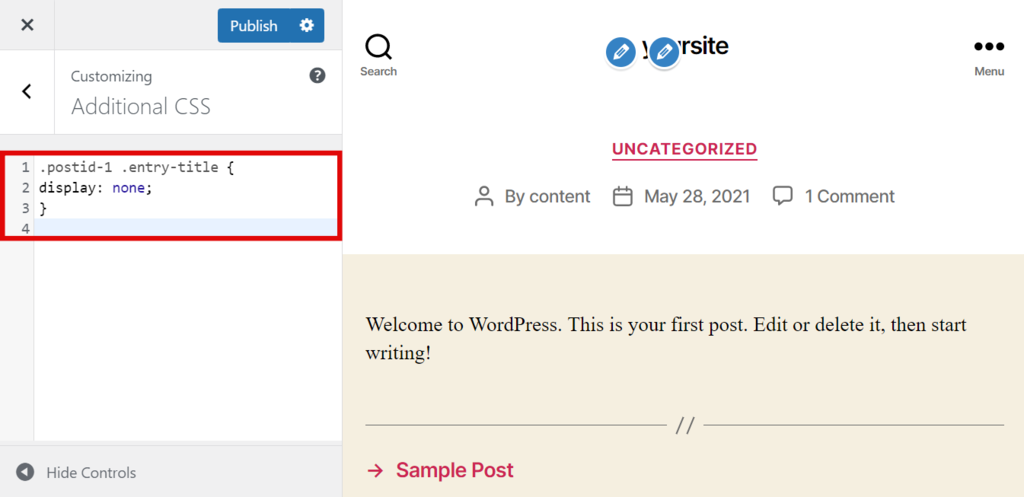
- Press Publish.
It is also possible to hide the title of every page and post on your site.
To do so, add the code below to the Additional CSS field:
.entry-title {
display: none;
}
How to Hide Page or Post Titles Using Gutenberg Editor
For beginners, hiding the post and page titles manually through CSS may seem intimidating. Fortunately, there are alternative solutions where using the above CSS code is not necessary.
If you don’t want to hide post or page titles with the Theme Customizer, leverage the built-in Gutenberg editor to do the job. This method lets you hide all page titles or target a specific one.
Hide All Page Titles
As Gutenberg is a block editor, removing the Post Title block will omit that element from all pages. Here’s how to do it:
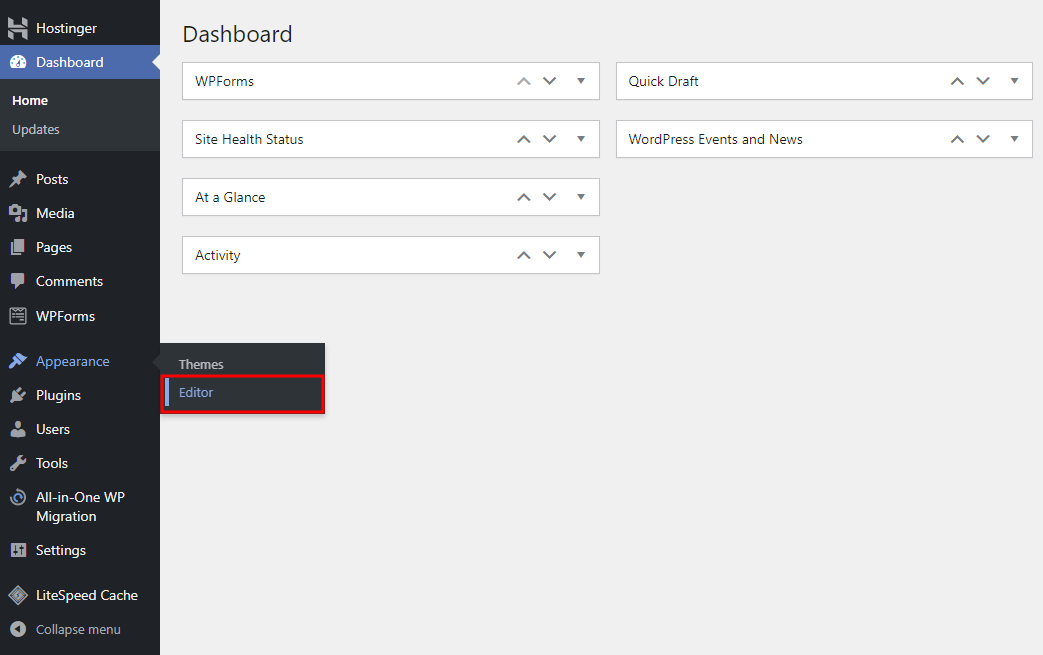
1. Navigate to Appearance → Editor from your WordPress dashboard.
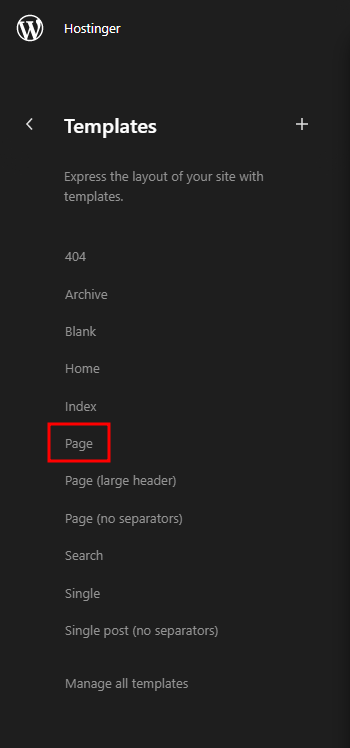
2. Select Templates → Page. It will lead you to the page template.
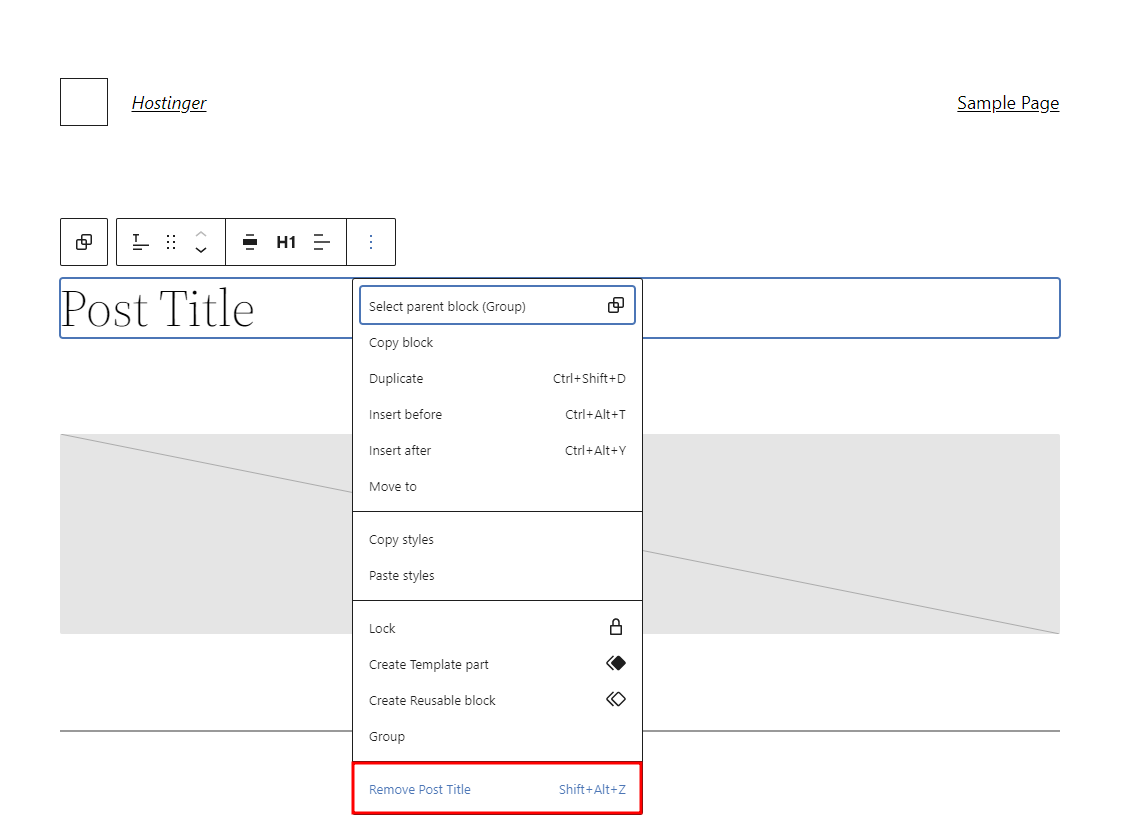
3. Select the Post Title block to activate it. Click on the three-dots menu and pick Remove Post Title. Don’t forget to hit the Save button at the top right of the editor to apply the change.
Hide a Specific Page Title
If you want to hide the title of a specific page or post, build a new template without the Post Title block. Here’s how to do it:
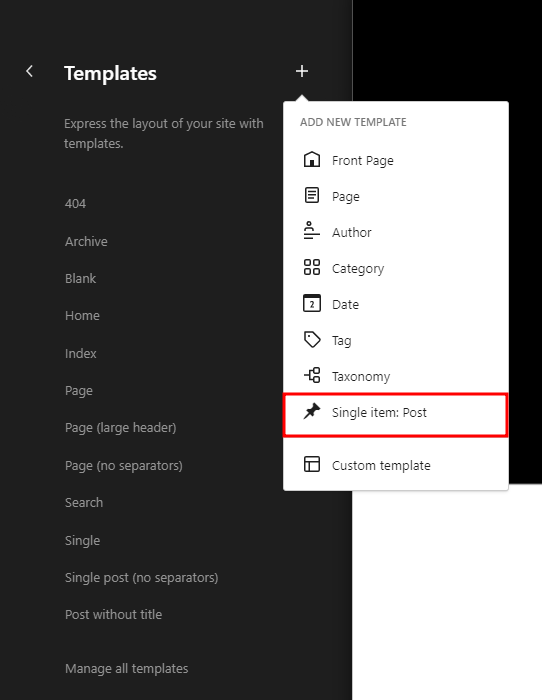
1. Go to Appearance → Editor → Templates from your WordPress dashboard.
2. Click on the plus symbol and pick Single item: Post.
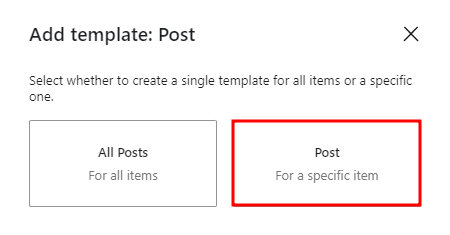
3. When Gutenberg asks whether you want to create a new template for all items or a specific one, choose Post for the latter. Proceed to pick the page or post you want to modify.
4. Click the Post Title block to display the toolbar. Select the three-dots menu and hit Remove Post Title. Once you’re done, hit Save.
How to Hide Page or Post Titles Using Third-Party Tools
Alternatively, hiding page titles in WordPress can be easily done with third-party tools. In this section, we will show you how to do so using a page builder and a WordPress plugin.
Hide Page Titles Using a Page Builder
If you’re using a builder tool such as Elementor, follow the tutorial below:
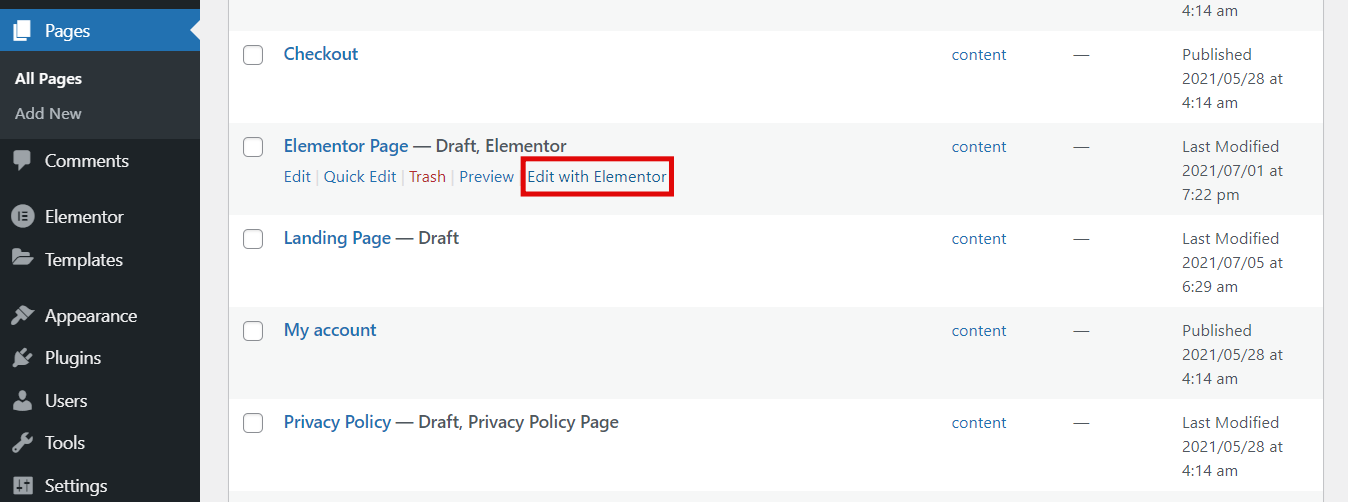
- Access your WordPress dashboard and go to Pages -> All Pages.
- Hover over any page whose title you want to hide, then select Edit with Elementor.
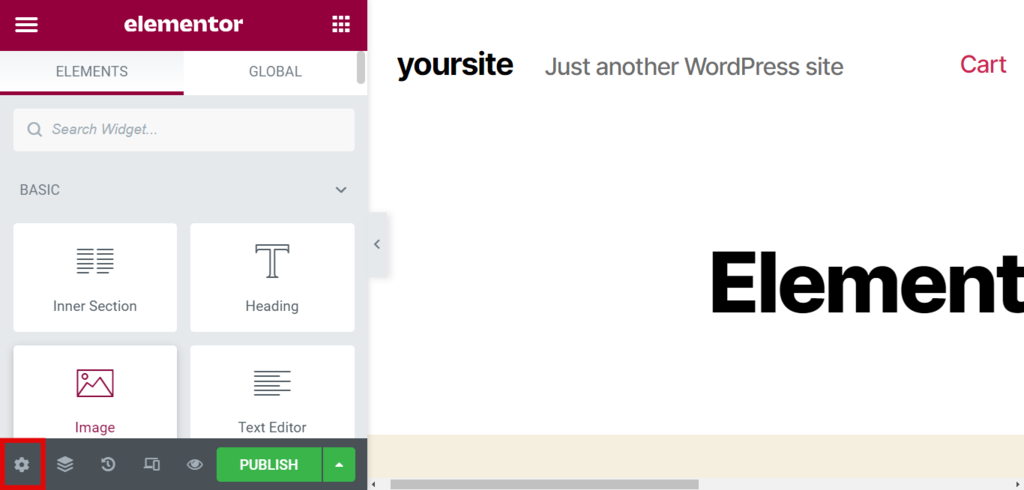
- Click on the Settings icon in the bottom left corner.
- Flick the Hide Title button to YES.
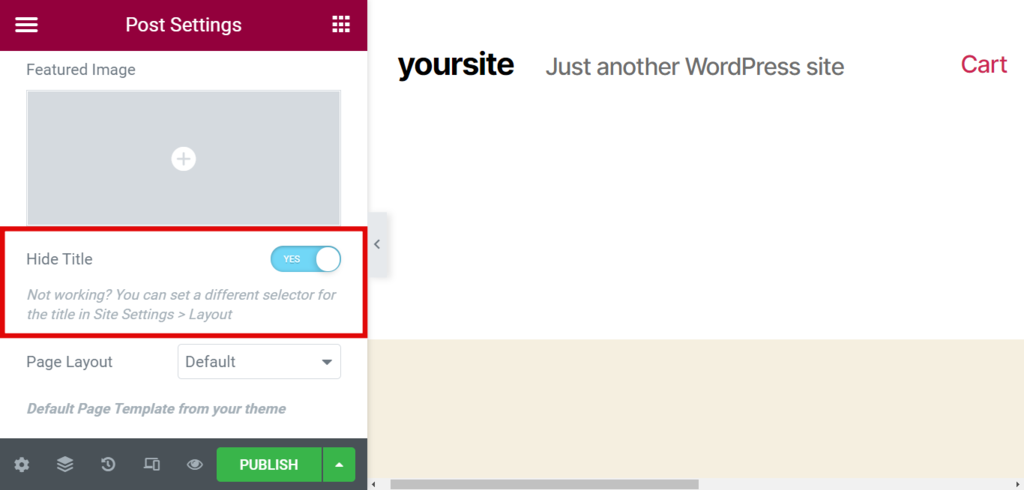
Click Update or Publish if you’re working on a new page. The page title will now be hidden.
Hide Page and Post Titles Using a Plugin
Another method to hide page titles in WordPress is to install a plugin for that purpose. In this guide, we’ll be using the Hide Page and Post Title plugin.
Title Remover is another plugin that you can use to hide page titles.
Once you’ve installed and activated the plugin, proceed with the following steps:
- Go to Pages -> All Pages and click Edit under the particular page whose title you want to hide.
- Press the Settings button and scroll down to the Hide Page and Post Title section.
- Tick the checkbox to have the page title hidden, then press Update.
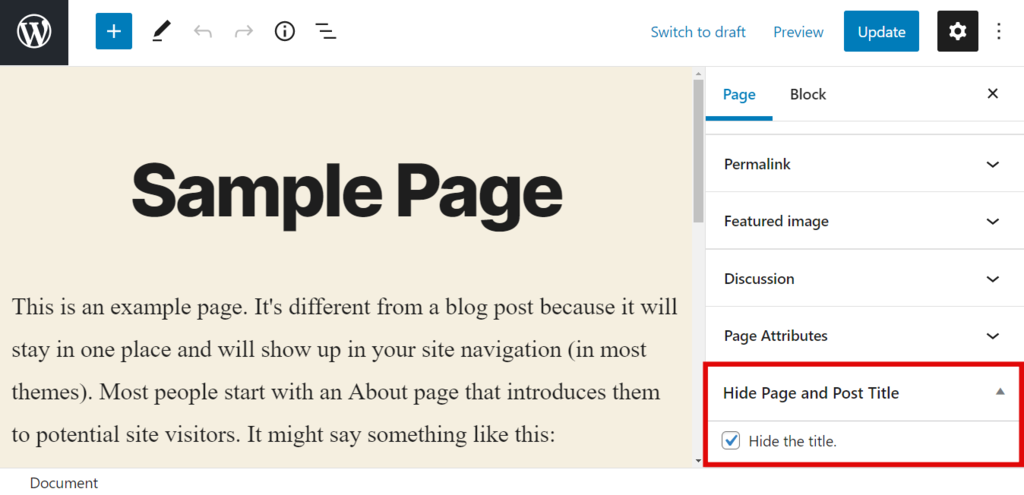
That’s it – the page title will now be hidden.
How to Remove WordPress Page or Post Titles
You might consider removing WordPress page titles completely instead of hiding them. If that’s the case, make sure there’s a valid reason for you to do this.
This is because deleting a title in WordPress is risky – especially if your site has many pages. One reason for this is that upon deleting the titles, you won’t be able to tell a page from another on the page or post list.
What’s more, WordPress uses titles to generate permalinks, which are crucial for search engine optimization (SEO). If a page has no title, WordPress may end up creating a string of random numbers and letters for the permalink.
Search engines may then identify your page as spam. If this happens, it will negatively affect the page’s rank, and you’ll eventually lose a significant amount of traffic.
Furthermore, removing page titles in WordPress may cause broken permalink issues, making your pages inaccessible.
To prevent this, you can manually enter your own permalink slugs. Keep in mind that you’d need to do this for every page and post you publish.
If you have decided to go ahead and remove the title of a page, there are a couple of ways to do it.
The most straightforward method involves leaving the title field blank before publishing.
You can also delete the title of specific pages or posts by following these steps:
- Navigate to Pages -> All Pages or Posts -> All Posts from your WordPress dashboard.
- Hover over a particular post or page, then select Quick Edit.
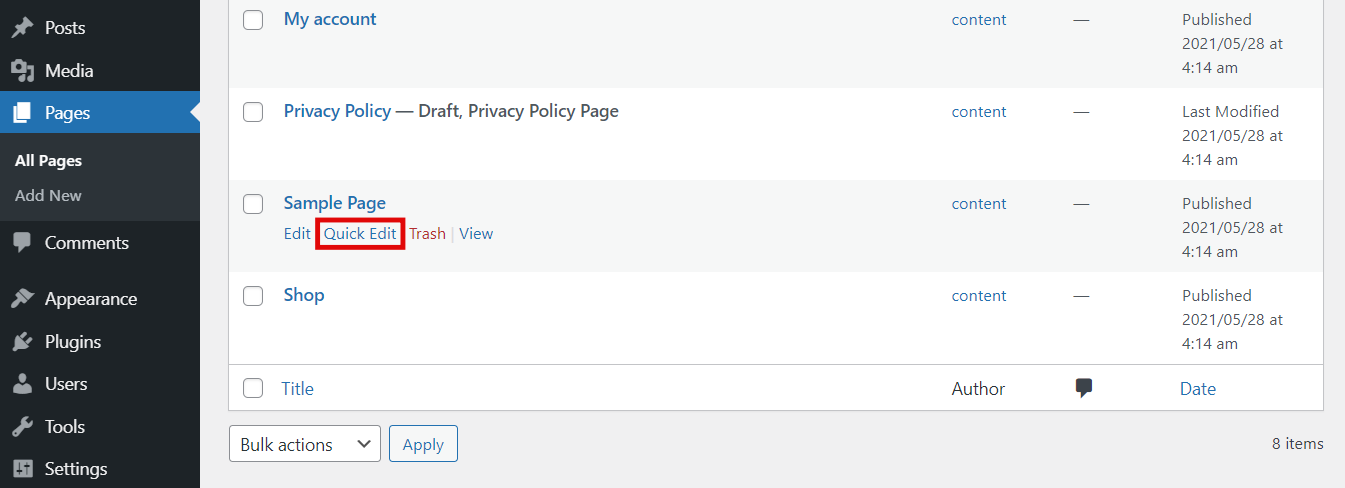
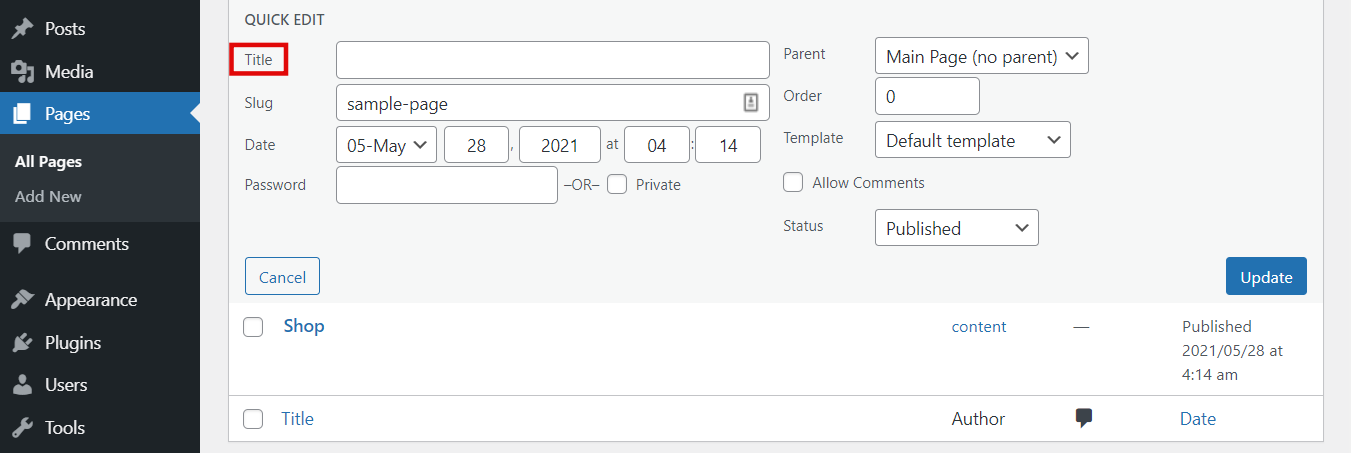
- Delete the title text, and click Update.
Why Should You Hide Page Titles?
Websites usually contain some pages that do not need a title. It’s not necessary to display the titles of pages like Home, Contact, About, and Products.
Depending on the design of your website, showing the titles of these or other pages may not be aesthetically pleasing, or it might make the page look unprofessional.
Having the title displayed may be redundant in other cases – some WordPress themes show the page title on the banner.
Alternatively, the title may be part of the site’s breadcrumbs. Plus, users may already know which page they are on after clicking on a menu item.
The landing page of a website doesn’t require a title, either – it can distract visitors from important elements, such as call-to-action buttons or sign-up forms. The purpose of a landing page is to increase conversion rates, so it’s better to welcome visitors with eye-catching content right from the get-go.
Page Titles and SEO
Search engines read page elements, including tiles, page hierarchy, and page text when they crawl a web page. It’s done to determine what the page is about and if the content is worth ranking.
Though both title and H1 tags are used for a site’s SEO, they are two different elements.
The title tag <title>, also known as the meta tag or SEO title, is what shows up on search engine results pages (SERPs) and the webpage’s browser tab. It’s the default bookmark title as well. The title tag is not visible in the body or content itself.
On the other hand, the H1 tag <h1> is visible in the body of the page and usually doesn’t appear on SERPs. It determines the heading hierarchy of the post and helps search engines understand the context of the page.
If your WordPress pages don’t have titles or H1 headings, search engines will not be able to figure out the context of your site during the crawling process. Instead, they will take the first string of text or heading from a page and use it as the title.
Because of that, your pages may rank lower on SERPs. As a consequence, this would result in lower website traffic since visitors wouldn’t be able to come across your content.
Pro Tip
The page title is not the only ranking factor. Good Core Web Vitals and an active SSL certificate are equally important in SEO, and these are possible if you use a trusted web host.

Conclusion
When publishing a page or post, there are times when the title is not necessary or doesn’t fit with the website’s overall design.
However, because a page or post title is an integral part of a site’s SEO, it’s not advisable to delete it completely.
A safe solution is to hide the page title. We’ve gone over three different ways to hide titles in WordPress:
- Adding CSS code manually through the WordPress theme customizer.
- Using the Gutenberg editor.
- Using third-party tools.
Depending on the circumstances, you may need to hide one or all page or post titles – this guide contains instructions on how to do both of these things. We have also included a couple of tips on how to remove a title altogether, in case you need to do that.
If you found this tutorial helpful or have any questions, let us know in the comment section below.
Learn Other Advanced WordPress Techniques
How to Create a Shortcode in WordPress
How to Speed Up WordPress
How to Remove Sidebar in WordPress
How to Use WordPress Icon Fonts
WordPress A/B Testing Guide
How to Create a Staging Environment in WordPress
How to Duplicate Pages in WordPress

Ratna is a web hosting expert. With her experience with all things tech and SEO, she is ever-ready to share. In her spare time, Ratna likes to read a good book or resume her cross-stitch project.