How to duplicate pages in WordPress using a plugin and manually
Mar 09, 2026
/
Domantas G. & Jordana A.
/
7 min Read

When using WordPress, you may need to duplicate a post or page for various reasons. Whether for quick content updates or maintaining a specific layout for new pages, knowing how to replicate page content on WordPress can streamline your workflow.
This tutorial will cover plugin-based approaches and manual page duplication techniques to efficiently create a new page or post based on existing content.
We will also go through several scenarios where this practice comes in handy and provide tips on replicating WordPress posts and pages to ensure a smooth process. Let’s get started.
Download all-in-one WordPress cheat sheet
How to Duplicate Pages or Posts Using a WordPress Plugin
Although you can manually copy and paste content, this method is cumbersome, especially for pages with complex layouts. The block editor’s Copy all blocks feature helps, but it doesn’t fully replicate the entire page or post. Fortunately, using a plugin can automate and simplify this process.
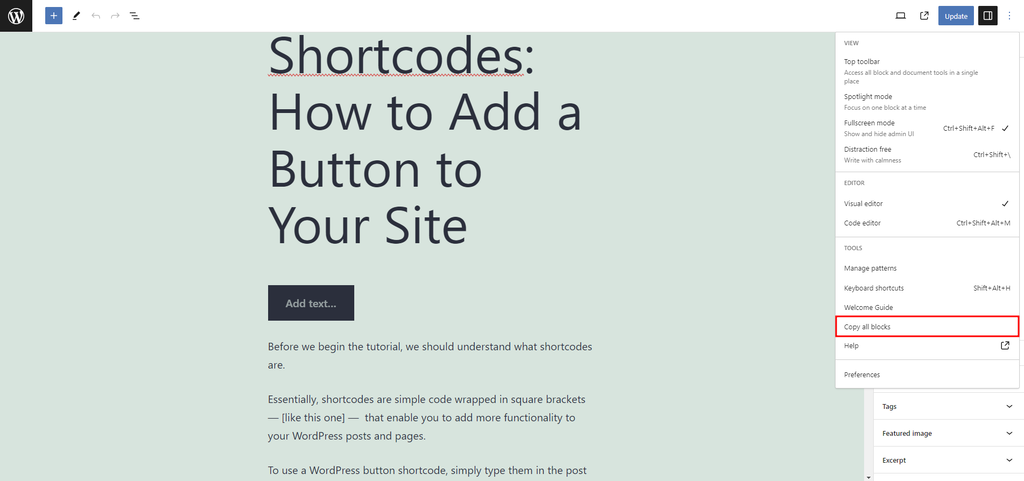
When you manually copy a post or page, only the text content is replicated. You must copy template parts, images, and SEO elements like meta descriptions and title tags separately. The process becomes time-consuming, especially when cloning multiple WordPress posts, pages, or custom post types.
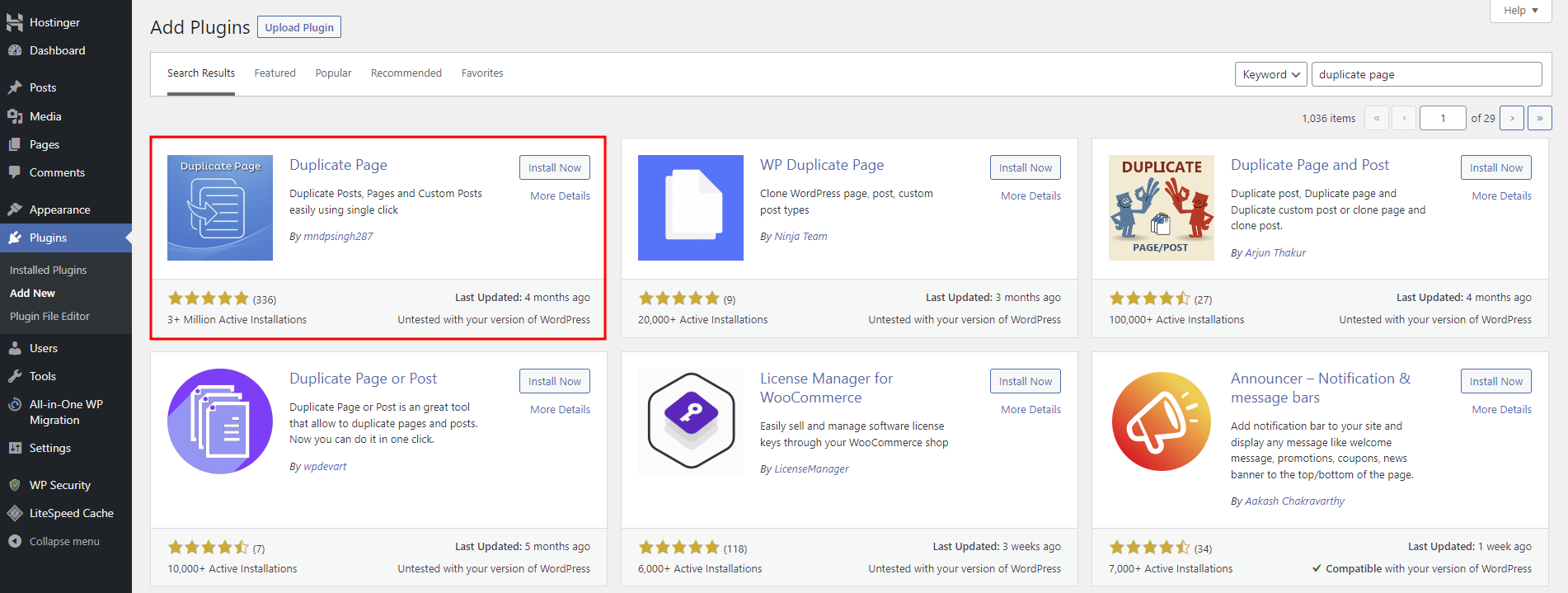
A more efficient method is to duplicate posts in WordPress using plugins, which simplifies the task and reduces the risk of human error. To get started with duplicating pages in WordPress, you can install the Duplicate Page plugin, which automates the process.
- Install and activate Duplicate Page from the WordPress plugin directory. Other ways to install the plugin include using an FTP client and uploading the plugin files manually through your admin dashboard.
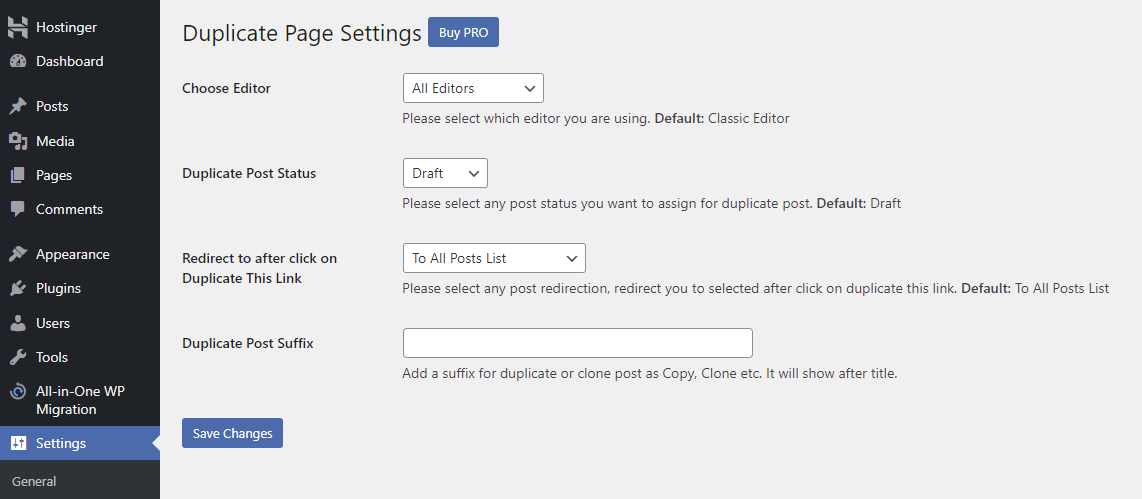
- Go to Settings → Duplicate Page to configure the plugin’s settings. For this tutorial, we make it available in the classic editor and Gutenberg. The plugin assigns a Draft status to all duplicated content and redirects you to the post list after completing the process.
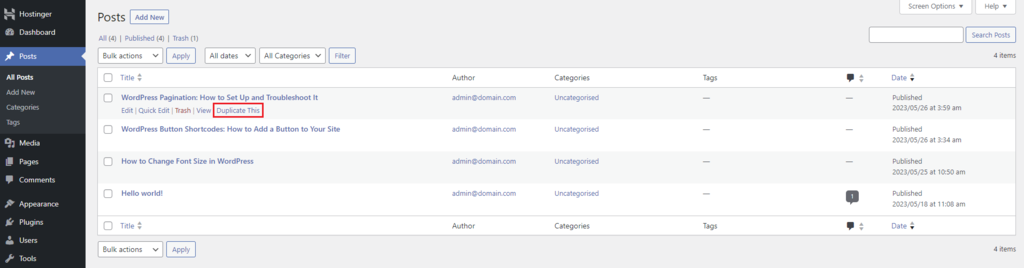
- Navigate to Posts → All Posts from your WordPress dashboard to find a Duplicate This button under each post. Click on it to create an exact replica of your chosen post as a new draft.
Duplicate Page is a freemium plugin, so consider upgrading to Pro to unlock its premium features. Buying the license for $15/website lets you limit access to the plugin based on user roles, change the duplicate page’s location, and set a default prefix and suffix to your duplicated page entries.
If Duplicate Page doesn’t fit your needs, consider other popular plugin options:
- Yoast Duplicate Post. Developed by the team behind the popular SEO plugin, Yoast Duplicate Post lets you clone multiple entries using the Bulk Actions feature.
- Post Duplicator. This plugin supports custom post types along with custom taxonomies and fields, making it ideal for WordPress sites of all sizes and niches.
- Duplicate PP. With this plugin, you can duplicate content from either the admin dashboard on the back end or the single post view on the front end.
- Duplicate Post. Besides cloning posts, this WordPress duplicate plugin identifies and removes copied content within a few clicks.
Pro Tip
Improve your content publishing workflow by understanding the proper way to add a new post in WordPress.
How to Duplicate Pages or Posts Manually
If you prefer not to use a plugin, you can always duplicate WordPress posts manually by modifying the functions.php file. You can find this file in wp-includes, a core folder within your WordPress site.
Four tools are available for editing the functions.php file ‒ your web host’s File Manager, an FTP client like FileZilla, an HTML code editor, or the built-in WordPress editor.
The FTP client method involves creating an FTP account and connecting it to the server. We recommend setting up a FileZilla FTP connection as this popular FTP client is relatively easy to navigate.
Meanwhile, the built-in WordPress editor is accessible in Appearance → Theme File Editor from your WordPress dashboard.
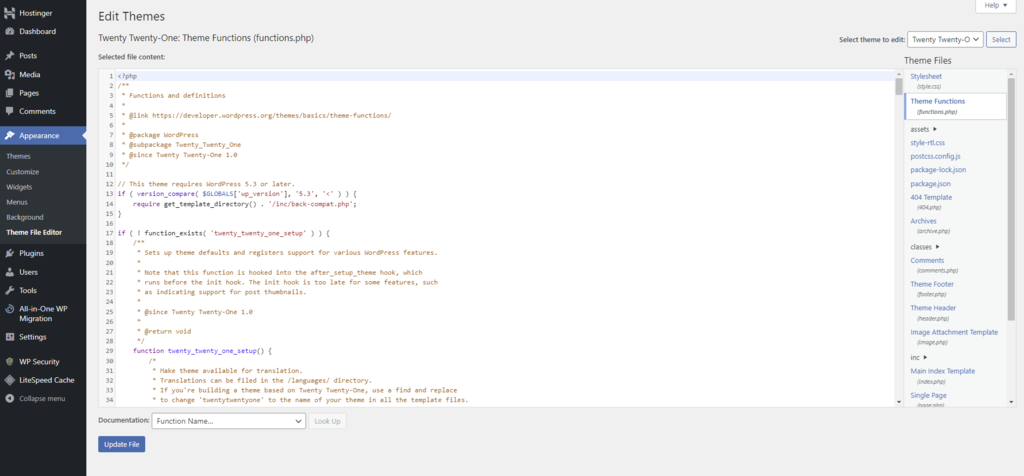
If you’re familiar with coding, using an HTML editor may be the most convenient method. Most code editors include spell-checking and error detection features, ensuring your code is functional and clean.
Important! Back up your entire website before editing any WordPress files to avoid data loss.
For this tutorial, we will configure the functions.php file using Hostinger’s File Manager. First, open the file management tool by navigating to Files → File Manager from hPanel. Select Access Files of your-domain-name to specifically access the assets of your WordPress website.
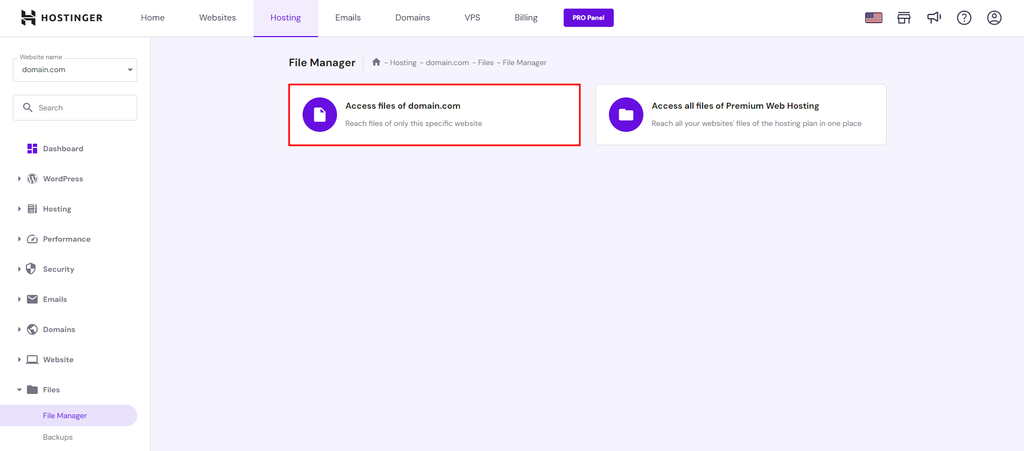
Locate the functions.php file in public_html → wp-includes. Right-click on the file and select Edit, or double-click to modify it.
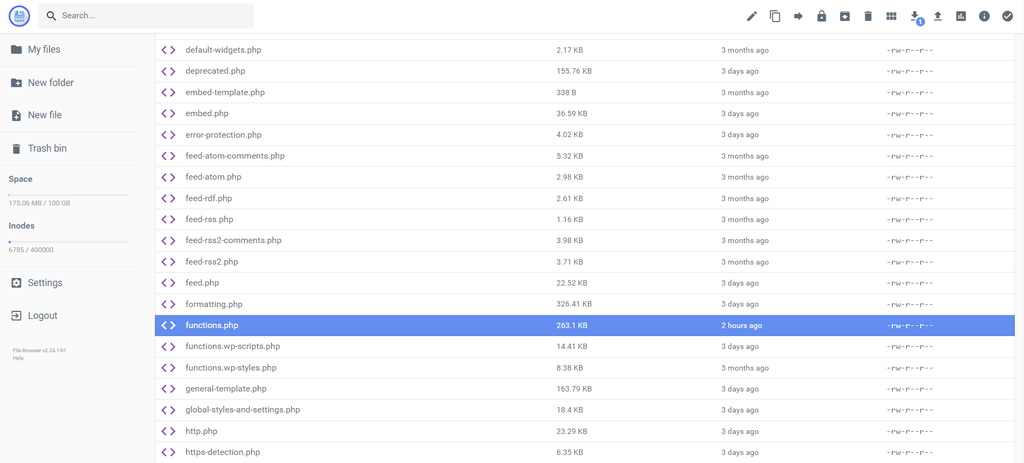
Paste the following code snippet at the bottom of your functions.php file:
/*
 * Function for post duplication. Dups appear as drafts. User is redirected to the edit screen
 */
function rd_duplicate_post_as_draft(){
  global $wpdb;
  if (! ( isset( $_GET['post']) || isset( $_POST['post'])  || ( isset($_REQUEST['action']) && 'rd_duplicate_post_as_draft' == $_REQUEST['action'] ) ) ) {
    wp_die('No post to duplicate has been supplied!');
  }

  /*
   * Nonce verification
   */
  if ( !isset( $_GET['duplicate_nonce'] ) || !wp_verify_nonce( $_GET['duplicate_nonce'], basename( __FILE__ ) ) )
    return;

  /*
   * get the original post id
   */
  $post_id = (isset($_GET['post']) ? absint( $_GET['post'] ) : absint( $_POST['post'] ) );
  /*
   * and all the original post data then
   */
  $post = get_post( $post_id );

  /*
   * if you don't want current user to be the new post author,
   * then change next couple of lines to this: $new_post_author = $post->post_author;
   */
  $current_user = wp_get_current_user();
  $new_post_author = $current_user->ID;

  /*
   * if post data exists, create the post duplicate
   */
  if (isset( $post ) && $post != null) {

    /*
     * new post data array
     */
    $args = array(
      'comment_status' => $post->comment_status,
      'ping_status'    => $post->ping_status,
      'post_author'    => $new_post_author,
      'post_content'   => $post->post_content,
      'post_excerpt'   => $post->post_excerpt,
      'post_name'      => $post->post_name,
      'post_parent'    => $post->post_parent,
      'post_password'  => $post->post_password,
      'post_status'    => 'draft',
      'post_title'     => $post->post_title,
      'post_type'      => $post->post_type,
      'to_ping'        => $post->to_ping,
      'menu_order'     => $post->menu_order
    );

    /*
     * insert the post by wp_insert_post() function
     */
    $new_post_id = wp_insert_post( $args );

    /*
     * get all current post terms ad set them to the new post draft
     */
    $taxonomies = get_object_taxonomies($post->post_type); // returns array of taxonomy names for post type, ex array("category", "post_tag");
    foreach ($taxonomies as $taxonomy) {
      $post_terms = wp_get_object_terms($post_id, $taxonomy, array('fields' => 'slugs'));
      wp_set_object_terms($new_post_id, $post_terms, $taxonomy, false);
    }

    /*
     * duplicate all post meta just in two SQL queries
     */
    $post_meta_infos = $wpdb->get_results("SELECT meta_key, meta_value FROM $wpdb->postmeta WHERE post_id=$post_id");
    if (count($post_meta_infos)!=0) {
      $sql_query = "INSERT INTO $wpdb->postmeta (post_id, meta_key, meta_value) ";
      foreach ($post_meta_infos as $meta_info) {
        $meta_key = $meta_info->meta_key;
        if( $meta_key == '_wp_old_slug' ) continue;
        $meta_value = addslashes($meta_info->meta_value);
        $sql_query_sel[]= "SELECT $new_post_id, '$meta_key', '$meta_value'";
      }
      $sql_query.= implode(" UNION ALL ", $sql_query_sel);
      $wpdb->query($sql_query);
    }


    /*
     * finally, redirect to the edit post screen for the new draft
     */
    wp_redirect( admin_url( 'post.php?action=edit&post=' . $new_post_id ) );
    exit;
  } else {
    wp_die('Post creation failed, could not find original post: ' . $post_id);
  }
}
add_action( 'admin_action_rd_duplicate_post_as_draft', 'rd_duplicate_post_as_draft' );

/*
 * Add the duplicate link to action list for post_row_actions
 */
function rd_duplicate_post_link( $actions, $post ) {
  if (current_user_can('edit_posts')) {
    $actions['duplicate'] = '<a href="' . wp_nonce_url('admin.php?action=rd_duplicate_post_as_draft&post=' . $post->ID, basename(__FILE__), 'duplicate_nonce' ) . '" title="Duplicate this item" rel="permalink">Duplicate</a>';
  }
  return $actions;
}

add_filter( 'post_row_actions', 'rd_duplicate_post_link', 10, 2 );
Credit for coming up with this handy code: Misha Rudrastyh
With the custom code provided, a Duplicate link will appear under each post in your WordPress dashboard. Simply click on this link to create an exact copy of the post as a new draft, saving you time and ensuring consistency in your content creation process.
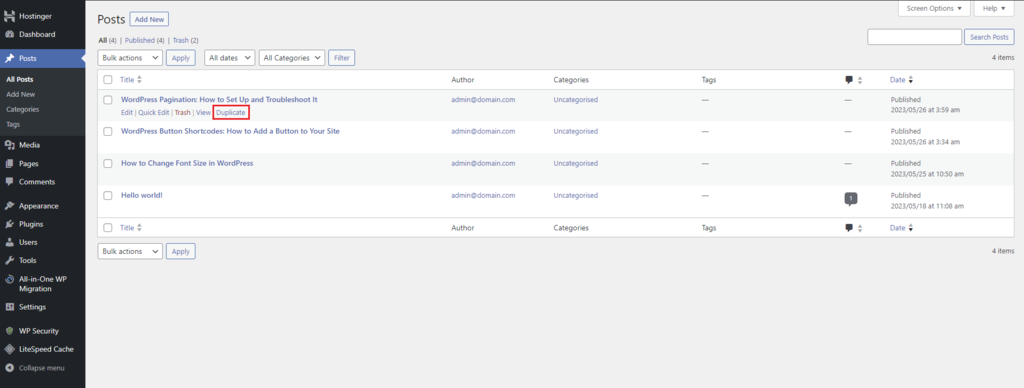
To add the Duplicate feature to your Pages section, you only need to replace the last line of the code above with the following snippet:
add_filter('page_row_actions', 'rd_duplicate_post_link', 10, 2);
Similarly, clicking the link lets you duplicate a WordPress page as a new draft.
Why Duplicate a Post or Page in WordPress
There are several scenarios where duplicating a page or post in WordPress can be highly beneficial. Here are some of the most common reasons to replicate WordPress content:
- A/B testing. Duplicating an existing page allows you to quickly create a variation with subtle changes, such as adjusting headlines, images, or calls to action, without the need to build a new page from the ground up. This makes testing different versions of your content easier and more efficient.
- Streamlining the design process. When building a new site, duplicating saves you from repetitive page recreation. Using tools like the Yoast Duplicate Post plugin further simplifies the process.
- Optimizing page layout consistency. Duplicating an existing page ensures that the formatting, style, and layout remain cohesive. It’s particularly helpful when working with a custom page template, eliminating design disparities.
- Building a staging environment. While duplicating posts or pages isn’t a substitute for a full staging site, it can serve as a useful alternative for experimenting with content changes or design tweaks. This approach lets you test updates without affecting your live site.
- Creating multilingual content. If your site offers multilingual content, cloning pages provide a starting point for translation. You can retain the original design and structure while adapting the text to different languages.
While duplicating a page or post can be useful, having multiple identical pages on your site isn’t a good practice for WordPress SEO. When multiple URLs lead to the same content, search engines will choose the first one published as the canonical version and crawl the copies less often.
Consolidate duplicate URLs by assigning canonical tags to pages you want search engines to prioritize. Luckily, most SEO plugins offer features to set up canonical URLs.
Users whose websites run on Hostinger’s WordPress Business plan or higher can leverage the built-in staging tool. You can duplicate posts and pages for A/B testing and transfer the ones you want to keep to the live site, saving you time from consolidating duplicate content.

Conclusion
Now that you know how to duplicate pages in WordPress using both plugins and manual methods, you can choose the approach that best fits your needs. Whether you’re duplicating WordPress content for A/B testing or streamlining your content creation process, these methods will help you work more efficiently.
- Using a WordPress duplicate post plugin. This method is beginner-friendly and suitable for replicating a large number of pages.
- Adding custom code to the functions.php file. Opt for this method if you can’t access your admin dashboard or want more freedom in customizing the duplicate post link.
We hope this guide has shown you how duplicating WordPress pages can save you time, improve your workflow, and streamline content management. Whether you’re using a plugin or adding custom code, these techniques can enhance your site’s efficiency and consistency.
If you still have questions, check out the FAQ section or post them in the comments section below.
Learn What Else You Can Do With WordPress
How to Install WordPress
How to Launch a WordPress Site
What Is a Permalink in WordPress
How to Create a Contact Form in WordPress
How to Edit Footer in WordPress
How to Update WordPress
How to Change WordPress Domain Name
How to Duplicate Pages in WordPress FAQ
This section covers the most frequently asked questions about how to duplicate a page in WordPress.
Can I Duplicate a Post or Page in WordPress?
Absolutely. You can manually copy page content, use a WordPress duplicate page plugin, or add custom code to the site’s functions.php file. Choose the method that suits your needs and technical expertise.
Why Should I Duplicate a Page or Post in WordPress?
Duplicating a WordPress page or post makes conducting A/B testing easier, streamlines the website-building process, and helps maintain consistent page layouts across the entire site. Duplicated content also serves as a starting point for translation and makeshift staging alternatives.
Does Duplicating a Page or Post in WordPress Create SEO Issues?
Replicating pages or posts can lead to SEO issues due to multiple identical URLs. Search engines favor the original page as canonical and crawl copies less. Set canonical tags using SEO plugins to prioritize specific pages. Alternatively, create a staging site for A/B tests and content transfers to avoid this issue altogether.
What Is the Difference Between Clone and Duplicate in WordPress?
In WordPress, a clone contains the exact copy of content, while a duplicate is a new entry with data taken from an existing page.

Domantas leads the content and SEO teams forward with fresh ideas and out of the box approaches. Armed with extensive SEO and marketing knowledge, he aims to spread the word of Hostinger to every corner of the world. During his free time, Domantas likes to hone his web development skills and travel to exotic places.

Jordana is a Senior Content Writer with a background in Information Systems. She has over five years of experience in WordPress and is casually dabbling with PHP and MySQL. Her passion for writing and technology drives her to create tutorials for anyone wanting to build their online presence. Follow her on LinkedIn.