How to delete all comments on WordPress manually, using a plugin, and more
Mar 09, 2026
/
Merkys M.
/
3 min Read

Having comments on a website is a great way to engage your audience. Unfortunately, it’s also one of the many platforms that hackers can use to fill your site with spam and malicious content. This article will show how to delete all comments on WordPress.
We will go over why deleting comments may be necessary, as well as three different methods to remove all comments on your WordPress website.
Reasons to delete comments
Although comments can help build relationships with the audience, there are times when you need to remove them from your WordPress site. An example is when you need to get rid of spam messages, which is common among websites without an anti-spam setup.
These comments can harm user experience and WordPress search engine optimization (SEO) rankings. Furthermore, they can pose security threats as they may contain malicious content or direct visitors to an unsecured website.

How to delete all comments on WordPress
The following sections will list three ways to remove all comments on your WordPress site – from the easiest to the most difficult. Which method you choose depends on your preferences and technical knowledge.
Use the WordPress admin dashboard
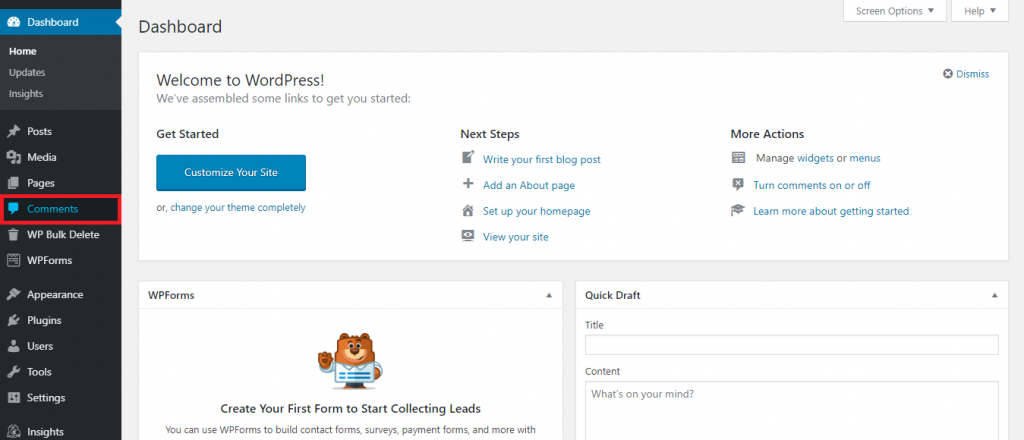
The most straightforward way to delete all comments on WordPress is to log in to your admin dashboard and navigate to the Comments page. Follow these steps:
- Select Comments on the left menu.
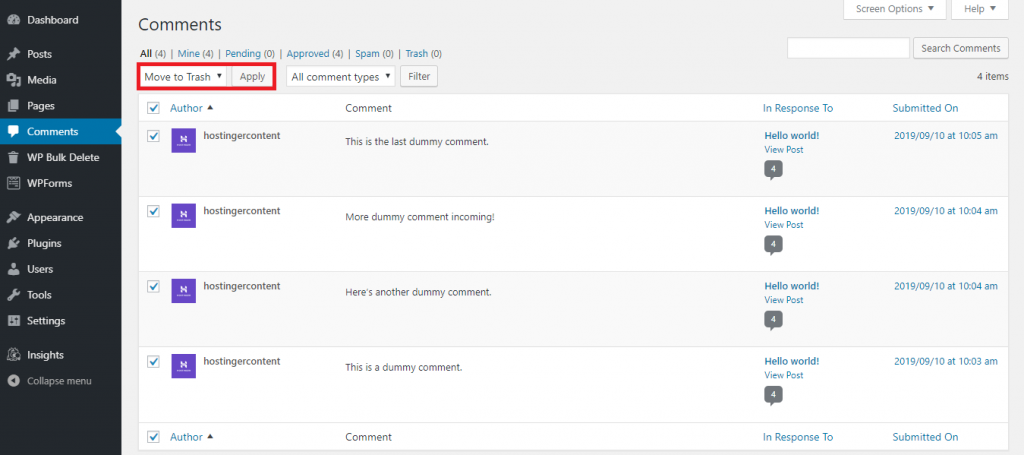
- Find the Bulk Actions dropdown menu and choose Move to Trash. Select all comments and click Apply.
Use a WordPress plugin
Another option is to install a WordPress plugin specifically for removing multiple WordPress comments simultaneously. WP Bulk Delete is a great option for this, as it can implement filters and conditions when managing comments based on your needs.
The free version of the plugin comes with a primary comment remover feature. For more filter options, check out the Pro plan for $29/site.
Follow these steps to remove all comments with WP Bulk Delete:
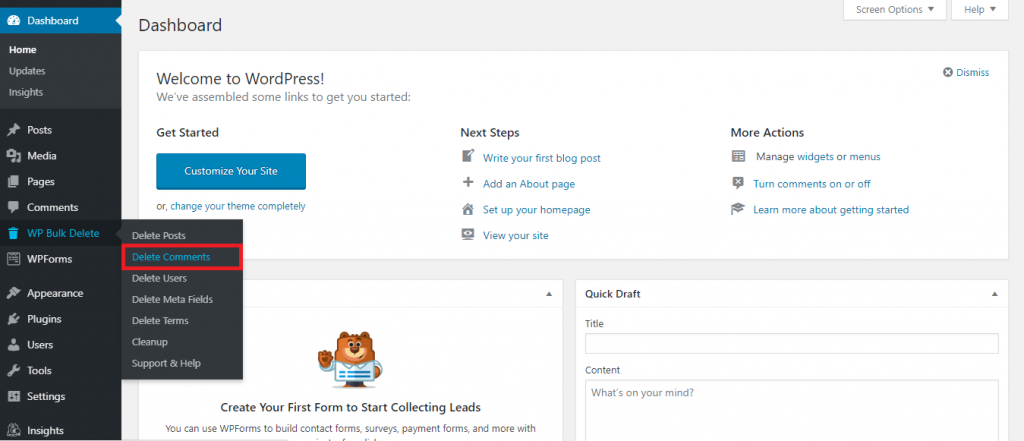
- Head to the WordPress admin dashboard and navigate to WP Bulk Delete -> Delete Comments.
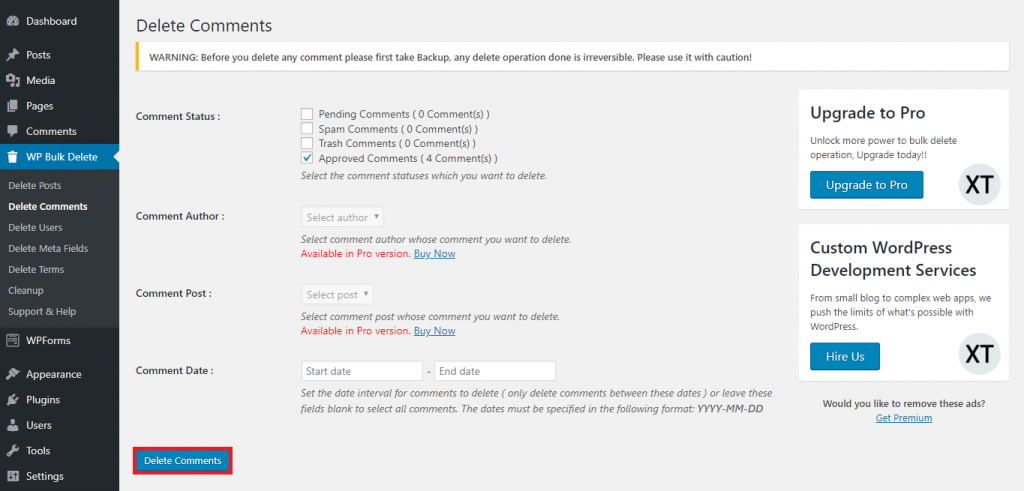
- Check the filters you want to use and click Delete Comments. The free version lets you filter comments based on their status and publication date.
Use phpMyAdmin
Finally, you can delete all WordPress comments directly from your database using phpMyAdmin. Consider this method if the admin panel or plugin method isn’t working properly. That being said, it requires some basic knowledge of databases and SQL.
There are two options to delete comments using phpMyAdmin – running an SQL query or emptying the comment table. Both methods will modify two tables where comments take place, wp_comments and wp_commentmeta.
Important! The tables’ names might differ depending on your database prefix.
Your database is accessible from your web hosting control panel.
The tutorial below will show you how to delete all WordPress comments using an SQL query from Hostinger’s hPanel. This method is suitable if you have specific types of comments to remove.
1. From your hPanel, head to Databases → phpMyAdmin and choose the database you want to modify. Click Enter phpMyAdmin.

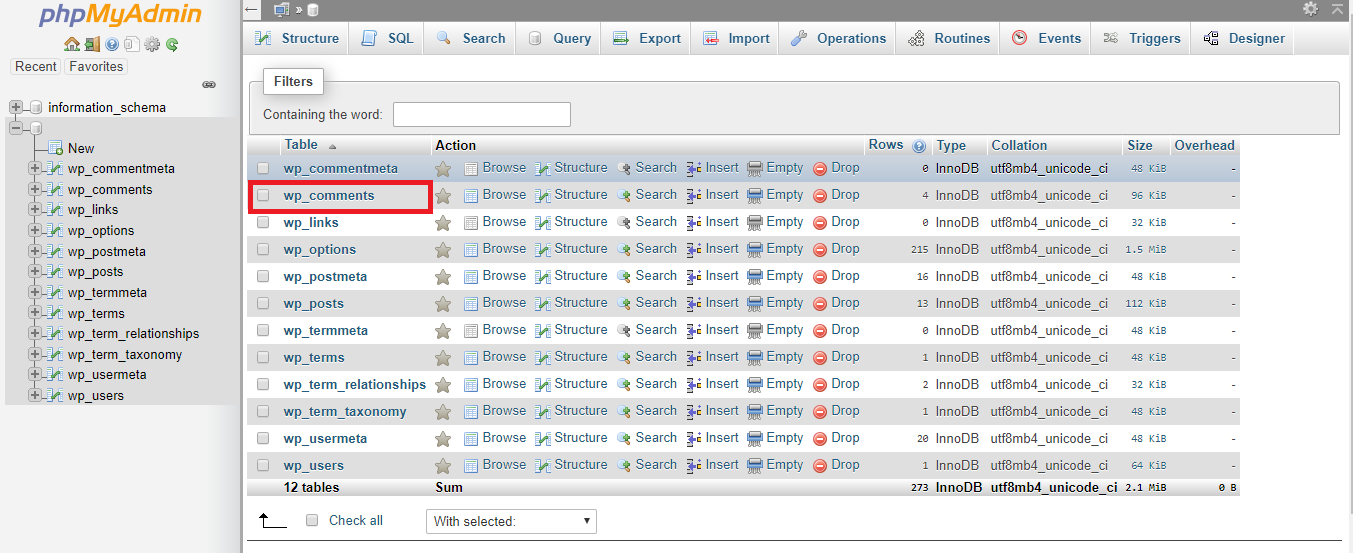
2. In phpMyAdmin, select the wp_comments table.
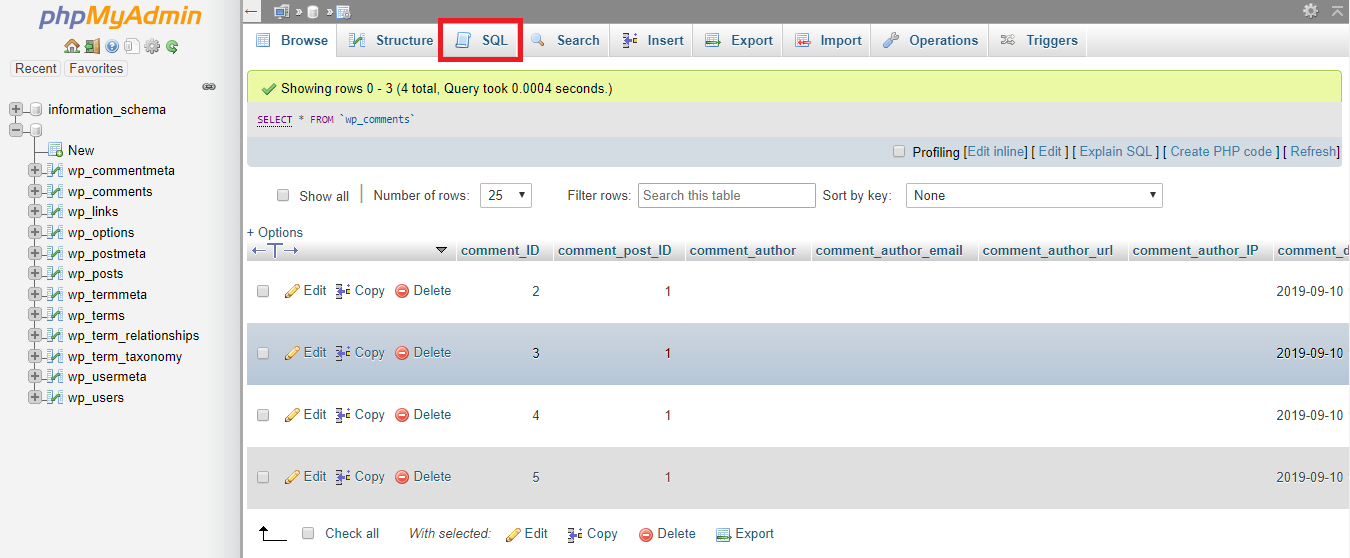
3. Click on the SQL tab at the top to open the SQL query window.
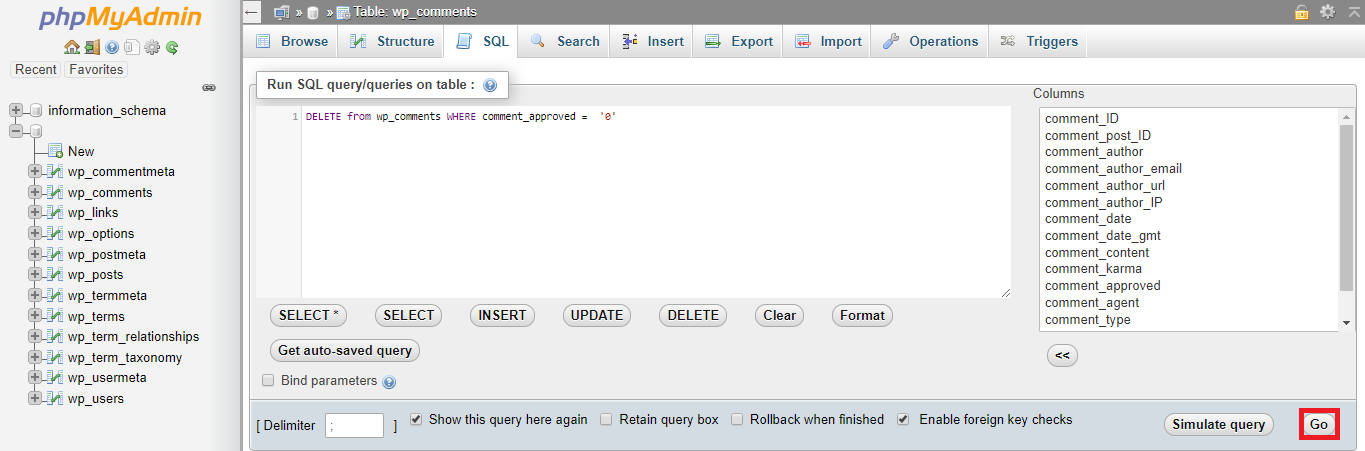
4. Choose one of the following queries to delete comments based on particular conditions:
Delete all WordPress non-approved and pending comments:
DELETE from wp_comments WHERE comment_approved = '0'
Delete all WordPress approved comments:
DELETE from wp_comments WHERE comment_approved = '1'
Delete all WordPress trash comments:
DELETE from wp_comments WHERE comment_approved = 'trash'
Delete all WordPress spam comments:
DELETE from wp_comments WHERE comment_approved = 'spam'
5. Add the chosen query to the SQL query window, then click Go. Repeat this step several times according to the number of queries you want to execute.
6. Repeat the entire steps to remove comments from the wp_commentmeta table.
If you want to delete all WordPress comments unconditionally, you can follow these steps:
- In phpMyAdmin, tick wp_comments and wp_commentmeta’s respective boxes to the left.
- Find the With selected dropdown menu and select Empty.
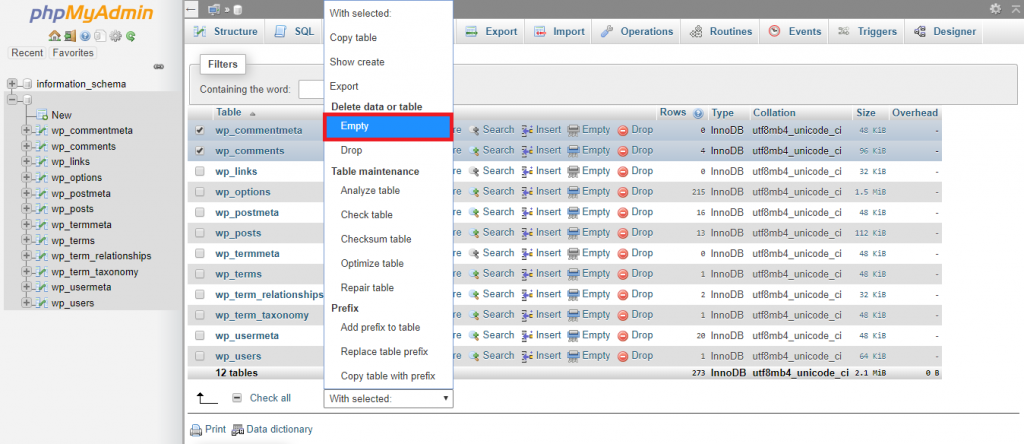
- Click Yes to confirm that you want to execute the presented queries.
Conclusion
Comments play an essential role in growing your audience, but some situations may deem it necessary to purge them. Some comments can harm your site’s SEO and user experience.
Therefore, this article has shown how to delete all comments on WordPress:
- Using the WordPress admin dashboard. The most straightforward option. However, there’s no ability to filter the comments.
- Using the WP Bulk Delete plugin. The simplest and most flexible option as it offers the option to filter the comments.
- Using SQL queries in phpMyAdmin. This method requires technical knowledge but offers more control over the deletion process.
As each method has its pros and cons, it’s best to consider your needs before deciding. We recommend doing a test run on a couple of WordPress comments first to see which method best suits your preferences.
Learn What Else You Can Do With WordPress
How to Duplicate Pages and Posts on WordPress
How to Undo Changes in WordPress
How to Delete WordPress
WordPress Taxonomy Guide
Guide to WordPress Revisions

Merkys is a server administrator and Linux expert. He keeps everything up & running while tackling advanced server management issues. Besides that, he’s a big fan of blockchain technology, web development, and bodybuilding.