How to fix the “sorry, this file type is not permitted for security reasons” WordPress Error in 2024
Mar 09, 2026
/
Hasna A. & Brian
/
6 min Read

When uploading a file to the WordPress media library, users might encounter the “Sorry, this file type is not permitted for security reasons” error. This invalid message appears when your media file is not compatible with WordPress.
Fortunately, there are ways to upload unsupported file types, either by modifying the WordPress settings or using a plugin.
This article will show you six different methods to fix the “Sorry, this file type is not permitted for security reasons” error while still keeping your WordPress site secure.
Download all-in-one WordPress cheat sheet
Why Does the “Sorry, This File Type Is Not Permitted for Security Reasons” Error Occur?
By default, WordPress supports images, documents, audio, and video in the following file types:
- Images: .jpeg, .jpg, .png, .gif, .ico
- Documents: .pdf, .doc, .docx, .ppt, .pptx, .pps, .ppsx, .odt, .xls, .xlsx, .psd
- Audio: .mp3, .m4a, .ogg, .wav
- Video: .mp4, .m4v, .mov, .wmv, .avi, .mpg, .ogv, .3gp, .3g2
Uploading media outside these default file types will trigger the “Sorry, this file type is not permitted for security reasons” error.
For instance, WordPress does not support formats like .svg or .tiff for images and .woff for custom fonts.
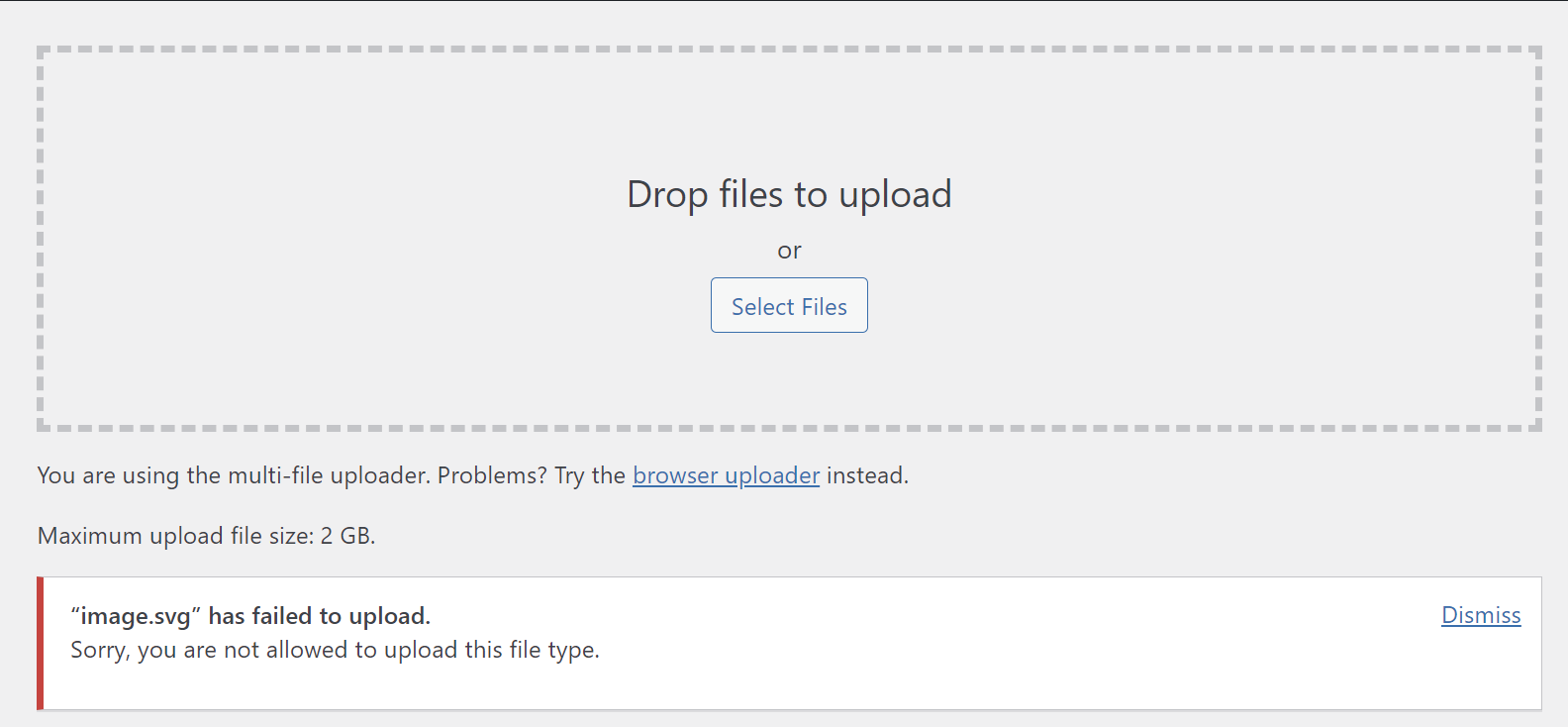
This limitation prevents users from accidentally uploading malicious files to their WordPress site, minimizing the risks of cyber attacks and security breaches.
Pro Tip
Depending on your WordPress version, you may see the error message “Sorry, you are not allowed to upload this file type” instead of “Sorry, this file type is not permitted for security reasons.”
How to Fix the “Sorry, This File Type Is Not Permitted for Security Reasons” Error
Although WordPress’ file restrictions policy is there to protect users’ websites, it limits their file-sharing options.
To fix the “Sorry, this file type is not permitted for security reasons” error in WordPress, try these six different methods.
1. Double-Check the File Type Extension Spelling
In some cases, users can still get the “Sorry, this file type is not permitted for security reasons” error message even when uploading permitted file types.
This might happen if the file name extension is misspelled or has been accidentally changed, making the file unrecognizable to WordPress.
Therefore, before trying other methods, make sure your file extensions are correct. Here’s how to do it on Windows:
- Go to File Explorer and locate the target file.
- On the top navigation menu, select the View tab.
- Check the box for File name extensions.
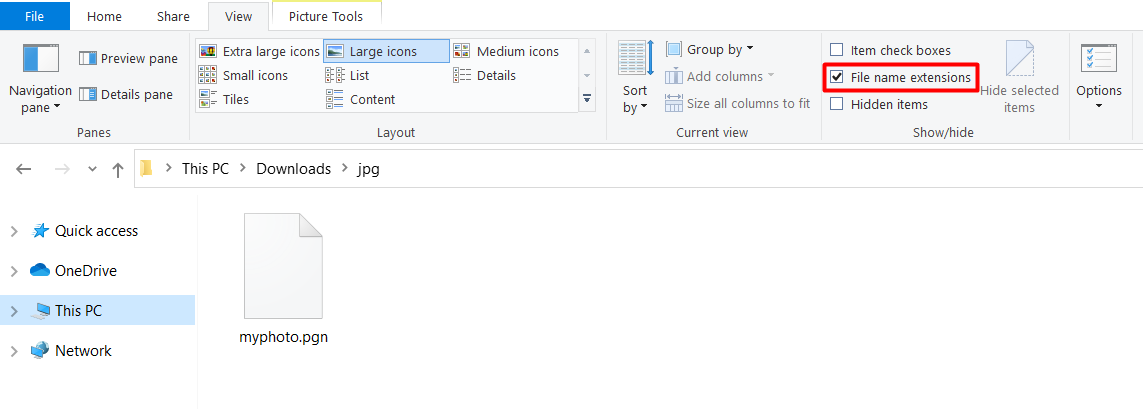
If you notice an incorrect file extension, right-click on the file and Rename it to the correct one.
The process is similar for Mac users – head to Finder → Preferences → Advanced and enable Show all filename extensions.
Re-uploading a permitted file type with the correct extension should solve the “Sorry, this file type is not permitted for security reasons” error. If the problem persists, move on to other troubleshooting methods.
2. Change the WordPress Multisite Settings
WordPress Multisite enables users to create and manage multiple websites through a single dashboard. Not only that, but it also has a feature for adding permitted file types:
- Open the WordPress dashboard.
- On the top navigation bar, head to My Sites → Network Admin → Settings → Network Settings.
- Scroll down to Upload Settings.
- Enter your desired extensions in the field next to Upload file types.
- Save the changes.
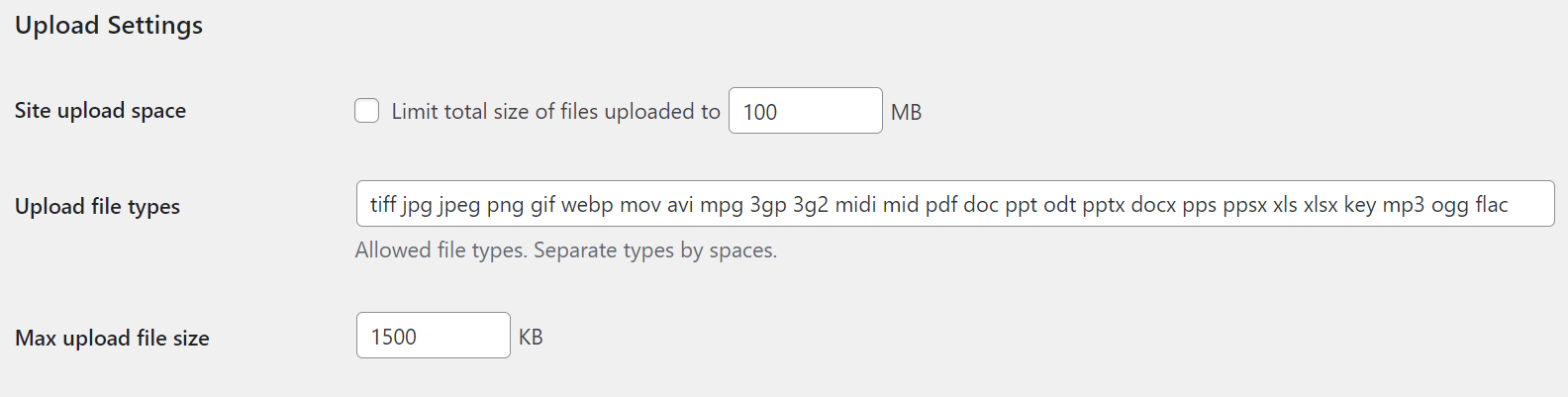
Note that this method only works if you’ve activated WordPress Multisite. Moreover, it still only allows you to add certain file types, such as .tiff and .midi.
To enable unfiltered uploads, you’ll need to edit the wp-config.php file.

3. Edit the wp-config.php File
Editing the wp-config.php file allows users to upload unlimited file types to the media library, including unsupported ones.
However, as you’ll be editing a system file, make sure to create a website backup before proceeding in case you encounter any issues.
Start by accessing the WordPress installation directory via an FTP client or File Manager. If you use Hostinger web hosting, follow these steps:
- Go to hPanel → Files → File Manager.

- Open the public_html folder and access the wp-config.php file.
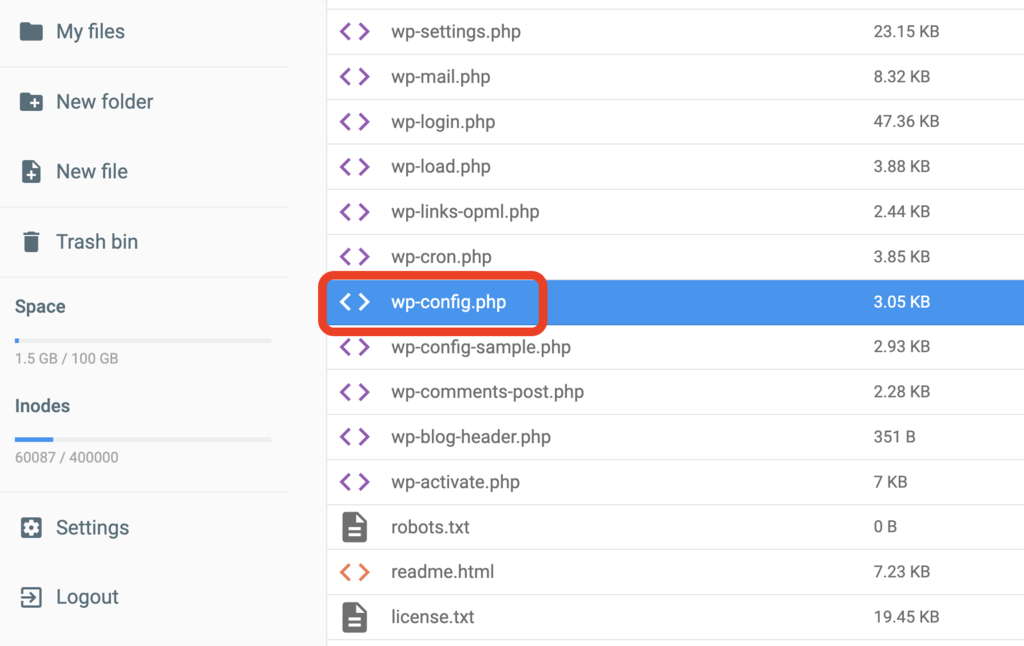
- Paste the following code snippet above the line That’s all, stop editing! Happy publishing:
define('ALLOW_UNFILTERED_UPLOADS', true);- Save the changes.
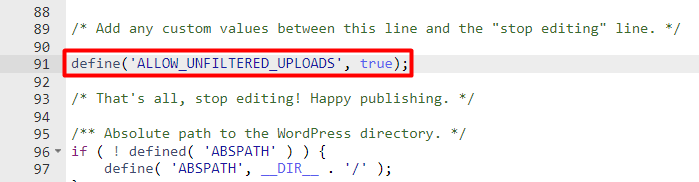
Keep in mind that this method can pose security risks. For that reason, we recommend reverting any changes made once you have uploaded the prohibited file type to your WordPress site.
4. Edit the Theme’s functions.php File
If the previous method sounds too risky for your preference, adding the upload mimes filter to your theme’s functions.php file might be a better alternative.
This method enables users to upload certain file types individually instead of simultaneously. Here’s how to do it via hPanel:
- Head to Files → File Manager.
- Navigate to public_html → wp-content → themes, access your current theme’s folder, and then open the functions.php file.
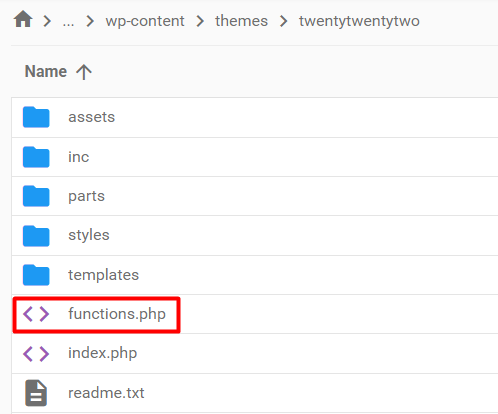
- Paste the following syntax to the file. Under the line // Add new MIME types here, replace [‘gpx’] = ‘text/gpsxml’ with your preferred Multipurpose Internet Mail Extensions or MIME types:
function my_custom_mime_types( $mimes ) {
// Add new MIME types here
$mimes[‘gpx’] = ‘text/gpsxml’;
return $mimes;
}
add_filter( ‘upload_mimes’, ‘my_custom_mime_types’ );- Save the changes.
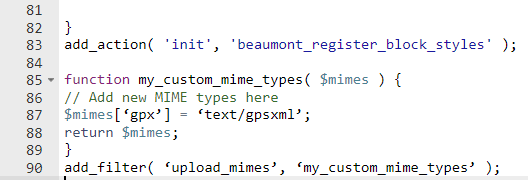
Note that different operating systems might use varying versions of a similar file type, making their MIME values equally different.
For example, .gpx files on Windows show as .gpsxml on macOS. So, instead of $mimes[‘gpx’] = ‘text/gpsxml’;, add $mimes[‘gpx’] = ‘application/gpsxml’; on macOS.
5. Add Permitted File Types Using a WordPress Plugin
WordPress has plenty of plugins for uploading unsupported file types. They let you add many MIME types that are disabled by the media library.
For this tutorial, we will show you how to fix the “Sorry, this file type is not permitted for security reasons” error using the WP Add Mime Types free WordPress plugin:
- From the WordPress admin area, install the plugin and activate it.
- Navigate to Settings → Mime Type Settings.
- In the Add Values section, enter the MIME type value for your desired file. For example, uploading a .woff file requires users to enter woff = application/x-font-woff. To add multiple MIME file types, separate each value by pressing Enter.
- Click on the Save button.
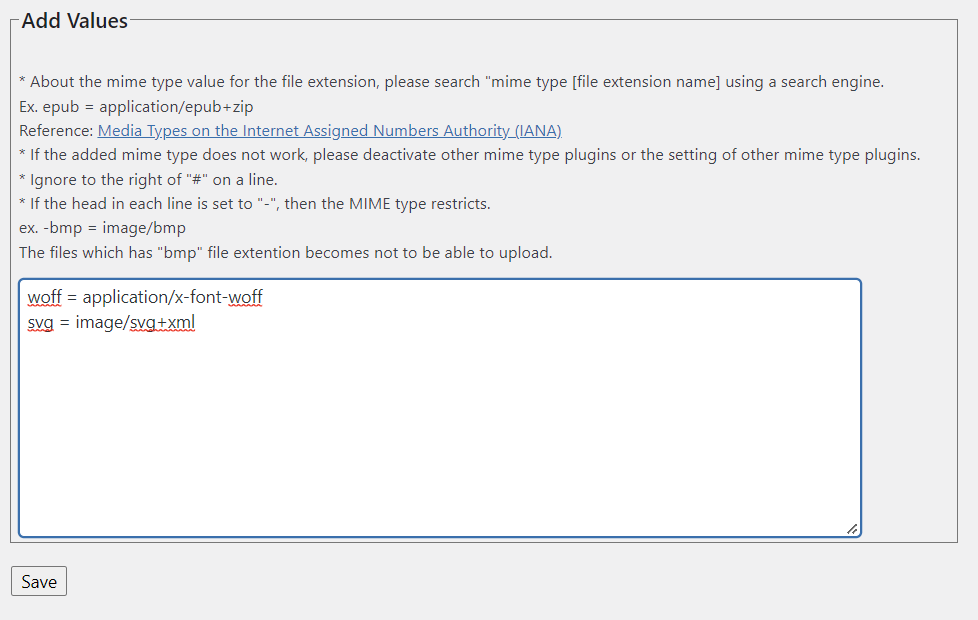
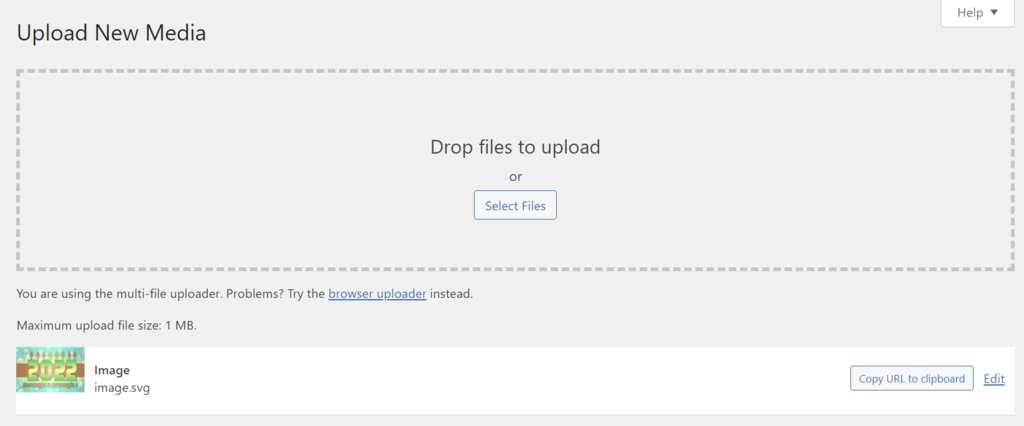
Once that’s done, the new MIME types will appear in the permitted list, and you can re-upload the files with no issue.
6. Contact Your Hosting Provider
In some cases, WordPress isn’t the one stopping you from uploading specific files. Several hosting providers enact file type restrictions to ensure security.
Therefore, if none of the above methods work, reach out to your provider’s customer support team and ask them to resolve the issue.
Hostinger users can contact our Customer Success team via live chat:
- Open hPanel and go to Help.
- Select Transfer, setup or restore your site → Install new application.
- Click Chat now.
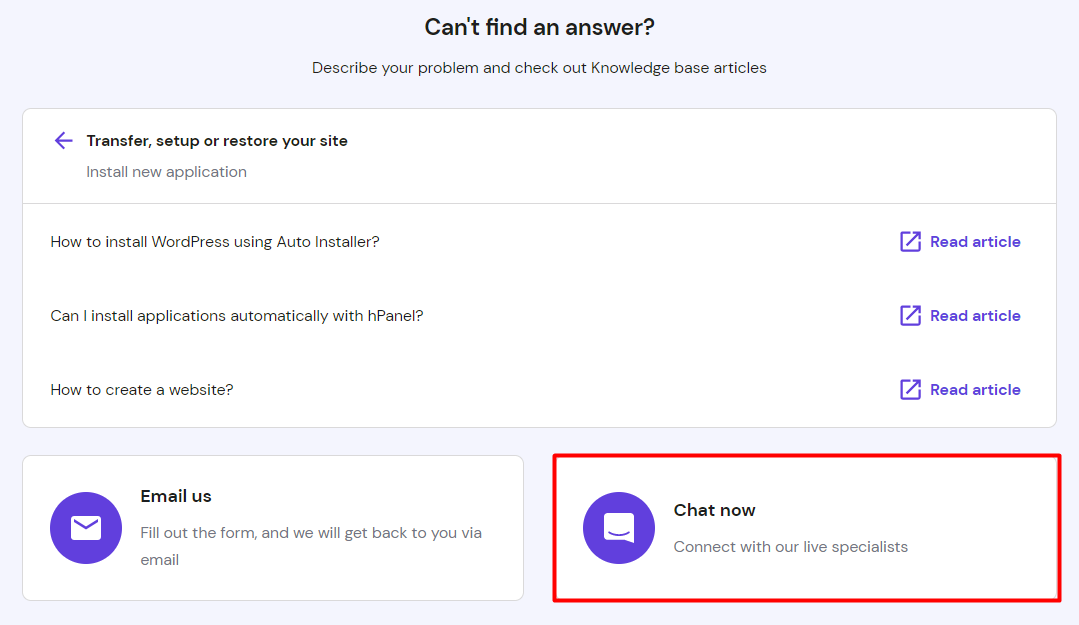
Once a live chat window appears, send a message with your request, and our Customer Success agents will reply within a few minutes.
Additional MIME WordPress Plugins
In addition to WP Add Mime Types, there are other WordPress plugin alternatives to resolve the “Sorry, this file type is not permitted for security reasons” error.
However, we recommend only installing one MIME plugin at a time to avoid compatibility errors.
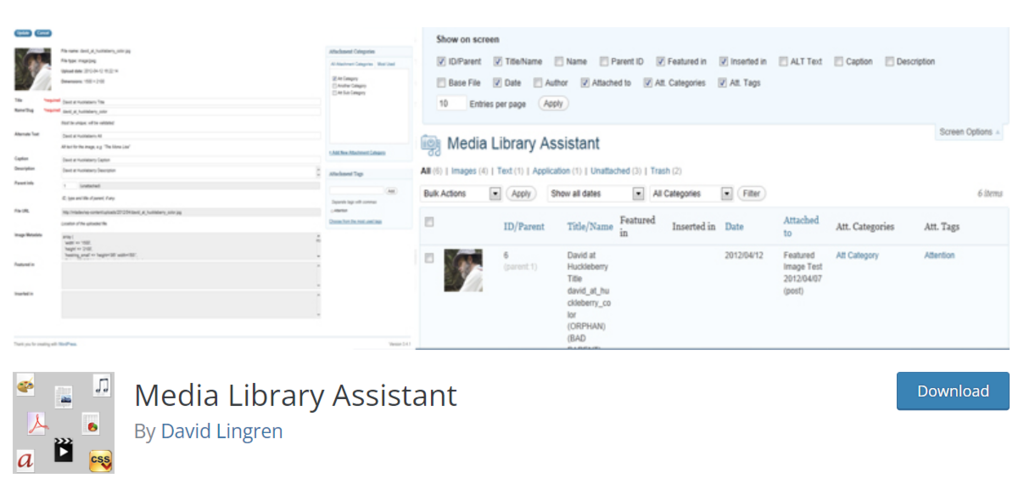
1. Media Library Assistant
Plugin Stats:
- Downloads: 70,000+
- Rating: 4.8/5
- Notable features: MIME types management, attachment metadata custom fields, enhanced search media box
- Price: free
Media Library Assistant is a customizable plugin that adds many features to the WordPress media library. These include MIME types control, custom fields for attachment metadata, and specific filters for media library searches.
To authorize additional file formats, enable the relevant MIME types via the plugin’s settings or add custom ones.
A significant advantage of this plugin is its extensive customization options. Users can alter the interface and functionality of the WordPress media library to their preference, making it an excellent choice for all types of websites.
2. Mime Types Plus

Plugin Stats:
- Downloads: 10,000+
- Rating: 3.75/5
- Notable features: MIME types and user control management
- Price: free
Mime Types Plus allows you to add and remove MIME types, change extensions, and manage file uploads.
To add MIME types, simply go to Edit Mime Type, specify the file details, and click Add. In addition, its Edit Users section lets you define authorized and restricted file extensions for each user.
3. WP Extra File Types

Plugin Stats:
- Downloads: 60,000+
- Rating: 3.5/5
- Notable features: custom file types
- Price: free
WP Extra File Types makes it easy to enable file extensions outside of WordPress’ safelist. Even though it lacks additional features, it’s sufficient for those simply looking to add extra file formats.
Upon installation and activation, locate your preferred extensions and check the box next to them. If the targeted format isn’t available, add your own custom file types in the provided fields.
Consider WordPress Security When Uploading Files
WordPress restricts several file types for security reasons, as they can leave websites susceptible to cyber attacks.
To prevent file upload vulnerabilities, we recommend implementing these WordPress security best practices:
- Download plugin and theme files from trusted sources. Plugins and themes are responsible for around 97% of WordPress vulnerabilities. Therefore, only download them from the WordPress library or other legitimate sources.
- Carefully select file extensions. Some files carry more security threats than others, such as .rar, .zip, .exe, and even .pdf, so try to avoid them when possible.
- Only allow selected users to upload files. If your site has multiple admins, consider using a plugin like Mime Types Plus to control authorized file uploads for each user.
- Regularly scan your site for malware. Plugins like Sucuri Security, Wordfence, and BulletProof Security can help you locate and remove malicious files.
Suggested Reading
WordPress Hacked: Effective Steps to Recover Your Site
Debug WordPress: A Comprehensive Guide for Beginners
10 Ways to Fix the “Sorry, You Are Not Allowed to Access This Page” Error in WordPresss
How to Fix the upload_max_filesize Error in WordPress
How to Fix WordPress HTTP Error When Uploading Images
Conclusion
The “Sorry, this file type is not permitted for security reasons” error message appears when users try to upload file types unsupported by WordPress.
Although this restriction exists to minimize security risks, there are times when you need to upload images or other media file types outside of WordPress’ safelist.
Fortunately, there are several ways to fix this error:
- Double-check the file extension.
- Activate the WordPress Multisite feature.
- Modify the wp-config.php file.
- Edit your theme’s functions.php file.
- Use a WordPress MIME plugin.
- Contact your hosting provider.
Regardless of the method you choose, do not neglect WordPress security when uploading additional file types.
If you have any questions about the “Sorry, this file type is not permitted for security reasons” error, feel free to leave a comment below.

Hasna is passionate about tech, culture, and the written word. She hopes to create content that helps people succeed on the web. When not writing, rearranging, or polishing sentences, she enjoys live music and overanalyzing movies.

Brian is a Content Writer who loves telling complex stories in a simple way. He has written all types of content, including tutorials, blog posts, landing pages, social media posts, white papers, infographics, and YouTube scripts. Follow him on LinkedIn.