Upload_max_filesize Error: how to fix the file size limit in WordPress
Mar 09, 2026
/
Domantas G.
/
3 min Read
The “the uploaded file exceeds the upload_max_filesize directive in php.ini” error happens when you try to upload a file larger than the maximum file size set in your server’s php.ini file. To fix it, you need to increase the upload_max_filesize value using one of the following: the .htaccess file, wp-config.php, or by editing the php.ini file directly.
As scary as this error may seem, the solutions are pretty straightforward. In this tutorial, you will learn how to debug this WordPress error by increasing the default limit of upload_max_filesize through a few methods.
How to Fix the upload_max_filesize Error
The solution, as you might have guessed, involves increasing the default limit of upload_max_filesize. Let’s dive into it and see what steps we can take to fix this WordPress error.
Method 1. Editing the .htaccess File
The quickest fix for the uploaded file exceeds the upload_max_filesize directive in php.ini error is increasing your PHP resource limits by tweaking the .htaccess file. Here’s how to do it:
- Login to hPanel and navigate to File Manager in the Dashboard section.
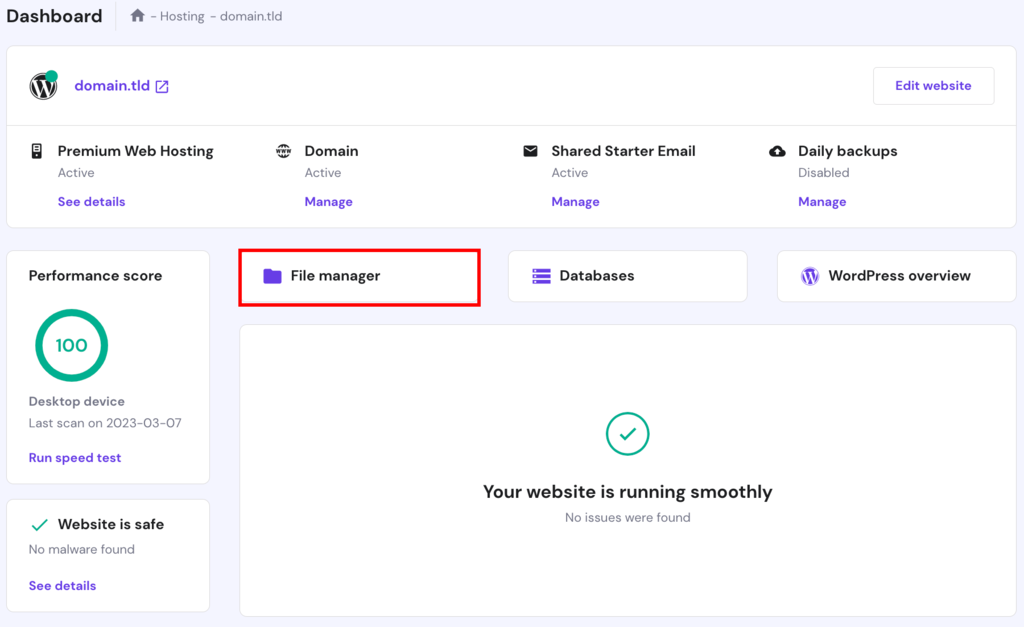
2. Locate the .htaccess file inside the public_html directory and right-click to Edit.

3. Add the following line at the bottom of the file:
php_value upload_max_filesize 256M
Then Save the changes.
That’s it! Increasing the upload_max_filesize value should automatically fix the error.
Pro Tip
Adjust the PHP limits to any desired values as long as your web hosting providers support it. You can also locate the maximum available limits by checking the PHP info of your website.
Method 2. Editing the wp-config.php File
Another way to get rid of the uploaded file exceeding the upload_max_filesize directive in php.ini error is by tweaking the wp-config.php file located in your root directory.
All you need to do is log in to the hPanel and access public_html to edit the wp_config.php file. Add the following line before the “That’s all, stop editing! Happy publishing” line:
@ini_set('upload_max_size' , '256M' );Now Save the file, refresh your web browser, and try uploading again!
Method 3. Updating php.ini to Fix the upload_max_filesize Error
If you look closer at the uploaded file exceeds the upload_max_filesize directive in php.ini error message, we can safely assume that it has something to do with php.ini, a file that holds all of the PHP related variables.
If you’re using shared web hosting by Hostinger, including WordPress site hosting, all limits are already at the maximum value for user convenience. As a result, it’s not possible to alter php.ini.
However, you can always modify your PHP settings through the PHP Configuration tool on hPanel if you wish.
If you’re using VPS or a different platform, you can try updating php.ini to fix the error. Here’s what you need to do:
- Navigate to your php.ini file and edit it. If you can’t find it, ask for assistance from your hosting providers.
- Locate the upload_max_filesize and increase it by changing its number. You can also boost a few other limitations, as shown below:
upload_max_filesize = 256M
post_max_size = 256M
memory_limit = 512M
max_execution_time = 180 - Save the file, and that’s it. The error should no longer occur.
Method 4. Making Changes to PHP Configurations on hPanel
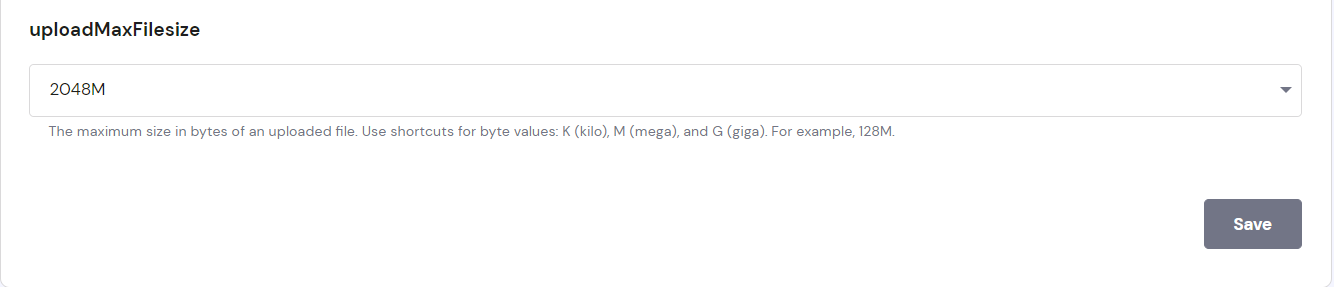
For Hostinger clients, modifying PHP configurations can’t get any easier. Hostinger offers a custom-built tool to edit and adjust the PHP settings of your hosting account.
Log in to hPanel and head to PHP Configuration under Advanced.
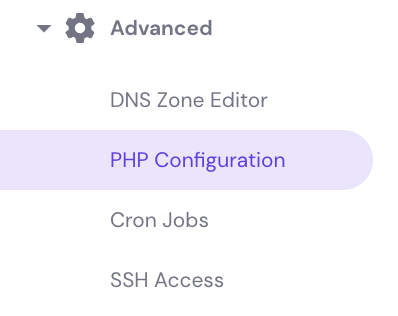
Then, switch to the PHP Options menu and scroll down to find uploadMaxFilesize row and make changes as needed.
Method 5. Contacting Customer Support to Fix the upload_max_filesize Error
If none of the options above fixed the error, try contacting your web hosting support team.
Explain the situation and let them know what steps you took to fix the WordPress error, and hopefully, they’ll resolve the problem for you.
If you’re a Hostinger client, our customer success agents are ready to help you out 24/7 through our live chat feature. Log in to the hPanel and access the chat feature at the bottom right of your dashboard.

Conclusion
In this tutorial, you have learned five different ways to fix the uploaded file exceeds the upload_max_filesize directive in php.ini error in WordPress. Here’s a quick recap:
- Increasing upload_max_filesize and other PHP values through the .htaccess file
- Setting higher upload_max_filesize through the wp-config.php file
- Editing php.ini file to increase upload_max_filesize
- Editing and adjusting PHP configurations through the PHP Configuration feature on hPanel
- Contacting your hosting providers for assistance
Easy, right? If you have any questions or suggestions, don’t hesitate to comment down below! Or if you want to learn general ways to fix common errors, read our guide to debug WordPress.
Learn How to Solve Other WordPress Errors
How to Fix "Briefly Unavailable for Scheduled Maintenance" Error
How to Fix Missed Schedule Error in WordPress
How to Fix Mixed Content on WordPress
How to Fix Broken Links on WordPress
How to Solve 404 WordPress Error
How to Solve WordPress Not Sending Emails

Domantas leads the content and SEO teams forward with fresh ideas and out of the box approaches. Armed with extensive SEO and marketing knowledge, he aims to spread the word of Hostinger to every corner of the world. During his free time, Domantas likes to hone his web development skills and travel to exotic places.