How to install and set up an Ubuntu mail server
Mar 09, 2026
/
By Edward S.
/
3 min Read

Having your own email server is a great idea for any medium-sized company. With this, all the traffic is controlled, and we can define the rules ourselves. This way, we can manage the service clearly and cleanly.
In this tutorial, we will show you how to use Postfix to install and set up a mail server on a virtual private server running Ubuntu.

Configuring the DNS server for an Ubuntu mail server
Just follow this step by step guide, and you shouldn’t have any problems setting up the configuration.
1. Log in and update your server
Log into your server using SSH. If you’re having trouble, check out our PuTTY tutorial. After logging in, you should update your machine using the following command:
apt-get update
2. Install Bind
To configure a DNS server that will use Postfix we’ll need an additional tool – Bind. Let’s install it first:
sudo apt install bind9
3. Configure /var/cache/db.example
At this point, we must take into account that the example IP address in this tutorial is 123.123.123.123 – you’ll need to replace it with the IP address where we will perform the installation. For this example we’ll use mail.example.com as a FQDNS.
So, now it is necessary to create a new zone for our example. To do this, create a new file with the zone information.
sudo nano /var/cache/bind/db.example
Then, add the following:
$ORIGIN example.com.
$TTL 1D
@       IN SOA     ns1 root(
                1 ;serial
                1D ;refresh
                2H ;retry
                2W ;expire
                5H ;minimum
);
@       IN        NS ns1
ns1     IN        A 123.123.123.123
mail    IN        A 123.123.123.123
@       IN        MX 5 mail
Remember, we must replace the IP address with that of your server, and change example.com to the domain you wish to use. Press CTRL+O to save the changes and CTRL+X to close the nano editor.
4. Add new zone to bind configuration
Before enabling the newly created zone it is necessary to check the configuration of the file.
sudo named-checkzone example.com. /var/cache/bind/db.example
Now we can add our new zone to the Bind zone configuration file. To do this, run the following command:
sudo nano /etc/bind/named.conf.default-zones
And add the new zone:
zone "example.com." {
       type master;
       file "db.example";
};
Again, CTRL+O to save the changes and CTRL+X to close it.
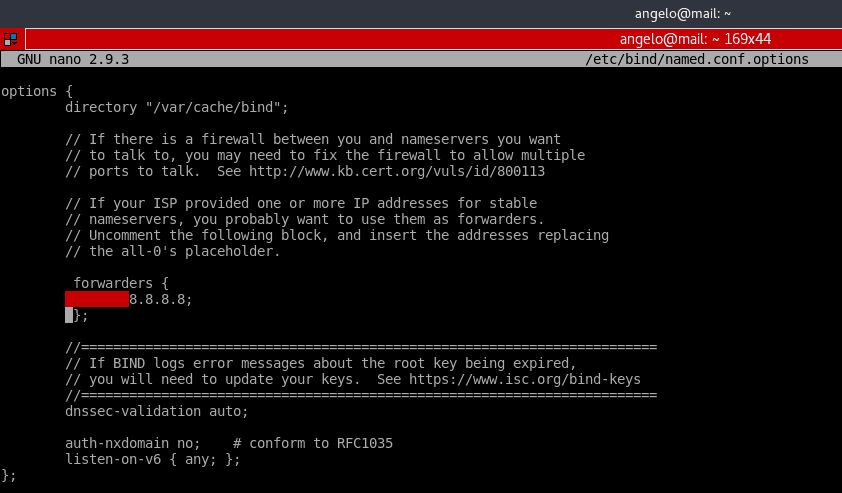
5. Configure /etc/bind/named.conf.options
Now, in the file /etc/bind/named.conf.options it is necessary to uncomment the forwarders line and include the Google DNS – 8.8.8.8. For that simply remove the // symbols as shown in the screenshot below.
sudo nano /etc/bind/named.conf.options
6. Restart Bind
Now, we have to restart the bind9 service. You can do it with one of two commands:
sudo systemctl reload bind9
or
sudo systemctl restart bind9

How to install and setup the mail server on Ubuntu
We’re almost there, your Ubuntu email server is ready to come online. Here’s what you should do:
1. Install Postfix email server
Now it is time to install Postfix. Postfix is an email server written in C. Its main feature is the speed of execution and open source nature. Install it with the following command:
sudo apt install postfix
During installation, we will be asked to configure the package. On the first screen, choose the option Internet Site.
Then, we have to enter the name of the server. In this case example.com.
Postfix is very flexible and allows extensive configuration, but for this tutorial we’ll fix with the default configuration.
2. Add user
Then, we have to add our user to the group mail:
sudo usermod -aG mail $(whoami)
After that, we have to create the users and add them to the mail group so they can send and receive mail. I’ll add Gabriel:
sudo useradd -m -G mail -s /bin/bash/ gabriel
Then, we need to set a password to the newly created user:
sudo passwd gabriel
Test the Ubuntu mail server
Now to prove what we just did, we will send and receive an email from the terminal. To do this, we will install the mailutils package:
sudo apt install mailutils
Next, we send an email to the other email account user named gabriel. Type in the subject and the message. After that, press CTRL+D to finish. To start writing an email enter the following command:
mail gabriel@example.com
Now we can log into another user and check the mail utility.
There, after running the mail command, we will see the email we just sent to the other test user. To access the email just write the number of the mail, in this case, 1.
To test outbound emails from this user, just try another email address:
mail angelo@example.com
That’s it! You’re sending emails from your very own email server on Ubuntu.
Conclusion
An email server is easy to set up but might be a bit complex to manage. In Linux, it is recommended to do it for its security and resource management.
On the other hand, in a bigger company, it can be very useful to have a fully configured and functional email service out of the box, like the one offered by Hostinger. Alternatively, host your own email server to get complete control over the service.
There are many ways to improve and maintain an email server. It is a process that takes time and is constantly evolving, so we recommend that you keep going deeper into the subject. Good luck and happy mailing!
Learn What Else Your Ubuntu Can Do
How to Install Yarn on Ubuntu
How to Install Git on Ubuntu
How to Install Maven in Ubuntu
How to Install Python Pip on Ubuntu
How to Install Tomcat on Ubuntu
How to Install Jenkins on Ubuntu
How to Check Ubuntu Version
How to Install Java on Ubuntu
This article is a localized version of How to install and set up an Ubuntu mail server, originally published in English.

Edward is a content editor with years of experience in IT writing, marketing, and Linux system administration. His goal is to encourage readers to establish an impactful online presence. He also really loves dogs, guitars, and everything related to space.



Comments
17 responses