How to set up two-factor authentication for WordPress
Mar 10, 2026
/
Linda D.
/
7 min Read
Two-factor authentication (2FA) is a secondary layer of authentication when logging in to an app, service, or website like WordPress. 2FA has picked up in popularity in recent years, with many websites now making this security measure a requirement. However, this concept has been around for many years.
2FA has proven itself to be an effective security measure that technology giants such as Google and Microsoft are making it mandatory for user accounts. Nowadays, website owners can also secure their WordPress sites with 2FA using popular security plugins like WP 2FA.
In this article, we will be looking at what 2FA is and how it works on WordPress. We will also go through the setup and configuration process before sharing some plugin recommendations.
Download WordPress security checklist
What is two-factor authentication?
Two-factor authentication adds a second proof of identity to your WordPress login – a one-time code from an authenticator app, SMS, email, or a hardware key. Even if a password is leaked, attackers can’t access your dashboard without that extra step.
In fact, if you’ve ever withdrawn money from an ATM, you’ve used 2FA. ATMs require a bank card as the first layer of authentication and a secure PIN as the second layer.
WordPress 2FA works in a similar way to ensure WordPress security. You will need your username and password as the first layer and the 2FA code as the second layer of authentication. While this may sound simple, it is one of the most effective security measures in addition to other methods like choosing secure WordPress hosting. Even if your login credentials end up in the wrong hands, it is unlikely that your 2FA code will. This helps prevent unauthorized access from infiltrating your WordPress website.

How does two-factor authentication work on WordPress?
Two-factor authentication adds a second check to the WordPress login. After a user enters their username and password on the login page, a 2FA plugin prompts for a one-time code or security key. Only after that second factor is verified does the user get access.
WordPress core doesn’t include 2FA, so you’ll enable it with a plugin. Good plugins protect the default login page and can also cover custom forms, such as WooCommerce and membership logins, though support varies by plugin.
These are the common authentication methods:
- TOTP apps (recommended): Time-based codes from apps like Google Authenticator, Microsoft Authenticator, or Authy.
- Passkeys/security keys (WebAuthn/FIDO2): Use a hardware key or built-in device biometrics.
- Email or SMS codes: Useful as fallbacks when an authenticator app isn’t available.
- Backup codes: One-time recovery codes you store safely offline.
The more methods a plugin supports, the easier it is for different users to adopt 2FA. Plugins like WP 2FA, for example, offer TOTP and email/SMS options so users without a smartphone can still use 2FA.
Lockouts are a common worry – lost phone, dead battery, or no signal. Reduce risk by choosing a plugin that supports multiple sign-in methods and admin recovery, then require users to generate and store offline backup codes. Enable a secondary factor, such as email or SMS, when TOTP isn’t available. During rollout, use a short grace period so users can enroll without being blocked, and document a clear recovery path – including an emergency admin bypass, for critical accounts.
Pro Tip
Some apps let you choose a preferred two-factor authentication method, with popular options being TOTPs and mobile push notifications. Some password managers might ask you to generate a backup code in case you forget the master password.
How to set up WordPress two-factor authentication
In this WordPress tutorial, we will demonstrate how to configure WP 2FA, a WordPress two-factor authentication plugin by Melapress. It’s secure and user-friendly, making it easy for anyone to add 2FA to their website.
The plugin walks you through the entire setup and configuration process, and there’s email support available if you need it.
The plugin comes in both free and paid versions. The free version, which we will be using for this tutorial, includes everything you need to set up 2FA. However, the premium edition of WP 2FA adds even more features to help you enhance your 2FA. From $79/year, you can access:
- More authentication methods. Premium versions add SMS, email one-click links, and Authy push notification options.
- White labeling. Extensive white labeling options are available to customize every aspect of the 2FA configuration wizard to meet your branding guidelines.
- Remember device. Give trusted users the ability to list their devices as trusted so that they don’t have to enter 2FA every time.
- One-click WooCommerce integration. Integrate WP 2FA with WooCommerce seamlessly.
- Additional backup methods. Choose between backup codes and email for 2FA backup method authentication.
1. Configuring the WP 2FA plugin
Now, it’s time to configure WP 2FA with this step-by-step guide. The plugin’s wizard makes everything easy to set up, so no technical expertise is required.
First, download the plugin. After logging in to your WordPress website, navigate to Plugins → Add New Plugin. In the top-right search box, type WP 2FA and then download the plugin by clicking on Install Now and then Activate.

Once the plugin is activated, the setup wizard will launch automatically. Click on LET’S GET STARTED! to begin.

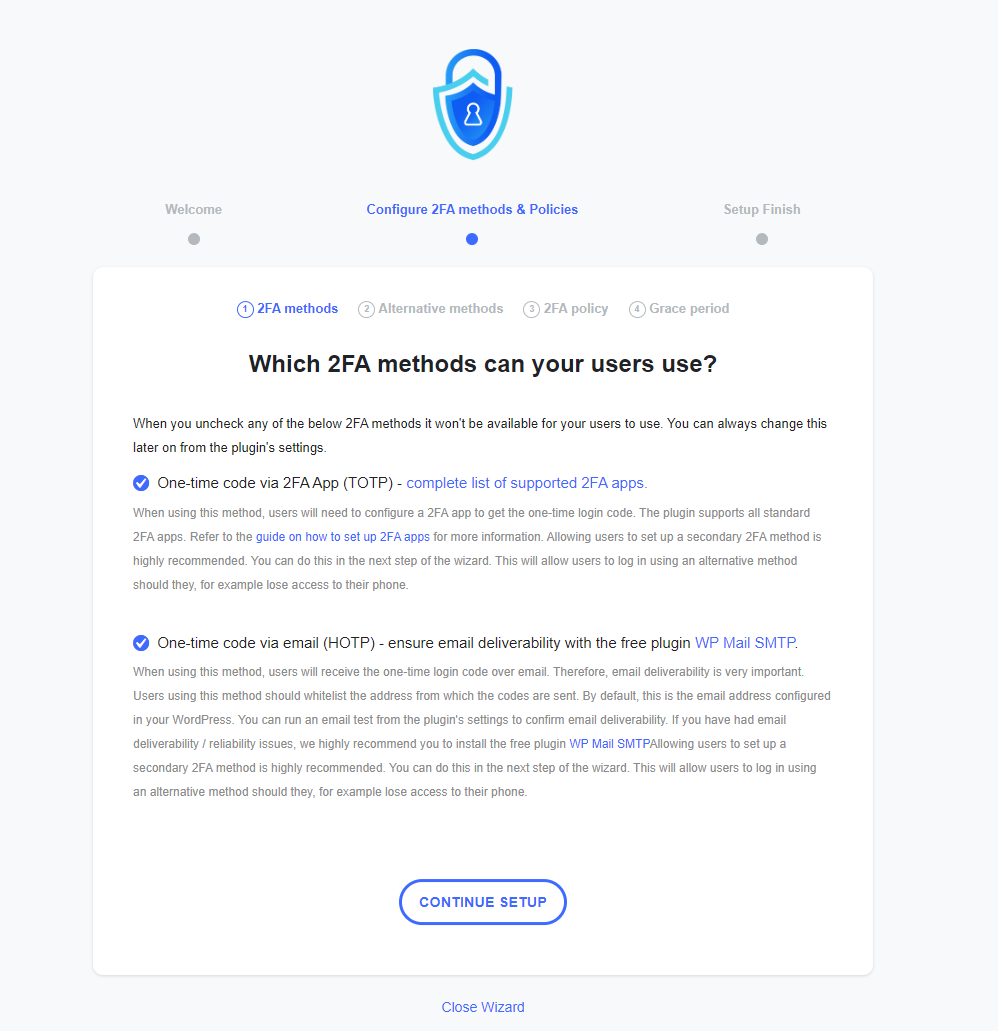
In the first step, choose which 2FA methods you want to make available to yourself and other users. The free version of WP 2FA includes both the 2FA App, similar to Google Authenticator, and 2FA email.
We’ll select both options to give users the freedom to choose which one works best for them. You can restrict options by unticking the method you do not want to make available. Once that’s done, click CONTINUE SETUP to proceed.
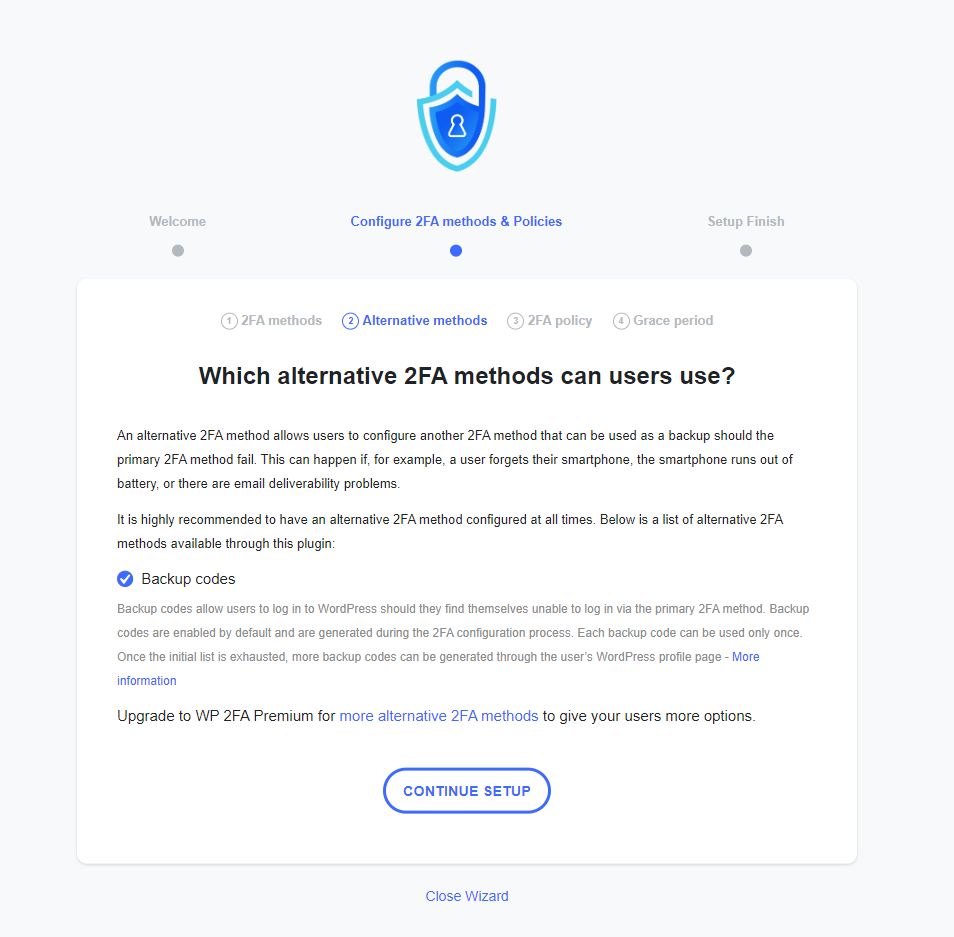
Next, we will be choosing alternative 2FA methods. The free version of WP 2FA includes backup codes. Tick the option and hit CONTINUE SETUP.
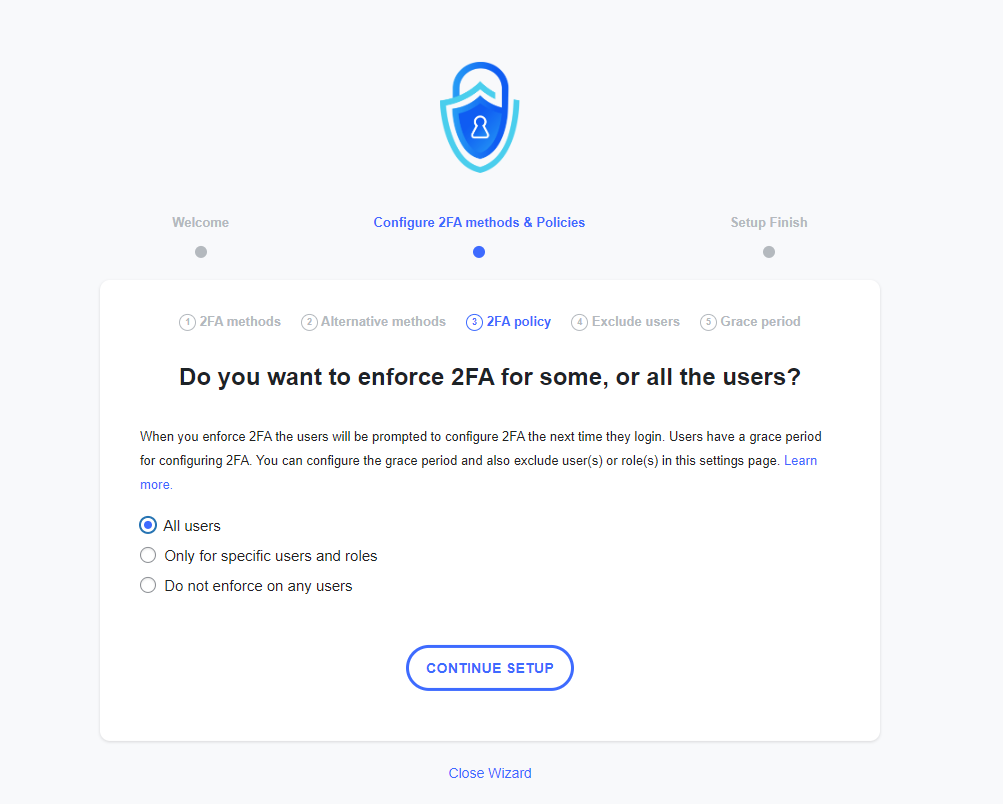
WP 2FA uses policies to determine which users have to set up 2FA, which users can set up 2FA as an option, and which users are excluded from setting up 2FA.
By default, 2FA is enforced on all users. However, you can choose to enforce it on some users or none at all. Once you’ve made your selection, click CONTINUE SETUP.
Even if you choose to enforce 2FA on all users, it’s possible to exclude specific users from setting up 2FA. Here, WP 2FA provides two options – to exclude specific users or specific roles. Leave both fields empty if you do not want to exclude anyone. Then, click on CONTINUE SETUP.

In the last step of the WP 2FA setup wizard, you can give users a grace period to set up 2FA or mandate it straight away. You can also select how WP 2FA should proceed in different scenarios, like if a user fails to set up 2FA within the grace period.
Unsure About the Settings?
Don’t worry – any configurations made here can easily be changed from WP 2FA’s plugin settings at any time.
Once ready, click ALL DONE to finalize the wizard and move to the next step.

2. Setting up user’s two-factor authentication
Now that you have completed the initial 2FA configuration wizard, it is time to set up 2FA for your own WordPress user account. This is the same process that all of your other users will go through when setting up their own 2FA.
The 2FA setup wizard will launch right after you complete the configuration wizard. However, you can access it anytime from the WordPress user profile page.
In the first step, choose the 2FA method to set up. In this example, we will be using 2FA App. Click NEXT STEP to continue.

The wizard will present you with a QR code that you need to scan with an authenticator app of your choice. You can also enter the code manually. Once the authenticator app has accepted the QR code, click I’M READY to proceed.

Pro Tip
Some password managers like 1Password let you store your two-factor authentication codes. With this method, you’ll be able to store your password and OTPs in one app.
The authenticator app should now be displaying a code for your WordPress website. The code changes every 30 seconds, which is what makes 2FA so secure.
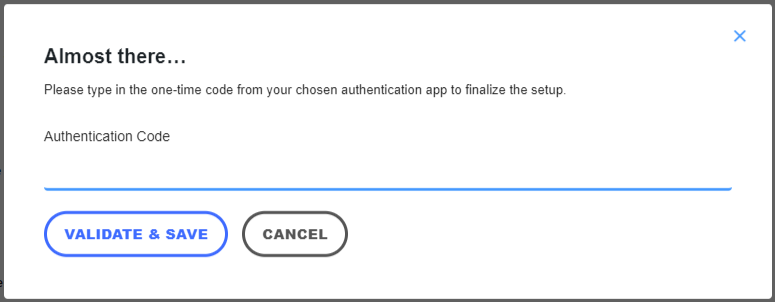
Enter the current code as displayed in the authenticator app under Authentication Code and click on VALIDATE & SAVE.
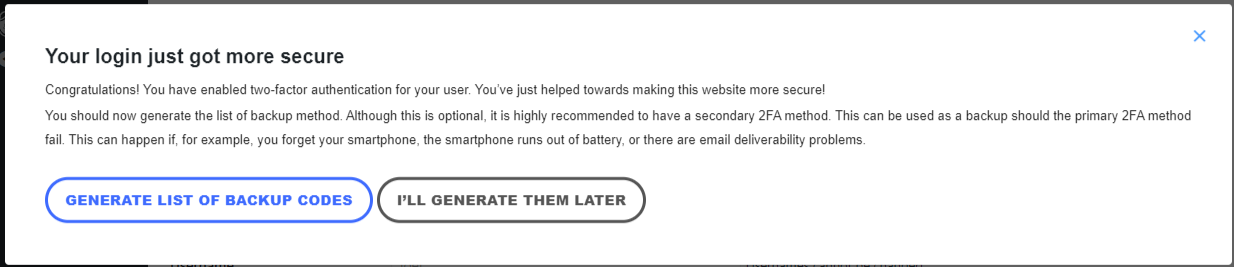
The next step of creating backup codes is optional but highly recommended nevertheless.
Each code can be used only once, and new codes can be generated anytime from your WordPress profile page. Click on GENERATE LIST OF BACKUP CODES to continue.
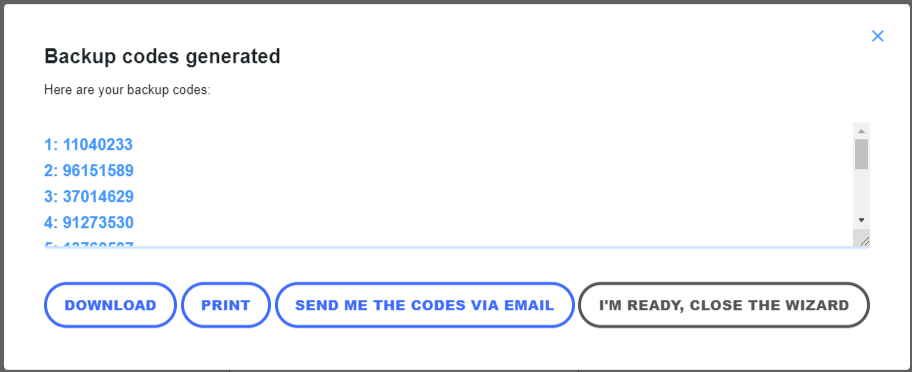
The codes will appear on the screen. Remember to keep them somewhere safe by either downloading, printing, or having them sent by email. Click I’M READY, CLOSE THE WIZARD to finish.
To ensure the setup is successful, log in to your WordPress account and check if the login page asks for your 2FA code.
3. Setting up email two-factor authentication
Setting up email 2FA works similarly to setting up the 2FA App. However, the first two steps are slightly different, which we will illustrate below.
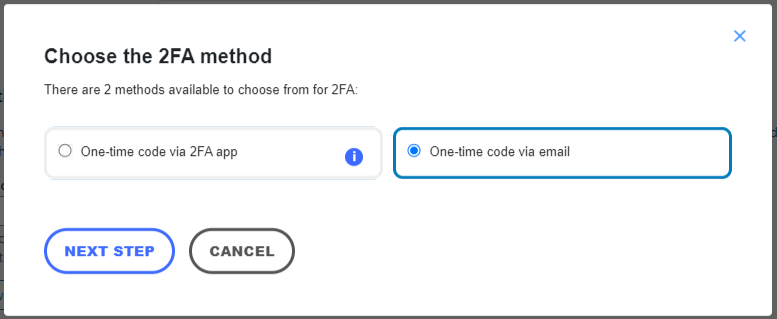
In the first step of the 2FA setup process, choose One-time code via email. Click NEXT STEP to continue.
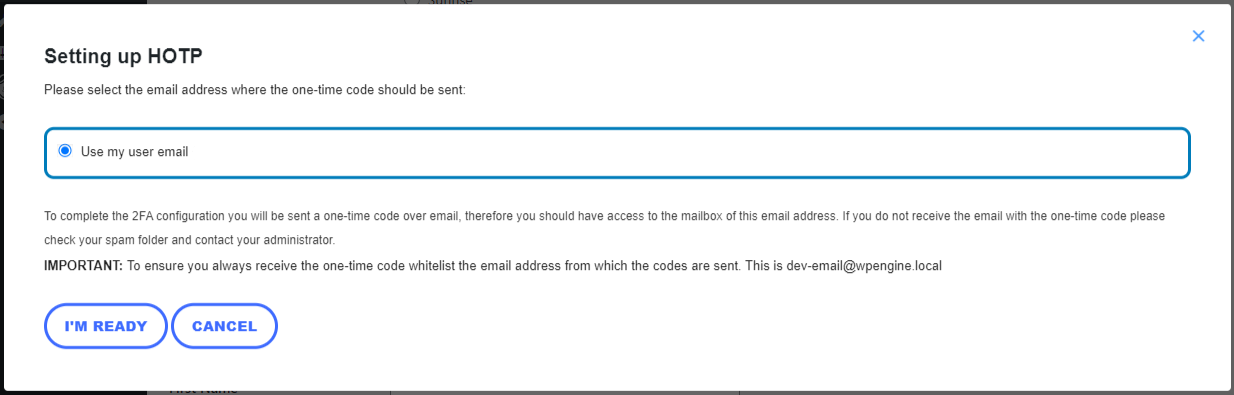
In the second step of the wizard, confirm your email address – this is the same address configured in your WordPress profile. Once you click I’M READY, the plugin will automatically send a one-time code to your email address.
If you do not receive the email, make sure to check your spam folder. It’s also possible that your WordPress is not sending out emails, as this is by far the most common issue. Check our tutorial to resolve this issue before proceeding.
After that, complete the remainder of the wizard as per the previous section.
WordPress two-factor authentication plugin recommendations
WP 2FA is one of the easiest 2FA plugins for WordPress to use. It is packed with features designed to help you stay secure, is user-friendly, and includes many customizability options. It also comes with email support to help you resolve any issues. However, there are other alternatives you may want to consider:
- Two-Factor. Includes support for U2F and a dummy method for testing. Users like it for its ease of use and efficiency.
- miniOrange’s Google Authenticator. The free version includes 3 free users for life. It also supports security questions for 2FA.
- Wordfence. Supports two-factor authentication for your WordPress site and enhances defenses against unauthorized access through firewalls and malware scanning.
- All-In-One Security (AIOS). Provides 2FA and a web application firewall (WAF) in one plugin.
These plugins provide two-factor authentication features for varying needs to ensure better WordPress site protection.
Suggested Reading
Check out our article on The 7 Best WordPress Security Plugins to keep your site safe.
Conclusion
Setting up 2FA might seem like a small step, but it has a significant positive impact on your website safety. It adds an additional security layer, safeguarding against unauthorized access.
With the right plugin, you can seamlessly implement 2FA to better protect your WordPress site from potential attacks.
Here’s a short recap on how to enable two-factor authentication for WordPress websites:
- Install a 2FA WordPress plugin such as WP 2FA.
- Follow the setup wizard and configure two-factor authentication.
- Enforce 2FA for all users, including site admins and collaborators, for fortified security.
Maintaining excellent website security is an ongoing commitment. Aside from enabling 2FA, keep your site secure by regularly updating third-party applications and following best practices against emerging threats.
WordPress two-factor authentication FAQ
Do I have to enable two-factor authentication for WordPress?
Two-factor authentication (2FA) is not mandatory, but it’s highly recommended for enhancing your WordPress website’s security. It adds extra protection by requiring you to enter your password and a unique time-based code to log in.
What should I do if I lose my two-factor authentication device or backup codes
If you lose your 2FA device or backup codes, don’t worry. Contact your WordPress administrator to regain access. They can help temporarily disable 2FA so you can set it up again.
Can I use two-factor authentication with the WordPress mobile app
Absolutely! Two-factor authentication can and should be used with the WordPress mobile app for better security. It protects the user account seamlessly whenever you’re logging in via the app or web browser.

Linda is a seasoned Content Writer specialized in website creation. With her passion for the written world and obsession with helping others, her goal is to deliver resourceful content pieces for all skill levels. When she’s not writing, Linda likes to cross stitch and watch films. Follow her on LinkedIn.


