WordPress password protect page: 2 easy-to-follow methods
Dec 02, 2025
/
Prasasti P.
/
4 min Read
When building and maintaining a WordPress website, you might find instances where you want to limit public access to a certain page or post. One of the best security methods for this is to protect your content with a password.
It is a simple security measure that restricts users who don’t have the credentials from accessing some parts of your website.
This article will dive deeper into why you need to password-protect WordPress pages and posts. We will also look at the two main methods to apply passwords to your page content and guide you through the steps to do so.
Download WordPress security checklist
Why Password-Protect WordPress Pages
Password protection is useful when you don’t want the general public to access specific page content within your WordPress website. This can be for various reasons, such as the particular page is still under construction or it has exclusive content for a specific group of users.
Some tools let website owners restrict access to the entire WordPress page or only hide specific parts of the page. As a result, only the protected page will not be accessible unless the user has the password.
Remember that search engines can still crawl and index content on a password-protected page. You need to adopt a different method if you want to prevent search engines from indexing a WordPress post.
There are two main ways to password-protect your WordPress content, each with its own benefits and drawbacks. Let’s take a look at the detailed process of each method to find out which one fits your preference.
How to Password-Protect a WordPress Page Without a Plugin
WordPress already comes with the ability to password-protect content. This is a fairly simple process, as you don’t have to code or modify any back-end files. Follow these steps to add password protection to an otherwise public WordPress post or page.
- Log in to your admin dashboard and create a new WordPress page or post by clicking on Page or Post -> Add New.
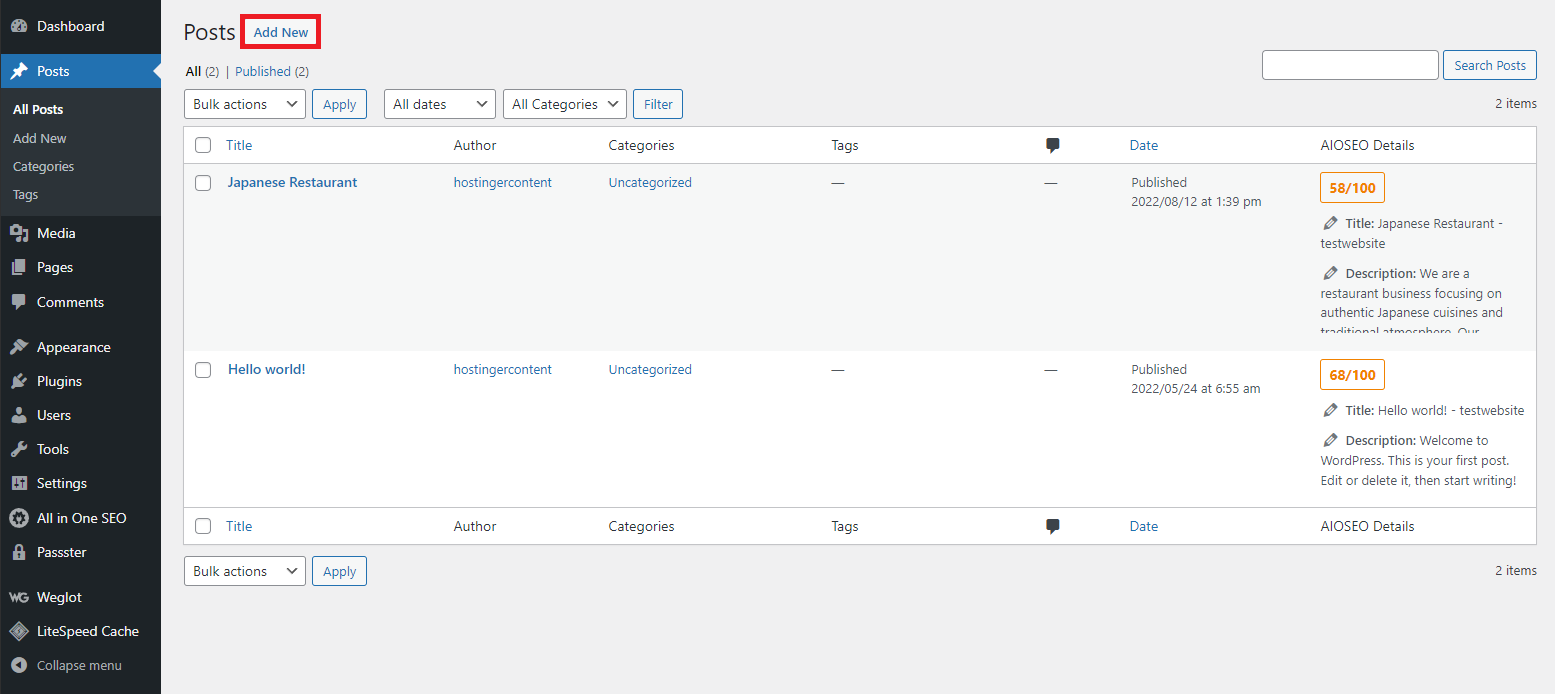
- Create the new WordPress page or post using the WordPress editor.
- Once you are done, click on the Publish button and select Password Protected under the Visibility option to enable password protection for this post.
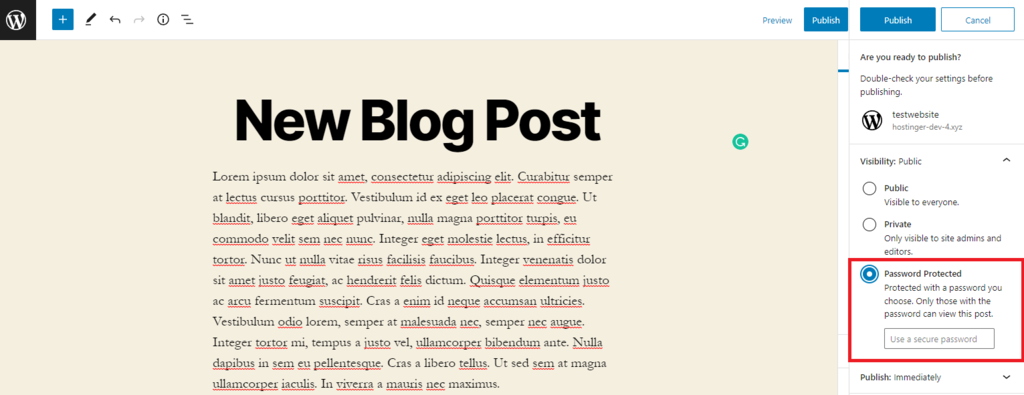
- Enter the password into the available field and click Publish.
- Check the post to make sure it is password protected. If done correctly, it should look like the example below. Entering the correct password should reveal the content.
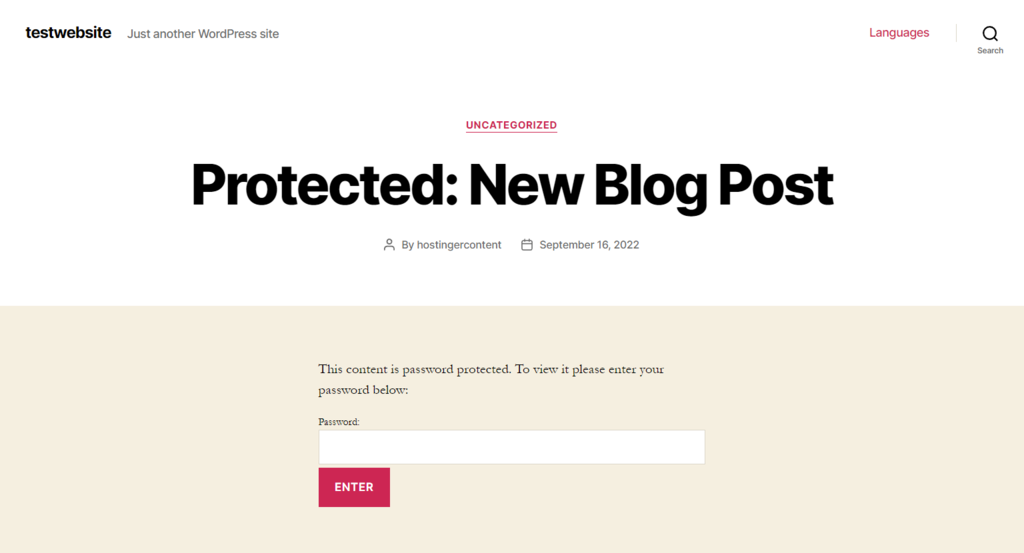
Although this is the easiest way to password-protect your WordPress posts or pages, it doesn’t offer many options, such as partial content restriction. This built-in feature also doesn’t allow you to choose other verification methods for password-protected pages.
If you are looking for more features to password-protect a WordPress page or post, continue reading since we will discuss the second method using a plugin.
How to Password-Protect a Page Using a WordPress Plugin
Password-protecting WordPress pages using a plugin is arguably more convenient. Some plugins also offer additional security features that let you manage the site more easily.
There are many WordPress password-protect page plugins in the market, but in this tutorial, we will use Passster as an example. It is a freemium WordPress password-protect page plugin that offers more flexibility when it comes to protecting your content.
The free version comes with useful features like restricting areas, pages, or the entire WordPress site. That being said, let’s take a look at how to add password protection to your site using Passster:
- Download and install the plugin from the WordPress official directory.
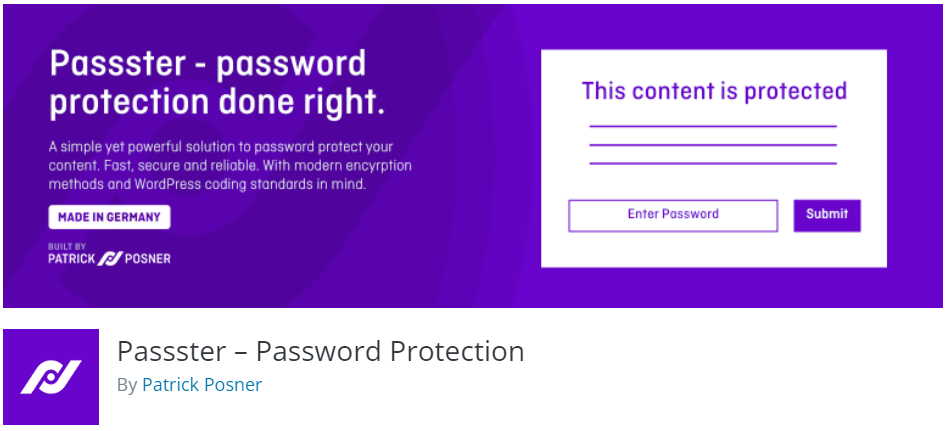
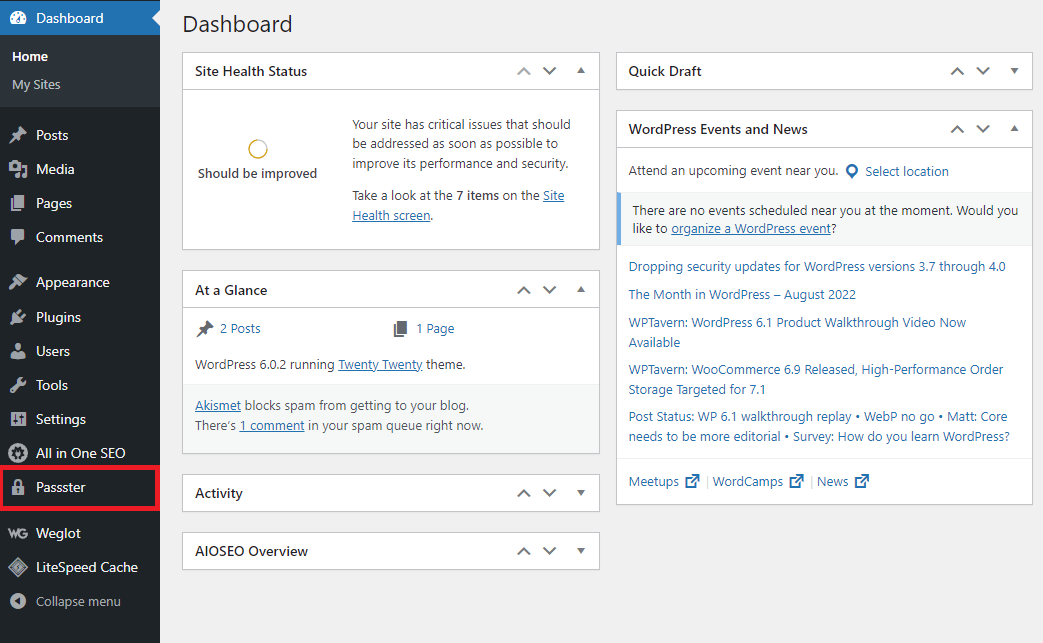
- Log in to the WordPress admin dashboard and activate the plugin. Once finished, you will see a new menu for Passster on the dashboard sidebar.
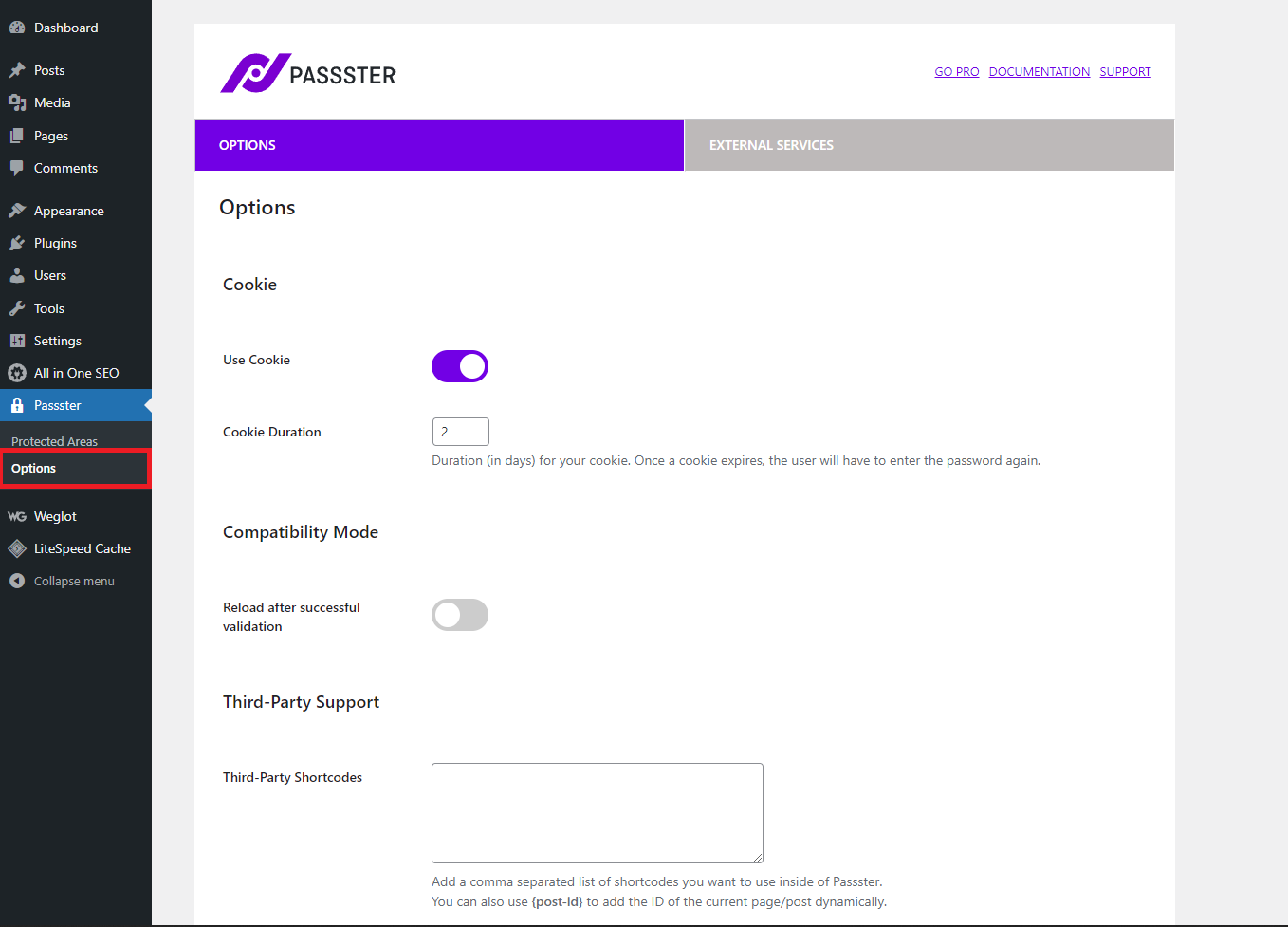
- Head over to Passster -> Options to configure the plugin’s settings. Here, you can enable some features like caching, adding third-party supports, and activating support for AMP. The pro version also allows you to protect content using Google Recaptcha.
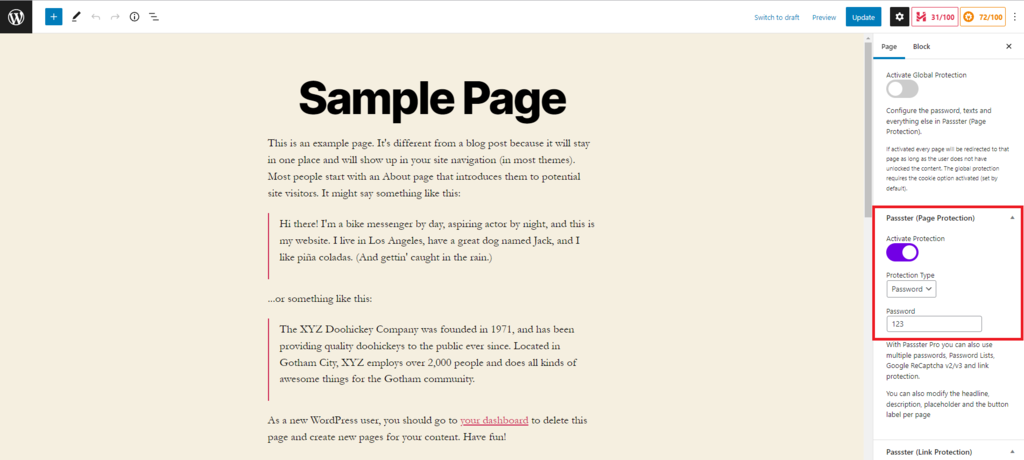
- To start password-protecting your content, head over to Post or Pages and edit one of the pages. Look for the Passster (Page Protection) section on the block editor sidebar, and click on the Activate Protection toggle. Choose what type of protection you want to apply and set the password for the content.
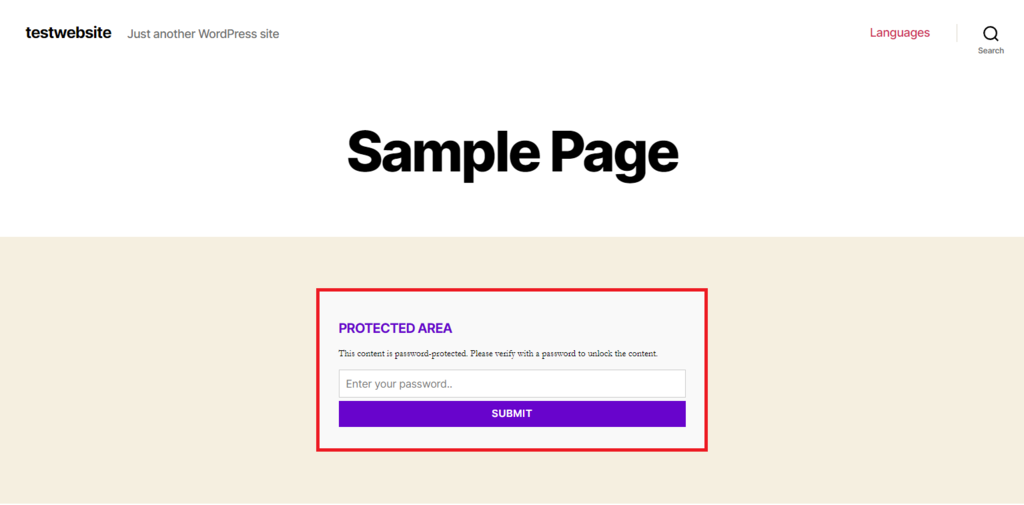
- Once you publish the post, you will see a password form replacing the content, like in the example below. Entering the correct password will reveal the content.
- Passster is also suitable if you want to password-protect your entire WordPress site. First, create a new page through Pages > Add New in the WordPress dashboard.
- After you create the page title and content, look at the sidebar and click on the toggle under the Passster (Global Protection) and Passster (Page Protection) sections.
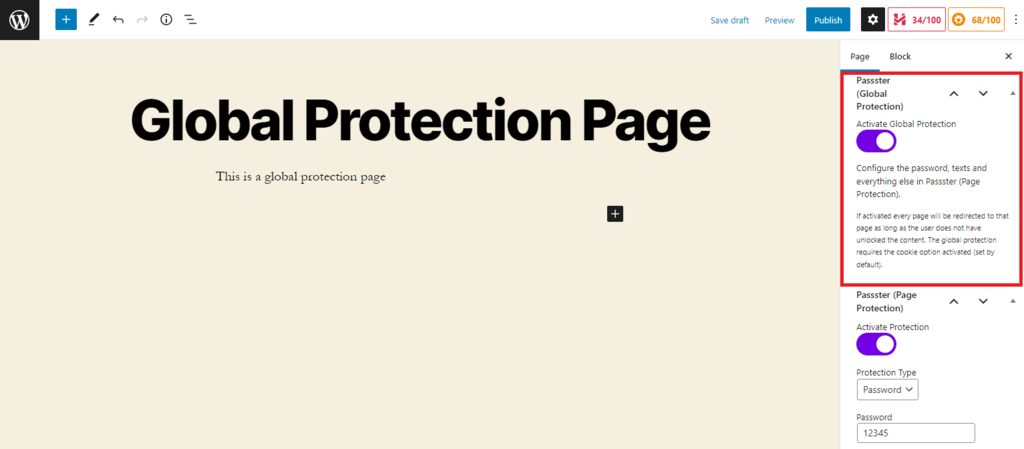
- Once you’re done with the configurations, click the Publish button. Now every page on your site will be redirected to the global protection page.
Warning! Your Passster password might not work if you are using an incompatible page builder, a page cache plugin, or if your hosting provider has a page cache set up.
Starting at $79.99/year, the Passster’s premium version offers more advanced features like multiple password capability and usage of Google ReCaptcha v2 and v3 for protection.
Other plugins you might want to consider are PPWP and Password Protected Categories. Both allow you to add multiple passwords, a sitewide password form, and other premium features to protect your site content.

Conclusion
Securing your WordPress site content with a password is one of many useful methods to maintain your website. It allows you to hide unfinished pages, restrict public access to certain features, and make some content exclusive to a specific group of users.
Password-protecting a page in WordPress still allows search engines to index its content, making it an SEO-friendly method to hide some content.
There are two main ways to password-protect WordPress pages, which are:
- Using the built-in WordPress feature — simple and free but without additional protection options.
- Using a WordPress plugin — some plugins offer advanced security features, but it may cost you more.
Hopefully, this article has helped you password-protect your WordPress pages. For more useful tips and tricks around building websites and maintenance, consider checking out our other WordPress tutorials.
Learn More About WordPress
What is WordPress
WordPress Security Issues
WordPress Activity Log
How to Move My WordPress to a New Domain
How to Secure WordPress
WordPress Password Protect Page FAQs
The following frequently asked questions share more information on WordPress password protect.
Which WordPress Plugin Is Best for Password Protect Page?
There are several plugins available for password-protecting pages in WordPress, but some of the popular ones include Password Protected and Members. However, the best plugin for you depends on your specific needs and preferences.
Can I Password Protect My WordPress Site?
Yes, you can password-protect your whole WordPress site using plugins like Password Protected or Members. These plugins allow you to set a password for specific posts or categories.
How to Remove Password From a Page?
To remove a password from a page in WordPress, go to the page editor, click on the Visibility option in the document settings, and uncheck the Password protected option. Finally, click the Update button to save the changes and remove the password from the page.

Pras has a background in IT education and experience as a website administrator, he hopes to share his knowledge with other tech enthusiasts. In his free time, Pras likes to play video games.



Comments
March 24 2024
Thank you, that helped a lot, Pras. For me Passster worked the best. This is because I have 4 protected pages and with Passster, once logged in, in one page, you can freely move to other protected pages. With PPWP you have to login for every page (with the same password) each time. Once you have had them all 4 page logins you can move freely around. That is in my case not elegant. Best regards, Paul