6 methods to fix “this site can’t provide a secure connection” Error
Mar 10, 2026
/
Noviantika G.
/
5 min Read
This error is often challenging to identify. Its causes may vary, from Secure Sockets Layer (SSL) misconfiguration to incorrect date and time settings. However, there are simple ways to fix it, whether you are the website owner or a visitor.

| Error code | Connection refused |
| Error type | Network communication protocol error |
| Error causes | Network problem Incorrect SSH installation Wrong credentials Security system configuration |
What Is 'This Site Can’t Provide a Secure Connection' Error?
The “This site can’t provide a secure connection” error appears when a website doesn’t comply with the HTTPS protocol. It often occurs due to no SSL certificate on the website, not automatically using HTTPS, having an expired or invalid SSL certificate, or an outdated SSL cache in your browser.
What causes “This site can’t provide a secure connection” error
There are six common reasons a browser displays this error.
No SSL certificate installed
The error message may appear because the website doesn’t have an SSL certificate installed. This means you’re accessing it via an HTTP connection, and the target host sends all requests and responses in plain text.
The data is not encrypted and may be intercepted by third parties to gather information passed between the website server and a browser. This may expose the site to potential cyber attacks such as malware and man-in-the-middle attacks.
HTTPS is not forced on the website
The issue may occur when you’ve installed the SSL certificate but didn’t enable the force HTTPS option. This way, visitors will access the website’s HTTP version instead of the secure URL.
Invalid or expired SSL certificate
You may encounter this error when the website uses an invalid or expired SSL certificate. This means the site currently runs on an HTTP connection.
Outdated SSL cache in the browser
Outdated or corrupt SSL cache in the browser may contribute to the website error. Usually, this can occur when you’re developing web pages or after installing a new SSL certificate.
QUIC protocol is enabled
The Quick UDP Internet Connections (QUIC) protocol is enabled by default on the Google Chrome browser. It is used for reducing connection time, improving congestion control, transporting extensibility, and multiplexing without head-of-line blocking.
However, in some cases, it can cause SSL problems, such as the Site Can’t Provide a Secure Connection issue.
Incorrect time and date settings
Time and date misconfiguration on your computer may lead the Google Chrome browser to block the website. Incorrect information can cause problems during the website certificate authentication process.
As a result, the error occurs.
“This site can’t provide a secure connection” – video tutorial
If you prefer a visual guide to fixing this error, watch the video tutorial below.


6 ways to fix “This site can’t provide a secure connection” error
Before getting started, we recommend checking the internet connection, deactivating Chrome extensions, and disabling SSL scanning features on your antivirus and firewall software. If the problem persists, here are six troubleshooting methods to try.
1. Install an SSL certificate
Installing an SSL certificate is one of the most effective ways to fix the Can’t Provide a Secure Connection error message if you are the website owner. Depending on the web hosting provider, configuring the additional security layer may vary.
At Hostinger, you can install an SSL certificate on hPanel:
- Go to the SSL section and click the Install free SSL button.

- Choose a domain and select Install SSL.
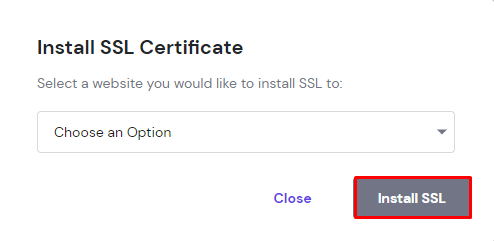
- Once the website address shows a green check mark and Active status, the SSL is successfully installed. If not, make sure the domain is pointing to Hostinger nameservers.
This method should solve the Can’t Provide a Secure Connection issue on your website.
2. Force an HTTPS connection
By forcing HTTPS, visitors will automatically get redirected to the secure URL once they load your website.
If you’re a Hostinger user, follow these instructions to force an HTTPS connection on your site:
- Head to Security → SSL from the hPanel dashboard.
- Click the three-dot button next to the problematic domain and select Force HTTPS.
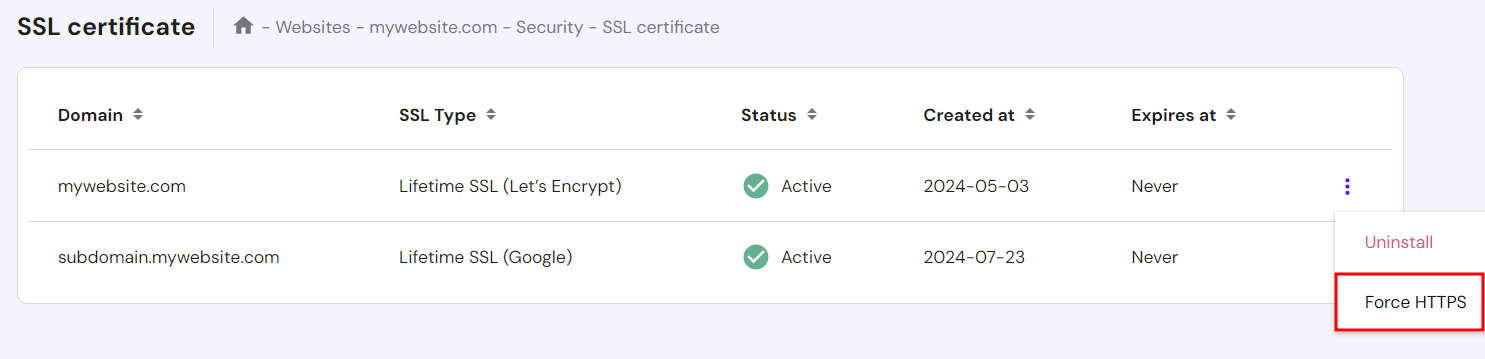
This should allow you to open the website. If the issue persists, try the next method.
3. Reinstall the SSL certificate
An invalid or broken SSL installation can cause your website to show Can’t Provide a Secure Connection. The best way to solve it is by reinstalling the SSL certificate.
Here’s how to do it on hPanel:
- Head to Security → SSL from the hPanel dashboard.
- Click the three-dot button next to the problematic domain and choose Reinstall.

4. Reset the SSL cache and clear browser cache
If the solutions above don’t work, try resetting the SSL cache on the computer and clearing the browser history. This will allow you to start a new connection.
Follow these instructions to reset the SSL cache on Windows:
- Type Control Panel on the Windows search tab.
- On the Network and Internet panel, select View network status and tasks, and click Internet Options.
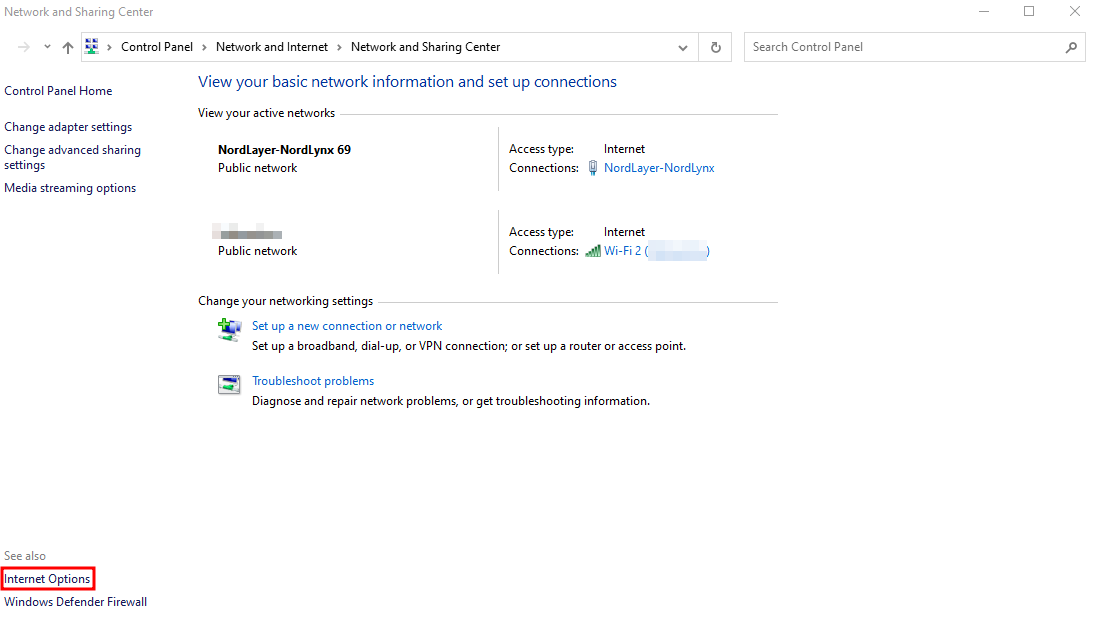
- Once the Internet Properties box opens, choose the Content tab and click Clear SSL state.

To clear data on the Google Chrome browser, click the three dots on the upper right-hand corner of the display → More tools → Clear browsing data.
Pro Tip
Check out this guide to discover more about website cache.
5. Turn off the QUIC protocol support
Another common solution is to disable the QUIC protocol support on the Google Chrome browser.
Follow these steps to do it:
- Type chrome://flags/#enable-quic on the address bar.
- Find the Experimental QUIC protocol option, usually placed at the top of the page.
- Click the drop-down box and choose Disabled.

- Relaunch the browser for the changes to take effect.
If turning off the protocol didn’t solve the problem, proceed to the next method.
6. Check the date and time settings
Certificate validity is a crucial element in the authentication process. Before accessing a website, the browser will check the SSL certificate’s signed and expiry dates using the system’s date and time settings.
If they are wrong, it may appear the certificate is no longer valid. Thus, adjusting the settings is one of the most effective ways for site visitors to fix the Can’t Provide a Secure Connection error message.
Follow these instructions to set the correct date and time zone on different operating systems, such as Windows and macOS.
Windows
- Click the Windows Start button and select Settings.
- Choose Time & Language.
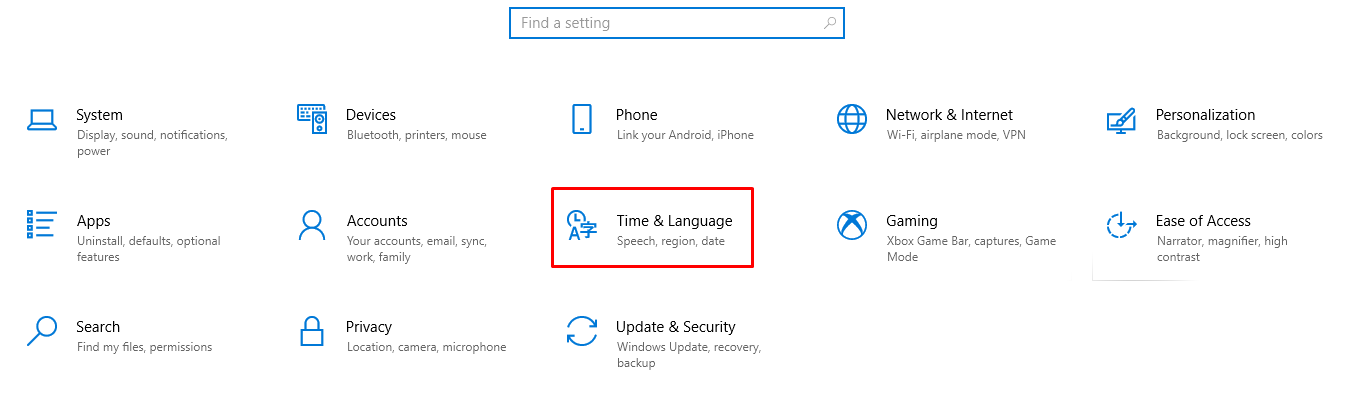
- Turn on the Set time automatically button. Do the same thing for the Set time zone automatically option.
- Verify the changes and ensure the settings are correct.
macOS
- Choose the Apple menu button and click System Settings.
- Select General in the sidebar and scroll down to find Date & Time.
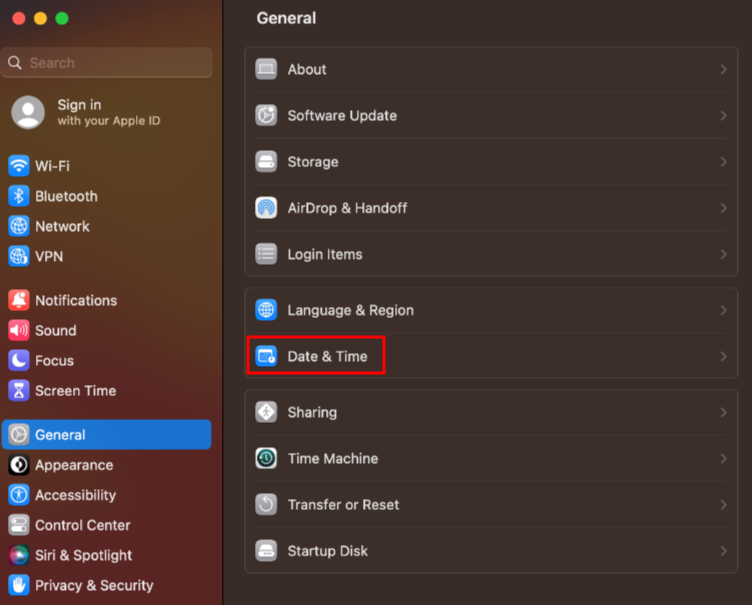
- To set the date and time automatically, turn on the Set time and date automatically option. To set it manually, turn off the option and insert the current date and time.
- To set the time zone automatically, turn on Set time zone automatically using your current location. To set it manually, turn the option off, enter the closest city, and select its full name from the list.


How different browsers display this error
Browsers may display different error messages. Here’s how it looks on Chrome and Mozilla Firefox.
Google Chrome
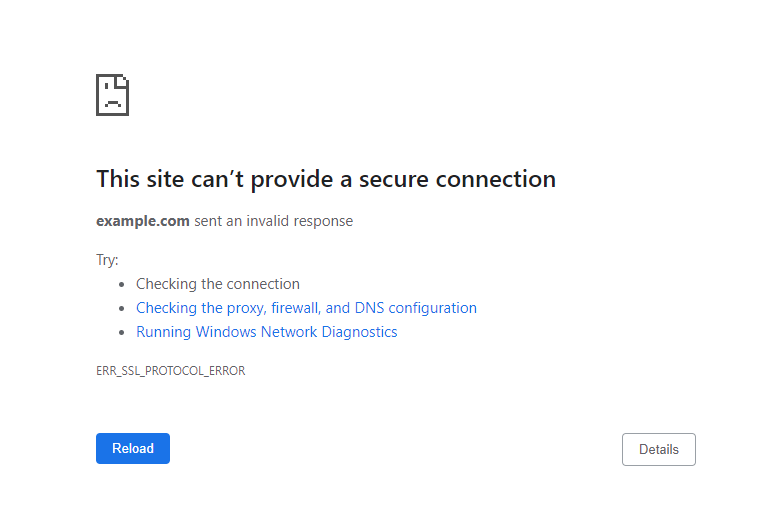
If the website you’re trying to visit on Chrome doesn’t support the TLS/SSL protocols required, the browser will show “This Site Can’t Provide a Secure Connection”. It also tells users that the target host sent an invalid response.
Chrome suggests three methods to fix the issue – checking the connection, examining the proxy configuration, and running Windows Network Diagnostics.
Mozilla Firefox

On Firefox, an invalid SSL certificate may take you to the Secure Connection Failed page. The description tells users that the connection to the server was reset while the web page was loading.
Firefox also provides further explanations, saying the browser couldn’t authenticate the received data and asking users to inform the website owner about the error.
Conclusion
The Site Can’t Provide a Secure Connection error appears when the browser encounters SSL certificate issues, QUIC protocol problems, or misconfigured operating system settings. Depending on the browser, the message will be slightly different.
Before trying to fix the SSL error, check your internet connection, disable Chrome extensions, and temporarily deactivate the antivirus and firewall settings.
Whether you are a website owner or visitor, we have provided six effective methods to solve the issue:
- Install an SSL certificate. Configure it via your hosting account.
- Force HTTPS on your website. Ensure visitors get redirected to the site’s secure version.
- Reinstall the SSL certificate. If you appear to have an invalid SSL certificate, install it again via the hosting account.
- Delete the SSL and browser cache. Outdated or corrupt data may cause the error.
- Disable the QUIC protocol. To do it, access Chrome’s flags menu.
- Check the date and time settings. Incorrect date and time settings may cause issues during the validation process.
We hope this article has helped you fix the Site Can’t Provide a Secure Connection error. If you have questions or suggestions, please leave them in the comments section below.

Noviantika is a web development enthusiast with customer obsession at heart. Linux commands and web hosting are like music to her ears. When she's not writing, Noviantika likes to snuggle with her cats and brew some coffee.