Dec 02, 2025
Edward S. & Noviantika G.
5min Read

In UNIX-like systems, file names can be entirely different from their actual types. In some cases, they don’t even have valid extensions. Therefore, it can make managing data more complicated.
To organize information quickly, Linux provides a program called the file command. It’s primarily used to determine the file type – either American Standard Code for Information Interchange (ASCII) text or Multipurpose Internet Mail Extensions (MIME) format.
In this tutorial, you’ll learn the basics of using the program and how it can empower your server management and Linux operation skills.

To use the Linux file command on a VPS hosting, you’ll have to connect it with an SSH client such as PuTTY or Terminal.

First, let’s analyze the basic syntax of the file command:
file [options] [file name]
When executed, the command doesn’t consider its file extension. Instead, it runs three tests to determine the file type:
The command’s output displays the file type using the standard format. Depending on the command option, it may provide other information, such as data stored in compressed files, size, or version.
The option in the syntax allows you to add variables to the Linux file command. Here are some common examples:
Before we talk about each option separately, use the nano editor to create a sample text named test.txt:
nano test.txt
Once the command line opens a new file, write a few lines of text and press Ctrl + X and Y to exit and save your changes.
In the following sections, we’ll discuss how to use each of the options listed previously.
In Linux, while users can rename their files, the updated information may not represent the actual data. To find the correct type of a file, enter:
file filename
For example, you rename test.txt to text.zip. To reveal the valid file type, enter:
file text.zip
The output will display the name and its actual type, an ASCII text file:

To view the format in brief mode, use the -b option on Terminal, followed by the file name. For example:
file -b text.zip
The output will show the file type without its name:

The file command can list each file type in the home directory. To do this, enter file and add a wildcard character (*):
file *
The program will show all the files and directories:
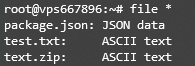
In addition, the file command can show each file type inside a specific directory. Here’s the general syntax:
file [path-to-directory]/*
The -i option is used to view the MIME file type. It consists of two parts – a type and a subtype. MIME uses a slash (/) to separate each of them, with no space in between.
Here’s the general syntax:
file -i filename
For example, to view the MIME type of the test2.txt file, enter:
file -i test2.txt
Here’s the output of the file command above:

Instead of declaring the file format as ASCII text, the program defines the file as text/plain and charset=us-ascii.
The file command allows you to read special files, such as system information, by adding the -s option.
Important! Keep in mind that only a root user can run the file command along the -s option. Otherwise, you’ll receive a no-read permission error message.
This option only classifies a file as a block special file, symbolic link, directory, or nonexistent.
Here’s its general format:
sudo file -s filename
For example, to read the ploop19269 file, enter:
sudo file -s /dev/ploop19269
The output indicates that ploop19269 is a DOS/MBR boot sector.

There are two ways to check compressed files like ZIP or gzip archives, the -z and -Z options. The former displays detailed information and its content, while the latter only shows the file types.
Here’s the general syntax of the -z option:
file -z filename
For example, to read the test2.txt.gz file’s complete data, enter:
file -z test2.txt.gz
The output specifies that test2.txt.gz is a gzip compressed file that contains test2.txt:

Here’s the general format of the -Z option:
file -Z filename
For example, to view the file type of test.gz only, enter:
file -Z test.gz
This command will only print out the type of the file inside test.gz – an ASCII text.

Adding the -c option allows you to view the parsed version of any file. It shows information such as type, opcode, and value. Usually, it is used in conjugation with the -m option to debug a new magic file before installing it.
Here’s its general syntax:
file -c filename
For example, to print the parsed form of the test.txt file, enter:
file -c test.txt
The output should look like this:

The file command lists all file types in a directory using the Regex-style ranges. Type file and place the values in brackets, followed by *.
Its general syntax is:
file [range1-range2]*
For example, to examine files starting within the a to z range, enter:
file [a-z]*
The output should look like this:

Since this program is case-sensitive, the output will only show the files starting with a lowercase a to z. To include the uppercase characters, add another range. For example:
file [a-z]* [A-Z]*
Here’s what the output looks like:

In UNIX systems, file names and extensions can differ from their actual types. Hence, Linux provides the file command to help users determine the type of a file.
When executing it, use appropriate options and specify the file name. There are many acceptable variables to use with the file command, such as:
We hope this article has helped you learn how to manage data using the Linux file command. If you have any questions or suggestions, please leave them in the comments section below.
Remove Directory in Linux: How to Delete Files and Folders
How to Use the Linux Locate Command to Find Any File
Using Tee Command to Write to Files
How to Use the Tar Command in Linux
How to Rename a File
How to Create Linux Symlinks (Symbolic Links) for Files and Directories
How to Install and Use Linux Screen
How to Use rsync Command to Transfer and Sync Files
How to Read a File With Sed Command
How to Unzip Files in Linux
How to Use SCP Command to Copy and Transfer Files in Linux
In this section, we will answer the most common questions about the Linux file command.
File names in UNIX can be entirely independent of the file types. Thus, it’s tricky to determine the actual information.
Executing the file command reveals what format a file uses and examines each argument by conducting three tests – filesystem, magic, and language tests. The first that succeeds will output the file type.
To create one or multiple empty files, use the touch command. It comes with the Linux system and is especially useful when you don’t have data to store at the time.
Its general syntax is: touch filename. To create multiple files, enter: touch filename1 filename2.

Edward is a content editor with years of experience in IT writing, marketing, and Linux system administration. His goal is to encourage readers to establish an impactful online presence. He also really loves dogs, guitars, and everything related to space.

Noviantika is a web development enthusiast with customer obsession at heart. Linux commands and web hosting are like music to her ears. When she's not writing, Noviantika likes to snuggle with her cats and brew some coffee.

Hytale server requirements are relatively modest for small player counts, but scale quickly as more players join and worlds grow. CPU performance and...
Hytale is a sandbox role-playing game (RPG) that combines the creative freedom of world-building with the deep immersion of an adventure game. While...
The best Hytale server hosting providers deliver low latency and high-performance hardware to handle the game’s procedurally generated worlds....