How to Edit a Website Effortlessly
May 20, 2026
/
Matleena S. & Auksė Å.
/
8 min Read
Knowing how to edit and update your website efficiently is key to maintaining and improving your online presence. Updating your web pages regularly can improve your search engine rankings, keep site visitors engaged, and maintain your site’s relevance with industry trends.
This article will show you how to edit a website with Hostinger Website Builder. We will cover everything from basic text and mobile-friendly website edits to more advanced, code-focused website editing.
Download website launch checklist
Basics of Website Editing
Website redesign and editing is a crucial skill for maintaining an up-to-date and effective online presence. This process involves a range of tasks essential for any web developer and site owner, from refining the content on a web page to enhancing the overall web design.
Editing a website includes not just altering text or images. It also means optimizing HTML tags, integrating multimedia elements, and ensuring that the site’s home page is inviting and informative.
When you edit websites, it’s vital to consider how the changes will display across various devices and how they will interact with search engines.
Developer tools can greatly assist in this, enabling you to inspect element details, modify HTML code, or tweak JavaScript code directly. These tools are beneficial for making precise website updates and changes, especially when working with the source code of an existing website.
Hostinger Website Builder is the best user-friendly website editing option for those who don’t know how to edit a web page’s source code. Our drag-and-drop builder simplifies website maintenance and editing, letting users enter edit mode, make changes, and save their work with ease.
This approach is ideal for web page editing tasks like adjusting content, adding new pages, or even undertaking a complete website redesign.
How to Edit a Website
Whether you’re a seasoned web developer or new to website content management, this guide provides step-by-step website editing instructions for users of all skill levels.
Editing your website effectively means knowing how to navigate your web page editor properly. We will show you how to edit pages with Hostinger Website Builder below.
1. Access Hostinger Website Builder
To begin making Hostinger Website Builder edits, the first step is to access the tool:
- Log in to hPanel.
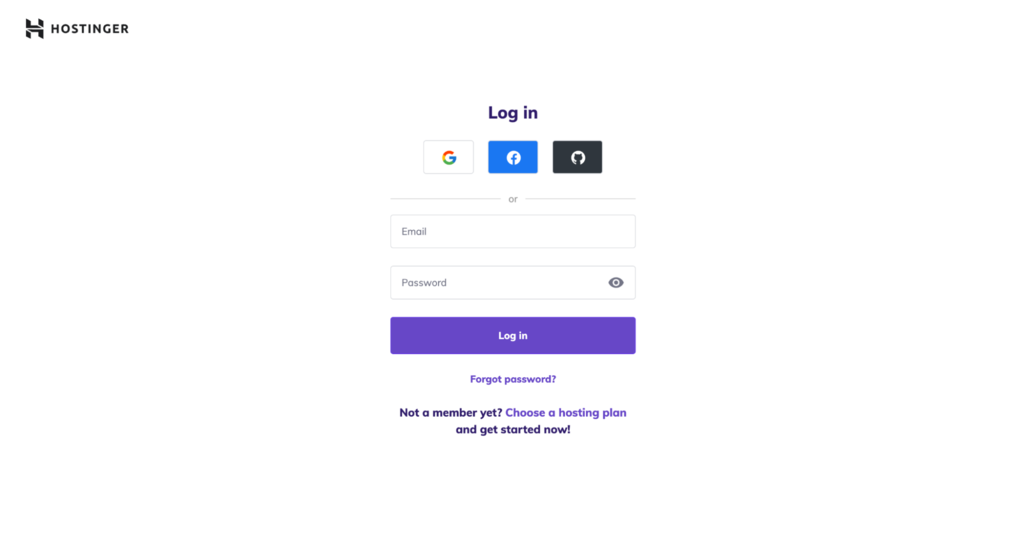
- Navigate to the Websites section from the top menu and select the site you want to edit by clicking on Edit website.

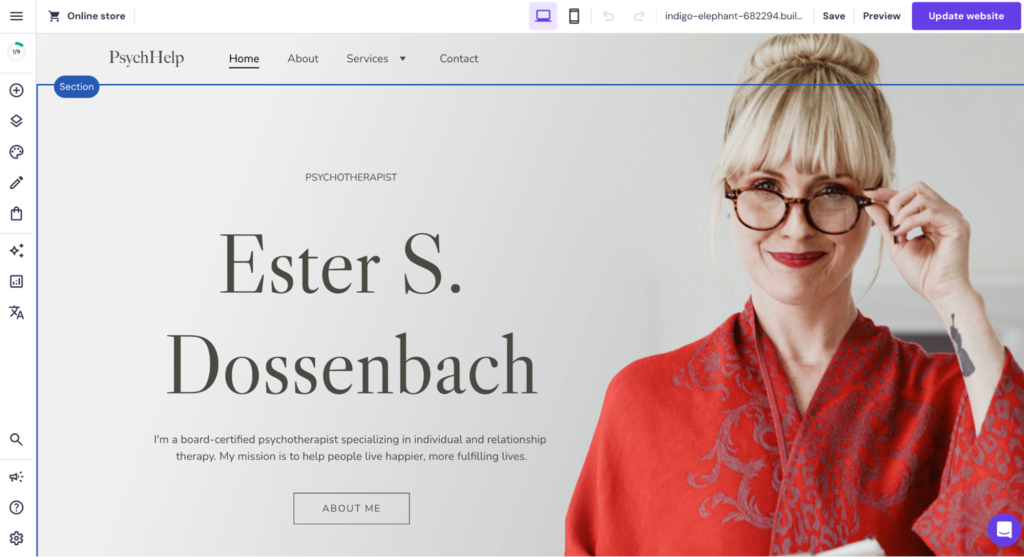
- The website builder will launch in edit mode and display your current web pages, allowing you to start making changes right away.
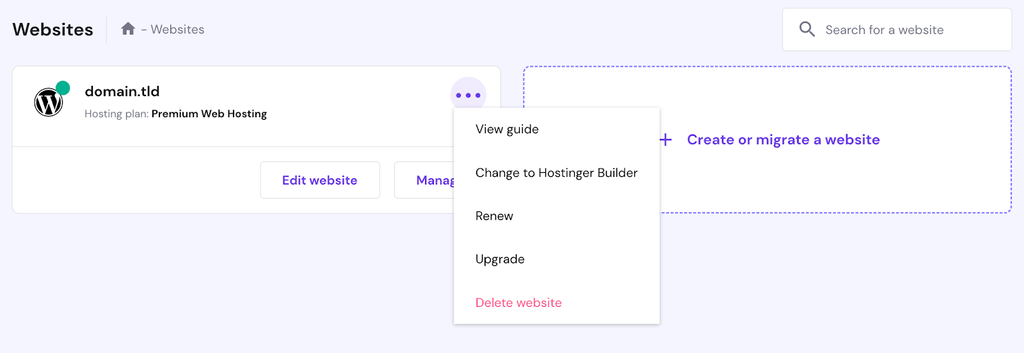
If you have a WordPress website but want to edit it with Hostinger Website Builder, expand the settings of the site via the Websites section and select Change to Hostinger Builder.
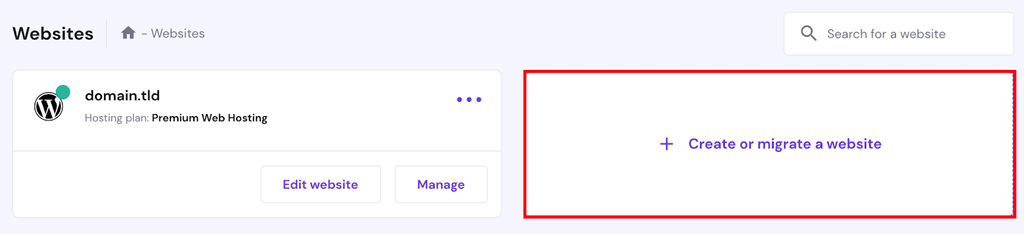
If you don’t have a website yet, follow these steps to begin creating:
- Select a Hostinger Website Builder or a managed web hosting plan.
- Log in to hPanel.
- Navigate to the Websites section and select Create or migrate a website. Follow the steps and choose Hostinger Website Builder as your platform.
2. Edit Website Content
When customizing the content of your web pages, you commonly need to edit text, replace images, and adjust other multimedia elements.
How to Edit Text on a Website
Effective text editing can revitalize your website’s content, making it more engaging and relevant to your audience. Text editing is not just about correcting typos or updating information – it’s about refining your message and enhancing readability to keep site visitors interested.
Modify text in Hostinger Website Builder like this:
- Scroll through your web page to find the text you want to edit. Click on the text area to select it.
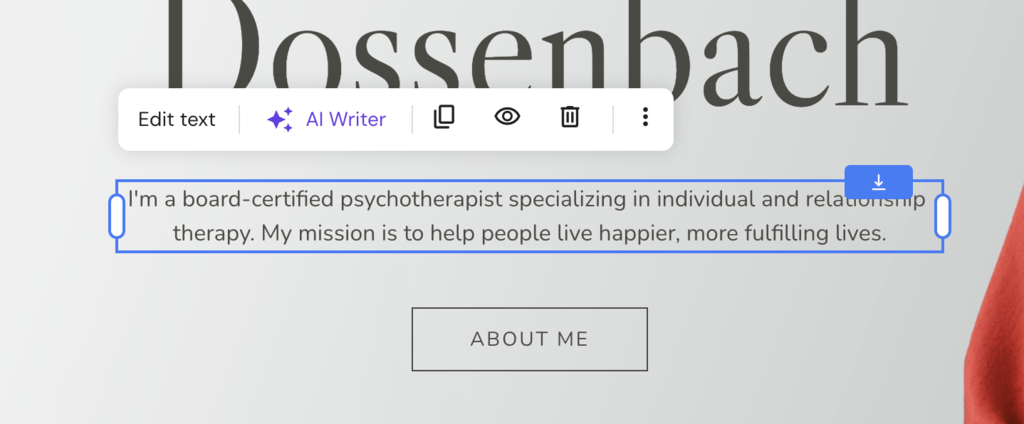
- Click on Edit text to open the text editor.
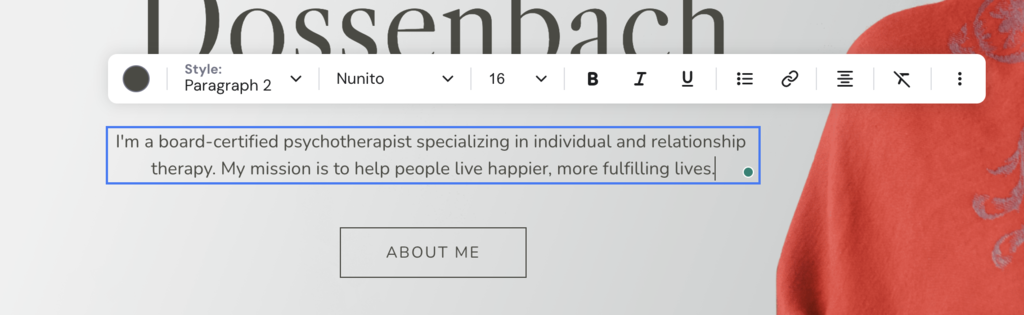
- Use the WYSIWYG editor to make the desired edits to the text. The changes will save automatically.
Editing Images on Your Website
Replacing outdated images or refreshing visuals is a simple yet effective way to enhance your website’s look and feel.
Start editing images with Hostinger Website Builder by following these steps:
- Select the image you want to edit or replace.
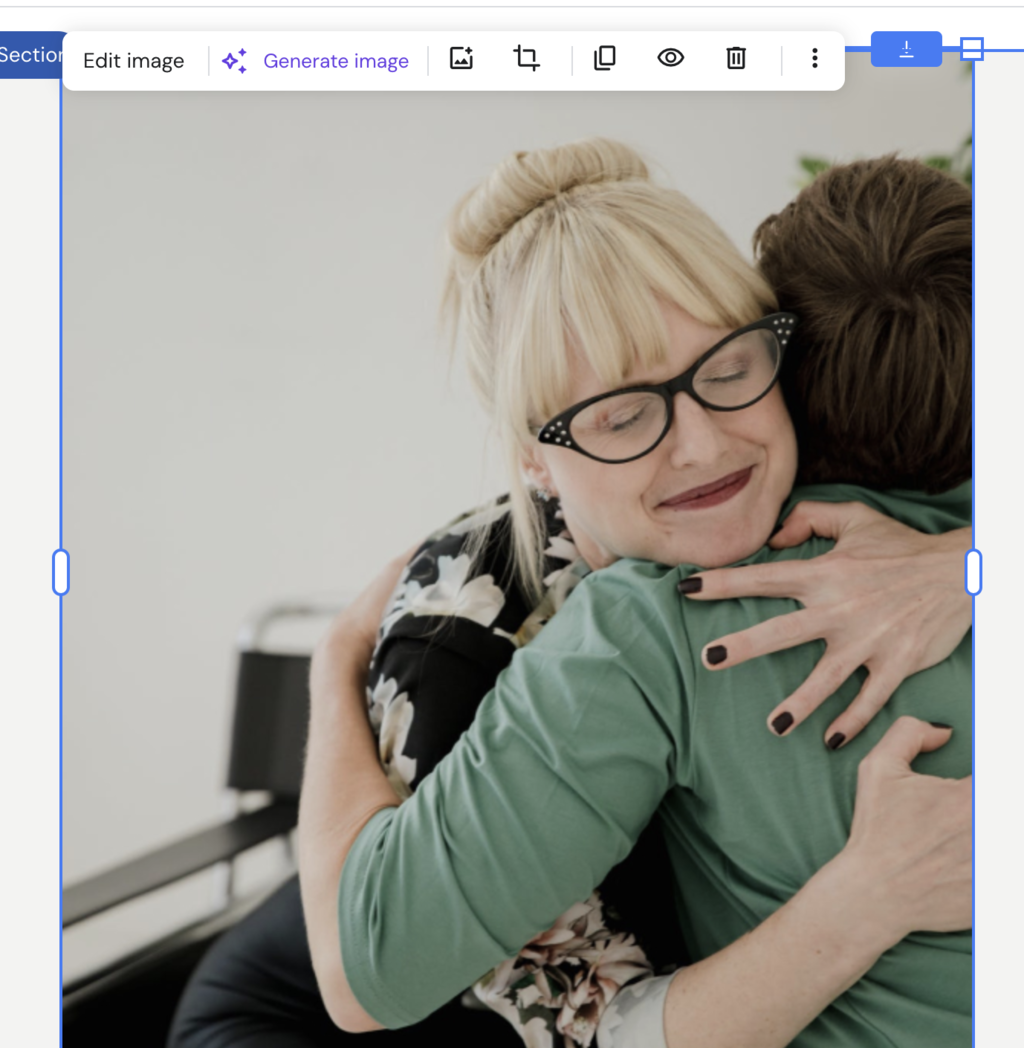
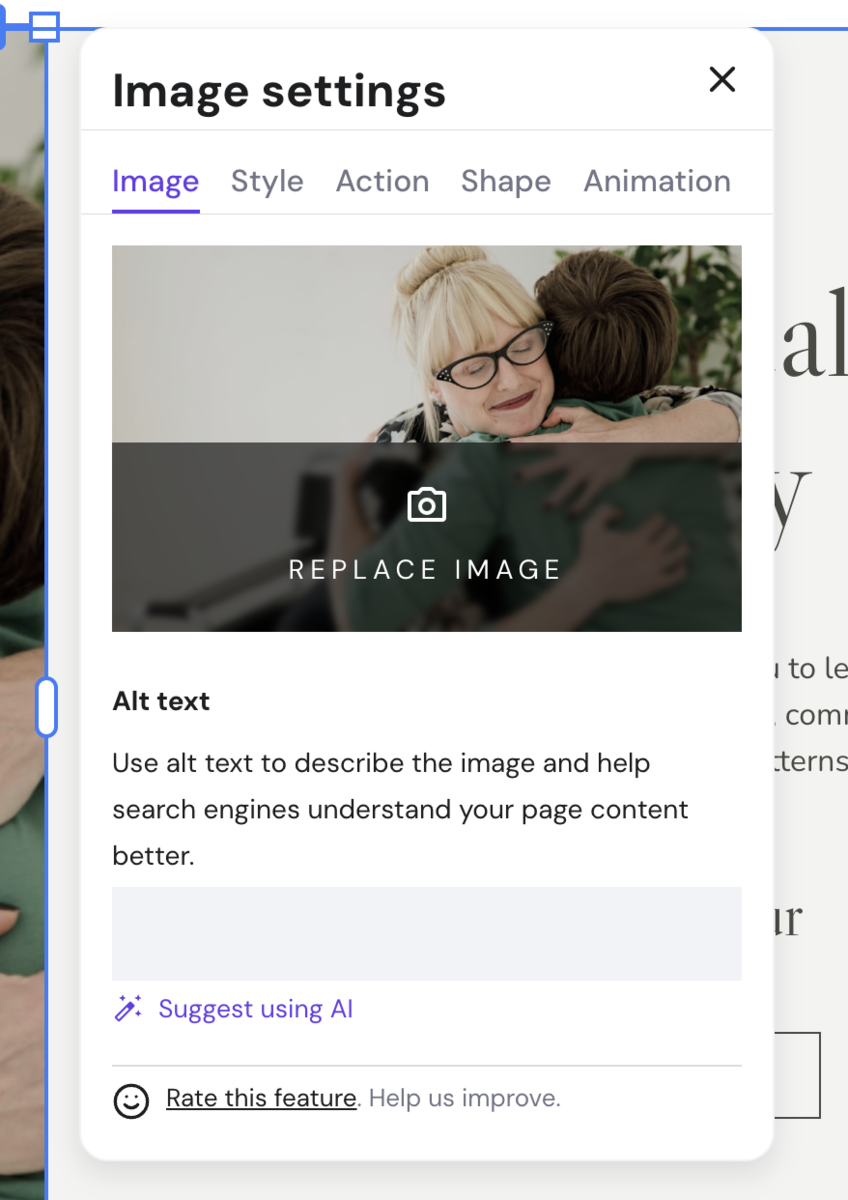
- Click on Edit image to open the Image settings. Here, you can edit the alt text, on-page animations, and the shape and style of your image.
- You can also perform actions like cropping, duplicating, and copying through the toolbar.

Alternatively, select Generate image to use AI to create a new custom image for your website. All you need to do is describe the visual in a few words to start the process.
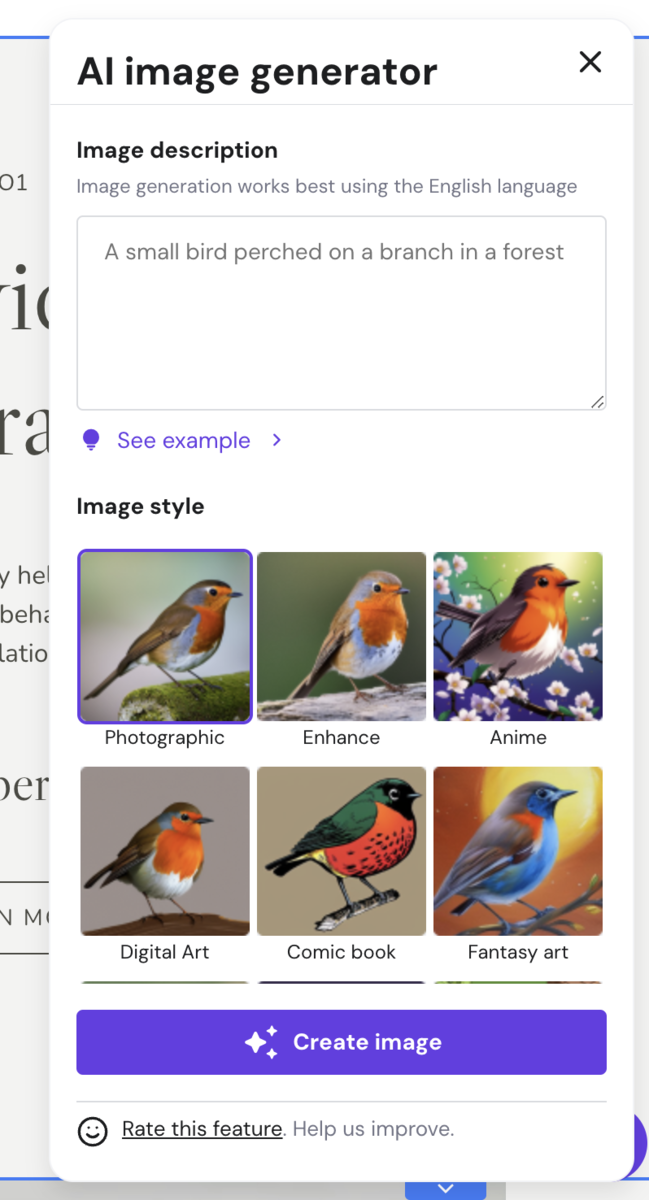
Keep in mind that proper image optimization, including filling in the alt text field, is vital for search engine optimization (SEO) and ensuring accessibility for all users.
Pro Tip
Learn more about how to create an SEO-friendly website and succeed with website optimization.
Multimedia Elements
Incorporating multimedia elements like videos or maps can enhance the interactivity of your website, providing a richer user experience.
Here is how to edit multimedia content on a web page:
- Select the element you want to edit – in this example, we are editing a video.
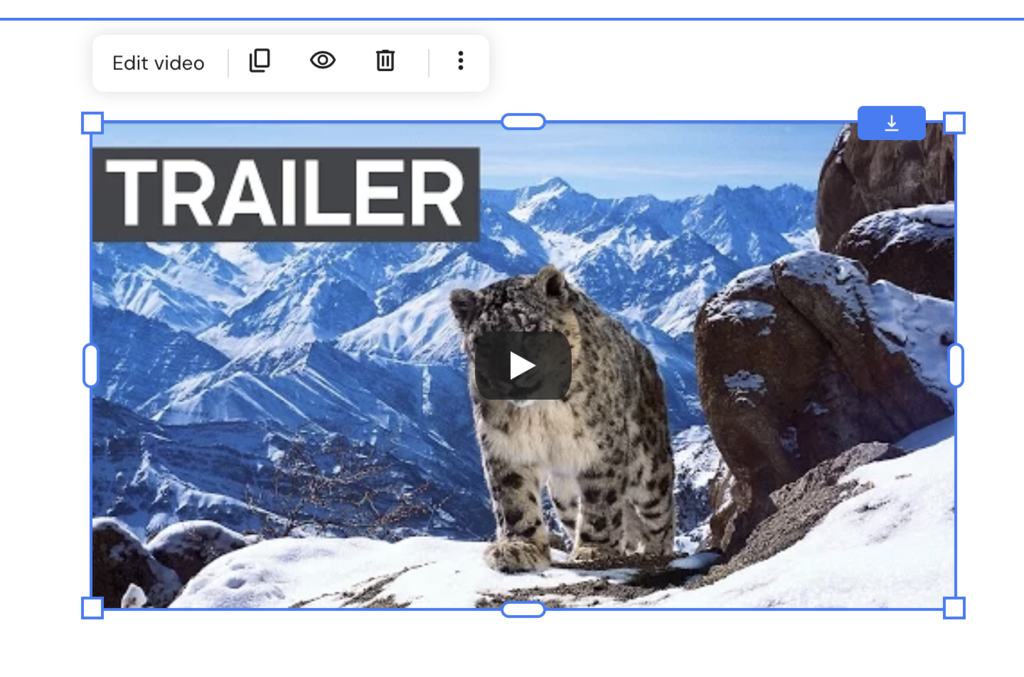
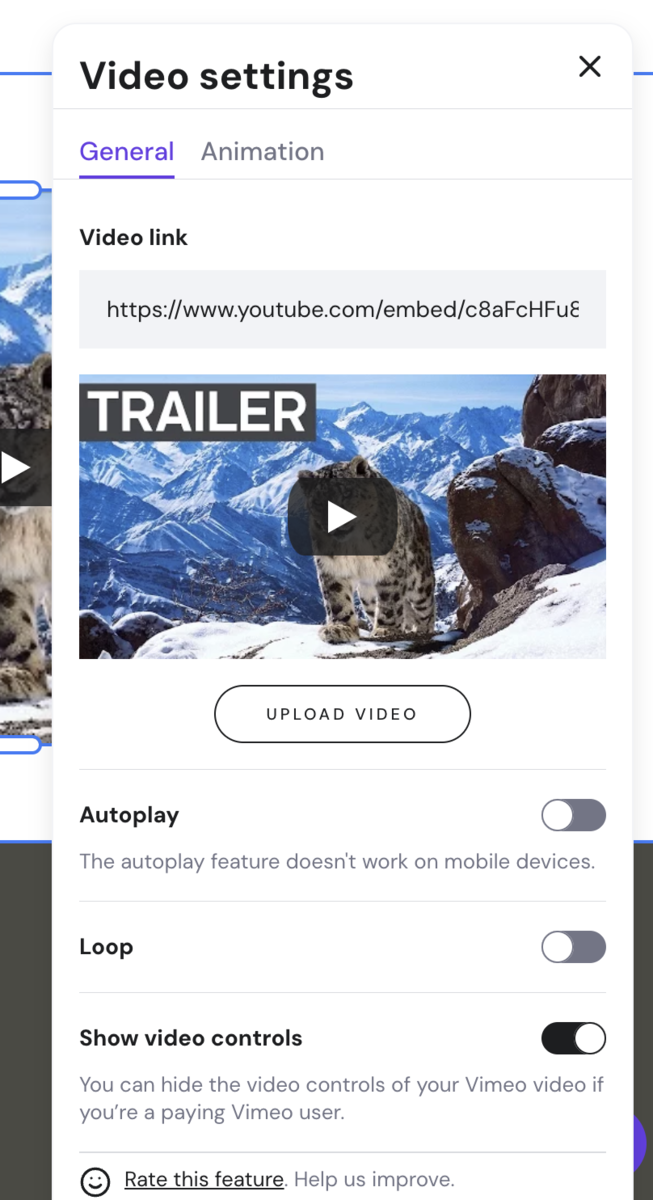
- Click on Edit video to expand the Video settings. You can add animations, loop or autoplay the video, or show or hide video controls.
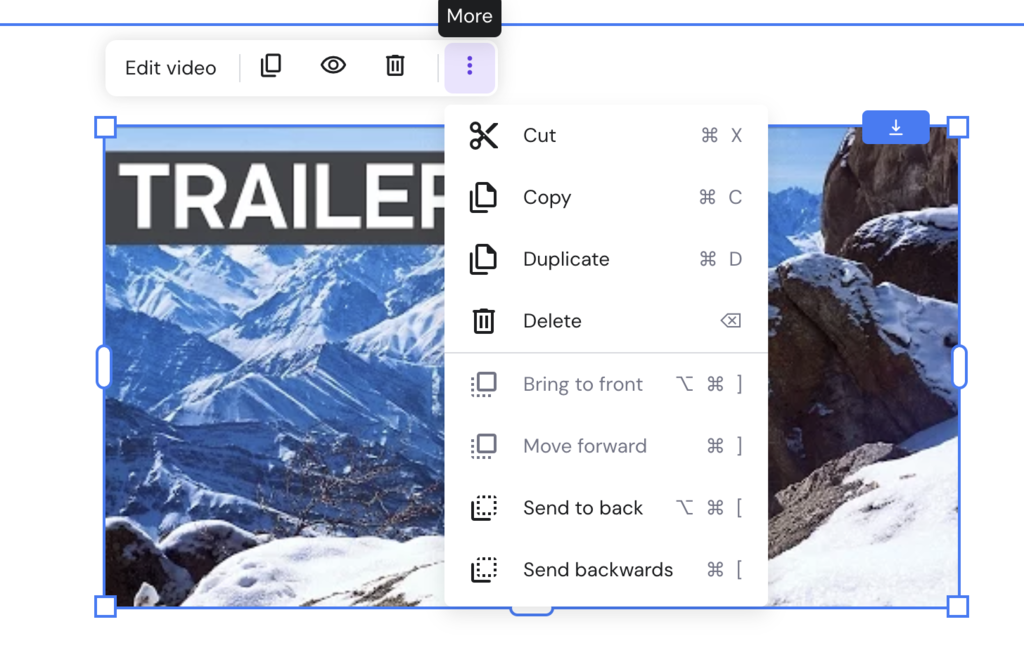
- You can also use the toolbar to make edits to the positioning of the video:
3. Customize Website Design
The design of your website should be both aesthetically pleasing and functional, as it influences how users perceive and interact with your brand. Ensure you follow the best web design practices for the best results.
Add New Web Page Elements
Different page elements, like contact forms, buttons, and social media feeds, add more functionality to a web page.
To add elements on your Hostinger Website Builder site, check out these steps:
- Open the Add elements menu from the left side navigation bar.
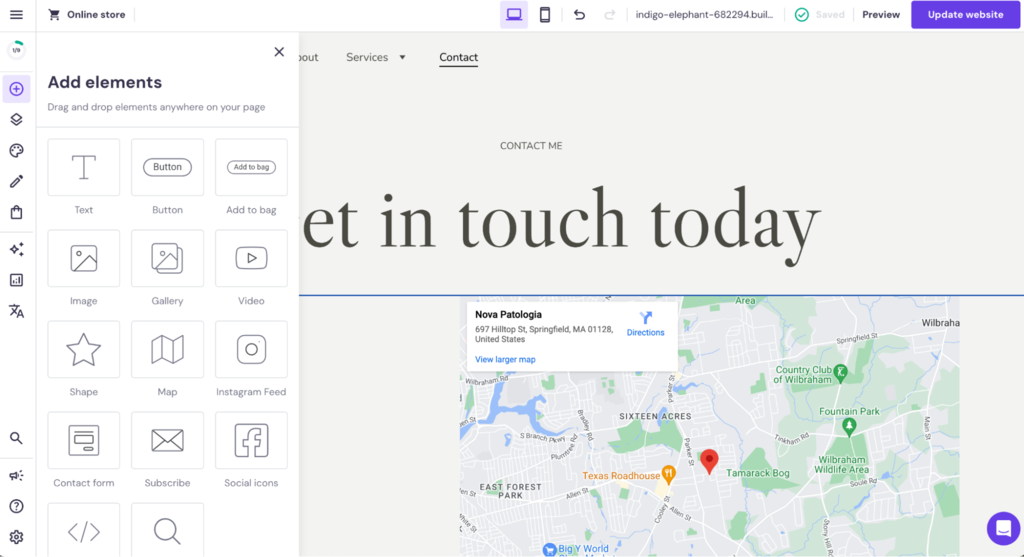
- Drag and drop your chosen element to the desired position on the web page. For this example, we’ll select the Contact form.
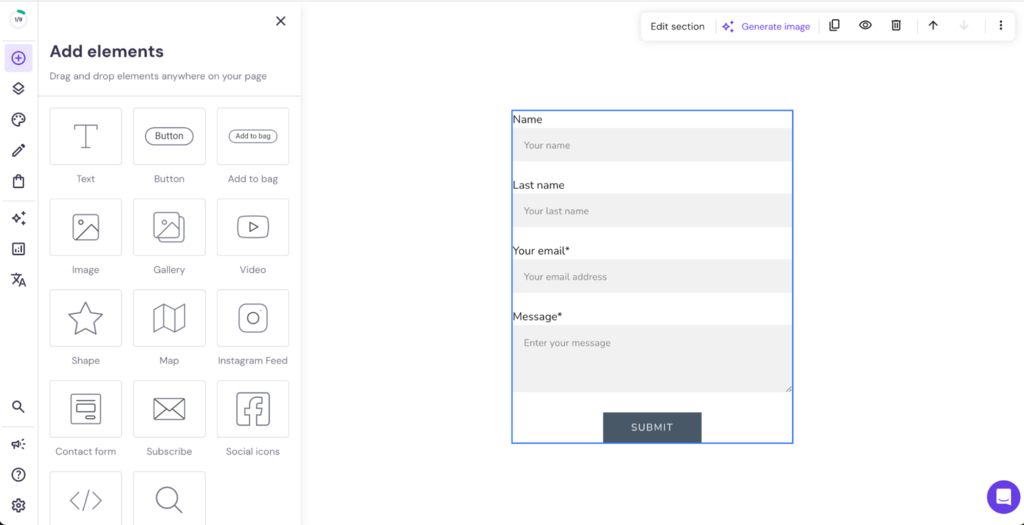
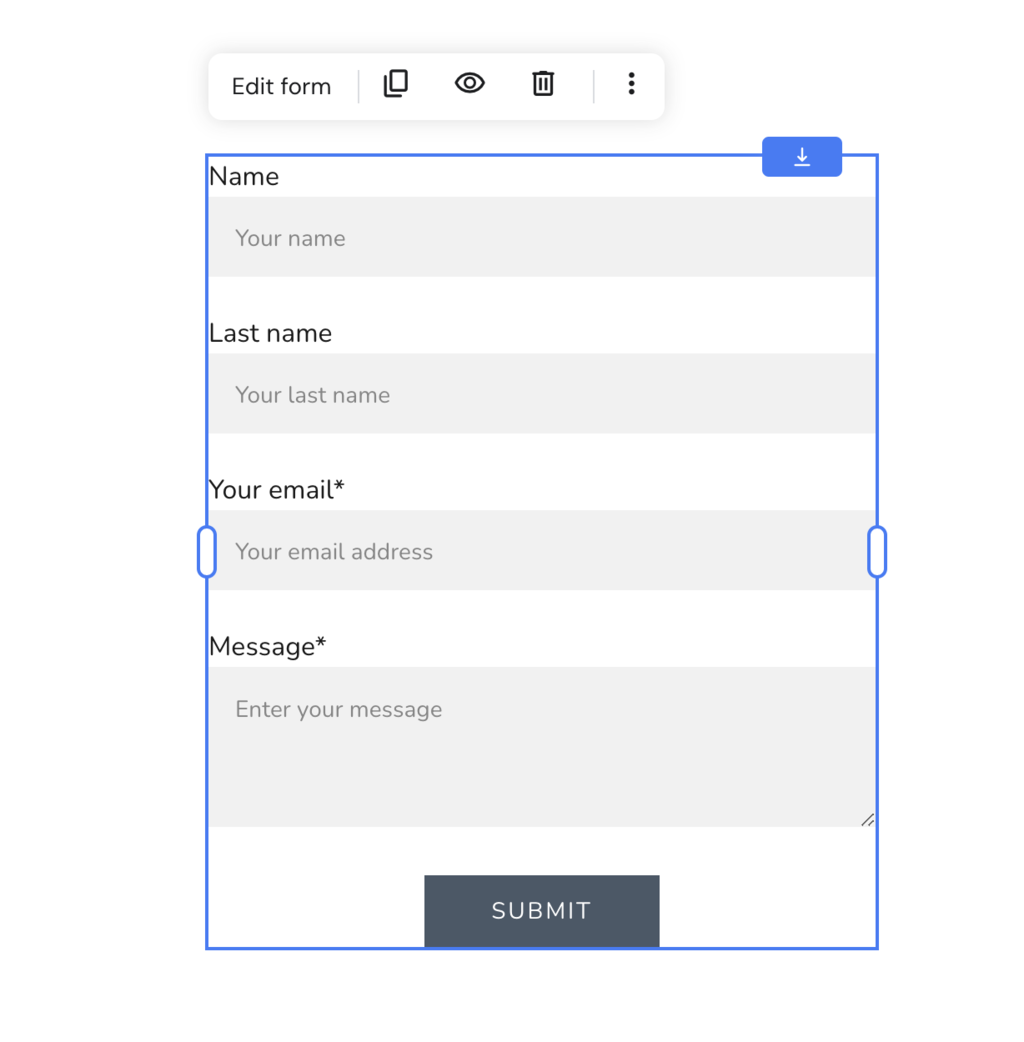
- Click on the element to make adjustments to the content or design.
Adjust Colors and Fonts
Colors and fonts are the foundation of your website’s design. Colors can evoke emotions and convey certain messages, so it’s important to choose a palette that reflects the branding you want to set for your website.
The right font, on the other hand, significantly enhances the readability of your content and the usability of your website.
Edit site colors and fonts in Hostinger Website Builder like this:
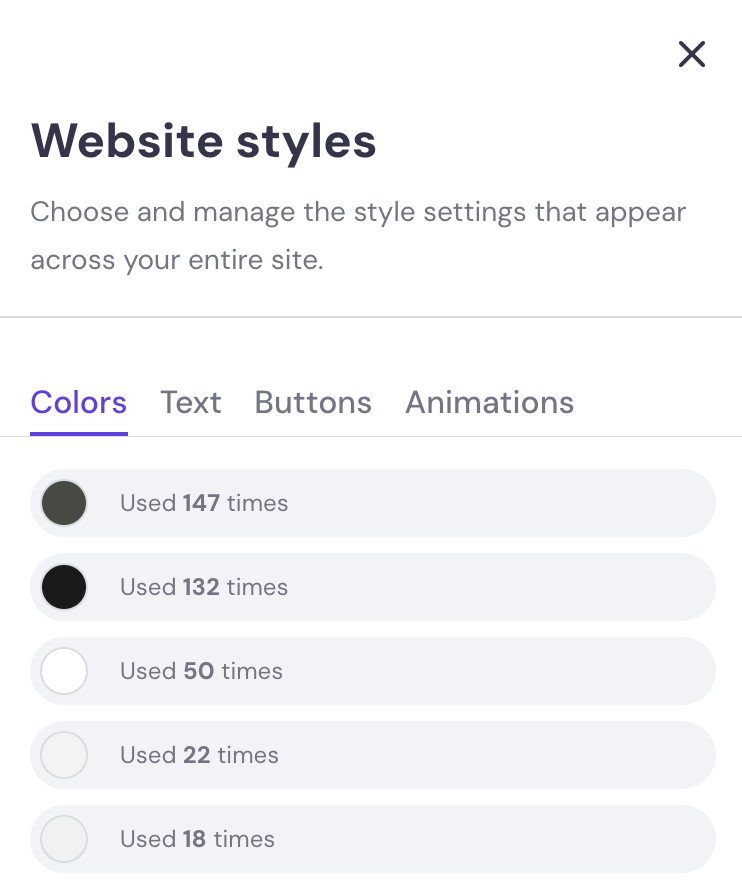
- Open the Website styles menu.

- In the Colors tab, you can see how many times different colors have been used across your website. Determine your color scheme and set up your primary and secondary colors here.
- Use the Text tab to set up the text styles for your website. Select from predefined font groups, or click Edit text styles to define your preferred heading and paragraph font choices.

You can also adjust buttons and animation styles in this menu.
Adjust the Web Page Layout
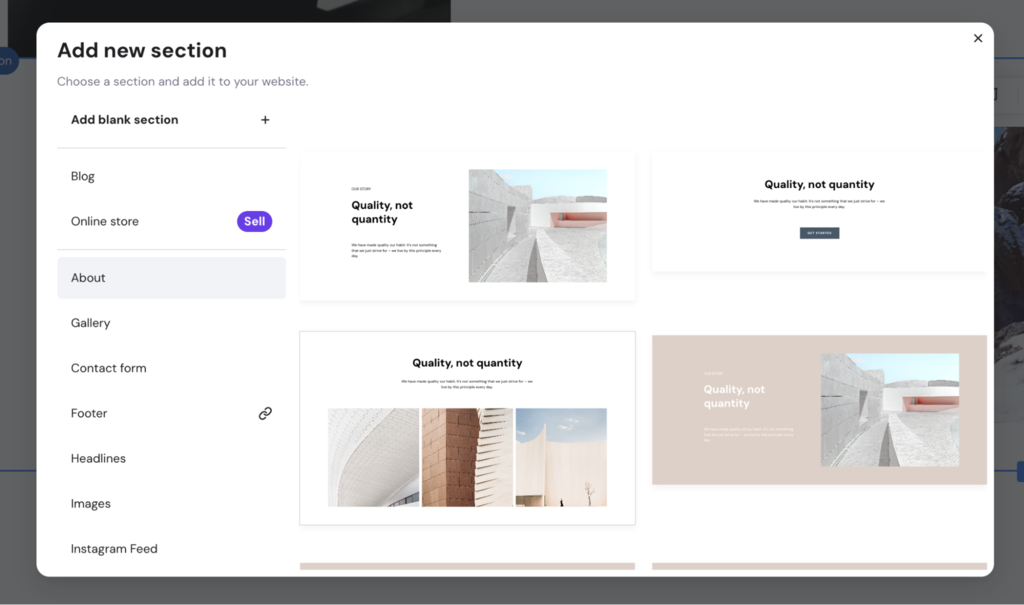
A well-organized layout ensures visitors can easily navigate your website and find the information they need. Page sections, like image galleries, slideshows, testimonials, or headlines, make creating custom designs from ready-made templates easy.
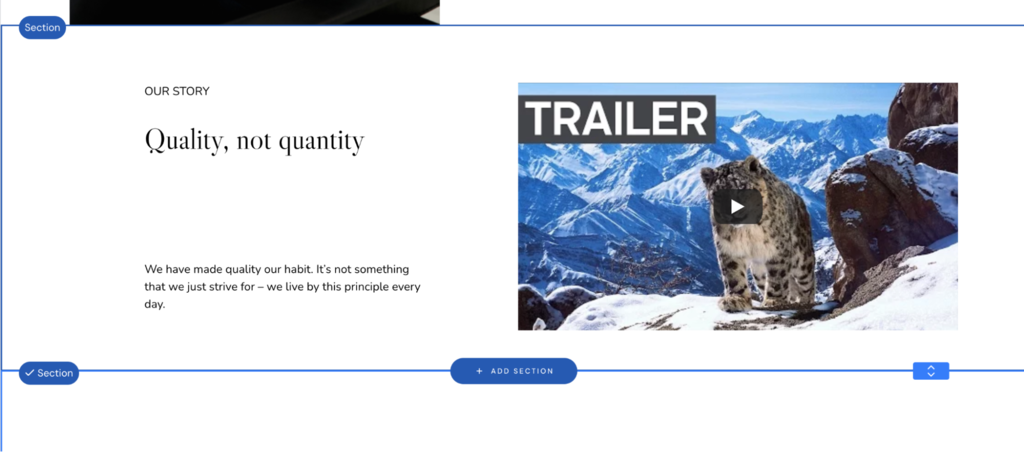
The steps below demonstrate how to add a new page section in Hostinger Website Builder:
- Hover your cursor between two sections and click on the Add section button.
- Select your preferred section from the template library – for example, a gallery, contact form, or footer. You can also add a blank section.
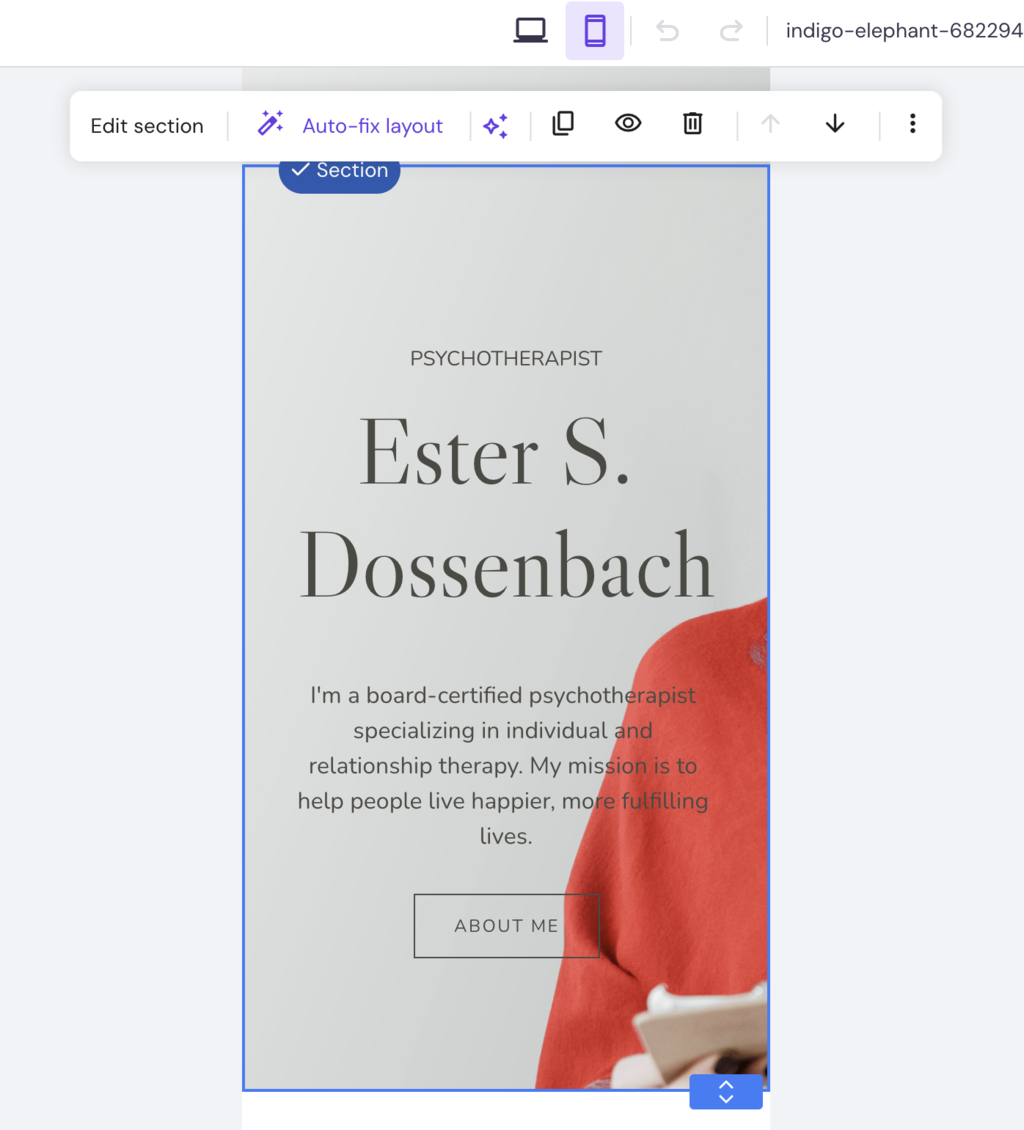
While making these adjustments, ensure that your site’s layout is optimized for mobile devices. Follow these steps to check how the layout changes appear on mobile phones:
- Locate the mobile toggle in the top navigation bar.

- Switch to the mobile editor by clicking on the mobile icon.
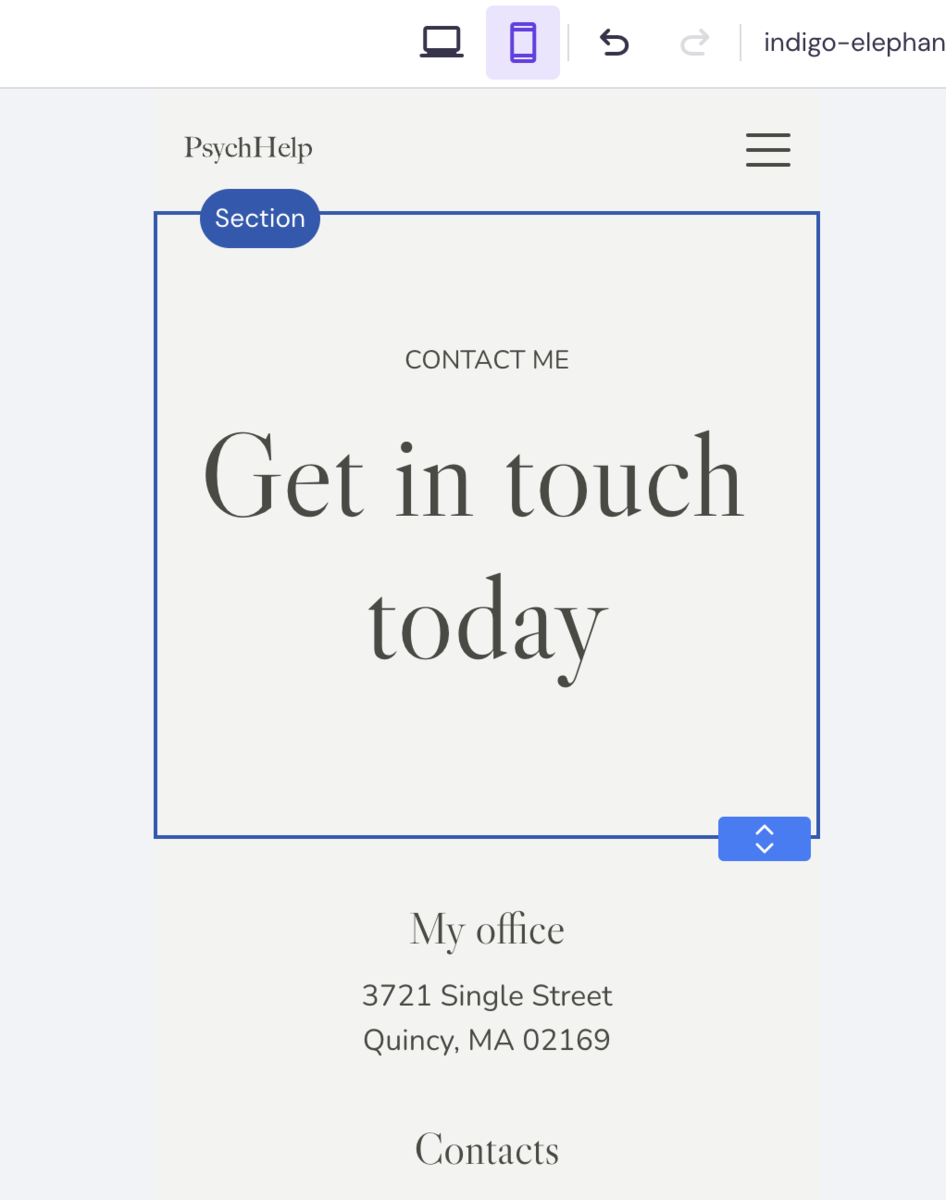
- Move sections around with the arrow keys and consider hiding bigger elements for the best mobile viewing experience.
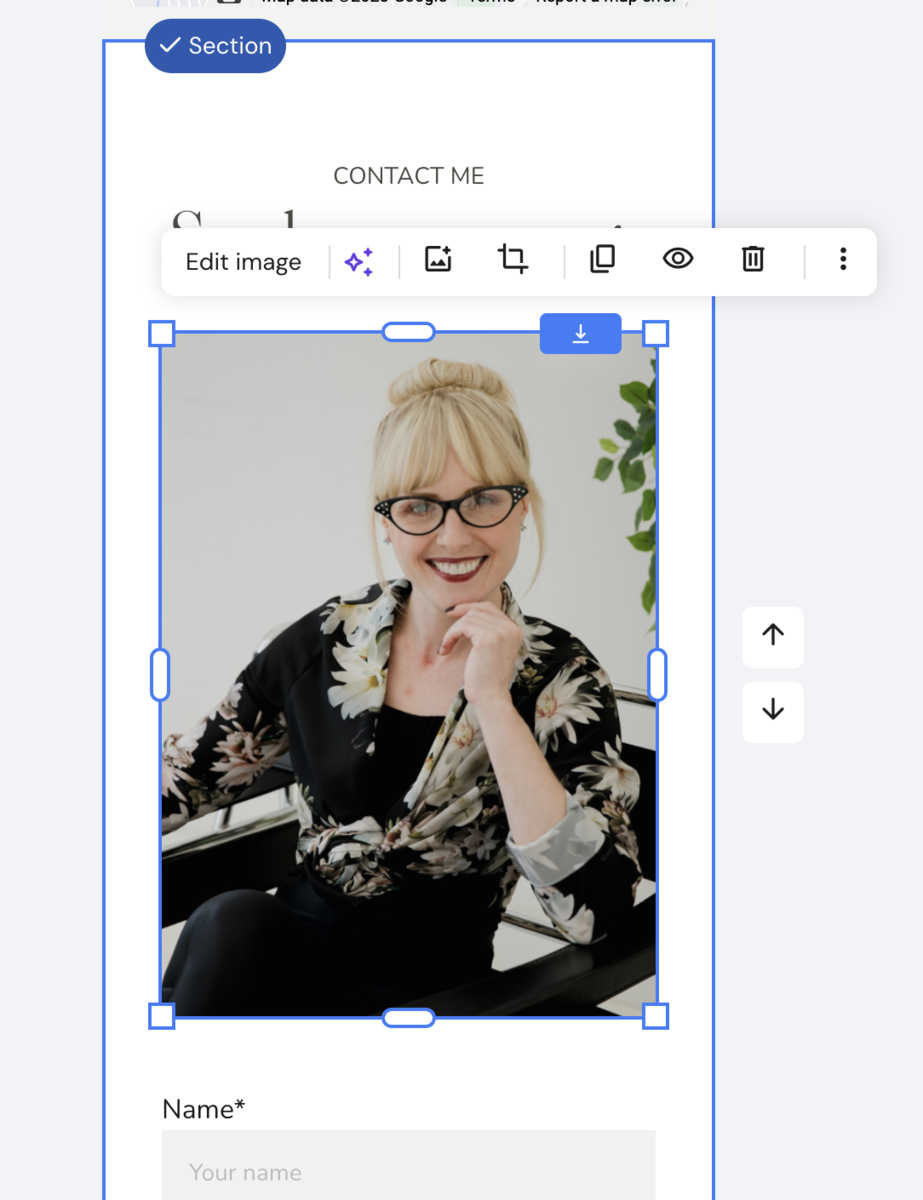
- You can also use the Auto-fix layout tool to let AI adjust the mobile layout automatically.
4. Edit Website Using Code
For those with coding knowledge, custom code editing can unlock a new level of personalization and functionality for your website. In this section, we will go over two methods to achieve this.
Access Developer Tools for In-Depth Customization
- Open your site in a browser. We will use Google Chrome in this example.

- Right-click on the web page and choose Inspect. This opens Chrome DevTools.
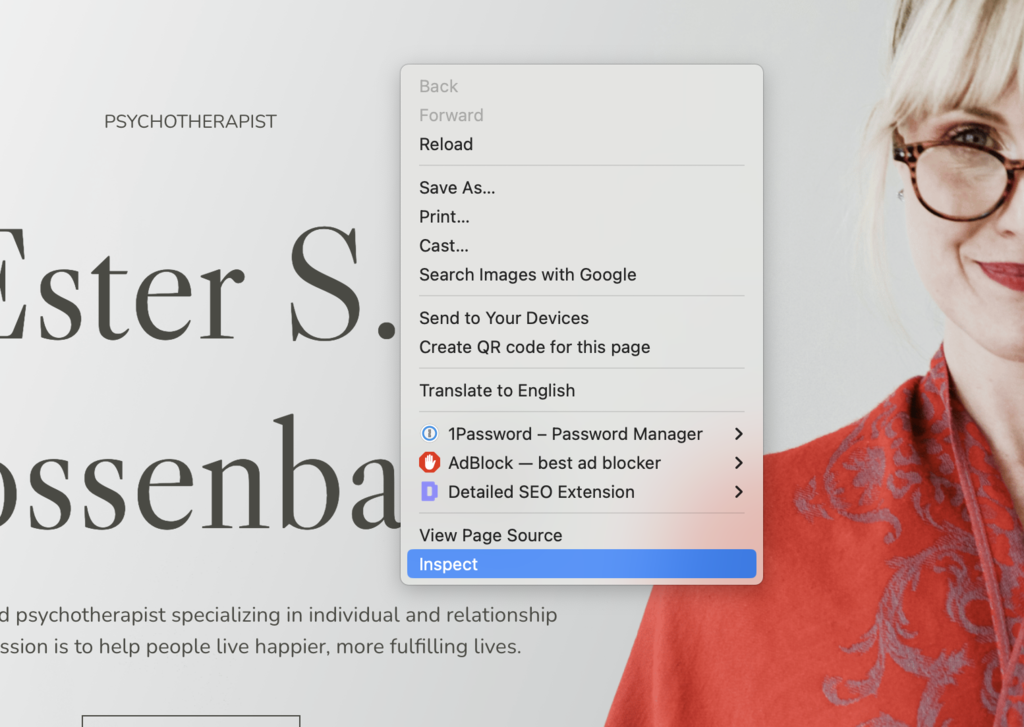
- Use the selector tool to pick elements you want to modify.

Customize with CSS
With Cascading Style Sheets (CSS), you can alter almost any aspect of your website’s elements. Modify existing CSS styles to adjust the appearance and behavior of different components, such as the placement, size, color, opacity, and fonts.
Important! Keep in mind that any changes or CSS experiments using DevTools is only temporary. In order to make these changes live, you’ll need to edit the CSS in the website’s source files or through the website builder’s CSS editor.
Use DevTools to test various on-page changes like this:
- Select an element you want to edit.
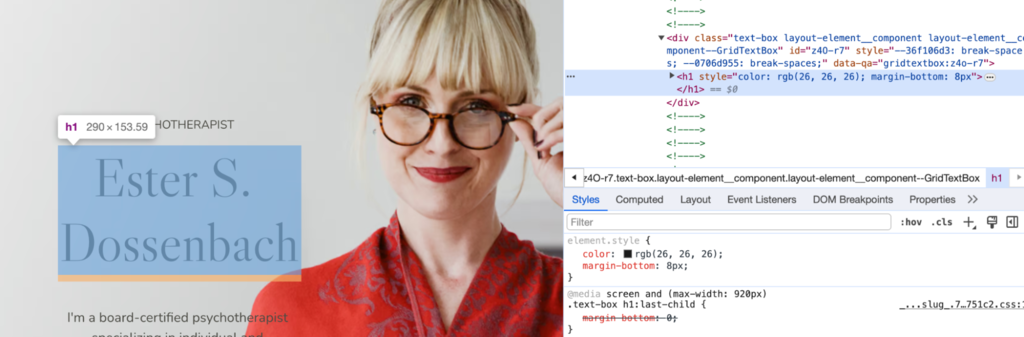
- The element’s CSS code will be displayed under the Styles tab.
- Experiment with different attributes. For instance, to adjust the text color, locate the color property and change it to your desired shade.
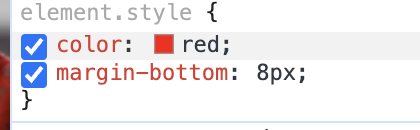
- To implement these changes on your site, select the element with the selector tool, then click the plus (+) button in the Styles tab. This action generates the necessary code snippet.
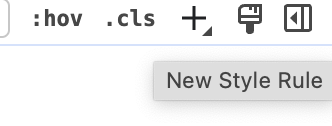
- Define the attribute you want to change, like color, and set your preferred value.

- Combine your changes in a simple <style> line, like <style>.element {attribute: value !important;} </style>.
- Next, go to the Hostinger Website Builder editing interface and add Embed code to the page. Simply drag and drop the element from the Add elements menu to anywhere on the page.
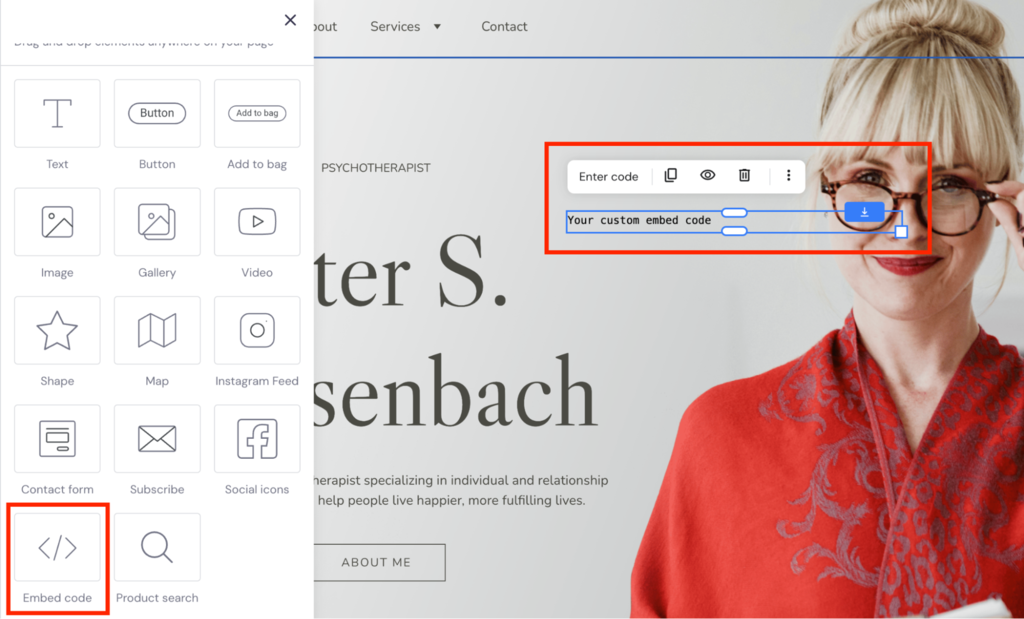
- Click Enter code to open the custom code editor.
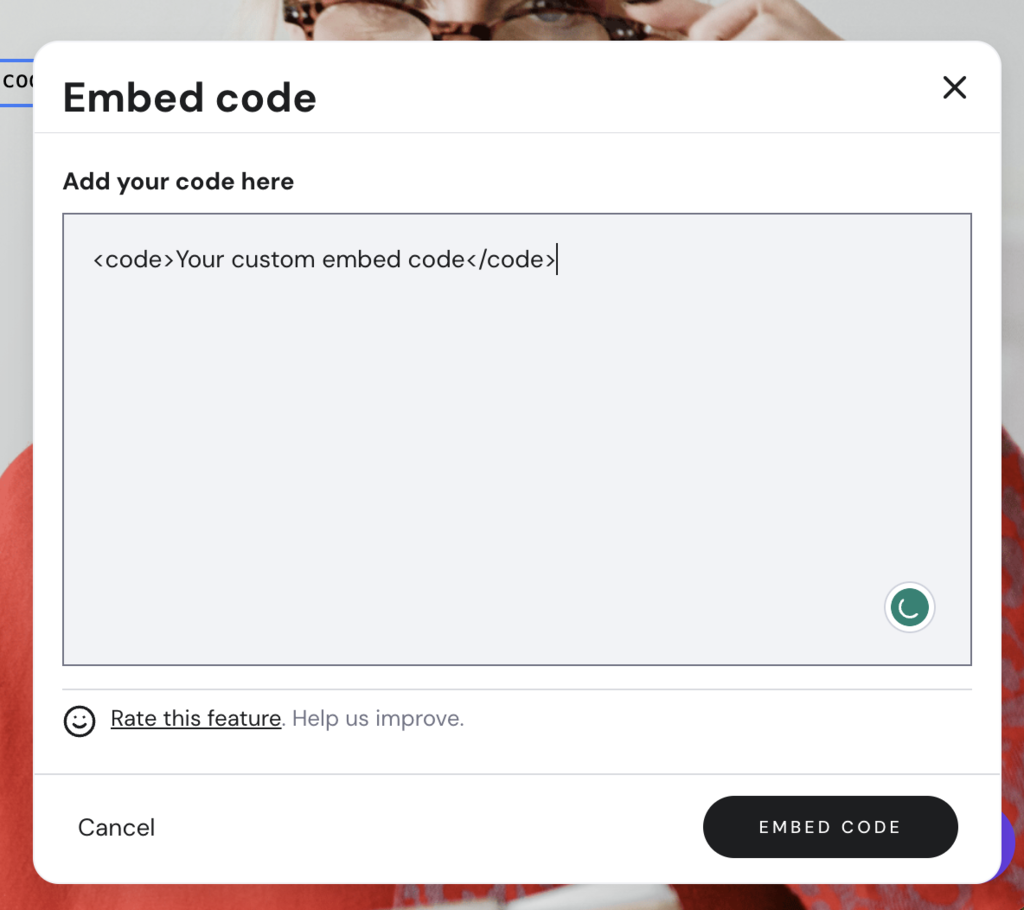
Paste your code snippet here and click Embed code. Save the changes and visit your site to see the update live.
Suggested Reading
Check out our tutorial on how to inspect and change style aspects of your website for a more detailed guide.
5. Add Extra Features
Enhancing your website with additional features can improve its functionality and offer more value to your visitors.
Integrations
Add third-party tools and widgets, like Hotjar and WhatsApp, to your website in a few simple steps:
- In the website editor of Hostinger Website Builder, select the three-dot icon in the left-hand corner and choose Integrations.
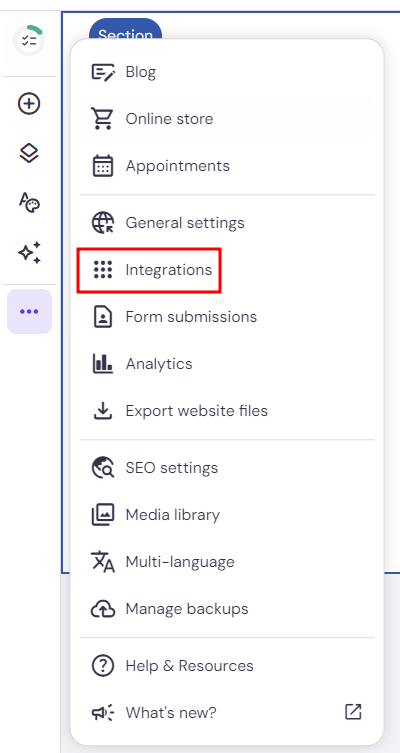
- Find the integration you want to add to your site.
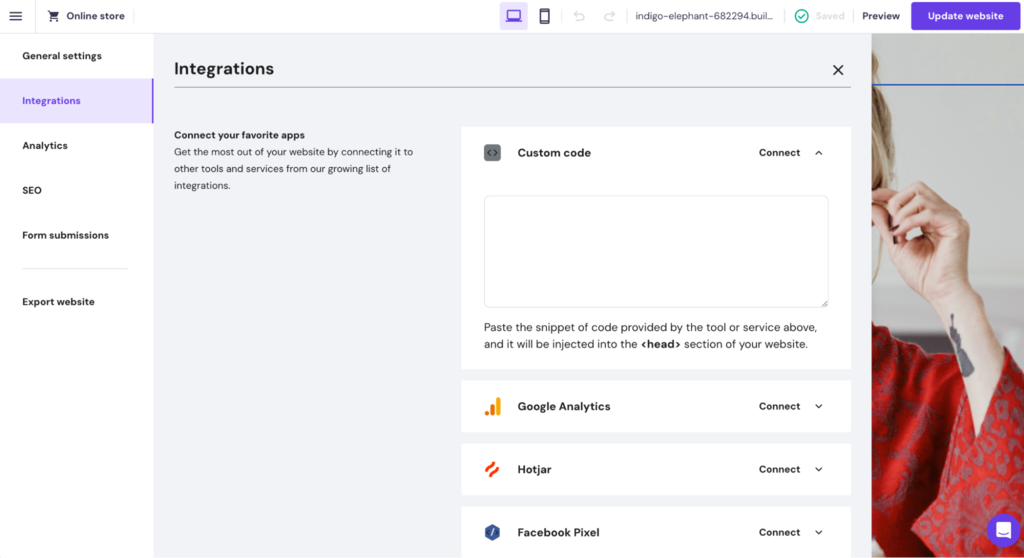
- Follow the app-specific instructions to link your account to your website. For example, you need to add your Hotjar site ID number to connect your Hotjar account with your website.
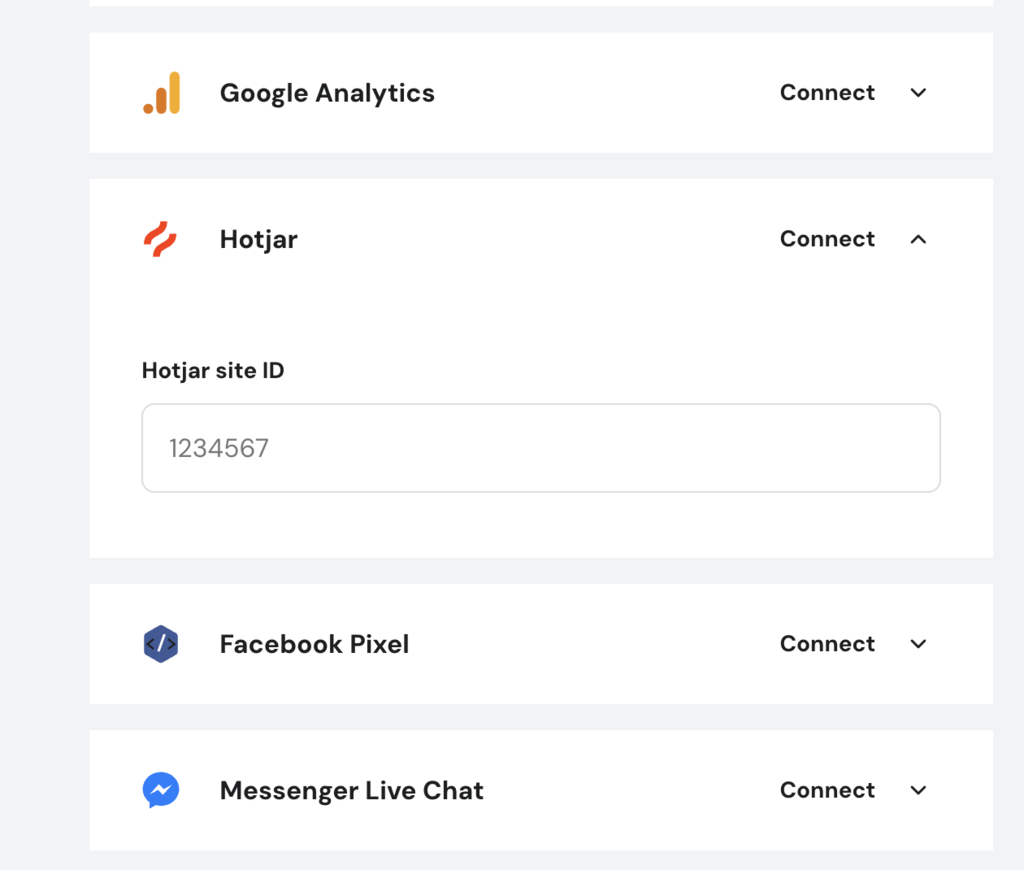
Visit our knowledge base for more details about how to integrate different tools to your Hostinger Website Builder site.
Widgets
You can also use the embed code element to add various widgets and other third-party tools to your website:
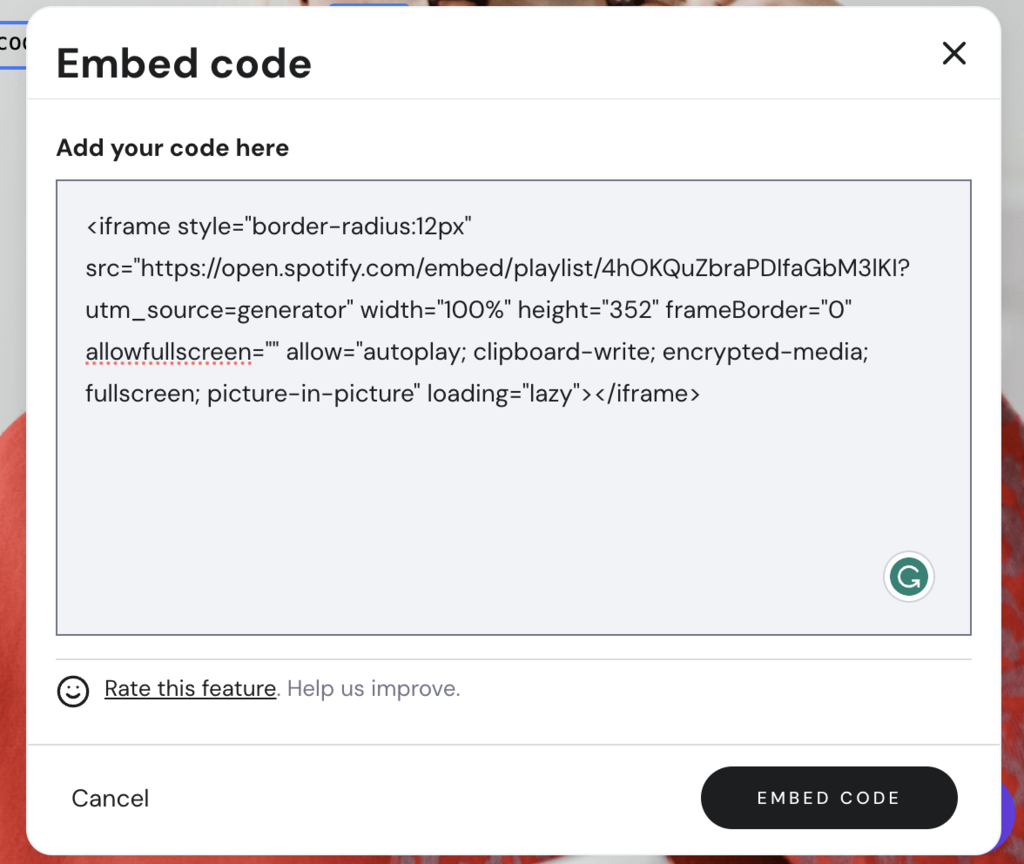
- Open the website editor and drag the Embed code element to your web page.
- Click Enter code to open the code editor.
- Paste the code you want to embed into your page to the editor and click Embed code.
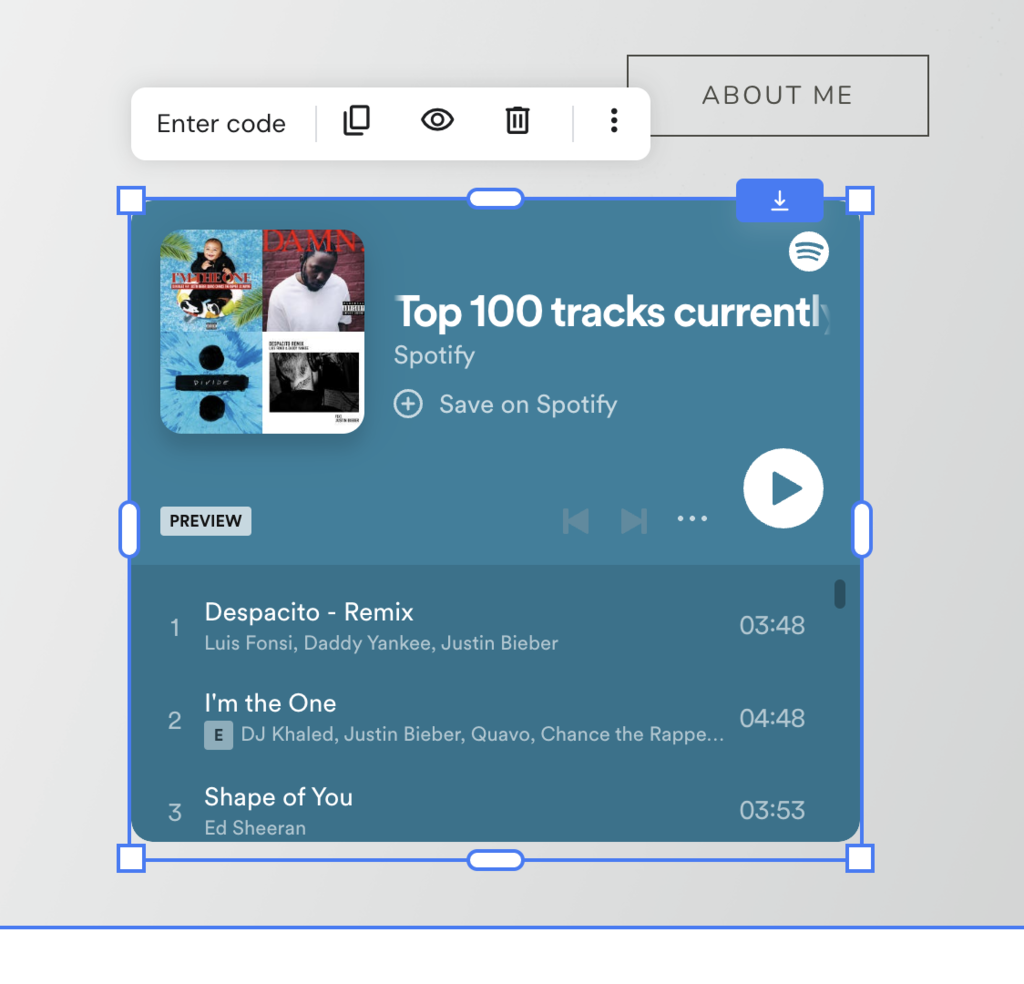
- Preview and test the widget on the web page before updating your website.
6. Save and Publish Changes
Once you’ve fine-tuned your website with new web content, tweaked the design, and added more features, it’s time to publish the changes.
Unlike some other website builders, Hostinger Website Builder saves your changes automatically as you edit web pages. If you need to revert to an older version of your site, you can reach out to our Customer Success team to help restore a backup.
Before publishing, take a moment to review all the changes. Ensure that every new element functions correctly and contributes to a cohesive user experience. Getting other people to provide feedback on bigger changes, like a new web page, is also a good idea.
After review, it’s time to unveil your updated website to your audience. Utilize the Preview option to see your edits in full effect. Remember to check that the changes look good on a mobile phone, too. Once you’re satisfied with the website design tweaks, publish the changes to your live website.
More on Website Development
How to Make a Website From Scratch
How to Design a Website
How to Make a Website Mobile-Friendly
Testing in Production
Best Website Builder for Photographers
Website Maintenance Cost
Conclusion
Editing a website efficiently is a vital skill for enhancing your online presence, and Hostinger Website Builder is an ideal tool for this task.
From website content editing to integrating tools like WhatsApp into your website, you can manage every aspect of your site swiftly with our website builder. It is especially useful for beginners who are looking for an intuitive platform with a drag-and-drop editor, built-in elements, and AI features.
Ensure to conduct regular updates keep your web pages fresh. Doing so also helps you stay up to date with search engine ranking changes and audience preferences, boosting your site’s visibility.
Easy Website Editing Guide FAQ
Find answers to the most common questions about website editing best practices below.
What Can I Edit on My Website?
You can edit practically everything from text and images to layout and design. Regular edits keep your site fresh and engaging, ensuring that your content resonates with the audience and your website’s functionality meets the latest web design and accessibility standards.
How Often Should You Update or Edit Websites?
Regular updates are recommended to keep your content relevant and SEO rankings high. At a minimum, review your site quarterly to ensure it aligns with your business goals, but also consider more frequent updates to address user feedback and industry trends.
What Are the Benefits of Using a Website Builder to Edit Websites?
A website builder simplifies the editing process, making it accessible to users of all skill levels without the need for extensive technical knowledge. It also offers a range of customization options and pre-designed templates that can significantly reduce the time and effort required to maintain a professional-looking website.
Can I Use Developer Tools to Edit a Website Directly?
Yes. Browser developer tools, like those in Google Chrome, can be used to edit the HTML and CSS code of a web page directly. This is useful for web developers looking to make quick changes to the layout or test new features.
Is It Possible to Edit My Website’s SEO Features Like Meta Descriptions?
Definitely. Most website editing tools, including Hostinger Website Builder, provide a user-friendly interface to edit SEO features such as meta descriptions and titles. These tweaks are crucial for improving visibility on search engines and can be done without extensive coding knowledge.

Matleena is a seasoned Content Writer with 5 years of content marketing experience. She has a particular interest in emerging digital marketing trends, website building, and AI. In her free time, Matleena enjoys cups of good coffee, tends to her balcony garden, and studies Japanese. Follow her on LinkedIn

Auksė Žirgulė is the Head of Website Builder at Hostinger, where she focuses on creating real value for customers. With a career that started in QA, her journey into product management broadened her perspective and deepened her understanding of what it takes to build a successful product. Auksė is known for her energetic approach and a passion for leading teams to achieve impressive growth. Follow her on LinkedIn.