How to add links in WordPress posts and pages, buttons, images, and widgets
Dec 02, 2025
/
Yoga K.
/
4 min Read
Knowing how to add links in WordPress is crucial to improve user experience and optimize your site.
A hyperlink, or a link for short, is an HTML element that connects different web pages. There are two types of links – internal and external.
Adding internal links will help visitors find helpful information within the website, increasing the time they spend on it. On the other hand, adding external links will direct readers to resources on other websites.
Links also help search engines understand the site structure, improving the crawling and indexing process.
In this WordPress guide, we will teach you all about linking in WordPress.
How to Add Links to WordPress Posts and Pages
We will use the Gutenberg editor to create links in pages and posts – note that the process is similar for both.
Create a new post by clicking Add New, or open an existing one. Alternatively, navigate to All Pages and create a new page or open an existing one.
Pro Tip
We also recommend creating good permalinks to improve your site’s usability and SEO.
How to Add Links Using the Link Button
To embed a link in WordPress to your post or page using the Link button, follow the detailed instructions below:
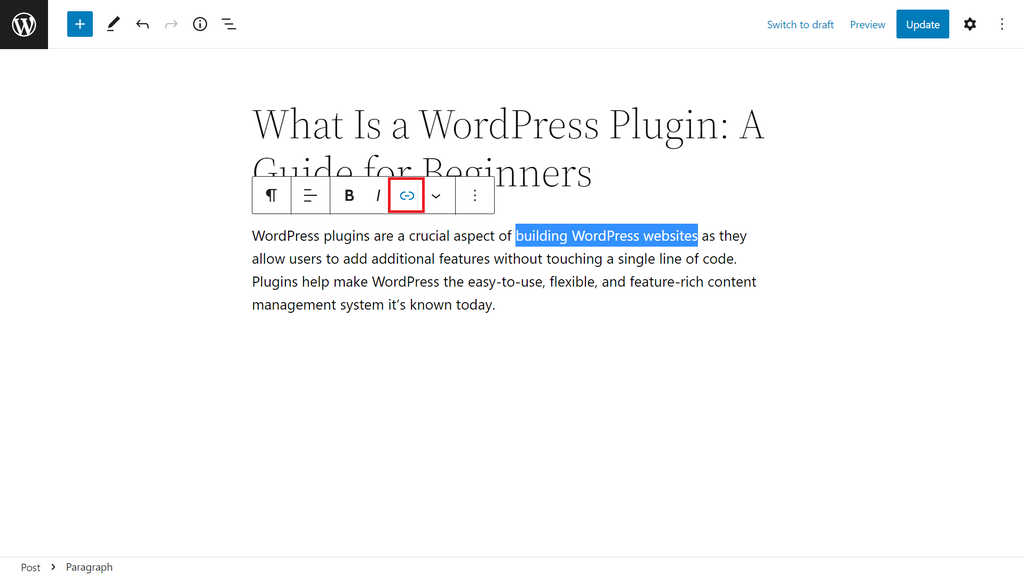
- In the block editor, select the text where you want to add a link.
- When you highlight the text, the WordPress block toolbar will appear. Select the chain link icon.
- Paste the desired URL into the link field on the pop-up box. Then, click the Submit button or hit Enter on your keyboard.
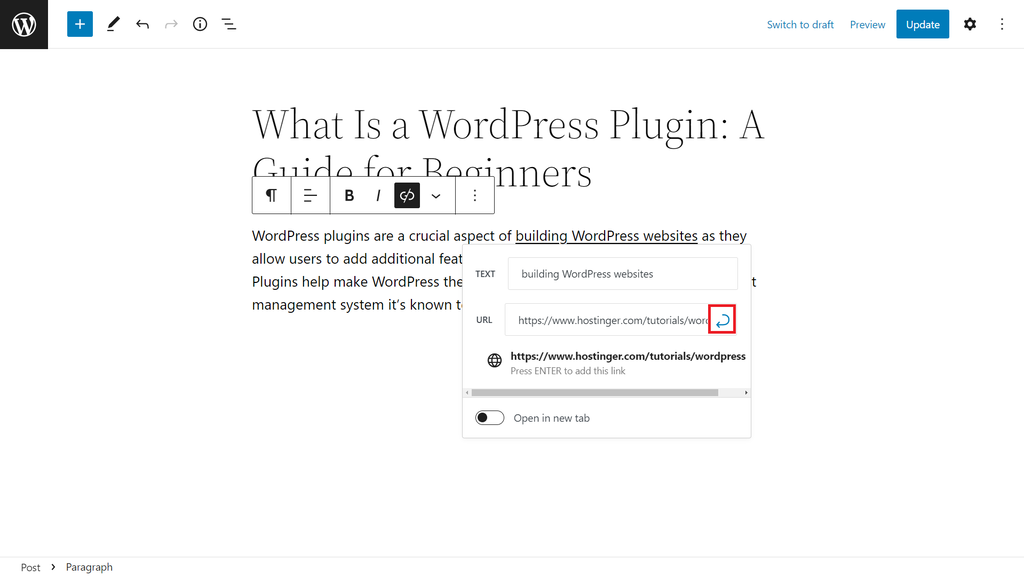
- You may also toggle the Open in new tab option. Once you’re done editing it, save the changes.
How to Add Links Using Copy and Paste
Another easy way to add hyperlinks in WordPress is by using the copy-and-paste feature. Here are the steps:
- Copy the URL you want to embed using the keyboard shortcut Ctrl + C on Windows, or Cmd + C on Mac.
- Go back to the block editor and select the text on your post or page.
- Paste the copied URL directly on the highlighted text by pressing Ctrl + V or Cmd + V. You don’t have to press Enter – the hyperlink will be automatically added.
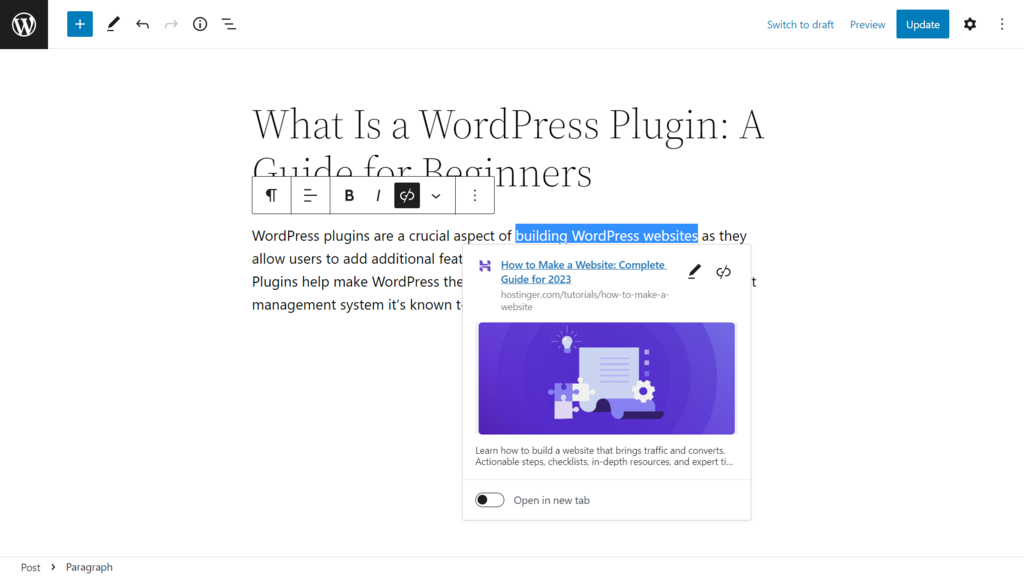
- Save the changes.
How to Add Links Using the Two Square Brackets
To add navigation menus or link to an existing WordPress page or post on your own site, you can use a shortcut.
- In the block editor, type two square brackets ([[). A list of published posts and pages will appear.
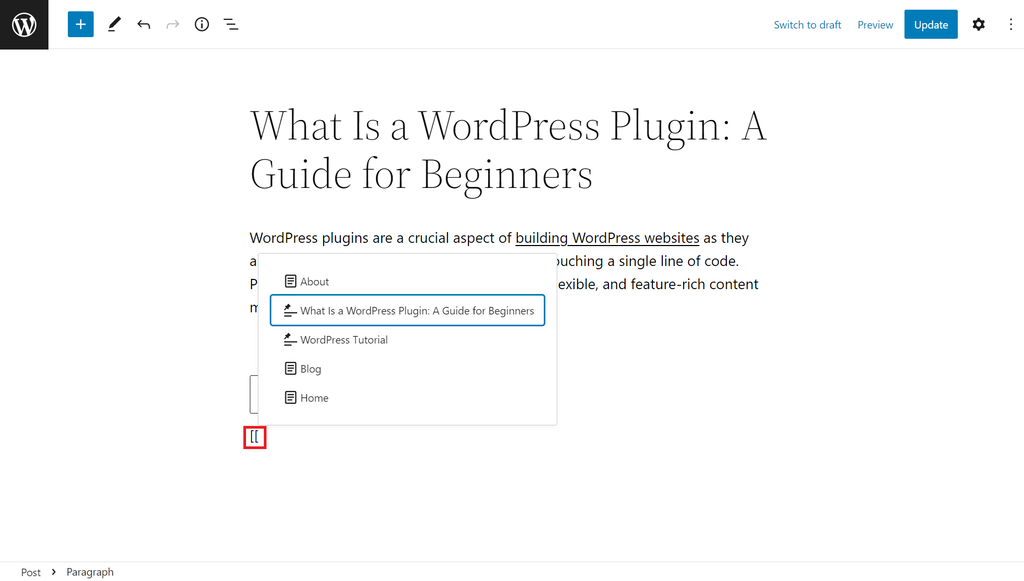
- Select a page or post to insert in the editor.
- Save the changes.
How to Edit and Remove Links
On WordPress, you can also customize existing hyperlinks – replacing an existing one, removing it, or making a link nofollow. This feature is especially helpful for fixing broken links on your WordPress site.
Even though you have to use the HTML code editor, the process is as simple as adding links. Simply follow the steps below:
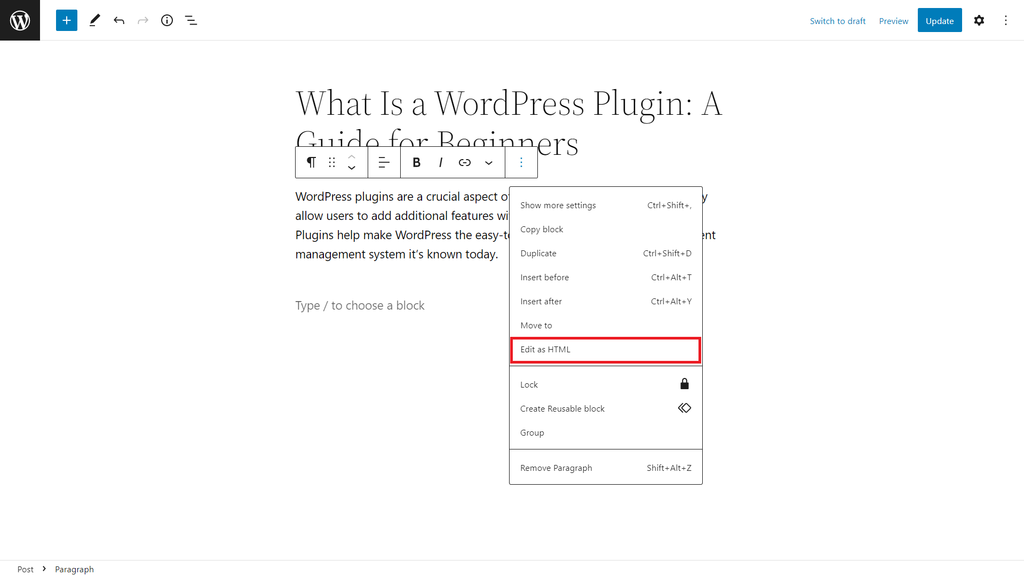
- Open the post or page and click the three vertical dots icon on the block toolbar. Select Edit as HTML to switch to the code editor.
- Add rel=”nofollow”, the nofollow tag attribute, after the link. See the example below:
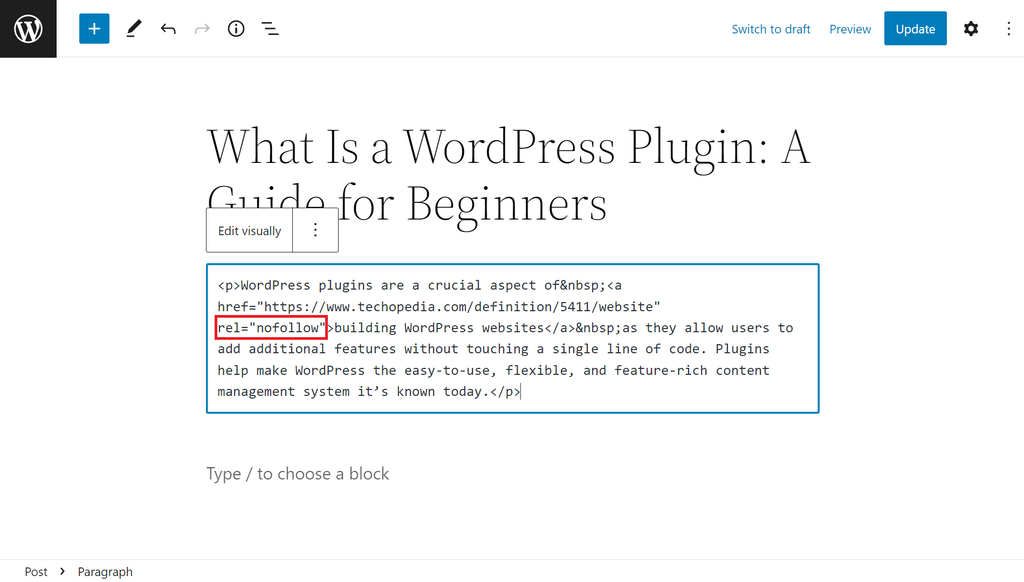
- Next, click Edit visually to switch back to the visual editor. Then, save the changes.
Another simple way to add nofollow tags is by using a plugin like AIOSEO. It will display Add “nofollow” to link right under the Open in new tab option, so you only need to toggle the button.
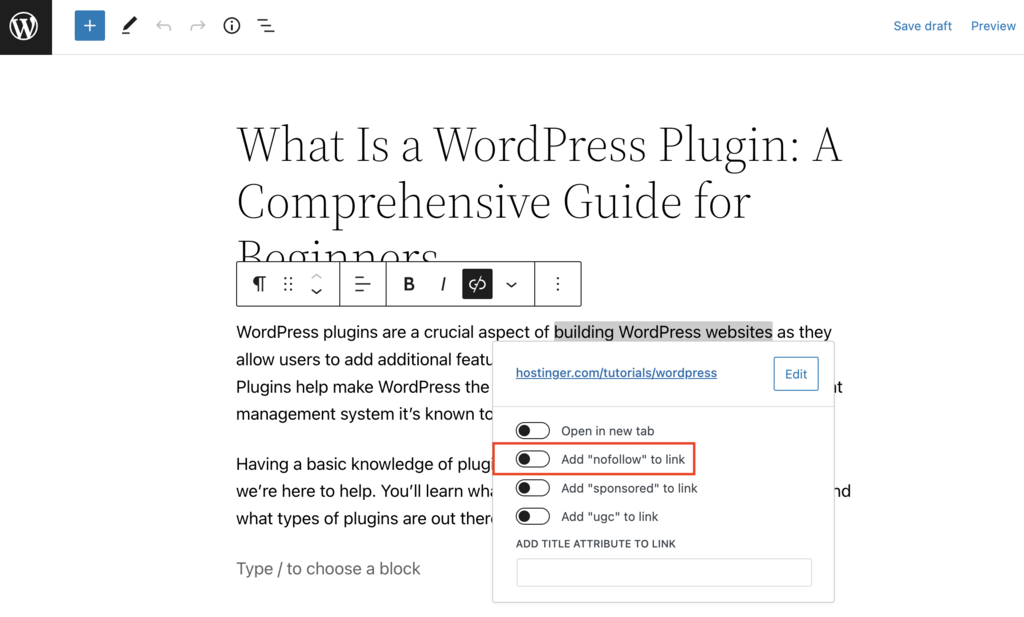
If you host your website at Hostinger, note that the plugin comes pre-installed with all WordPress hosting accounts.

Adding Links to Buttons
Aside from text, you can also embed linked content to a button in WordPress by following these steps:
- From the WordPress dashboard, navigate to the desired web page or post.
- Insert the Button block into the editor by typing /buttons.
- Add the button text and click the Link icon on the block toolbar.
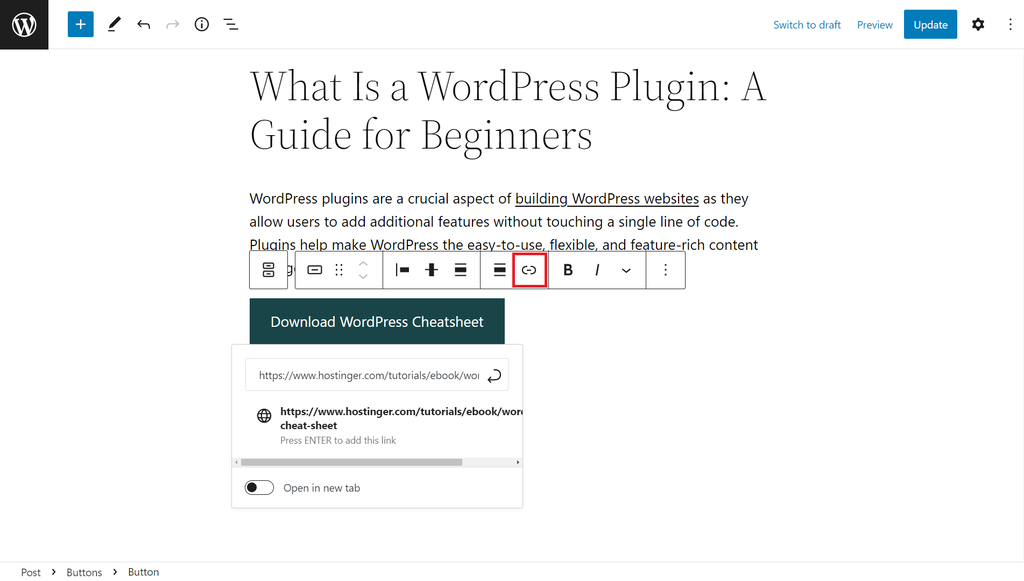
- Type or paste the URL. If desired, toggle the Open in new tab button.
- Click the Submit button or press Enter to confirm. Once you’re done, save the changes.
Adding Links to Images in WordPress
Adding a link to an image is necessary if, for example, you include product images in a blog post. It allows you to link directly to the page where readers can buy the product or find existing content about it.
Suggested Reading
Complete Guide to Image Optimization for Better Website Performance.
To add a link to an image, follow the detailed guide below:
- Insert an Image block to your post or page by typing /image.
- After uploading an image, navigate to the block toolbar and click Insert link.
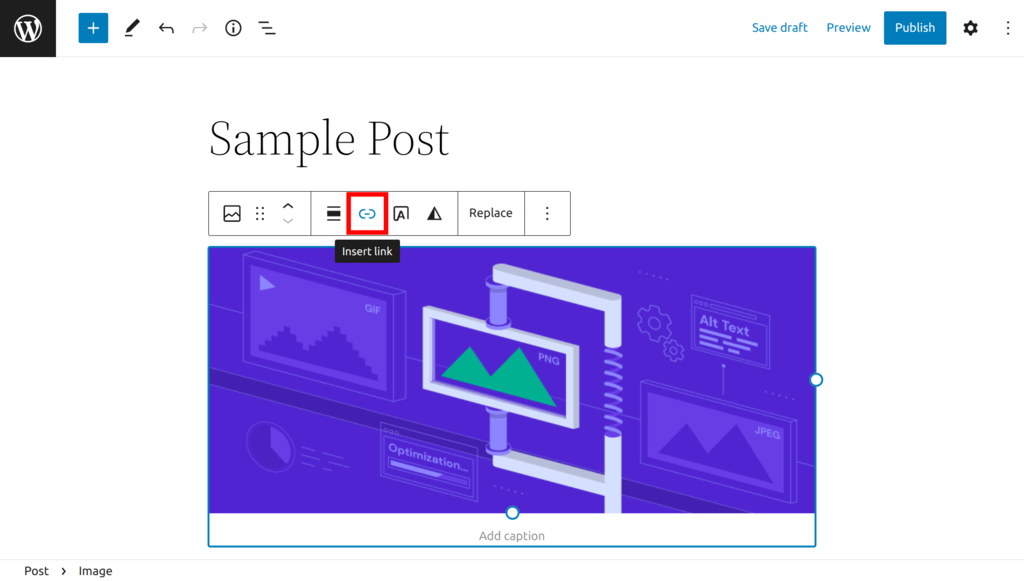
- Paste the link into the box. Then, click the Submit button or press Enter.
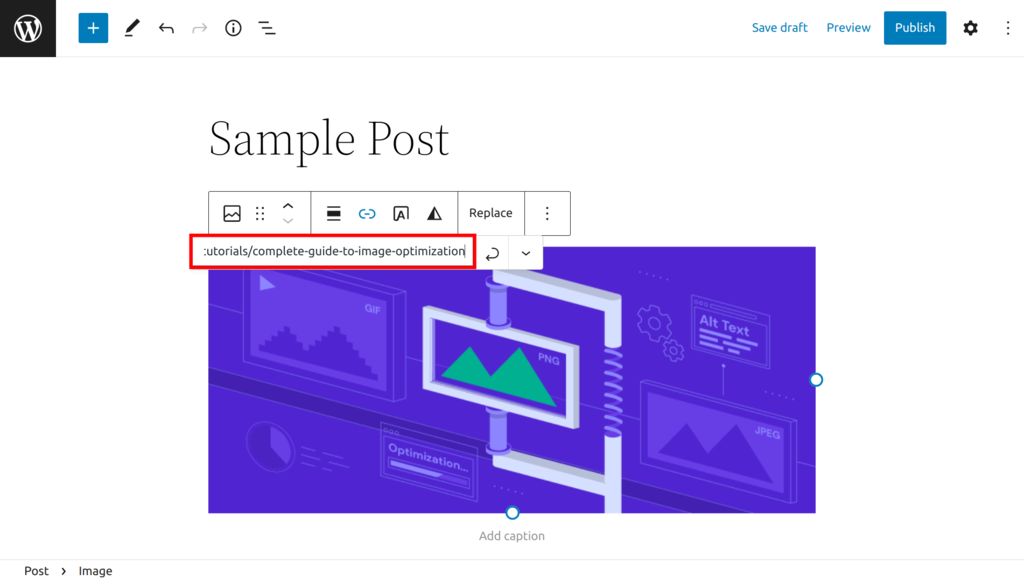
- Save the changes.
Adding Links to WordPress Widgets
Inserting links into your WordPress widgets is another way to help visitors navigate your website’s content. For example, you can add blog post links to a page’s footer or sidebar.
However, note that each WordPress theme handles widget customization differently. In this section, we will show you how to add a link to a widget title using the Twenty Twenty theme.
- Go to Appearance → Widgets and select a widget. For this example, we will use the Footer #1 widget.
- Highlight the text where you want to embed the link. Click the Link button on the toolbar.
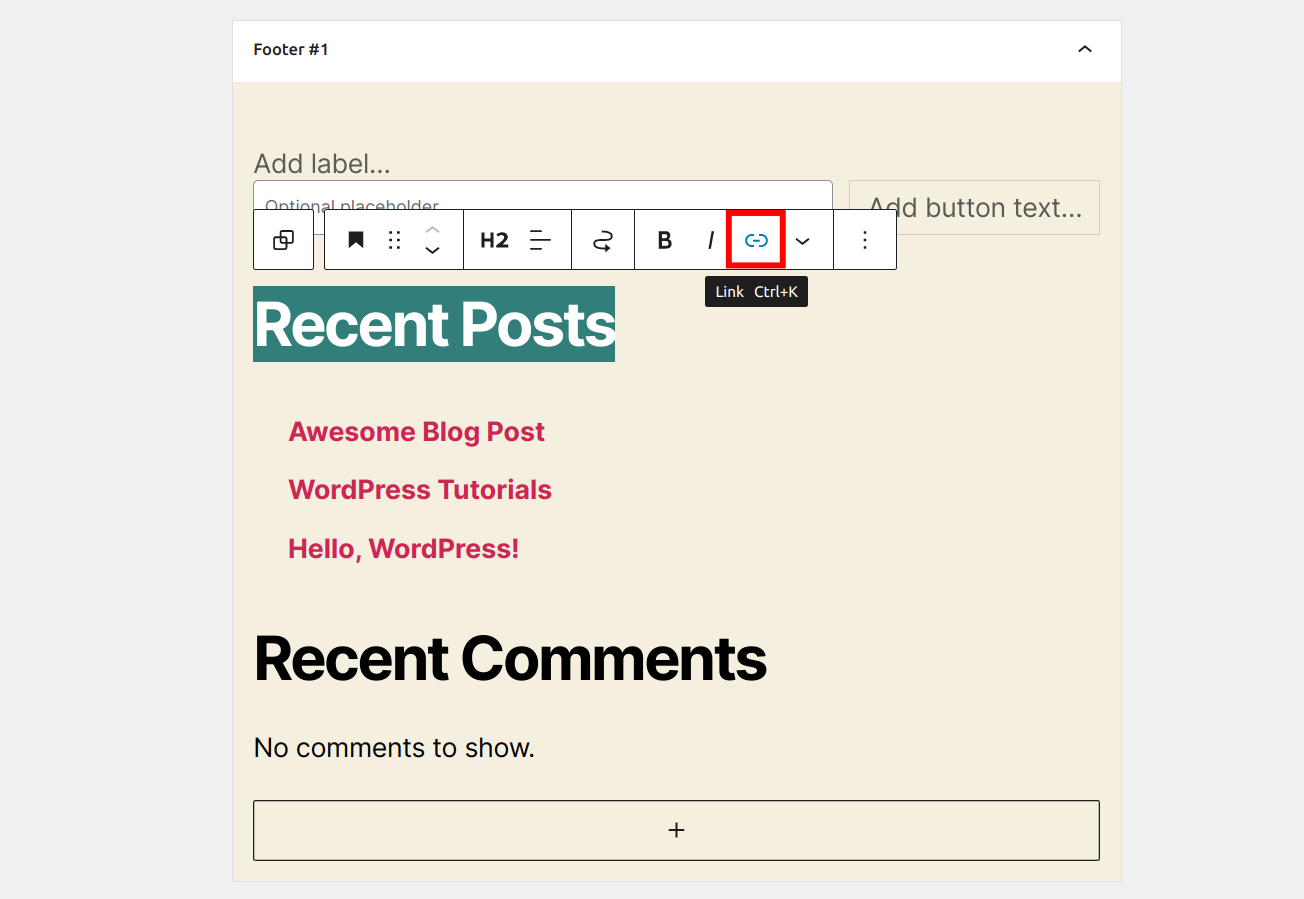
- Type or paste the URL into the box and press Enter. Toggle the Open in new tab option if desired.
- Save the changes.
Conclusion
WordPress linking is an important step in building an engaging and accessible site. It helps improve its navigation for both site visitors and search engines.
Fortunately, users can use various methods for adding and editing links in WordPress:
- Using the link button, copy and paste shortcuts, or square brackets.
- Adding a link to buttons and images.
- Embedding links into your website widgets.
We hope this tutorial has helped you understand how to add links in WordPress. If you have any questions, let us know in the comments section below. Good luck!

Information Technology and web development are Yoga's passions. He loves nothing more than sharing his experience with readers, and helping them to understand the world of IT. In his spare time, Yoga likes to make music and learn to code. He is always looking for new challenges, and enjoys pushing himself to learn new things.



Comments
December 05 2024
Highlight the text where you want to embed the link. Click the Link button on the toolbar. I've got this far. Where is the toolbar?
December 11 2024
Hi there! The toolbar refers to the set of editing tools that appear at the top of the block or content area you're working on. To embed a link, highlight the text you want to link, then click the chain icon in the toolbar. A field will appear where you can paste or type the URL for your link ;)
January 07 2025
hii, how to add link in title. i want to add link in title.
January 09 2025
Hello! In WordPress, you can’t directly add a link to the page title. However, you can use a custom menu to add a custom link to your navigation. For detailed steps on how to add custom links, check out this guide: Adding Custom Links :)