How to fix the ERR_SPDY_PROTOCOL_ERROR in Google chrome: 7 solutions
Dec 02, 2025
/
Noviantika G.
/
5 min Read
Encountering the ERR_SPDY_PROTOCOL_ERROR in Chrome can be irritating for website visitors. The message indicates the browser’s inability to connect to the web server using the SPDY protocol.
This error prevents a visitor from accessing a site, which may harm its web traffic volume.
Fortunately, solving the ERR_SPDY_PROTOCOL_ERROR is relatively easy. In this article, we will explain what it is, its possible causes, and seven ways to fix ERR_SPDY_PROTOCOL_ERROR.

| Error code | Connection refused |
| Error type | Network communication protocol error |
| Error causes | Network problem Incorrect SSH installation Wrong credentials Security system configuration |
What Is the ERR_SPDY_PROTOCOL_ERROR?
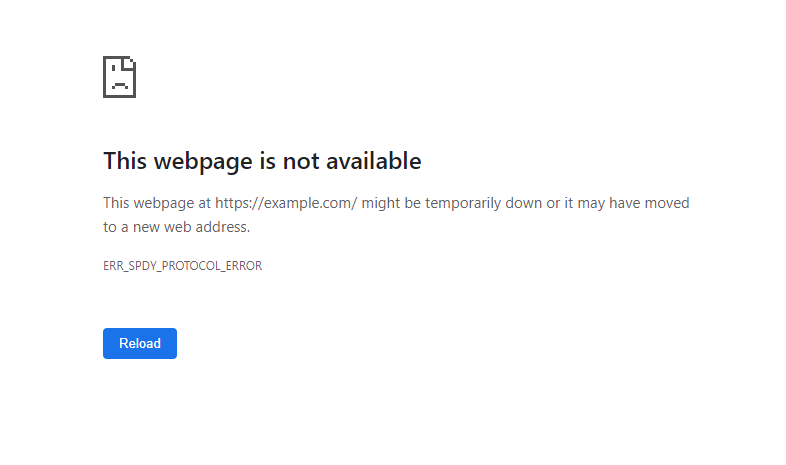
SPDY was a pre-installed application-layer protocol on Google Chrome that utilizes the Transmission Control Protocol (TCP) to transport web content. Developed by The Chromium Projects, it was designed to reduce latency and increase loading speed.
But as the adoption of HTTP/2 became widespread, browsers, including Google Chrome, began ending support for SPDY. Currently, no modern browser supports SPDY, making it an obsolete protocol.
However, some users may still encounter SPDY-related errors and receive the ERR_SPDY_PROTOCOL_ERROR page.
In most cases, the ERR_SPDY_PROTOCOL_ERROR is a client-side issue. For instance, the site you are trying to visit may still use the older Hypertext Transfer Protocol (HTTP) connection, or your system is using an outdated browser or cache.

7 Ways to Fix ERR_SPDY_PROTOCOL_ERROR
Before exploring the troubleshooting methods, try these quick fixes first:
- Open a new browser window.
- Check the internet connection.
- Restart the internet router.
If the error persists, try the following methods:
1. Update Your Browser
Using an outdated version of Google Chrome may trigger connectivity and performance issues. We recommend using the latest Chrome release to prevent issues that might contribute to the ERR_SPDY_PROTOCOL_ERROR.
Follow these steps to check your Chrome browser version and update it:
- Open Google Chrome.
- Click the three-dotted menu on Chrome’s top menu bar.
- Select Help -> About Google Chrome.
- If you’re using the newest release, the page will tell you that your Chome is up to date.

However, if a Google Chrome update is available, the system will automatically download and install it.
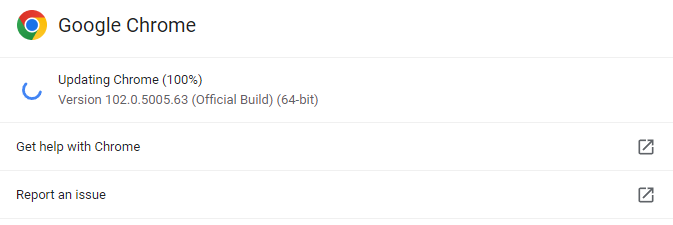
- Once the update is complete, a Relaunch button will appear. Click it to restart the browser and use the latest version.
- Revisit the website to see if the issue persists.
Making your browser version up to date can fix incompatibility and security issues. In most cases, this should solve the ERR_SPDY_PROTOCOL_ERROR problem.
2. Switch to Incognito Mode
If you only encounter the ERR_SPDY_PROTOCOL_ERROR message on a particular website, try visiting it using Chrome’s Incognito mode.
The Incognito mode will not retain cookies, site data, browsing history, and any information you enter into forms. However, bookmarks and downloads are still saved.
Here’s how to switch to Google Chrome’s Incognito mode:
- Open Google Chrome.
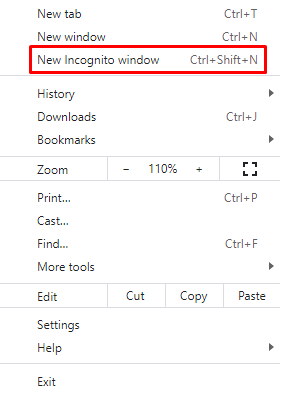
- Select the three-dotted menu on Chrome’s top menu bar.
- Click the New Incognito window option. Alternatively, use the keyboard shortcuts Ctrl + Shift + N.
- Reaccess the web page.
If the problem persists, proceed to the next step.
3. Clear Cache and Cookies
The cache contains browsing history from all the web pages or URLs you have visited. Your browser data may be corrupted, causing the ERR_SPDY_PROTOCOL_ERROR issue. Clearing your browser’s cache is one possible way to solve the problem.
There are two options to choose from – the Basic tab and the Advanced tab. The former will retain saved passwords, auto-fill information, site settings, and hosted app data. The latter option will clear out all information from your browser.
If you can access the site after clearing the browser cache and cookies, it was probably the cause of the issue.
4. Run the Google Chrome Cleanup Tool
The ERR_SPDY_PROTOCOL_ERROR problem may occur because of harmful software installed on the computer. The best way to solve this issue is by running the Chrome Cleanup Tool. It scans the computer and removes unwanted applications interfering with your web browser.
Here’s how to run the Chrome Cleanup Tool:
- Open Google Chrome.
- Click the three-dotted menu on Chrome’s top menu bar.
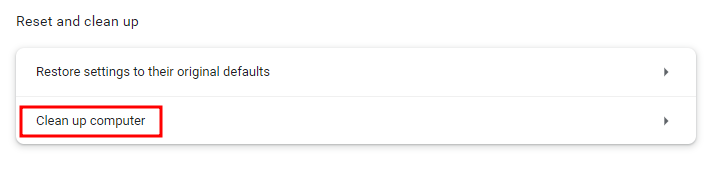
- Select Settings -> Reset and clean up -> Clean up computer.
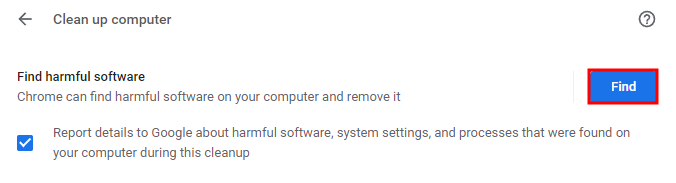
- Click the Find button to start scanning for harmful software on your computer.
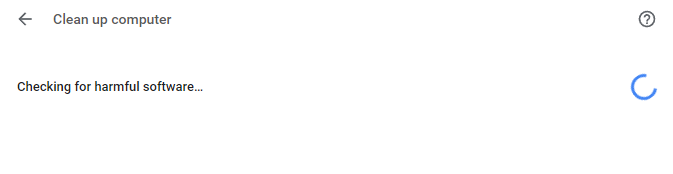
- Wait until the cleanup process is complete.
- Reaccess the website.
5. Flush the SPDY Sockets
A common solution to fix the ERR_SPDY_PROTOCOL_ERROR is flushing the SPDY sockets in Google Chrome. Here’s how to do it:
- Open the Google Chrome browser.
- Copy the URL chrome://net-internals/#sockets and paste it into the Chrome address bar. Press Enter to load the page.
- Select Flush socket pools to flush SPDY sockets.

- Restart the Chrome browser and reaccess the website.
This should allow you to open the web page you are trying to visit. But if the issue persists, try the following method.
6. Flush DNS Cache and Renew the IP Address
If you have tried all the methods above, but the ERR_SPDY_PROTOCOL_ERROR still occurs, the problem may be with the Domain Name System (DNS) configuration.
Try flushing DNS to clear IP addresses or other records from your DNS cache to fix it. Then, reboot the computer before reaccessing the same website for the best results.
Additionally, renewing the IP address may also solve the SPDY protocol error. Here’s how to do it on Windows:
- Open Command Prompt using the search bar. Alternatively, use the keyboard shortcut Win + R, type in cmd, and press Enter. Make sure to Run as administrator.
- Type the following command to release the old IP address and press Enter.
ipconfig /release
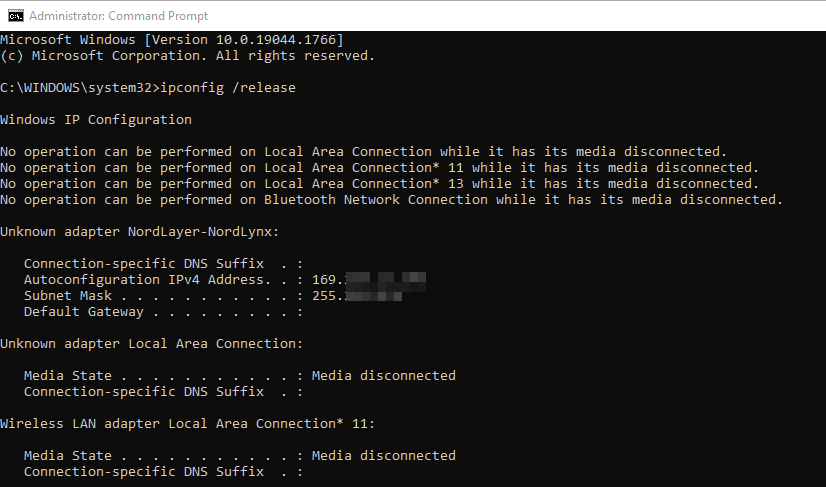
- Enter the command below to renew the IP address.
ipconfig /renew
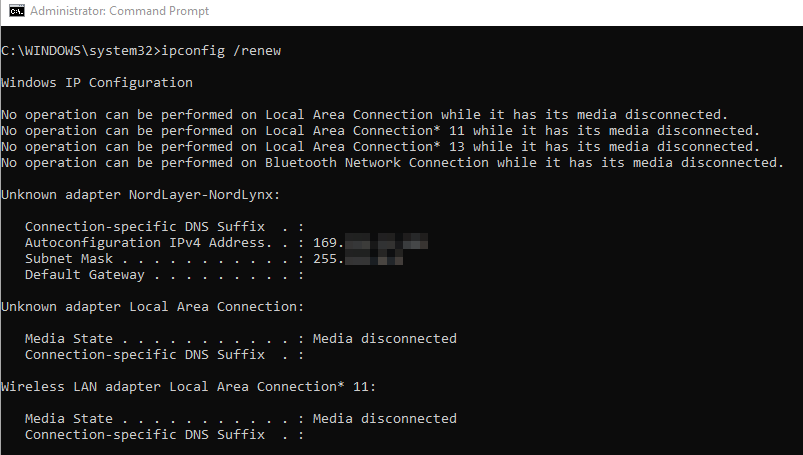
- Try to visit the website again.
Flushing the DNS cache and renewing the IP address should solve the the SPDY protocol issue in most cases.
7. Change the Avast Settings
If you use Avast as your antivirus software, it may cause the ERR_SPDY_PROTOCOL_ERROR message. Although Avast and other antivirus applications protect against security threats, they may disrupt your network connection and block access to specific sites.
Remember that fully disabling antivirus software may expose your device to malware. So instead, we recommend applying the following configurations – turning off HTTPS scanning, disabling Web Shield, and adding exceptions.
Follow these steps to disable the HTTPS scanning feature:
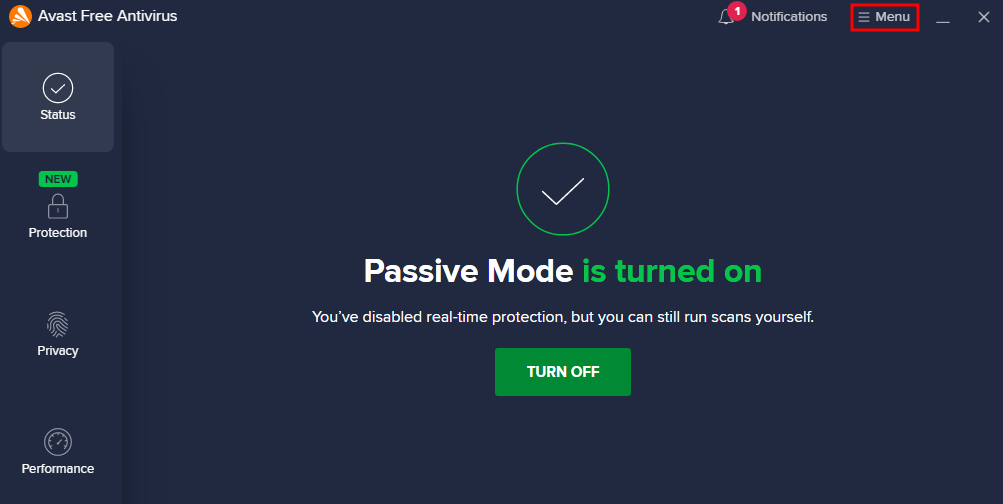
- Open Avast and open Menu in the window’s upper-right corner.
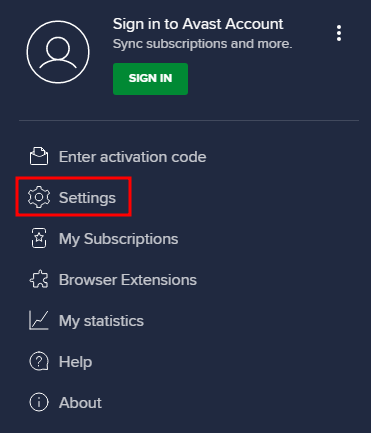
- From the drop-down menu, choose Settings.
- Select Protection -> Core Shields.
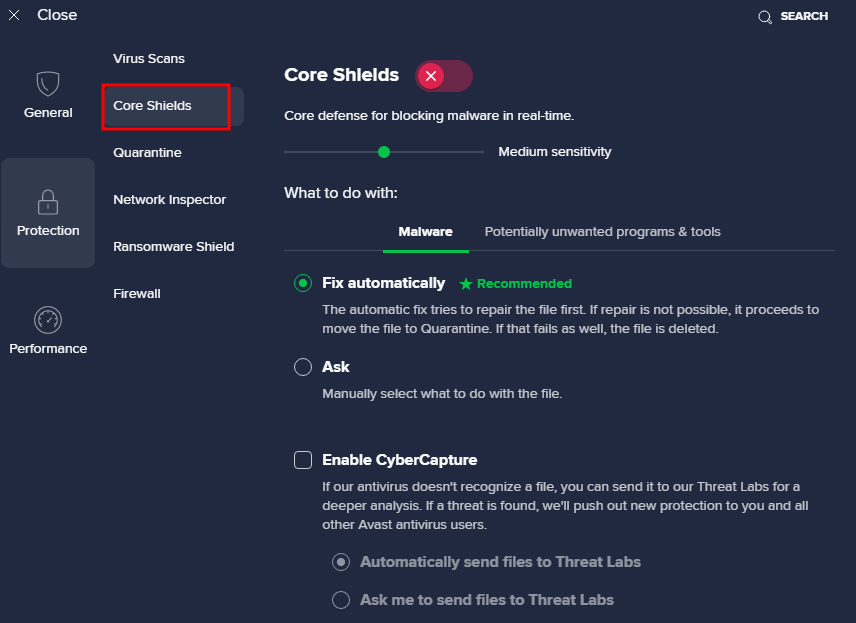
- Scroll down to the Configure shield settings tab and select Web Shield.

- The Enable HTTPS scanning option is on by default. Uncheck the box to disable it.

Here’s how to turn off Web Shield:
- Open Avast and click the Menu button in the window’s upper-right corner.
- Select Settings -> Protection -> Core Shields.
- Scroll down to the Configure shield settings tab and choose Web Shield.
- Uncheck the Enable Web Shield option to disable it.

- The Web Shield is off.
Follow these instructions to add exceptions:
- Open Avast and go to Menu in the window’s upper-right corner.
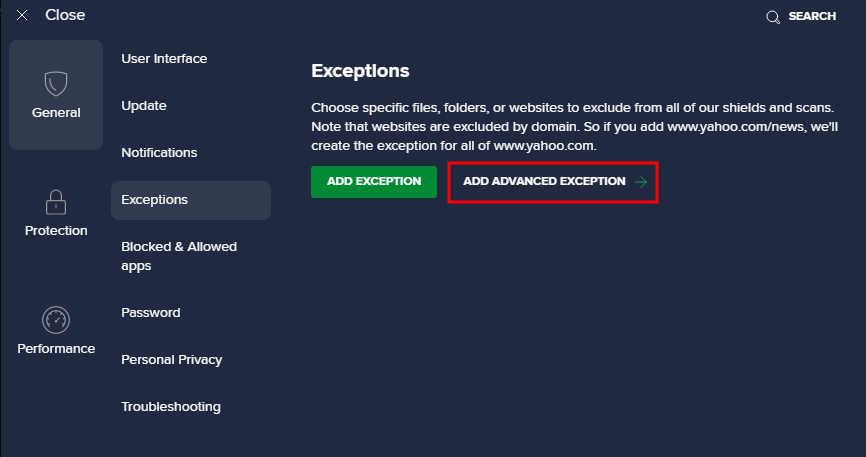
- Go to Settings -> General -> Exceptions.

- Click the Add Advanced Exception button.
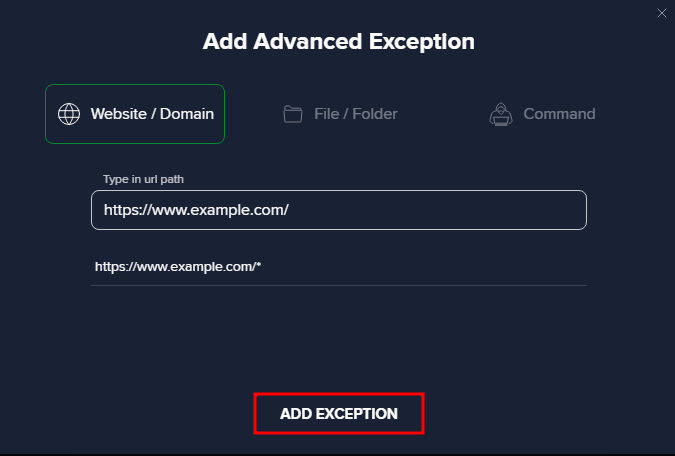
- Choose the Website/Domain tab.

- Enter the URL of the site you want to exclude from the antivirus protection and click the Add Exception button.
If disabling antivirus software fixes the issue, consider switching to a different security program.
Other Errors Similar to ERR_SPDY_PROTOCOL_ERROR
How to Fix ERR_NAME_NOT_RESOLVED
How to Fix ERR_CONNECTION_REFUSED
How to Fix ERR_CONNECTION_TIMED_OUT
How to Fix ERR_CONNECTION_RESET
Conclusion
ERR_SPDY_PROTOCOL_ERROR may be a common problem for Google Chrome users. This error message usually occurs when the browser can’t support the SPDY protocol when connecting to the target web server.
The error has several possible causes. For example, the site you are trying to visit uses an HTTP connection, or your browser is outdated or has a cache issue.
This tutorial has covered seven methods to troubleshoot this error. We recommend trying all of them to solve the problem.
We hope this article has helped you solve ERR_SPDY_PROTOCOL_ERROR in Chrome. If you have any questions or suggestions, please leave them in the comments section below.
ERR_SPDY_PROTOCOL_ERROR FAQs
Here are the answers to some frequently asked questions about the error.
Does the ERR_SPDY_PROTOCOL_ERROR Only Happen in Google Chrome?
No, the ERR_SPDY_PROTOCOL_ERROR error can occur in any web browser that uses the SPDY protocol to establish secure connections, including Google Chrome, Mozilla Firefox, and Opera. However, the error is more commonly associated with Google Chrome, which was one of the first browsers to adopt the SPDY protocol.
How Can I Prevent ERR_SPDY_PROTOCOL_ERROR From Happening?
To prevent ERR_SPDY_PROTOCOL_ERROR, try disabling the SPDY protocol in the web browser settings and using the traditional SSL/TLS protocol instead. Clearing browser cache and cookies, disabling browser extensions, and updating the browser to the latest version can also help resolve the error.

Noviantika is a web development enthusiast with customer obsession at heart. Linux commands and web hosting are like music to her ears. When she's not writing, Noviantika likes to snuggle with her cats and brew some coffee.