What is Gravatar? How to set up and manage your profile image
Mar 10, 2026
/
By Wanda C. & Aris S.
/
4 min Read
Gravatar, or Globally Recognized Avatar, is a free tool that connects image avatars with email addresses to maintain visual identity across platforms. Instead of managing separate profile pictures for every website you join, this service centralizes your online persona, allowing a single image to follow you across the web.
This consistency saves time and builds authority and trust, making your comments and interactions instantly recognizable. Gravatar is integrated into major platforms like WordPress, GitHub, and Stack Overflow.
To use Gravatar, you must create an account and associate your image with your email. Website owners can enable it using their platform’s built-in feature or custom code. Users can only change their avatar through Gravatar itself – platforms like WordPress don’t offer this feature by default.
What is Gravatar?
Gravatar is a cross-platform avatar linking service. It functions as a centralized avatar manager, allowing you to upload an image that serves as your identity across various online platforms that support it.
When you post a comment on a WordPress blog or commit code to GitHub, the site checks your email address. If that email is associated with a Gravatar account, the site pulls your profile picture service data and displays your image.
Gravatar eliminates the need to manage a separate local avatar for every account you own, which makes it easier to maintain consistent branding.
Benefits of using Gravatar
The advantages of using Gravatar extend beyond enhancing the aesthetic of your profiles. Gravatar improves personal brand visibility by ensuring your visual identity remains constant, whether you are commenting on a blog or participating in a forum.
It also allows users to recognize and associate your accounts instantly, which helps improve trust and authority within your niche.
Furthermore, it streamlines profile management because your avatar on all platforms will automatically update when you change the avatar on the Gravatar dashboard.
Additionally, Gravatar is free and easy to set up.
Where is Gravatar used?
Gravatar is used across platforms and websites that support it, with some using it as the default avatar engine. Major sites include:
- WordPress – Displays your Gravatar in author profiles and comments
- GitHub – Appears on your profile, in commits, pull requests, and comments
- Slack – Uses Gravatar as the default profile picture
- Disqus – Shows your avatar in the comment system
- Stack Overflow – Displays your avatar when you post questions or answers
Your avatar appears automatically on these platforms when you use the email address associated with your Gravatar account.
How to set up a Gravatar account
To set up a Gravatar account, follow these steps:
- Visit the Gravatar website and click Get Started Now.
- Enter the email address you want to connect with Gravatar.
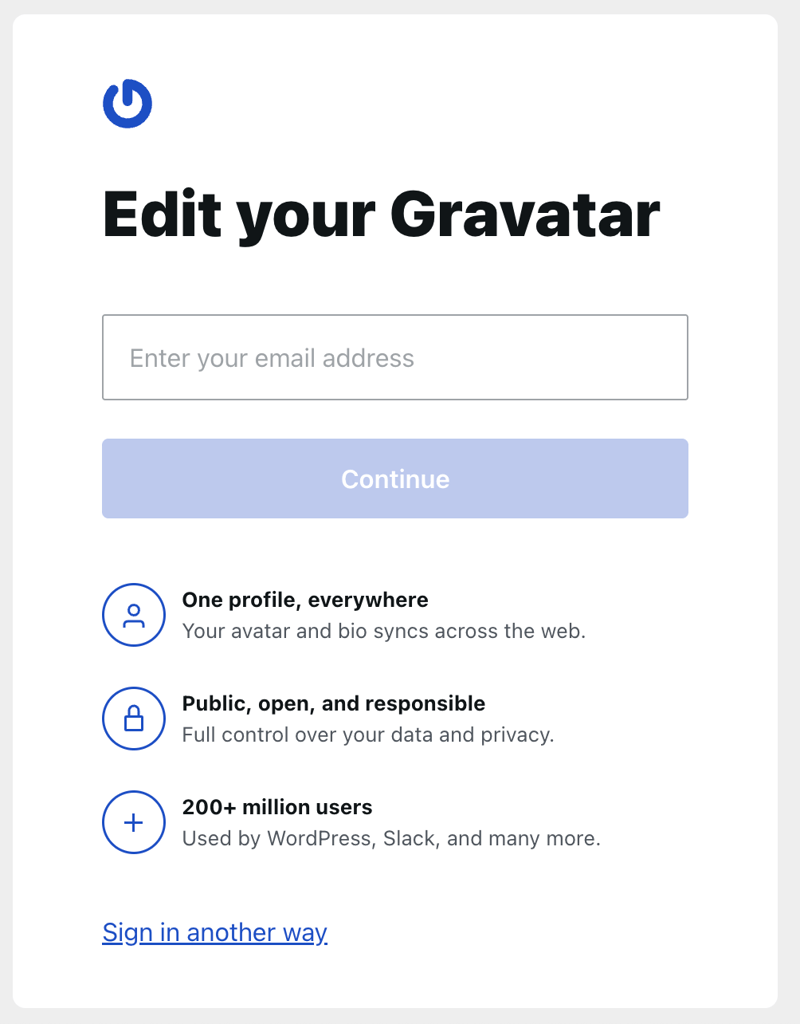
- Enter the verification code, which will be sent to your email address’s inbox.
- In the configuration wizard, add your full name and hit Continue.
- Click Upload and select the image you want to set as your avatar.
- Adjust your image to your preferences and hit Done and Continue.

- Optionally, add more details, such as your location and biography, to your profile. Hit Continue to confirm.
- Connect other accounts by clicking their icons, or select Do this later.
- Customize your profile further by selecting a color theme and adding a header image. Click Finish! once done.
Your avatar is now linked to your email address and will appear on any platform where you use that email and Gravatar is enabled.
How to enable Gravatar on your site
The setup process varies by platform. WordPress has built-in Gravatar support, so no plugin is needed.
Here’s how to enable Gravatar in WordPress:
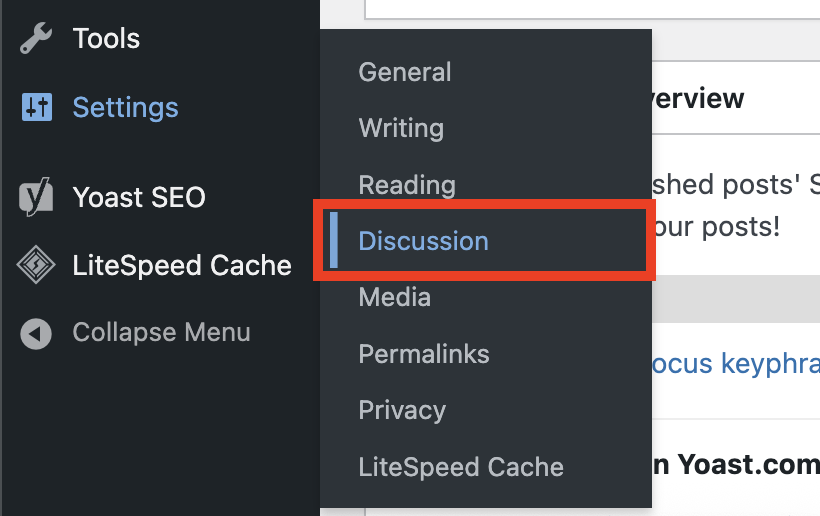
- Open your WordPress admin dashboard and navigate to the sidebar → Settings → Discussion.
- Scroll down to the Avatar Display section and check the box next to Show Avatars.
- Navigate to the Default Avatar setting and select Gravatar Logo.
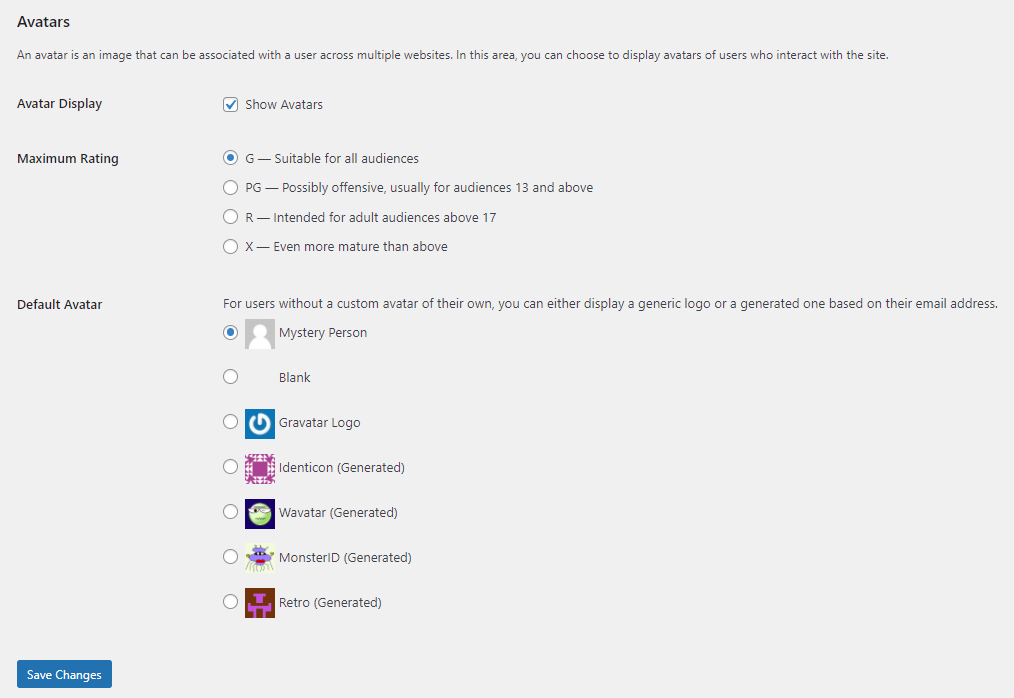
- Click Save Changes at the bottom of the page.
Users with Gravatar accounts will now see their avatars automatically. Users without Gravatar will see WordPress’s default “Mystery Person” icon.
Important! Before proceeding further, back up your WordPress site in case something goes wrong.
Replace the “Mystery Person” icon with your own custom image, add the following code snippet to your theme’s functions.php file. Remember to replace https://your-domain.tld/wp-content/uploads/custom-avatar.png with the actual path of your image in your WordPress media library:
function custom_add_avatar( $avatar_defaults ) {

   $new_avatar_url = 'https://your-domain.tld/wp-content/uploads/custom-avatar.png';

   $avatar_defaults[ $new_avatar_url ] = 'My Custom Default Avatar';

   return $avatar_defaults;

}

add_filter( 'avatar_defaults', 'custom_add_avatar' );
If you can’t find the image path, the easiest way to do it is by opening the WordPress Media Library. Then click the image to open the Attachment details window and find the File URL on the right pane.

If a user removes their Gravatar image, WordPress will show the custom default image instead of the Mystery Person icon.
How to change and manage your Gravatar image
Changing and managing your Gravatar image is typically done through the Gravatar website, as WordPress doesn’t let you edit avatars directly. However, several plugins enable you to override this behavior or manage avatars locally:
- Simple Local Avatars: Adds an avatar upload field directly to user profiles, useful if users prefer hosting images on your own server.
- Gravatar Enhanced. Provides a simple interface for users to manage their Gravatar profile directly from WordPress.
After installing and activating your chosen plugin, you should see a new menu on your WordPress admin dashboard, which may be nested within other settings. Since the menu differs depending on the plugin, check its manual for more information.

What to do after setting up your Gravatar?
Setting up Gravatar establishes a consistent visual identity across WordPress sites – from author profiles and comment sections to contributor pages.
Your avatar becomes part of your WordPress presence, making you instantly recognizable whether you’re publishing content, commenting on blogs, or collaborating on projects.
However, Gravatar is just one piece of building a complete WordPress presence. If you’re looking to create a professional website that represents your brand or business, check out our comprehensive guide on how to use WordPress to build a website that covers everything from installation to customization.

Wanda enjoys helping people become more successful online by sharing her expertise in digital marketing and website development. In her free time, she loves reading mystery books, thrifting for vintage clothes, and exploring aesthetic cafes.

Aris is a Content Writer specializing in Linux and WordPress development. He has a passion for networking, front-end web development, and server administration. By combining his IT and writing experience, Aris creates content that helps people easily understand complex technical topics to start their online journey. Follow him on LinkedIn.



Comments
0 responses