How to create coupon codes in WooCommerce
Mar 10, 2026
/
Dennis H.
/
7 min Read
Offering discounts is one of the most effective ways to attract new customers and boost sales. With WooCommerce, you can easily create and manage coupon codes that fit your business goals.
In this guide, you’ll learn how to create coupon codes in WooCommerce step-by-step. We’ll walk through the different types of discounts available, how to configure settings like usage limits and restrictions, and share best practices to help you get the most out of your promotions.
Understanding WooCommerce coupon codes
WooCommerce coupon codes let you offer discounts and incentives to customers shopping at your ecommerce store. They can help you boost sales, clear inventory, or encourage customers to come back for repeat purchases.
Coupon codes are flexible and easy to set up in WooCommerce – it only takes a minute, and there are multiple ways to customize deals for your audience.
Types of WooCommerce coupons
WooCommerce supports several different coupon types.
- Percentage discount. Offers customers a certain percentage off the total price. For example, “20% off your order.”
- Fixed cart discount. Provides a fixed dollar amount discount applied to the entire shopping cart. For example, “$10 off orders over $50.”
- Fixed product discount. Gives customers a fixed amount off specific items rather than the whole cart.
- Free shipping. Eliminates the shipping cost, either storewide or based on specific conditions.
Key components of WooCommerce coupons
Every WooCommerce coupon has the following important elements.
Coupon code. The unique code customers enter at checkout to redeem the discount.
Discount value. Specifies the amount or percentage of discount applied.
Expiration date. Defines when the coupon expires. You can leave this blank to let the coupon remain open indefinitely.
Usage restrictions. This lets you define conditions for coupon use, such as:
- Minimum price – how much the customer must spend to receive the discount.
- Maximum spend – the most a customer can spend to receive the discount.
- Individual use – whether the coupon can be used with other coupons.
- Exclude sale items – whether the coupon should apply to items on sale.
- Products – specific products that the coupon applies to.
- Exclude products – specific products that the coupon does not apply to.
- Product categories – specific categories that the coupon applies to.
- Exclude categories – specific categories that the coupon does not apply to.
- Allowed emails – email addresses of particular customers who may use the coupon, as a purchase reward, for example. A plugin may be used to specify emails of customers who cannot use a coupon.
- Product brands – specific brands that the coupon applies to.
- Exclude brands – specific brands that the coupon does not apply to.
Usage limits. This lets you set controls for the coupon’s usage, such as:
- Usage limit per coupon – how many times the coupon can be used.
- Limit usage to X items – the maximum number of items the coupon can apply to.
- Usage limit per user – how many times the coupon can be used by a particular customer.
How to create coupons in WooCommerce
WooCommerce makes it simple to create custom coupons without needing an additional plugin. If this is your first time using the platform, check out our full WooCommerce tutorial.
Let’s walk through the steps to build your first coupon!
1. Enabling coupons in WooCommerce
Before you can create a coupon, you’ll need to enable them in WooCommerce.
- Navigate to WooCommerce → Settings.
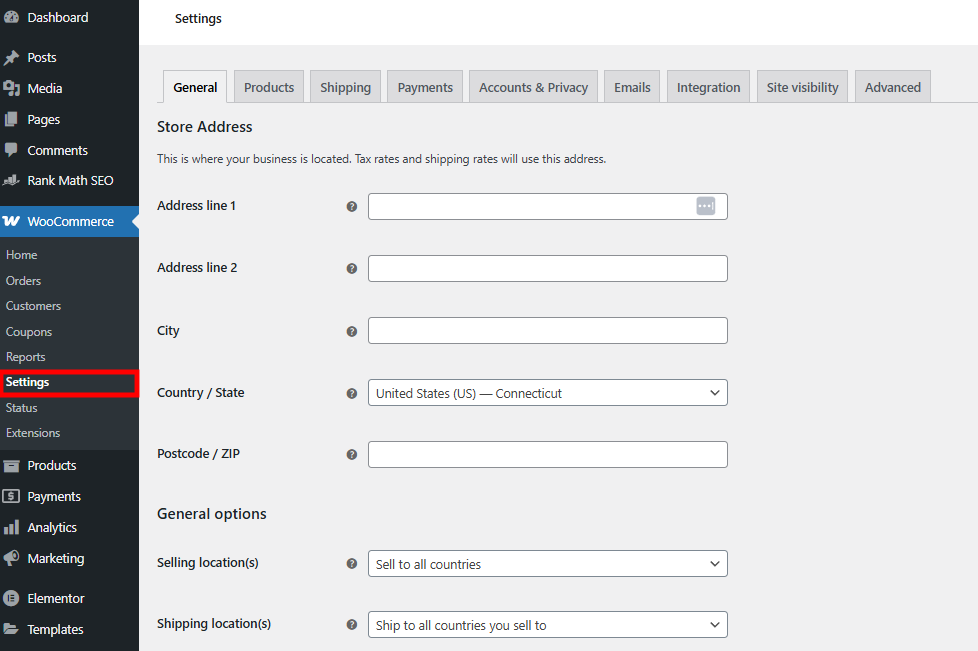
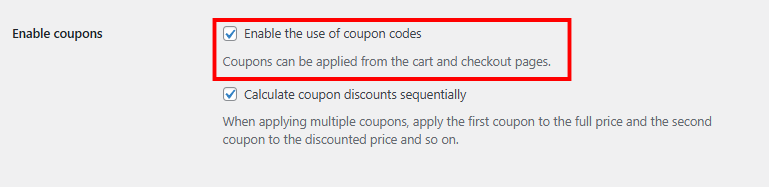
- Scroll down to the Enable Coupons section and check the box next to “Enable the use of coupon codes.”
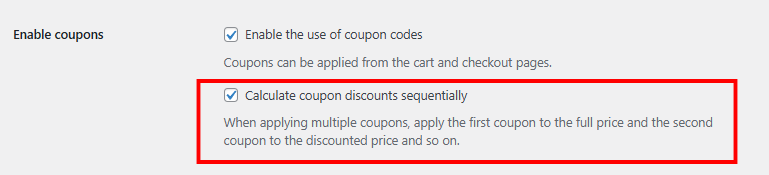
- Check the box next to Calculate coupon discounts sequentially if you want WooCommerce to apply the first coupon to the full price and subsequent coupons to the discounted price. Leave it unchecked if you want all coupons applied to the full price.
2. Creating a coupon code
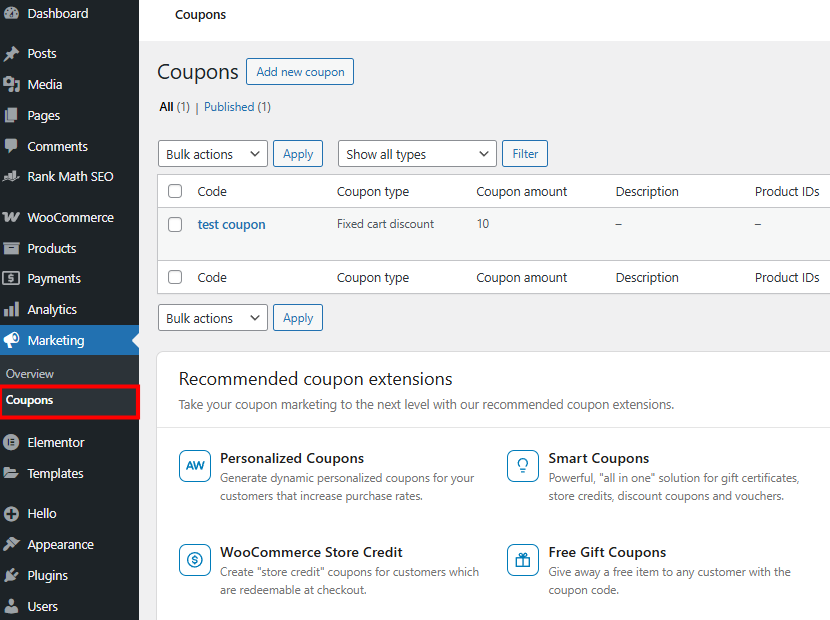
- Go to Marketing → Coupons.
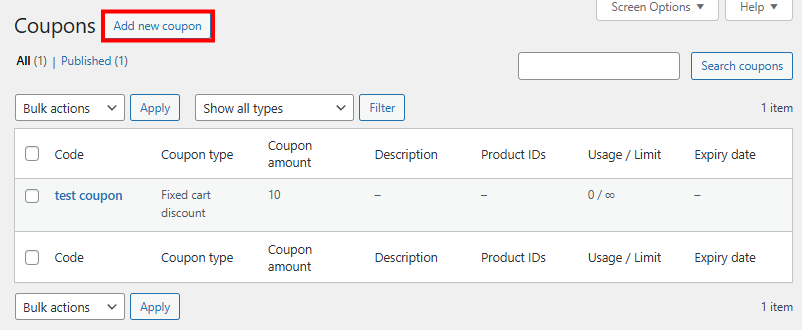
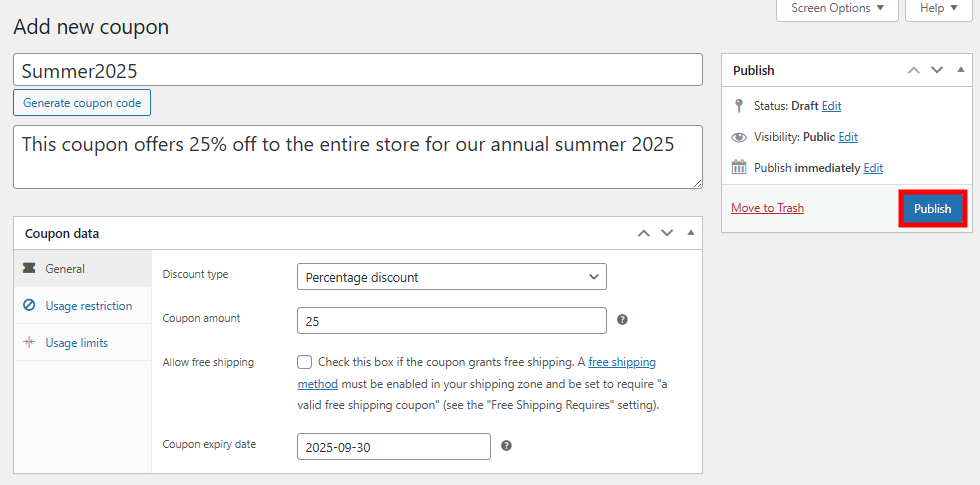
- Click Add new coupon.
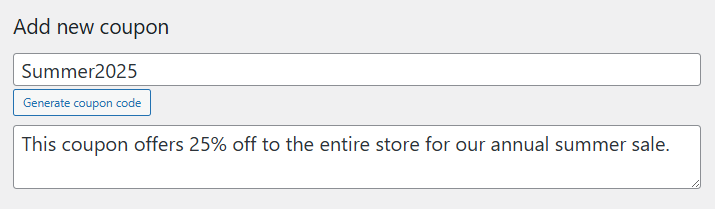
- Enter the coupon code that customers will use to receive their discount. If you prefer, the Generate coupon code button will produce a code made from random numbers and letters. You can also enter a description to help you remember what the code is for, though it’s never visible to customers.
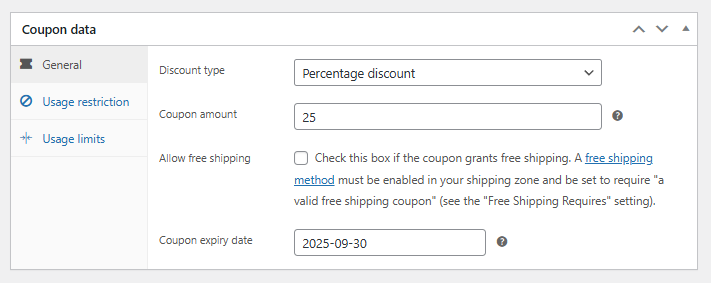
- In Coupon data → General, set the discount type, coupon amount, free shipping (if any), and expiration date. In this example, we set a 25% off discount that expires on September 30, 2025.
3. Setting usage restrictions
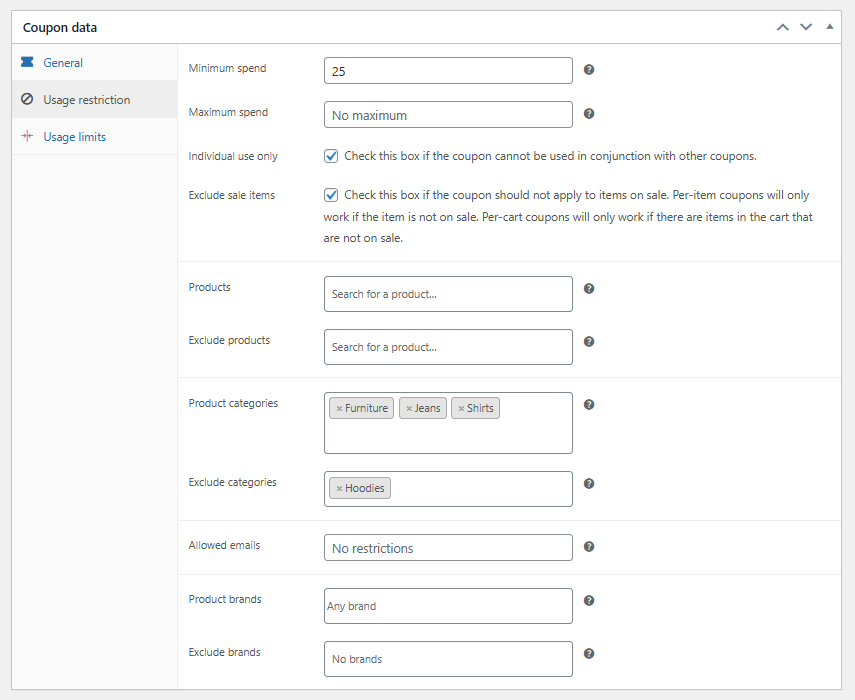
In Coupon data → Usage restrictions, you can set restrictions for how the coupon can be used.
You can designate minimum and maximum spending requirements, limit one coupon per use, exclude sale items, and set it to apply (or not apply) to specific products, categories, brands, or users.
In the example image below, customers must spend $25 to earn the coupon, but there’s no maximum spend so it will apply to the entire cart, regardless of the total. It applies to products in the Furniture, Jeans, and Shirts categories, but not the Hoodies category.
4. Defining usage limits
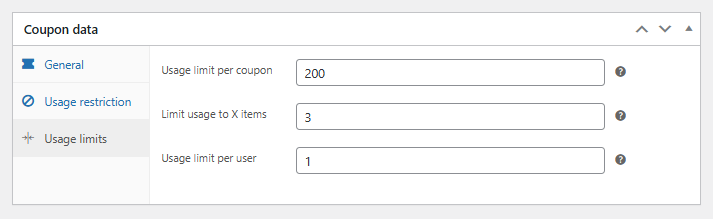
In Coupon data → Usage limits, you can specify how many times the coupon can be used per customer. You can also set the number of products it applies to at one time.
In our example, the coupon can be used 200 times in total, but only once per user. It also only applies to three qualifying items in the cart.
When you’re satisfied with your coupon settings, click Publish.
Why you should use coupon codes in your WooCommerce store
People love coupons. 92% of US shoppers use coupons at least once a year. The global market for mobile coupons is expected to reach $1.6 trillion by 2030.
While it’s possible to grow an online store without using coupons, discounts play a role in most businesses’ marketing strategies because they:
- Drive sales. Coupons motivate customers to complete purchases. This increases sales, especially during slower periods.
- Enhance customer relationships. Offering personalized discounts builds loyalty, makes customers feel valued, and encourages repeat business.
- Gain valuable marketing insight. Tracking coupon performance helps you understand customer preferences, behaviors, and the effectiveness of your marketing campaigns.
- Attract new customers. Discounts and special offers can entice new visitors to make their first purchases. This expands your customer base since people like to buy from familiar places.
- Clear inventory. Coupons help you sell slow-moving or seasonal inventory more quickly. This is a great way to free up space and resources.
- Reduce cart abandonment. Customers are less likely to abandon their carts when they have access to immediate savings.
- Boost average order value. Incentives like discounts on higher-spending thresholds can encourage customers to increase the size of their orders.
Best practices for WooCommerce coupon management
Now that you know how to create coupon codes in WooCommerce, let’s cover some best practices to help you create codes that meet your goals.
Set clear goals for your coupons
Before creating a coupon, define exactly what you want to accomplish. Are you trying to acquire new customers, encourage repeat business, or clear excess inventory? Setting goals helps you choose the right coupon type.
For example, if you want to attract new customers, offer a generous first-time discount, such as 25% off the initial order, but set the code to work only once.
Use simple and memorable codes
Coupon codes should be easy to remember, type, and share with others. Keep your codes short, clear, and relevant to reduce frustration at checkout.
For instance, X3YZQ89F is a poor code because it doesn’t give the customer any information and it isn’t easy to read or remember.
SUMMERSALE20 is a great code because it relates to the sale and its value, and is easy to type.
Set reasonable expiration dates
Expiration dates create a sense of urgency and encourage customers to act promptly. However, you must make sure the timeframe matches the customer’s shopping behavior and your promotional goals.
For example, a flash sale coupon may expire in just a few days, whereas a welcome discount for new customers should last for a month.
Use restrictions strategically
Use restrictions to create coupons that target specific customer segments or purchase behaviors. The goal is to use them to support your business’s needs.
Suppose some of your products are only profitable by a small margin. It would be smart to exclude them from your coupon. Have inventory you want to clear out? Discount those products heavily to make space.
Track coupon performance and adjust accordingly
Monitor coupon usage through WooCommerce data or Google Analytics integration. Pay close attention to metrics like redemption rates, conversion rates, and average order value.
You can use this data to spot problems, such as customer abuse or incorrectly configured coupons. You can also analyze why certain promotions were successful so you can replicate them in the future.
Monitor for abuse or misuse
Keep an eye out for signs of abuse, such as unusually high redemption rates from single users, or coupon codes posted publicly without permission.
If you spot a problem, add usage limits, expiration dates, or customer-specific restrictions, provided they don’t conflict with the original promise of your promotion. In rare cases, you may need to cancel a coupon code entirely.
Plan your discounts carefully
Many brands use a calendar to plan their discounts around key dates, events, or seasonal peaks. This helps them cover key moments of the year without accidentally devaluing their products.
Which dates should you celebrate with discounts? The big holidays are important, but consider what matters to your customers. Is there a slow period during the year when they could use a break? A season when they expect to spend a lot?
A/B test your coupons
Conduct A/B testing on your coupons to discover the most effective discount types, values, and messaging. You can test different discount amounts, coupon durations, and even the placement of offers on your website.
For instance, you might test a 20% discount versus a flat $10 off to see which option leads to more conversions. You never know what your customers will find most valuable until you test it.
Personalize your coupon offers
Use personalized coupons (through a coupon plugin) to strengthen customer relationships and increase redemption rates. Tailor these discounts based on customer purchase history, special occasions (like birthdays), or loyalty status. A personalized 15% discount on a customer’s birthday can boost engagement and loyalty significantly.
Conclusion
Creating coupon codes in WooCommerce is a smart way to drive sales, reward loyal customers, and run targeted promotions. WooCommerce’s built-in tools for applying limits and tracking performance makes it easy to manage your store’s coupons without any extra WooCommerce plugins.
Remember to plan your promotions strategically, test different types of offers, and keep an eye on how each code performs. If you manage your coupons well, they can be a powerful tactic in your marketing strategy.
How to create coupon codes in WooCommerce FAQ
How do I prevent coupon code sharing or abuse?
To prevent abuse, use options like limiting coupon usage per user, setting usage restrictions, and enabling email or login requirements. You can also create unique, single-use coupons for specific customers so they’re not shared publicly or used more than intended.
Can WooCommerce coupons work with subscription products?
Yes, WooCommerce coupons can be used with subscription products if you’re using the WooCommerce Subscriptions plugin. You can apply discounts to the initial payment, recurring payments, or both.
How do I track which coupons are most effective?
You can track coupon performance in WooCommerce → Marketing → Coupons, where you’ll see usage data for each code. For deeper insights, integrate WooCommerce with Google Analytics to measure conversion rates, revenue per coupon, and customer behavior tied to specific promotions.
How do I create bulk coupons in WooCommerce?
WooCommerce doesn’t support bulk coupon creation by default, but you can use plugins like Smart Coupons or Advanced Coupons to generate multiple codes at once. These tools let you export, import, and customize coupon batches for giveaways, events, or marketing campaigns.
How do I send a coupon code to a customer in WooCommerce?
You can send coupon codes manually via email or automate the process using marketing plugins like MailPoet or AutomateWoo. Simply create the coupon, then include it in a targeted email campaign.
Where are WooCommerce coupons stored?
WooCommerce coupons are stored in your WordPress database as a custom post type called shop_coupon. You can manage and edit them anytime from your WordPress dashboard under Marketing → Coupons. Each coupon includes its settings, restrictions, and usage data.
How do I create a free shipping code in WooCommerce?
First, enable the Free shipping method under your shipping zone settings. When creating a coupon, check the Allow free shipping option and make sure the coupon meets the minimum spend (if required) of the free shipping method. This lets the code remove shipping charges at checkout.


Dennis Hammer is a content strategist, web developer, and WooCommerce store owner. He has extensive experience building and growing online stores for diverse audiences as well as crafting engaging and strategic storytelling content. Follow him on LinkedIn.


Comments
0 responses