How to run DeepSeek with Ollama on a VPS
Sep 15, 2026
/
By Aris S. & Valentinas C.
/
5 min Read

Ollama lets you run various large language models (LLM) on a private server or a local machine to create a personal AI agent. For example, you can set it up with DeepSeek R1, a highly popular AI model known for its accuracy and affordability.
In this article, we will explain how to run DeepSeek with Ollama. We will walk you through the steps from installing the platform to configuring the chat settings for your use case.
Prerequisites
Before setting up Ollama, make sure you have a Linux VPS platform, which we will use to host the AI agent. If you wish to install it locally, you can use your Linux personal computer.
Regardless, your system has to meet the minimum hardware requirements. Since AI platforms like Ollama are resource-demanding, you need at least:
- 16GB of RAM
- 12GB of storage space
- 4 CPU cores
For the operating system, you can use popular Linux distributions like Ubuntu and CentOS. Importantly, you should run the newest version to avoid compatibility and security issues.
If you don’t have a system that meets the requirements, purchase one from Hostinger. Starting at CA$ 18.19/month, our KVM 4 plan offers 4 CPU cores, 16 GB of RAM, and 200 GB of NVMe SSD storage.

Our VPS also has various OS templates that enable you to install applications in one click, including Ollama. This makes the setup process quicker and more beginner-friendly.
In addition, Hostinger VPS includes the built-in Hostinger Agent, which helps you troubleshoot issues or guides you in managing your server. Using prompts, you can ask it VPS-related questions, receive step-by-step instructions, check your system’s behavior, or generate commands for various tasks.
How to set up DeepSeek with Ollama
After ensuring you meet the prerequisites, follow these steps to install Ollama on a Linux system.
1. Install Ollama
Hostinger users can easily install Ollama by selecting the corresponding template during onboarding or in Hostinger dashboard’s Operating System menu.
Otherwise, you must use commands. To begin, connect to your server via SSH using PuTTY or Terminal. If you want to install Ollama locally, skip this step and simply open your system’s terminal.
Important If you use Red Hat Enterprise Linux-based distros like CentOS or AlmaLinux, replace apt with dnf.
Once connected, follow these steps to install Ollama:
- Enter the following command to update your server’s repository. If you use Red Hat Enterprise Linux-based distros, like CentOS or AlmaLinux, replace apt with dnf.
sudo apt update
- Install the external dependencies – software that Ollama needs to run properly. Here’s the command:
sudo apt install python3 python3-pip python3-venv
- Enter the following command to download and set up Ollama:
curl -fsSL https://ollama.com/install.sh | sh
- Create a Python virtual environment by running this command:
python3 -m venv ~/ollama-webui && source ~/ollama-webui/bin/activate
- Run this command to set up the Ollama web UI. You can also use Ollama CLI, but it is complicated and less intuitive:
pip install open-webui
- Start a virtual terminal using Screen. This will keep Ollama running in the background even after you close the SSH connection.
screen -S Ollama
- Run Ollama using the following:
open-webui serve
That’s it! Now, you can access Ollama by entering the following address in your web browser. Remember to replace 185.185.185.185 with your VPS actual IP address:
185.185.185.185:8080

2. Set up DeepSeek
After confirming that Ollama can run properly, let’s set up the DeepSeek R1 LLM. To do so, return to your host system’s command-line interface and press Ctrl + C to stop Ollama.
If you install Ollama using Hostinger’s OS template, simply connect to your server via SSH. The easiest way to do so is to use Browser terminal.
Then, run this command to download the Deepseek R1 model. We will use the 7b version:
ollama run deepseek-r1:7b
If you plan to use another version, like 1.5b, change the command accordingly. To learn more about the differences and requirements of each version, check out the Ollama DeepSeek library.
Wait until your system finishes downloading DeepSeek. Since the LLM file size is around 5 GB, this process might take a long time, depending on your internet speed.
Once it the download is completed, hit Ctrl + d to return to the main shell. Then, run the following command to check if DeepSeek is configured correctly:
ollama list

If you see DeepSeek in the list of Ollama’s LLM, the configuration is successful. Now, restart the web interface:
open-webui serve
3. Test DeepSeek on Ollama
Access your Ollama GUI and create a new account. This user will be the default administrator for your AI agent.
Once logged in, you will see the main data panel where you can interact with DeepSeek. Start chatting to check whether the LLM functions properly.
For example, let’s ask, “Explain what is VPS hosting.” If DeepSeek can answer it, the LLM and your AI agent work as intended.
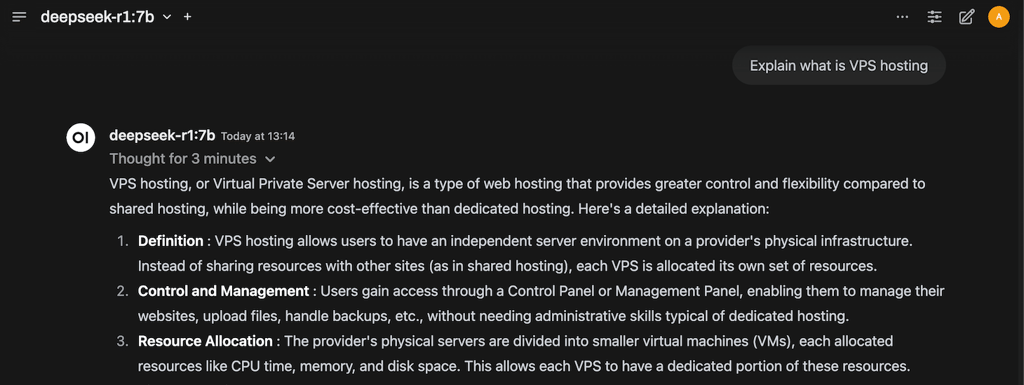
Depending on the host’s internet connection and resource consumption, the time DeepSeek needs to respond varies.
4. Fine-tune Ollama
While Ollama and DeepSeek work fine with the default configuration, you can fine-tune the chat settings according to your use case.
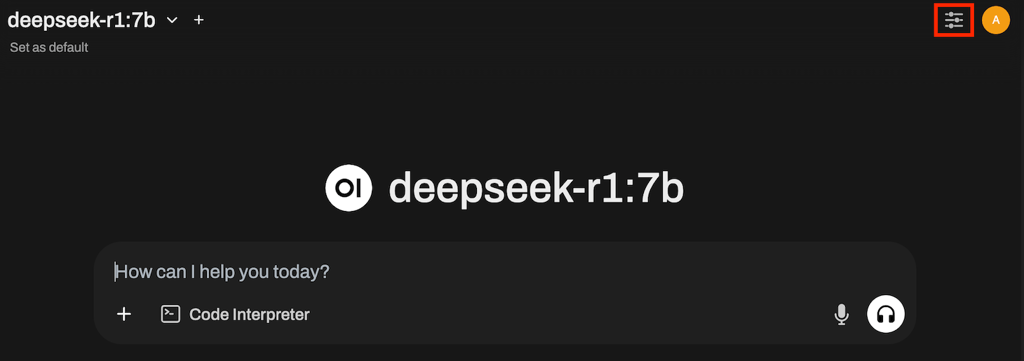
To access the menu, click the slider icon on the top right of your Ollama dashboard next to the profile icon. Under the Advanced Params section, you can adjust various settings, including:
- Stream chat response – set whether or not your AI agent answers messages in real time. Enabling this option gives faster responses but will consume more computing power.
- Seed – allow your AI agent to generate the same answer for a specific prompt when set to a particular value. Its default value is random t.
- Temperature – set your AI agent’s creativity level. A higher value will result in more innovative and imaginative answers.
- Reasoning effort – control how hard the AI model will think before generating answers. The value, which ranges from 1-100, determines how many reasoning iterations the model will complete before finalizing a response.
- Top K – reduce the probability of generating nonsense. Setting a high value means your AI agent will return a very diverse answer but with a high probability of hallucination.
- Max tokens – set the maximum number of tokens your AI model can use. The higher the value, your AI agent will output longer answers with less relevant information.
For example, if you use DeepSeek to help you write fiction, setting a high Temperature value can be helpful. Conversely, you might want to lower it and increase Reasoning effort when generating code.
If you want to learn more about the settings, menus, and configuration, we recommend checking out our Ollama GUI tutorial.
Conclusion
Ollama is a platform that lets you run various LLM on your private server or computer to create a personal AI agent. In this article, we have explained how to set up the famous AI model, DeepSeek, on Ollama.
To set it up, you need a Linux system with at least 4 CPU cores, 16 GB of RAM, and 12 GB of storage space. Once you have a machine that meets these requirements, install Ollama and the Open WebUI using Hostinger’s OS template or commands.
Download DeepSeek for Ollama via the command line. Once finished, run the platform by running open-webui serve. Now, access the dashboard using the host’s IP and the 8080 port.
To fine-tune Ollama’s response based on your use cases, edit the chat setting parameters. In addition, use proper AI prompting techniques to improve DeepSeek’s answer quality.
How to run DeepSeek with Ollama FAQ
What are the requirements for running DeepSeek with Ollama?
To run DeepSeek with Ollama, you need a Linux host system with at least a 4-core CPU, 16 GB of RAM, and 12 GB of storage space. You can use popular distros like Ubuntu and CentOS for the operating system. Remember to use a newer OS version to avoid compatibility and security issues.
What is DeepSeek, and why should I use it with Ollama?
DeepSeek is an LLM famous for being more affordable and efficient than other popular models like OpenAI o1 while offering a similar level of accuracy. Using it with Ollama enables you to set up an affordable personal AI agent leveraging the LLM’s capability.
Can I run DeepSeek with Ollama on any version of Ubuntu?
In theory, you can install Ollama and run DeepSeek on any version of Ubuntu. However, we recommend setting the AI agent on a newer operating system version, like Ubuntu 20.04, 22.04, and 24.04. Using the new releases helps prevent compatibility and security issues.
This article is a localized version of How to run DeepSeek with Ollama on a VPS, originally published in English.

Aris is a Content Writer specializing in Linux and WordPress development. He has a passion for networking, front-end web development, and server administration. By combining his IT and writing experience, Aris creates content that helps people easily understand complex technical topics to start their online journey. Follow him on LinkedIn.

Valentinas Čirba, Hostinger's Head of VPS, is a seasoned product leader specializing in VPS products with over ten years of experience. He's an expert at setting product strategy, leading cross-functional teams, and making smart decisions to deliver innovative solutions. Valentinas is committed to creating products that not only meet business objectives but also truly serve the customer. Follow him on LinkedIn.


