How to write a professional email
Jun 14, 2026
/
Bruno S.
/
8 min Read
A professional email is a structured, concise, and respectful message used to communicate in business contexts, whether you’re applying for a job, following up with a client, or coordinating with a colleague. How you write an email shapes how recipients perceive your credibility before they’ve ever met you.
Writing one well means planning your message before you type it, choosing the right subject line, opening with the appropriate level of formality, and closing in a way that makes the next step obvious.
Professional emails build trust, improve response rates, and prevent miscommunication that wastes everyone’s time.
1. Set up a professional email address
Your sender address is the first signal of professionalism. A professional email address uses a custom domain tied to your name or business, like the ones you can create with Hostinger Business Email, rather than a generic free provider like Gmail or Yahoo.
Recipients judge your credibility the moment your name appears in their inbox. A branded address signals that you’re a legitimate contact, not spam. It also reinforces your identity during the first outreach, when the recipient has no prior context.
Type | Example |
Professional | yourname@yourbusiness.com |
Unprofessional | yourname_yourbusiness@gmail.com |
Hostinger Business Email lets you create a custom domain mailbox in a few steps. To set up a business email address, buy or connect a domain, create a mailbox tied to it, and start sending from your branded address.
2. Plan your email content and objective
Unclear emails happen when the sender hasn’t defined what they want before writing. Planning ahead prevents a chain of follow-up messages.
Before you start writing, answer these three questions:
- What is the goal of this email? Are you informing, requesting, or following up?
- What outcome do you need? A reply, an approval, a specific action?
- Who is the recipient? Adjust your tone – more formal for a new contact or senior stakeholder, more direct for a colleague.
Once you have those answers, outline the key points you want to cover in order. Don’t write the full email yet – just note the logical sequence: context first, message second, action last. That sequence becomes your body structure.
A custom domain email also helps at this stage. When you contact someone for the first time, your address alone communicates who you are and which company you represent, so the recipient has context before they read a word.
3. Write a clear and professional subject line
Your subject line determines whether the email gets opened. A weak or vague subject line is the fastest way to get ignored, even if the message itself is well-written.
Keep subject lines to 5–8 words, be specific, and ensure the subject line reflects exactly what the email is about. Here are a few examples:
- ❌ Vague: “Quick question”
- ✅ Clear: “Request: feedback on Q3 proposal”
- ❌ Vague: “Following up”
- ✅ Clear: “Following up on our Monday meeting”
A few additional tips for writing professional email subject lines that get opened:
- Avoid spam trigger words like “FREE,” “urgent,” or “act now”
- Never write in all caps
- Add relevant context – a project name, a date, or a reference number – when the recipient receives high email volume
For longer campaigns or high-volume outreach, follow the best practices to write email subject lines.
4. Use a professional greeting and opening
The greeting sets the tone for everything that follows. If you get it wrong, whether it’s too casual or too stiff, you can shape incorrectly how the reader receives the rest of the message.
There are three standard levels of formality:
- “Dear [Name],” – use for formal communication: legal correspondence, cold outreach to senior stakeholders, or industries with strict etiquette (finance, law, academia)
- “Hello [Name],” – use for neutral business communication, most client or professional emails, and any context where you’ve exchanged messages before
- “Hi [Name],” – acceptable for internal team emails or contacts you communicate with regularly
After the greeting, your opening line should provide immediate context. Avoid generic openers: get to the point in the first sentence.
Some examples:
Context | Opening line |
First contact | “I’m reaching out regarding the partnership inquiry you submitted last week.” |
Follow-up | “I wanted to follow up on the proposal I sent on [date].” |
Reply | “Thank you for getting back to me about the project timeline.” |
Internal request | “I need your sign-off on the attached brief before Thursday.” |
If you don’t know the recipient’s name – for example, in a general inquiry – “Hello,” or “Dear [Job Title],” are acceptable alternatives. Avoid “To whom it may concern” unless the context is formal or legal.
5. Compose the body with clarity and professionalism
The body is where most professional emails fail. Long paragraphs, multiple requests packed into a single message, and unclear language all reduce the likelihood of getting a useful response.
Keep each paragraph to 1–3 sentences. One paragraph should cover one idea. If you’re shifting to a new point, start a new paragraph.
The standard structure for a professional email body is:
- Context – briefly explain the background so the recipient knows why you’re writing
- Message – state your main point, request, or information
- Action – tell the recipient exactly what you need from them and by when
For example:
“I’m following up on the budget approval request I submitted on April 14. The project is scheduled to begin next Monday, so we need sign-off before Friday. Could you confirm approval by Thursday EOD?”
That’s 3 sentences. It covers context, message, and action without wasting the reader’s time.
A few more practical tips:
- Use simple language – if a shorter word works, use it
- Avoid jargon unless you’re certain the recipient uses it too
- Don’t bury the main request in the third paragraph
- If you have more than two related points, use a short bulleted list instead of a run-on paragraph
Using AI to draft and refine emails
Hostinger Business Email includes AI writing assistance directly in the composer. The AI writes, replies, rewrites unclear messages, and summarizes emails for you – and it learns your preferred tone and style so the output stays consistent across messages.
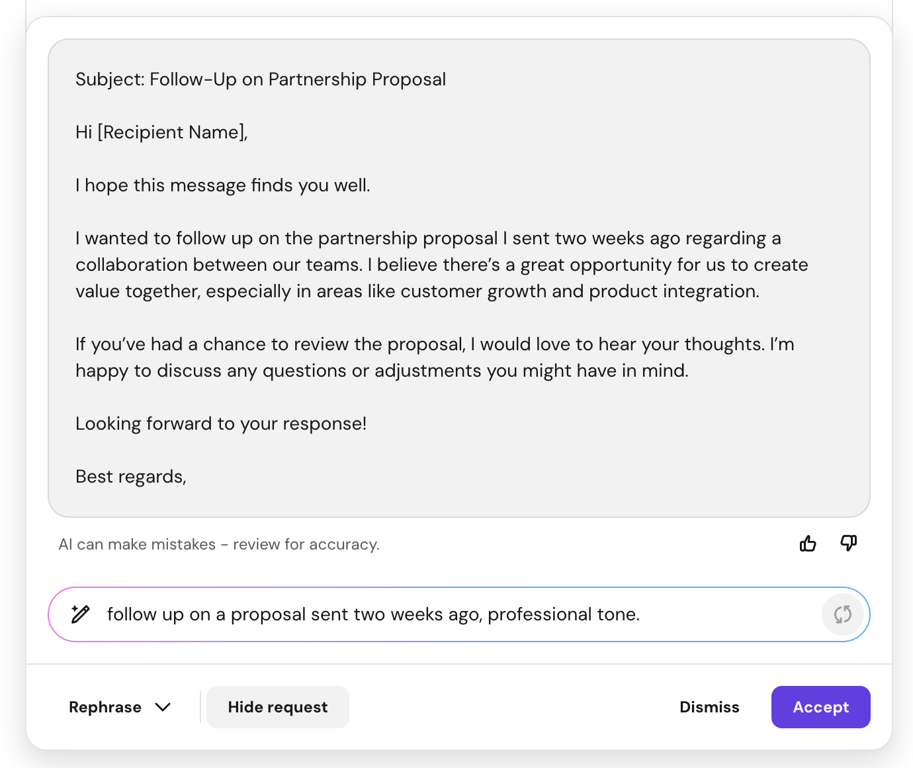
To use it, open a message in Hostinger Mail and type your intent into the Ask AI to draft a reply field in the composer toolbar – for example, “follow up on a proposal sent two weeks ago, professional tone.”
The AI generates a structured draft you can edit before sending. If the tone isn’t right, select Professional to make the message more formal, Friendly to soften it, or Concise to cut it down – useful when a draft reads as too long or too casual.
Use it as a starting point, not a finished product. Review the output, adjust any details specific to the recipient, and send only when it reads as you want it.

6. Write an effective closing and signature
How you end an email signals whether you’ve thought the communication through or just stopped typing. A clear closing line and a consistent signature make the message feel complete and professional.
Closing lines
Choose a closing that fits the context:
Closing | Best for |
“Best regards,” | Most professional business emails – formal but not cold |
“Kind regards,” | Slightly warmer than “Best regards,” – good for ongoing relationships |
“Sincerely,” | Formal correspondence, first contact, or sensitive topics |
“Thanks,” | Internal emails, follow-ups, or any context where you’re asking for something |
“Best,” | Casual professional emails with familiar contacts |
Avoid closing with “Cheers,” in a formal context, or leaving no closing at all – both read as careless.
Email signatures
An email signature is the block of contact information that appears at the end of every message. A standard professional signature includes:
- Your full name
- Your role and company name
- A phone number or direct contact
- Your website or relevant link (optional)
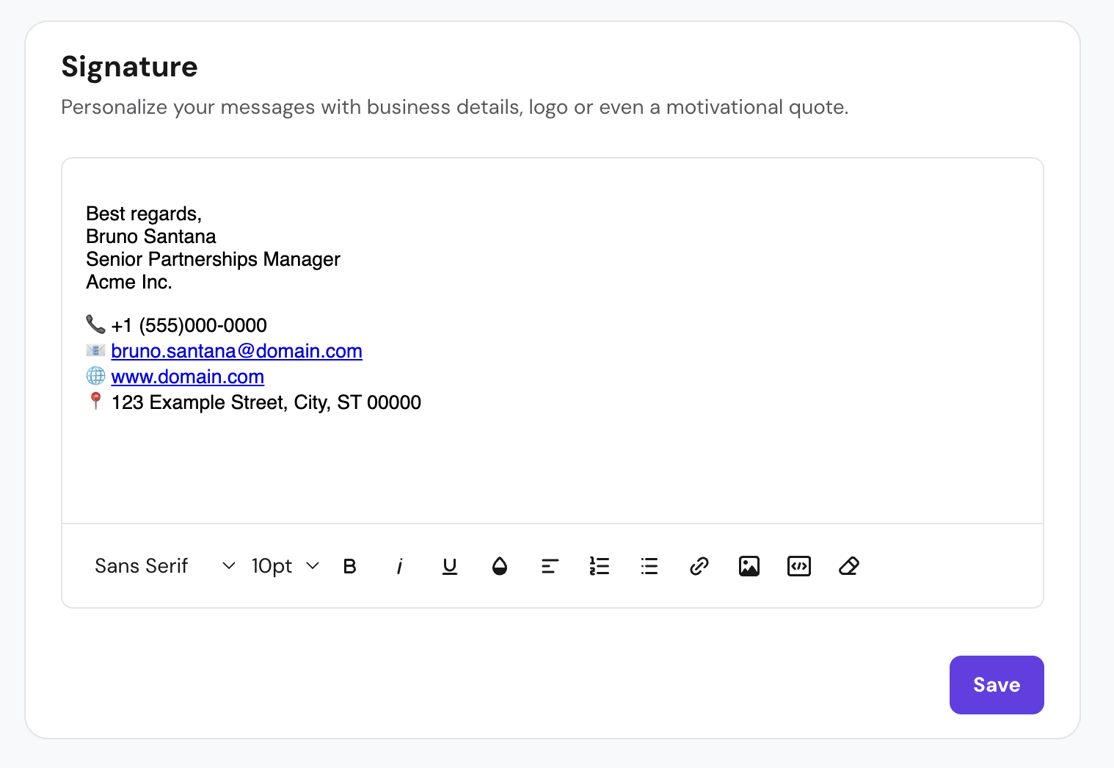
Hostinger Business Email lets you create an automatic signature that appears in every outgoing message. To set it up, go to Settings (the gear icon in the top-right corner) → All Settings → Signature. Enter your signature in the text box and click Save. Note that this feature is only available in the Hostinger Mail web app and doesn’t sync with other email clients.
A consistent signature reinforces your professional identity and saves time, especially when you’re sending high volumes of outbound email.
7. Proofread and edit your email before sending
Proofreading is not optional. A typo in the subject line, the wrong recipient in the To field, or an attached document with the wrong name all undermine the professionalism of the message – regardless of how well it was written.
Before hitting Send, run through this checklist:
- Grammar and spelling – check for typos, sentence fragments, and autocorrect errors
- Tone – read it as the recipient would: does it sound respectful and clear, or rushed and demanding?
- Clarity – is the main request or message obvious within the first two sentences?
- Correct recipient – double-check the To, CC, and BCC fields, especially in a reply chain
- Attachments – if you mentioned a file, confirm it’s actually attached before sending
Two practical habits that catch errors before they go out:
- Read the email aloud. If a sentence sounds awkward when spoken, it reads awkwardly too. This catches run-on sentences and tone issues faster than reading silently.
- Use a proofreading tool. Browser extensions like Grammarly flag grammar errors and passive voice in real time, directly inside the Hostinger Mail composer.
For high-stakes emails – a job application, a client complaint, or a formal request – read it once for content, once for tone, and once for errors. That three-pass approach is quick and significantly reduces the chance of sending something you’ll want to take back.
Why professional emails matter in business communication
Professional emails influence how others perceive your credibility and reliability before they’ve ever met you.
Build trust and credibility
Recipients judge your professionalism instantly based on three things: your email address, your tone, and the clarity of your message.
A well-written email from a branded domain address reads as intentional and trustworthy. A generic or poorly written email – from a free provider, with an ambiguous tone and unclear point – reduces trust before the recipient has read past the first sentence.
The combination of clear writing and a custom domain address creates a stronger first impression than either factor alone. For freelancers, small business owners, and anyone doing client-facing work, that impression directly affects whether a prospect replies or moves forward.
Improve response rates and outcomes
Professional emails are easier to understand, act on, and reply to. When a message is clearly structured and the request is obvious, recipients can respond faster and with fewer follow-up questions.
A clear structure leads to faster decisions, and a specific request drives higher response rates than a vague one. To improve email open rates, focus on the subject line and sender address – both are directly affected by the professionalism of the email.
Prevent misunderstandings and mistakes
Unclear emails create problems downstream. When the context is missing, the request is buried, or the tone reads as ambiguous, the recipient has to guess – and they often guess wrong. That leads to delays, incorrect actions, and unnecessary back-and-forth.
Structured writing reduces that back-and-forth. One clear message, one clear request, one clear call to action. Professional tone also avoids misinterpretation: a message that reads as blunt when it was meant to be direct can damage a business relationship over time.
Professional email examples for common scenarios
A professional email looks different depending on why you’re sending it. Here are the scenarios where clear, well-structured business emails make a measurable difference:
- Job application – your email is the first sample of your communication skills a hiring manager sees; a clear subject line, a focused body, and a proper signature show you take the opportunity seriously.
- Follow-up – following up on a proposal, meeting, or unanswered message requires a specific reference to the original email, a clear reason for following up, and a concrete next step.
- Meeting request – include the purpose, your availability, and a suggested format (video call, in-person, or phone) in the first paragraph so the recipient can say yes without asking clarifying questions.
- Client introduction – a first email to a new client should establish who you are, your role, and the specific reason for reaching out, without assuming any prior context.
- Complaint or issue – professional complaints focus on the problem, the impact, and the resolution you’re requesting, not on tone; staying factual and specific gets faster results than an emotional message.
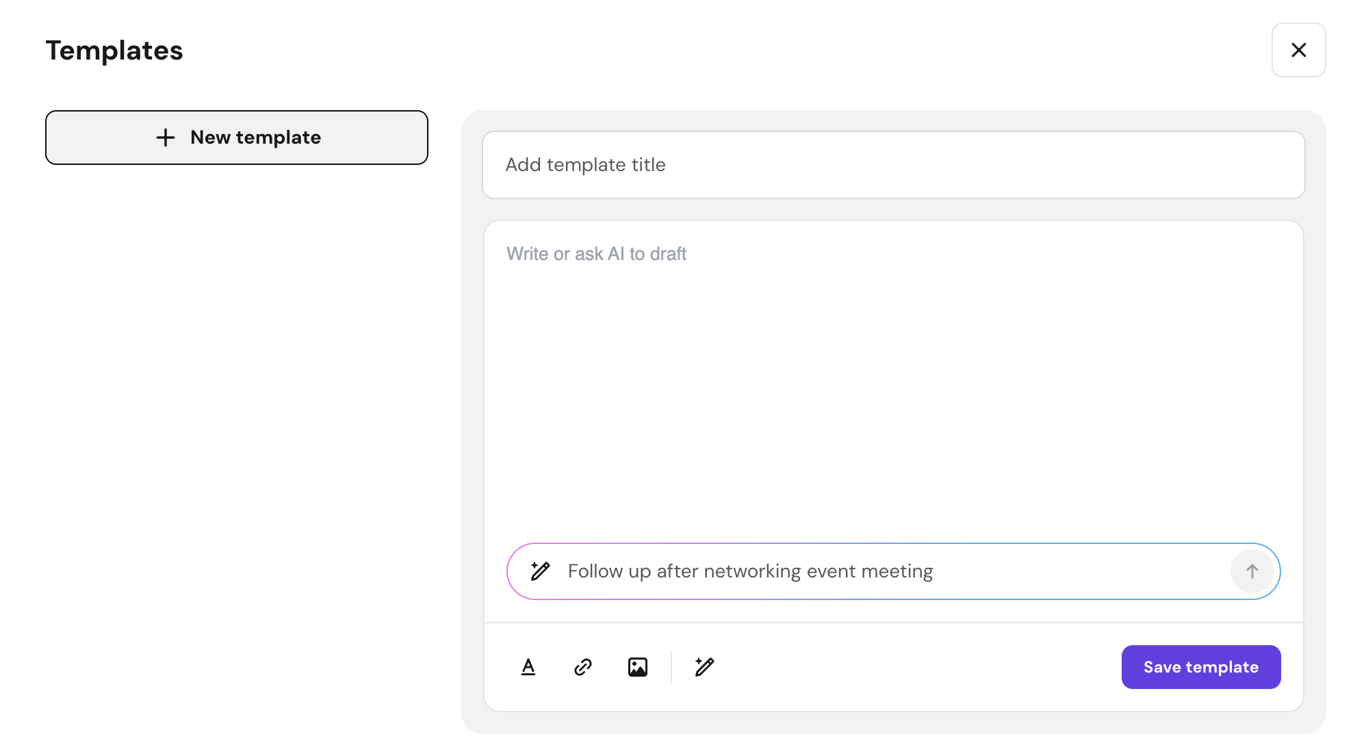
Hostinger Business Email includes an email templates feature that lets you save and reuse messages for scenarios you send repeatedly. To create a template, open the email composer in Hostinger Mail and follow these steps:
- Click the Templates icon in the composer toolbar
- Click New template, enter a name for your template, write your content (or use the AI assistant to generate it), and click Save
- When composing a new email, click the Templates icon and select the saved template – it inserts into the composer immediately
- To update an existing template, click the Templates icon → Edit templates, select the template, make your changes (or use AI to rewrite the content), and click Save
Templates are available on Business Starter (up to 3 templates) and Business Premium (unlimited templates) plans.
Next step: Improve your email deliverability
Writing a professional email is only half the equation. Even the best-written message fails if it lands in the spam folder or never reaches the recipient’s inbox.
Missed deliveries mean missed opportunities – a job application that never gets read, a proposal that disappears before it’s reviewed, or a client follow-up that gets filtered out without explanation.
Setting up email authentication is one of the most effective steps you can take to protect your sender reputation.
SPF (Sender Policy Framework), DKIM (DomainKeys Identified Mail), and DMARC (Domain-based Message Authentication, Reporting & Conformance) are three standards that work together to help email providers verify your identity, confirm your messages are legitimate, and reduce the risk of your emails being flagged as spam.
Beyond authentication, certain content patterns trigger spam filters regardless of how professional the writing is. These include image-heavy emails with very little text, excessive calls to action in a single message, and subject lines that are misleading, overpromotional, or that use common spam phrases.
To improve email deliverability, configure SPF, DKIM, and DMARC for your domain, keep your email content balanced between text and visuals, and monitor your sender reputation regularly.

Bruno is a Content Writer at Hostinger, focused on creating and optimizing helpful, engaging articles about web development and marketing. With a background in journalism, he combines storytelling with practical insights to make complex topics easier to understand. He has also contributed to publications like MacMagazine and Jornal A Tarde. Outside of work, Bruno enjoys exploring art, cooking, and technology.