How to get a custom email domain
Jun 15, 2026
/
Justina B.
/
5 min Read

A custom email domain is a personalized email address that uses your own domain name, like name@yourbusiness.com, instead of a free Gmail or Yahoo address. It gives your business a more professional look and keeps your branding consistent.
Setting one up starts with registering a domain that matches your brand. Then you connect it to an email hosting service and create the mailboxes.
The full process takes five steps:
- Set up your email hosting.
- Choose and register your domain name.
- Create your custom email address.
- Configure Domain Name System (DNS) settings.
- Test your custom email and start using it.
1. Set up your email hosting
You need email hosting for your custom domain to send and receive messages. It’s a separate service that stores your inbox, processes incoming mail, and sends your replies.
Your options include Google Workspace, Microsoft 365, and standalone email hosting providers. Google Workspace and Microsoft 365 bundle email with collaboration tools, while standalone hosting providers may be a better fit if you need only email hosting.
To manage your domain and email from the same dashboard, use an integrated provider such as Hostinger’s Business Email. You can register the domain, activate hosting, and create mailboxes without setting up separate accounts.

To get started:
- Sign up for an email hosting plan that fits your needs.
- Register a new domain at checkout or connect one you already own.
- Open your email dashboard to manage your domain and mailboxes.
Staying inside one platform means your domain and email settings sync automatically. You won’t need to copy DNS records between providers, troubleshoot mismatched settings, or wait on support tickets across two companies.
2. Choose and register your domain name
Your domain name is the part after the @ symbol in the email address, and it shapes how people perceive your messages. An address like yourname@company.com looks more professional than yourname123@gmail.com.
When picking a name, keep it short, easy to spell, and tied to your brand or your own name. Avoid numbers, hyphens, and creative spellings that people tend to mistype. Read it out loud: if you have to spell it letter by letter over the phone, it’s too complicated.
Check availability through any domain registrar by typing your preferred name into the search bar. If it’s taken, try variations such as adding your location, swapping in a related word, or trying a different domain extension.
Domain Name Checker
Instantly check domain name availability.
The .com extension is familiar and easy to remember, making it a practical choice. Other options include .net and .org extensions, although .org is commonly associated with nonprofit organizations. Extensions like .co or .io may suit technology brands or startups.
Once you have chosen an available name, register it through your preferred provider. Registering your domain with Hostinger keeps your domain and email hosting in the same account, which simplifies the setup. Once the domain is registered, create the email addresses you need.
3. Create your custom email address
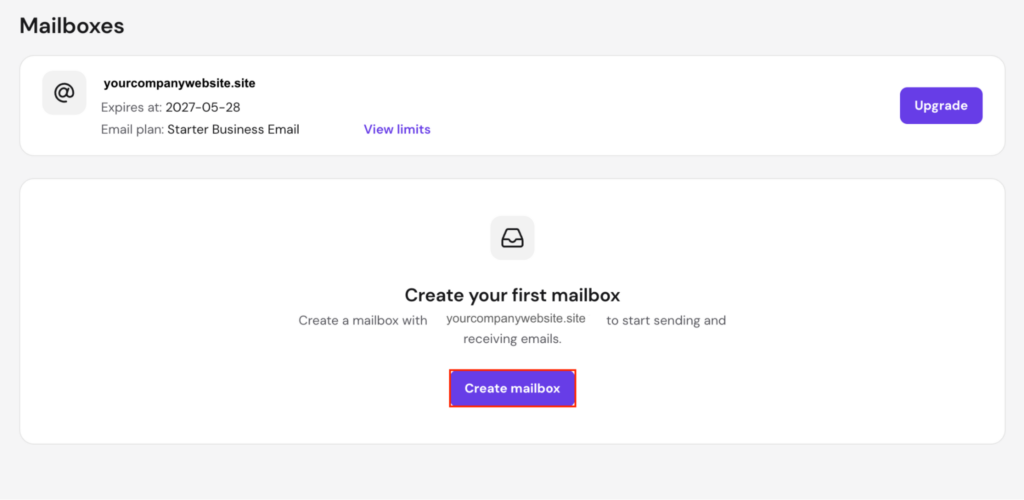
Creating a mailbox turns your domain into a working email address. Open your email dashboard and add the mailboxes you need
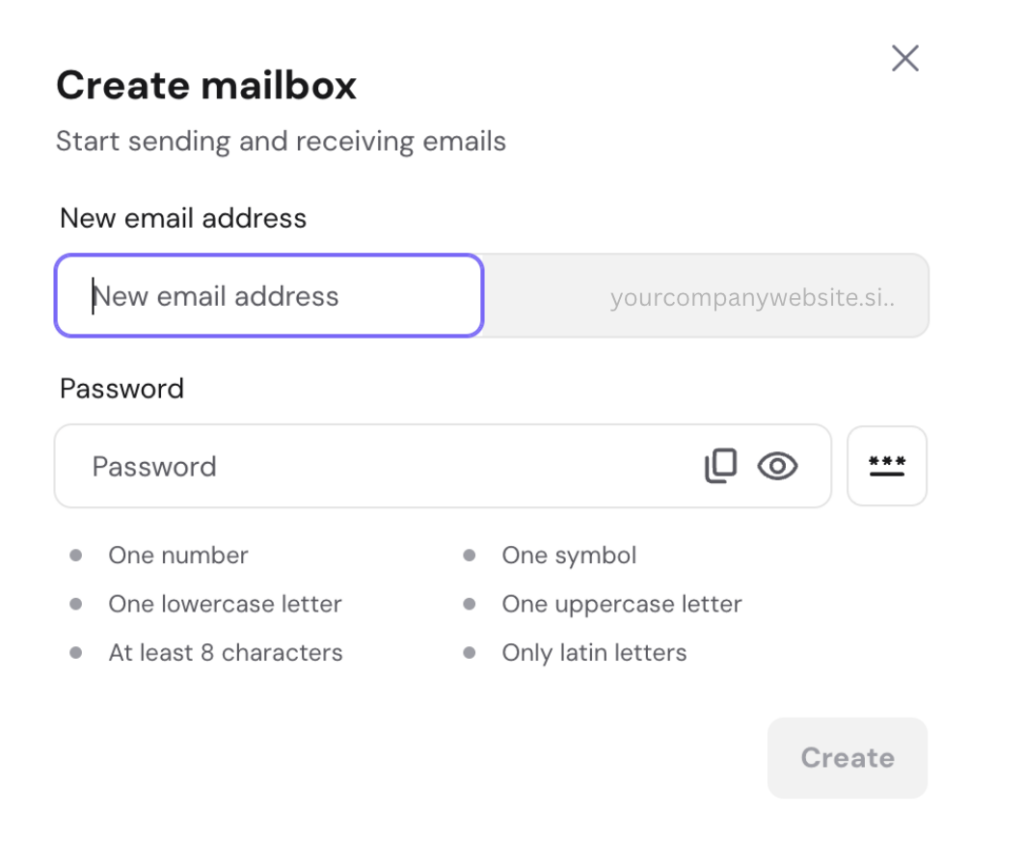
For each mailbox, enter a username, set a password, and select the domain you want to use.
The format you pick depends on what the mailbox is for. Common patterns include:
- firstname@domain.com – suitable for personal or one-person business use
- info@domain.com – a general inbox for inquiries
- support@domain.com – clearly signals customer service
- sales@domain.com – directs leads to the right place
You can also set up aliases, which are alternative addresses connected to an existing mailbox. An email alias is useful when you want multiple addresses, such as billing@ or hello@, without paying for separate inboxes or managing extra logins.
Use a separate mailbox for a team member who needs their own login and conversations. Use an alias when messages should reach an existing inbox. Most dashboards let you add and remove both with a few clicks.
4. Configure DNS settings (only if needed)
DNS tells the Internet where to deliver messages sent to your domain. Without the right entries, your emails won’t reach the right inbox.
If you bought your domain and email hosting from the same provider, this step often happens automatically. Hostinger, for example, configures DNS settings the moment you activate your email plan, meaning you can skip the manual work entirely.
If you’re connecting an external domain, you’ll need to update three main records:
- MX records tell email servers where to deliver incoming messages.
- SPF records tell receiving servers which addresses are allowed to send on your behalf.
- DKIM records add a digital signature that can be used to verify your messages.
DKIM and SPF records improve deliverability. To add them, log in to your registrar, open the DNS settings, and paste in the values from your email host. Changes can take a few hours to apply, so your email service may not work immediately.
5. Test your custom email and start using it
Testing confirms that your setup works before you start sending real messages to clients or contacts. Send a test email from your new address to a personal Gmail or Outlook account, then reply to make sure messages flow both ways.
A few things to check during testing:
- The message arrives in the inbox, not the spam folder.
- Your display name and sender address show up correctly.
- Replies come back to your custom domain.
- Attachments are sent and received without issues.
If something doesn’t work, start by checking two common causes. DNS changes may still be propagating, which can take up to 24 hours, or one of your records may have been entered incorrectly.
Compare the values with what your email host provided, then wait for propagation to finish before troubleshooting further.
Benefits of using a custom email domain
A custom email domain can improve your professional image, reinforce your brand, and give you more control over your email setup.
- Credibility and trust. An address such as sarah@yourbusiness.com looks more professional than sarah.smith.42@gmail.com and helps recipients identify the business behind the message.
- Brand consistency. Using the same domain across your email address, website, and social profiles makes your online presence easier to recognize.
- Better deliverability and control. When you own the domain, you control the security records, the routing, and the addresses you create. You’re not stuck with a free provider’s spam filters or sudden account suspensions.
Common mistakes to avoid when setting up a custom email domain
- Picking a hard-to-spell domain makes it more difficult for customers to contact you.
- Skipping SPF and DKIM records, which can make it harder for receiving servers to verify your emails.
- Using unreliable email hosts that suffer from outages or poor deliverability.
- Forgetting to test before sharing your new address with clients.
- Using one mailbox for everything instead of separating roles with aliases.
- Forgetting your domain renewal date or leaving automatic renewal turned off.
How to maintain and secure your custom email domain
Set strong, unique passwords for each mailbox and save them in a password manager to avoid repeating the same password across accounts.
Turn on two-factor authentication for any inbox tied to your business. This adds a second verification step if someone obtains your password. Most providers, including Hostinger, offer it as a free toggle in the security settings.
Check your account activity regularly for unfamiliar logins, and change your password immediately if anything looks suspicious. For more ways to protect your inbox, follow these email security best practices.
What to do after setting up your custom email
Once the setup is complete, start using your new address for client communication, job applications, business outreach, and other messages where a professional first impression matters.
Next, connect your inbox to the apps you already use. Set up Outlook on your desktop, configure email on Android or iOS, or forward messages into Gmail if you prefer that interface.
Update your online presence to match. Swap your old address on your website, social profiles, business cards, and email signature. Add your job title, phone number, and a link to your site to the signature so every message introduces you.
Finally, organize your inbox from day one. Set up folders for clients, projects, or recurring topics, and add filters that route incoming messages to the right place. Managing everything from the same dashboard with Hostinger’s business email hosting keeps daily work simple.
All of the tutorial content on this website is subject to Hostinger's rigorous editorial standards and values.

Justina is a Content Writer passionate about marketing, with a background in social media and customer success management. She also loves reading books, traveling and exploring new places as well as cooking, and trying out new recipes. Follow her on LinkedIn.