Iptables tutorial: securing VPS with Linux firewall
May 28, 2026
/
Bruno S.
/
8 min Read
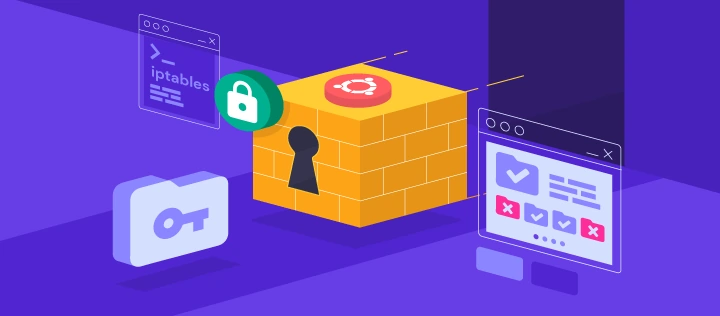
Iptables is a Linux firewall tool that lets you control which traffic reaches your VPS by configuring rules for allowing, blocking, forwarding, and filtering packets.
It works through the netfilter framework built into the Linux kernel and remains one of the most widely used firewall solutions for Linux servers.
Iptables organizes rules into tables, chains, matches, and targets. The safest setup order starts with allowing SSH and established connections before applying any DROP rules. Rules must be saved explicitly to persist after a reboot.
Both UFW and nftables are viable alternatives depending on your needs.
The main steps to configure iptables are:
- Check and install iptables.
- List existing rules.
- Allow SSH before applying restrictive rules.
- Add basic firewall rules.
- Open common service ports.
- Delete or flush rules.
- Save rules permanently.
What is iptables?
Iptables is a command-line firewall tool that manages Linux firewall rules via the netfilter framework, a packet-filtering system built directly into the Linux kernel. Every packet that enters or leaves your server passes through netfilter, and iptables gives you the rules that decide what happens to it.
Iptables handles IPv4 traffic. For IPv6, you need ip6tables, which uses the same syntax but operates on a separate rule set.
Understanding iptables starts with five core concepts:
| Concept | What it is |
| Table | A collection of chains grouped by purpose. The main tables are filter, nat, and mangle. |
| Chain | A list of rules within a table. Built-in chains include INPUT, OUTPUT, and FORWARD. |
| Rule | A condition that a packet is checked against. If the packet matches, iptables applies the target. |
| Match | The criteria used to evaluate a packet – source IP, destination port, protocol, and so on. |
| Target | The action taken when a packet matches a rule: ACCEPT, DROP, RETURN, or REJECT. |
Most basic VPS security configurations use the filter table, which contains three default chains. INPUT handles incoming packets to the server. OUTPUT handles packets leaving the server. FORWARD handles packets routed to a destination other than the server.
How does iptables work?
Iptables checks each packet against rules in a chain from top to bottom. The first rule that matches the packet applies, and iptables stops checking the rest of that chain. Rule order matters because an earlier rule can allow or block traffic before any later rules are evaluated.
There are two ways to add rules: the -A flag appends a rule to the bottom of a chain, and the -I flag inserts a rule at a specific position. That’s useful when you need a rule evaluated before existing ones. If you append a broad DROP rule before your SSH allow rule, you will lock yourself out; adding rules in the right order prevents that.
Always add essential allow rules – especially for SSH – before any rules that block or drop traffic.
What is the difference between iptables, ip6tables, and nftables?
Iptables handles IPv4 firewall rules. ip6tables handles IPv6 firewall rules using the same command syntax, but the two rule sets are completely separate – a rule in iptables has no effect on IPv6 traffic, and vice versa.
Nftables is the newer Linux firewall framework that replaces both iptables and ip6tables. It handles IPv4 and IPv6 in a single rule set and uses a cleaner syntax. On modern Ubuntu versions, iptables commands may run through an nftables backend transparently, meaning your iptables rules are actually stored and processed by nftables under the hood.
For users who want simpler firewall management on Ubuntu without writing iptables rules directly, UFW is covered later in this guide.
How to configure iptables on Ubuntu VPS
The safest way to set up a VPS firewall with iptables is to build rules in a specific order: check existing rules first, then allow SSH, established connections, and required service ports before blocking anything.
Apply DROP rules last – skipping this order can lock administrators out of a server they can no longer reach.
1. Check and install iptables
Iptables comes preinstalled on most Linux distributions. This tutorial uses Ubuntu VPS as the main example. To check whether iptables is already available on your system, run:
iptables --version
If the command returns a version number, iptables is already installed. On modern Ubuntu versions, this may show a reference to the nftables backend, meaning iptables commands are processed by nftables under the hood. The syntax stays the same either way.
If iptables is not installed, run:
sudo apt update

sudo apt install iptables
2. List existing iptables rules
Check your existing rules before adding new ones. An existing rule may already allow or block traffic you intend to configure, and adding duplicate or conflicting rules causes unpredictable behavior.
List all current rules with verbose output and line numbers:
sudo iptables -L -v -n --line-numbers
The -n flag prints IP addresses and port numbers numerically instead of resolving them to hostnames, which is faster and easier to read. Line numbers identify each rule’s position in the chain – you will need them to delete or insert rules at specific positions.
The packet and byte counters in the output show whether traffic actually matches each rule, which helps with troubleshooting.
3. Allow SSH before changing firewall rules
Warning! Applying restrictive firewall rules before allowing SSH will lock you out of your VPS. There is no error message – the connection simply drops, and you lose access.
Allow SSH before adding any DROP or REJECT rules. The default SSH port is 22:
sudo iptables -A INPUT -p tcp --dport 22 -j ACCEPT
If you’ve changed your VPS’ SSH port, replace 22 with that port number instead. If you’re not sure, check your server configuration by opening this file:
sudo nano /etc/ssh/sshd_config
Passwords are the most common SSH authentication method, but setting up SSH keys is more secure and worth doing before you lock down your firewall.
After adding the SSH rule, keep your current session open and test access from a second terminal window before saving any restrictive rules. If the second connection succeeds, it is safe to continue.
4. Add basic iptables firewall rules
The remaining rules build out your firewall in order of priority. Add them in the sequence below to avoid blocking traffic you need.
Allow localhost traffic
Traffic on the loopback interface stays within the server itself. Blocking it breaks internal communication between services running on the same machine, such as a web application connecting to a local database:
sudo iptables -A INPUT -i lo -j ACCEPT
Allow established and related connections
This rule allows traffic that belongs to connections your server already initiated or accepted. Without it, responses to outgoing requests get blocked:
sudo iptables -A INPUT -m conntrack --ctstate ESTABLISHED,RELATED -j ACCEPT
Allow HTTP and HTTPS
Open ports 80 and 443 to allow web traffic:
sudo iptables -A INPUT -p tcp --dport 80 -j ACCEPT

sudo iptables -A INPUT -p tcp --dport 443 -j ACCEPT
Block a specific IP address
To drop all traffic from a single IP address:
sudo iptables -A INPUT -s 192.0.2.1 -j DROP
Block an IP range
Use the iprange module to drop traffic from a range of addresses:
sudo iptables -A INPUT -m iprange --src-range 192.0.2.1-192.0.2.254 -j DROP
Drop invalid packets
Invalid packets do not belong to any known connection and are often used in network attacks. Drop them before they reach your services:
sudo iptables -A INPUT -m conntrack --ctstate INVALID -j DROP
Drop all other incoming traffic
Add this rule last. It drops any incoming traffic that has not matched an earlier ACCEPT rule. Placing it before your allow rules will block everything, including SSH:
sudo iptables -A INPUT -j DROP
5. Open common service ports with iptables
Each service running on your VPS uses a specific port, and iptables needs an explicit rule to allow traffic on that port:
| Service | Protocol | Port | Notes |
| SSH | TCP | 22 | Change the default port if possible |
| HTTP | TCP | 80 | Required for unencrypted web traffic |
| HTTPS | TCP | 443 | Required for encrypted web traffic |
| MySQL | TCP | 3306 | Restrict to trusted IPs only |
| PostgreSQL | TCP | 5432 | Restrict to trusted IPs only |
| SMTP | TCP | 25 | Only if running a mail server |
| IMAP | TCP | 993 | Only if running a mail server |
Database ports like 3306 and 5432 should never be opened to the public internet. Restrict them to a trusted IP address or a private network interface instead:
sudo iptables -A INPUT -p tcp --dport 3306 -s 192.0.2.1 -j ACCEPT
Replace 192.0.2.1 with the IP address of the machine that needs database access.
6. Delete or flush iptables rules
Deleting a specific rule removes it without touching the rest of your configuration; flushing removes all rules at once.
Deleting a specific rule
To remove one rule without affecting the rest, use its line number. First, list rules with line numbers:
sudo iptables -L INPUT --line-numbers
Then delete the rule at the position you want to remove. To delete rule number 3 from the INPUT chain:
sudo iptables -D INPUT 3
Flushing all rules
To remove all rules at once, use the -F flag:
sudo iptables -F
Warning! Flushing the rules on a remote VPS removes all allow rules and all block rules. If your default chain policy is DROP, flushing leaves you locked out. If the default policy is ACCEPT, flushing exposes all ports. Know your default policy before flushing.
DROP vs REJECT
When blocking traffic, you have two options. DROP silently discards the packet: the sender gets no response and the connection eventually times out. REJECT discards the packet and sends an error response to the sender, making troubleshooting easier but also confirming to the sender that the port exists.
Use DROP for public-facing rules where you do not want to reveal information about your server. Use REJECT in internal or development environments where faster feedback is useful.
7. Save iptables rules permanently
Iptables rules are stored in memory and do not survive a reboot by default. To keep your rules after restarting the VPS, save them to a file.
Install iptables-persistent
The iptables-persistent package automatically saves and loads rules. On Ubuntu, installing it also installs netfilter-persistent, which is the underlying service that loads the saved rules at boot:
sudo apt install iptables-persistent
During installation, you will be prompted to save your current IPv4 and IPv6 rules. Choose Yes for both.
Save rules manually
If you installed iptables-persistent, the /etc/iptables/ directory already exists. After adding or changing rules, save them so they persist through reboots:
sudo netfilter-persistent save
This writes both IPv4 and IPv6 rules to /etc/iptables/rules.v4 and /etc/iptables/rules.v6, respectively.”
Restore rules manually
If you need to reload saved rules without rebooting:
sudo iptables-restore < /etc/iptables/rules.v4

sudo ip6tables-restore < /etc/iptables/rules.v6
Verify after reboot
After restarting your VPS, confirm that the rules loaded correctly:
sudo iptables -L -v -n
The output should match the rules you saved before rebooting.
How to configure NAT and port forwarding with iptables
NAT and port forwarding are used when your VPS acts as a gateway, router, VPN endpoint, or traffic forwarder – routing packets between networks or redirecting traffic from one port to another. These rules use the NAT table rather than the filter table used in the steps above.
Port forwarding also requires IP forwarding to be enabled at the kernel level. To enable it temporarily:
sudo sysctl -w net.ipv4.ip_forward=1
To make it permanent, add the following line to /etc/sysctl.conf:
net.ipv4.ip_forward=1
Then apply the change:
sudo sysctl -p
To forward traffic arriving on port 80 to a different host on your network:
sudo iptables -t nat -A PREROUTING -p tcp --dport 80 -j DNAT --to-destination 192.0.2.1:80

sudo iptables -t nat -A POSTROUTING -j MASQUERADE
If your FORWARD chain policy is set to DROP, you also need to allow the forwarded traffic explicitly:
sudo iptables -A FORWARD -p tcp -d 192.0.2.1 --dport 80 -j ACCEPT
iptables vs UFW: Which firewall tool should you use?
Iptables gives you direct control over every aspect of your firewall, such as rule order, NAT, port forwarding, custom chains, and compatibility with existing scripts. That control comes at a cost: the syntax is verbose, rule order is unforgiving, and mistakes on a remote VPS can lock you out instantly.
UFW (Uncomplicated Firewall) is a frontend for iptables that simplifies common firewall tasks on Ubuntu. If you only need to allow SSH, HTTP, and HTTPS, you can configure a firewall on Ubuntu using UFW with a handful of commands and no risk of rule-ordering mistakes.
Nftables is the more modern long-term replacement for iptables. It handles IPv4 and IPv6 in a single rule set and uses a cleaner syntax, but it requires learning a new framework from scratch.
The right tool depends on what you need:
- Use UFW if you only need basic rules like SSH, HTTP, and HTTPS on an Ubuntu VPS.
- Use iptables if you need custom rules, NAT, port forwarding, strict rule order, or compatibility with existing scripts.
- Use nftables if you are setting up a new server and want a modern firewall framework without legacy constraints.
How to troubleshoot iptables rules
When iptables rules are not behaving as expected, start by checking your active rules with verbose output and line numbers:
sudo iptables -L -v -n --line-numbers
Check four things: rule order, line numbers, packet and byte counters, and the active backend.
Rule order determines which rule applies first; misplaced ACCEPT or DROP rules are the most common source of unexpected behavior. Counters show whether traffic is actually matching a rule, which helps you confirm whether a rule is working or being bypassed entirely.
On modern Ubuntu systems, also verify whether iptables is running through the nftables backend, as this can affect how rules are stored and applied.
SSH lockout recovery
Getting locked out of your VPS via SSH is the most disruptive iptables mistake. An SSH connection refused error after applying firewall rules usually means an overly restrictive rule is blocking port 22 before the ACCEPT rule is reached.
Hostinger VPS users can regain access via the browser-based hPanel terminal without an SSH connection. From there, you can delete the blocking rule or flush all rules to restore access.

When to reset rules
Resetting all rules with iptables -F is useful when your rule set has become too complex to debug or when you want to start from a clean state.
Key takeaways for using iptables
Iptables remains a solid choice for precise firewall control, custom rules, NAT, port forwarding, and compatibility with existing scripts.
For straightforward Ubuntu VPS setups where you only need to allow SSH, HTTP, and HTTPS, UFW gets the job done with less complexity. If you are building a new server from scratch, nftables is worth learning as the modern long-term replacement for iptables.
Firewall rules control which traffic reaches your VPS, but they do not stop repeated login attempts from addresses that are technically allowed through. To automatically block brute-force attacks, configure Fail2Ban alongside your iptables rules for a more comprehensive security setup.
All of the tutorial content on this website is subject to Hostinger's rigorous editorial standards and values.

Bruno is a Content Writer at Hostinger, focused on creating and optimizing helpful, engaging articles about web development and marketing. With a background in journalism, he combines storytelling with practical insights to make complex topics easier to understand. He has also contributed to publications like MacMagazine and Jornal A Tarde. Outside of work, Bruno enjoys exploring art, cooking, and technology.