What is the ERR_TOO_MANY_REDIRECTS error and how to fix it in WordPress
Mar 09, 2026
/
Ariffud M.
/
11 min Read
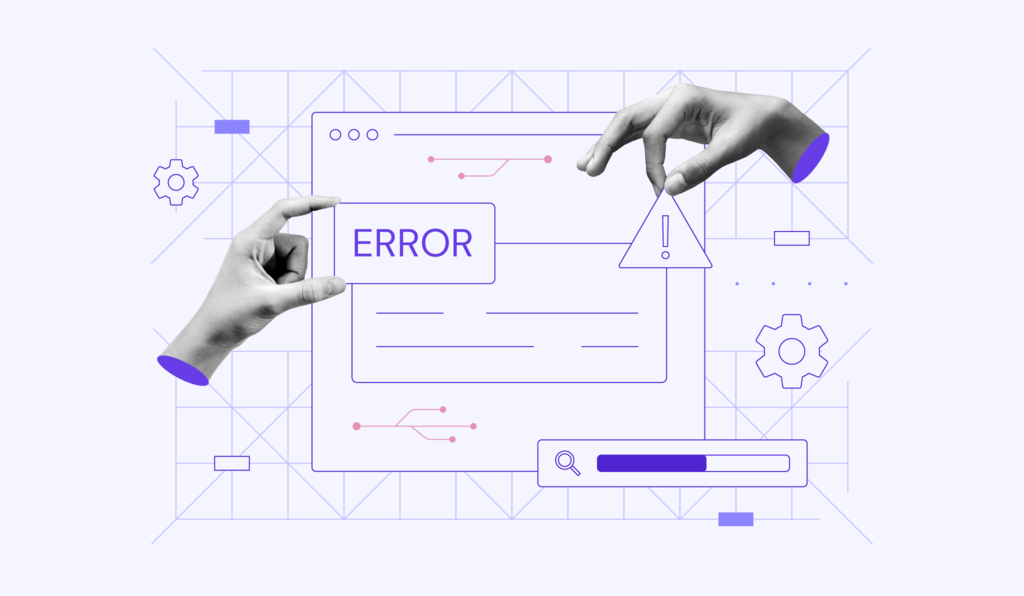
ERR_TOO_MANY_REDIRECTS is a browser error that signals a redirect loop, preventing you from accessing your WordPress site.
This process creates an endless and unresolvable cycle: your site tells the browser to go to a new URL, which then directs it back to the original one.
The issue is almost always caused by a misconfiguration, such as incorrect WordPress URL settings, a faulty plugin or theme, a corrupted .htaccess file, or conflicting SSL and CDN settings.
We’ll walk you through seven proven methods to fix the ERR_TOO_MANY_REDIRECTS error, starting with the simplest solutions first:
- Clear the browser’s cache and cookies.
- Flush the website’s cache.
- Verify WordPress URL settings.
- Test plugins and themes for conflicts.
- Reset .htaccess file.
- Check HTTPS and SSL settings.
- Inspect CDN configuration.
What is ERR_TOO_MANY_REDIRECTS?
The ERR_TOO_MANY_REDIRECTS error is a message from your browser that it’s stuck in an infinite redirect loop.
This happens when a URL you’re trying to visit keeps pointing you to another URL, which in turn points back to the first, creating an endless cycle that can’t be resolved.
Normally, redirects are useful tools for a website. They use specific HTTP status codes, like a 301 redirect, to permanently send visitors from an old page to a new one. However, when these instructions are misconfigured, the browser gets trapped.
To prevent your browser from crashing, it will stop trying to load the page after a certain number of redirects (usually around 10-20) and display the error message instead.
In short, ERR_TOO_MANY_REDIRECT is your browser’s way of saying it can’t find the final destination.
How does ERR_TOO_MANY_REDIRECTS appear on different browsers?
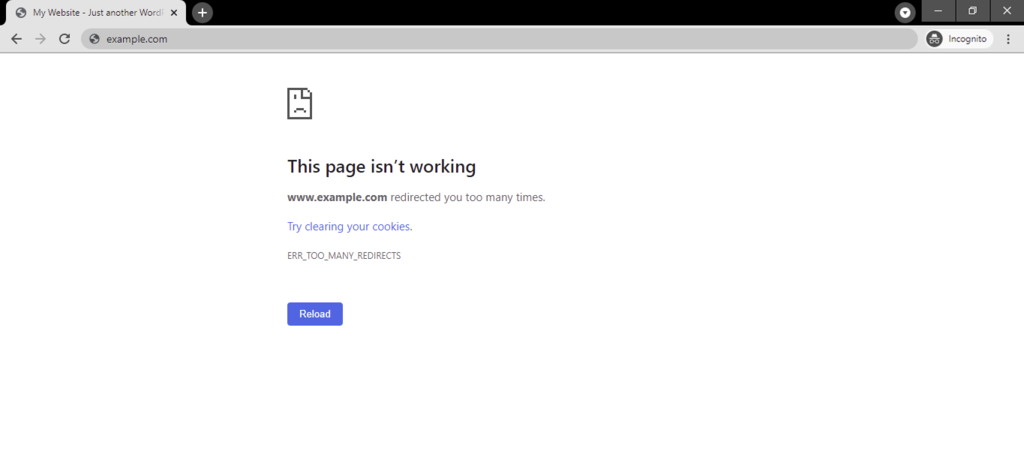
While the root cause is the same, the ERR_TOO_MANY_REDIRECTS error message can look slightly different depending on your web browser. This error appears on both desktop and mobile devices since it’s a server-side issue, not a device-specific one.
Here’s what you’ll typically see:
- Google Chrome. You will see a message stating, “This page isn’t working. [domain.tld] redirected you too many times.” This message is nearly identical on desktop and mobile versions of Chrome.
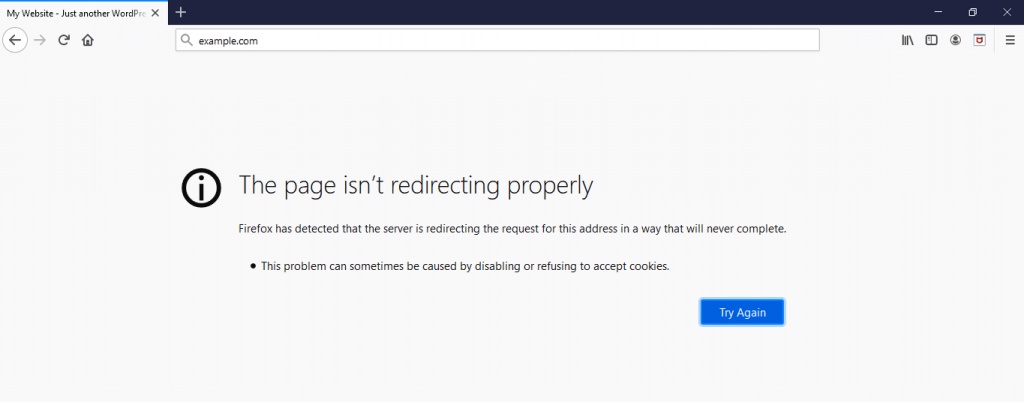
- Mozilla Firefox. The browser will show, “The page isn’t redirecting properly. Firefox has detected that the server is redirecting the request for this address in a way that will never complete.”
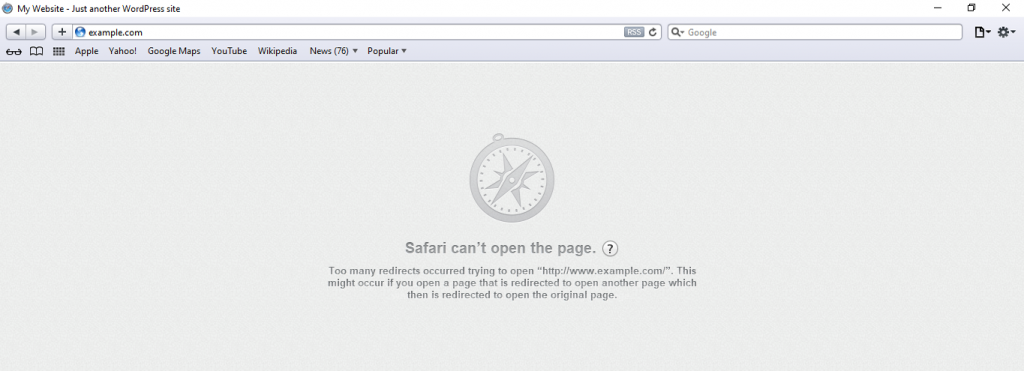
- Safari. On Safari, the warning is “Safari can’t open the page. Too many redirects occurred trying to open [domain.tld]”
What causes ERR_TOO_MANY_REDIRECTS?
The primary causes of ERR_TOO_MANY_REDIRECTS in WordPress are listed below:
- Misconfigured WordPress settings. The most frequent cause is a mismatch between the WordPress Address (URL) and Site Address (URL) settings. If these two URLs aren’t aligned, it can trigger a redirect loop.
- Corrupted browser data. Sometimes, the problem is on the user’s end. Corrupted cookies or outdated information stored in your browser’s cache can cause your browser to follow an old, incorrect redirect chain.
- Faulty plugins or themes. A poorly coded or outdated plugin, especially those managing redirects, security, or SSL, can conflict with WordPress core files or other plugins, leading to the error. A theme with incorrect URL settings can also be the culprit.
- Incorrect server configuration. Misconfigurations in your server’s .htaccess file can create faulty redirect rules. Managed hosting providers may also have server-level rules that override your .htaccess file, causing unexpected behavior.
- Incorrect HTTPS settings. An improperly configured SSL certificate or conflicting HTTPS redirect rules can force the browser back and forth between the http:// and https:// versions of your site.
- Third-party service issues. Problems with a content delivery network (CDN) like Cloudflare, particularly with its own SSL settings, can conflict with your site’s configuration and create a redirect loop.
How to fix ERR_TOO_MANY_REDIRECTS
To fix the ERR_TOO_MANY_REDIRECTS error, you can start by clearing your browser’s data. If that doesn’t work, you’ll need to check your site’s URL settings, test for plugin conflicts, and inspect your server configuration.
We’ll walk you through seven proven methods for fixing the ERR_TOO_MANY_REDIRECTS error in WordPress. For the best results, follow these steps in the given order, as the problem is often caused by something as simple as your browser’s cache.
1. Clear browser’s cache and cookies
The first step to troubleshoot a browser redirect error is to clear your browser’s cache and cookies.
Your browser might be holding on to outdated files or corrupted cookies that are causing the redirect loop. A misbehaving browser extension can also be a hidden cause of this issue.
Let’s see how to clear the browser cache and other data in Google Chrome. The process is very similar for other browsers, like Mozilla Firefox or Microsoft Edge.
- Open Chrome and click the three vertical dots in the top-right corner, then select Settings.
- Navigate to the Privacy and security tab on the left-hand menu.
- Click on Delete browsing data.
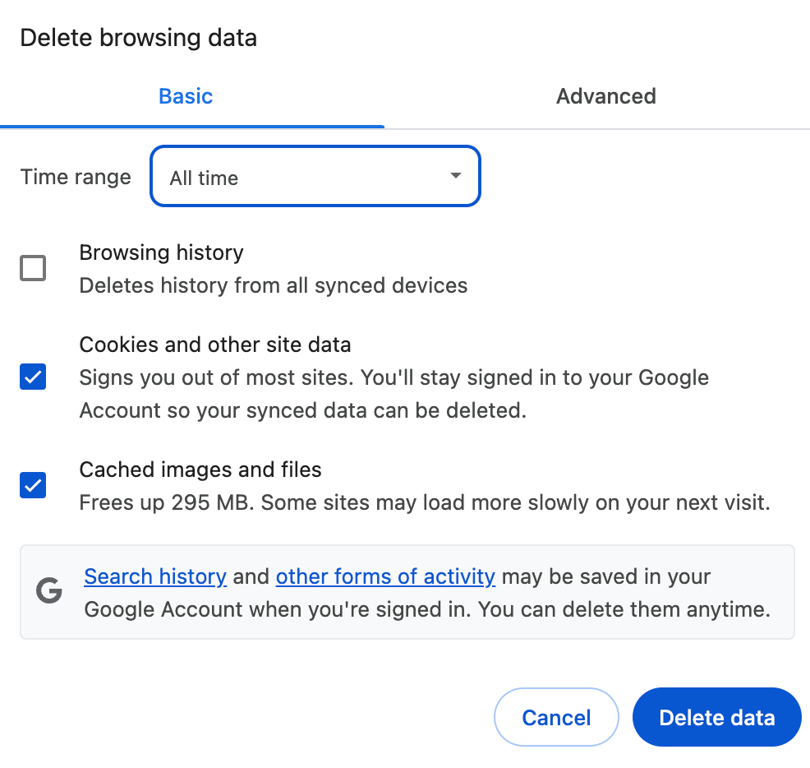
- In the window that appears, set the Time range value to All time.
- Check the boxes for Cookies and other site data and Cached images and files.
- Hit Delete data.
After clearing the cache, close and reopen your browser, then try to visit your website again. If the ERR_TOO_MANY_REDIRECTS error persists, the problem is likely in your website’s cache, and you can move to the next solution.
2. Delete WordPress cache
Just like a browser, your WordPress site builds up its own cache to improve loading times. If this cache becomes corrupted, it can cause ERR_TOO_MANY_REDIRECTS. Clearing your WordPress cache is the next logical step in troubleshooting.
Flush WordPress cache via hPanel
For Hostinger’s WordPress hosting customers, we have a built-in tool to instantly clear your server-level cache.
- Log in to hPanel with your Hostinger account and navigate to Websites → Website list.
- Click Dashboard next to your website and select WordPress → Overview.
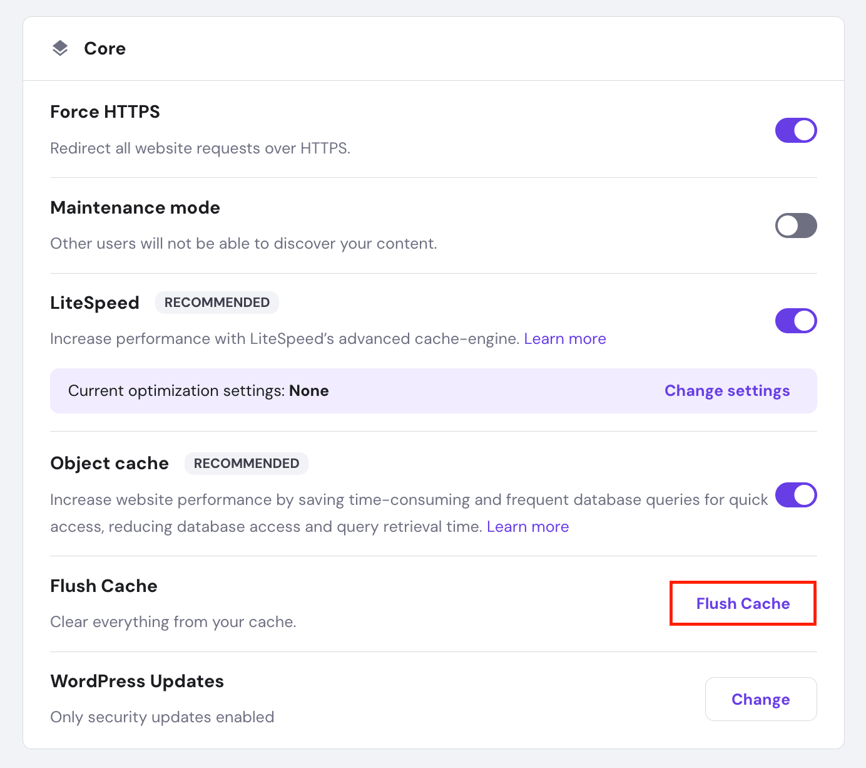
- Find the Flush Cache option and hit the designated button. This will immediately purge all cached files from your website.
- Additionally, you can enable the automatic cache by navigating to Advanced → Cache Manager. Toggling this feature on will automatically clear your cache every 30 minutes.
Clear cache using a WordPress plugin
If you’re not a Hostinger user or prefer using a cache plugin, WP Fastest Cache is an excellent free option.
- From your WordPress dashboard, install and activate the plugin by going to Plugins → Add New and search for it.
- Once active, you will see WP Fastest Cache in your left-hand sidebar menu.
- Finally, navigate to the Clear Cache tab and click either the Clear Cache or Clear Cache and Minified CSS/JS button.
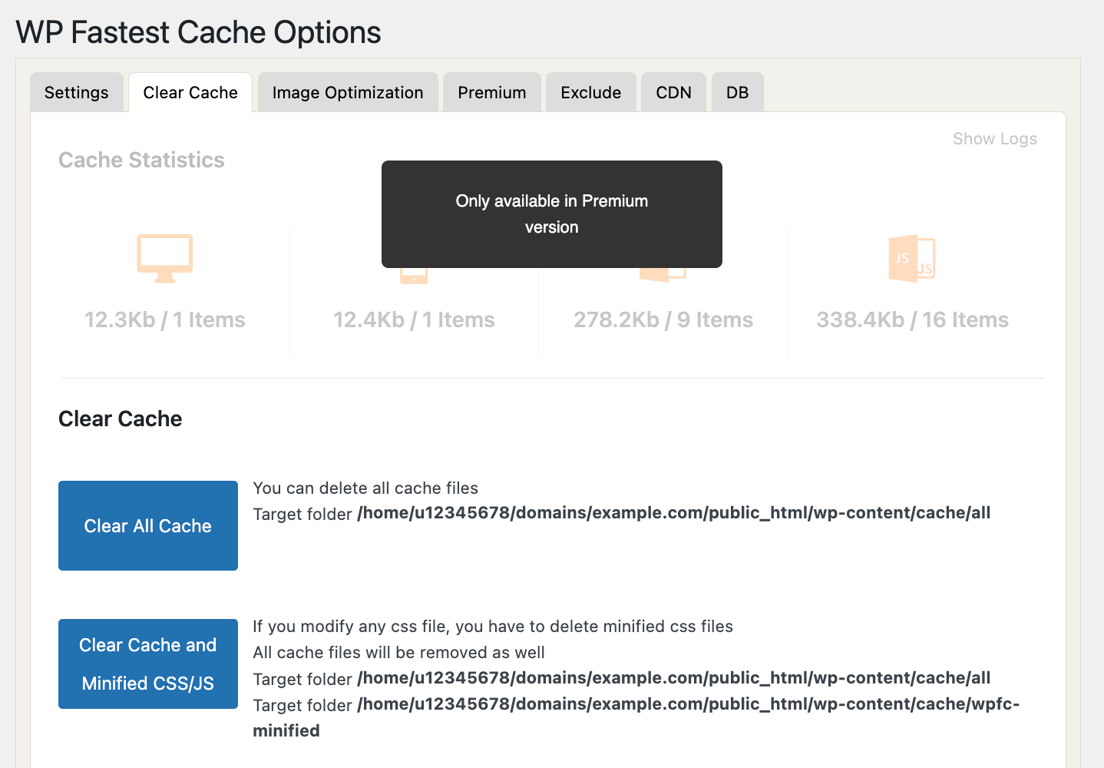
After clearing your site’s cache, check if the error is resolved. If you’re still seeing the redirect error, the problem may be caused by your WordPress site’s URLs.

3. Verify WordPress URL settings
A common cause of a redirect loop in WordPress is a misconfiguration in your URL settings, especially after a site migration or domain name change.
You must confirm that your WordPress Address (URL) and Site Address (URL) match to fix the ERR_TOO_MANY_REDIRECTS error.
There are three ways to do this. If you can access your admin dashboard, check and change the URLs there. If you’re locked out, the quickest fix is editing your wp-config.php file. The third option involves updating your database directly.
Change URLs in the WordPress dashboard
This is the simplest method if you’re not locked out of your site.
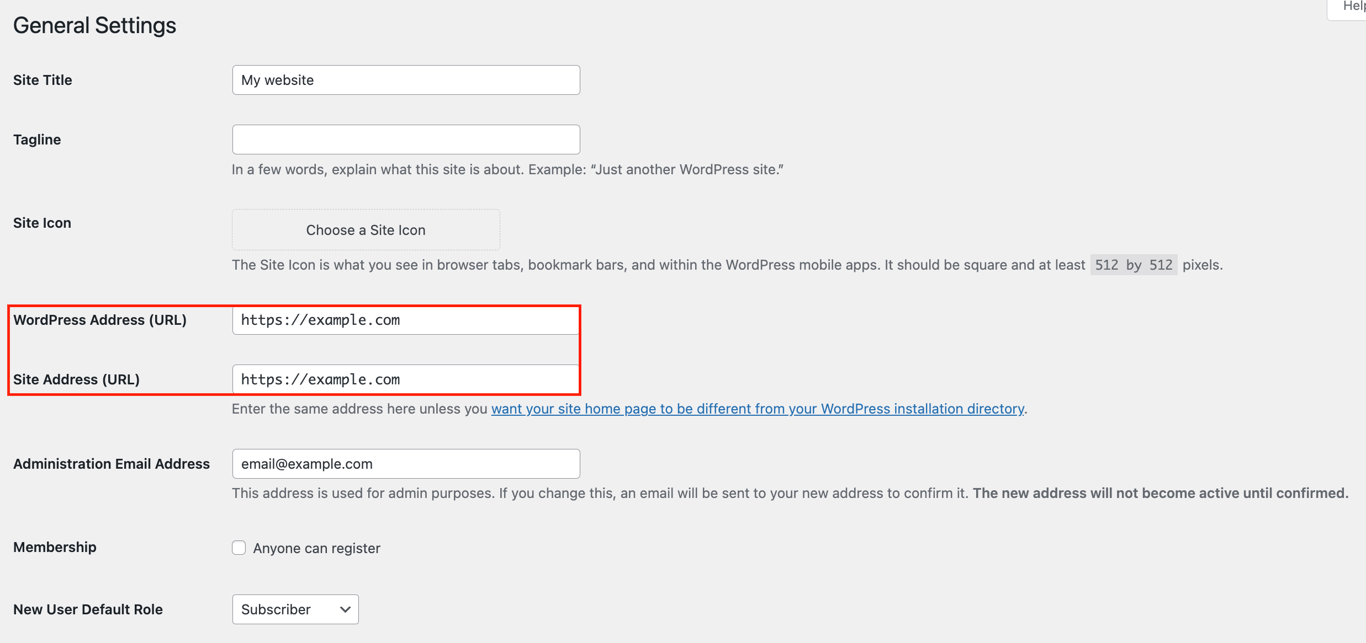
- From your WordPress dashboard, navigate to Settings → General.
- Check the WordPress Address (URL) and Site Address (URL) fields.
- Make sure both URLs are identical. This includes the https protocol and the www prefix (or lack thereof).
- Finally, scroll down and hit Save Changes.
Edit the wp-config.php file
If you can’t access your admin dashboard, this is the next best way to fix the URL settings. These defined values will override the settings in your database.
- Log in to hPanel and select Websites → Website list.
- Click Dashboard next to your website, and then navigate to Files → File Manager.
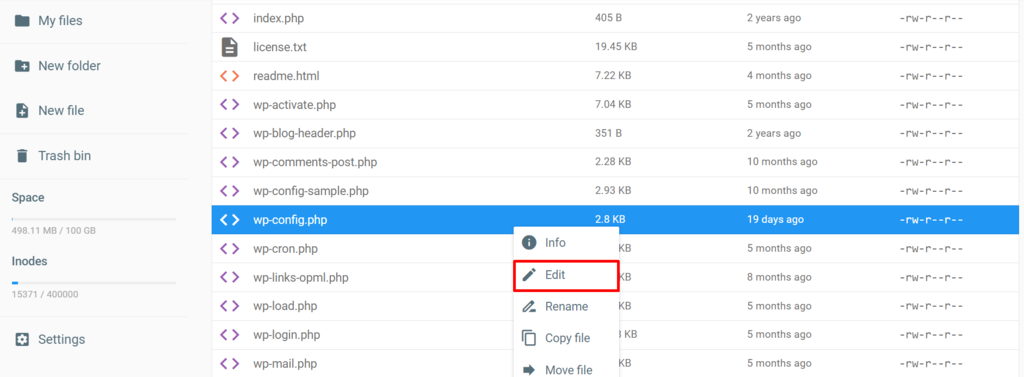
- Inside the public_html directory, find your wp-config.php file. Right-click it and select Edit.
- Add the following lines of code near the top of the file, right after the opening <?php tag. Be sure to replace https://domain.tld with your correct site URL.
define('WP_HOME','https://domain.tld');
define('WP_SITEURL','https://domain.tld');- Click the Save icon in the top-right corner. Now, try accessing your site to see if the error is resolved.
Edit URLs in the database with phpMyAdmin
You can change your WordPress URLs via phpMyAdmin if you are comfortable working with databases or if editing the wp-config.php file didn’t solve the issue.
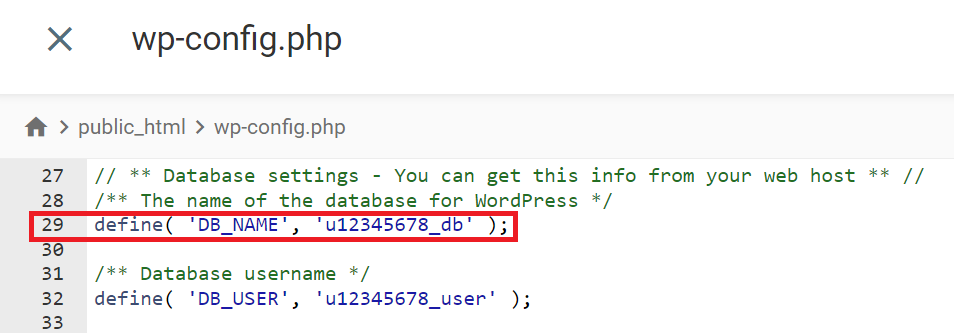
- First, you need your database name, which you can find in your wp-config.php file.
- In hPanel, go to Databases → phpMyAdmin. Find your WordPress database and click Enter phpMyAdmin.
- In phpMyAdmin, open the wp-options table by double-clicking it.
- Once inside, select the wp_options table.
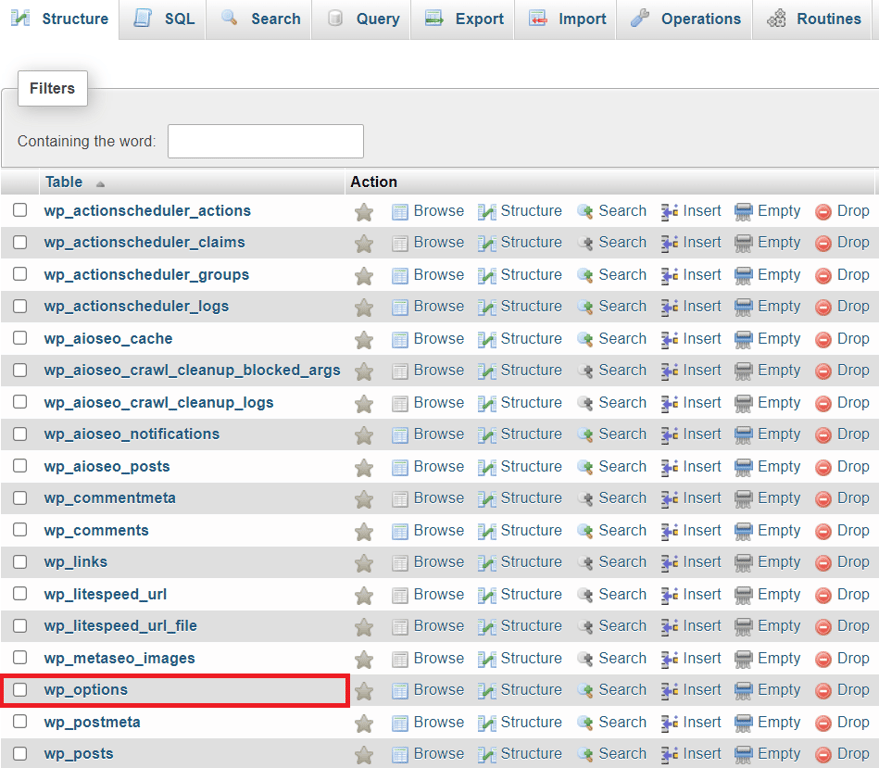
- Find the rows for siteurl and home in the option_name column.
- Click Edit next to the siteurl option, change option_value to your correct URL, and click Go. Do the same for the home option.
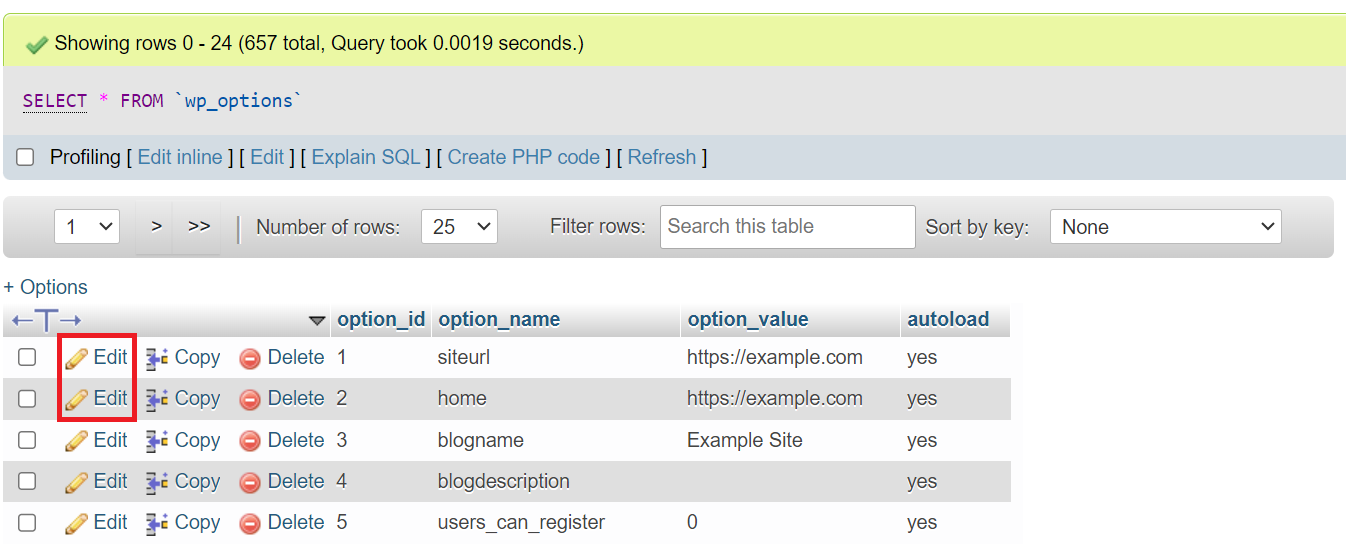
After correcting your URLs using one of these methods, try visiting your site again. If the redirect loop is gone, you’ve solved the problem. However, if the error persists, a faulty plugin is the next most likely culprit.
4. Test plugins and themes
A faulty WordPress plugin or an incompatible theme is one of the most common causes of the ERR_TOO_MANY_REDIRECTS error. Plugins that handle redirects, security (SSL), or SEO are often the primary suspects.
The process involves first deactivating all your plugins to see if that solves the issue. If it does, you’ll reactivate them one by one to find the culprit. If not, you’ll test your active theme.
How to test your plugins
Start by deactivating plugins that manage redirects, SSL, or caching, such as Rank Math, Yoast SEO, or Redirection, as they are most likely to cause a redirect loop.
The easiest way to disable your plugins is by accessing your WordPress dashboard.
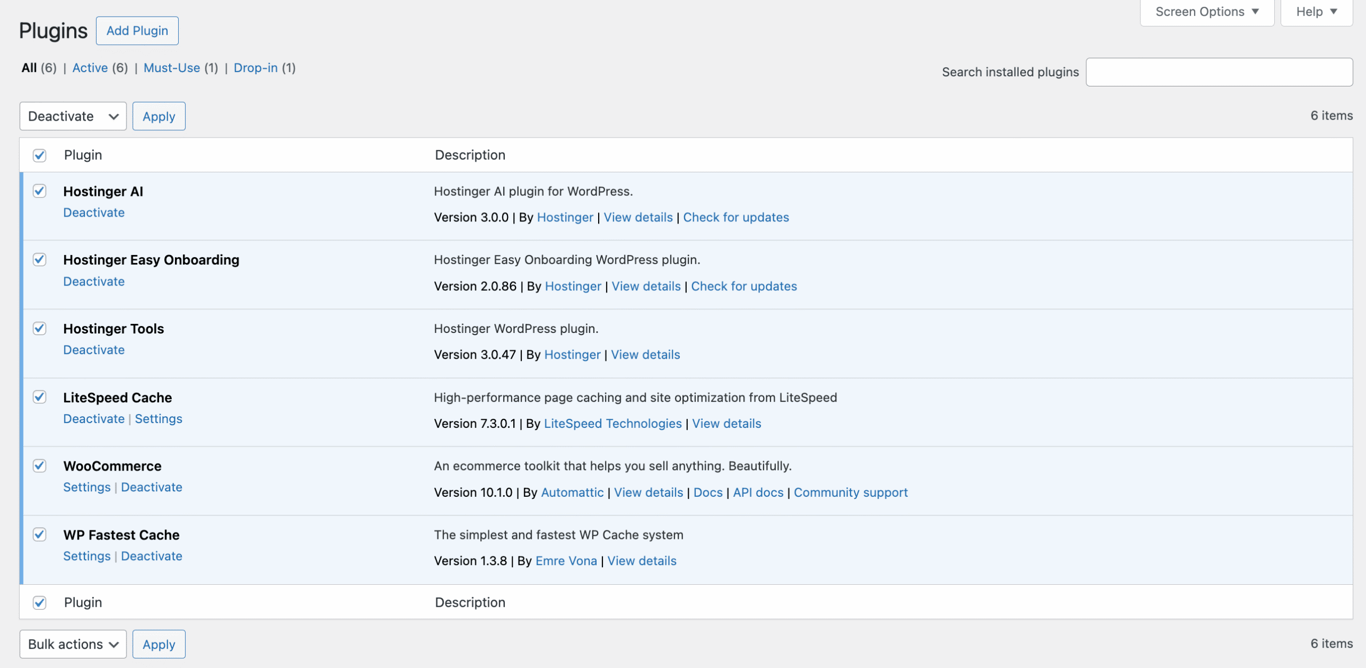
- From your dashboard, navigate to Plugins → Installed Plugins.
- Check the box at the top of the list to select all plugins.
- From the Bulk actions dropdown menu, select Deactivate and click Apply.
- Check your website. If the error is gone, one of the plugins was the cause.
- Now, reactivate the plugins one at a time, checking your site after each activation, until the error reappears. The last plugin you activated is the faulty one.
If you can’t access your dashboard, you can disable all plugins at once using a file manager.
- In hPanel, go to Files → File Manager.
- Navigate to your site’s root folder (usually public_html) and open the wp-content directory.
- Find the plugins folder, right-click it, and select Rename.
- Rename the folder to something like plugins_disabled. This will deactivate all plugins on your site.
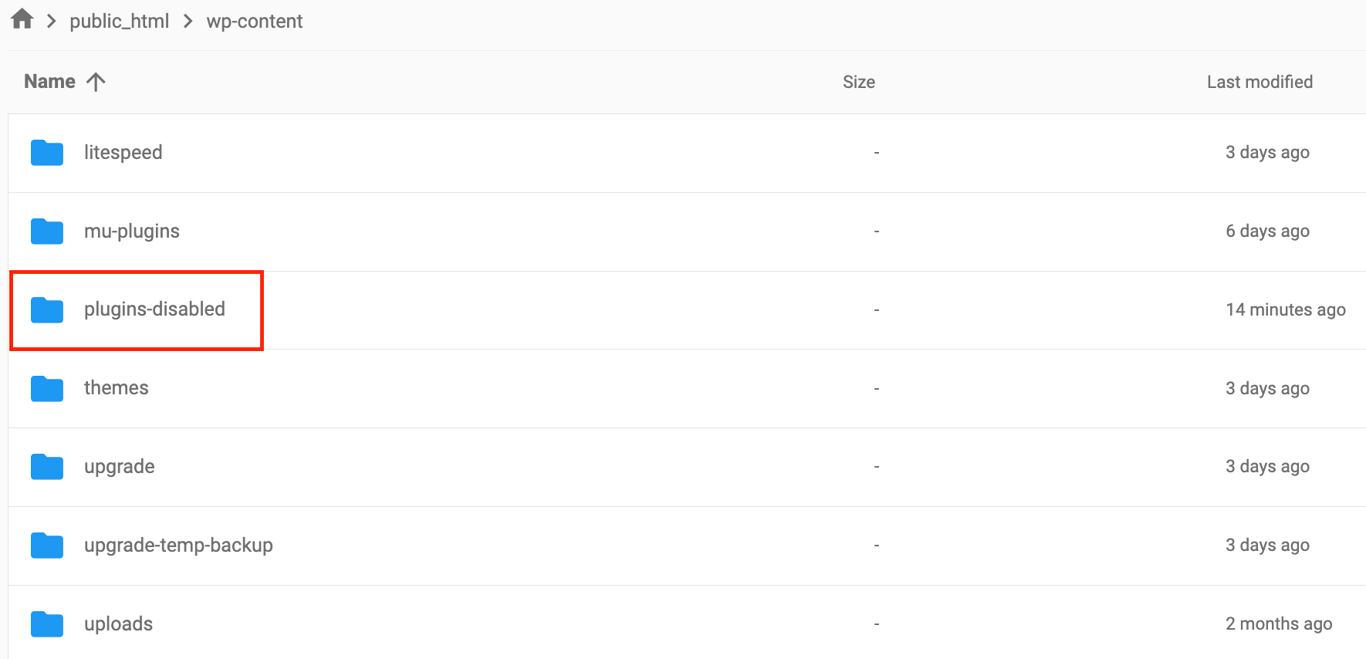
- Now, check your website. If the error is gone, you can rename the folder back to plugins. You should now be able to access your WordPress dashboard to reactivate them one by one, as described in the previous method, to find the source of the conflict.
How to test your active theme
If disabling your plugins didn’t solve the problem, your active theme might be the cause. The easiest way to check this is to switch to a default WordPress theme, like Twenty Twenty-Four.
You can do so via your WordPress dashboard or your hosting provider’s file manager. Here’s how to do it using the file manager:
- In the file manager, navigate to wp-content/themes.
- Find the folder for your active theme and rename it to something like yourtheme-disabled.
- WordPress will automatically fall back to a default theme. If the error disappears, you’ll need to contact your theme’s developer for a fix or consider using a different theme.
If the error still persists after checking your plugins and theme, the issue likely lies in your server’s configuration files. The next step is to examine your .htaccess file.
5. Check .htaccess file
Your WordPress site’s .htaccess file is a powerful server configuration file that controls permalinks and sets up redirect rules. A corrupted file or a single misconfigured rule within it can easily cause an .htaccess redirect loop.
The troubleshooting process is simple: you’ll temporarily disable your current file to see if it solves the problem. If it does, you’ll generate a fresh, default one.
Please note that some managed hosts use server-level rules that can override your .htaccess file. If you’re unsure or the issue persists after following these steps, contact your host’s support team to check for any conflicting server-side configurations.
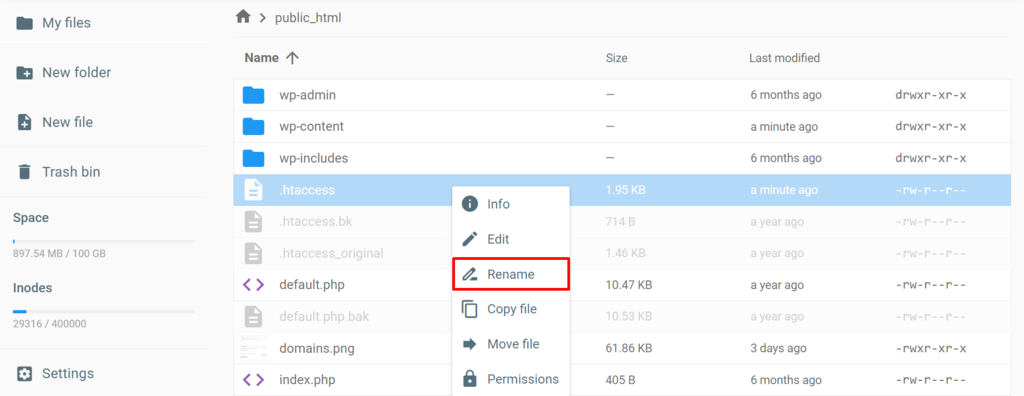
Here’s how to reset your .htaccess file using hPanel’s file manager:
- Access your file manager and open the public_html directory.
- Locate your .htaccess file, right-click it, and select Rename. Name it .htaccess_disabled.
- Try to access your website. If the ERR_TOO_MANY_REDIRECTS error is gone, your old .htaccess file was the problem.
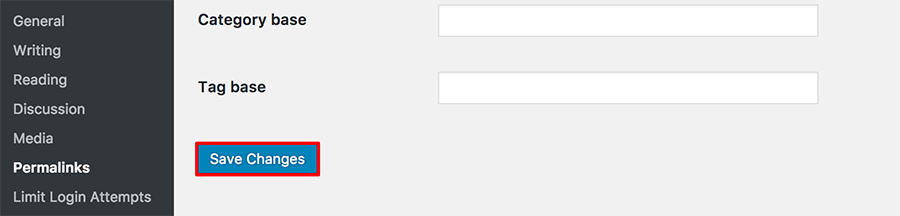
- To generate a new, clean file, log in to your WordPress dashboard and go to Settings → Permalinks.
- Scroll to the bottom of the page and simply click Save Changes without altering any settings. This action will automatically create a fresh, error-free .htaccess file on your server.
This method applies to sites running on Apache or LiteSpeed web servers. If your hosting uses NGINX, your server configuration is handled differently. In that case, contact your hosting provider for assistance with redirect issues.
If creating a fresh .htaccess file didn’t solve the problem, the redirect loop might be related to your site’s SSL certificate or HTTPS settings.
6. Check HTTPS settings
Incorrect Secure Sockets Layer (SSL) settings are a frequent cause of redirect loops.
This often happens when your site tries to force a secure connection (https) but isn’t configured correctly, causing the browser to bounce between the http:// and https:// versions of your site.
You’ll fix this by checking two things: that you have a valid SSL certificate and that you’re enforcing HTTPS correctly without conflicts.
Verify your SSL certificate
An active SSL certificate is required for a secure connection. If it’s expired, invalid, or not installed correctly, it can trigger redirect errors.
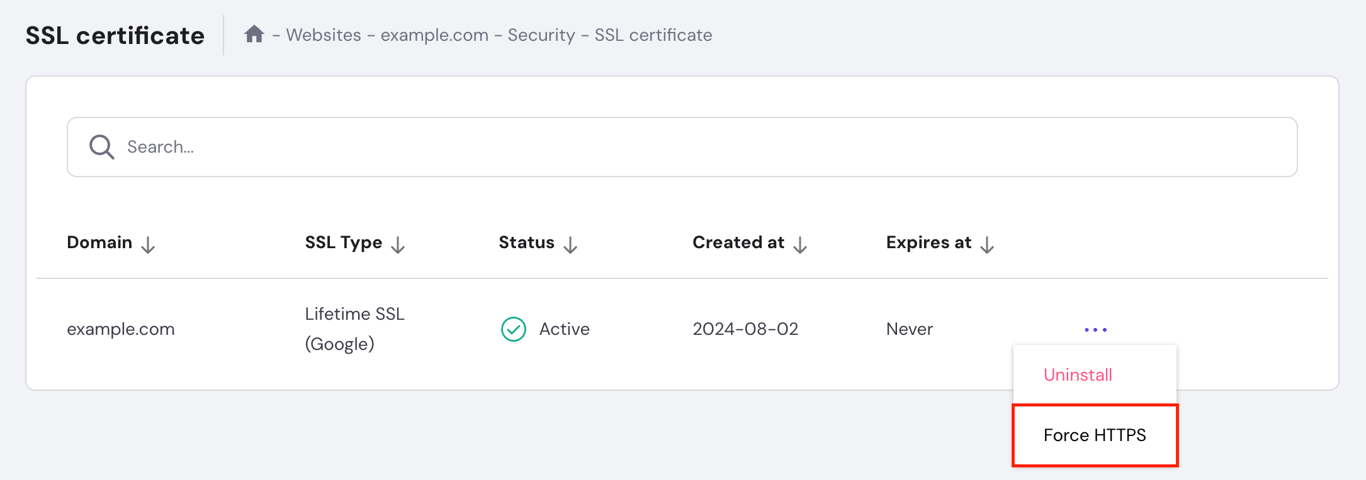
- Check your SSL status in hPanel. First, navigate to Security → SSL. Here, you can verify that your domain has an SSL certificate with the status Active.
- Install an SSL certificate if needed. If your site doesn’t have an active SSL, you must install one. Follow our tutorial on how to get an SSL certificate.
Enforce HTTPS correctly
Forcing all traffic over HTTPS is a good practice, but using multiple methods to do it can cause a redirect loop. The best approach is to use one central rule and remove others.
- Use Hostinger’s Force HTTPS feature. In the same SSL certificate menu of hPanel, click the three-dot icon next to your domain and select Force HTTPS. This creates a server-level rule that is more efficient than using a plugin or .htaccess.
- Remove conflicting rules. If you’ve enabled the Force HTTPS feature in hPanel, you should disable other methods to avoid conflicts:
- Deactivate SSL plugins. If you use a plugin like Really Simple SSL, deactivate and delete it to avoid redundancy.
- Clean your .htaccess file. Remove any custom code from your .htaccess file that forces HTTPS. The server-level rule is all you need.
If your settings are correct here but the error persists, the final place to investigate is your CDN.
7. Inspect CDN configuration
A content delivery network (CDN) speeds up your site but can also cause a redirect loop in WordPress if its SSL settings conflict with your server. The quickest way to diagnose this is to temporarily disable the CDN and see if the error disappears.
For Hostinger’s CDN
If you’re using our in-house CDN, you can easily manage it from hPanel.
- Navigate to your hPanel dashboard and go to Performance → CDN.
- Hit Disable to turn the CDN off.
- Flush your website cache and check if the error is resolved.

If disabling the CDN fixes the issue, there may be a specific configuration conflict. We recommend keeping the CDN disabled for now and contacting our support team so we can investigate the issue for you.
For third-party CDNs like Cloudflare
If you’re using a service like Cloudflare, an incorrect SSL/TLS setting is the most common issue.
Our guide covers how to set up Cloudflare for WordPress, but the following steps will help you fix the specific conflict causing the redirect loop:
- Log in to your Cloudflare dashboard and go to Overview → Advanced Actions. Click Pause Cloudflare on Site. This will temporarily disable it. If the error is gone, you know Cloudflare’s settings are the cause.
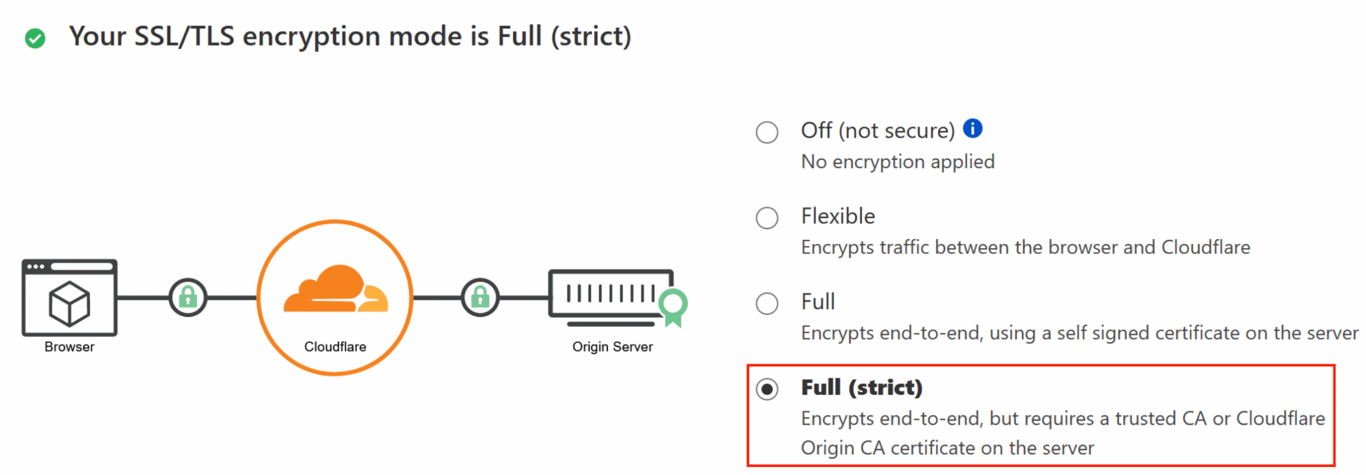
- Navigate to SSL/TLS. If it’s set to Flexible, change it to Full (strict). This ensures an end-to-end secure connection and resolves the conflict. You must have an active SSL certificate on your server (as verified in the previous step) for this to work.
- Once you’ve changed the setting, you can unpause Cloudflare from the Overview page.
How to fix ERR_TOO_MANY_REDIRECTS – A video guide
For a visual guide, watch our video tutorial that walks you through the key troubleshooting steps. It covers solutions like clearing your browser data, checking WordPress URL settings, and disabling faulty plugins to fix the ERR_TOO_MANY_REDIRECTS error quickly.


Key takeaways
You’ve now learned the most effective methods to diagnose and resolve the ERR_TOO_MANY_REDIRECTS error. With these seven proven fixes, you can get your WordPress site back online quickly.
- Start with the simplest fix by clearing your browser’s cache and cookies.
- Ensure your WordPress Address (URL) and Site Address (URL) match exactly in your settings.
- Purge your site’s server-side cache through your hosting panel or a caching plugin.
- Deactivate all plugins and your active theme to check for conflicts.
- Generate a fresh, default .htaccess file by saving your permalink settings.
- Make sure your SSL certificate is active and that you are using only one method to enforce HTTPS.
- Temporarily disable your CDN to see if it’s causing the issue, and check its SSL settings.
To prevent this error from happening again in the future, follow these best practices:
- Only use well-coded WordPress plugins from reputable developers. Avoid installing multiple plugins that perform similar functions, especially for redirects or SSL.
- Before making major changes, like installing a new plugin or adding custom code, test them on a WordPress staging environment first.
- Use one primary method to enforce HTTPS, preferably at the server level, and disable other methods from plugins or .htaccess.
If you’ve tried everything in this guide and ERR_TOO_MANY_REDIRECTS persists, the issue may be more deeply rooted. At this point, you should:
- Check your server’s error logs for specific clues.
- Perform a database search-and-replace to find any old, hardcoded URLs, especially after a migration.
- Contact your hosting provider’s support team, as they can identify server-level conflicts.
Bookmark this guide for future reference. For more troubleshooting guides, explore our tutorials on fixing common errors.

Ariffud is a Technical Content Writer with an educational background in Informatics. He has extensive expertise in Linux and VPS, authoring over 200 articles on server management and web development. Follow him on LinkedIn.