How to fix ECONNREFUSED -connection refused by server error
Mar 09, 2026
/
Edvinas B.
/
3 min Read
If you encounter the ECONNREFUSED – connection refused by a server error in FileZilla and need help fixing it, you’ve come to the right place. This tutorial will guide you through several methods to resolve the FTP error. Let’s get started!
| Error code | ECONNREFUSED |
| Error type | FTP |
| Error variations | Connection attempt failed with “econnrefused – connection refused by server”. Error: connect econnrefused |
| Error causes | Firewall configurations Anti-virus configurations Using incorrect port Incorrect Filezilla configurations |

How to Fix SSH Connection Refused Error Video Guide
Learn how to fix the SSH Connection Refused error using three simple methods in this video tutorial.


Method 1 – Disabling Firewall/Anti-Virus Software on Your Computer
One of the possible reasons for this error is that the firewall and anti-virus software on your computer is preventing FileZilla from making a connection.
If that’s the cause of the Error: Connect econnrefused – connection refused by server error, simply disable the firewall and anti-virus software on your computer and try to reconnect. Here’s how to do so on Windows:
- Press the Windows key on your keyboard and type in Control Panel.
- Head to System and Security and locate Windows Defender Firewall.
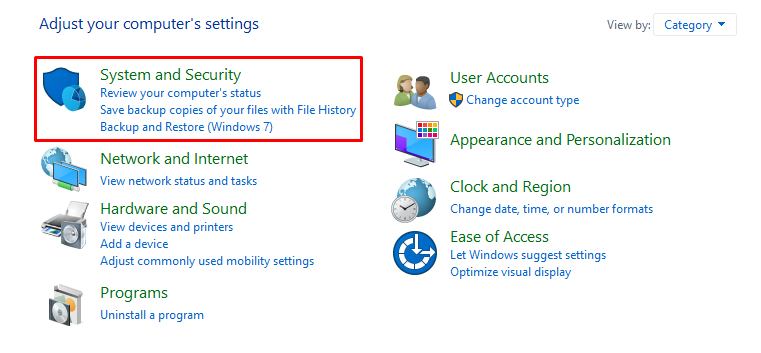
- On the left menu bar, find the option to Turn Windows Defender Firewall on or off.
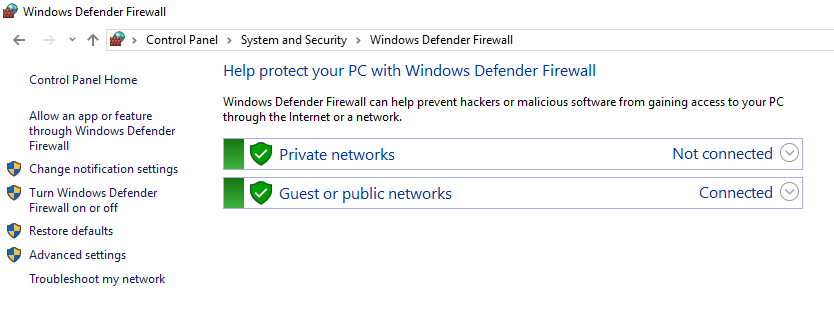
- On the next window, modify the settings to turn off Windows Defender Firewall for public and private networks, then press Ok.
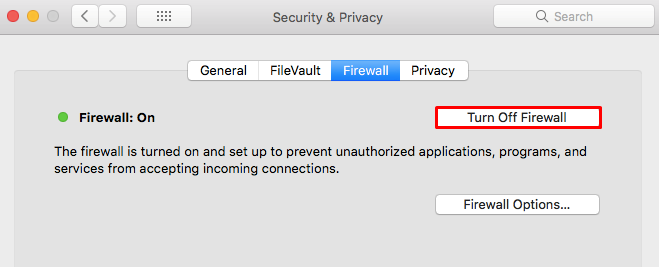
On macOS, you need to:
- Click on the Apple menu on the upper left toolbar, then System Preferences.
- Locate the Security & Privacy option.
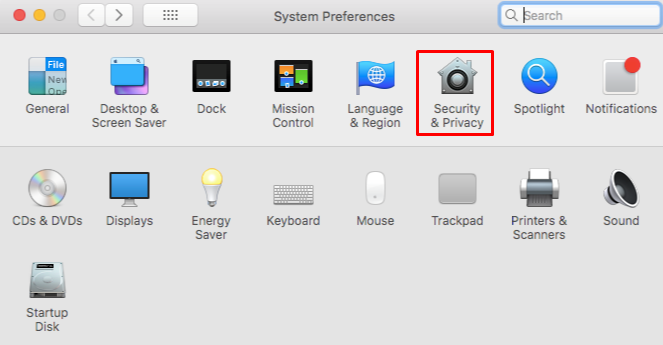
- Switch to Firewall and click on the Turn Off Firewall option.
To disable different anti-virus software on your computers, check out this article for detailed guidance.
That’s it! This method should fix the ECONNREFUSED – connection refused by server error instantly if your computers’ firewall and anti-virus are the problems. Should it persists, turn everything back on and do the next method instead.
Method 2- Changing FileZilla’s Default Port Value
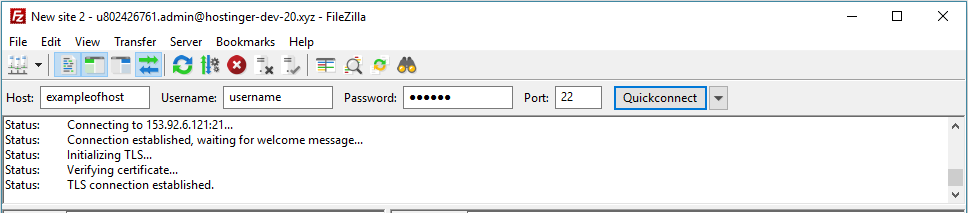
Sometimes, the error happens because you’re using the wrong port when connecting with FileZilla. If that’s the case, all you need to do is put 22 (default SFTP port) instead of 21 (default FTP port number) on the port column, as seen below.
Important! Make sure to edit the Site Manager’s configuration and change the protocol to SFTP – SSH File Transfer Protocol if you’re using port 22.
Method 3 – Editing FileZilla’s Network Configuration Wizard
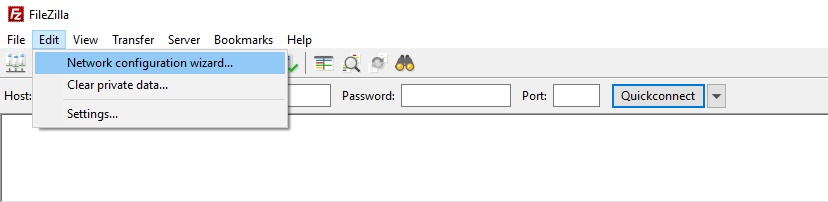
If none of the solutions above work, try editing FileZilla’s network configurations to fix the ECONNREFUSED – connection refused by server error. To access the Network Configuration Manager, here’s what you need to do:
- Connect to FileZilla FTP client and head to Edit -> Network Configuration Wizard.
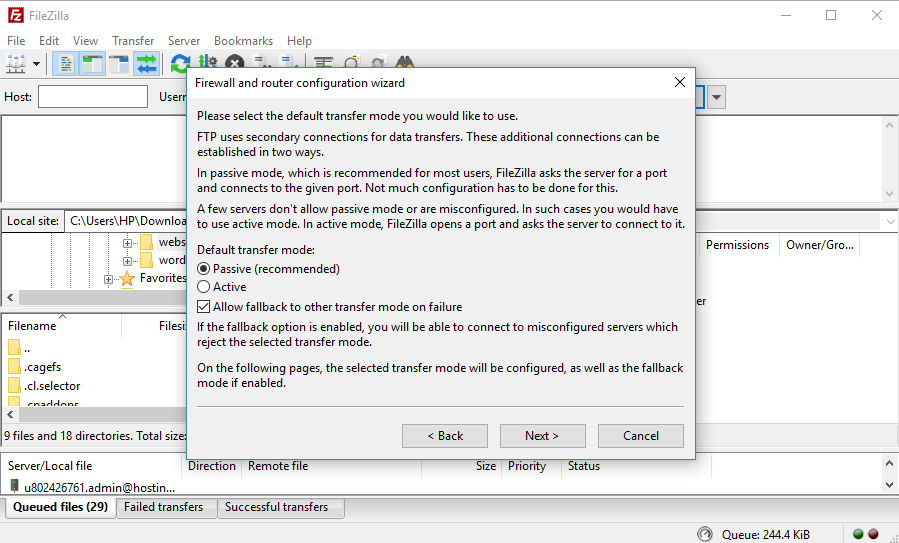
- Press Next to proceed once a Firewall and router configuration wizard window pop out.
- Choose Passive (recommended) as the Default transfer mode, and put a check on the Allow fallback to another transfer mode on failure option.
- Select Use the server’s external IP address instead.
- Choose the Get the external IP address from the following URL. If the input field is blank, enter the default value, which is http://ip.filezilla-project.org/ip.php, and proceed.
- Don’t make any changes to the port range configuration and select Ask operating system for a port.
Now you just need to make sure everything is configured correctly. Click on the Test button, and FileZilla will try to connect to probe.filezilla-project.org to perform some simple tests.
If you don’t receive any errors during the test, try connecting to your hosting account again, and you should connect just fine. If the ECONNREFUSED – connection refused by server error still appears, contact your hosting customer support team for assistance.
Further Reading About FTP
How to Check if FTP Port 21 Is Not Blocked?
How to Create an FTP Account?
Conclusion
By finishing this short tutorial, you’ve learned how to fix the FileZilla Error: Connect econnrefused – connection refused by server error through three simple methods. Here’s a quick recap of the reasons why it happens and how to fix it:
- Computers’ anti-virus software and firewall preventing FileZilla from making a connection – turn them off temporarily on your computers.
- Using the wrong port when making a connection – Use SFTP default number port (22) instead of the FTP port (21)
- Misconfiguration in your FileZilla Client – editing the configurations through FileZilla’s Network Configurations Wizard.
Simple, right? If you have any other solutions, or if you have any questions, do let us know in the comments!


Edvinas is a professional mentor and trainer of customer support agents. When he's not teaching the secrets of providing exceptional service, he likes to travel the world and play basketball.