How to eliminate render-blocking JavaScript and CSS on WordPress
Mar 09, 2026
/
Domantas G.
/
4 min Read

Having a website that loads fast is crucial if you want to rank high in search engine result pages (SERP). That’s why website speed testing tools are there to help you optimize your site. If you’re getting an “Eliminate render-blocking JavaScript and CSS in above-the-fold content” warning while using the tool, fret not. In this article, we’ll be showing you how to fix the issue.
Download all-in-one WordPress cheat sheet
Getting to Know “Eliminate render-blocking JavaScript and CSS in above-the-fold content” Warning
If you look at Google’s PageSpeed rules, eliminating render-blocking JavaScript and CSS is one of them. Any failure in that will result in a slower page loading speed. But how can JavaScript and CSS on your HTML page slow down your site?
Well, every time you install a plugin or a new theme, they add a JavaScript and CSS code to the front-end. As a result, browsers may need more time to load the page.
Above-the-fold (ATF) means the part of your webpage that is visible when the page first loads. Any part of the page that you have to scroll down to reach is non-ATF.
So, if non-relevant JavaScript and CSS code are rendered when visitors load your website, you might get a warning to reduce the number of render-blocking JavaScript and CSS in above-the-fold content resources.
Finding Out Render-Blocking JavaScript and CSS Using Google PageSpeed Insights
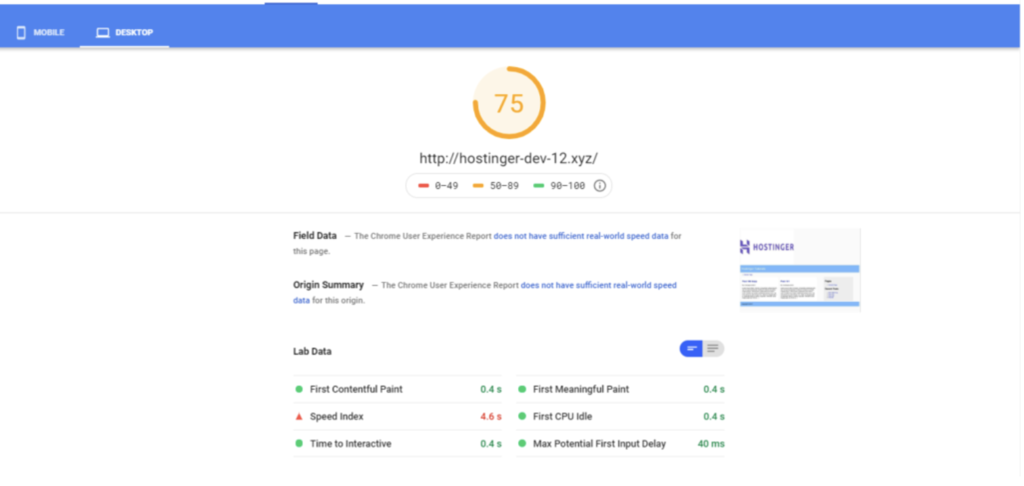
The first step in fixing render-blocking is testing your site’s speed using Google PageSpeed Insights. Follow these steps to do so:
- Visit the page, and paste your website’s URL in the “Enter a web page URL” field.
- Click Analyze to get the report.
Pro Tip
Most sites score between 50-70; this should serve as a benchmark for your score. Google will also list suggestions to improve the performance of your website.
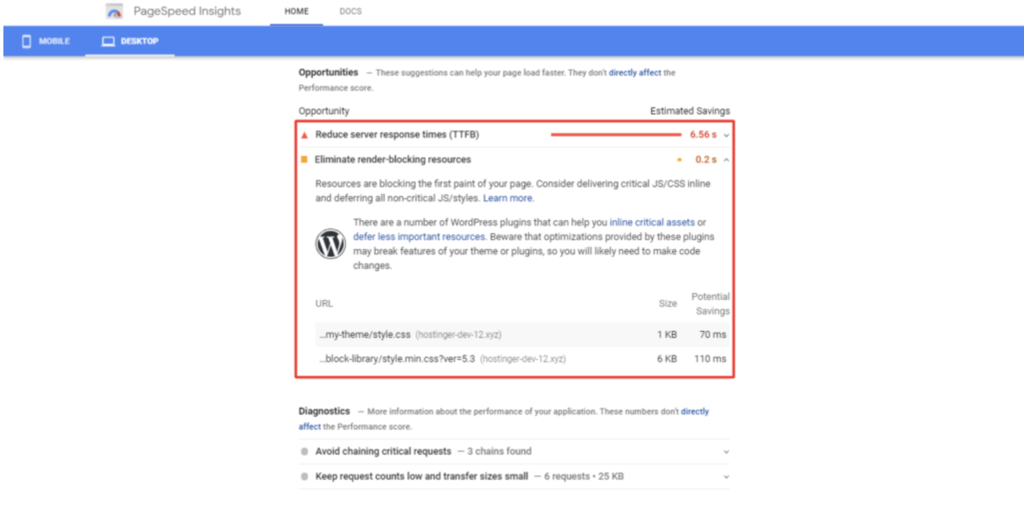
If you also find the suggestion to eliminate render-blocking JavaScript and CSS in above-the-fold content, then you will need to fix the issue.
Keep in mind that you should not force your website to score a perfect 100. Just try your best to get a good score without sacrificing user experience.
If there are scripts on your WordPress site that are essential for a robust UX, you shouldn’t remove them just to get a slightly higher score on PageSpeed Insights.
Pro Tip
The rules on which Google scores your websites are merely guidelines and should be taken as such.
Fixing “Eliminate render-blocking JavaScript and CSS in above-the-fold content” Error
With WordPress, reducing render-blocking JavaScript and CSS resources on your WordPress site is easy. You can use the three plugins we’ve listed below:
W3 Total Cache
One of our favorites is the W3 Total Cache plugin. Once it’s installed and activated, follow these steps on your WordPress admin dashboard:
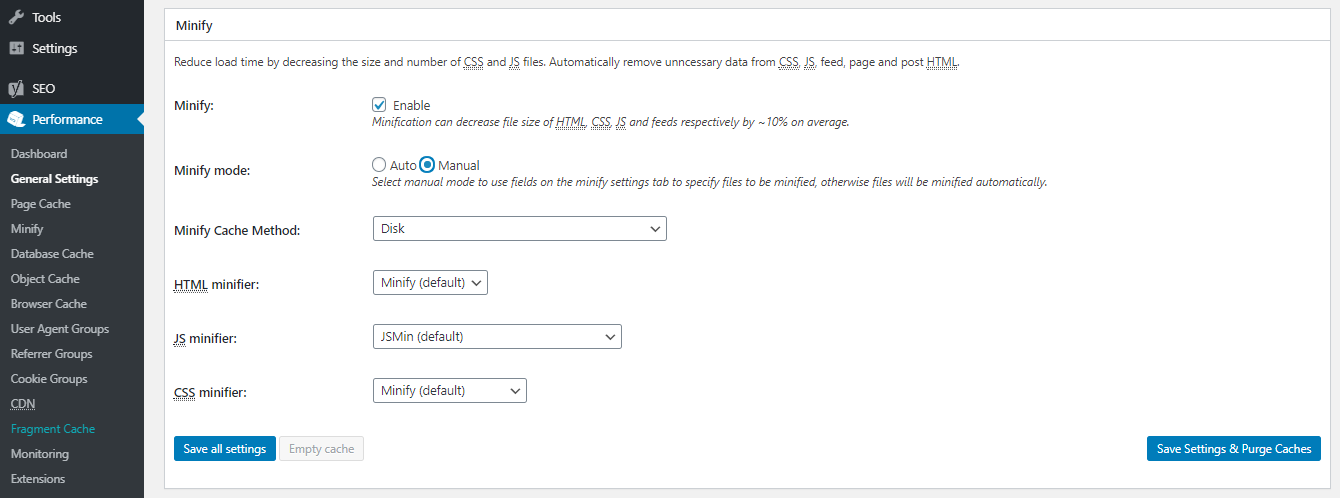
- Go to Performance -> General Settings.
- Find the Minify heading on the page. Then, you will see a few options under this heading.
- Tick the Enable box for Minify. Then, for the Minify mode option, choose Manual.
- Press Save all settings.
- Fetch all render-blocking JavaScript and CSS scripts, which you can find through Google PageSpeed Insights.
- Once you’ve found the troublemaker, navigate back to Performance -> Minify on your WordPress dashboard.
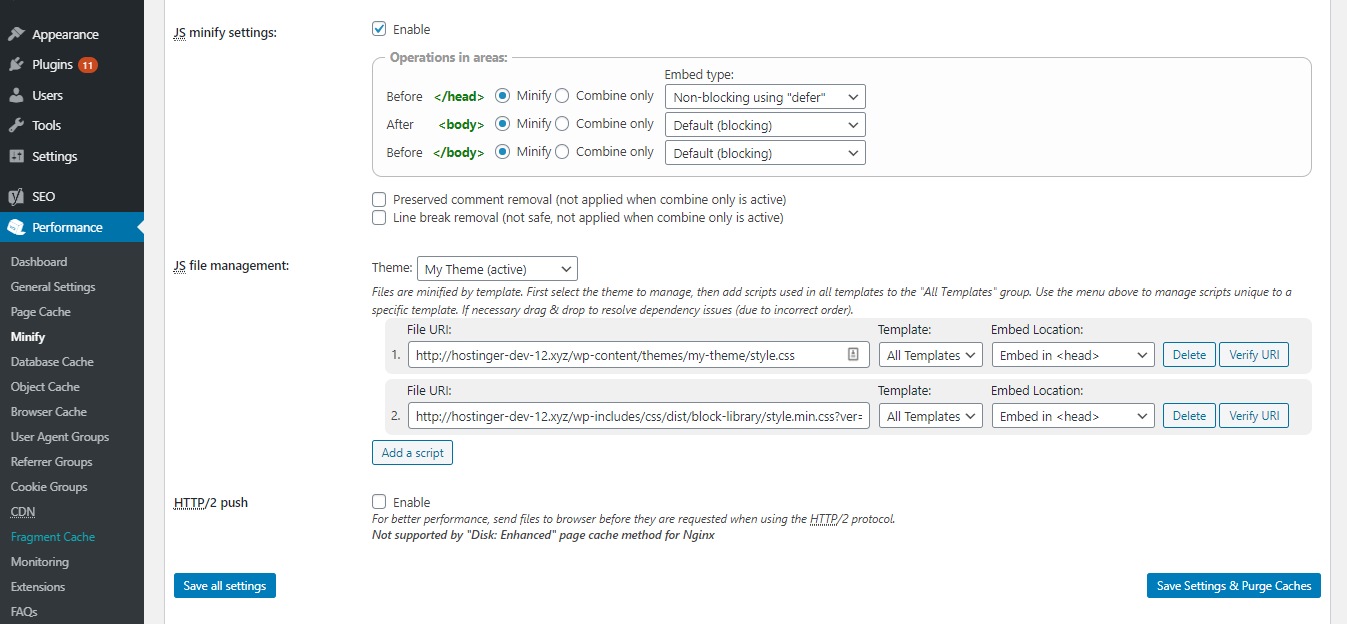
- Find the JS section. In the Operations in areas section, choose the Non-blocking using “defer” embed type for the Before <head> tag.
- For JS file management, choose your active theme and click on the Add Script button. Copy and paste the JavaScript URLs from the Google PageSpeed Insights on the fields provided, as shown below.
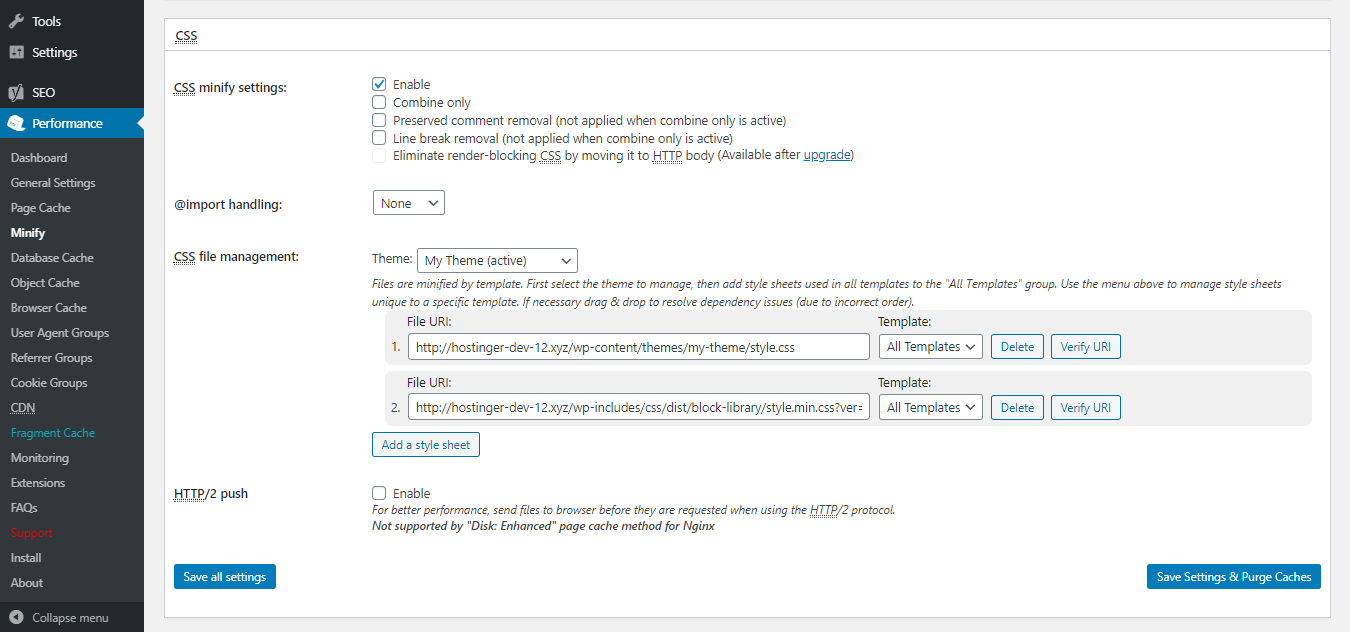
- Scroll down and find the CSS section. For the CSS file management, choose your active theme and click on Add a style sheet. Similar to the step above, copy the CSS stylesheets URLs from the PageSpeed Insights and paste them on the required fields.
- Finally, click the Save Settings & Purge Caches button.
Autoptimize
Alternatively, you can use the Autoptimize plugin to resolve the render-blocking javascript and css error. Perform these steps on your dashboard once the plugin is installed and activated:
- Go to the Settings -> Autoptimize.
- Check the boxes for Optimize JavaScript Code?” and Optimize CSS Code?
- Press the Save Changes and Empty Cache button.
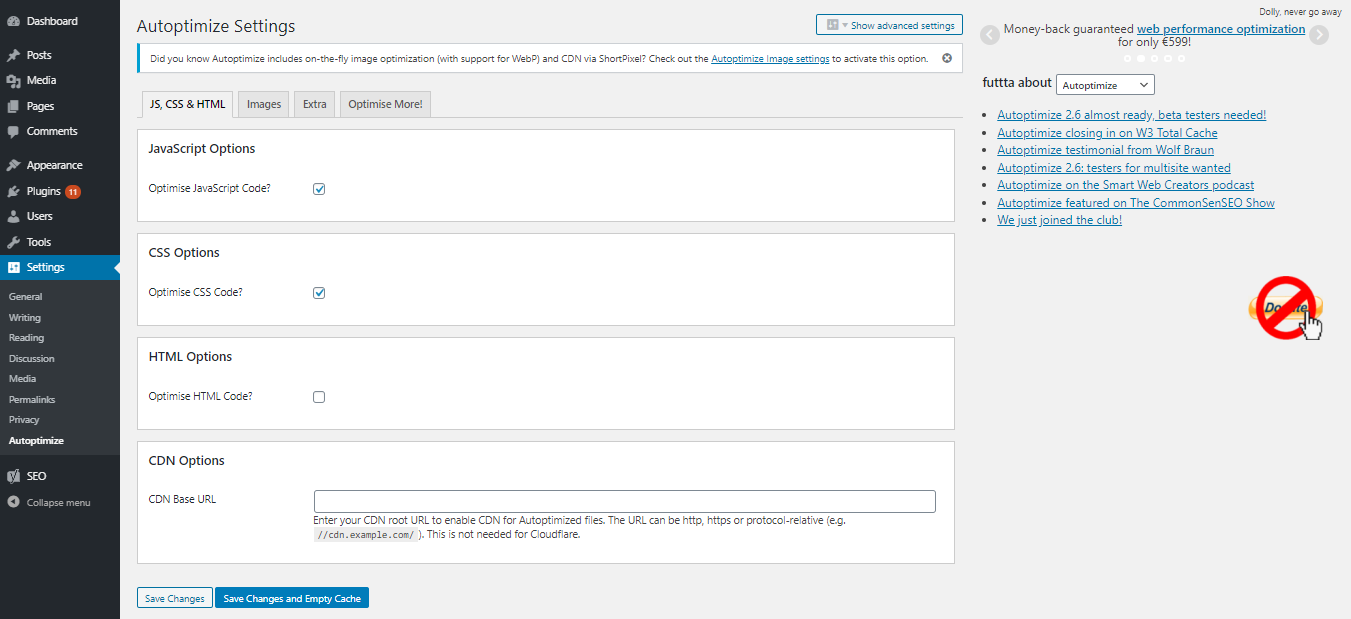
In most cases, this is enough to fix the warning. However, the result may vary depending on your theme and active plugins.
To make sure your problem has been solved, run your site through PageSpeed Insights again. If there’re any blocking JS and CSS resources left, take the optimization even further by following these steps:
- Head back to Settings -> Autoptimize.
- Hit the Show Advanced Settings button.
- Then, check the options for Also aggregate inline JS and Also aggregate inline CSS.
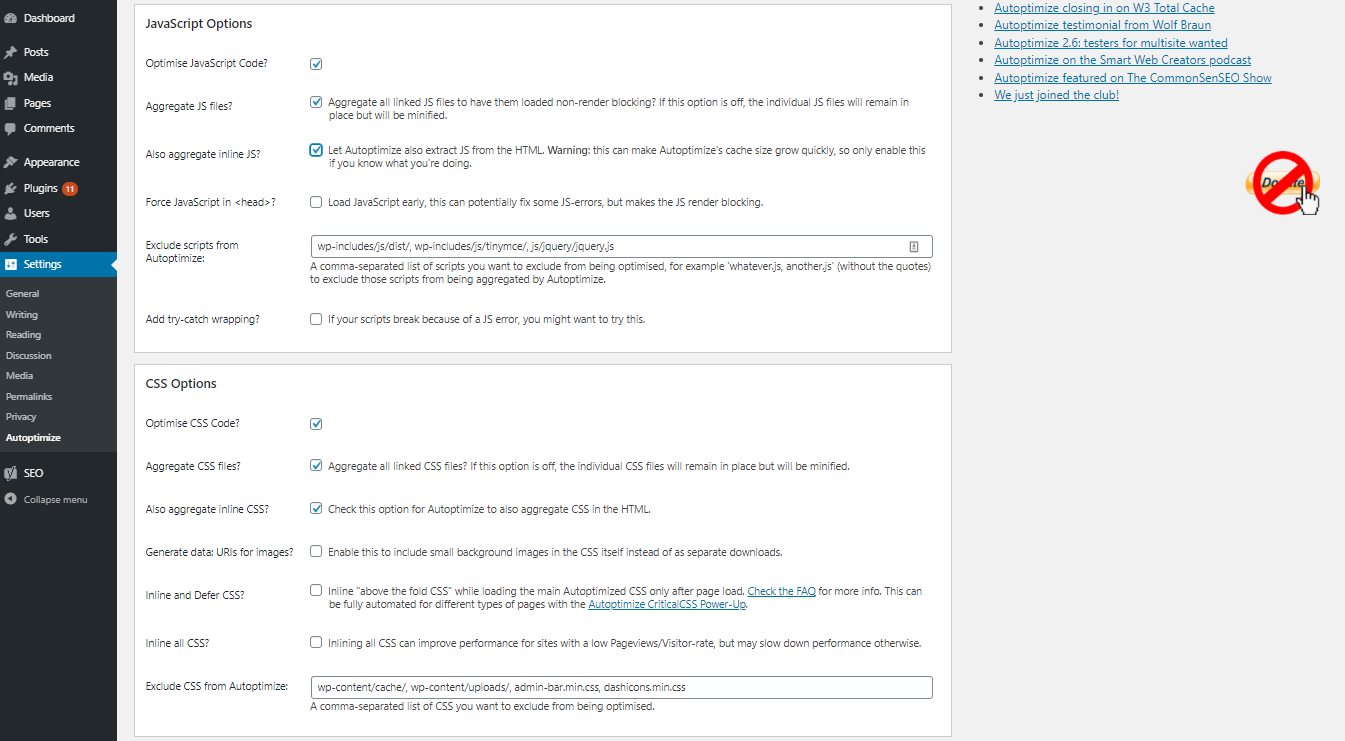
- Save your changes.
Speed Booster Pack
Another popular plugin that you may find useful in fixing render-blocking javascript and css error for your WordPress website is Speed Booster Pack. To do so, follow these steps on your wp-admin area:
- Go to the Speed Booster Pack section and access the Advanced tab.
- In the JavaScript Optimization menu, enable Move scripts to the footer and Defer parsing of JavaScript files.

- Scroll down to the CSS Optimization menu to set the CSS render-blocking optimization.
- You will find additional settings for inlining all CSS, minifying all (previously) inlined CSS, and moving all inlined CSS into the footer. Experiment with these options to find a proper solution.

Pro Tip
Simply enabling all of them will load your site faster, but may also introduce the unwanted Flash of unstyled content (FOUC) artifact. This happens when the browser loads the web page without waiting for the stylesheet to load, causing a momentary flash of unstyled page.
After trying the methods above, head back to Google PageSpeed Insights to ensure that render-blocking is not an issue anymore.

Conclusion
Website speed is one of the most important factors in attracting and retaining visitors. This is because search engines consider site speed when ranking results, so increasing WordPress site speed is essential.
Google’s PageSpeed Insights assigns a score to websites based on their loading speeds. If you’re getting the infamous Eliminate render-blocking JavaScript and CSS in above-the-fold content suggestion while analyzing your WordPress site performance, simply fix the issue with plugins.
Hopefully, this tutorial is beneficial for you. Feel free to comment below if you have any questions. Good luck!
Learn Other Expert WordPress Techniques
WordPress Hooks
How to Add Custom CSS in WordPress
WordPress Tutorial
How to Edit HTML in WordPress
WordPress REST API
Become a WordPress Developer

Domantas leads the content and SEO teams forward with fresh ideas and out of the box approaches. Armed with extensive SEO and marketing knowledge, he aims to spread the word of Hostinger to every corner of the world. During his free time, Domantas likes to hone his web development skills and travel to exotic places.