How to create and use a phpinfo file to check your PHP information
Sep 15, 2026
/
By Tomas A.
/
2 min Read

If you need to check your website’s PHP configuration, also known as phpinfo, to ensure it meets software requirements, you’re in the right place. This tutorial will guide you on creating a phpinfo file and accessing its detailed information through your hosting control panel. Let’s get started!

Checking PHP Information Using Hosting Control Panel
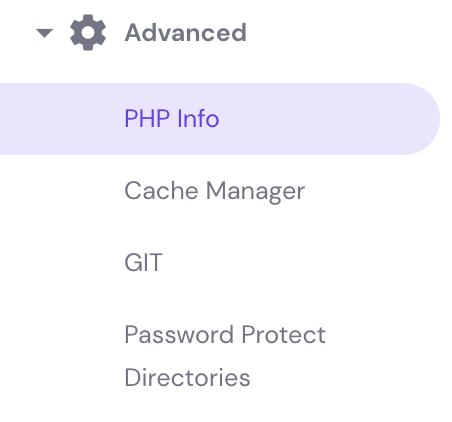
In this guide, we’ll be using Hostinger dashboard, where you can easily check your PHP information using the PHP Info tool. Once you’re logged in, scroll down and go to Advanced -> PHP Info.
You’ll then be forwarded to a page with detailed information about your current PHP version, modules, and values, etc. Scroll down to browse for more.
If you wish to find data about a specific module or function, you can use the CTRL + F (CMD + F for macOS) shortcut to open the search feature within your browser.
Checking PHP Information by Creating a phpinfo File
In case your hosting platform doesn’t offer the mentioned built-in PHP Info feature, there is no need to worry! You can reach the same goal by creating a phpinfo file in your public_html directory.
The file will be accessible via a browser and will show you the same detailed information.
You will need a way to access your public_html files. Here we’re using Hostinger’s File Manager as an example.
- Navigate to File Manager under the Files section in your Hostinger dashboard.
- Once you’re in public_html directory, click the New File button.
- Name your file phpinfo.php and press Create.
- Scroll down and locate the new phpinfo file within the directory, then right-click to Edit.
- Now, copy and paste the following code into the text editor and press Save.
<?php
phpinfo();
?>
The same result can be achieved by using any text editor on your computer. Create the phpinfo.php file by following the same steps from before, then uploading the file to your server’s public_html folder through an FTP client.
If you don’t know how to configure or never worked with an FTP client, such as FileZilla, refer to our FTP guide for more information.
Checking PHP Information Using a Browser
You should have a phpinfo.php file in your public_html directory by now. So, all that’s left is to access the file by adding /phpinfo.php at the end of your domain name.
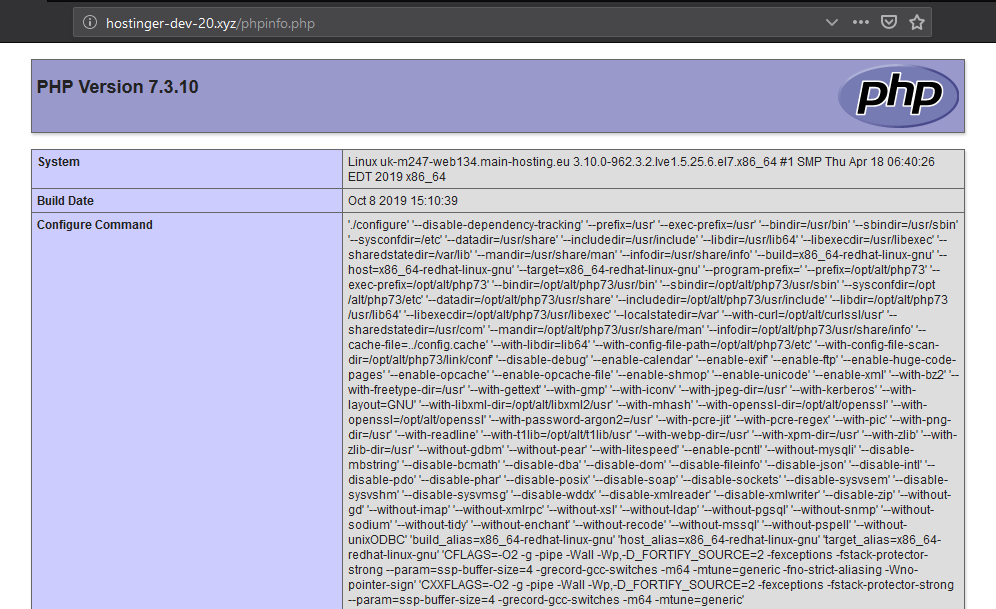
You should see a similar view when the file is accessed via any browser:
Pro Tip
If you don't want your phpinfo page to be displayed all the time, you can easily disable the file by giving it a different name. phpinfo.php_disabled, for instance.

Conclusion
There you have it! By finishing this tutorial, you’ve learned how to create a phpinfo.php file and how to check PHP information via your hosting control panel or your default browser. That was pretty easy, right?
This article is a localized version of How to create and use a phpinfo file to check your PHP information, originally published in English.

Tomas provides top-notch technical advice on a daily basis to our valued customers. He also likes to create websites and do various coding side projects.