How to change the PHP version of a website + things to consider before updating
Sep 15, 2026
/
By Merkys M. & Aris S.
/
5 min Read
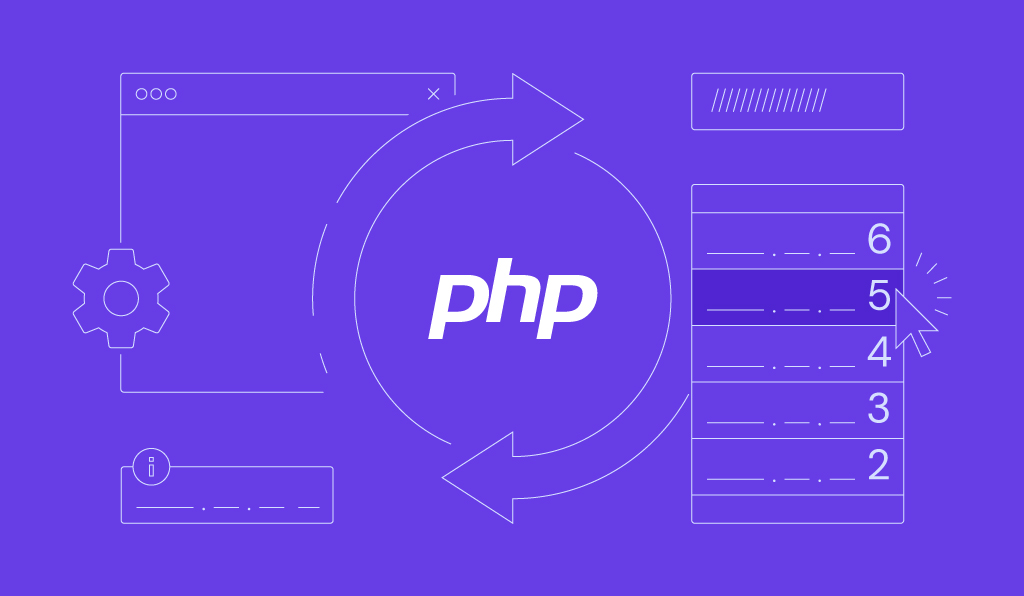
Hypertext Preprocessor (PHP) is an open-source server-side scripting language widely used for web development. It is also used in popular content management systems (CMS), such as WordPress and Joomla.
Since PHP updates frequently, the default version installed on your web server may be outdated. Therefore, it is crucial to understand how to switch PHP versions to maintain your site’s functionality.
This article will explain why and how to change your site’s PHP version. We will also list the prerequisites and answer commonly asked questions about changing the PHP version.
Why Change PHP Version of Your Site
As an essential part of your website, PHP defines how your web page functions. Depending on your goal, you may upgrade or downgrade to another version of PHP.
A PHP upgrade can bring many benefits to your site, namely:
- Increased security. Due to its popularity, many cybercriminals often exploit PHP to attack a website. Updating PHP applies the newest security patch, protecting your site.
- Performance boost. The newer PHP version is faster and more efficient. According to WordPress, updating PHP can improve your site’s speed by up to 400%.
- New features. A major PHP update usually adds new features. For instance, PHP version 8’s new features include named arguments, union types, and match expression features.
- Improved functionality. Updating your PHP version fixes bugs that may harm your site’s functionality. It also lets you run your updated site code properly.
Meanwhile, you may want to downgrade PHP to an earlier version to fix an incompatibility issue. Sometimes, newer PHP versions can’t properly run older plugins, themes, or site codes.
What to Consider Before Changing the PHP Version
Before switching to a different PHP version, consider the following prerequisites to ensure your site works normally.
Update CMS to the Newest Version
Update your CMS before switching to a different PHP version. Since most CMS are based on PHP, an outdated version may trigger incompatibility issues. These issues may prevent PHP codes from running correctly, harming your site’s functionality.
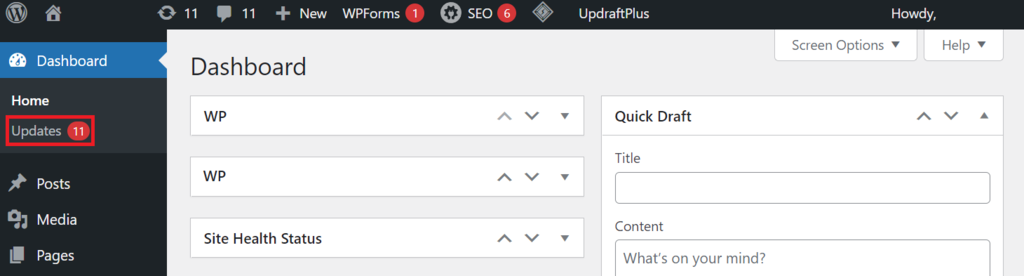
The steps to check your CMS version may vary. To check your current WordPress version, log in to your site’s wp-admin page and navigate to the sidebar → Dashboard → Updates.
WordPress will display the currently active version and the newest stable release. If your WordPress is up-to-date, it will say, “You have the latest version of WordPress.”
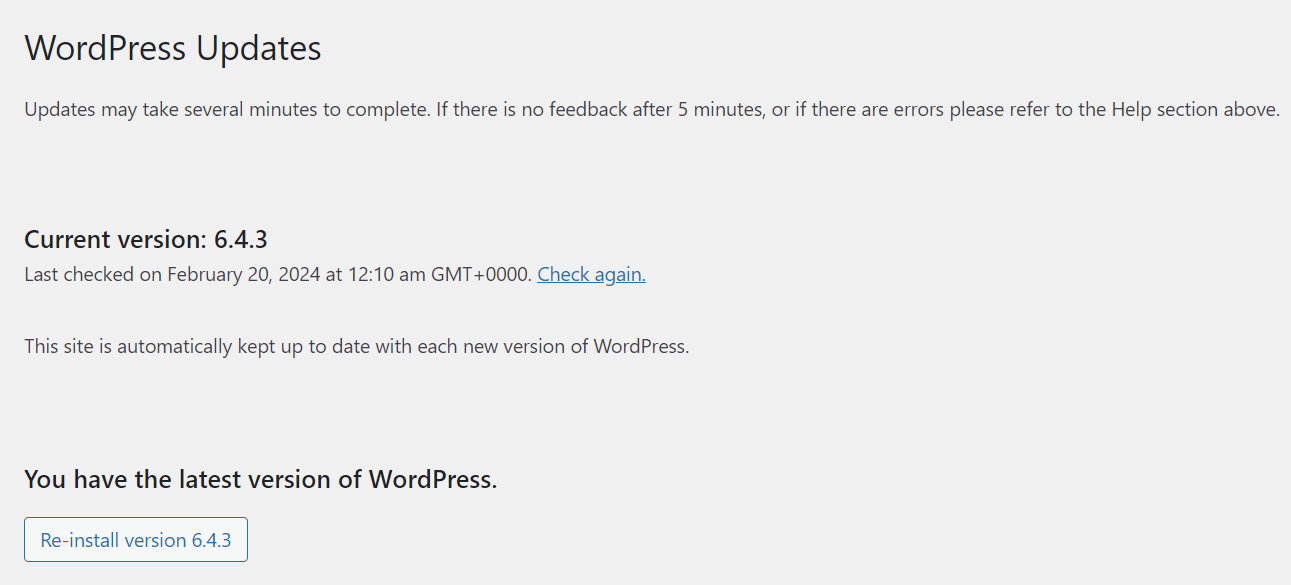
Otherwise, it says, “An updated version of WordPress is available.” Simply press the Update Now button to download and install the latest WordPress version.
Make Sure the Site Code Is Up-To-Date
Your old site code may not execute properly if you use the latest PHP version. This also applies to PHP-based programs, such as WordPress themes and plugins.
To ensure your site works well, update its code, themes, and plugins before upgrading PHP.
There are different ways to check whether your website is compatible with a specific version of PHP. For instance, you can use Hostinger’s WordPress and PHP compatibility checker. This tool examines your site’s core and current PHP version, advising a switch to a compatible version if necessary.
To use the compatibility checker, access your Hostinger dashboard and navigate to WordPress → Overview, and locate the PHP Version section. If you’re using a supported PHP version, you will see the following message:
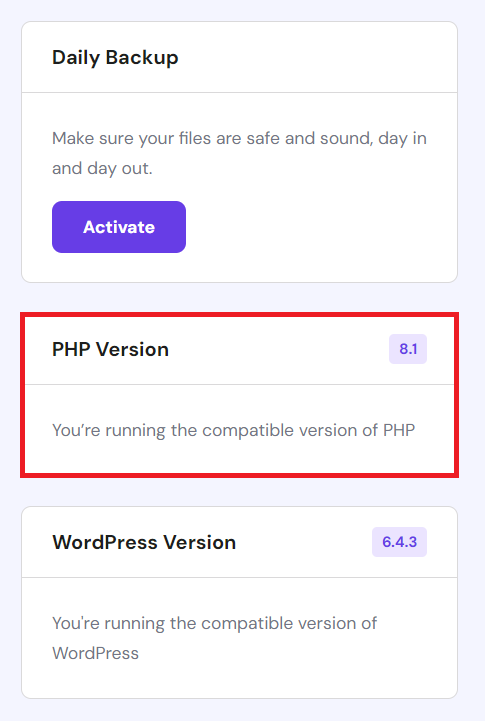
However, you will receive a warning if your website is not compatible with your current PHP version. Click the Change button to update your PHP version to a supported one.
Alternatively, test your website with the new PHP version manually on a local development server. This option lets you check your site’s compatibility with the new PHP version without affecting the live one.

Resolve PHP Errors and Warnings
You may get PHP error messages or warnings even when your site works fine. Unfortunately, these alerts may indicate that your site code may not work with a different PHP version.
If you host your website on Hostinger, you can disable PHP error messages via Hostinger dashboard. However, you shouldn’t ignore them, especially if your site encounters issues.
These error messages help determine PHP problems, allowing you to fix them quickly. In case of incompatibility, resolve the error by:
- Disable and enable themes and plugins
- Enable the default theme
- Update the site code, plugins, and themes
- Use the default .htaccess file
How to Change PHP Version in Hostinger dashboard
The simplest way to change your system-wide version of PHP is via your hosting control panel. Aside from switching to different PHP versions, it lets you configure PHP extensions and options. At Hostinger, we use Hostinger dashboard.
Hostinger dashboard supports up to PHP 8.2 and will update its support each time a new PHP version is launched. Although we will use Hostinger dashboard in this tutorial, the following steps should be similar for other hosting control panels like cPanel:
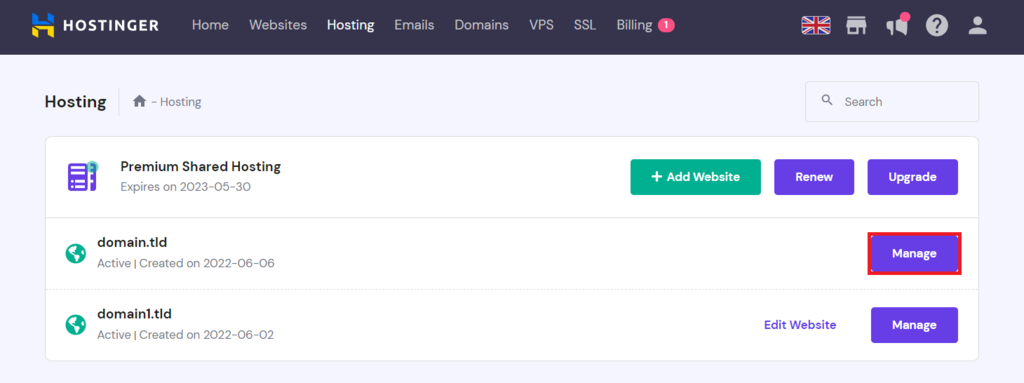
- Log in to Hostinger dashboard and click Hosting on top of the homepage.
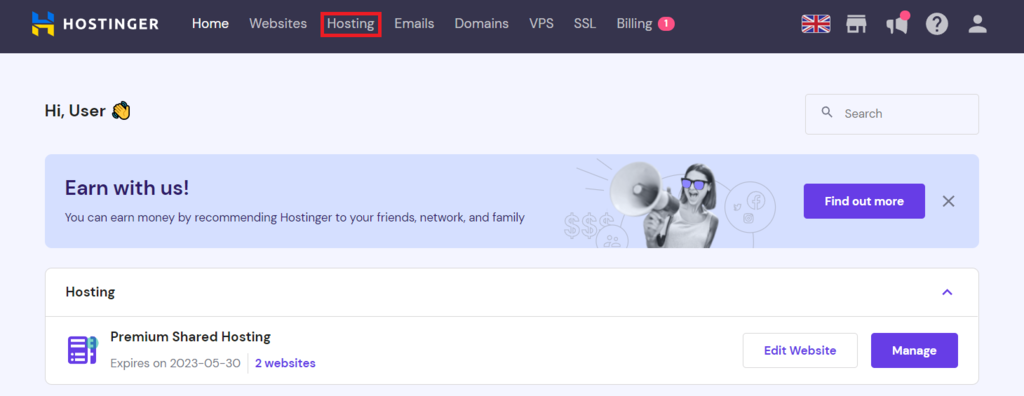
- Click the Manage button next to your domain name.
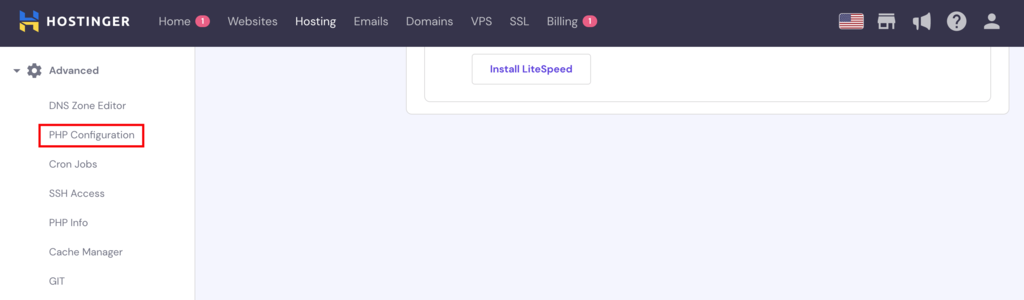
- On the sidebar, go to Advanced → PHP configuration.
- Select the PHP version you want to use. By default, it only shows supported versions, but you can check Show no longer supported PHP versions to display older ones.
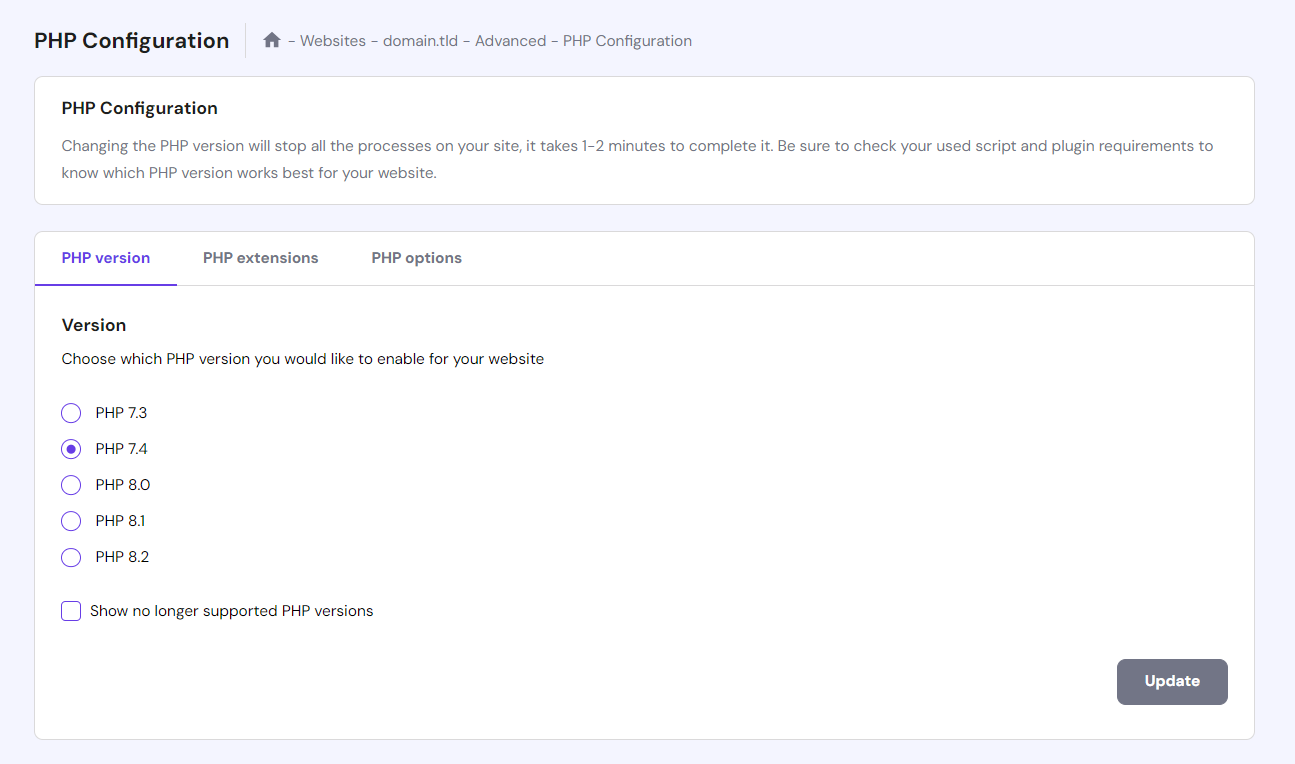
- Click Update to save the changes.
How to Change PHP Version for a Specific Folder or a Subdomain
You can change the PHP version for a specific folder of a subdomain by editing the .htaccess file. This method allows you to use multiple PHP versions on the same account.
In the following tutorial, we will install PHP 8.1 for a subdomain via Hostinger dashboard:
- Log in to your Hostinger dashboard and select Hosting.
- Click Manage next to your desired domain.
- Go to Files → File Manager.
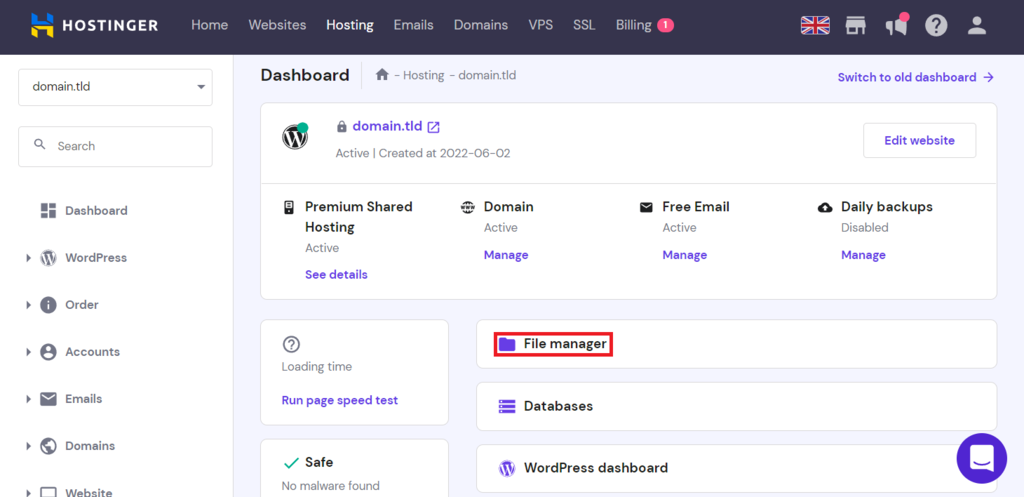
- Access the folder whose PHP version you want to change. To edit a subdomain, go to public_html → yoursubdomain folder.
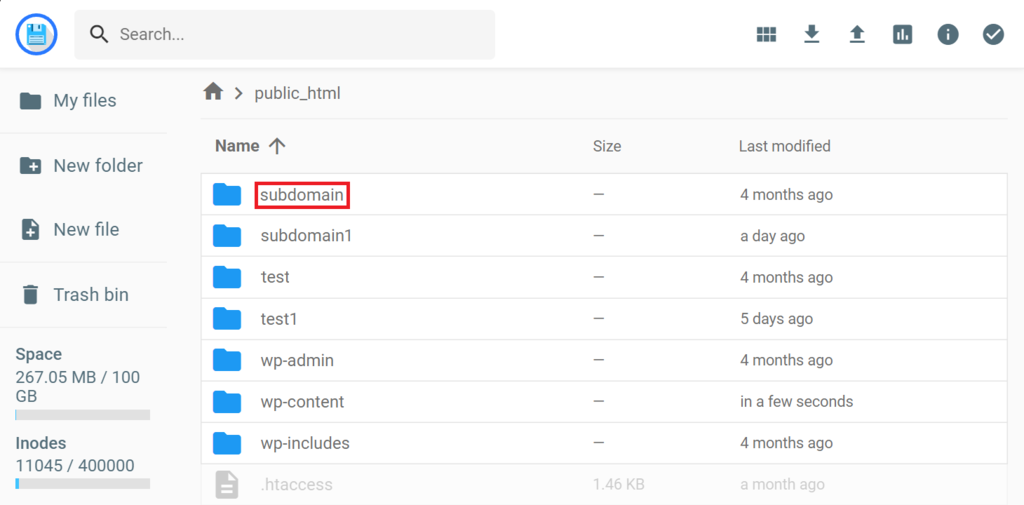
- Double-click on the .htaccess file. If it doesn’t exist, create a new .htaccess file.
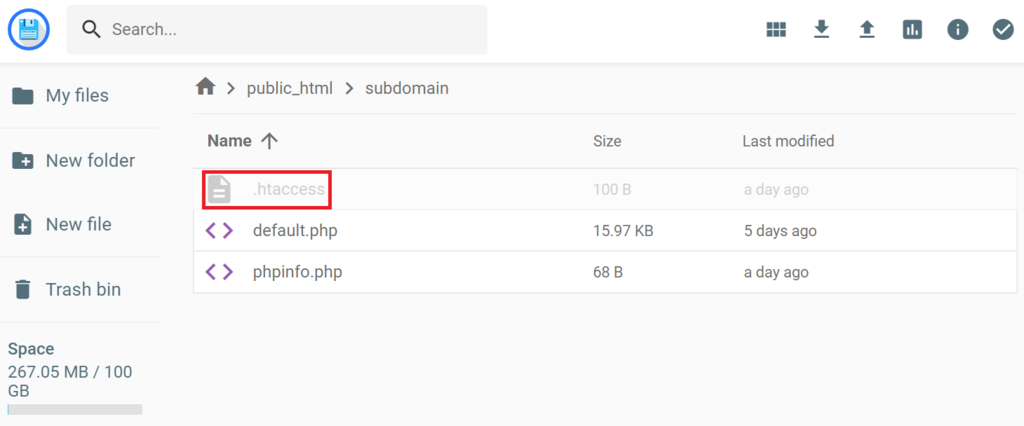
- Copy and paste the following command to the beginning of the .htaccess file to install PHP 8.1. To install a different PHP version, change 81 with your desired version number. Read our PHP version change article to view other useful commands.
<FilesMatch ".(php4|php5|php3|php2|php|phtml)$">
SetHandler application/x-lsphp81
</FilesMatch>
- Click the disk icon on the top right corner to save the changes.

Optionally, create a phpinfo.php file to check your PHP settings and version.
To use multiple PHP versions, repeat the steps above for each subdomain or folder.
However, we don’t recommend modifying the .htaccess file to change your PHP version. This method doesn’t include PHP extensions and options, which may affect your site’s functionality.
If you choose this method, consider manually configuring the PHP modules and options by editing the php.ini file.
Conclusion
PHP is a server-side scripting language used for web development. Popular CMSs like WordPress and Joomla are based on PHP.
You may want to switch to a different PHP version for various reasons, such as improving your website’s performance and fixing compatibility issues.
However, changing the PHP version can affect your website’s functionality. Consider the following before switching your PHP version:
- Update your CMS to the newest version
- Renew your site code
- Resolve existing PHP errors or warnings
You can use Hostinger dashboard or other hosting control panels to change your hosting account’s PHP version. Alternatively, change the PHP version for a specific folder or subdomain by adding a command to your .htaccess file.
Change PHP Version FAQ
This section will answer some of the most commonly asked questions about changing your PHP version. If your question remains unanswered, leave it in the comments section below.
How to Check My PHP Version?
Use your hosting control panel to check the PHP version installed on your site. Since the steps vary across different control panels, always refer to the user manual.
For Hostinger dashboard users,click the Manage button next to a domain → Advanced → PHP info. If you have a cPanel account, go to Software → Select PHP version.
Which PHP Version Should I Use?
We recommend using the latest PHP stable release that compatible with WordPress to ensure your site runs properly. At the time of writing, it is PHP 8.3.
Since PHP updates frequently, always check the PHP download page before switching.
Can I Downgrade My PHP Version?
Yes, you can downgrade your site’s PHP to any version. But note that downgrading PHP to an older version may cause errors.
The best way to downgrade your PHP version is via your hosting control panel. If you use Hostinger dashboard, follow our article on downgrading your PHP version.
This article is a localized version of How to change the PHP version of a website + things to consider before updating, originally published in English.

Merkys is a server administrator and Linux expert. He keeps everything up & running while tackling advanced server management issues. Besides that, he’s a big fan of blockchain technology, web development, and bodybuilding.

Aris is a Content Writer specializing in Linux and WordPress development. He has a passion for networking, front-end web development, and server administration. By combining his IT and writing experience, Aris creates content that helps people easily understand complex technical topics to start their online journey. Follow him on LinkedIn.