What is an email alias?
Apr 12, 2026
/
Alma
/
6 min Read

An email alias is an additional email address that delivers messages to your main inbox instead of creating a new mailbox. You keep one inbox, while different addresses are used for different roles – for example, support@ for customer issues and marketing@ for partnership or promotional inquiries.
The purpose of an alias is to keep work and business email manageable. Each type of communication has its own role – client correspondence, billing, subscriptions, account sign-ups, public contact forms – each arriving with different expectations.” An email alias separates how those messages arrive without requiring separate inboxes.
Every email alias setup uses three parts working together: a primary email address you manage, an alias address people send messages to, and email forwarding that routes messages at the server level.
This setup is why email aliases are used in work and business email for privacy, organization, and spam control. By routing messages through role-based addresses, emails arrive with clear intent, your primary inbox stays protected, and individual aliases can be disabled if they start attracting spam – without the need to change accounts.
How do email aliases work?
Email aliases work by routing messages at the server level instead of creating new inboxes. Here’s how the routing happens step by step:
- Alias email received by server – Someone emails support@yourcompany.com. The message reaches your mail server like any other incoming email.
- Server identifies the primary email linked to the alias – The server checks its alias rules and finds the primary address the alias points to.
- Email automatically forwarded to primary inbox – The message arrives in your inbox as if it were sent directly to your main address.
- User manages replies optionally using an alias address – Many email providers allow you to reply from the alias, so customers see responses from support@company.com instead of a personal-looking address.
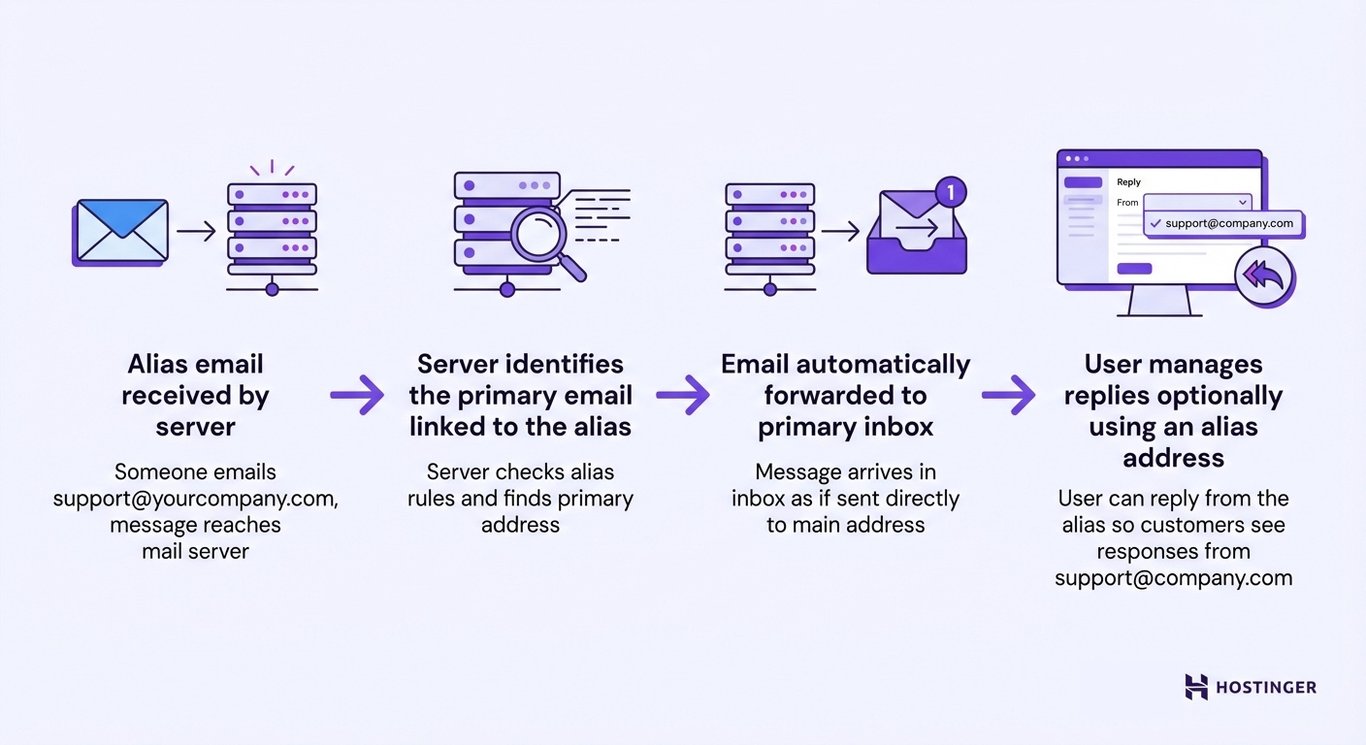
With reply-from-alias enabled, one inbox can handle multiple roles without leaking personal addresses. If you’re handling customer questions, replying from support@company.com looks professional and keeps your workflow centralized.
To do this reliably, you need an email provider that supports alias creation and server-level forwarding. If you’re setting this up for work or a brand, start by learning how to get a business email with built-in alias support.
Once aliases are configured, forwarding fades into the background. Emails arrive where you expect them. You work exactly the same way – just with clearer signals.

Differences between email aliases and secondary emails
Email aliases are often confused with secondary email accounts, but they solve different problems.
An email alias does not create a new inbox. Secondary email accounts do.
Email alias | Secondary email accounts |
Routes messages to one existing inbox | Creates a separate inbox |
Shares the same login and storage | Has its own login and settings |
Designed for organization and privacy | Designed for strict separation |
Aliases let you present multiple public addresses while keeping a single internal workflow. You don’t have to switch inboxes to stay organized.
Secondary email accounts add structure, but they also add maintenance. Someone has to check that inbox, manage filters, and keep notifications in sync. That makes sense when separation is required, such as personal versus corporate email.
For example, using jobs@company.com as an alias means hiring emails appear alongside vendor messages and customer inquiries. Creating jobs@company.com as a secondary account means someone has to remember to check it separately.
Aliases reduce friction, while secondary email accounts increase structure. Knowing which one you need prevents unnecessary complexity.
Types of email aliases
Email aliases come in a few common forms, depending on how much control or separation you need.
- Forwarding alias – A standard alias that forwards all messages to your inbox. This is the most common setup. For example, contact@yourdomain.com forwards to your main address. You still check one inbox, but people reach you through a branded, purpose-specific address instead of a personal one.
- Plus addressing – Adds a tag like name+news@domain.com to track where emails come from. Your email provider ignores everything after the plus sign and delivers the message to name@domain.com, while the tag stays visible so you can filter automatically. This feature is widely supported (for example, by Gmail), but some email services may require additional configuration to work as expected. This is especially useful when signing up for newsletters, tools, or trials.
- Disposable alias – A short-term address that auto-expires or self-destructs after a set period. For example, you might generate one to verify a free trial or download a gated resource. The address disappears on its own, so you don’t need to manage or clean it up later.
- Domain-based alias – Aliases created on your own domain, such as sales@, support@, or info@. These demonstrate professionalism and make it clear how people should contact you. Customers email support@yourcompany.com instead of your personal address, which keeps business communication separate.
- Burner address – An alias you create for a specific purpose and delete on your own terms. For example, you might use forums@yourdomain.com while testing a new service or posting on a public listing. Unlike a disposable alias, it stays active until you decide to remove it, so you stay in control of when it goes away.
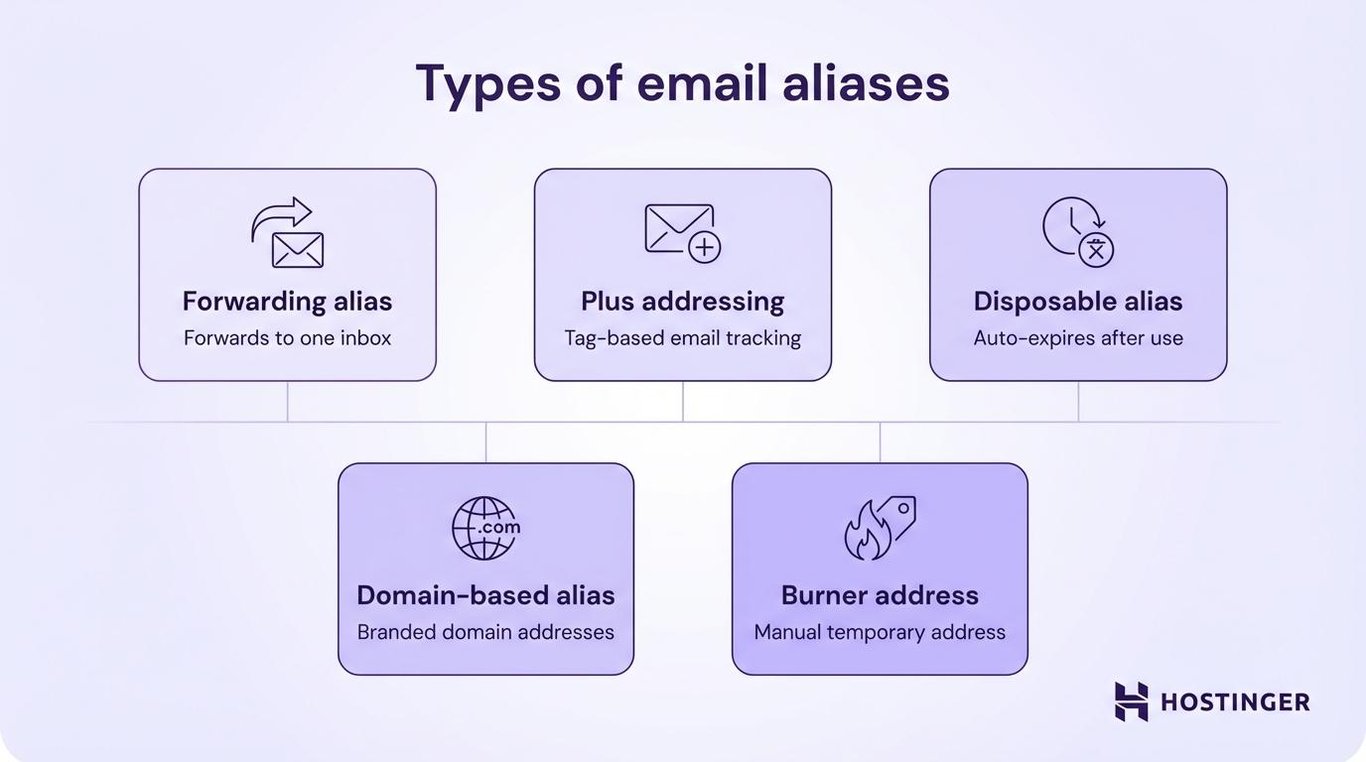
Most setups use more than one of these. For example, one alias for customers, another for sign-ups, and a disposable one for one-off situations, such as marketplace listings or short-term trials.
Best practices and challenges of using email aliases
A few simple practices keep email aliases organized, while common mistakes can cause delivery or privacy issues.
Here are the best practices to keep in mind:
- Create aliases by purpose – Each address should have a clear role. newsletters@yourdomain.com handles subscriptions, clients@yourdomain.com manages customer communication, and personal-projects@yourdomain.com separates side work from your main business. That clarity keeps the system usable months later.
- Use filters or labels to automatically organize alias emails – Most email clients let you sort messages by the receiving address. When something arrives at billing@yourdomain.com, your inbox can tag it “Finance” and move it to a dedicated folder. That automation removes daily sorting work.
- Disable aliases that attract spam instead of changing your main address – This is the real advantage of aliases. If newsletter@yourdomain.com starts getting flooded with junk, delete the alias and create a new one. Your primary address stays untouched, and no logins need to be updated.
- Keep a record of aliases used for critical services – Write down where you used each alias, especially for billing, hosting, and account recovery. A simple spreadsheet with “Alias,” “Used for,” and “Date created” is enough. It prevents accidental lockouts later.
Challenges to plan for:
- Spam risk – Public aliases eventually attract junk. If you publish support@yourdomain.com on your website, bots will find it. That’s expected. Use disposable or replaceable aliases for public-facing situations and reserve permanent ones for trusted contacts.
- Misconfiguration – Incorrectly configured forwarding rules can block delivery. The alias exists, but messages never arrive because it points to the wrong inbox or wasn’t saved properly. If something stops working, check the alias destination first.
- Deliverability issues – Emails sent from aliases can land in spam if your domain isn’t configured correctly. Email providers check whether your domain is authorized to send messages using authentication records like SPF, DKIM, and DMARC. If those aren’t set up properly, alias messages are more likely to be flagged or rejected.
If an alias stops working, start with the forwarding configuration. Most problems come from setup details, not from alias limitations. The second most common issue is replying from the wrong address, which is a settings fix, not a technical failure.
Next steps: How to use email aliases for better workflow and privacy
Once you understand how aliases behave, you can start using them intentionally rather than reacting to inbox problems after they occur.
For better workflow and privacy, you should:
- Assign aliases to specific roles and auto-sort messages – Create one alias for each category that is relevant to your workflow. If you freelance, you can use quotes@yourdomain.com to handle new inquiries, while active@yourdomain.com can cover ongoing clients. Your inbox automatically labels them, so context is visible before you open anything.
- Automate filters and labels based on the alias address – Many email providers support rules like “If the message was sent to newsletter@yourdomain.com, apply the ‘Reading’ label and skip the inbox.” That turns your inbox into a triage system instead of a dumping ground.
- Use a business email service to manage aliases properly – Role-based aliases like support@yourdomain.com or billing@yourdomain.com work best with a dedicated business email service. Hostinger business email lets you create and forward multiple aliases to a single mailbox and reply from those addresses, keeping your personal email private and your workflow centralized.
- Separate logins, billing, and communication without new inboxes – Use accounts@yourdomain.com for service sign-ups, receipts@yourdomain.com for purchase confirmations, and personal@yourdomain.com for actual human correspondence. You’ll know why each message arrived instantly.
- Reduce exposure by never sharing your primary email address – Your real address becomes something you protect. Everyone else gets an alias. That gives you control over who can reach you directly and lets you shut down problematic addresses without having to start over.
Aliases become more flexible when paired with a custom domain email. That setup lets you create, change, or remove addresses without moving your inbox or changing how you work. When you’re setting up Gmail with your own domain, aliases become significantly more flexible without disrupting your inbox.
Start with one alias that solves a real annoyance. Maybe client emails keep mixing with personal messages, or spam keeps hitting your main inbox. Create that one alias, use it consistently for a week, and let the system prove itself.

Alma is an AI Content Editor with 9+ years of experience helping ideas take shape across SEO, marketing, and content. She loves working with words, structure, and strategy to make content both useful and enjoyable to read. Off the clock, she can be found gaming, drawing, or diving into her latest D&D adventure.