How to fix the PR_END_OF_FILE_ERROR secure connection Error on firefox
Dec 02, 2025
/
Ariffud M.
/
8 min Read
Encountering PR_END_OF_FILE_ERROR in your Mozilla Firefox browser is frustrating, especially when you’re trying to access a secure website. Fortunately, you can fix this common Firefox error with seven simple solutions.
In this article, we’ll explain what PR_END_OF_FILE_ERROR means, what causes it, and how to fix it. By the end of this guide, you’ll be able to troubleshoot the issue and get back to browsing on Firefox like normal.
What is PR_END_OF_FILE_ERROR?
PR_END_OF_FILE_ERROR is a Firefox-specific issue that occurs when the browser fails to establish a secure connection with a website. This error often happens during the SSL/TLS handshake, where Firefox and the server negotiate compatible encryption protocols to allow safe access.
Firefox terminates the process if there are no compatible protocols or cipher suites, triggering this error. As a result, you won’t be able to open the webpage you want to access, and the browser will display a Secure Connection Failed error message instead.
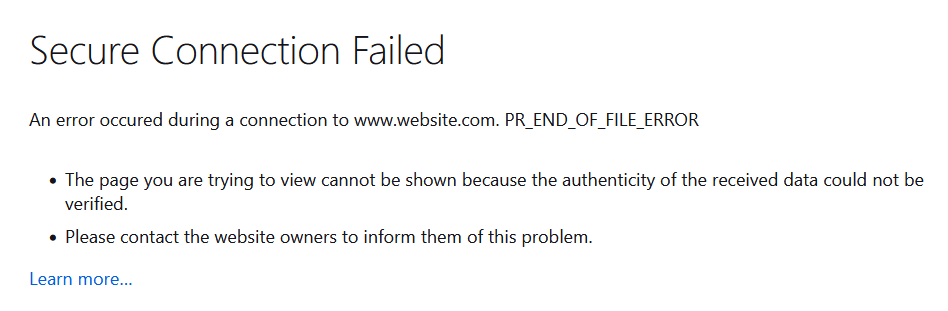
Unlike other browsers, such as Google Chrome or Safari, Firefox has unique security configurations, so PR_END_OF_FILE_ERROR only occurs in it.
While these configurations are meant to protect you, they can sometimes block secure connections if there’s a mismatch in encryption standards or a misconfiguration on the server or client side.
Suggested reading
Read our articles to learn more about Secure Sockets Layer (SSL) and Transport Layer Security (TLS). In short, SSL is an older encryption protocol to secure online communication, while TLS, SSL's successor, provides stronger encryption and better performance.
What causes PR_END_OF_FILE_ERROR?
Several factors can trigger PR_END_OF_FILE_ERROR. Here are the most common ones:
- Incorrect or corrupted Firefox profile. A damaged or misconfigured Firefox profile can disrupt browser functionality, including secure connections. Corruption may occur due to software conflicts, crashes, or incomplete updates.
- Misconfigured VPN or proxy settings. Virtual private networks (VPNs) and proxy servers reroute your internet traffic, but if they are set up incorrectly, they can block legitimate connections. If these services interfere with the SSL/TLS handshake, they may cause PR_END_OF_FILE_ERROR in Firefox.
- Third-party security software interference. Firewalls and antivirus software often scan SSL/TLS traffic to detect threats. Unfortunately, overly strict settings or misconfigurations can unintentionally block secure access, triggering this error.
- Faulty cipher configurations. PR_END_OF_FILE_ERROR can occur if Firefox and the website disagree on compatible cipher suites during the handshake. Outdated or unsupported settings can prevent both parties from aligning properly.
- Problematic browser extensions. Some Firefox extensions can disrupt secure connections by modifying browser settings or intercepting traffic. Privacy-related extensions or ad blockers are often the main culprits.
How to fix PR_END_OF_FILE_ERROR
This section will guide you through resolving PR_END_OF_FILE_ERROR. We sorted the methods from the simplest ones, so try the first method and move on to the next one if the issue persists.
Important! Although PR_END_OF_FILE_ERROR is a client-side issue, it’s a good idea to check whether the website is down for everyone or you’re the only one who can’t access it.
1. Update Firefox
Using an outdated Firefox version can cause compatibility issues, including PR_END_OF_FILE_ERROR. Updates often include bug fixes, improved encryption standards, and enhanced security, which may resolve the error.
To update your Firefox browser:
- Launch Firefox and select Firefox → About Firefox in the menu bar.
- This will open a popup where Firefox automatically checks for updates and installs them if available.
- Hit Restart to update Firefox to apply the updates.
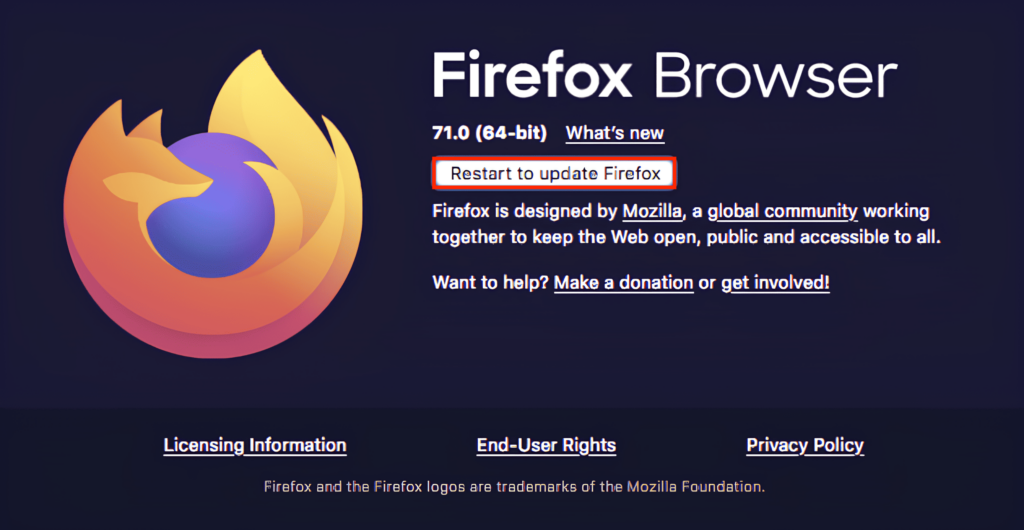
Once the update is complete, visit the same website to see if the problem is fixed.
2. Clear browser cache, cookies, and SSL state
Cache and cookies help speed up browsing by storing website data locally. Over time, this data can become corrupted and trigger PR_END_OF_FILE_ERROR. Clearing them is a classic troubleshooting method that often fixes issues.
Follow these steps to clear cache and cookies in Firefox:
- In the menu bar, select Firefox → Settings.
- Go to the Privacy & Security panel.
- Find the Cookies and Site Data section and click Clear Data.

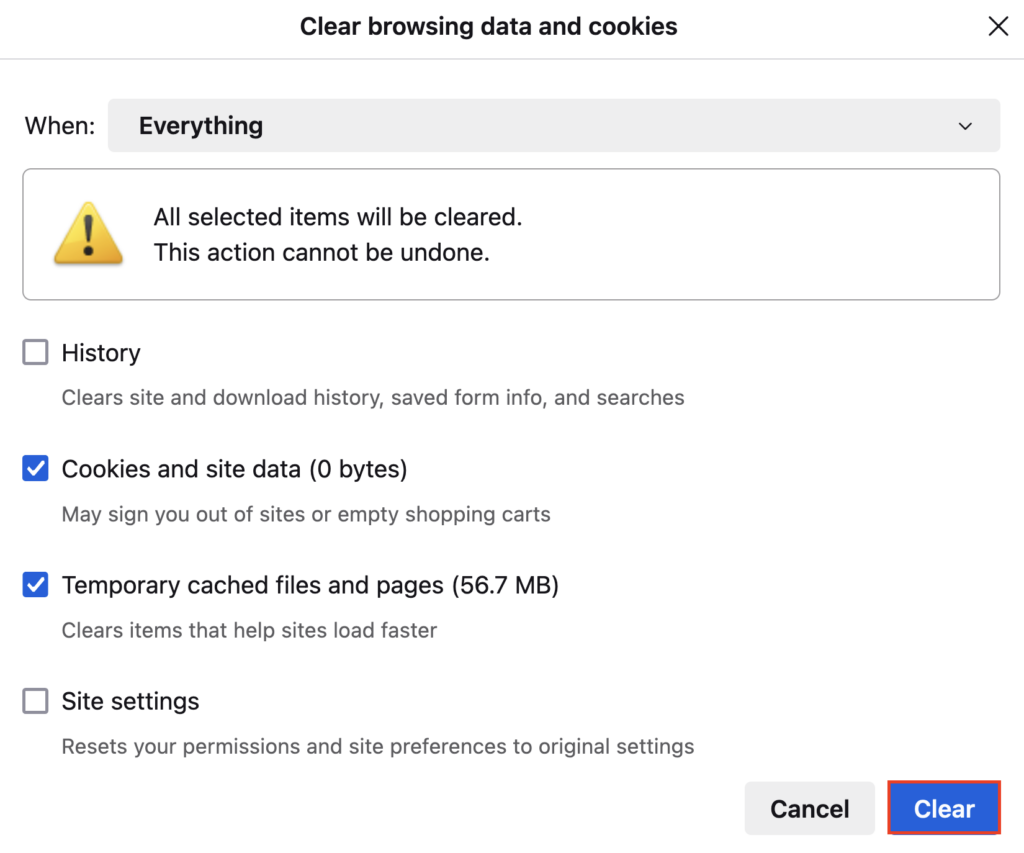
- A new dialog box will open. Select the deletion timeframe. For this tutorial, we will select Everything.
- Check the Cookies and site data and Temporary cached files and pages options.
- Hit Clear.
For Windows users, you can also clear the SSL state, which temporarily stores secure connection data to make future access faster. Here’s how:
- Open Control Panel and navigate to Network and Sharing Center → Internet Properties.
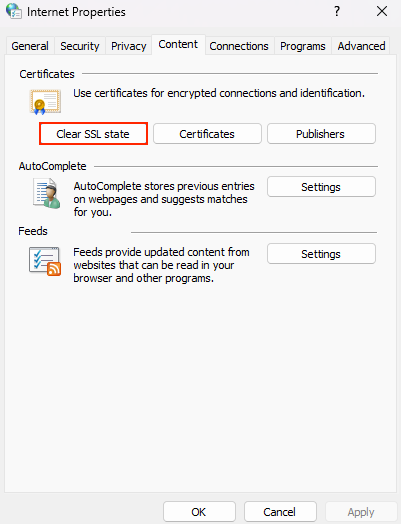
- Select the Content tab and click Clear SSL state.
- Hit OK to confirm.
3. Disable problematic extensions and security software
Like other browsers, Firefox lets you install third-party extensions to enhance functionality, such as blocking ads. However, some extensions – especially those that interfere with secure connections – can cause PR_END_OF_FILE_ERROR.
Temporarily disabling Firefox extensions can help identify the problem:
- Click the hamburger icon (three horizontal bars) in the top-right corner and select Add-ons and themes → Extensions.
- Disable all installed extensions by toggling the switches.
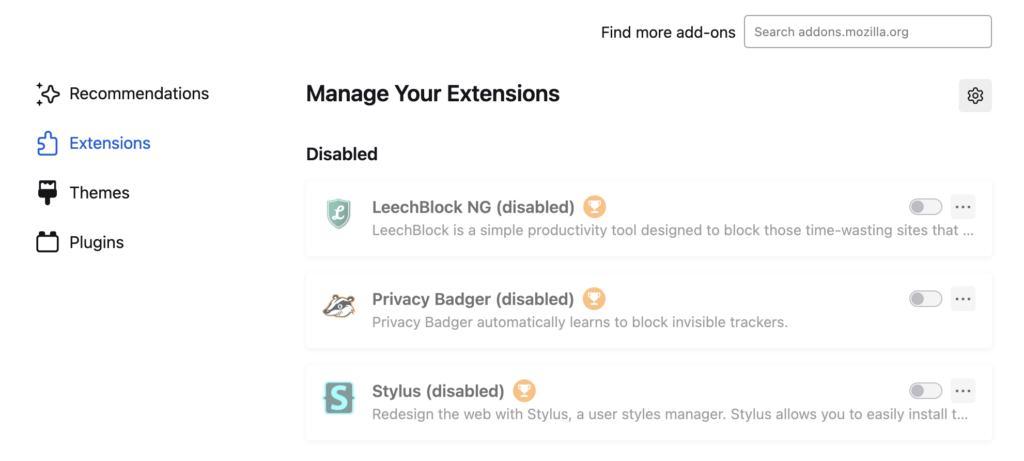
- Open the website to check if PR_END_OF_FILE_ERROR disappears.
- If the issue is resolved, re-enable the extensions one by one and reload the page each time you do it. Repeat this process until you find the problematic extension.
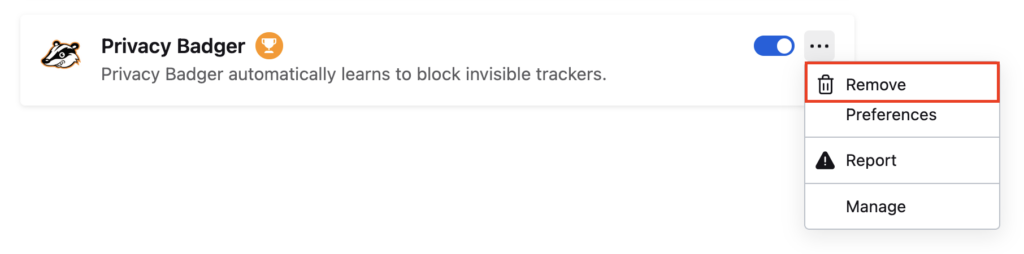
- Delete the extension by clicking the ellipsis icon (three horizontal dots) next to it and selecting Remove.
- If the extension is important for you, look for an alternative in Firefox’s extension marketplace.
Sometimes, security software like antivirus or firewall can also mistakenly block legitimate network connections, triggering this error. Temporarily disable them to identify if they’re the issue.
Warning! We don't recommend leaving antivirus or firewall disabled for an extended period, as it can expose your system to security risks. Re-enable them as soon as you've identified and fixed the issue.
For Windows Security (formerly Windows Defender):
- Go to Settings → Privacy & Security → Windows Security.
- Select Virus & threat protection → Manage settings.
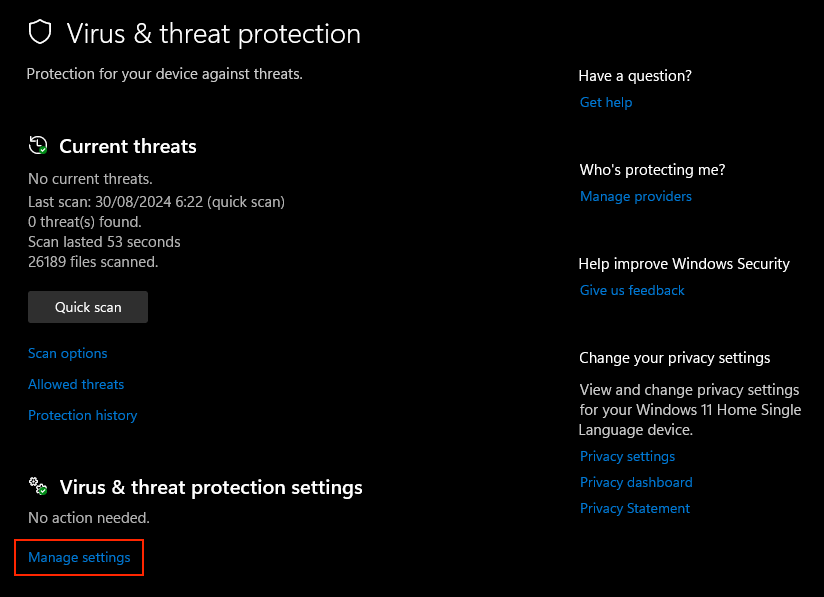
- Toggle Real-time protection to Off and hit Yes to confirm.
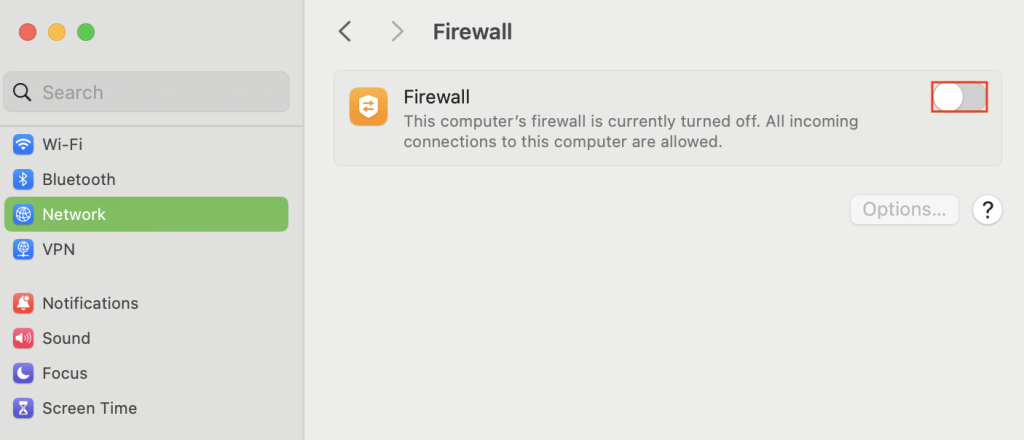
For macOS Firewall:
- Go to System Settings → Network → Firewall.
- Turn off the Firewall option.
If antivirus or firewall software is causing the issue, adjust the software’s settings to prevent it from blocking legitimate activities. Look for options like SSL Scanning or HTTPS Inspection and disable them.
If you need help configuring the settings correctly, read the software’s official documentation or contact their support team.
4. Disable VPN, proxy, and DNS over HTTPS settings
Using a VPN service can bypass geo-restrictions and protect your privacy. Unfortunately, occasional VPN issues like server downtime or overloaded gateways can lead to PR_END_OF_FILE_ERROR.
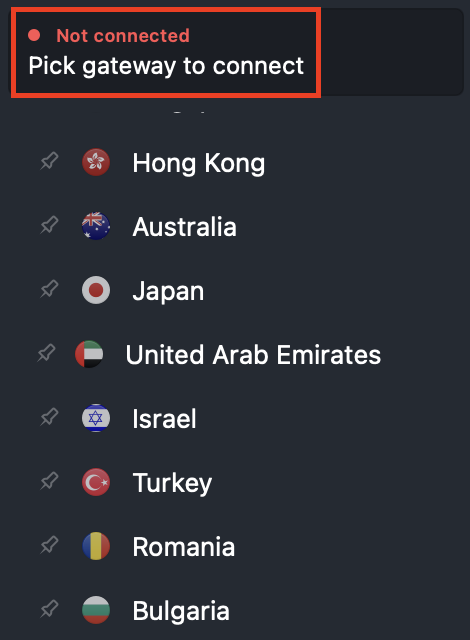
Try disabling your VPN service to see if it resolves the issue. The steps may vary depending on the software you use. For example, in NordVPN, open the app and click on the gateway you’re using to disconnect it. Once you see the Not connected message, your VPN is turned off.
If you use a proxy server instead, it might also cause problems with legitimate connections. Here’s how to deactivate a proxy server:
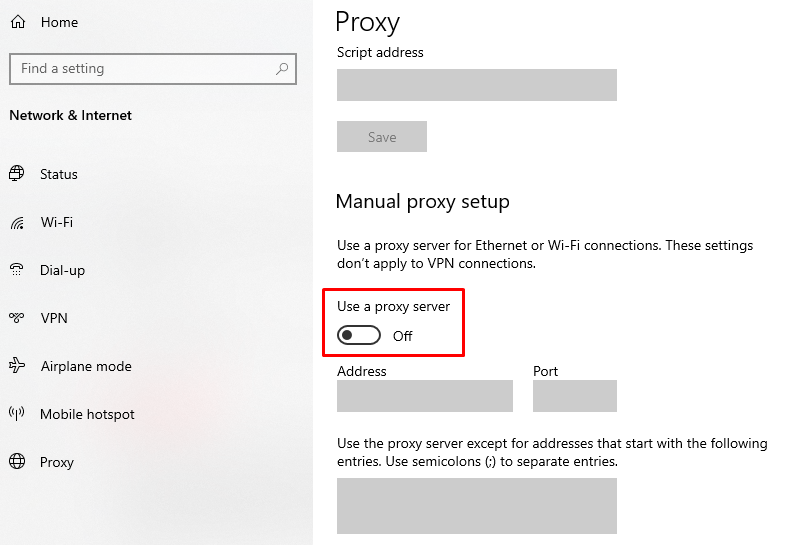
For Windows users:
- Go to Settings → Network & Internet → Proxy.
- Scroll to the Manual proxy setup section and toggle Use a proxy server to Off.
For macOS users:
- Open System Settings and find Proxies via the search box.
- Toggle all the proxy options to the left to turn them off.

Firefox also has built-in settings for proxies. If you’ve configured a proxy server in the browser, here’s how to turn it off:
- Open Firefox → Settings → General.
- Scroll to the Network Settings section or use the search box to find it.
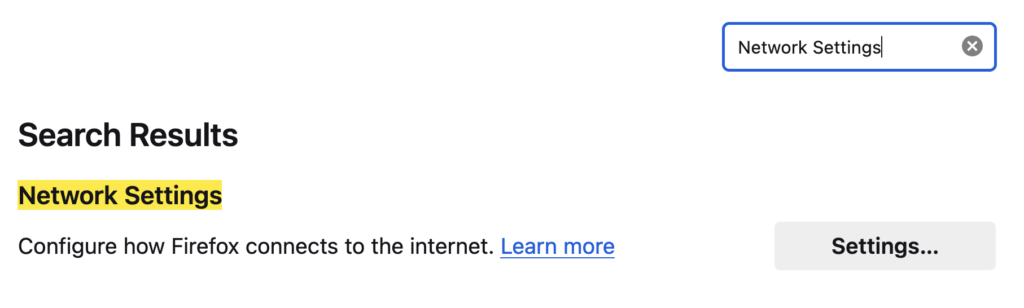
- Click Settings and select No proxy.
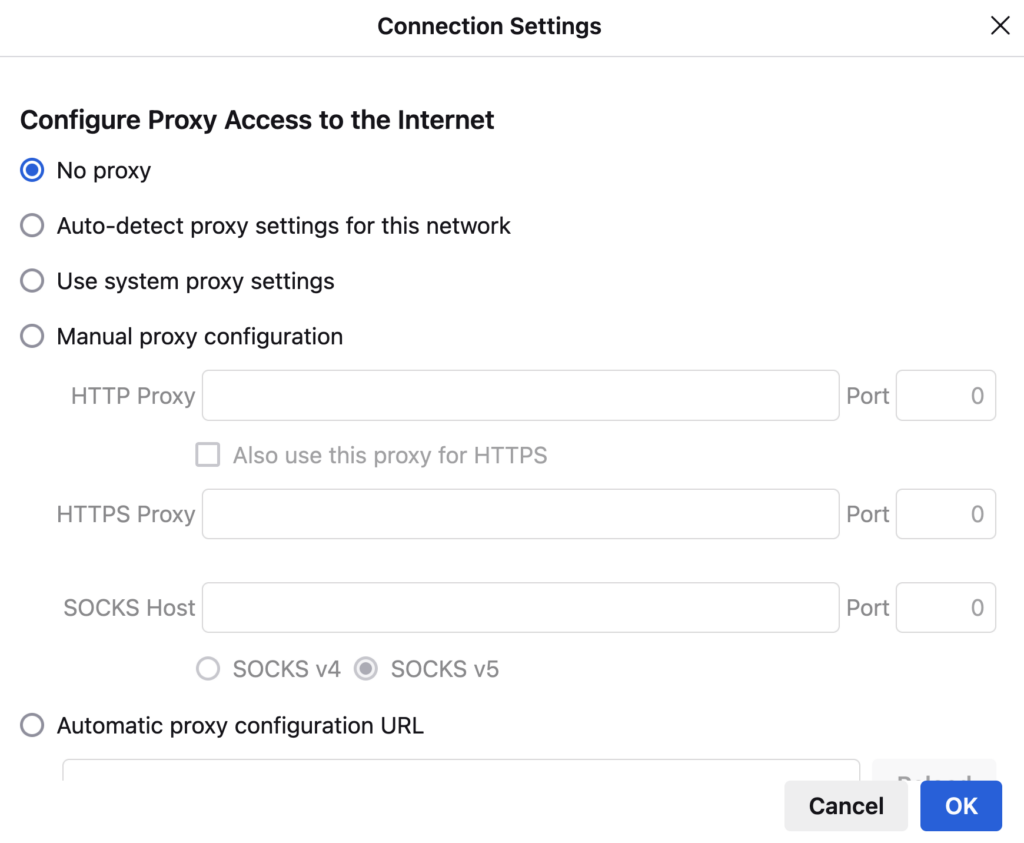
- Click OK to save the changes.
It’s also worth checking your domain name system (DNS) settings, particularly because Firefox has a DNS over HTTPS (DoH) feature. DoH improves privacy by encrypting DNS queries, but it can sometimes cause PR_END_OF_FILE_ERROR due to compatibility issues with specific network configurations or DNS providers.
Here’s how to disable DoH in Firefox:
- Go to Settings → Privacy & Security.
- Locate the Enable DNS over HTTPS using: section.
- Choose Off to disable this feature.
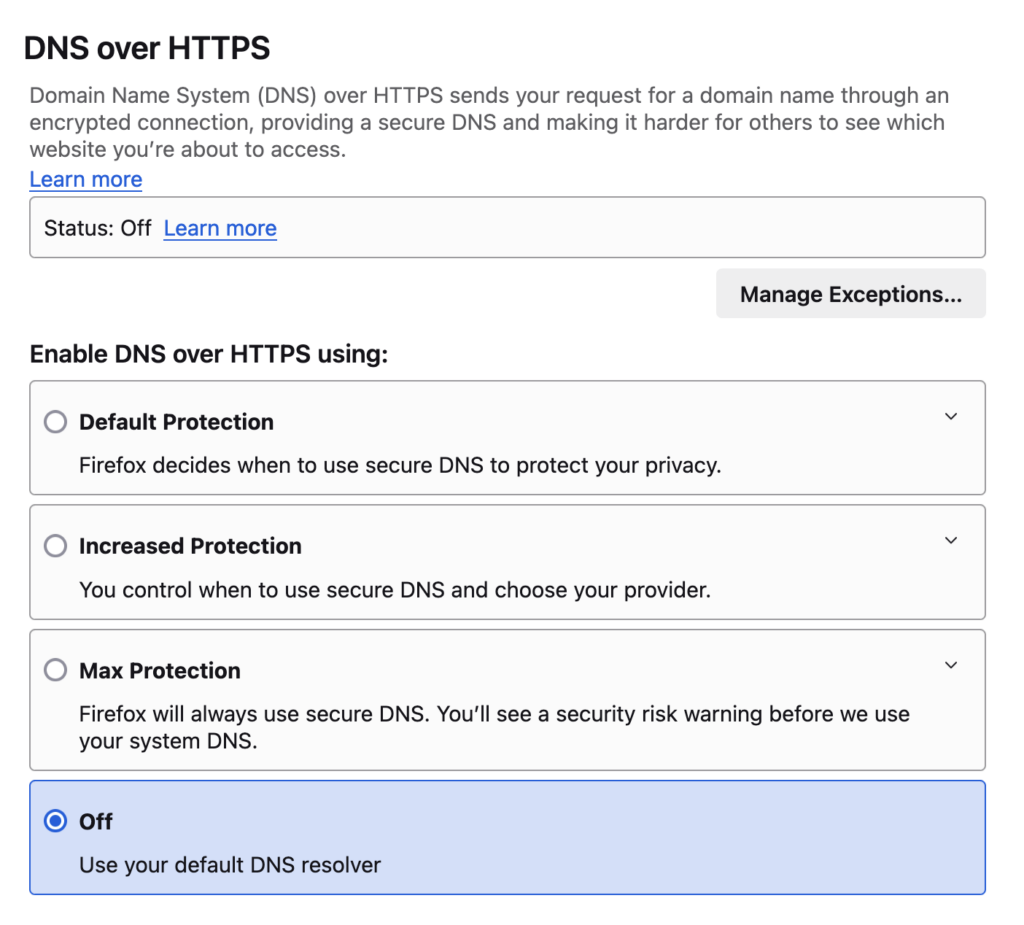
After turning off these features, restart Firefox and check if you can now access the website like normal. If PR_END_OF_FILE_ERROR continues, proceed to the next method.
5. Refresh Firefox settings or create a new profile
Refreshing Firefox can fix deeper configuration issues or corrupted files. This process restores browser settings to their default state while keeping personal data like browsing history, bookmarks, and passwords intact.
Important! Refreshing Firefox doesn’t erase personal data, but it will uninstall all extensions and themes you’ve added. Take note of your extensions and themes so you can reinstall them later.
To refresh Firefox:
- Type about:support in the Firefox address bar.
- Press Enter to open the Troubleshooting Information page.
- Click the Refresh Firefox… button.
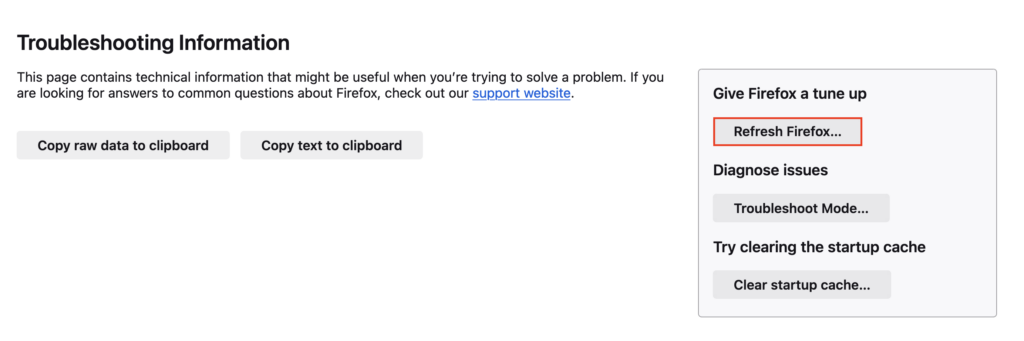
- Confirm the action in the pop-up dialog.
Firefox will restart and return to its default configuration. Check if the error is now resolved.
If refreshing doesn’t work, create a new Firefox browser profile to help isolate the issue from the old profile. Before proceeding, export your bookmarks so you can restore them later:
- Navigate to Bookmarks → Manage bookmarks.
- Select All Bookmarks from the left pane.
- Click Import and Backup → Export Bookmarks to HTML.
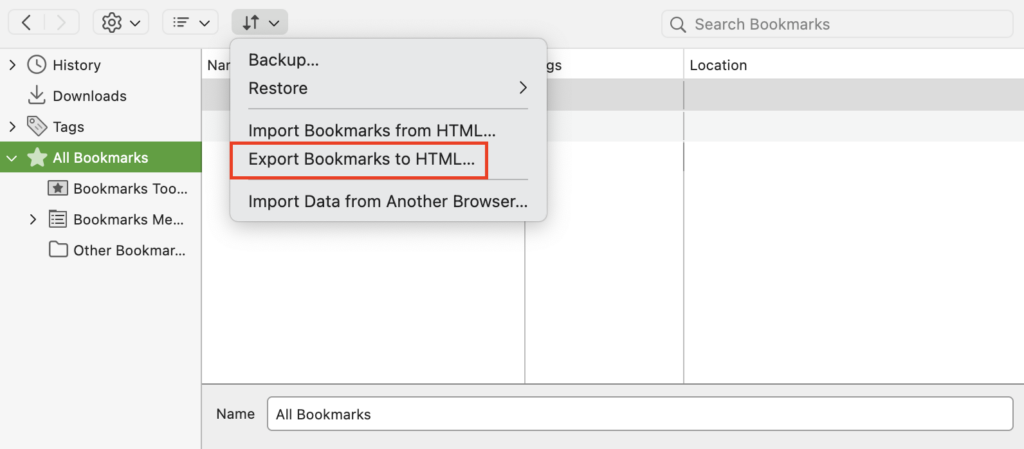
- A new window will appear. Select a folder on your local storage to save the bookmark data.
- Hit Save.
Now, follow these steps to create a new profile:
- Type about:profiles in the address bar and click Create a New Profile.

- The Create Profile Wizard will appear. Follow the on-screen instructions.
- Once done, the new profile will appear on the same page.
- Hit Launch profile in new browser.
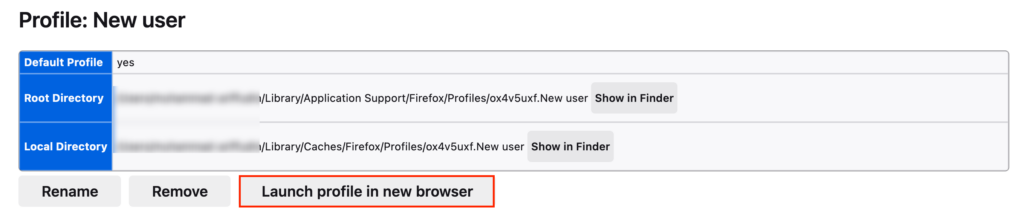
If the new profile resolves the issue, you can import your bookmarks by clicking Import and Backup → Import Bookmarks from HTML and select the previously exported bookmark file.
6. Reset Firefox’s SSL and advanced configurations
If you’re a casual user, you might not have touched Firefox’s SSL settings, as they’re configured automatically for secure browsing. However, it’s worth checking these settings because third-party extensions can modify them and potentially cause PR_END_OF_FILE_ERROR.
Follow these steps to reset Firefox SSL settings:
- Type about:config in the address bar, press Enter, and confirm any warnings about advanced settings.
- In the search bar, type security.ssl.* to filter SSL-related settings.
- Look for any settings that are in bold, which indicate they’ve been modified.
- Hit Reset to restore them to their default values.
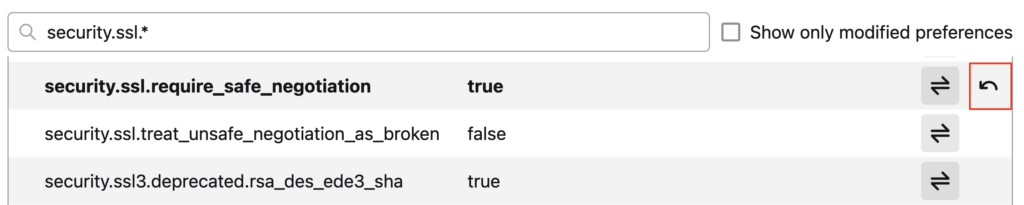
While in the Advanced Preferences page, consider also resetting the Online Certificate Status Protocol (OCSP) stapling setting. OCSP stapling helps Firefox verify SSL certificate validity more efficiently but can block legitimate access in some cases.
Here’s how to do so:
- Type security.ssl.enable_ocsp_stapling in the same search bar.
- Double-click the setting to change its value to false.

7. Reinstall Firefox or use a different browser
If none of the previous troubleshooting methods works, try reinstalling Firefox for a completely fresh setup. Make sure to back up any important data, like bookmarks, beforehand.
Follow these uninstallation steps based on your operating system:
For Windows:
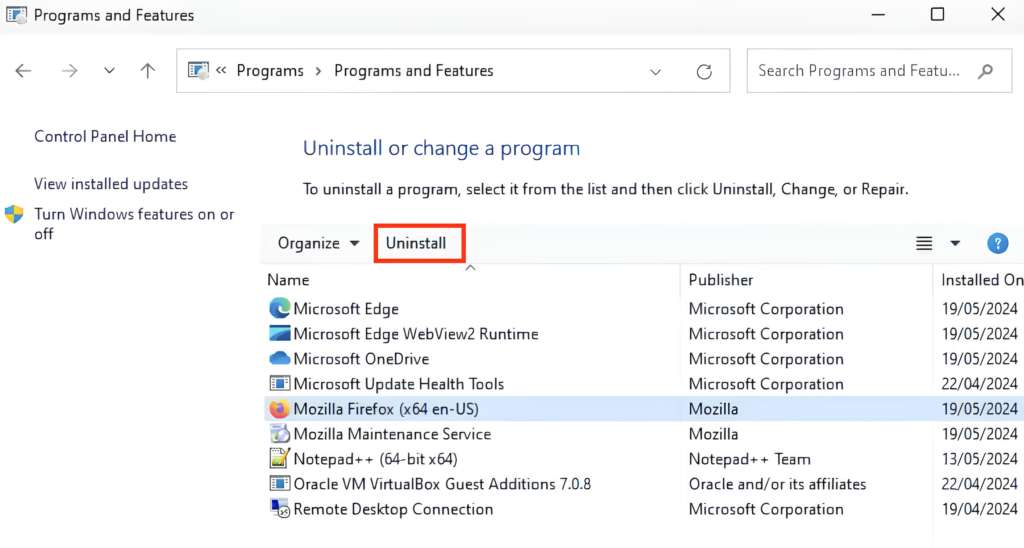
- Go to Control Panel → Programs → Uninstall a program.
- Click Mozilla Firefox in the application list and choose Uninstall.
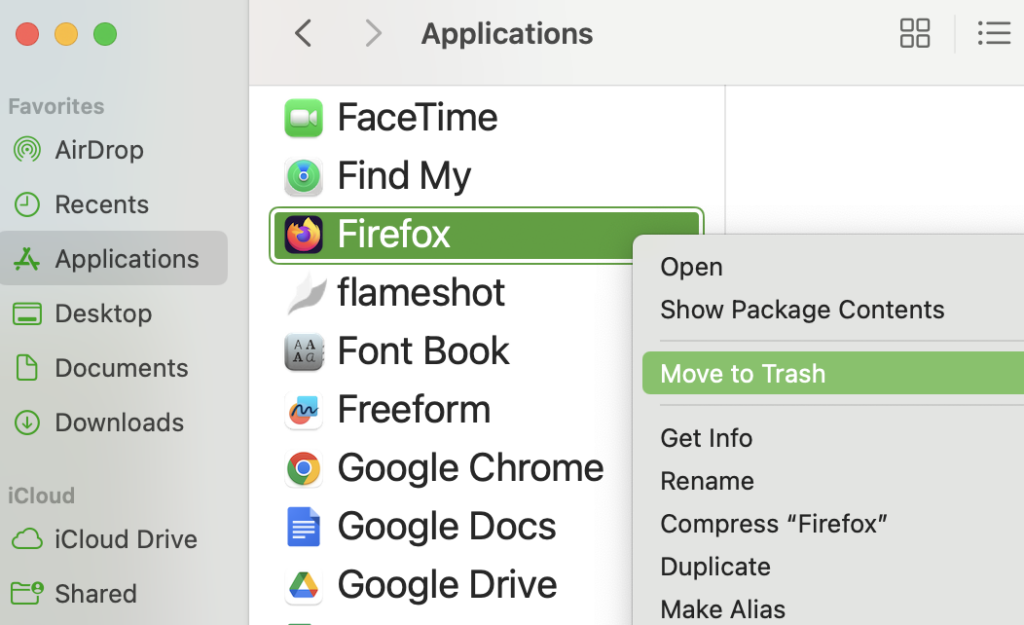
For macOS:
- Open Finder and select Applications from the left pane.
- Right-click on the Firefox application and choose Move to Trash.
Next, visit the official Firefox download page and download the latest version for your OS. Install it as usual and test if the error persists.
If reinstalling Firefox still doesn’t resolve the error, the problem is likely specific to Firefox. In this case, your best option is to switch to another browser, like Google Chrome, and check if the website works there.
You can also contact Firefox’s support team to report the issue. They might investigate the problem and address it in a future update, giving you a reason to return to this browser.
Conclusion
Mozilla Firefox implements distinct security measures to ensure a safe browsing experience. However, it can sometimes encounter issues like PR_END_OF_FILE_ERROR, which may be caused by misconfigured settings, outdated cache, or interference from third-party software.
In this article, we’ve shared seven proven methods to fix PR_END_OF_FILE_ERROR:
- Update Firefox to the latest version.
- Clear outdated cache, cookies, and SSL state data.
- Temporarily disable security software and third-party extensions.
- Deactivate VPN services, proxy servers, and DNS over HTTPS.
- Refresh Firefox to its default state and create a new profile.
- Reset the browser’s SSL settings and advanced configurations.
- Reinstall Firefox or switch to another browser.
We hope this guide has helped you resolve PR_END_OF_FILE_ERROR and restore seamless browsing. If you have any questions or want to share tips, feel free to comment below.
PR_END_OF_FILE_ERROR FAQ
Is PR_END_OF_FILE_ERROR serious?
No, PR_END_OF_FILE_ERROR isn’t typically serious. It’s a client-side issue caused by browser configurations or network settings and doesn’t compromise your device’s security. You can fix it using the methods we have laid out in this article.
Where does PR_END_OF_FILE_ERROR occur?
PR_END_OF_FILE_ERROR occurs only in Mozilla Firefox. It happens when the browser fails to establish a secure connection to a website, specifically during the SSL/TLS handshake, due to misconfigured settings or mismatched encryption protocols.
Can I prevent PR_END_OF_FILE_ERROR?
Yes, you can prevent PR_END_OF_FILE_ERROR by keeping Firefox up-to-date, avoiding unnecessary extensions, using reliable security software, and ensuring your network settings, including proxies and DNS, are configured correctly. Regularly clearing cache and cookies can also help.

Ariffud is a Technical Content Writer with an educational background in Informatics. He has extensive expertise in Linux and VPS, authoring over 200 articles on server management and web development. Follow him on LinkedIn.