How to check a website for viruses: identifying and removing virus infections from a site
Mar 10, 2026
/
Mulan G.
/
6 min Read
With the ever-increasing and evolving web threats, knowing how to check a website for viruses is necessary for every website owner. Thankfully, the sooner you identify virus infection in your site, the less potential damage you have to deal with.
In this article, we will explore the common signs of a virus infection on a website and the usual types of website viruses. We’ll also explain how to check your website for viruses and keep it virus-free.
Download WordPress security checklist
How to Notice If a Site Is Infected With a Virus
Viruses can be hard to spot, and it’s not uncommon for a virus infection to go unnoticed for a while. We recommend being on the lookout for potential signs of infection regularly.
Keep an eye out for things like:
- Performance issues – your website loads slowly, and there are plenty of errors and warnings, or your site gets blocked by browsers and security software.
- A significant change in traffic – there’s a drop in search engine rankings and fewer visitors.
- Unauthorized settings – additional users, content, ads, or redirects to other sites appear across your website and domain.
- Access issues – you can’t access the admin panel of your website, potentially due to hackers removing users or changing passwords.
How Can Viruses Harm Your Website?
The effects of malware infections can be severe and can cause great harm to your website.
You could:
- Lose users and traffic – people are reluctant to browse a website riddled with errors, inappropriate content, or other suspicious activity.
- Get blocked by search engines and browsers – your hacked site could get blacklisted and flagged as harmful to users.
- Lose your site – you could lose control of your website if hackers get a hold of the site’s credentials: they could change the passwords and site content overall.
- Damage your reputation – it’s difficult to recover your reputation once sensitive information, like your customers’ personal data, gets leaked or misused.
The Most Common Viruses Found on Websites
There are many types of website viruses out there, but most often, you’re going to come across one of the following.
SQL Injection
In Structure Query Language (SQL) injection attacks, malicious code is injected into a web application. Then, attackers can view your data and modify it, resulting in changes to the content or behavior.
Common entry points for the attacks are signup or login forms, contact forms, or feedback fields. When you ask your visitors to input things like a username, password, or phone number, attackers can give you malicious software instead.
Local File Inclusion
Local File Inclusion (LFI) works by tricking a web application into running or exposing files on a web server.
LFI attacks can expose critical information about your website and its configuration and even give hackers administrator access. Your site is more vulnerable to LFI if you let users upload files to your servers.
Trojans
A trojan horse is a type of malware that gets access to your website disguised as a legitimate program. This virus can be hidden as an attachment in an email or a downloaded file. Once it’s stored in your computer, the malicious software may be used to gain backdoor access, spy on visitors’ activity, and steal sensitive information.
If you find unusual activity on your website, like settings being changed unexpectedly, you may have a trojan virus infection.
Cross-Site Scripting
Cross-site scripting (XSS) happens when malicious code is injected into a seemingly safe website. An attacker sends malicious code in the form of a browser-side script. The user’s browser will trust the script and execute it.
XSS attacks can expose cookies, session tokens, and other sensitive information in the browser. In severe cases, XSS attacks can even rewrite the content of an HTML page.
Macro Viruses
A macro virus is a computer virus written in the same macro language used to create software programs. Since it centers on software applications and not operating systems (OS), it can infect any computer, whether they’re using Windows, macOS, or Linux.
Macro viruses infect computers by adding their code to the macros associated with data files from word-processing programs, such as documents or spreadsheets. They may come from documents attached to emails or after clicking on a phishing link.
How to Check A Website for Viruses
To identify whether your website has a virus infection, we recommend doing the following checks regularly.
1. Check Site Content
Checking over your site content is one of the most obvious ways to examine virus infection. Look for any signs of unauthorized content, ads, pop-ups, or other suspicious posts.
You should also check all the points on your website where visitors can leave their information, such as comment sections, sign-up forms, or anywhere they can upload things. These could be entry points for viruses on your website.
2. Check Website Files
Open your file transfer protocol (FTP) like FileZilla or Hostinger File Manager to check your website files manually. You can often spot malicious files from the file names alone.
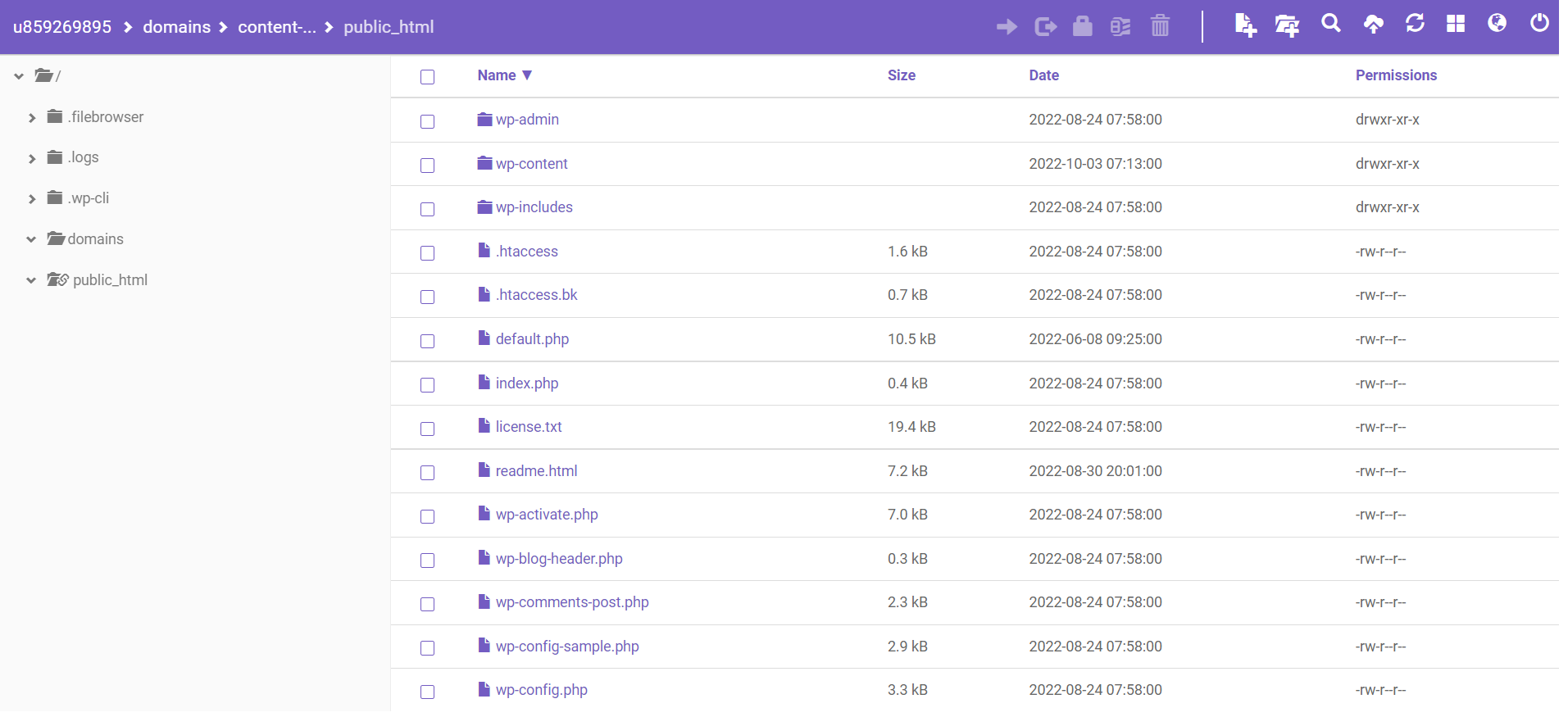
Malicious files usually have suspicious names, such as a jumble of words and numbers. It can also be slightly misspelled to trick site owners, like wp-logln.php instead of the correct wp-login-php.
3. Check the Site Code
When checking your source code for suspicious activities, keep an eye out for script attributes and hidden iframes.
Look for lines beginning with <script src=> or <iframe src=> and examine whether the URL or file names that follow are familiar. If you don’t recognize them, it could be a sign of malicious scripts.
4. Check the Database
To check your site database, download the website files first. Open hPanel, go to the Hosting menu, and click Manage on the chosen site. Scroll to Backups and select the database you want to download.
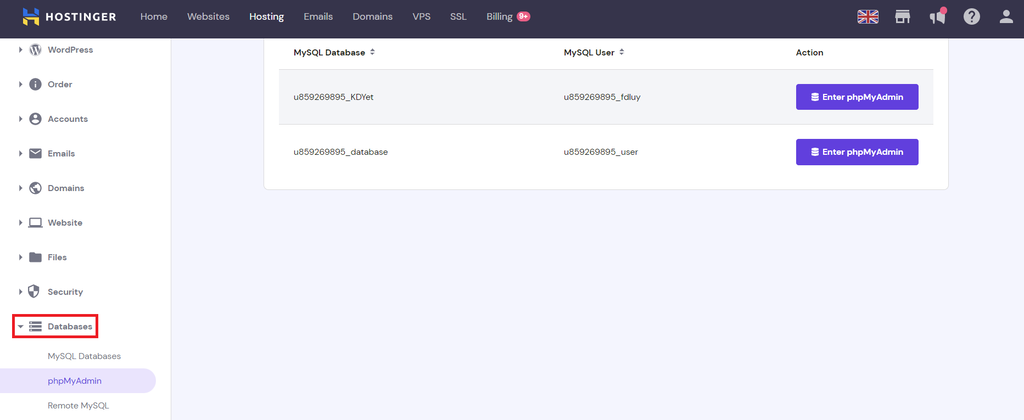
Next, do a full scan of the files with antivirus software on your computer. You can use PC antivirus software like McAfee or built-in ones like Microsoft Defender for Windows users and XProtect for Mac users.
After a full scan, go through the issues mentioned by the antivirus software report.
5. Review Using Google Safe Browsing
Google will likely block your website if it detects website security issues. Your site may also disappear from search engines if the security breach is severe enough.
To check whether your website is on Google blocklist, use Google Safe Browsing. Search your domain to see whether Google finds any unsafe content on your site.
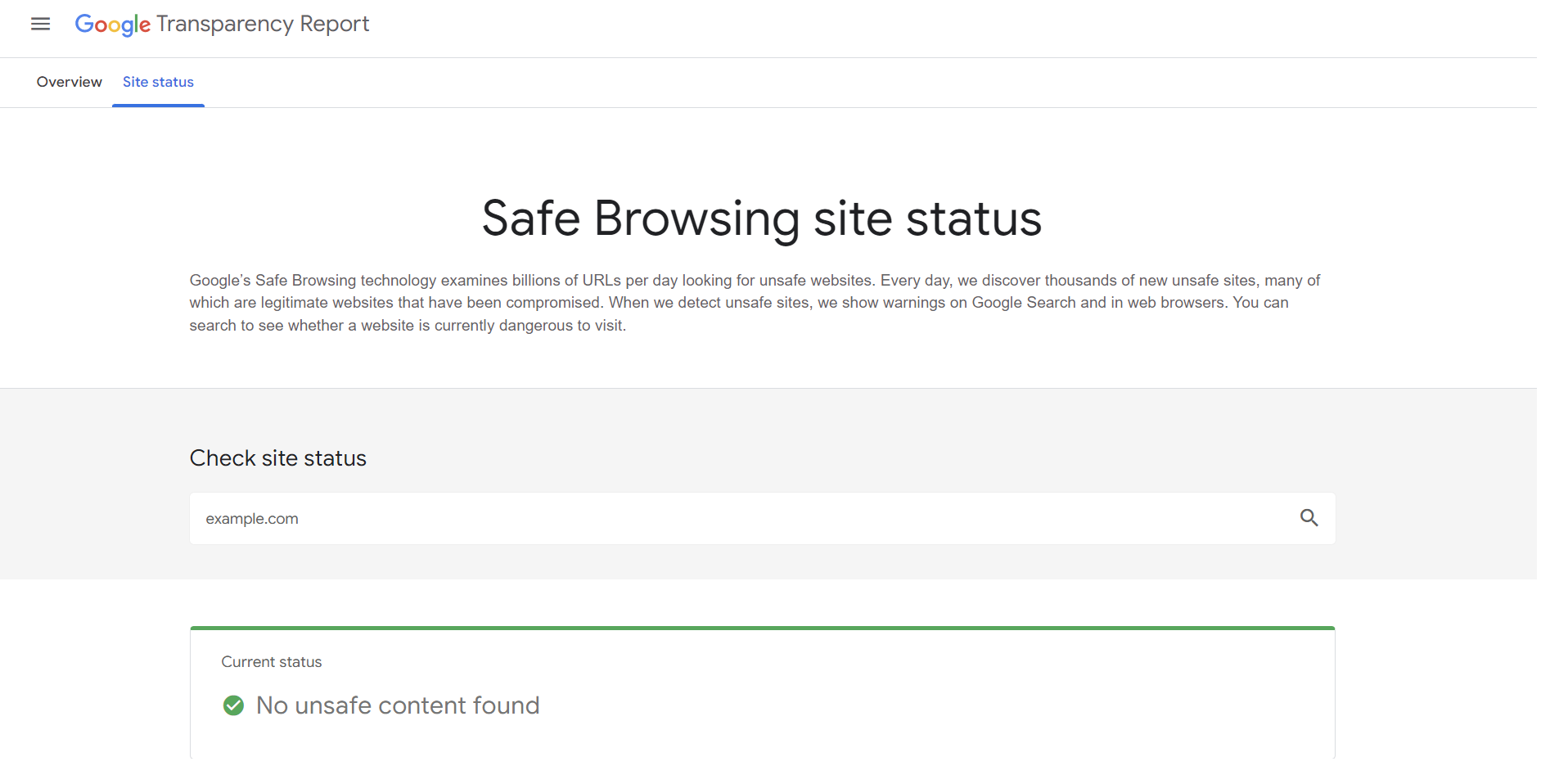
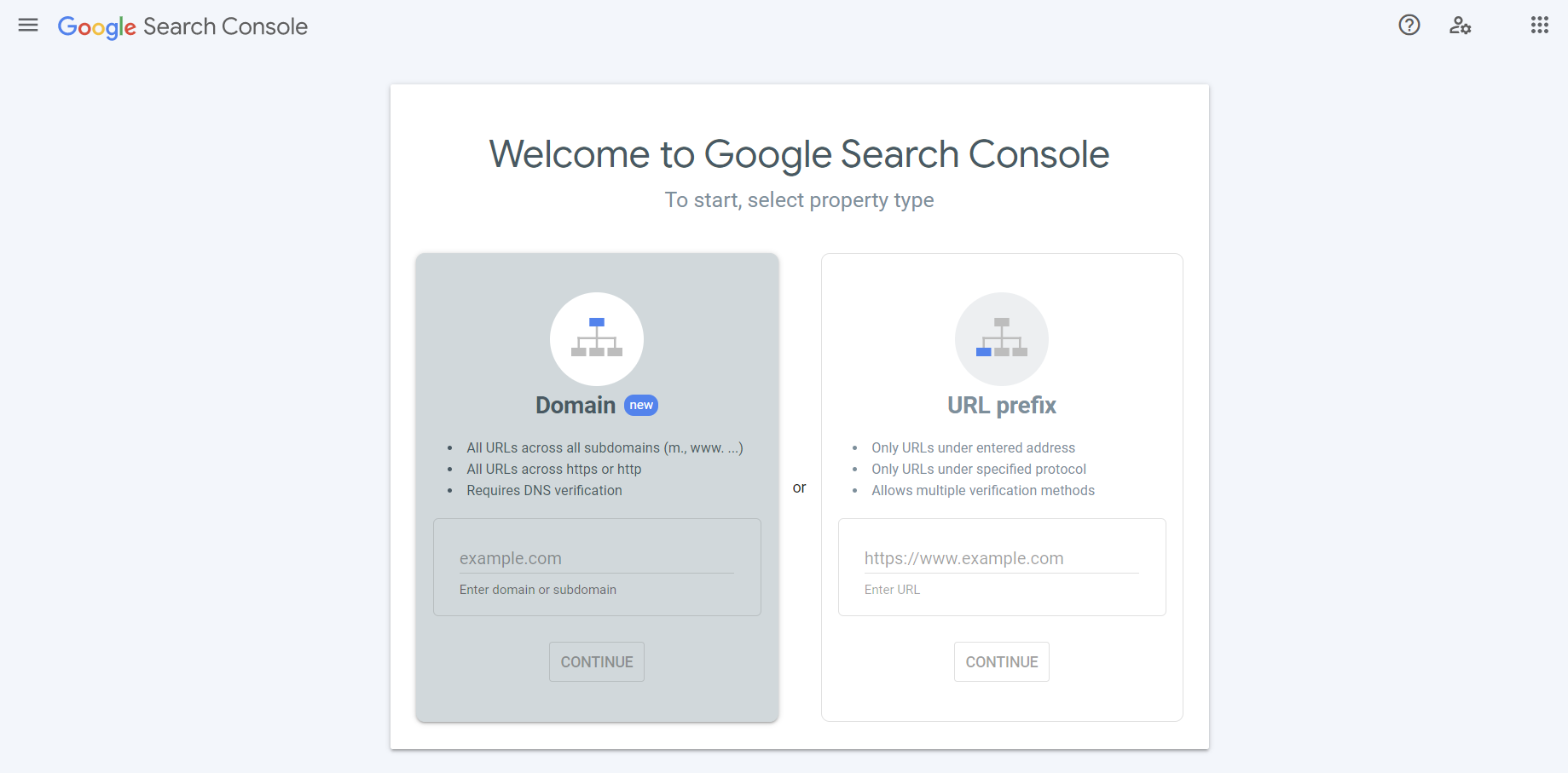
You can also use Google Search Console to check whether your site is safe to visit. You will find the information on the Security & Manuals Actions → Security Issues menu.
6. Check With Virus Scan Tools
Aside from checking your website manually, you can also use some website security tools to scan your site automatically.
For sites built with WordPress, try these plugins:
- Sucuri Security ‒ features server-side and remote scanning, post-hack security actions, and file integrity monitoring.
- Jetpack ‒ comes with malware scanning, real-time backups, and spam filtering.
- Wordfence ‒ has real-time firewall rules and malware signature updates.
- WPScan ‒ supports scheduled security scanning for known vulnerabilities of the WordPress core, plugins, and themes.
For any other type of content management system (CMS), try these tools instead:
- HostedScan Security ‒ features vulnerability scanning on networks, servers, and websites.
- SiteGuarding ‒ supports search engine blocklist monitoring, daily file scanning, and malware detection along with cleanup.
- Intruder ‒ can scan internal, external, and cloud vulnerabilities.
- ImmuniWeb ‒ comes with various website security tests adhering to GDPR and PCI DSS standards.
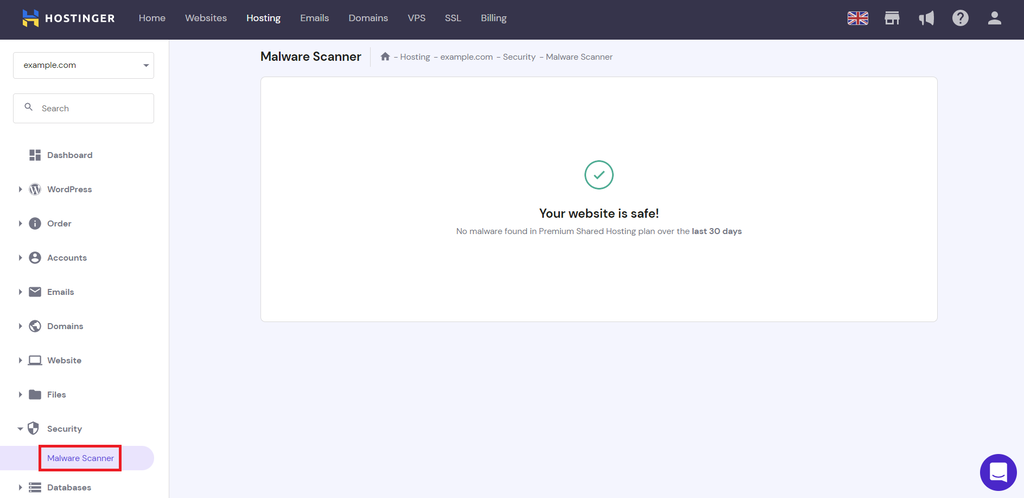
Hostinger also provides a website malware scanner in hPanel for specific hosting plans. Find this free online tool in the Hosting → Manage menu, scroll down to the Security section, and click on Malware Scanner.

How to Clean A Virus-Infected Site
The first thing you need to do is identify where the virus may be by following the steps above. The following steps vary depending on where the virus is located.
Important! Make sure that you have a backup of your website before proceeding to malware removal.
If the infection is in your core WordPress files, replace the hacked files with clean ones:
- Check your WordPress site version in the file titled wp-includes/version.php.
- Go to the official WordPress site and download a new installation that matches your version.
- Extract the installation files to your computer.
- Sign in to your file structure through FTP or your hosting account.
- Replace each infected file with a clean copy.
If the infection is in your WordPress plugin and theme files, replacing the infected files will also remove the virus:
- Download a clean plugin or theme from the official WordPress site.
- Extract the files to your computer.
- Sign in to your file structure through FTP or your hosting account.
- Replace the plugin or theme folder within ./wp-content/plugins or ./wp-content/themes with a clean copy.
If the infection is in your database, you can clean your site from the database admin panel:
- Log in to the database admin panel.
- Look for suspicious content, like a jumble of words and numbers, spam keywords, or any link you can’t identify.
- Open the row that contains said suspicious content.
- Remove it.
- Run the site to confirm it’s functioning well after removal.
- If you install any database tool, make sure to delete it.
Aside from cleaning malware infections manually, you can scan and clean your site automatically using the website security tools mentioned earlier. If you suspect your website has been hacked, we have another tutorial on how to fix a hacked website.
Conclusion
Website viruses are ever-present online, but regularly checking your website for viruses is important to maintain your site’s safety and authority.
In this article, we have explored the six ways you can keep your website virus-free, namely:
- Check site content – look for signs of unauthorized content.
- Check website files – check for suspicious files using an FTP.
- Check site code – look for suspicious code, especially in script and iframe attributes.
- Check the database – download your database and scan it with antivirus software.
- Review using Google Safe Browsing – use Google tools to check for malicious content.
- Check with virus scan tools – do a security check automatically with different virus scanning tools.
If you still have any questions regarding website viruses, leave a comment down below. Check our other tutorials to improve your website security and overall performance.

Mulan is a Digital Marketing enthusiast experienced in creating social media content. She is eager to help people learn in the simplest way possible. During her free time, Mulan likes to cook and watch sci-fi or documentaries.