How to add a WordPress custom font on your site
Mar 10, 2026
/
Domantas G.
/
5 min Read
There are countless ways to make your WordPress site look more eye-catching and engaging. One of them is by adding custom fonts to it.
However, the choice of WordPress fonts can be limited and theme-dependent. In this article, you will learn how to add custom fonts to WordPress and make your website really stand out.
Where to download fonts for WordPress?
When launching a WordPress website, most users go with the predefined font sets that come with their theme. For those who want to change them, there are numerous sources where you can find free web fonts, and Font Squirrel is one of them. There, you’ll find hundreds of fonts that are licensed for commercial work. Besides that, Google Fonts has over 1800 font families, and Edge Web Fonts, provided by Adobe, also offers a vast collection. Envato Elements is another great source, with thousands of unique premium fonts to choose from.
If you still can’t find the fonts that suit your needs best, check out Fonts.com, DaFont, and 1001 Free Fonts.
Converting fonts to a web-friendly format
It’s important to understand that not all web browsers support every custom font. Fortunately, even if your chosen font is unsupported, you can still convert it to a compatible format.
Before converting fonts from one format to another, let’s have a quick look at different font formats:
- Open Type Fonts (OTF) – the most commonly used web fonts and a registered trademark of Microsoft. This format works well with almost all major browsers.
- True Type Fonts (TTF) – developed by Microsoft and Apple in 1980. Widely used for both Windows and macOS.
- Web Open Font Format (WOFF) – broadly used format for web pages and recommended by the World Wide Web Consortium (W3C).
- WOFF 2.0 – considered a better option than WOFF 1.0 due to better compression abilities. It wasn’t always the case, but this format is now supported by all major browsers.
- Embedded OpenType Fonts (EOF) – more compact OTF fonts, used as embedded fonts on web pages. All major browsers support EOF.
If you’re not sure if your font is compatible with your default browser, you can use Font Squirrel’s Web Font Generator. This tool allows you to convert almost any font to a web-friendly format easily:
- Go to Webfont Generator.
- Click the Upload Fonts button and choose a font that you want to convert.
- Tick the box in the Agreement section to state that your fonts are legally eligible for web embedding.
- Press the Download Your Kit button and save the .zip archive to your computer.
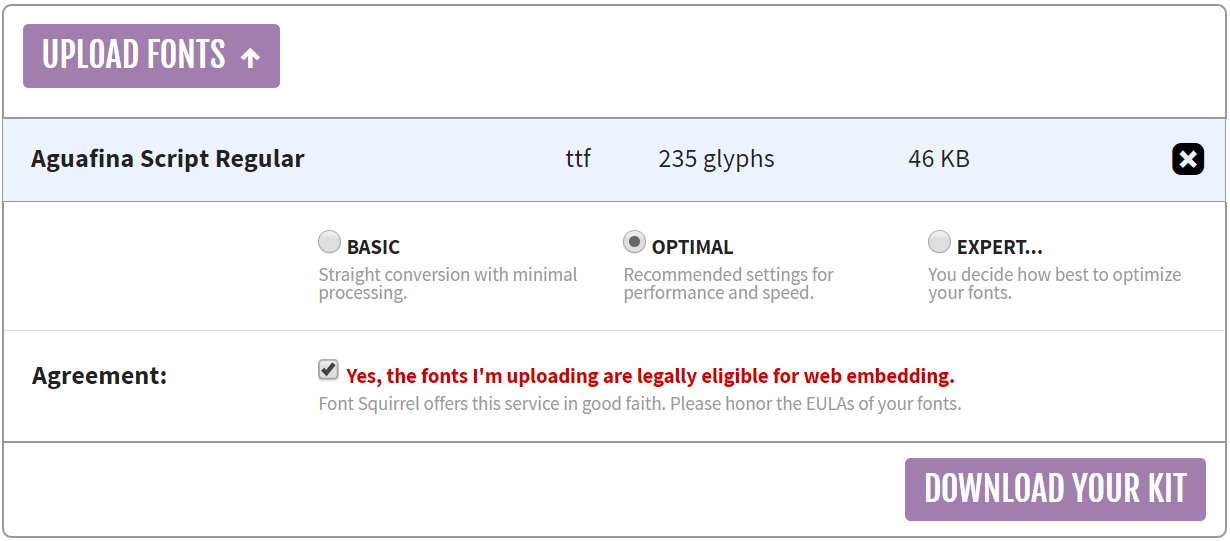
- Inside the archive, you will find fonts in WOFF and WOFF 2.0 format along with CSS files and demo HTML page.

How to add custom fonts to WordPress?
Once you have your fonts all set up and web-ready, here’s how you can add custom fonts to WordPress, manually or by using plugins.
How to manually add fonts to WordPress
If you don’t want to overburden your WordPress with plugins, you can manually add fonts to your website. You must upload your font to your WordPress host account and edit your theme’s CSS file.
- Download the font you want to use to your computer and extract the .zip archive if necessary.
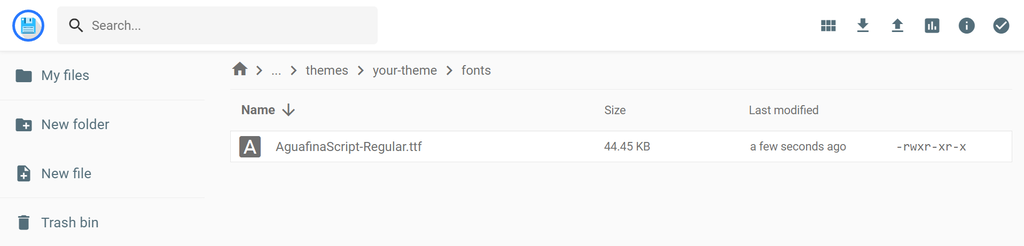
- Upload your font file to wp-content/themes/your-theme/fonts directory. Create a separate fonts folder if you don’t have one yet. You can use an FTP client like FileZilla or Hostinger’s File Manager for this task. In our example, we have uploaded AguafinaScript-Regular.ttf font using the File Manager in hPanel.
- Head to the WordPress admin area. Then, go to Appearance → Theme file editor. You’ll be presented with the style.css file. Scroll down and add the following code:
@font-face { font-family: Aguafina Script-Regular; src: url(http://test-site.com/wp-content/themes/twentynineteen/fonts/AguafinaScript-Regular.ttf); font-weight: normal; }Pro Tip
Don't forget to change font-family and URL values to match your font.
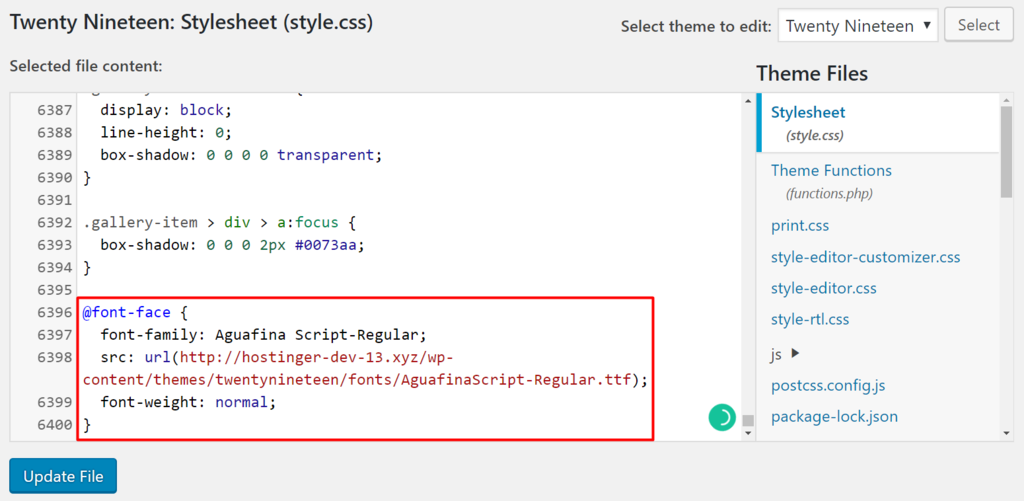
- Press the Update File button to save your changes.
Remember, the font-face code loads the font every time a visitor visits your website. However, the font is still not applied to any element yet.
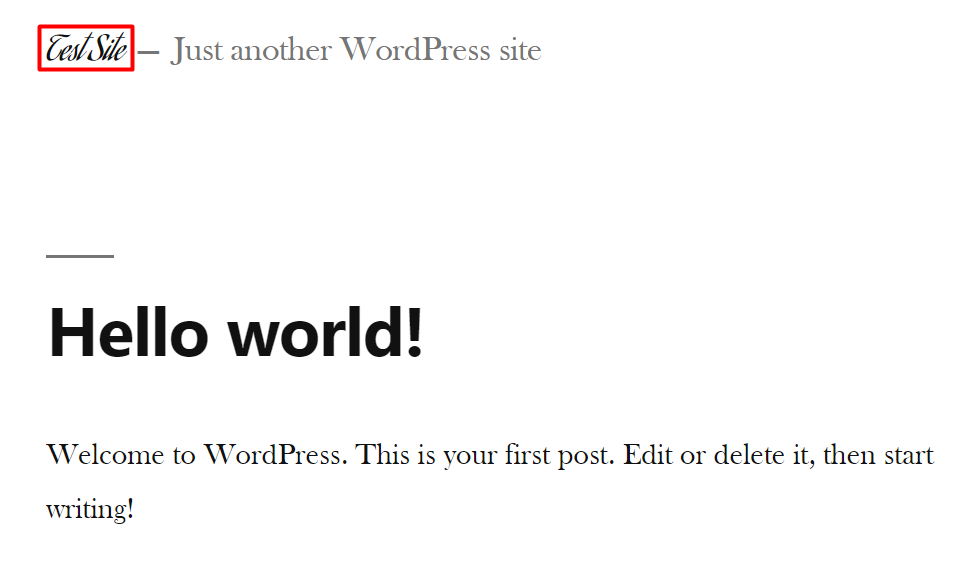
To assign the font for a specific element, you need to edit the same style.css file. For example, the following code would apply Aguafina Script font to our website’s title:
.site-title {
font-family: "Aguafina Script-Regular", Arial, sans-serif;
}
And here’s the result:
How to add fonts in WordPress using plugins
Installing plugins to add custom fonts to WordPress is probably the simplest way to accomplish the task. Here are a few of the most popular options:
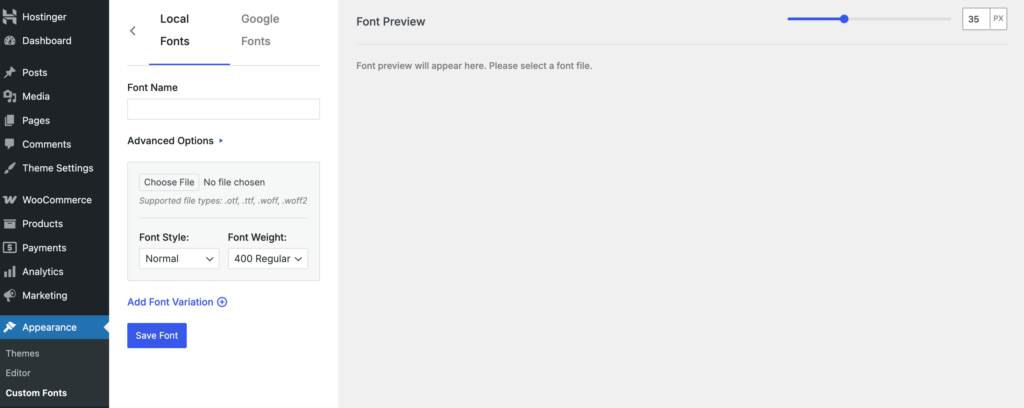
This is a straightforward and efficient plugin that allows WordPress users to upload their own custom fonts to their website or use Google Fonts that suit their needs, while hosting them locally on their own web server. This guarantees good performance as it reduces the number of external requests that typically slow page load speed down.
Once installed, you can reach the plugin under Appearance in your WordPress dashboard. Upload the fonts from your computer using the Local Fonts option or choose from hundreds of Google Fonts. Once you’re all set, click on Save Font and that’s it. The fonts will now be available for you to apply them to various elements of your website.
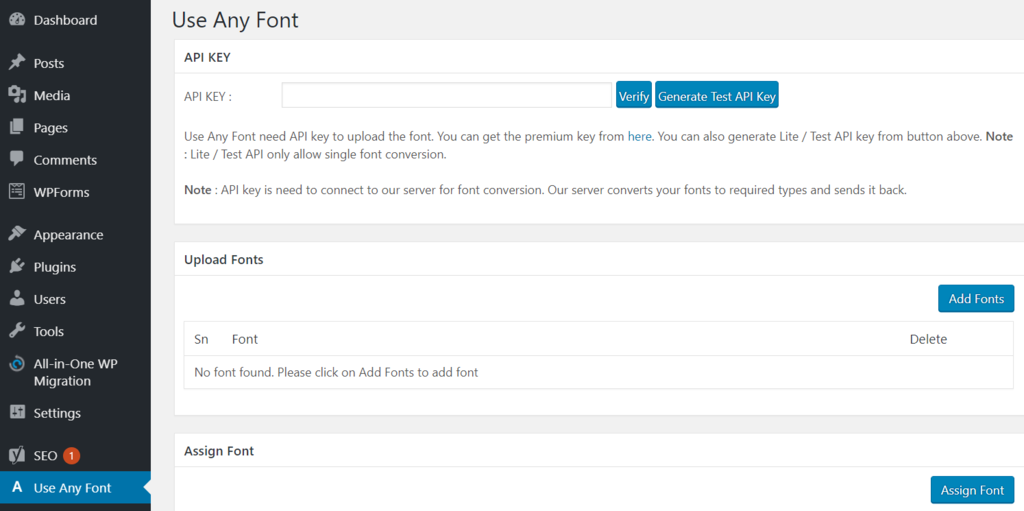
Use Any Font is another excellent plugin that can help you add various fonts to your WordPress website. It’s very flexible as you can upload any font format you want and it will automatically convert it to a web-friendly one. Once installed, create a free API key and press the Verify button.
After the verification, you can upload fonts in TTF, OTF, and WOFF and WOFF 2.0 formats. Use Another Font allows you to assign fonts to custom elements as well.
Conclusion
You now know how to download and convert fonts into a web-friendly format. You also discovered two ways how to add custom fonts to WordPress. Whichever fonts you choose, make sure that they’re suited to your site’s theme and style. Don’t go for too many fonts at the same time. The golder rule is to use two or three maximum. Also, don’t forget to keep the best accessibility practices in mind and to always use highly readable fonts.
If you have any questions regarding how to add fonts to WordPress, share your thoughts in the comment section below, and visit our WordPress guide for any general questions about the CMS.
More advanced WordPress tutorials
Change font size
WordPress slider
WordPress image sizes
WordPress page builders
WordPress custom fields
WordPress custom font FAQ
How do I add a custom font to WordPress without plugins?
To manually add custom fonts to WordPress, you will need to use an FTP client like FileZilla or a File Manager. You will need to upload the custom font to your hosting account and edit your theme’s CSS file.
Can I use any font on WordPress?
Yes, you can use any font on WordPress. However, it is important to keep in mind that some fonts may be too large or too small for your website, so it is important to make sure that the font you choose is compatible with your theme.
Is it illegal to use the same font as another company?
The legality of using a particular font depends on the context and its usage. Fonts are considered intellectual property and may be protected by copyright laws in most countries. Ultimately, whether it’s illegal to use someone else’s font varies according to each country’s laws so you should consult a lawyer.

Domantas leads the content and SEO teams forward with fresh ideas and out of the box approaches. Armed with extensive SEO and marketing knowledge, he aims to spread the word of Hostinger to every corner of the world. During his free time, Domantas likes to hone his web development skills and travel to exotic places.



Comments
September 25 2019
How do you create a free API key for Use Any Font?
September 26 2019
Hey Molly, You can get Google API for fonts here: https://developers.google.com/fonts/docs/developer_api
November 08 2020
Do you have any code that will allow us to upload any type of font to WordPress directly and it will show in al page builders like Divi?
February 02 2021
Hi, Alex! For Divi-specific upload of fonts, you can check out over here ;)
March 16 2022
How do you use the Terminal on MacOS to install fonts? Install Mac Fonts on Terminal If you haven’t already, install and update Brew and its cask feature. Then type the following into the Terminal command line: brew update. brew tap homebrew/cask. brew tap homebrew/cask-fonts. brew search font- brew search font- | less. brew search nerd-font | less. Fonts Monster
March 16 2022
Thanks for sharing :)
May 03 2022
hi i am trying to make a website for customised gifts how can I plugin a font selection for the user to choose from a list for their note on the gift
May 04 2022
Hi there! As far as I understand, this should come after choosing the product, is that right? In that case, I would suggest investigating further your eCommerce plugin and looking for a product feature plugin that's compatible with your eCommerce plugin.