How to install NocoDB with Docker and build a no-code database app
May 19, 2026
/
Domantas P.
/
7 min Read

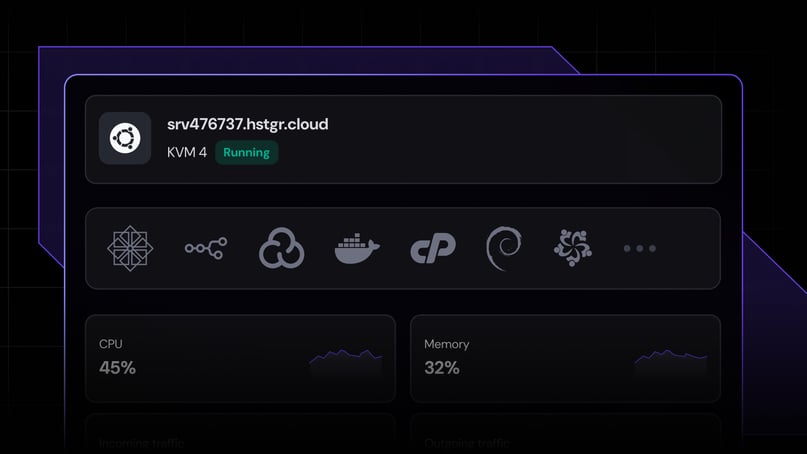
To install NocoDB with Docker and build a no-code database app, run the official NocoDB container, connect it to SQLite or PostgreSQL, and open the dashboard through your server’s browser URL. Once deployed, NocoDB turns database tables into spreadsheet-style workspaces where you can edit records, create views, invite users, and manage data without building a custom admin panel.
The process has five main parts:
- Prepare Docker, server access, storage, and a database option.
- Run NocoDB with SQLite for testing or PostgreSQL for production.
- Open the NocoDB dashboard and create your first workspace.
- Turn database tables into grid, form, kanban, gallery, or calendar views.
- Manage the container with logs, updates, backups, firewall rules, and user permissions.
For a faster setup, Hostinger’s Docker template deploys NocoDB on a VPS without manually pulling the image or configuring the container from the command line.
What do you need before installing NocoDB with Docker?
Before installing NocoDB with Docker, prepare a server environment, a database option, and access details for the web dashboard. These requirements make sure the container runs correctly and keeps your NocoDB data available after restarts or updates.
You need:
- A VPS or local machine – use a VPS for a self-hosted NocoDB app that your team can access online, or a local machine for testing.
- Docker installed – NocoDB runs from the official Docker image, so Docker must be installed before you start the container.
- Terminal access – use SSH or a local terminal to run Docker commands.
- An available port – NocoDB uses port 8080 by default. Make sure this port is not already used by another service.
- Persistent storage – map a Docker volume or local folder to the container so NocoDB data stays available after restarts.
- A database option – use SQLite for a simple test setup or PostgreSQL for a production-ready deployment.
- A secure JWT secret – set a long, unique NC_AUTH_JWT_SECRET value if you connect NocoDB to an external database.
- Firewall access – allow traffic to the port where NocoDB runs, especially when deploying it on a VPS.
For a quick test, SQLite is enough because it stores data in the mapped NocoDB data directory. For a team workspace or production app, use PostgreSQL because it separates the application container from the database and handles larger, multi-user workloads more reliably.
How to install NocoDB with Docker
You can install NocoDB with Docker by running the official nocodb/nocodb image as a container and exposing its web interface on port 8080. For a quick test setup, use SQLite. For a production setup or a multi-user database app, connect NocoDB to PostgreSQL or another external database.
Before starting, make sure Docker is installed on your server and that port 8080 is available.
1. Run NocoDB with SQLite
SQLite is the simplest way to get started with NocoDB because it doesn’t require a separate database server. Run this command from the directory where you want to store NocoDB data:
docker run -d --name nocodb
-v "$(pwd)"/nocodb:/usr/app/data/
-p 8080:8080
nocodb/nocodb:latest
This command does four things:
- –name nocodb creates a container named nocodb.
- -v “$(pwd)”/nocodb:/usr/app/data/ stores NocoDB data in a persistent local folder.
- -p 8080:8080 maps the container’s web interface to port 8080 on your server.
- nocodb/nocodb:latest downloads and runs the latest official NocoDB Docker image.
The volume mapping is important. Without it, your NocoDB data may be lost when the container is removed.
2. Run NocoDB with PostgreSQL
PostgreSQL is better for production projects because it separates the NocoDB application from the database layer. Use this setup if you plan to manage larger datasets, invite multiple users, or connect NocoDB to an existing database.
Replace the database host, username, password, database name, and JWT secret before running the command:
docker run -d --name nocodb
-v "$(pwd)"/nocodb:/usr/app/data/
-p 8080:8080
-e NC_DB="pg://your-database-host:5432?u=your-username&p=your-password&d=your-database-name"
-e NC_AUTH_JWT_SECRET="replace-this-with-a-secure-random-secret"
nocodb/nocodb:latest
In this command:
- NC_DB tells NocoDB how to connect to PostgreSQL.
- NC_AUTH_JWT_SECRET sets the secret key used for authentication.
- your-database-host should point to your PostgreSQL server.
- your-username, your-password, and your-database-name should match your PostgreSQL credentials.
Use a long, unique value for NC_AUTH_JWT_SECRET. Do not reuse the example value in a live deployment.
3. Open the NocoDB dashboard
After the container starts, open NocoDB in your browser:
http://localhost:8080
If NocoDB is running on a VPS, replace localhost with your server IP address:
http://your-server-ip:8080
From there, create your admin account and start building your no-code database interface. You can create a new base, connect an existing database, or import data into a spreadsheet-style workspace.
4. Check whether the container is running
Use this command to confirm that the NocoDB container is active:
docker ps
If the container is running, you should see nocodb/nocodb:latest in the image column and 0.0.0.0:8080->8080/tcp in the ports column.
If NocoDB doesn’t open in your browser, check the container logs:
docker logs nocodb
The logs help identify common issues, such as port conflicts, incorrect database credentials, or failed container startup.
How to deploy NocoDB with Hostinger’s Docker template
Hostinger’s Docker catalog lets you deploy NocoDB without manually pulling the Docker image, configuring the container, or mapping ports through the command line. The template creates a ready-to-use NocoDB instance on your VPS, so you can move straight to setting up your no-code database interface.
Here’s how to deploy it:
- Log in to hPanel.
- Go to VPS and choose your server.
- Open OS & Panel.
- Select Docker templates.
- Choose NocoDB from the application catalog.
- Click Install and wait for the deployment to finish.
- Open the provided URL or use your VPS IP address to access the NocoDB dashboard.
- Create your admin account and start configuring your workspace.
After deployment, NocoDB runs as a Docker container on your VPS. You can manage it from Hostinger’s Docker manager instead of using only terminal commands. This is useful for checking container status, viewing logs, restarting the application, or updating the container when a new version is available.
Hostinger’s template is best suited for users who want the benefits of self-hosting without having to manually complete every Docker setup step. You still control the VPS environment, database app, users, and stored data, but the initial deployment process is faster than running NocoDB from scratch.
Once NocoDB is running, connect your database or create a new base. Then, use grid, form, kanban, gallery, or calendar views to turn your data into a spreadsheet-style app for your team.
How to turn a database into a spreadsheet-style app with NocoDB
NocoDB turns a database into a spreadsheet-style app by converting database tables into visual workspaces. Instead of writing SQL queries or building a custom admin panel, you can manage records through editable rows, fields, filters, views, forms, and permissions.
After installing NocoDB, open the dashboard and follow these steps:
- Create a workspace – use a workspace to group related databases, tables, and team members.
- Create or connect a base – start with a new base or connect NocoDB to an existing database.
- Add database tables – create tables for the data you want to manage, such as customers, orders, projects, leads, or inventory.
- Customize fields – define field types like text, number, date, checkbox, attachment, single select, formula, lookup, or linked record.
- Choose a view – use grid view for spreadsheet-style editing, then add kanban, gallery, calendar, or form views for different workflows.
- Set user permissions – invite team members and decide who can view, edit, create, or manage records.
- Use APIs or webhooks – connect NocoDB to other tools through generated APIs or automation workflows.
For example, a sales team can connect a customer database to NocoDB and manage it as a CRM. The grid view can show every lead as a spreadsheet row, the kanban view can group leads by pipeline stage, and the form view can collect new inquiries from a website.
The main benefit is that NocoDB keeps the database structure in place while making the data easier to use. Developers can still work with the underlying database, while non-technical users can update records, filter information, and collaborate through a visual interface.
How to manage NocoDB after installation
NocoDB needs regular container checks, updates, backups, and access controls after installation. These tasks keep the app available for users and protect the database records behind your spreadsheet-style interface.
Check the NocoDB container status
Start by checking whether the NocoDB container is running:
docker ps
If the container is active, the output should show the nocodb/nocodb:latest image and port 8080 mapped to your server.
If NocoDB doesn’t open in your browser, check the container logs:
docker logs nocodb
The logs help identify startup errors, port conflicts, database connection issues, or missing environment variables.
Restart or stop the NocoDB container
Restart NocoDB when the container is running but the dashboard is not responding:
docker restart nocodb
To stop and remove the container, use:
docker stop nocodb
docker rm nocodb
Only remove the container after confirming that your data is stored in a persistent volume or external database. The Docker volume keeps NocoDB data outside the container, so it remains available after restarts or updates.
Update NocoDB safely
Update NocoDB by pulling the latest Docker image and recreating the container with the same volume and environment variables:
docker pull nocodb/nocodb:latest
Before updating, create a backup of your database and NocoDB data directory. This is especially important for production setups that use PostgreSQL or contain team workspaces, forms, API tokens, and permission settings.
Secure your NocoDB deployment
Secure NocoDB by limiting access to the server, protecting database credentials, and assigning users only the permissions they need.
Follow these practices:
- Use a strong JWT secret – set a long, unique NC_AUTH_JWT_SECRET value instead of reusing examples from documentation.
- Protect database credentials – avoid sharing Docker commands that expose usernames, passwords, or connection strings.
- Limit open ports – expose only the ports required for NocoDB and block unused ports with a firewall.
- Use HTTPS – connect a domain and add an SSL certificate before using NocoDB for real business data.
- Create role-based access – invite users with the minimum permissions they need to view, edit, or manage records.
- Back up regularly – back up both the connected database and the NocoDB data directory.
- Update the container – keep the NocoDB image current to receive bug fixes and security improvements.
Next steps for building a no-code database app
Once NocoDB is running, start with a small database workflow before adding more users, views, and automations. This helps you validate the structure of your no-code app before relying on it for production data.
First, decide what your app should manage. NocoDB works well for internal tools like CRMs, inventory trackers, project dashboards, content calendars, applicant trackers, and customer support databases. Each workflow should have a clear main table, such as customers, products, tasks, articles, applicants, or tickets.
Next, create the views your team needs. Use grid view for spreadsheet-style editing, form view for collecting new records, kanban view for pipeline stages, calendar view for date-based work, and gallery view for visual records. Keep the first setup simple, then add more fields and views when users need them.
Once the basic app structure is in place, invite team members and assign permissions. Give each user only the access they need. For example, sales reps may need permission to update leads, while managers may need access to pipeline reports and workspace settings.
Finally, connect NocoDB to the rest of your workflow. Use APIs, webhooks, or external automation tools to send data between NocoDB and your website, forms, analytics tools, or internal systems. If your app will handle business-critical data, use a production database like PostgreSQL, enable HTTPS, and schedule regular backups before expanding usage.
With Docker, NocoDB gives you a self-hosted way to turn database records into a collaborative spreadsheet-style app. With Hostinger’s Docker template, you can skip most of the manual setup and focus on building the database interface your team actually needs.

Domantas is a Content SEO Specialist who focuses on researching, writing, and optimizing content for organic growth. He explores content opportunities through keyword, market, and audience research to create search-driven content that matches user intent. Domantas also manages content workflows and timelines, ensuring SEO content initiatives are delivered accurately and on schedule. Follow him on LinkedIn.