How to self-host a private Git server with Gitea and Docker
May 21, 2026
/
By Domantas P.
/
7 min Read
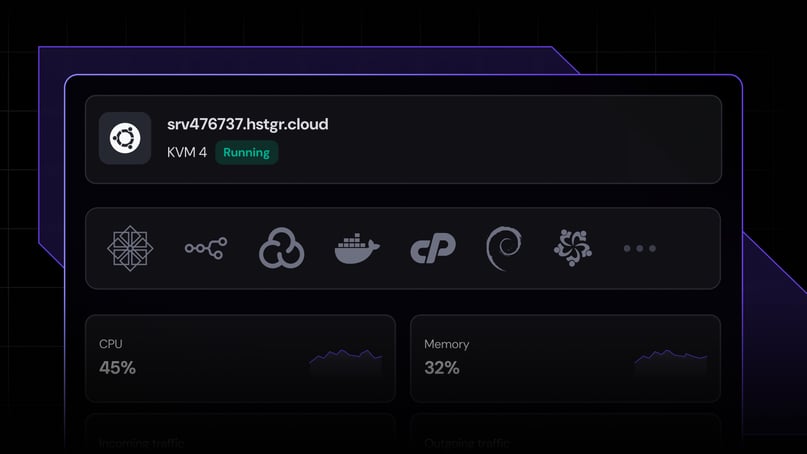
To self-host a private Git server with Gitea and Docker, deploy Gitea with Hostinger’s Docker template or install it manually with Docker Compose. The Hostinger template gives you a faster setup path on a VPS, while Docker Compose gives you more control over ports, storage, databases, and container configuration.
There are two main ways to set up Gitea with Docker:
- Use Hostinger’s Docker template to deploy Gitea faster without writing the Docker Compose configuration manually.
- Install Gitea manually with Docker Compose to control the image version, port mapping, persistent storage, and database setup.
- Choose the right database based on the server’s purpose: SQLite for personal or test projects, and PostgreSQL or MySQL for production team use.
- Configure ports and storage correctly so the web interface, SSH Git access, repositories, settings, and uploaded files keep working after container updates.
- Secure and maintain the server by adjusting Gitea-specific access settings, linking it to a hardened VPS setup, backing up data, and updating the Docker image safely.
After setup, the Gitea server can host private application code, infrastructure-as-code files, deployment scripts, internal documentation, and CI/CD workflows from your own VPS.
What do you need before installing Gitea with Docker?
Before installing Gitea with Docker, you need a VPS with Docker support, SSH access, and enough storage for your repositories. You should also set up a domain or subdomain, such as git.example.com, if you want to access Gitea via a clean URL instead of the server IP address.
For a basic setup, Gitea can run with Docker and its default database configuration. For a team or production Git server, use persistent storage and a dedicated database like PostgreSQL or MySQL so repositories, users, issues, and settings remain safe when the container is updated or recreated.
At a minimum, prepare the following:
- A VPS with Docker and Docker Compose
- SSH access to the server
- A domain or subdomain for the Gitea web interface
- Open ports for the web UI and Git over SSH
- Persistent storage for Gitea data and backups
After these requirements are ready, you can deploy Gitea with Hostinger’s Docker template or install it manually with Docker Compose.
How to deploy Gitea with Hostinger’s Docker template
The fastest way to deploy Gitea with Docker is to use Hostinger’s Gitea Docker template. This method sets up Gitea on a VPS without requiring you to write a Docker Compose file manually.
First, open Hostinger’s Gitea Docker template page and choose a VPS plan. The catalog currently recommends the KVM 2 plan for Gitea, which includes 2 vCPU cores, 8 GB RAM, 100 GB NVMe storage, and 8 TB bandwidth. This provides Gitea with the resources for private repositories, issue tracking, pull requests, and small-team collaboration.
Next, select Deploy to start the VPS deployment process. After the server is ready, open the Gitea web interface and complete the initial setup. During this step, create the administrator account, confirm the server URL, and choose how Gitea should handle repository access.
After logging in, create your first private repository and test Git access from your local machine. For example, clone the repository, add a test file, commit the change, and push it back to Gitea. This confirms that the web interface, repository storage, and Git access are working correctly.
Once the basic deployment works, connect a domain or subdomain, enable SSL, and configure user access. These steps make the private Git server easier to access and safer for teams that use Gitea to store application code, infrastructure files, deployment scripts, or internal documentation.
How to install Gitea manually with Docker Compose
To install Gitea manually, create a Docker Compose file, start the container, and complete the Gitea setup wizard in your browser. This method gives you more control over the Docker image, ports, volumes, and database configuration than a template-based deployment.
First, connect to your VPS and create a dedicated directory for Gitea:
ssh root@your-server-ip
mkdir gitea
cd gitea
Next, create a docker-compose.yml file:
nano docker-compose.yml
Add the following configuration:
networks:
gitea:
external: false
services:
server:
image: docker.gitea.com/gitea:1.26.1
container_name: gitea
environment:
- USER_UID=1000
- USER_GID=1000
restart: always
networks:
- gitea
volumes:
- ./gitea:/data
- /etc/timezone:/etc/timezone:ro
- /etc/localtime:/etc/localtime:ro
ports:
- "3000:3000"
- "222:22"
This Compose file creates one Gitea container, stores Gitea data in the ./gitea directory, exposes the web interface on port 3000, and maps Git over SSH to port 222. The /data directory is important because it stores repositories, configuration files, attachments, avatars, and other persistent Gitea data.
Start Gitea in the background:
docker compose up -d
Check whether the container is running:
docker compose ps
View the logs if Gitea does not start correctly:
docker compose logs
After the container starts, open the Gitea setup page in your browser:
http://your-server-ip:3000
Follow the installation wizard and create the administrator account. For a simple setup, use the default SQLite database. For a production or team setup, configure PostgreSQL or MySQL before completing the wizard.
When the installation is complete, log in to Gitea and create a private repository. Then test the server from your local machine:
git clone ssh://git@your-server-ip:222/username/repository-name.git
If the repository clones successfully, your private Git server is ready for code hosting. You can then add users, create organizations, configure repository permissions, and connect a domain or reverse proxy for HTTPS access.
Why use Gitea and Docker for developer infrastructure?
Gitea and Docker help developers run a lightweight, portable, and easier-to-maintain private Git server. Gitea manages repositories, pull requests, issues, and code reviews, while Docker packages the application into a container that runs consistently on a VPS.
This setup is useful when you want to keep development assets under your control. For example, teams can use Gitea to store application code, Docker Compose files, deployment scripts, Terraform configurations, Ansible playbooks, Kubernetes manifests, and internal documentation in private repositories.
Docker also makes the Gitea environment easier to reproduce. Instead of installing every dependency directly on the server, you define the application, ports, volumes, and database connection in a container-based setup. This keeps the Git server separate from other services, making future migrations or upgrades more predictable.
For developer infrastructure, the main benefits are:
- Private code ownership – keep repositories, access rules, and project history on your own VPS.
- Version-controlled infrastructure files – track changes to scripts, environment templates, and deployment manifests.
- Simpler collaboration – use issues, pull requests, reviews, and organizations to manage internal development work.
- Portable deployment – move or recreate the Gitea setup with Docker configuration and persistent backups.
- CI/CD readiness – connect repositories to webhooks, runners, or Gitea Actions when you are ready to automate builds and deployments.
This makes Gitea a practical choice for small teams, solo developers, and agencies that need a self-hosted Git platform without running a heavier DevOps stack.
Should you use SQLite, MySQL, or PostgreSQL with Gitea?
Gitea supports SQLite, MySQL, and PostgreSQL. SQLite is the simplest option for personal projects and testing, while PostgreSQL or MySQL is better for production setups with multiple users, frequent repository activity, and long-term growth.
Use SQLite if you are setting up Gitea for yourself or testing the server before a larger deployment. It does not require a separate database container, so the installation is faster and easier to maintain. However, SQLite is less suitable for busy team environments because the database runs as a local file. For a deeper breakdown of how SQLite differs from MySQL, read our guide on SQLite vs MySQL.
Use PostgreSQL if you want a reliable production setup for a private Git server. PostgreSQL is a strong default choice for teams because it handles concurrent activity, larger datasets, and regular repository operations better than a file-based database.
Use MySQL if your existing infrastructure already uses MySQL or MariaDB. This keeps database management consistent with the rest of your stack and makes backups easier if your team already has MySQL workflows.
For most Gitea Docker installations, start with SQLite only if the server is personal or experimental. Choose PostgreSQL for a team Git server that stores application code, infrastructure files, pull requests, issues, and CI/CD-related activity.
How to configure Gitea ports, SSH, and persistent storage
Gitea requires two ports: a web port for the browser interface and an SSH port for Git commands. In a Docker Compose setup, the web interface usually runs on port 3000, while Git over SSH uses the container’s internal port 22.
In the earlier Compose file, this port mapping handles both:
ports:
"3000:3000"
"222:22"
The first value is the VPS port, and the second value is the container port. For example, 3000:3000 means users can open Gitea at:
http://your-server-ip:3000
The 222:22 mapping means SSH Git commands use port 222 on the VPS instead of the default SSH port 22. This prevents Gitea’s SSH service from conflicting with the server’s own SSH login service.
For example, a repository clone URL can use this format:
git clone ssh://git@your-server-ip:222/username/repository-name.git
You also need persistent storage so that Gitea data remains available when the container restarts, updates, or is recreated. In the Compose file, this volume stores Gitea data in the local ./gitea directory:
volumes:
./gitea:/data
The /data directory stores repositories, configuration files, attachments, avatars, logs, and other Gitea files. Do not remove this directory unless you have a current backup.
For production setups, back up both the /data directory and the database. This protects your repositories, users, issues, pull requests, and server settings before updates or migrations.
How to secure a self-hosted Gitea server
To secure a self-hosted Gitea server, start with Gitea-specific settings: protect the administrator account, disable public registration if you do not need it, keep repositories private by default, and limit user permissions by organization or team.
After the first login, review these settings in the Gitea admin panel:
- Disable open registration for private team servers.
- Require sign-in to view repositories that should not be public.
- Use strong passwords for administrator and maintainer accounts.
- Give users only the repository or organization access they need.
- Keep the Gitea Docker image updated after backing up your data.
- Back up the Gitea /data directory and database before upgrades.
You should also connect Gitea to a domain and enable HTTPS before sharing the server with other users. HTTPS protects browser sessions, login credentials, and repository activity in the web interface.
For full server hardening, follow Hostinger’s VPS security guide. It covers the broader VPS-level protections that also apply to Gitea, including SSH security, firewall rules, malware protection, software updates, and access management. Place this link after the Gitea-specific checklist using an anchor such as VPS security best practices.
How to maintain and update your Gitea Docker installation
After deploying Gitea, maintain the installation by backing up your data, updating the Docker image, and checking the container after each restart. This keeps your private Git server stable as repositories, users, issues, and pull requests grow.
Before updating Gitea, back up the /data directory and your database. The /data directory stores Gitea configuration files, repositories, avatars, attachments, and other application data. If you use PostgreSQL or MySQL, back up that database separately before changing the container version.
To update a Docker Compose installation, go to your Gitea project directory and pull the latest image:
cd gitea
docker compose pull
Then restart the container:
docker compose up -d
Check whether Gitea is running:
docker compose ps
If the container does not start correctly, review the logs:
docker compose logs
For production setups, avoid unplanned upgrades. Pin the Gitea image to a specific version in your docker-compose.yml file, test major version updates before applying them to a team server, and keep a recent backup that you can restore if the update fails.
After the update, log in to Gitea and test the main workflows: open the web interface, create or view a repository, clone a repository over SSH, push a test commit, and confirm that users can access the projects they need.
A maintained Gitea server becomes a reliable part of your developer infrastructure. Once updates and backups are in place, you can use it to host private application code, infrastructure-as-code files, deployment scripts, internal documentation, and CI/CD workflows from your own VPS.

Domantas is a Content SEO Specialist who focuses on researching, writing, and optimizing content for organic growth. He explores content opportunities through keyword, market, and audience research to create search-driven content that matches user intent. Domantas also manages content workflows and timelines, ensuring SEO content initiatives are delivered accurately and on schedule. Follow him on LinkedIn.